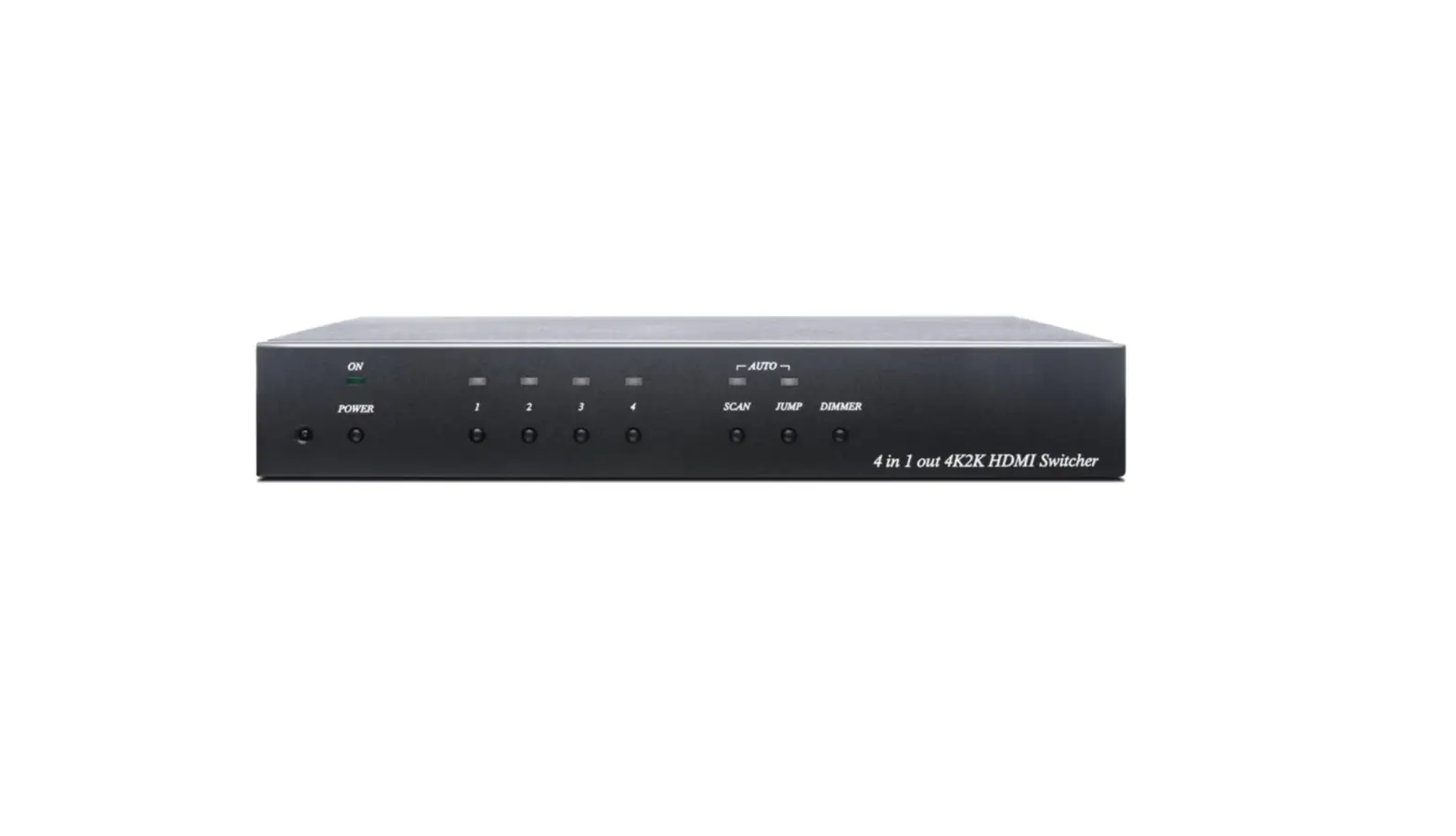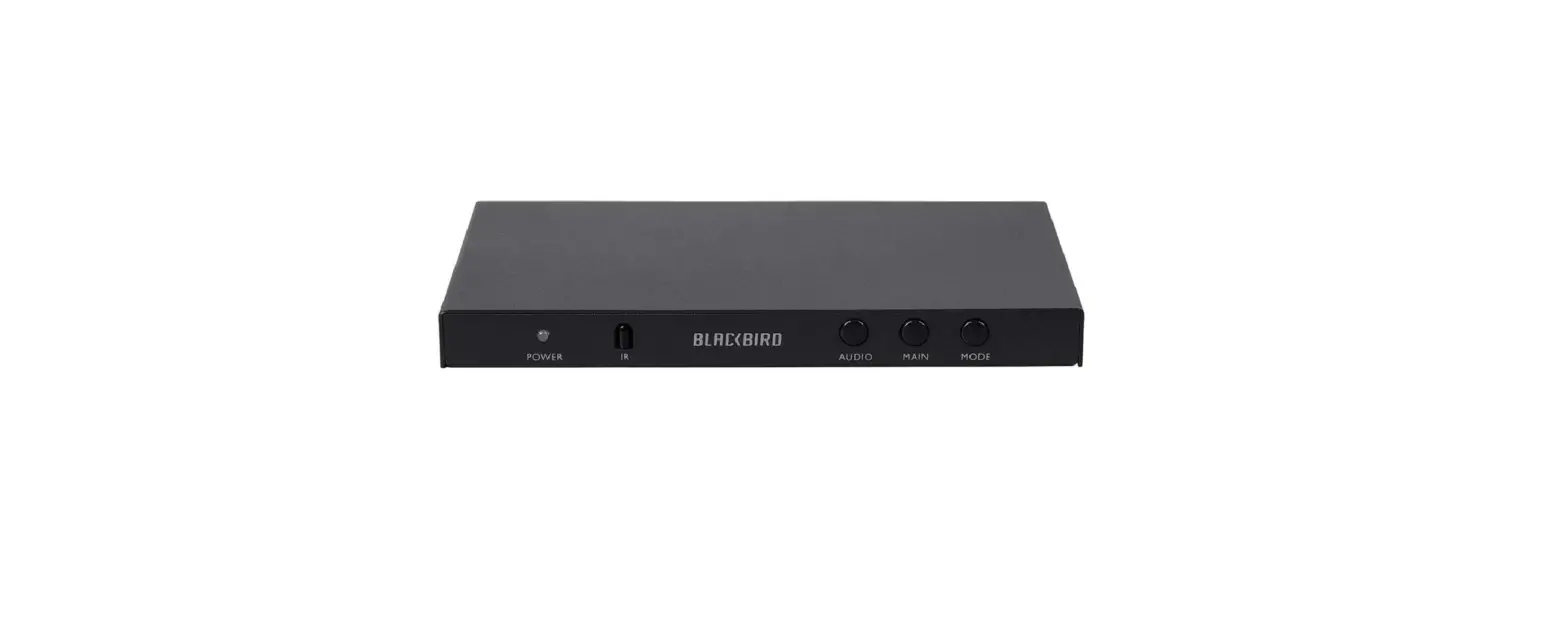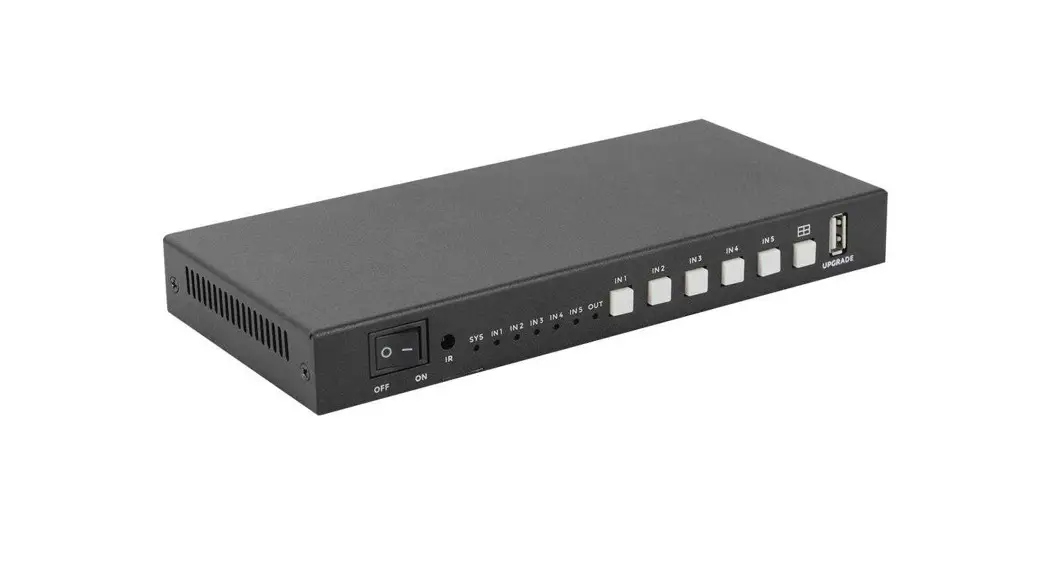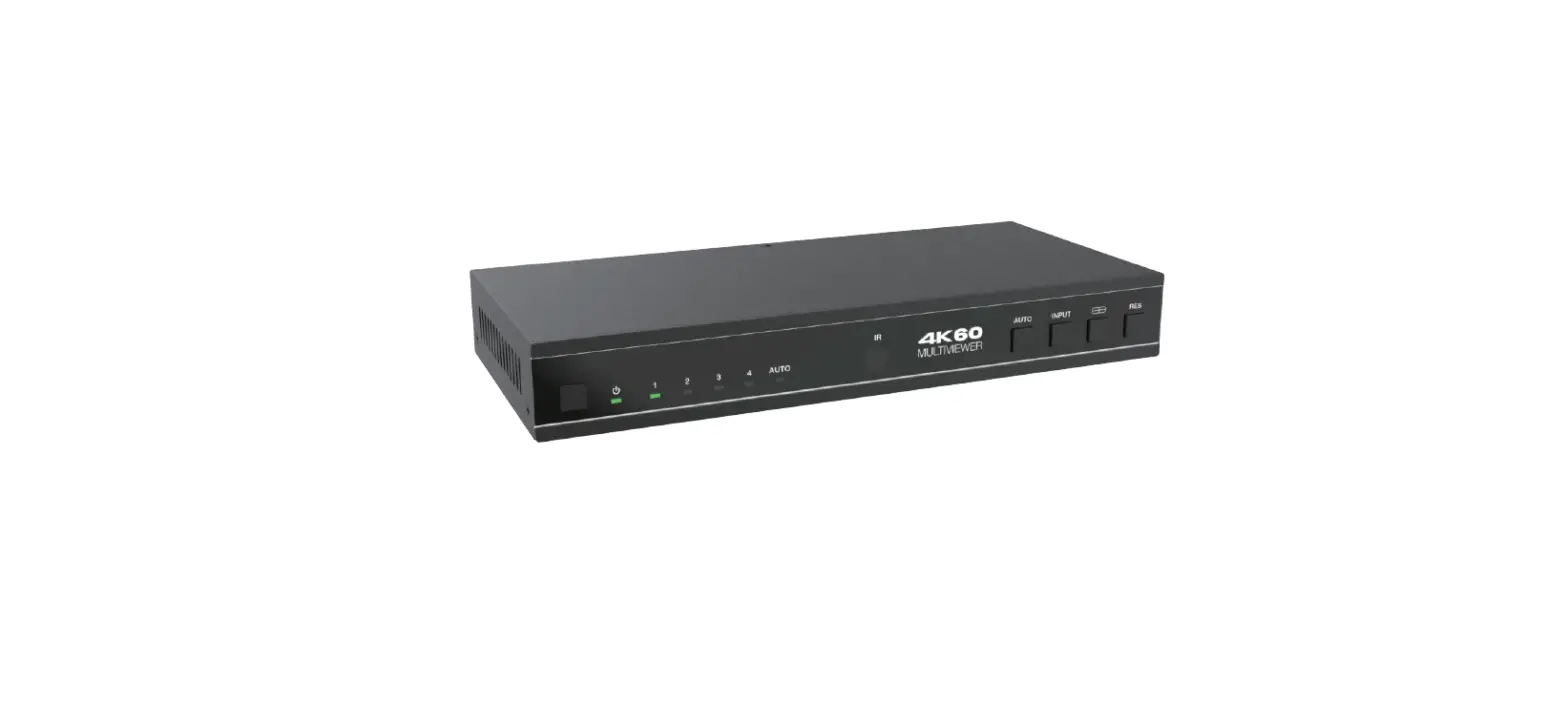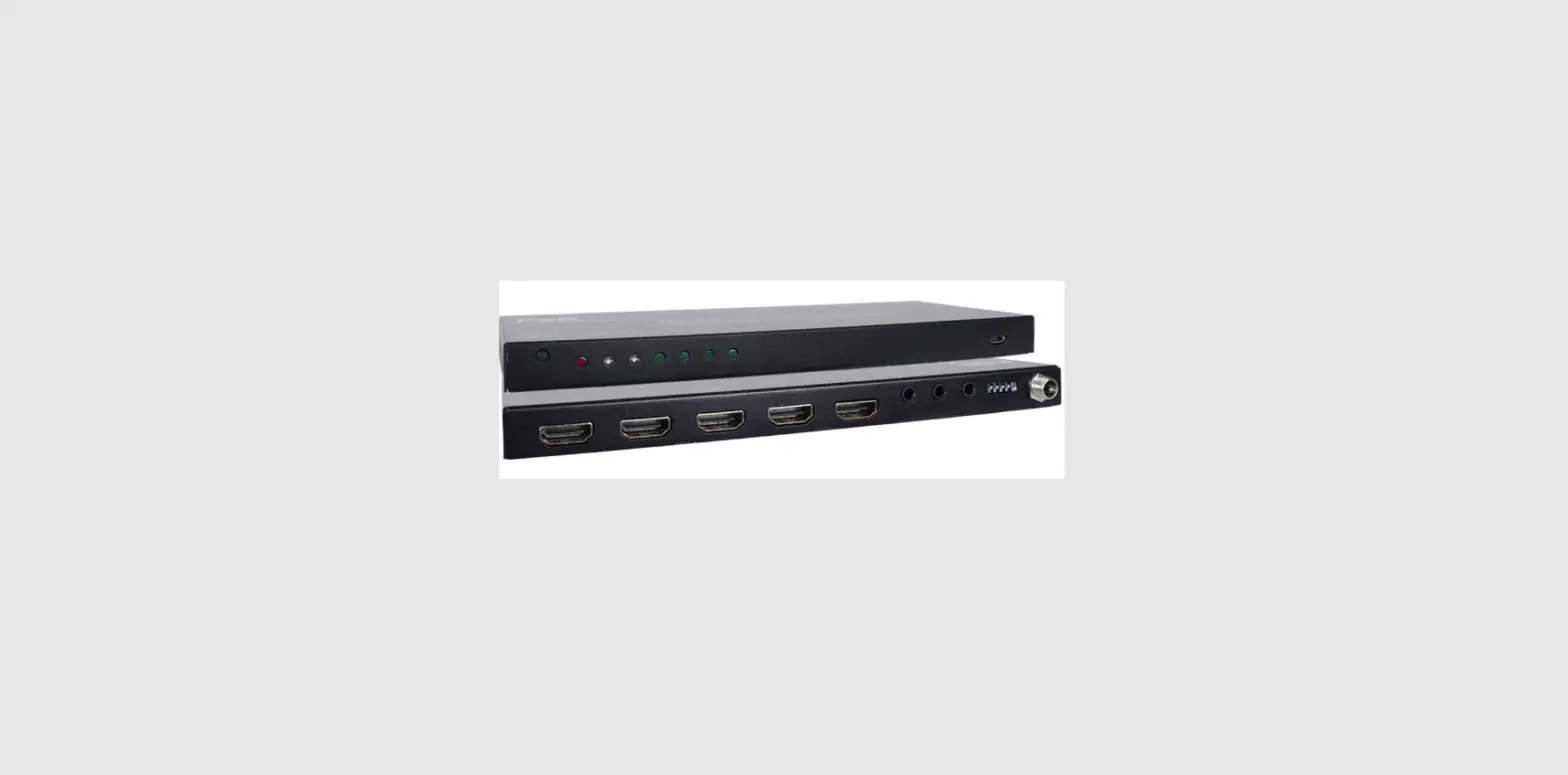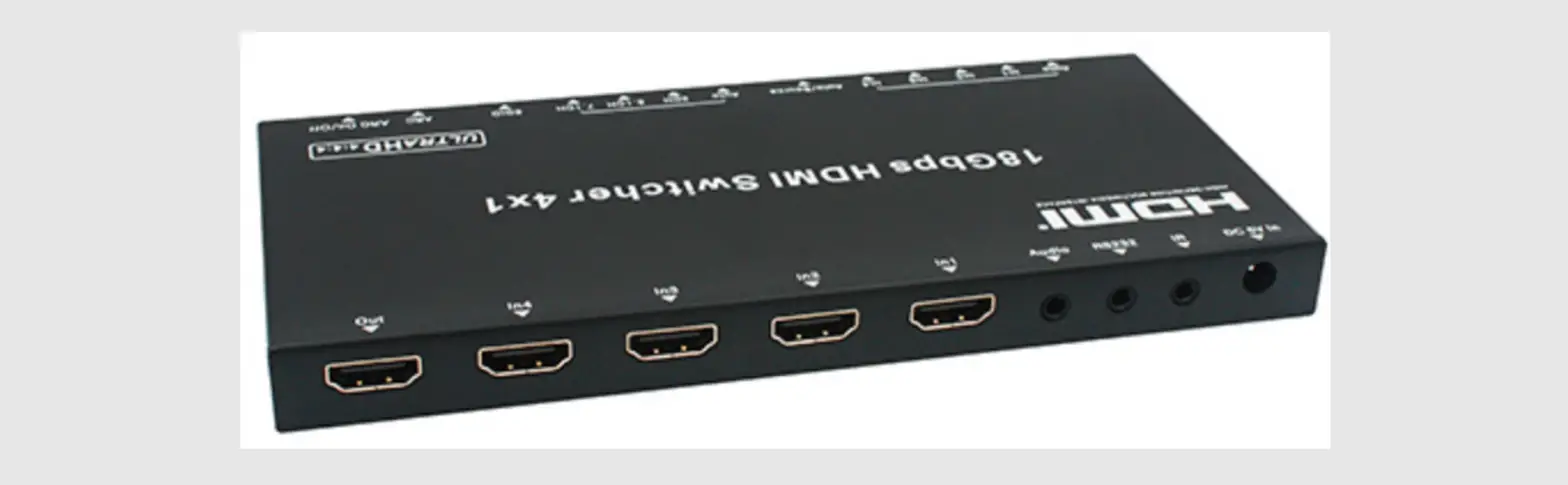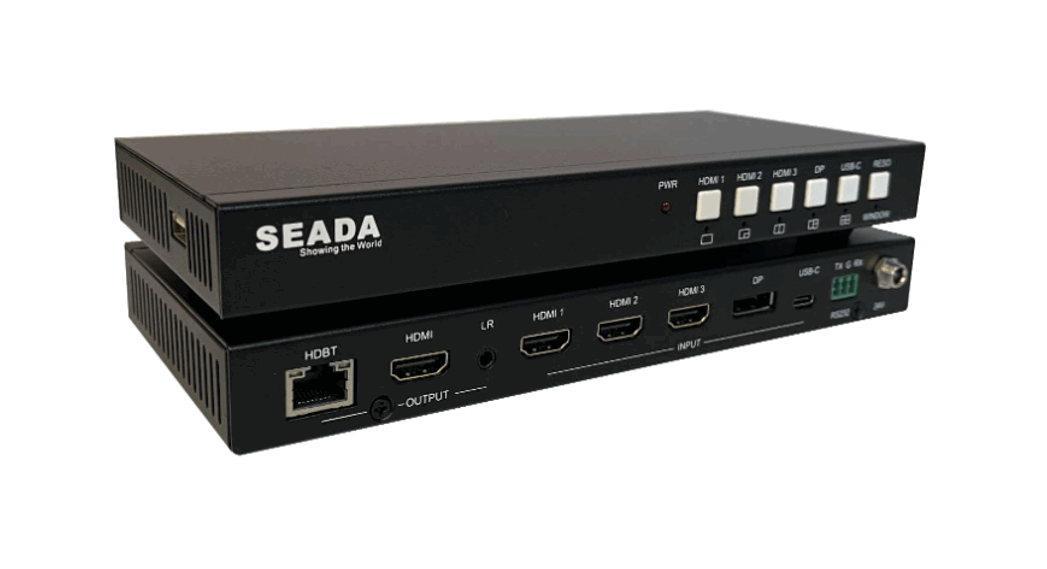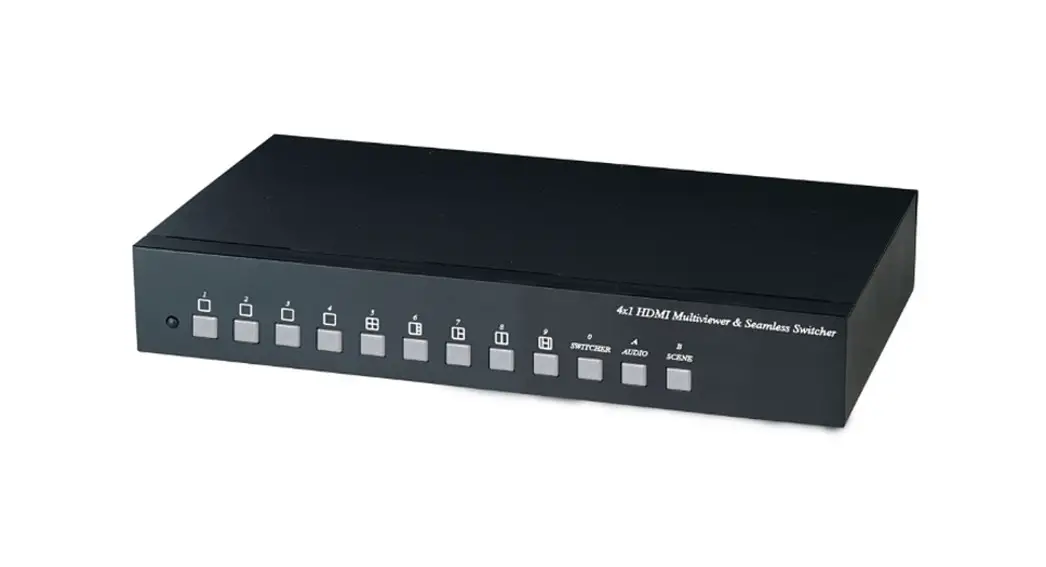

HDMI Matrix Switcher
User Manual
Model: HM41E
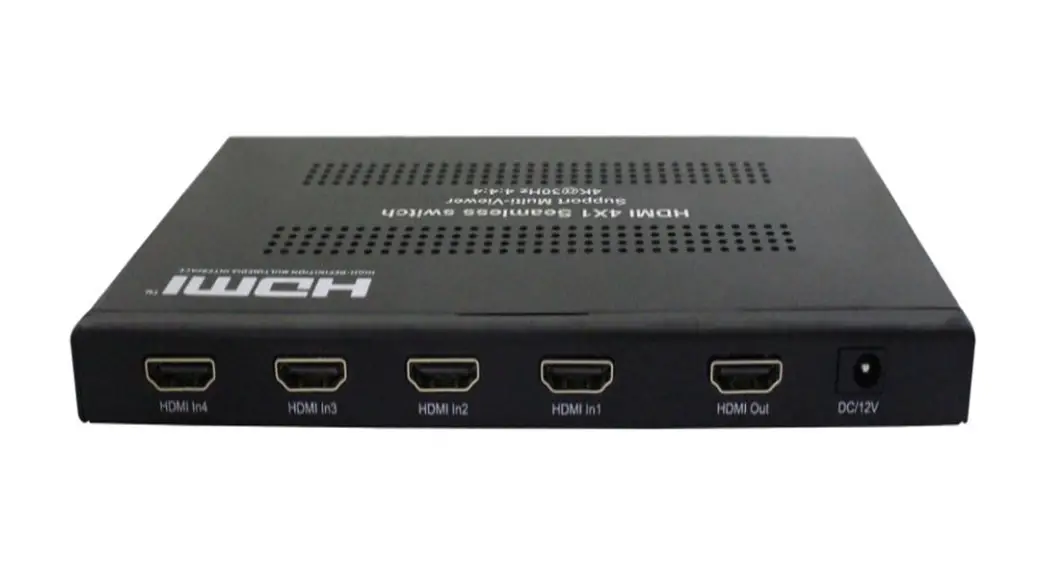
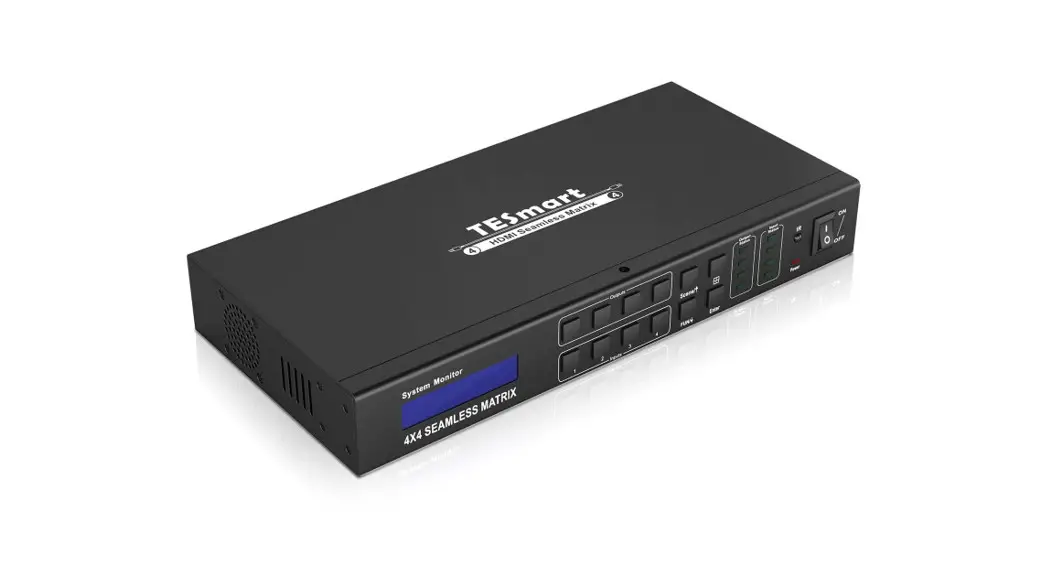
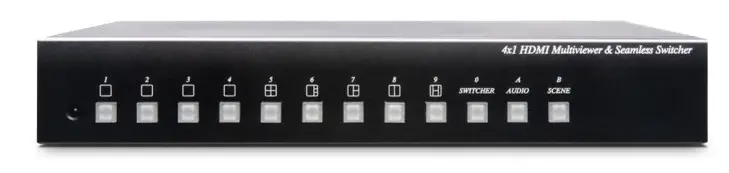
4 x 1 HDMI Seamless Switcher & Multiviewer
Smart Cabling & Transmission Corp. V1.0_2006191
Introduction
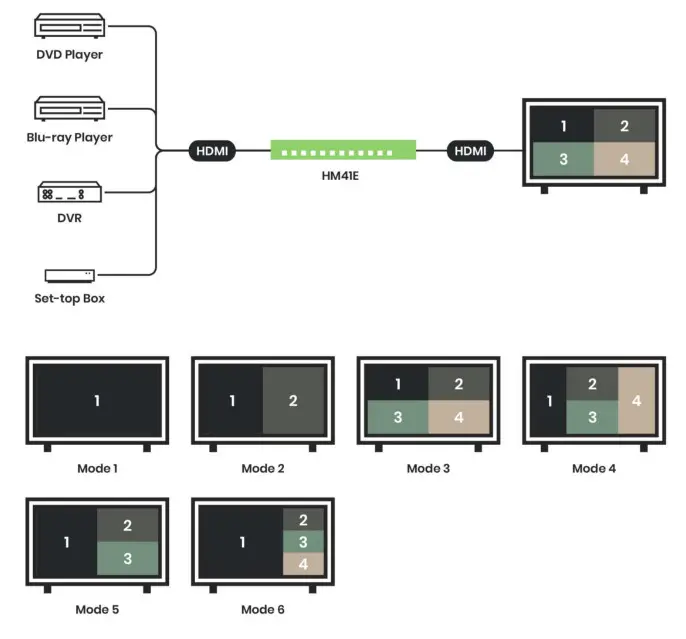
The HM41E is a 4 input HDMI switcher that supports resolution up to 1080p. Moreover, the seamless switching function makes the controllability outstanding, allowing the switcher to switch HDMI sources without any frame loss smoothly. Plus, the Multiview function enables the switcher to play multiple videos on one HDMI display.
It is a perfect solution for a scenario where watching or monitoring multiple videos on one screen simultaneously, such as security room, advertising, education, home theatres, and so on.
Features
- Resolution up to 1080p@60Hz.
- Supports video scaler function.
- Supports full-screen, dual, triple, quad view.
- Supports auto switching and seamless switching function
- Supports save/load preset function.
- Managed via front panel buttons, IR remote and RS232 signal
Installation View
Panel View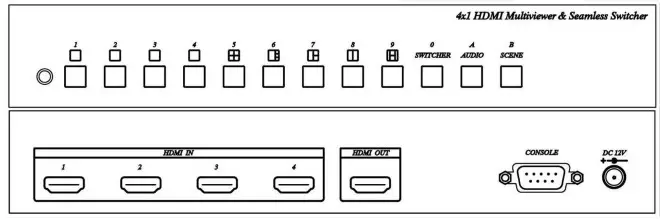
| Button | Function |
 | Select Video 1 |
| Select Video 2 | |
| Select Video 3 | |
| Select Video 4 | |
| Quad Picture Display | |
| Quad Picture Display (one big window with three small windows), press this button | |
| Select 3 Video Display (Only select input video 1,2,3) | |
| Select 2 Video Display, press this button again to select video input 1,2 or 3,4. again to change 4 video sequences. | |
| Select 4 Video Display | |
| Auto-Switching | |
| Audio Selection | |
| Scene Selection |
Seamless Switch Function
Press button 1 – 4: the video output is a single full screen, and the button light on indicates the source of video input.
Multi-view Switch Function
Press button 5 – 9: the video output is a multi-view window, and the button light on indicates the Multiview mode.
SWITCHER Function
SWITCHER as video auto-switching function, you could select two or four videos for automatically displaying the switching time duration setting as below:
Press SWITCHER button: the button light on, then press button 1 – 4 to select the video for auto-switching.
Press buttons 5 – 9 to select the auto-switching timing :
5: 5 seconds
6: 10 seconds
7: 20 seconds
8: 30seoncds
9: 60seconds
Press the SWITCHER button again to leave switching mode.
AUDIO Function
Multiview mode display only could select one audio input, the setting as below:
Press the AUDIO button, the button light on, then press buttons 1 – 4 to select the audio source. To press the AUDIO button again to leave audio selection mode.
SCENE Function
SCENE button for the scene function, there are 9 sets of saved scene mode for easy save and load.
SCENE Saved method:
Press the SCENE button 3 seconds until the button light flashes, then press buttons 1- 9 to save. Press the SCENE button again to exit.
SCENE Load method:
Press the SCENE button, the button light on, press buttons 1 – 9 for load and exit.
Demo Function
Demo mode: 5 – 9 as the multi-view window will be auto-switching by sequence.
Setting as below:
Press the SCENE button, the button light, press the SWITCHER button to turn on the DEMO mode. To press the SCENE button again to leave DEMO mode.
Output Resolution
Press button 1 and power on, output resolution as 720p@60Hz.
Press button 2 and power on, output resolution as 1080p@60Hz.
IR Remote Control Function
This device could use IR remote control for function setting and control, the ID number must be set up before using IR remote control or changing new batteries. Setup IR remote ID number: Press and hold the “Power” button and press number 0.
| Button | Function |
| 1 ~ 9 | same as panel button 1 ~ 9 |
| 0 | same as panel SWITCHER |
| A | same as panel AUDIO |
| B | same as panel SCENE |
| * | SCENE save setting: B → * → 1 ~ 9 |
 、▲、▼、◀、▶、#、MENU、ENTER: Reserved
RS232 CONSOLE
- Firmware updated.
- RS232 Serial Remote Control function as below:
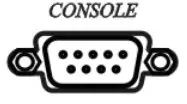
Connect the RS232 CONSOLE port to the COM port of the host by an RS232 straight cable (pin 2 to pin 2; pin 3 to pin 3, pin 5 to pin 5)
Communication format is 115200, 8, N, 1 (115200 bps, 8 data bits, none parity check, 1 stop bit)
Operation Instruction format:
Command + △(Space) + Parameter + Enter(CRLF or \r\n)
Command Mode Instruction:
| [COMMAND] | [DESCRIPTION] |
| MODE m | Select Mode. |
| SWITCHER | Enable/Disable Switcher Mode. |
| SWITCHER c TIME t | Add/Delete “Video Source” for Switcher Mode |
| AUDIO | Switcher Time. |
| AUDIO a | Enable/Disable Audio Mode. |
| IR i | Select Audio. |
| SAVE n | IR Remote ID setting |
| LOAD n | Save Scene. |
| DEFAULT | Load Scene setting. |
| DEMO | Reset to Default. |
| SIGNAL | Demo Mode. |
| STATUS | Display input signal status. |
| VERSION | Display setting. |
| ? | Display firmware version. |
| Show all commands. | |
| [SYMBOL] | [PARAMETER] |
| a | 1 | 2 | 3 | 4 |
| c | 1 | 2 | 3 | 4 |
| n | 1 | 2 | 3 | 4 | 5 | 6 | 7 | 8 | 9 |
| m | 1 | 2 | 3 | 4 | 5 | 6 | 61 | 62 | 63 | 64 | 7 | 8 | 9 |
| i | 1 | 2 | 3 | 4 | 5 | 6 | 7 | 8 | 9 | 0 |
| t | 5 | 6 | 7 | 8 | 9 (5s | 10s | 20s | 30s | 60s) |
Reset Factory Default
Press and hold the SCENE button then power on, SCENE button LED flash will clear all the saved data and set up the output resolution at 1080p@60Hz.
Package Include
HM41E x 1 piece
IR Remote Control x 1 piece
Power adapter x 1 piece
Rubber Pad x 4 pieces
Mounting screws x 1 bag
Specification
| ITEM NO. | HM41E |
| Support | |
| Compliance | HDM 1.3a, HDCP 1.2 ,DVI 1.0 |
| Max. HDMI Resolution | 1080p@60Hz |
| Audio Format | LPCM 2.0 CH |
| RS232 Baud Rate | 115200 bps |
| IR Support | 38Khz , ±45°, 5M |
| Ports & Interfaces | |
| Video Input | 4 x HDMI Type A |
| Video Output | 1 x HDMI Type A |
| RS232 Interface (Console) | 1 x DB9 Female |
| Power | |
| Power Supply | DC 12V 1A |
| Power Consumption | 660mA |
| Ambient Temperature | |
| Operation | -10 to 70℃ |
| Storage | -20 to 85℃ |
| Humidity | up to 95% |
| Physical Characteristics | |
| Dimensions | 253 x 144 x 40mm |
| Weight | 840g |