 iSwitch 901 9×1 HDMI Seamless Switcher with Multi View
User Manual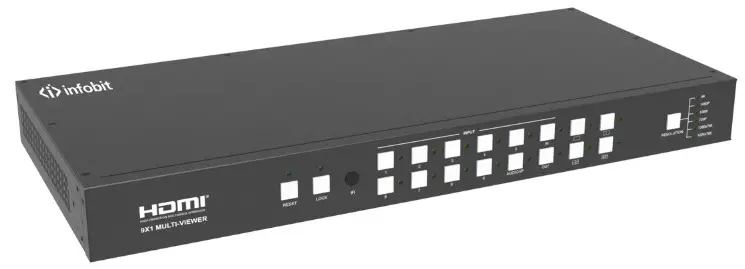
iSwitch 901 9×1 HDMI Seamless Switcher with Multi View
Thank you for purchasing this product
For optimum performance and safety, please read these instructions carefully before connecting, operating or adjusting this product. Please keep this manual for future reference.
Surge protection device recommended
This product contains sensitive electrical components that may be damaged by electrical spikes, surges, electric shook, lighting strikes, etc. Use of surge protection systems is highly recommended in order to protect and extend the life of your equipment.
Introduction
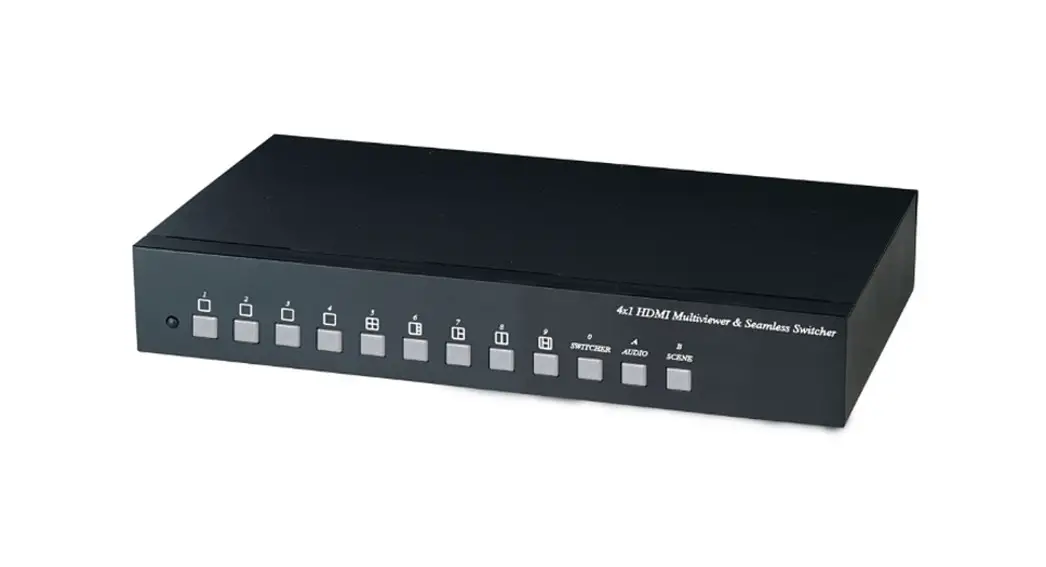
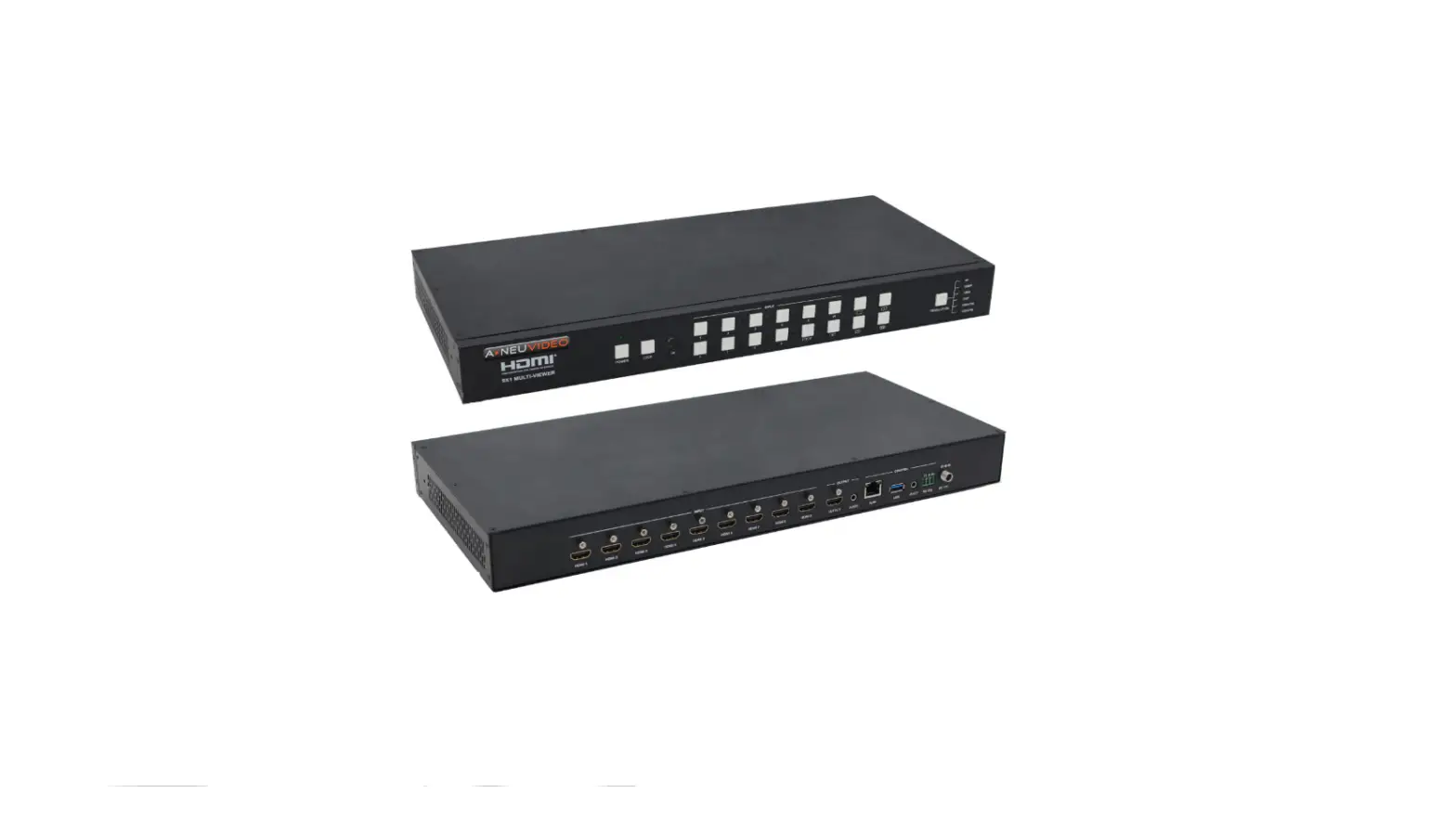
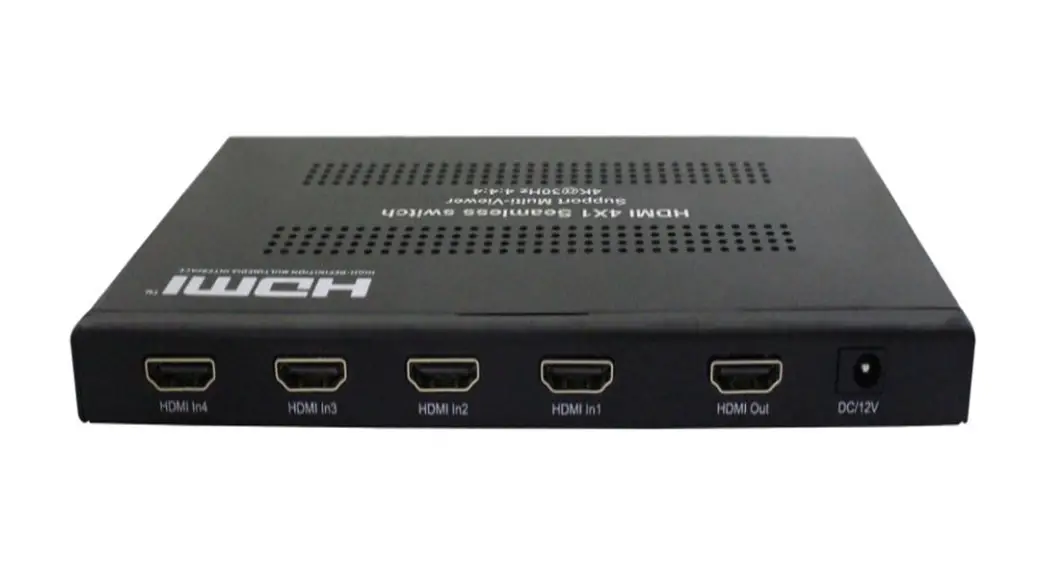
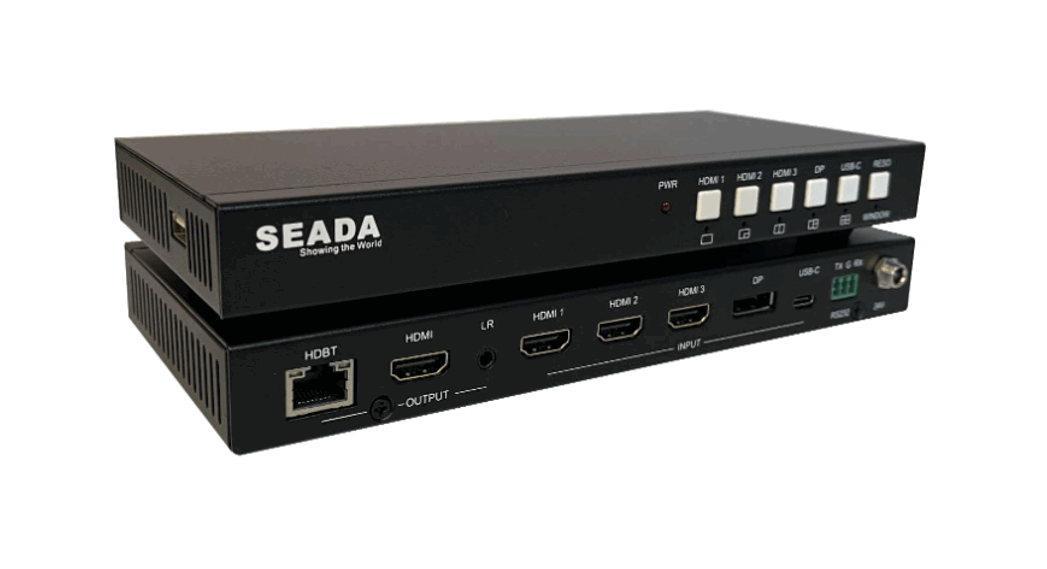
The 9×1 seamless switcher supports 9 HDMI inputs and one HDMI output. It allows user can view up to 9 HD video contents on one display at the same time. Output resolution can be chosen for supporting legacy display. This switcher is a suitable solution for presentation purpose at classroom and conference room.
Features
- HDMI 1.4b, HDCP 1.4 compliant.
- Input video resolution up to 1080p@60Hz, Output up to 4K2K@30Hz
- 9x HDMI inputs, 1x HDMI and 1x de-embedded analog audio output
- Fast seamless switching with scaling up to 3840x2160p (4K)
- Supports 1/2/4/9 windows multi-view modes
- Display 4x full HD signals within one 4K display with pixel-to-pixel quality
- Control is via on-panel button, IR, RS-232, LAN or Web GUI
Package Contents
- 1x 9×1 HDMI Seamless Switcher
- 1x 12V/1A Power Adapter
- 1x Remote Control
- 1x User Manual
Specifications
| Technical | |
| HDMI Compliance | HDMI 1.4b |
| HDCP Compliance | HDCP 1.4 |
| Video Bandwidth | 3Gbps |
| Video Resolutions | 4K2K@30Hz YUV4:4:4, RGB4:4:4 |
| Color Depth | 8-bit |
| Color Space | RGB, YUV4:4:4, YUV 4:2:2 |
| HDMI Audio Formats | LPCM 2.0 |
| ESD Protection | Human-body Model±8kV (Air-gap discharge) , ±4kV (Contact discharge) |
| Connections | |
| Inputs | 9x HDMI Type A [19-pin female] 1x RJ45 [8-pin female] 1x RS-232 [Phoenix jack] 1x USB [USB-A] 1x IR EXT [3.5mm Stereo Mini-jack] |
| Outputs | 1x HDMI Type A [19-pin female] 1x Audio Out [3.5mm Stereo Mini-jack] |
| Mechanical | |
| Housing | Metal Enclosure |
| Color | Black |
| Dimensions | 440mm (W)×200mm (D)×44.5mm (H) |
| Weight | 2.26kg |
| Power Supply | Input: AC100~240V 50/60Hz, OutputDC12V/1A (US/EU standards CE/FCC/UL certified) |
| Power Consumption | 7.8Wmax) |
| Operating Temperature | 0°C ~ 40°C / 32°F ~ 104°F |
| Storage Temperature | -20°C ~ 60°C / -4°F ~ 140°F |
| Relative Humidity | 20~90% RH (non-condensing) |
Operation Controls and Functions
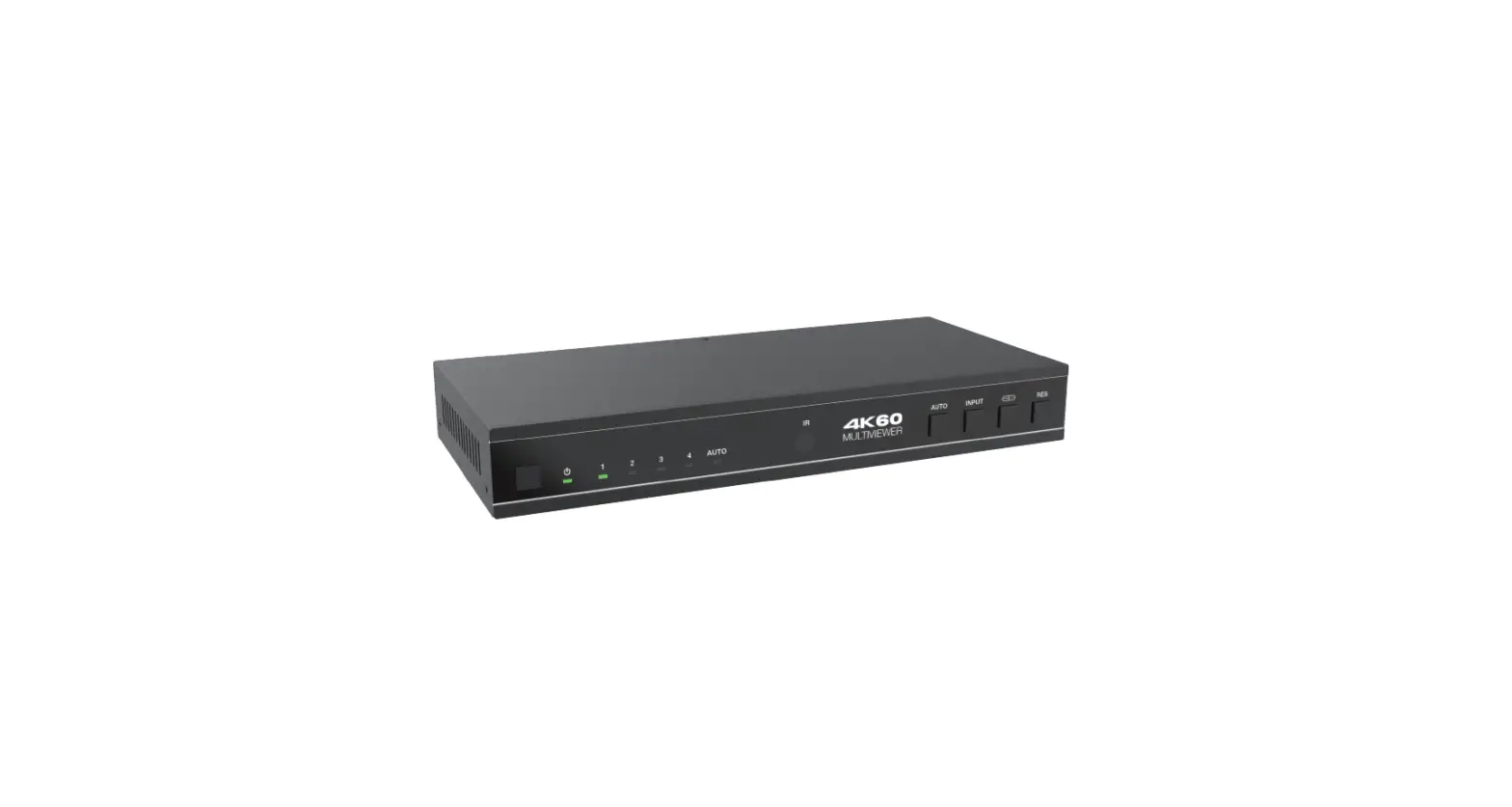
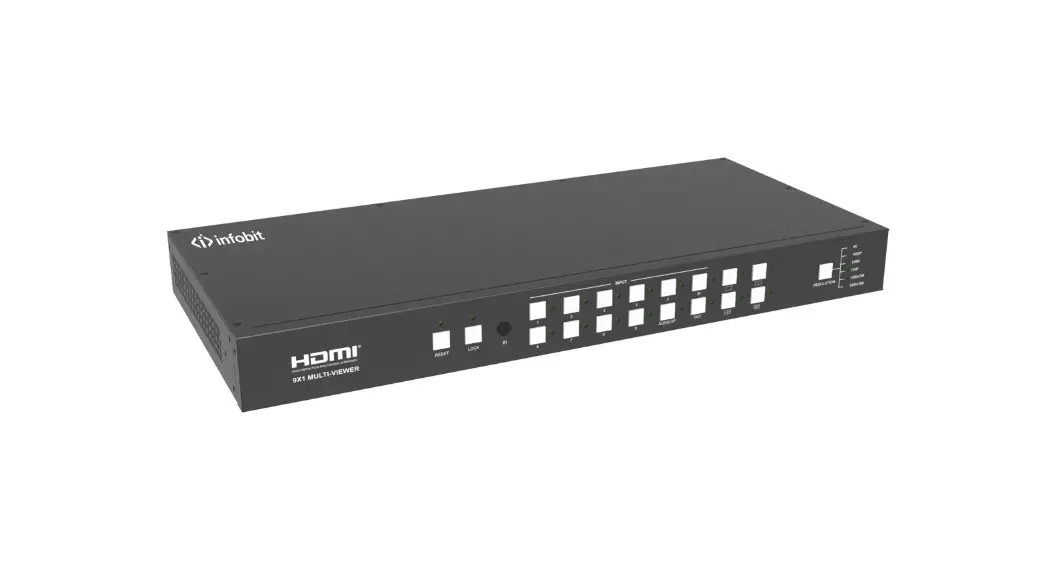
5.1 Front Panel

| Number | Name | Function descriptions |
| 1 | RESET button and LED | Press this button up to 10s to reset to factory set, the indicator LED will blink 5 times. |
| 2 | LOCK button and LED | Press this button to lock all buttons on the panel, the indicator LED is on. Press this button again is unlock, the indicator LED is off. |
| 3 | IR | IR receiver window, it receive IR remote control signal. |
| 4 | INPUT button | INPUT 1~9 button: Press this button to select HDMI input source from 1 to 9. AUDIO/IP button: a. Select output audio signal from HDMI input . For example, when user want to select input 1 port audio to output audio port, press AUDIO/IP button → INPUT 1 button. In this time, the AUDIO/ IP indicator LED is blink 3 times. b. Long press this button up to 6s will output the unit IP address on screen display. IN/OUT button: When user need select multi-screen output, firstly user need select multi-screen mode button, then through operate IN → x → OUT → y to select output screen. Please see the below detail description. |
| 5 | Multi-screen mode button | Press these button to select display mode. |
| 6 | RESOLUTION button | Press this button to select output resolution. |
5.2 Rear Panel

| Number | Name | Function descriptions |
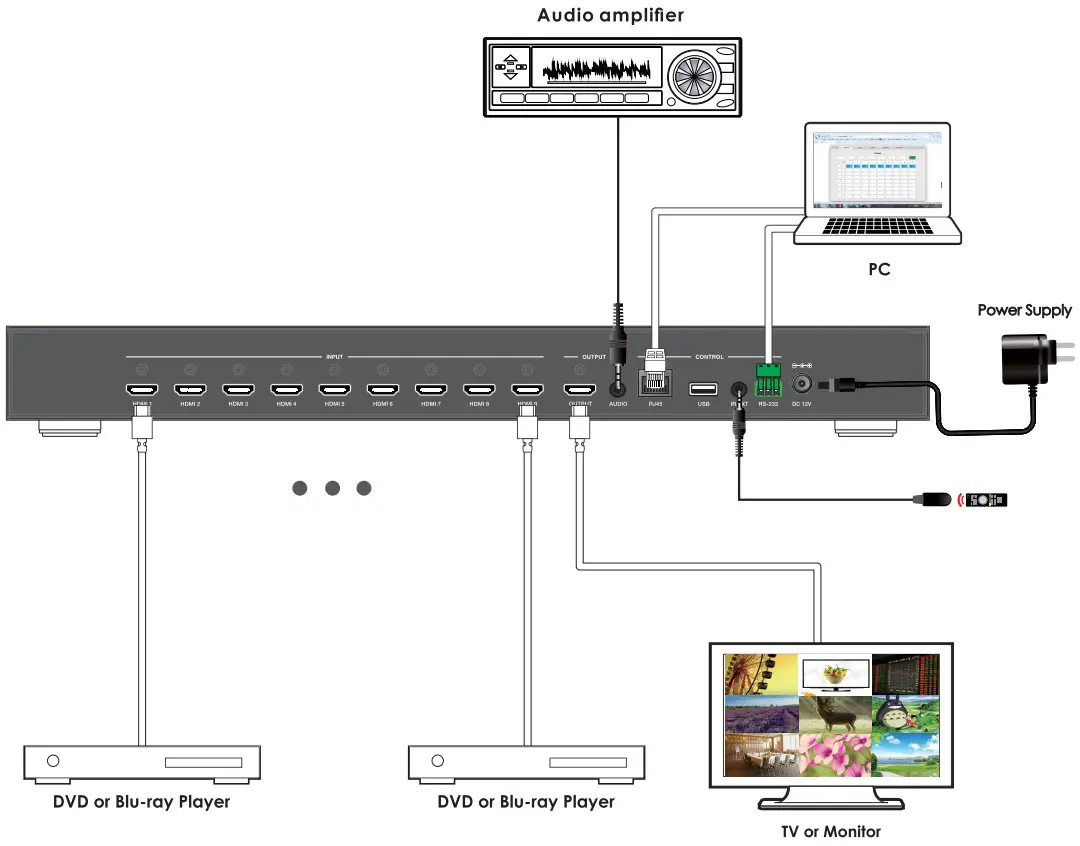
| 1 | HDMI INPUT Area | Connect to the HDMI input source device, such as DVD player or Set top box. |
| 2 | HDMI OUTPUT Area | HDMI OUTPUT: Connect to the HDMI output device, such as TV or Monitor. AUDIO OUTPUT: Connect to audio amplifier. This audio volume can be adjust through Remote Control or Web GUI software. |
| 3 | CONTROL ports | RJ45: This port is the link for Web GUI or PC control, connect to an active Ethernet link with an RJ45 terminated cable. USB: Upgrade Firewire. IR EXT: IR extend receiver port, connect to IR receiver cable. RS-232: Connect to a PC or control system for transmission RS-232 commands or upgrade MCU firmware. |
| 4 | DC 12V | Plug the 12V/1A adapter to AC wall outlet for power supply. |
Detail description of display mode
The 9×1 HDMI Seamless Switcher have 4 display modes.
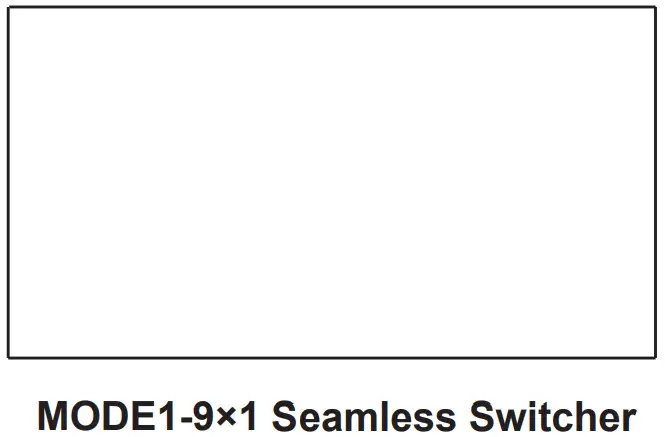
MODE1: The 9×1 HDMI Seamless Switcher will display nine HDMI inputs separately. Switch to the front panel or remote control MODE button. Operating illustration: select MODE 1 button → select HDMI input source button [MODE 1 button(  )→ x].
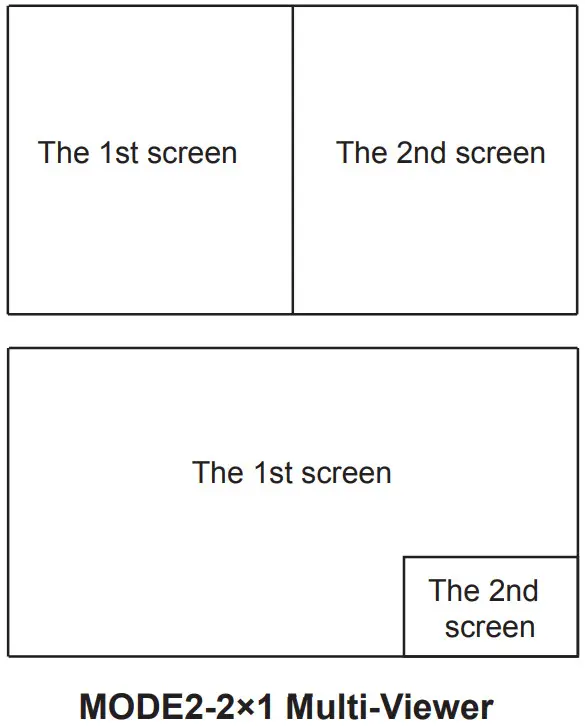
MODE2: The 9×1 HDMI Seamless Switcher divides two HD inputs and display on a screen. Select input signal source to different display screen. Operating illustration: press MODE 2 button(If you want to output the other display mode, please press this button two times continuously.) → press IN button → press HDMI input source button → press OUT button press HDMI input source button(MODE 2 button IN → x → OUT → y ).
For example, if user need the second screen from the third HDMI input port [MODE 2 button(  )→ IN → 3 → OUT → 2 ]
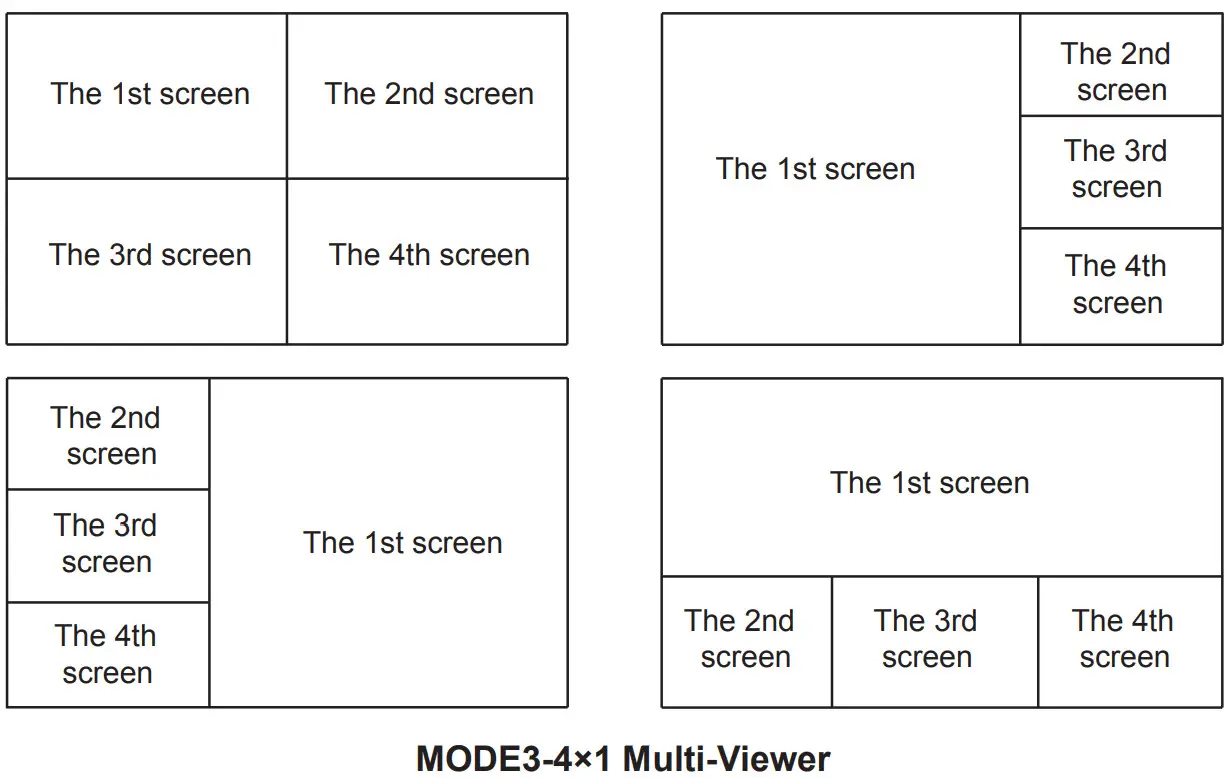
MODE3: The 9×1 HDMI Seamless Switcher divides four HD inputs and display on a screen. Select input signal source to different display screen. Operating illustration: press MODE 3 button(If you want to output another display mode, please press this button continuously. ) → press IN button → press HDMI input source button → press OUT button → press HDMI input source button(MODE 3 button → IN → x → OUT → y). For example, if user need the fourth screen from the third HDMI input port [MODE 3 button (  ) → IN → 3 → OUT → 4].
MODE4: The 9×1 HDMI Seamless Switcher divides nine HD inputs with same size and display on a screen. Select input signal source to different display screen. Operating illustration: press MODE 4 button → press IN button → press HDMI input source button → press OUT button → press HDMI input source button(MODE 4 button → IN → x → OUT → y). For example, if user need the sixth screen from the first HDMI input port [MODE 4 button (  ) → IN → 1 → OUT → 6].
| The 1st screen | The 2nd screen | The 3rd screen |
| The 4th screen | The 5th screen | The 6th screen |
| The 7th screen | The 8th screen | The 9th screen |
MODE4-9×1 Multi-Viewer
Remote Control
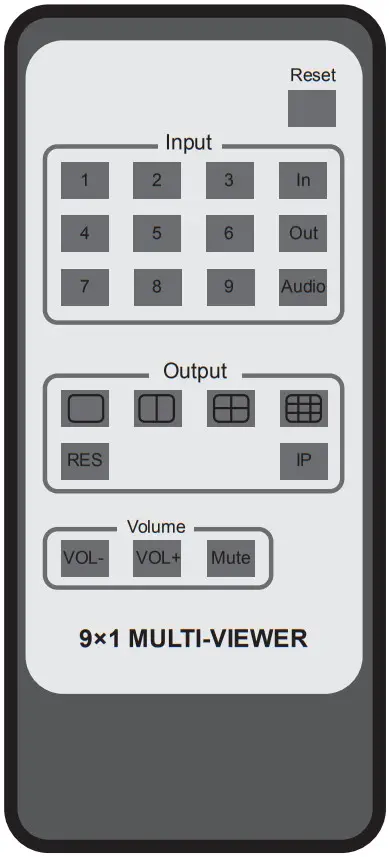
Reset: Long press this botton up to 10s to reset to factory set. Input 1-9: Press these button to select input source.
In/Out: When user need select Output multi-screen, firstly user need select the remote control Output multi-screen mode button, then through operate In→x→Out→1 to select output screen.
Please see the above detail description.
Audio: Select output audio signal from HDMI input port. For example, When user want to select input 1 port audio to output audio port, press Audio button→ input 1 button. : Press these button to select display mode.
RES: Cycling select resolution output. (1024 x768/1360 x768/720P/10801/1080P/4K) IP: Press this button, the output screen left top concern will display the unit IP address.
VOL-NOL+: Adjust audio volume output. Mute: No volume output.
Web GUI User Guide
The switcher can be controlled via Web GUI software through RJ45 port. You should know current switcher IP address. The static IP address is 192.168.1.100. You can connect PC Web GUI through dynamic IP address. If you don’t know dynamic IP address, Long press AUDIO/IP button up to 6s, the output screen left top concer will display dynamic IP address. Then you should set the IP address to your PC or laptop or mobile device is within the same IP address segment with the switcher. After above, you can enter the switcher IP address in the web browser to access Web GUI.
General mode
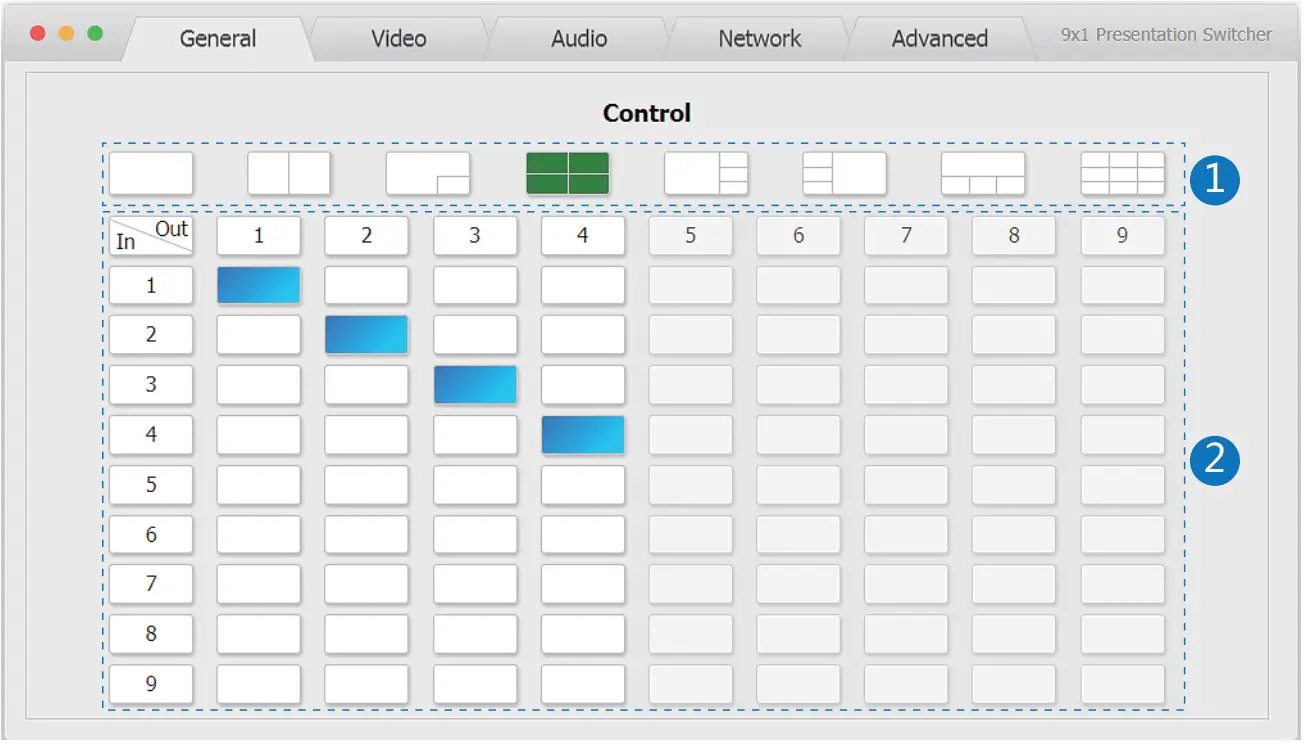
- Select output screen mode.
- When you have selected output screen mode, then you can select output screen corresponding input signal source. ( The order is from left to right and from top to bottom. )
Video mode
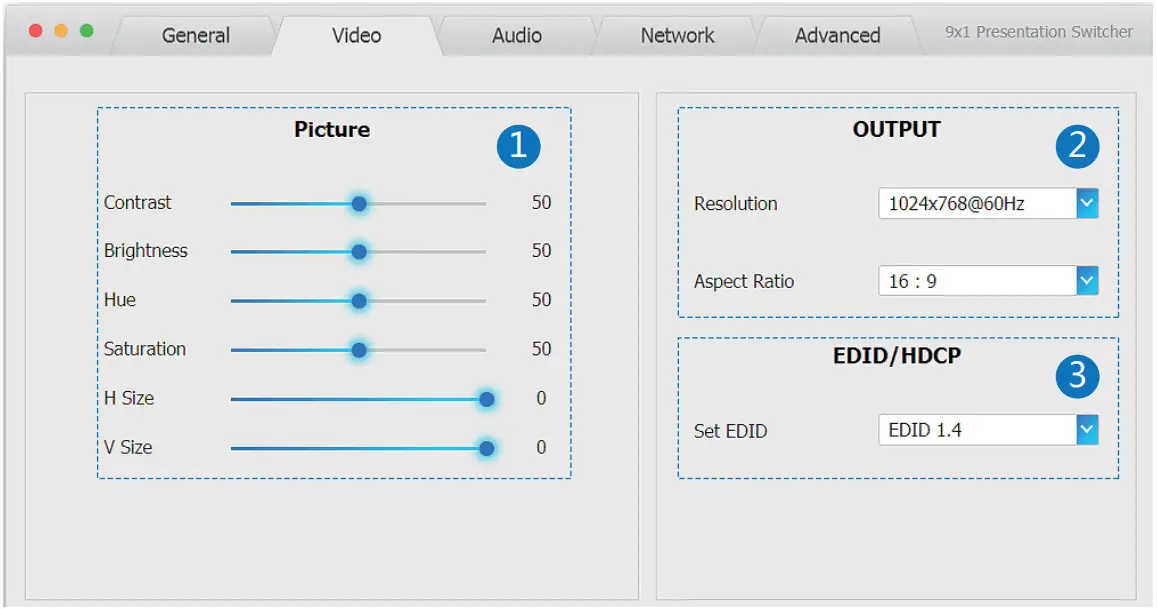
- Set the video picture interface, it constrains Contrast set, Brightness set, Hue set, Saturation set, H Size set and V Size set
- Select output Resolution and Aspect Ration.
- Set EDID.
Audio mode
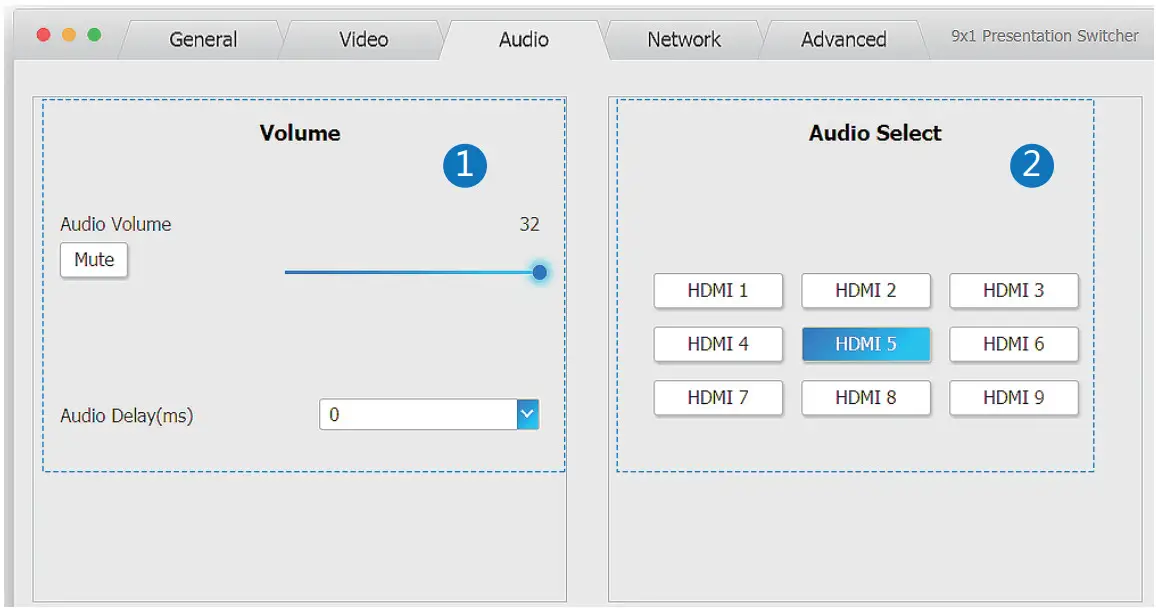
- Set volume: Adjust the volume or select the audio delay(ms).
- Audio Select: Select the output audio corresponding HDMI input signal source.
Network mode
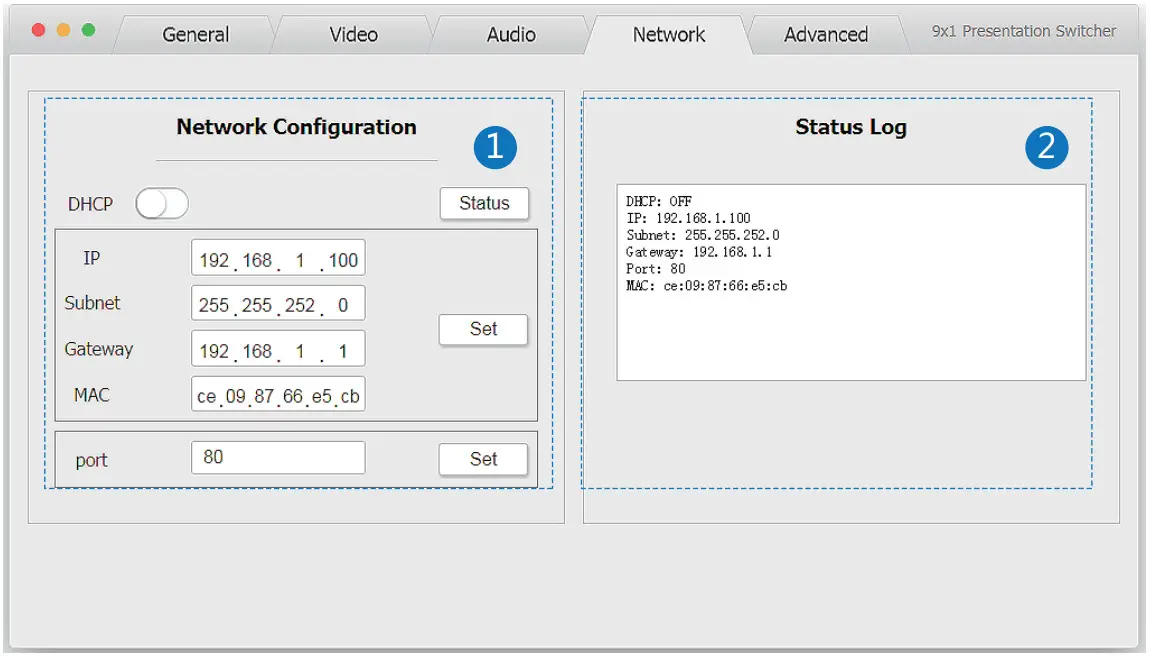
- Network Configuration
DHCP switch, Status button: Obtain the network configuration information, including IP address, Subnet, Gateway and MAC address.
Set port: Set TCP/IP port. - Status Log: Display the Network Configuration information.
Advanced mode
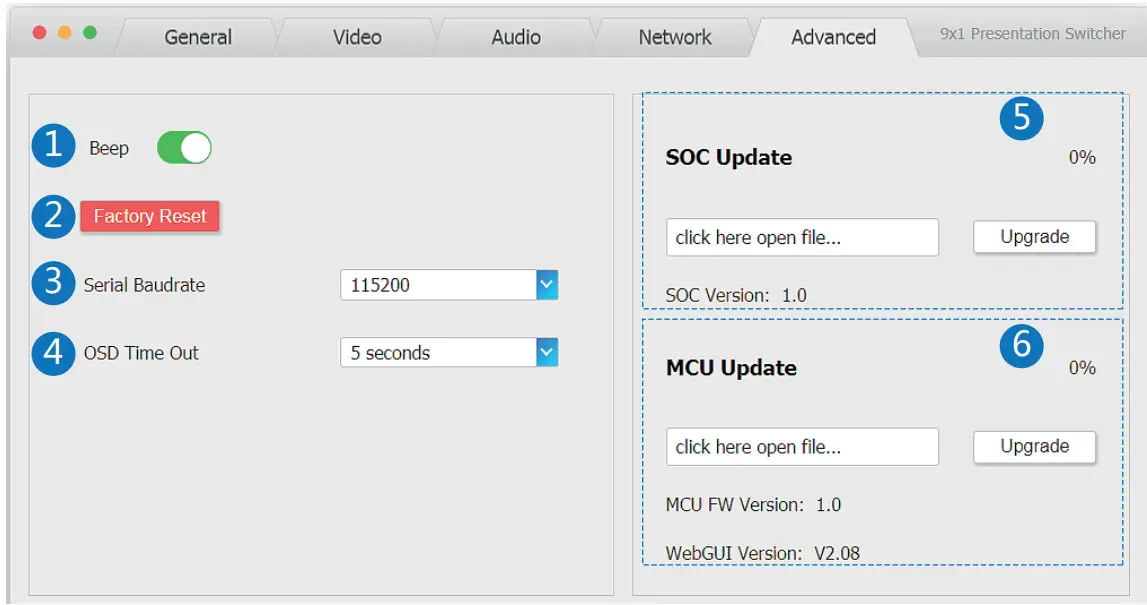
- Beep: Buzzer switch.
- Factory Reset: Click this bottom to reset to factory set.
- Serial Baud rate: Select the serial baud rate.
- OSD Time Out: Select the OSD display time.
- SOC Update: SOC chip update.
- MCU Update: MCU version update.
Application Example
www.infobitav.com
[email protected]
 infobit AV- 4K Matrix Switchers, Wireless Presentation, Active Optical Cable and Conference Camera- Meeting Room Solutions