
Roth Touchlinr®SR Installation Guide
Living full of energy
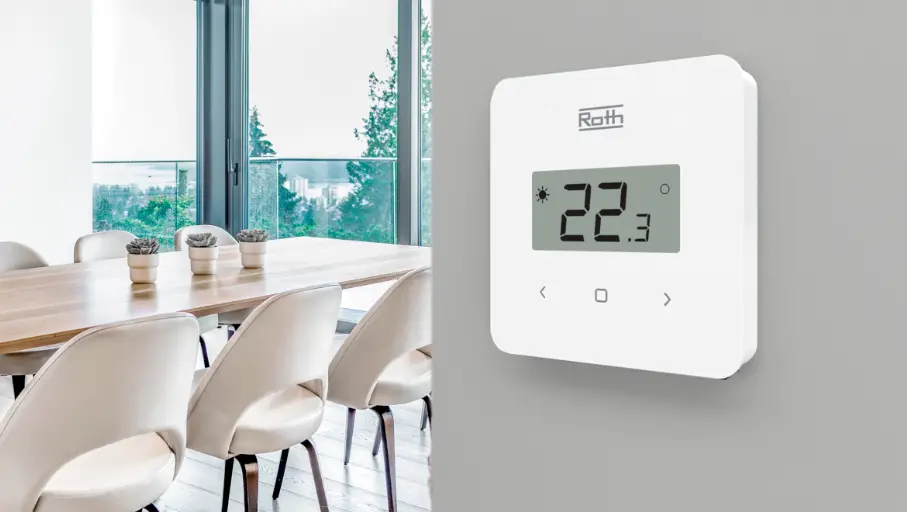
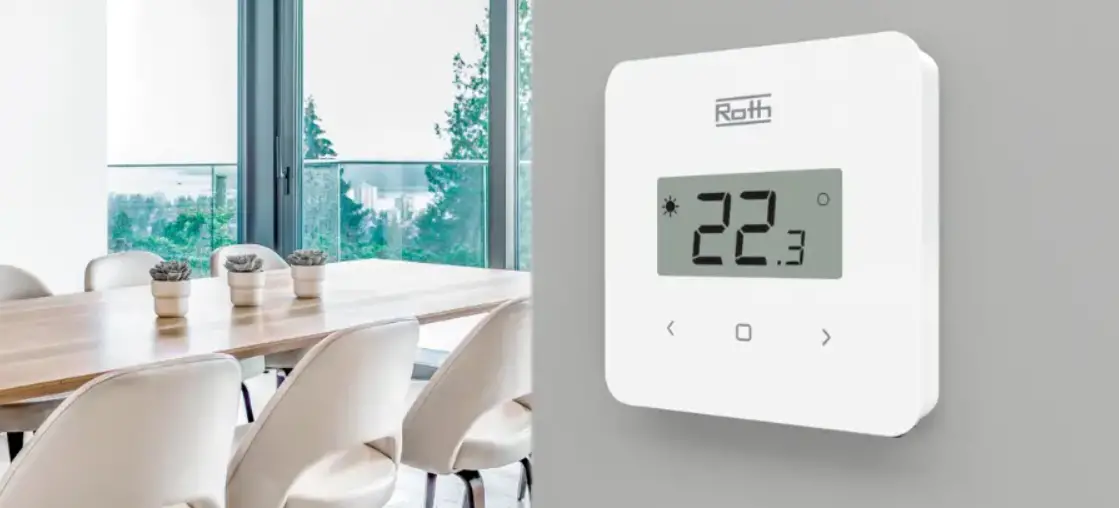
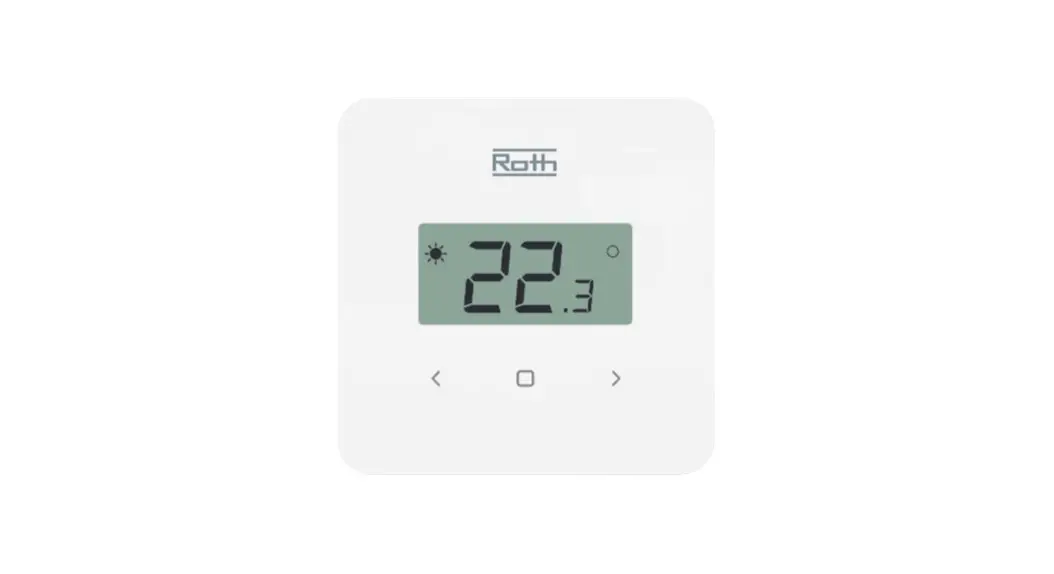
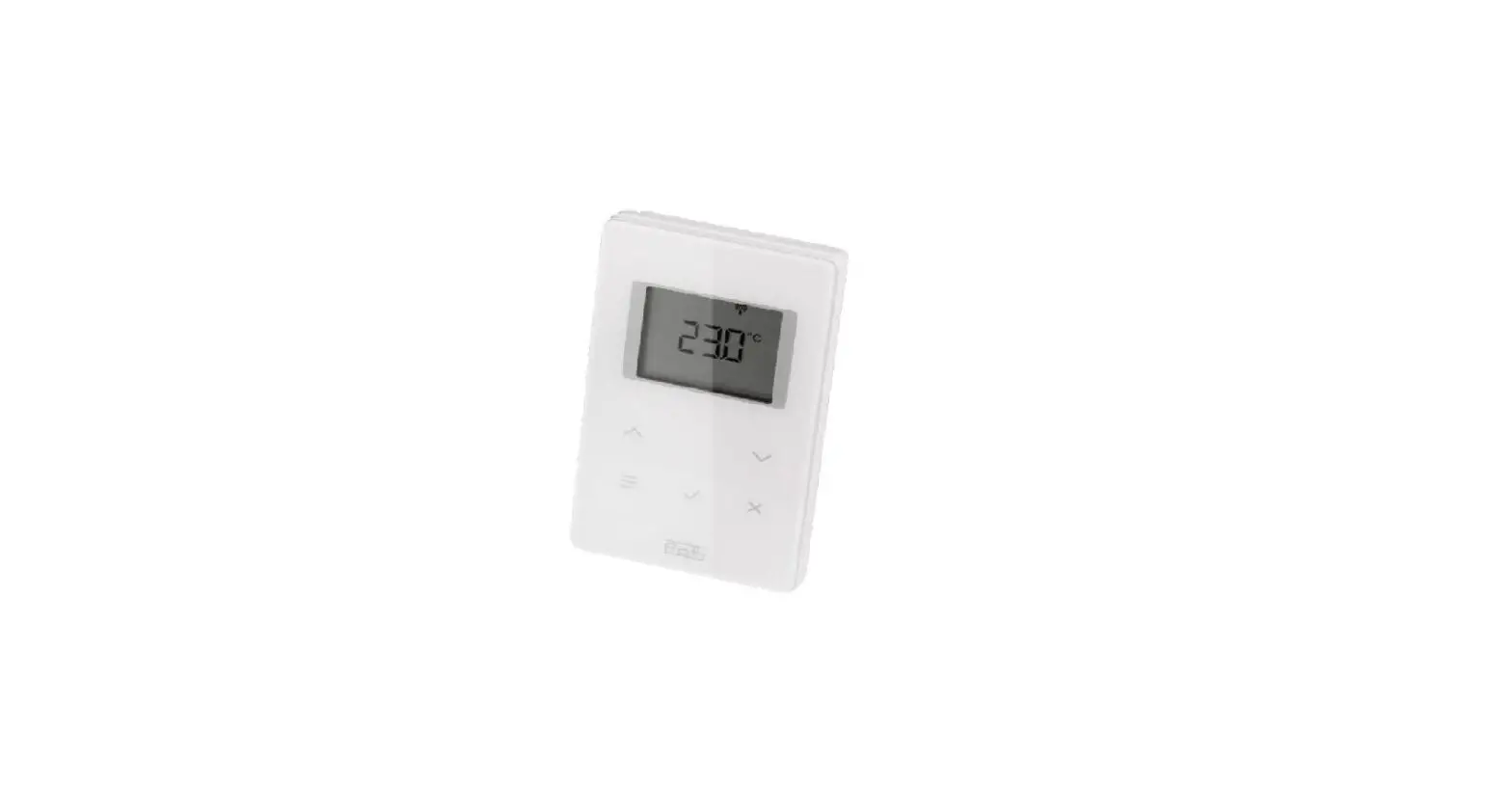
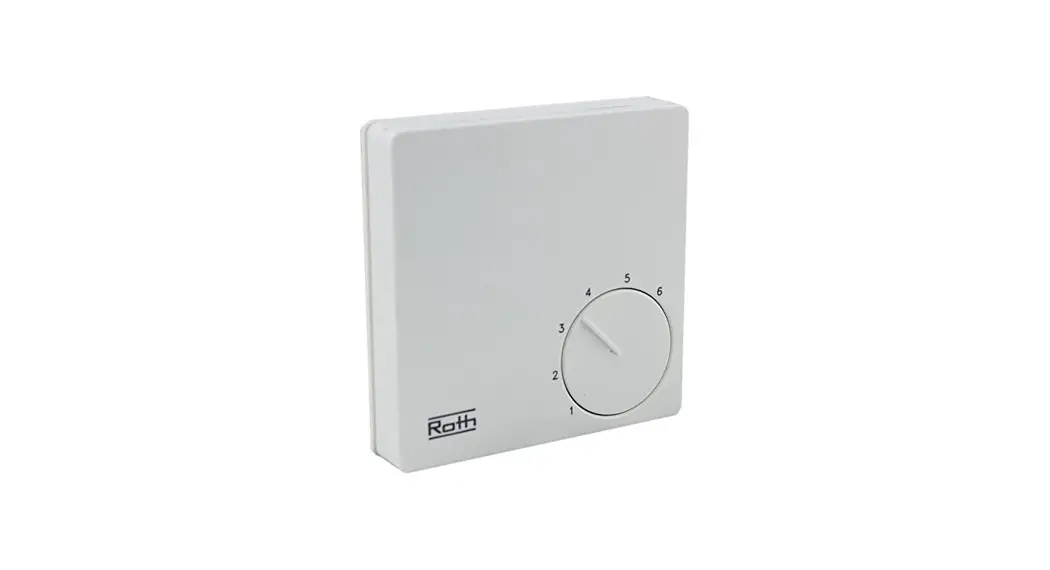
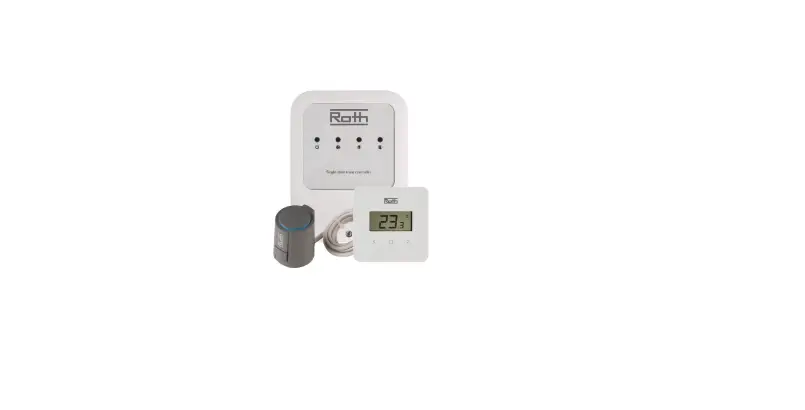
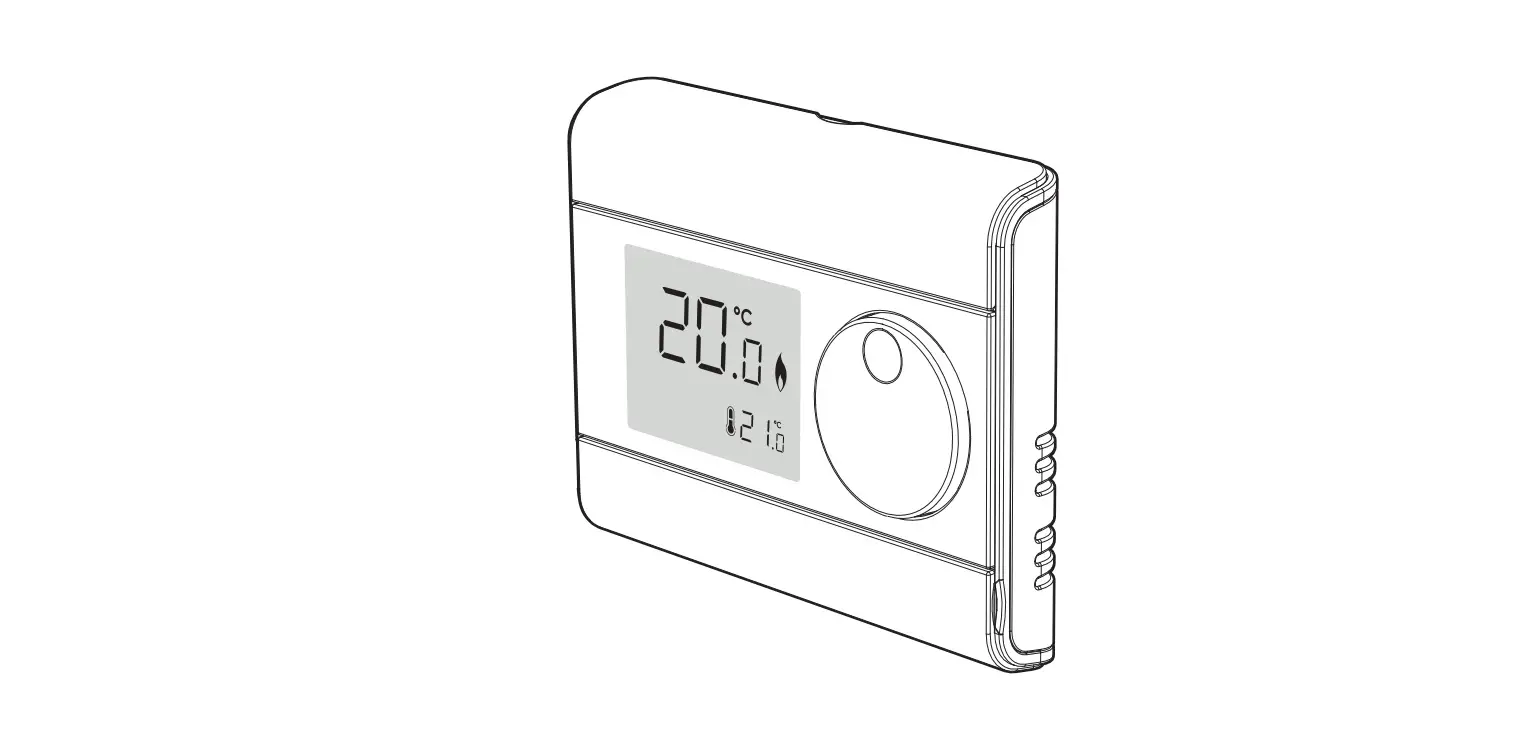
Roth Touchline® SL Standard room thermostat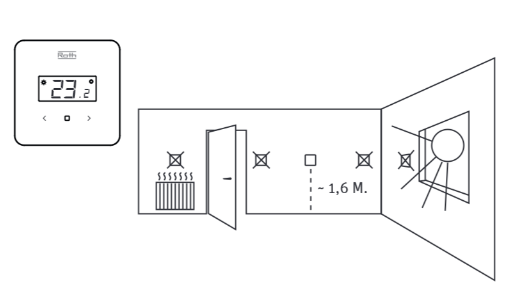
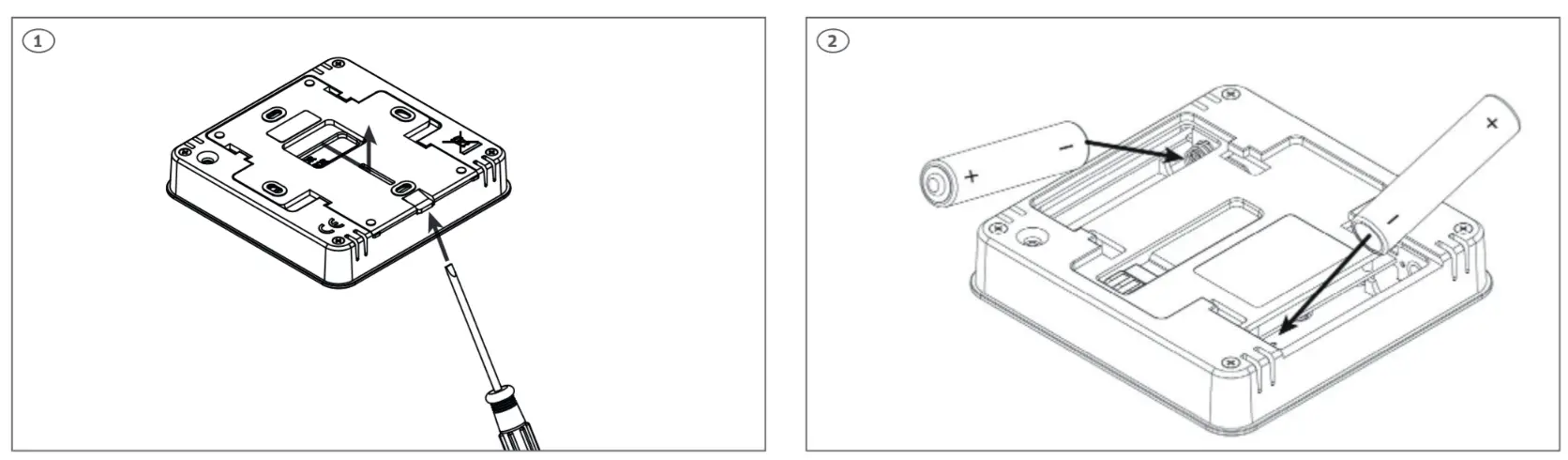 Insert batteries (included), be aware of +/- polarity.
Push lightly on the snap lock with a finger or screwdriver (if mounted on the wall) to slide the backplate of the thermostat.
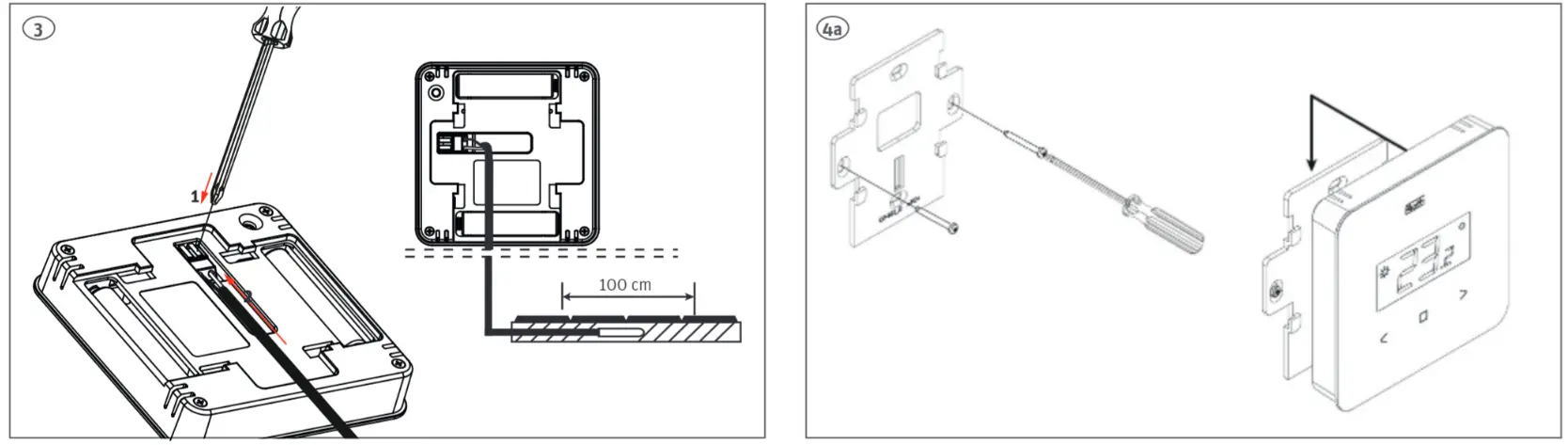
It is possible to connect a floor sensor to the thermostat (floor sensor not incl.). Push gently on the terminals while you put the cable into the terminal. The sensor must be drawn in a tube and the tip placed directly beneath the top floor cover, in the middle between the floor heating pipes.
Mount backplate on the wall (screws not incl.) thermostat slides onto back plate.
Roth underfloor heating system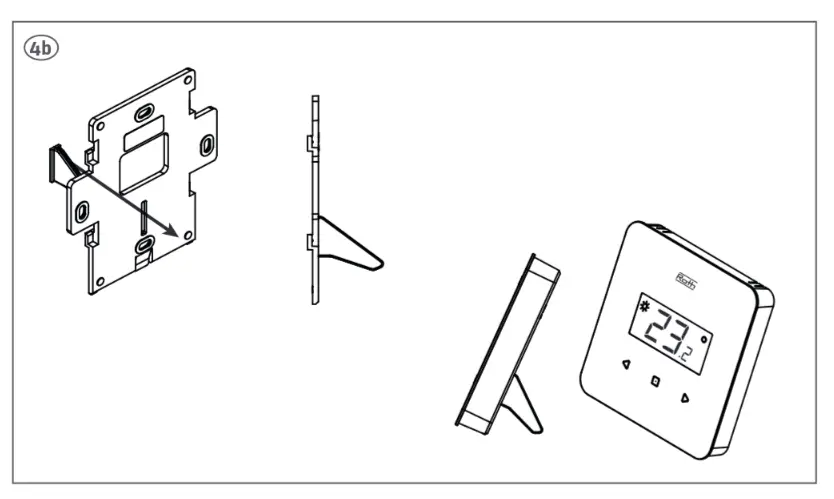
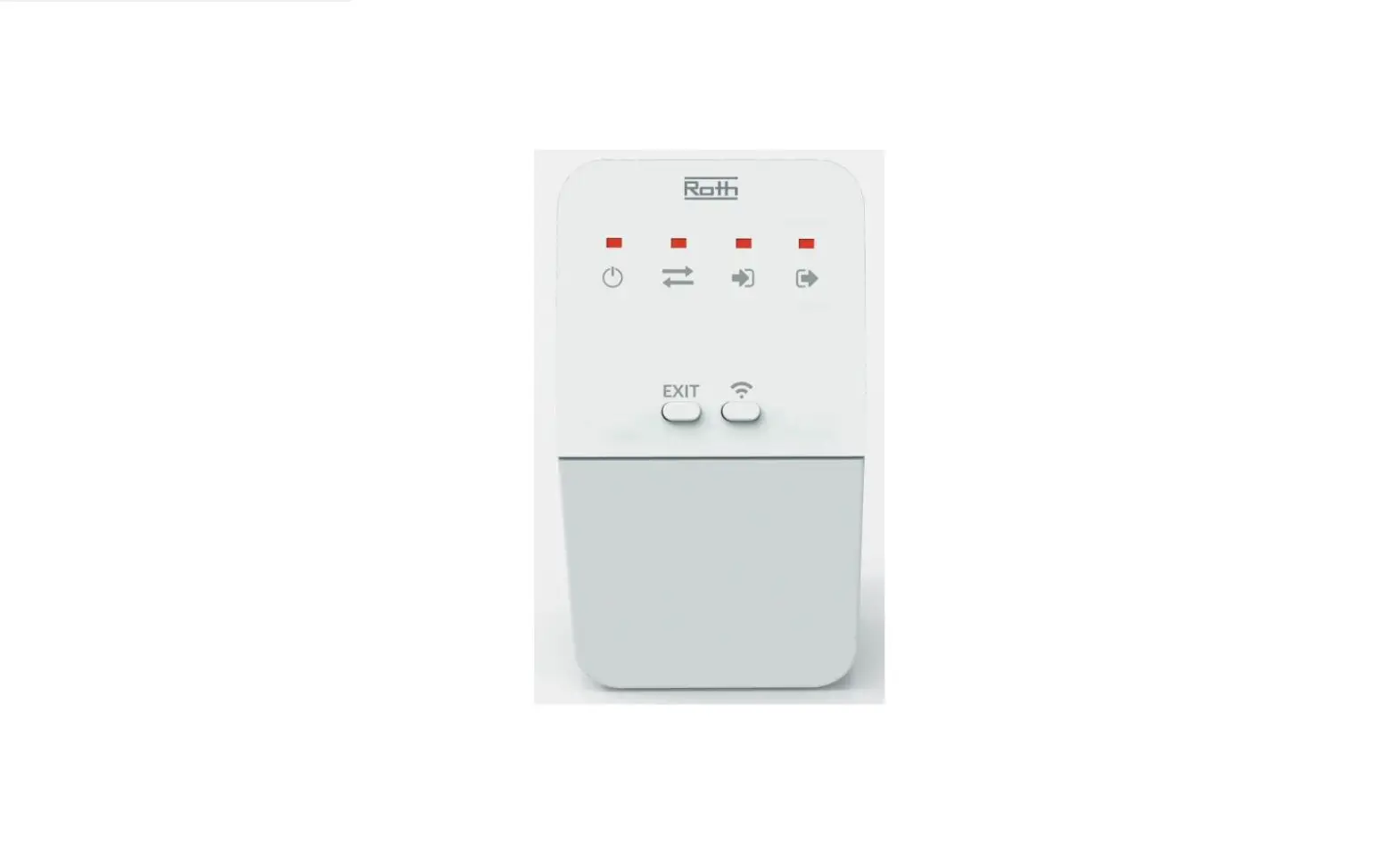
The thermostat can be connected to all Controllers in the Touchline® SL series. Pairing/registering is made the same way on all Controllers using the same buttons. On the pictures the panel of the Touchline® SL Controller, master is shown.
If you want to use the thermostat as a free-standing, the supplied foot can be mounted in the back plate before it’s mounted again.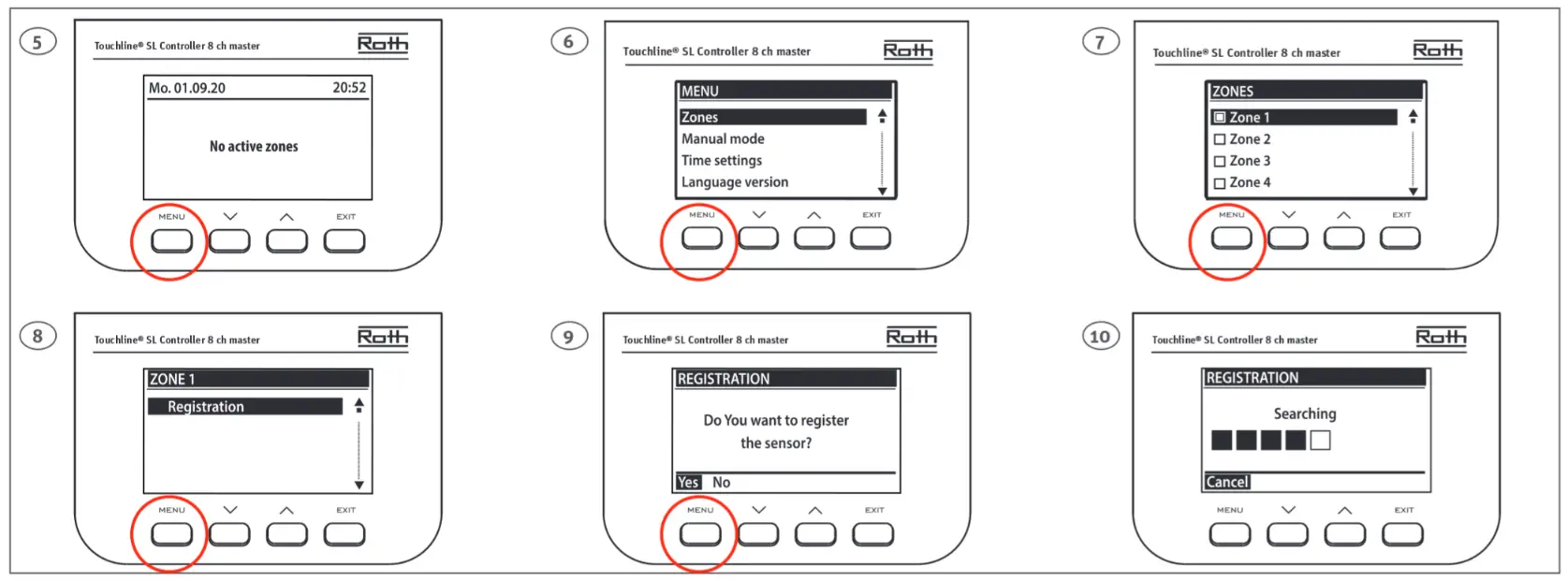 Pairing/registering the thermostat to a zone (channel). All connections must be made to the Controller (pump, actuators and optionally potential free relay) before start-up. Please see controller manual for details. Attention! Do not press the buttons on the front of the thermostat whilst pushing the pairing button on the rear (see picture 11).
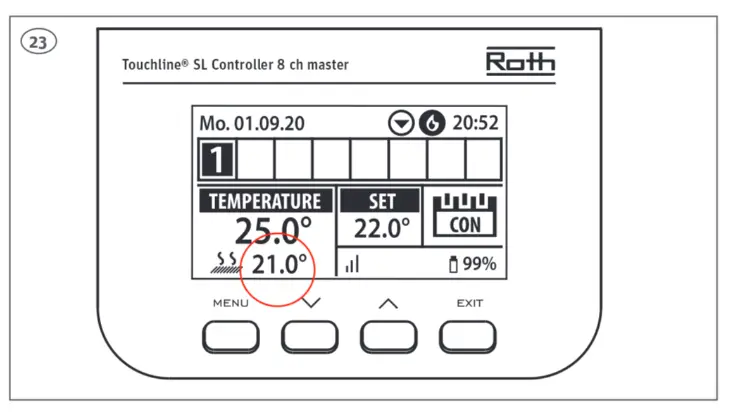
 Once the thermostat is connected to the Zone/Channel, the overview shows: – Temperatures on the thermostat (setpoint 22,0°C, actual 25,0°C) , battery (99%), signal strenght (100% – must be at least 10%) and mode of operation (CON = continuously). For more info on the display, see controller manual. Repeat registration for other thermostats, by choosing one of the other zones (2 to 8) until required number of thermostats are connected. Attention! If a thermostat is paired to the wrong zone, do not delete the thermostat. Pair the thermostat to the correct/new zone and the old pairing will be deleted.
if the thermostat has a Root sensor connected. this must also be paired/registered as shown below (picture 21. must be two quick presses).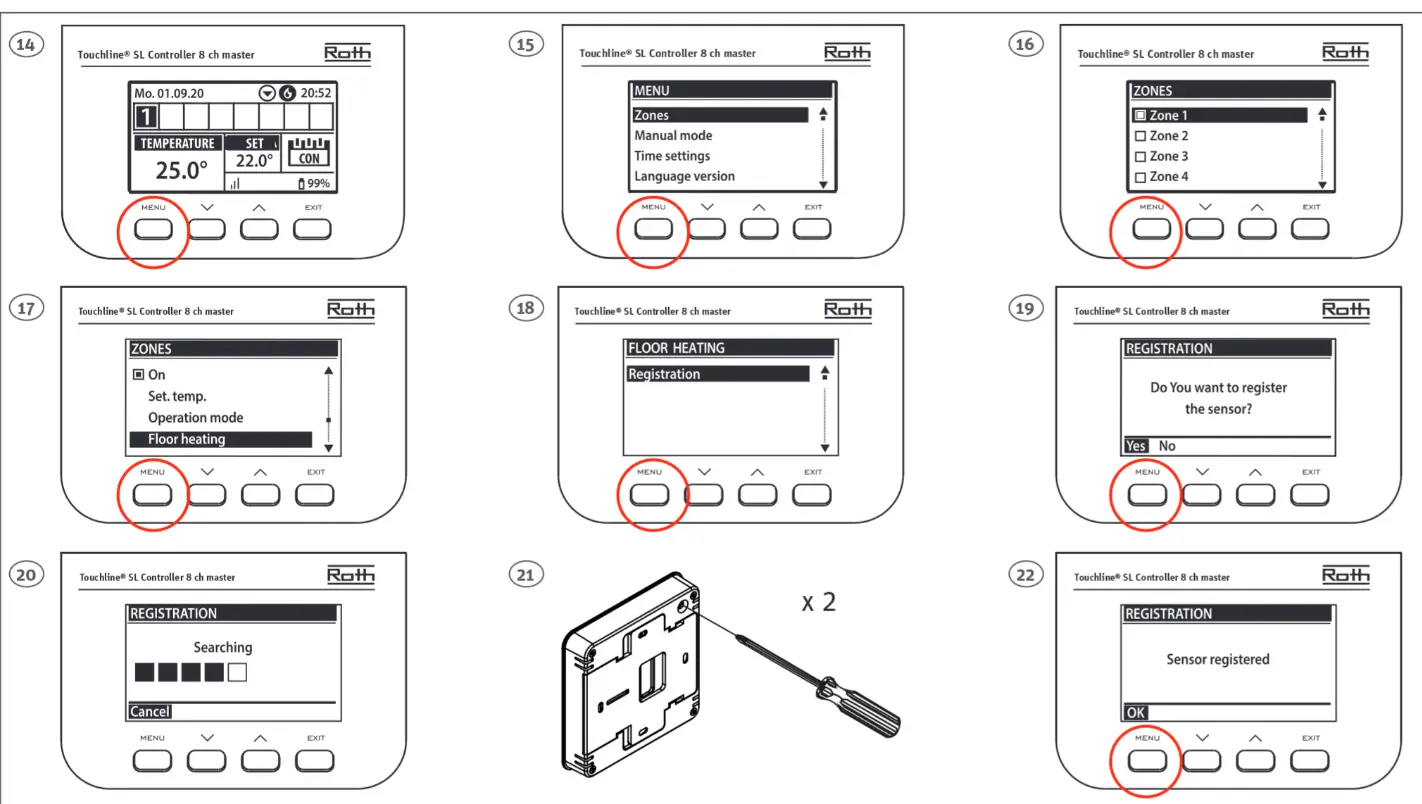 In the overview you can see both the thermostat (setpoint 22.0°C. actual 25.0°C) and the actual floor temperature (21.0°C). Repeat this for all other tones/channels (2 to 8) with a floor sensor.
 Operation/setting of the floor sensor is carried out on the display of the Controller. Floor sensor operation can be set up as either “Floor protection” (standard) or “Comfort” (min. Floor temp.).
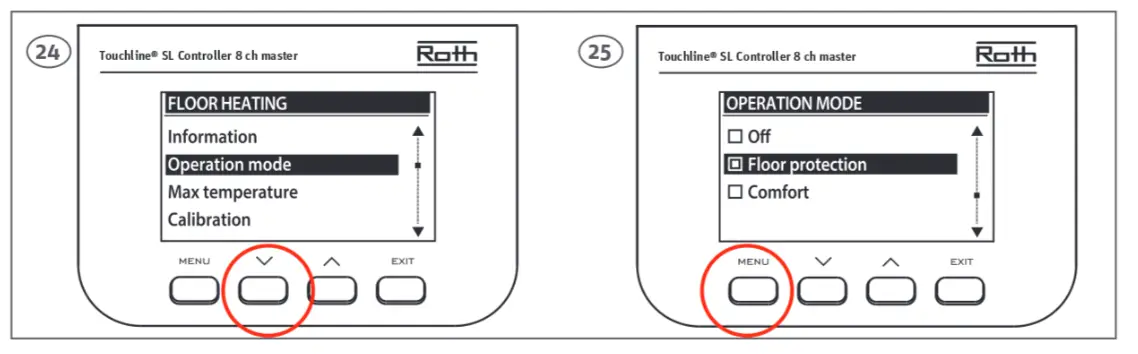 Set sensor as “Floor protection”. Choose operation mode and choose “Floor protection”
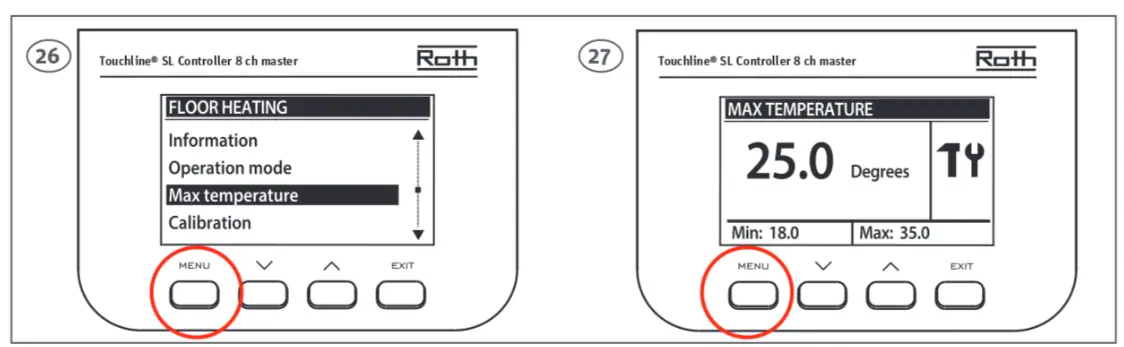 Set max. floor temperature to protect your floor. Confim with “Menu”.
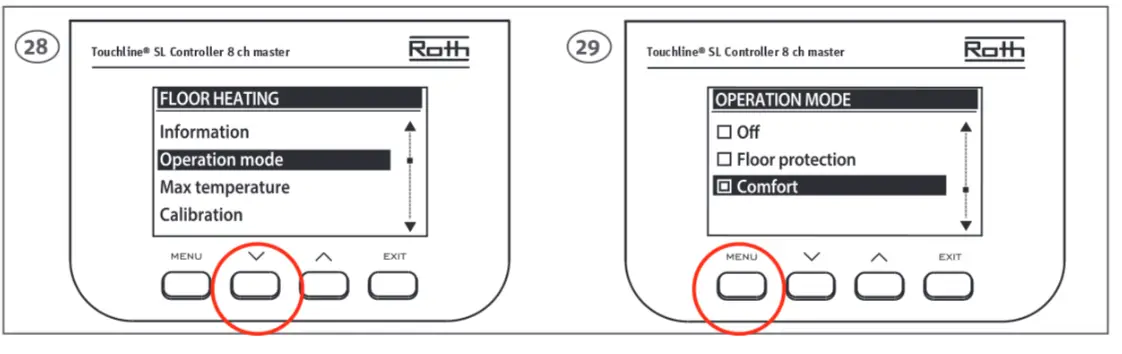 Set sensor as “Comfort”.
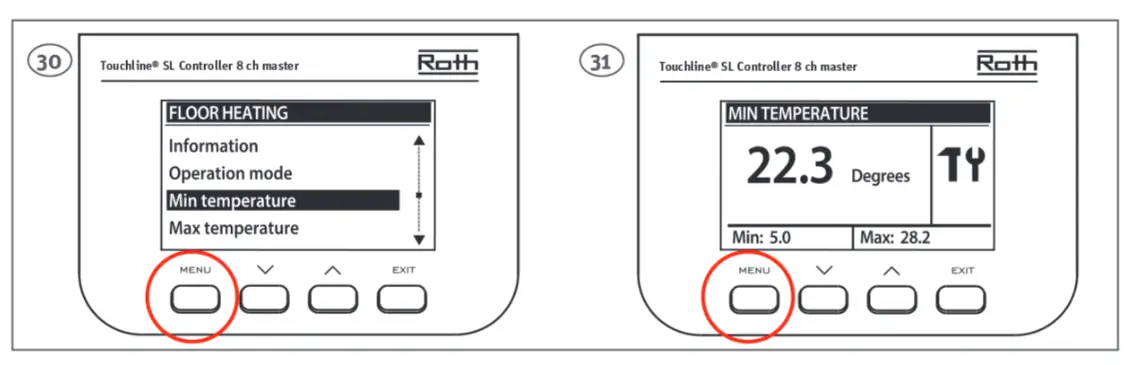 Set min. floor temperature for your comfort level. Confirm with “Menu”. Min. temperature is set as described above.
Attention! Using the floor sensor as “Floor protection’: the sensor will stop heating if the temperature goes above the set max. temperature. Below this temperature the room sensor has priority. Using the floor sensor in “Comfort” mode, the room sensor will have priority between min. and max. setting. Outside this min/max setting the floor sensor has priority.
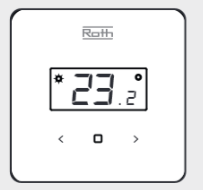 | In sleep mode the current temperature is displayed. To set/change temperature press <> buttons. Confirm by pressing 0 or wait 5 sec. |
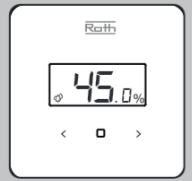 | You can switch between temperature display and relative humidity display by briefly pressing the ❑button. |
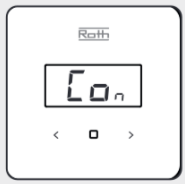 | You can choose between three modes on the ther-mostat. After changing the setpoint with < / > the actual setting is flashing: “Con” means setpoint is due constantly. |
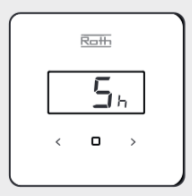 | “5H” means that the desired setpoint will be valid for the next 5 hours. after this the thermostat will return to it’s normal mode. |
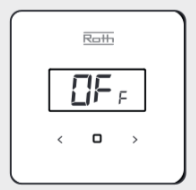 | “OFF” means that it fol-lows the mode preset on the Controller. The chosen mode can also be seen on the Con-troller display. Changing the mode “Con”, “5h” and “OFF° is done using the buttons < / > when the mode is flashing. |
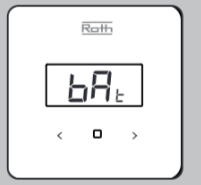 | Enables you to view bat-tery level. Select “Bat”, the display flashes. Confirm within 5 sec. after which the battery level Is dis-played in percentage %. |
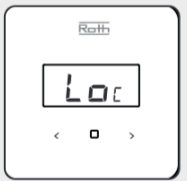 | Enables you to lock the buttons. Select “Yes” by using one of the buttons < >, confirm by pressing ❑ or wait 5 seconds. When the lock is active, the keys are locked automatically after 10 seconds of In-activity. To unlock, press and hold the bottons <> for 10 sec. The keys are accessible when the display returns to showing the current temperature. The key lock is activated until you inactivate it in the menu. |
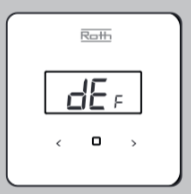 | Enables you to return the room thermostat to the factory setting. Select “dEF” and the display flashes and shows the selected value. Select/con-firm (Yes) with <> buttons within 5 sec. Confirm by pressing ❑ or wait 5 sec. and the factory settings has be restored |
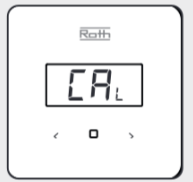 | Enables you to view the sensor calibration value. After selecting “Cal” the screen Rashes for 3 sec. and the value is displayed. Value can be changed on the Controller, please see user manual. |
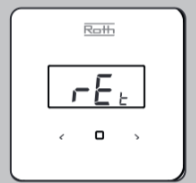 | Enables you to return from the MENU manually. After selecting “rEt” the screen flashes for 5 sec. and returns to view of the current temperature. |
ROTH UK Ltd
la Berkeley Business Park
Wainwright Road Worcester WR4 9FA
Phone +44 (0)1905 453424
E-Mail: [email protected]
[email protected]
[email protected]
[email protected]
roth-uk.com