 USER GUIDE
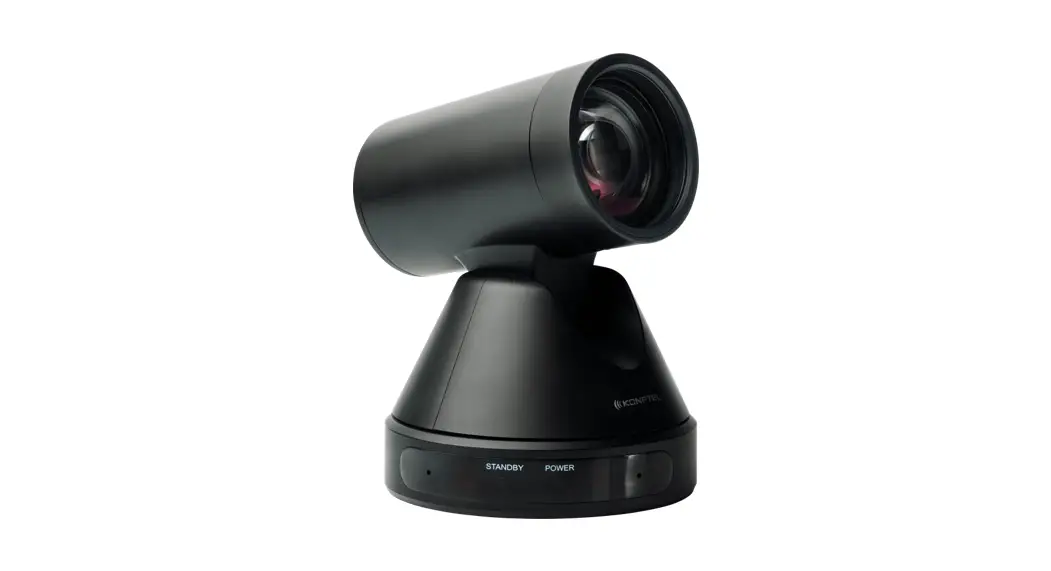
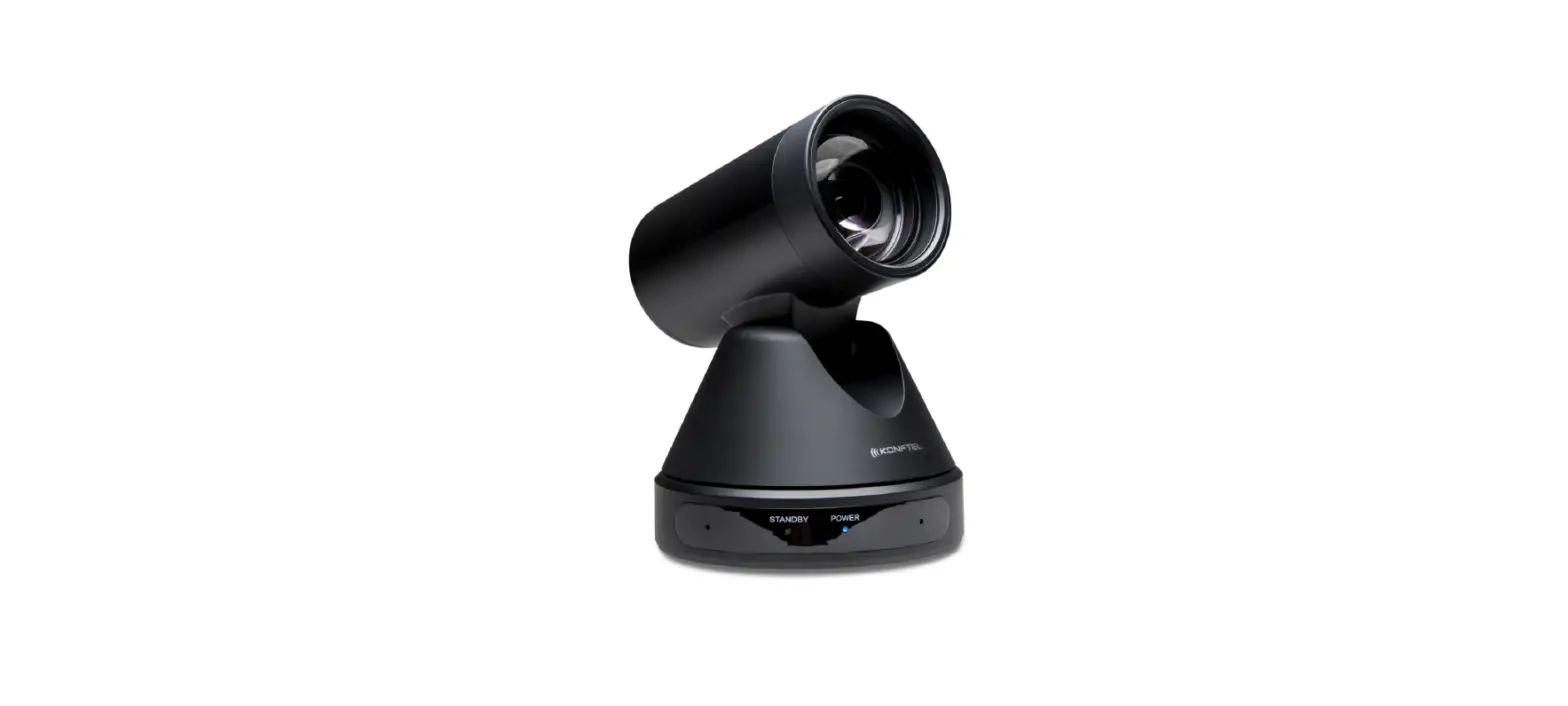
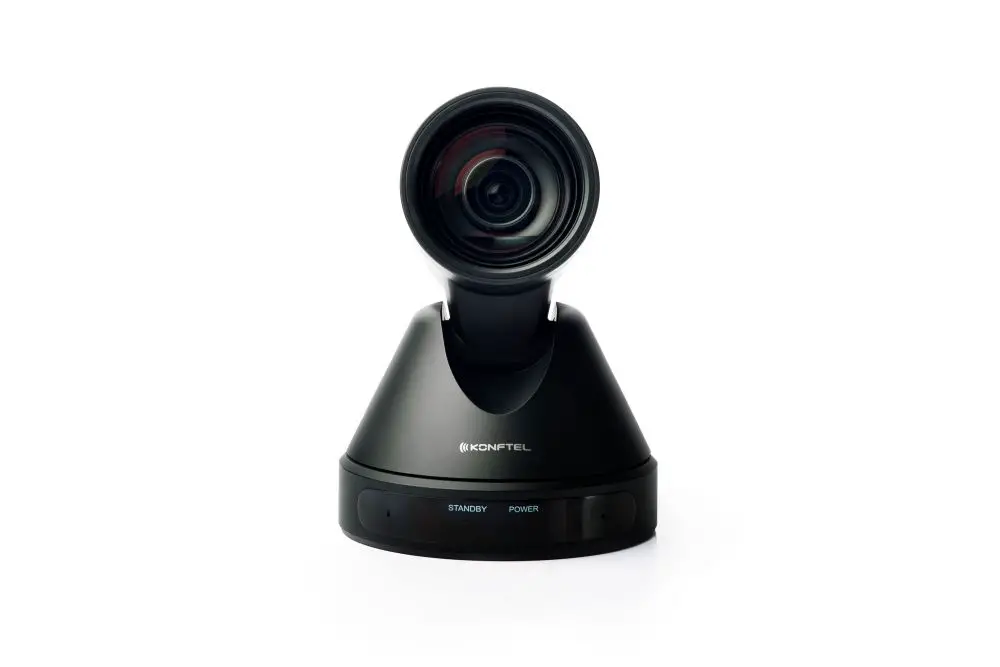
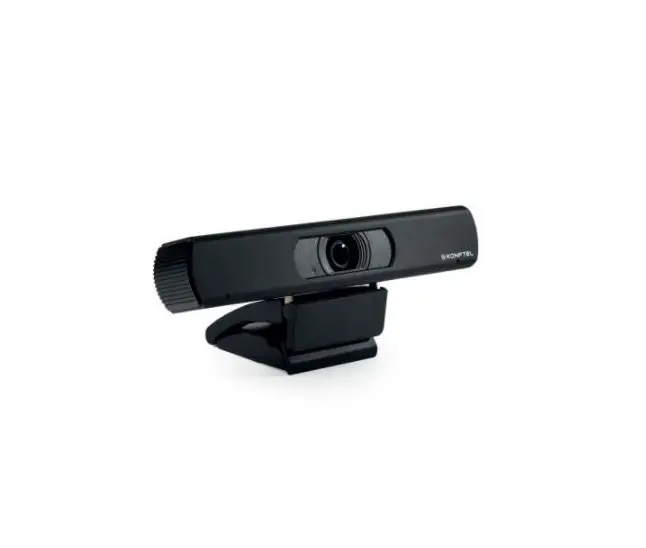
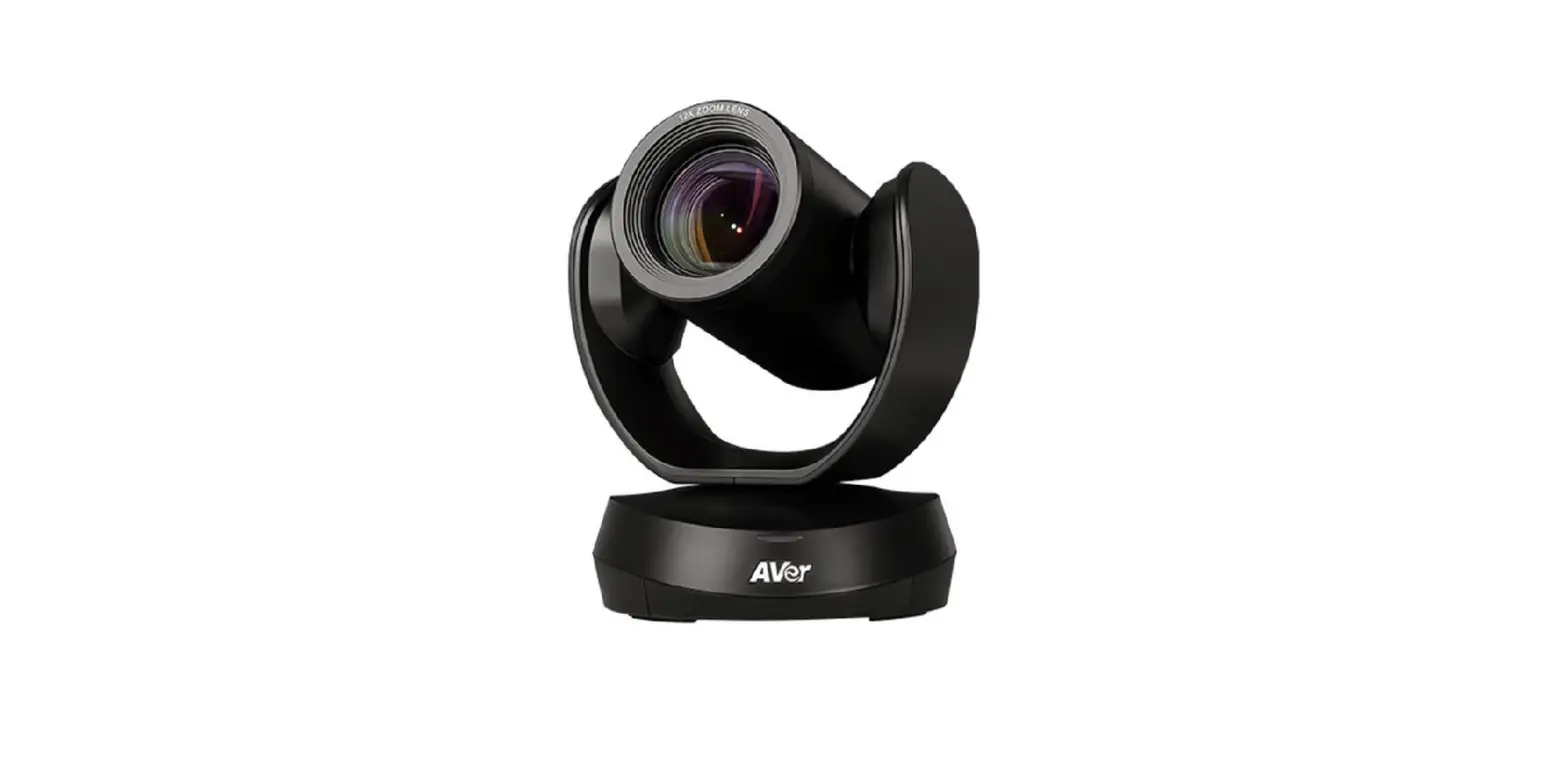
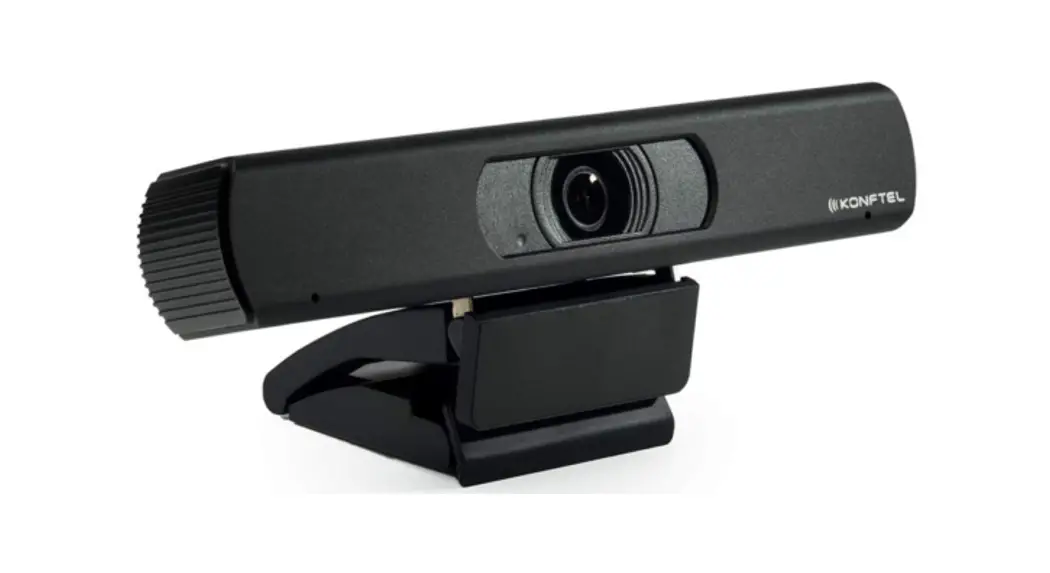
Konftel Cam20
Questions?
Click to Live Chat
SAFETY PRECAUTIONS
Carefull installation
This product should be placed stably and securely. The product should not come in contact with any liquid, gas, or solid material that may cause corrosion to the shell.
Unauthorized disassembly
This product has no parts which can be repaired by the user. Damage caused by the user’s own disassembly is not covered by the warranty.
 Warning!
Electromagnetic fields at specific frequencies may affect the image. Warning!
Do not expose the Konftel Cam20 to water or moisture. Warning!
Do not open the casing of the Konftel Cam20.
 Konftel AB hereby declares that this conference camera is in conformity with all the essential requirements and other relevant provisions of Directive 1999/5/EC.
Please visit www.konftel.com to view the complete declaration of conformity.
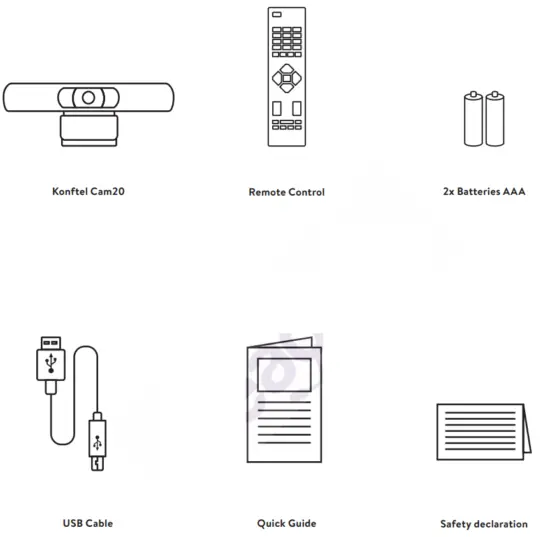
PACKING LIST
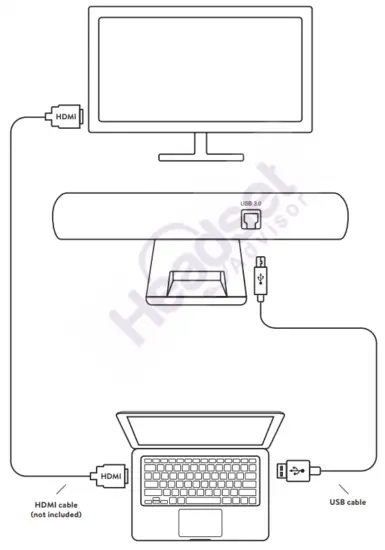
INSTALLATION
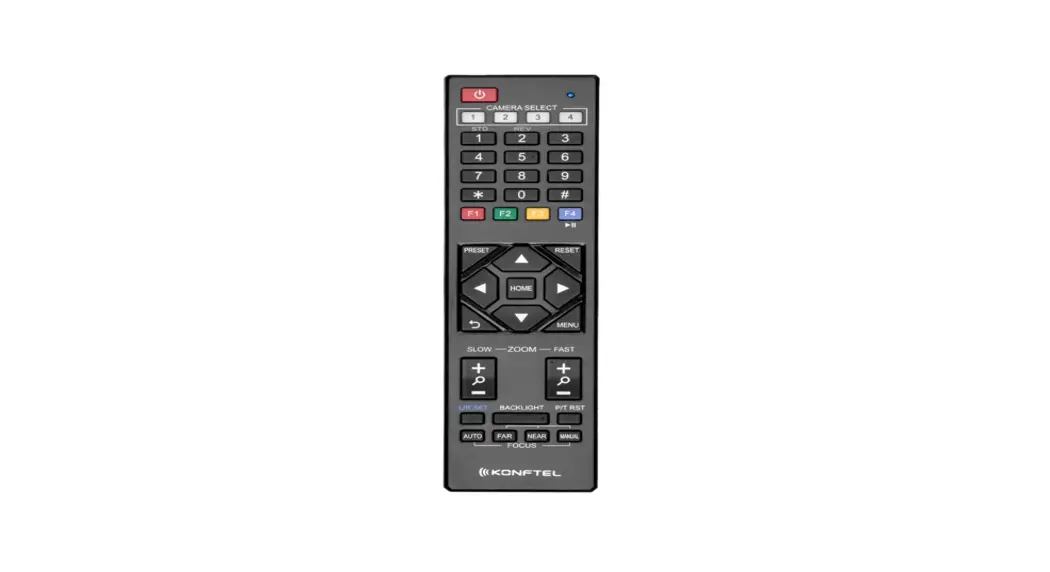
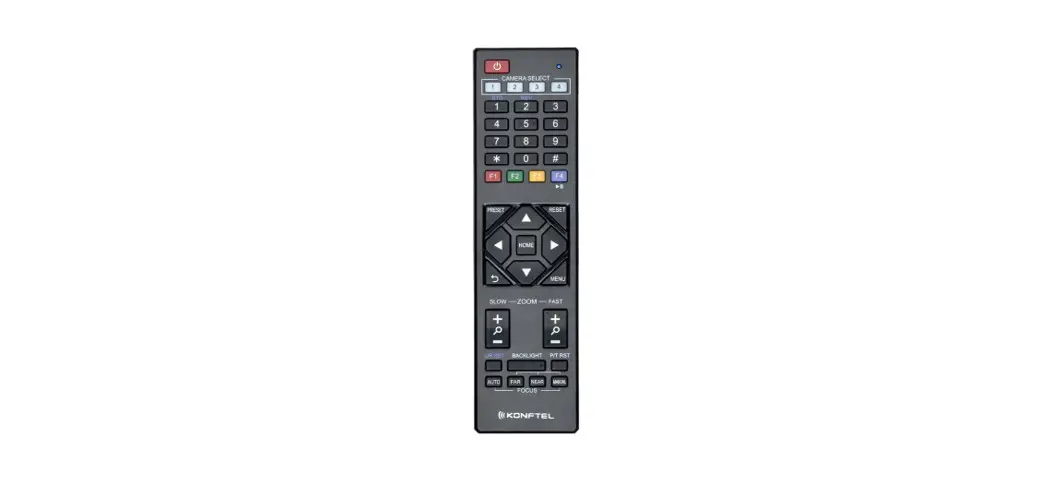
REMOTE CONTROL
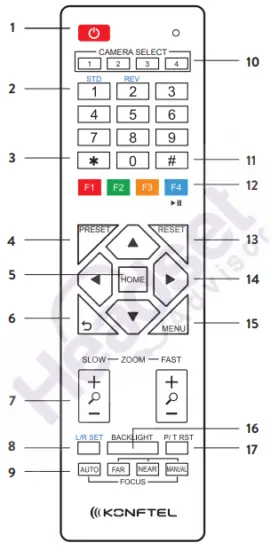
| No. | Name | Function Description |
| 1 | Standby Button | Enter into standby mode (not supported) |
| 2 | Position Buttons | To set preset or call preset |
| 3 | * Button | Used with other buttons |
| 4 | Set Preset Button | Store a preset position. [PRESET] + Numeric button (0-9): Setting a corresponding numeric key preset position. |
| 5 | Pan-Tilt Control Button | Press [HOME] back to the middle position. |
| 6 | Back Button | Press to return to previous |
| 7 | Zoom Buttons | Slow Zoom: Zoom In [+] or Zoom Out [-] slowly Fast Zoom: Zoom In [+] or Zoom Out [-] fast |
| 8 | Set Pan Left/Right | Setting the direction of the pan. • Simultaneously press [L/R SET] + 1 [STD]: set the pan to turn in the same direction as the L/R Set. • Simultaneously press [L/R SET] + 2 [REV]: set the pan and turn in the opposite direction as the L/R Set. |
| 9 | Focus Buttons | Used for focus adjustment. Press [AUTO] to adjust the focus on the center of the object automatically. Press [MANUAL] to adjust the focus on the center of the object manually. Adjust it with [FAR] (Focus on the far object) and [NEAR] (Focus on the near object). |
| 10 | Camera Select Buttons | Press the button corresponding to the camera you want to operate with the remote controller. |
| 11 | # Button | Used with other buttons |
| 12 | Set Camera IR Address Buttons | [*]+[#]+[F1]: Address 1 [*]+[#]+[F2]: Address 2 [*]+[#]+[F3]: Address 3 [*]+[#]+[F4]: Address 4 |
| 13 | Clear Preset Buttons | Clear preset: Erase a preset position. [RESET] + Numeric button (0-9) |
| 14 | Pan/Tilt Control Buttons | Press arrow buttons to perform panning and tilting. Press the [HOME] button to return to the original position. |
| 15 | Menu Button | Press [MENU] to enter or exit the menu. |
| 16 | BLC (Backlight Compensation) ON/OFF Button | Press [BLC ON/OFF] to enable the backlight compensation. Press it again to disable the backlight compensation. NOTE: • Effective only in auto exposure mode. • If the light is behind the subject, the subject will become dark. In this case, press the [BACKLIGHT ON/OFF] button. To cancel this function, press the [BACKLIGHT ON/OFF] button. |
| 17 | PTZ Reset Button | Not supported |
SERVICE AND WARRANTY
Warranty
We give a two-year warranty on our conference devices.
Service
Service is offered after the expiration of the warranty. Please contact your reseller and ask for a cost estimate.
Konftel support
If you have any questions about the warranty and service, please contact your Konftel support center.
Europe:
+44 1483 308 003 (Monday-Friday 8.00 AM-5.00 PM GMT-1)
+46(0)90-706 489 (Monday–Friday 8.00–17.00 GMT+1)
E-mail: [email protected]
Website: www.konftel.com/contact-support
USA and Canada:
+1 866-606-4728 (Monday–Friday 08.00–17.00 GMT-8)
E-mail: [email protected]
Website: www.konftel.com/contact-support
Konftel is a leading company in collaboration endpoint solutions.
Since 1988, our mission has been to help people in businesses around the world to have meetings regardless of distance. Based on our success, we know that remote collaboration is a smooth way to save time, and money and at the same time contribute to a more sustainable world.
Crystal clear audio and a sharp video image are essential for efficient meetings, this is why we only focus on cutting-edge technology in our Collaboration Solutions.
Our audio technology OmniSound® is built into all Konftel Conference phones and devices. The products are sold globally under the Konftel brand and our headquarter is based in Sweden.
Read more about the company and our products at konftel.com.
Konftel AB, Box 268, SE-901 06 Umeå, Sweden
Tel: +46 90 70 64 89 E-mail: [email protected]
 Climate Neutral Audio and Video Conferencing Products - Konftel
 Climate Neutral Audio and Video Conferencing Products - Konftel