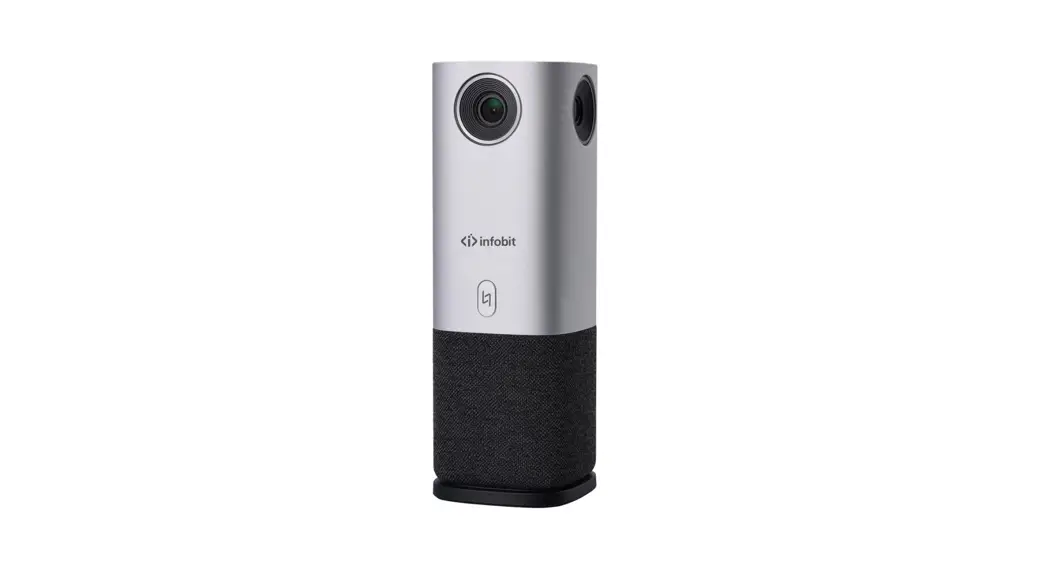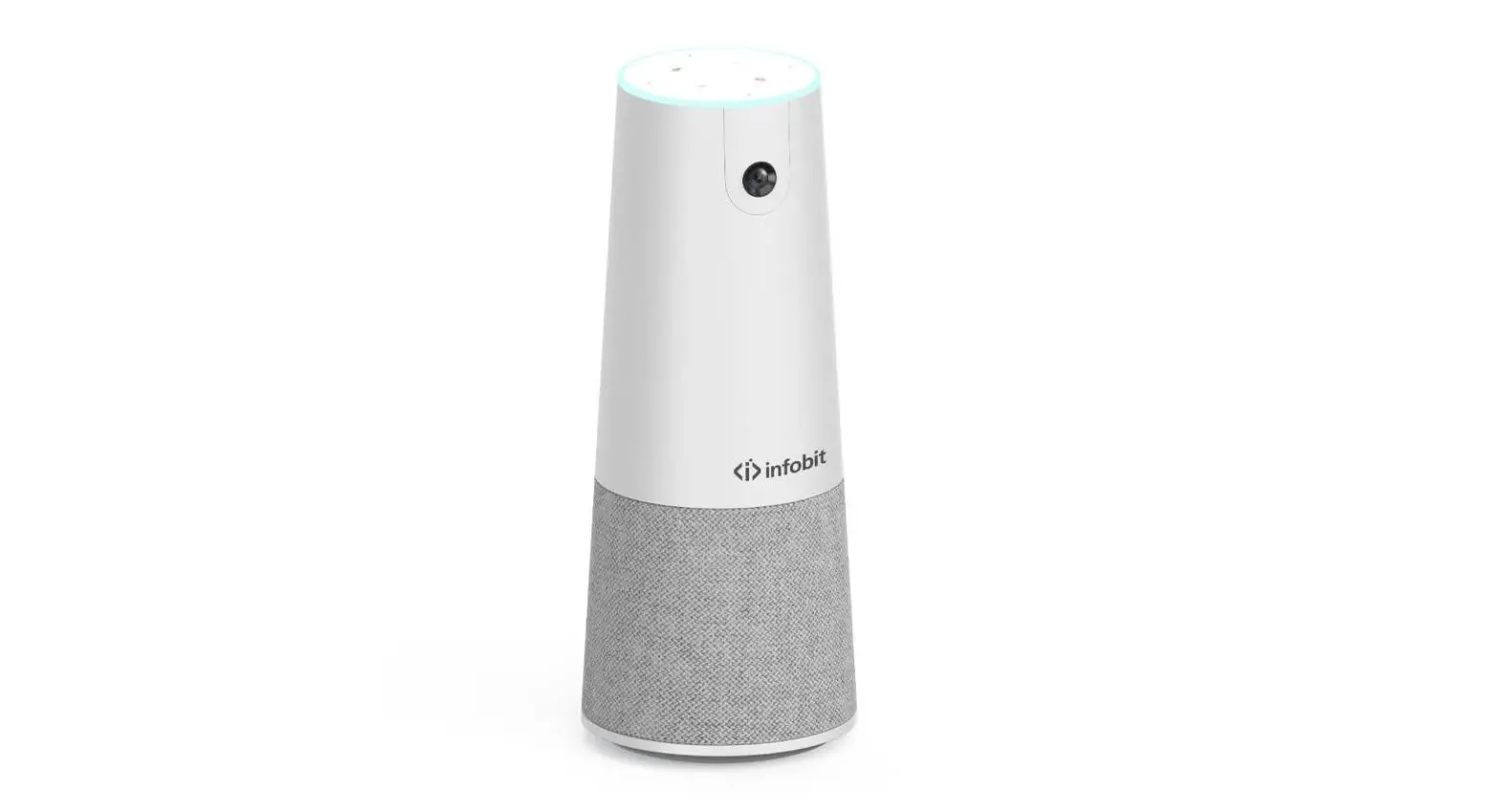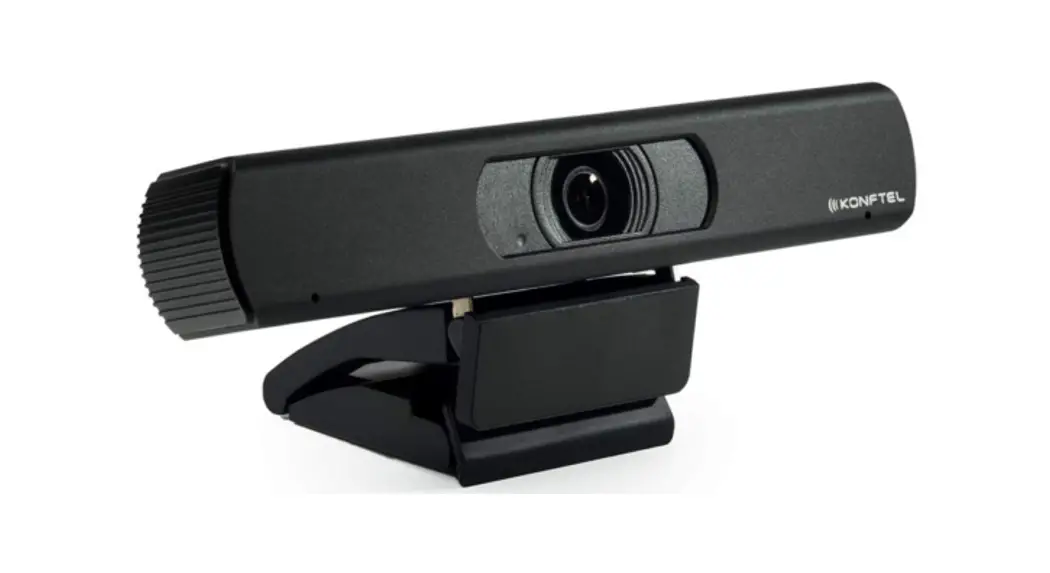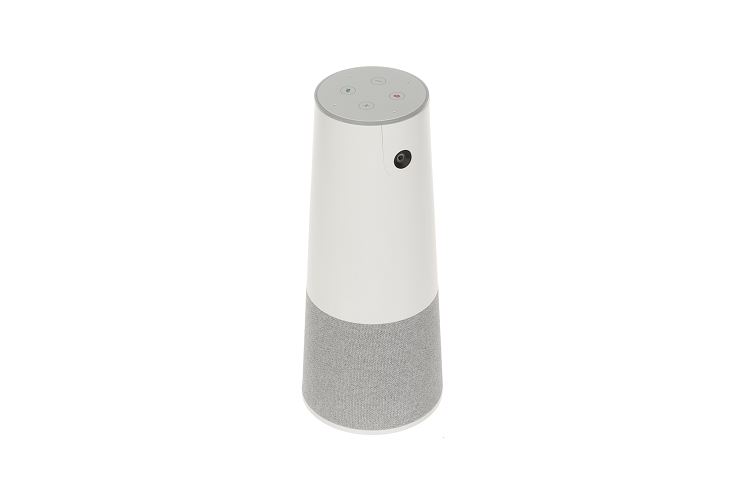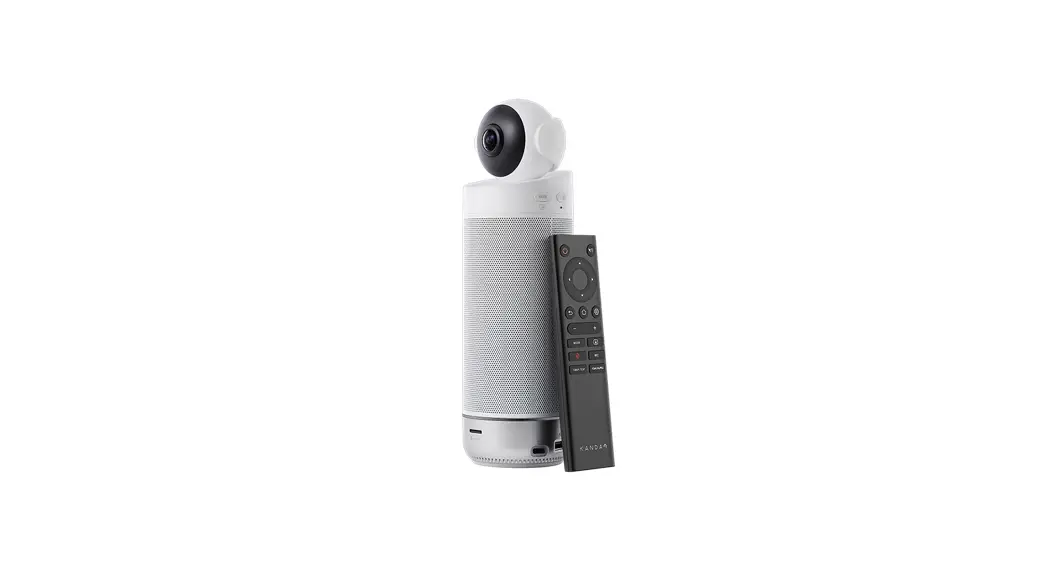
 Kandao Meeting Omni
User Guide
Product Profile
Preparations
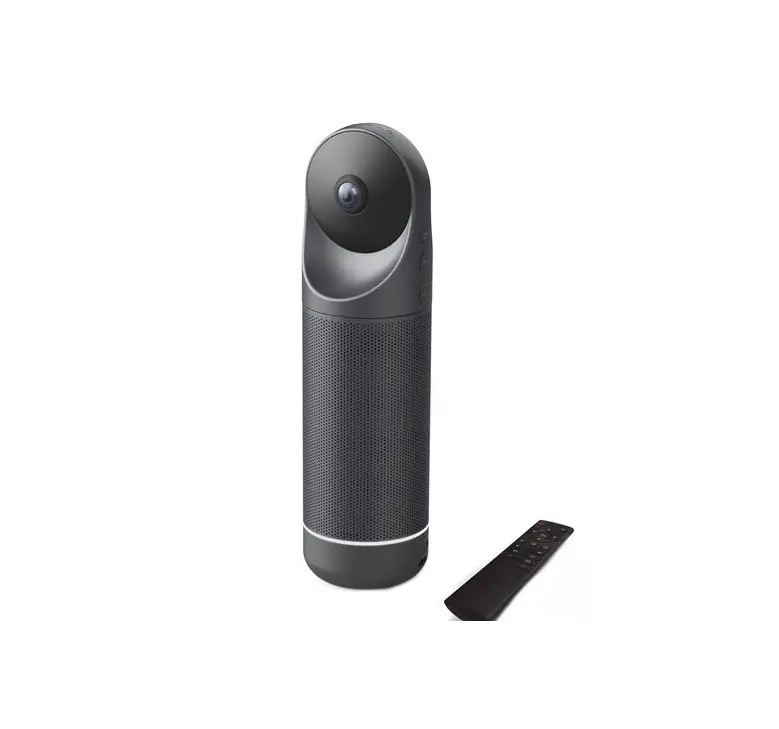
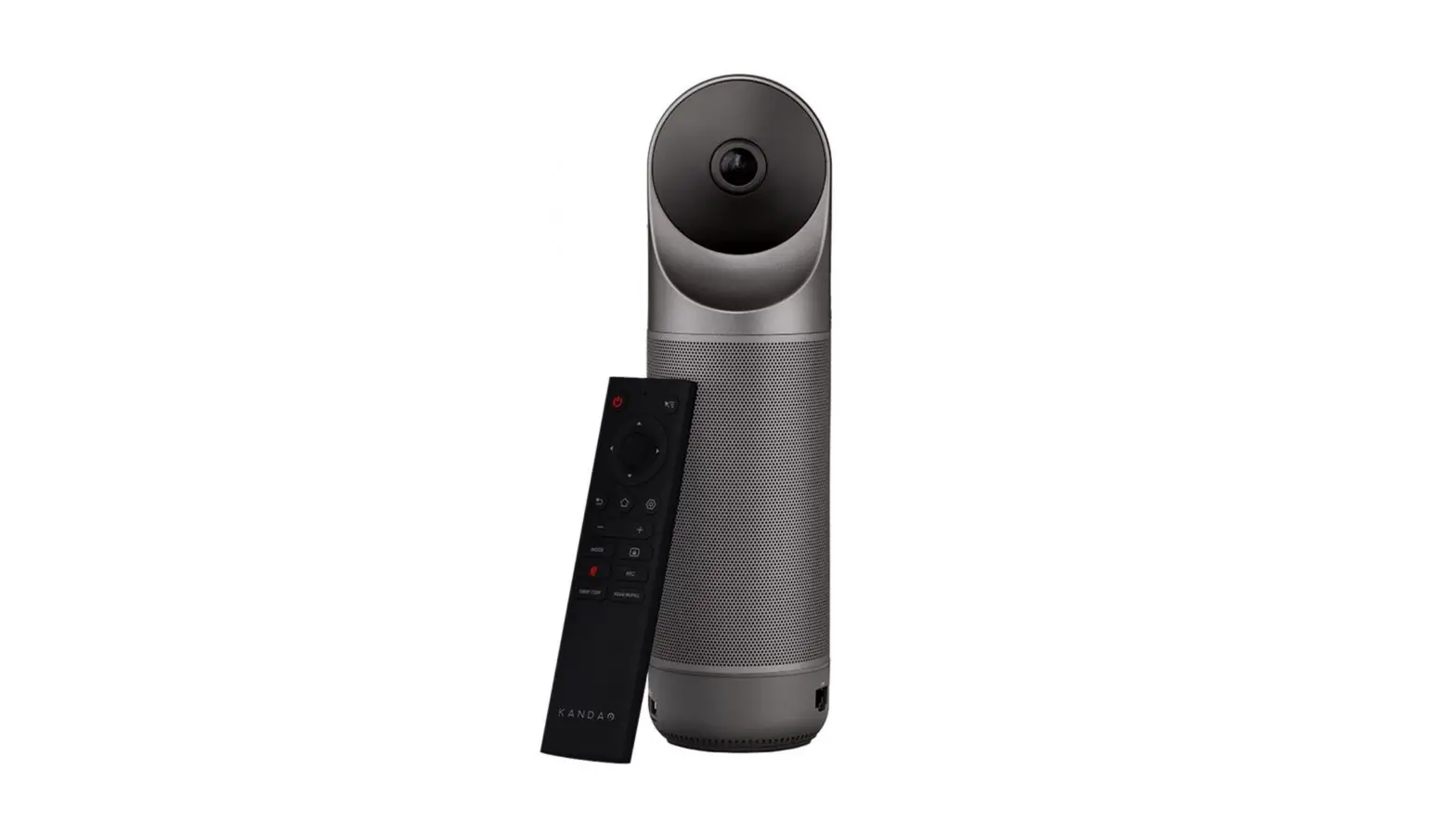
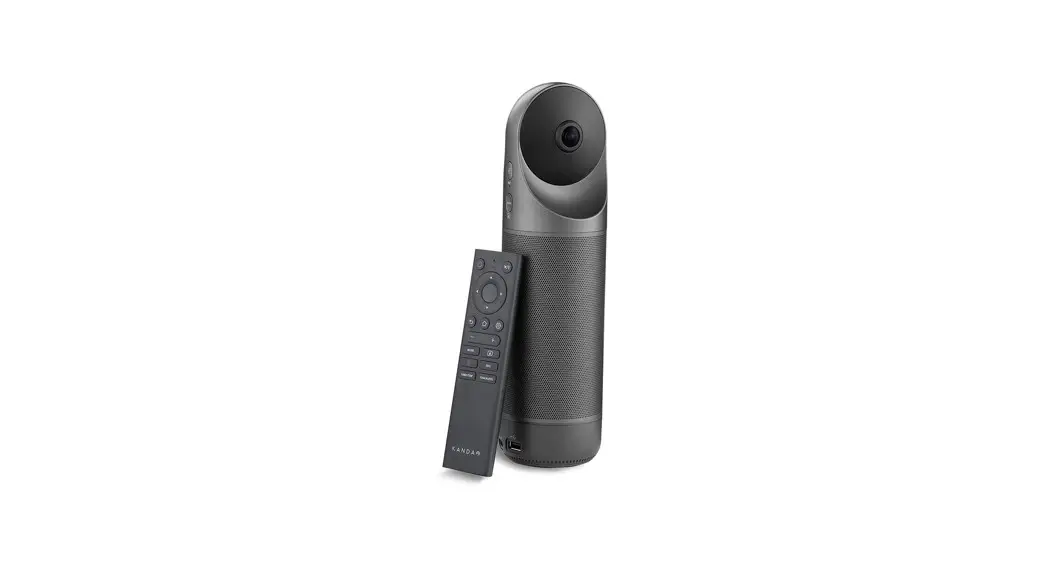
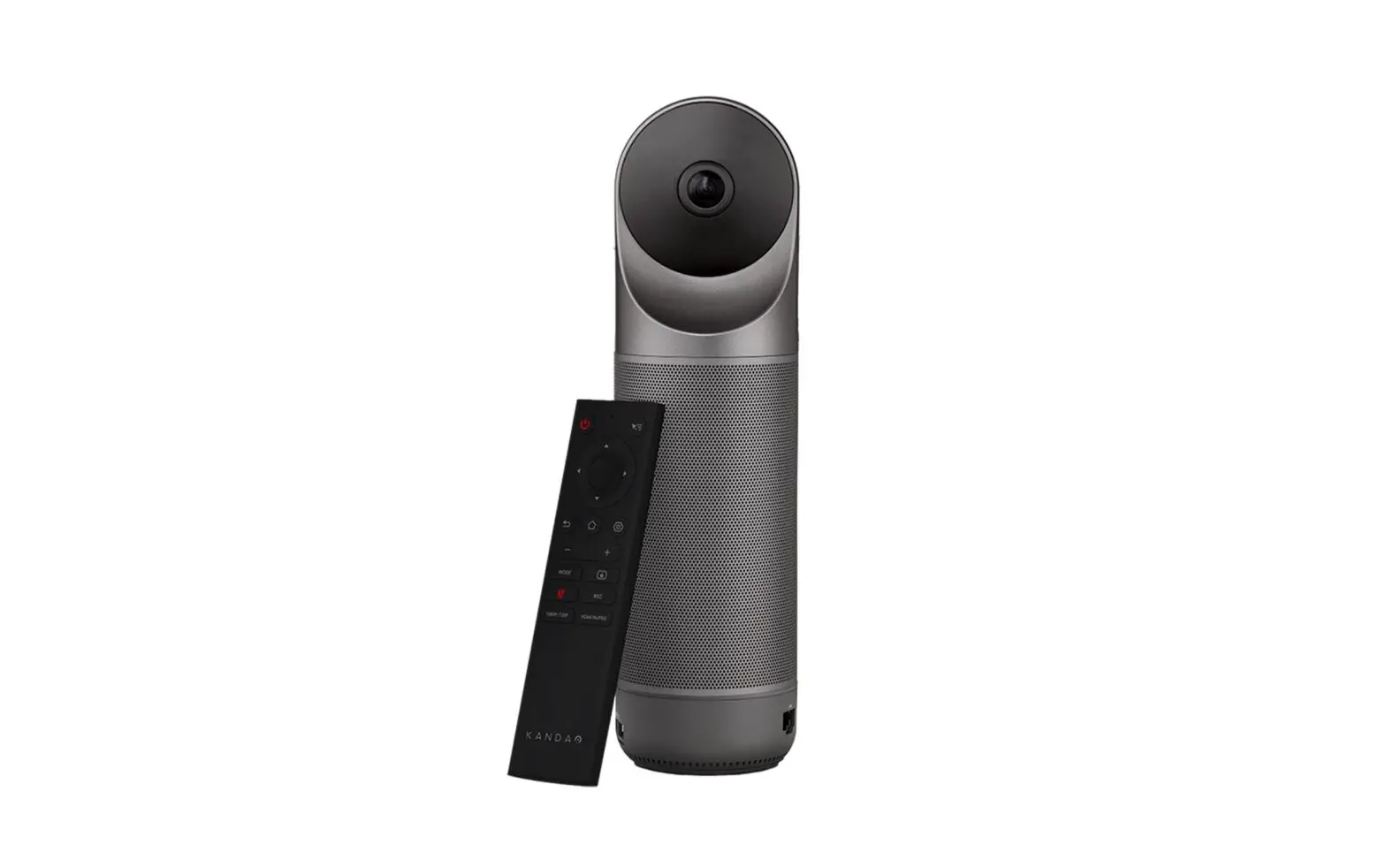
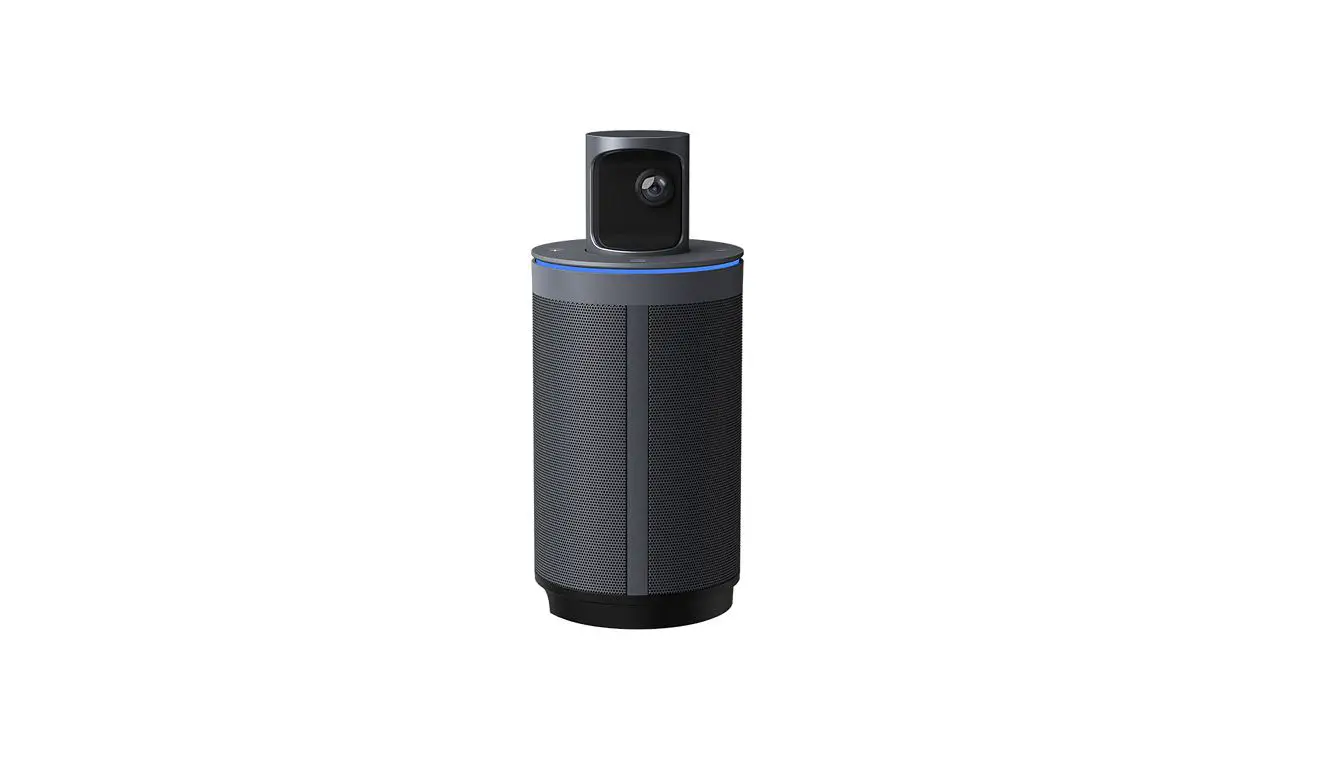
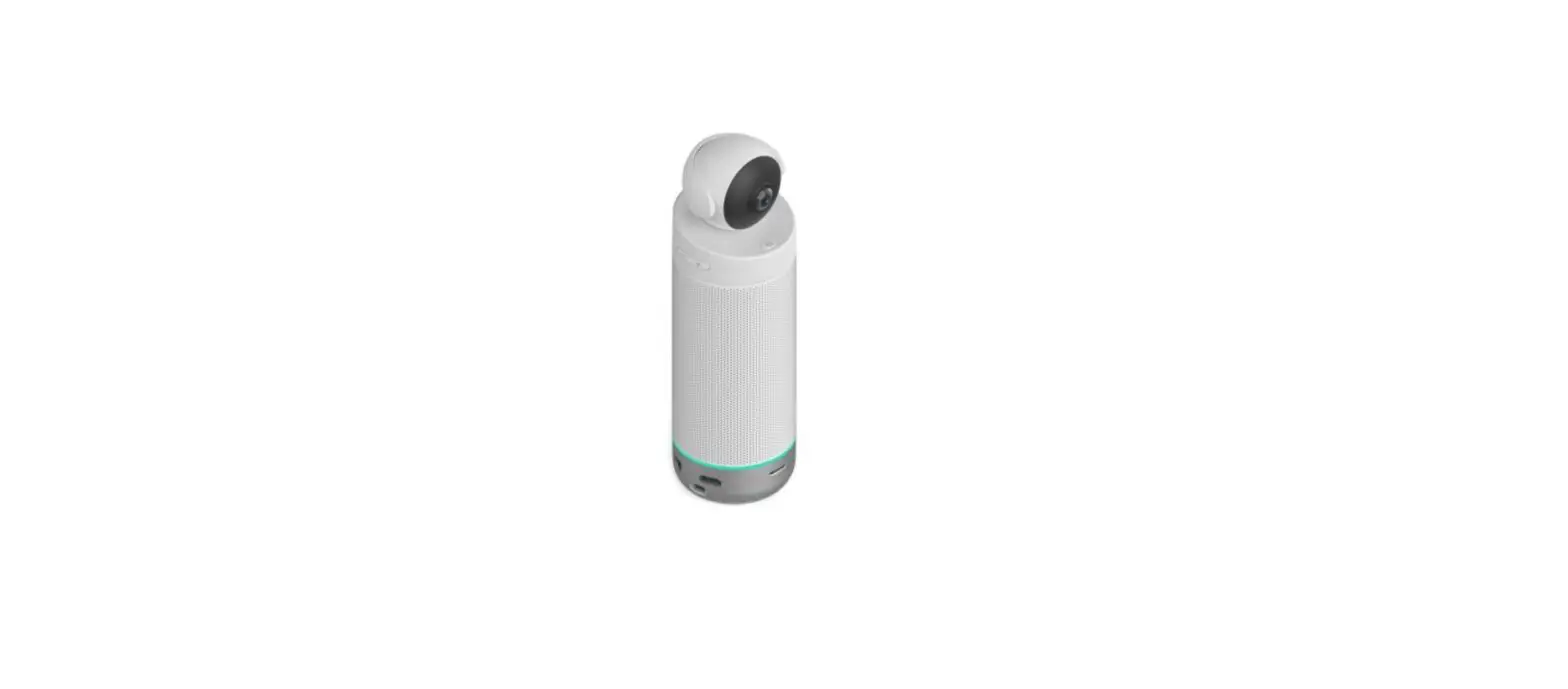
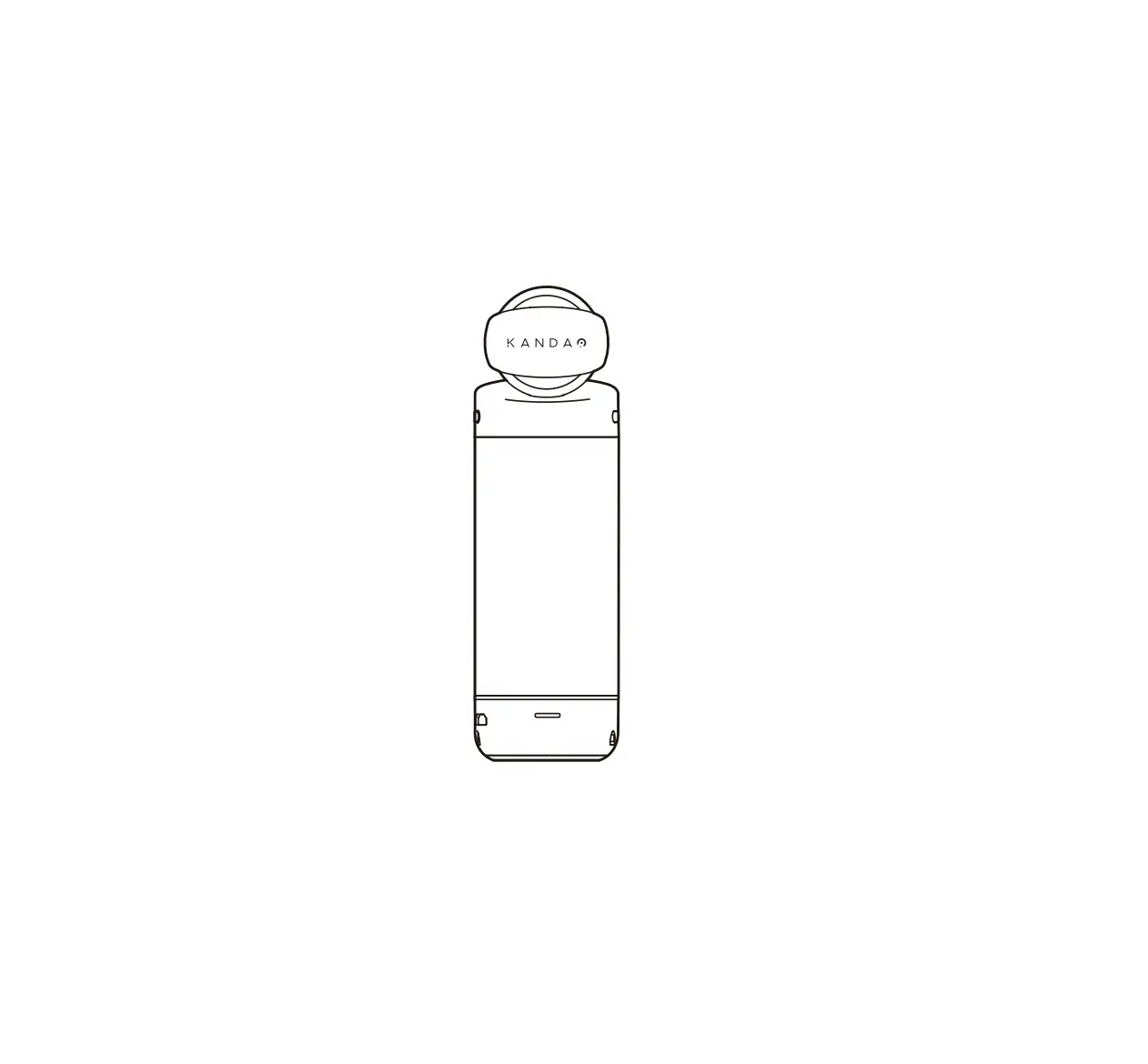
- Kandao Meeting S or Meeting Pro.
a. 2-4 units of Meeting S or Meeting Pro devices (with accessories: USB C to C cable, Power adapter, Ethernet cable for each unit).
b. Firmware version requirements of Meeting S: V4.0 or above.
c. Firmware version requirements of Meeting Pro: V34 or above. - Prepare a [Host PC] (need to be purchased separately) with the following recommended system requirements:
System Requirements Operating System Windows 1064-bit or Windows 1164-bit Processor Intel i5 11th Gen or higher-specification processor Memory 8GB of RAM or more GPU Intel® UHD Graphics 750 or higher-specification graphics card Network Ethernet Storage 128G or more - Prepare a router with at least 5 LAN ports (need to be purchased separately).
- Download and install [Kandao Meeting Omni].
Download Link: https://www.kandaovr.com/download/
Connection Instructions
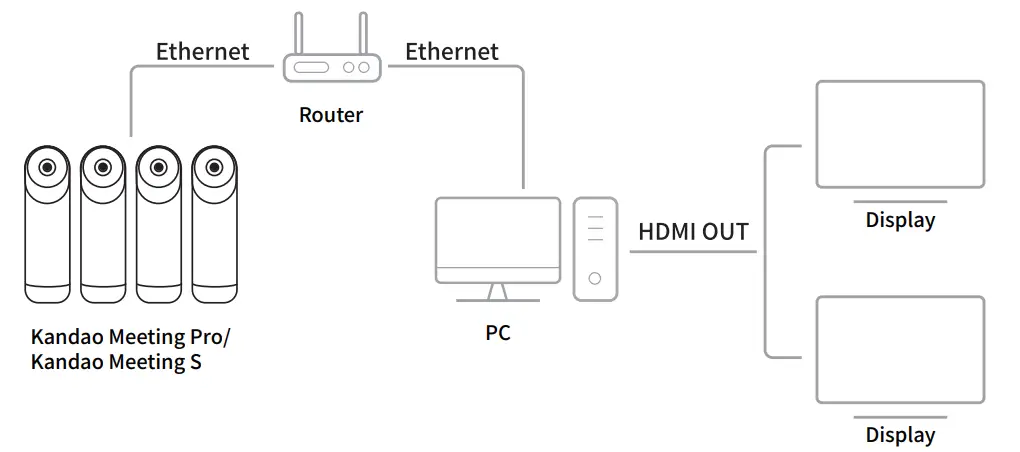
Connect the [Host PC] and multiple Meeting S or Meeting Pro cameras to the router through a wired network to form a LAN.
*Note
- A combination of up to four units of Meeting S and Meeting Pro can be interchanged.
- Connect the [Host PC] and Kandao conferencing cameras to the same LAN to use.
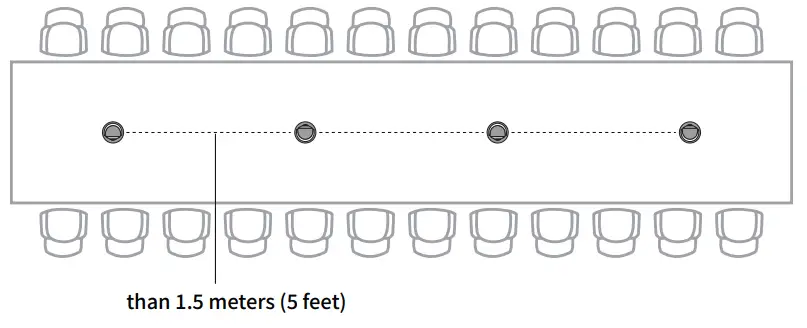
- The distance between each conference device must be more than 1.5 meters (5 feet).

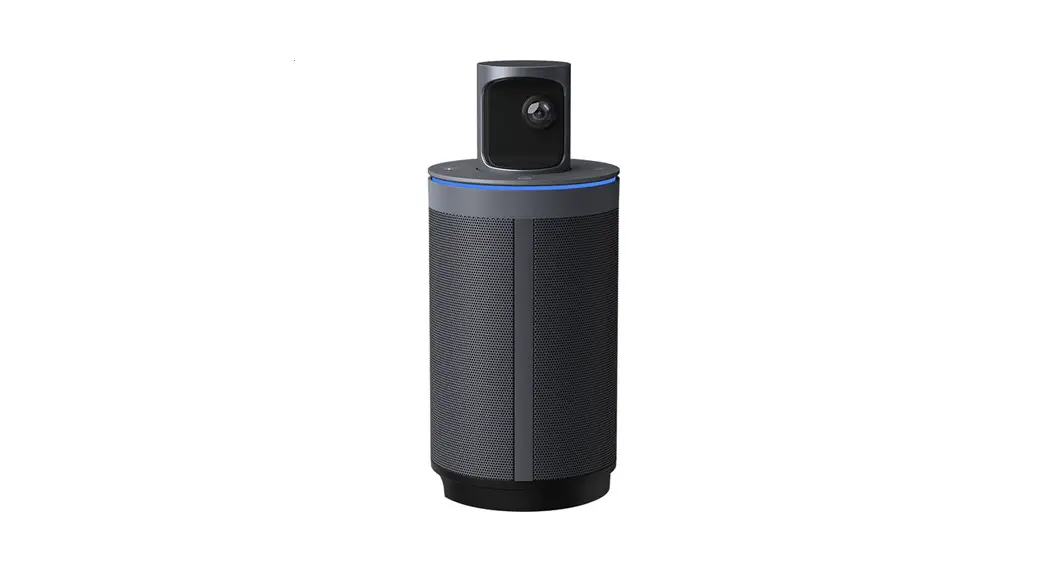
Indicator Light Description
Blinking Green:Starting up or updating firmware
Solid Green:Ready to use
Solid Blue:Camera working
When using the [Meeting Omni], except for the “Power button”, all other buttons on the device and the remote control of the devices are unavailable. Please operate the cameras through controls from [Meeting Omni].
How to Use
Meeting Omni Authorization
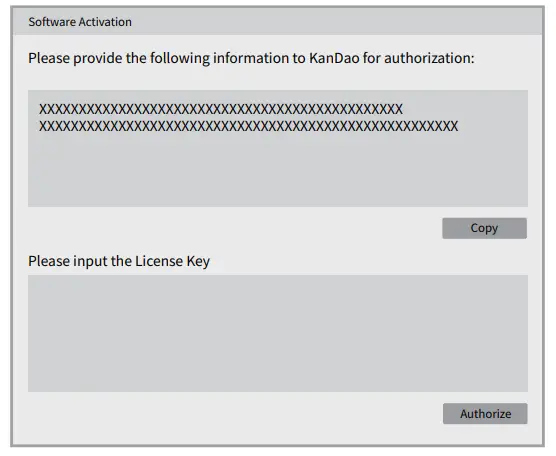
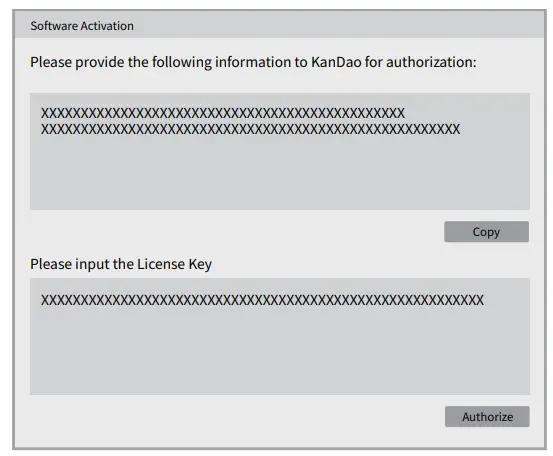
- An authorization interface will pop up when you start the [Meeting Omni] software for the first time. Please copy the encryption information shown in the upper windows of the interface, and email it to [email protected].

- You will receive a reply with your license key from [email protected]. Please paste the license key into the corresponding window of the interface, and click “Authorize” to activate.

*Note
Each [Host PC] needs to be authorized for activation when running「Kandao Meeting Omni」for the first time.
Combining Devices
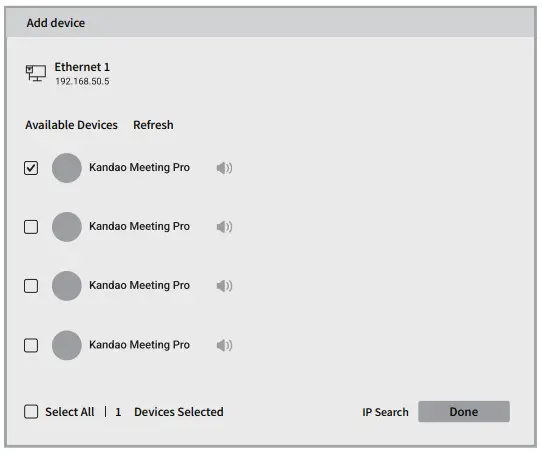
- After connecting and turning on all devices, start the [Meeting Omni] software on the desktop of the [Host PC].
- [Meeting Omni] will automatically search and display the list of available devices when running.
- Select the devices to be combined, up to 4 sets.
- Click [Done], and the preview of [Meeting Omni] will be shown automatically on the screen.

*Note
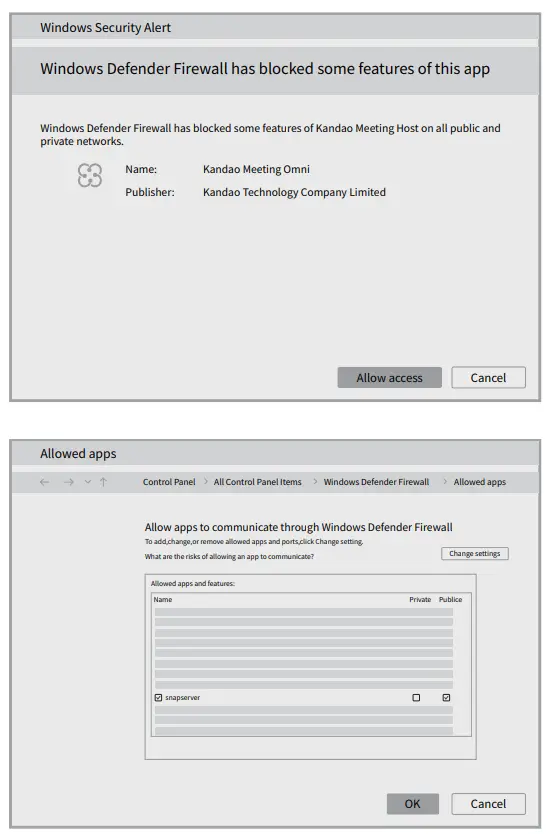
If there is no sound or preview on your [Host PC], please disable the firewall or allow access to [Kandao Meeting Omni] on all networks.
Starting a Meeting
Start the video conferencing app, and select [Kandao Meeting Omni] from the camera/speaker/microphone device list of the conferencing platforms.
*Note
- Third-party video conferencing software need to be closed when updating [Kandao Meeting Omni].
- It may fail to start a remote meeting without the Internet but multi-conference devices can still be combined.
- Launch a video conferencing software and go to Share Screen.
- Select the window to be shared.
- If you want to share the screen of another computer, please connect it to the [Host PC] via the HDMI IN port (This is only applicable to [Host PC] with HDMI IN Port). Select [Meeting Omni] – “Share Screen” in the previous step.
Sound Controls
The speaker and microphone volume of [Meeting Omni] is subject to the audio settings of the Windows system.
Sleep Mode & Wake-up of the Conferencing Cameras
- Sleep Mode
Short press the [Power button] on the conference camera to enter the sleep mode, and the camera automatically disconnects from the [Meeting Omni]. - Wake-up
a. Short press the [Power Button ] on the conference camera again to wake it up.
b. Click the [Connect] button in the Meeting Omni device list to reconnect.
 ] on the conference camera again to wake it up.
Power Off
Long press the power button on the conference camera for about 3s to turn it off.
Device Binding Description
- To ensure your privacy, the conferencing cameras added to the device list of [Meeting Omni] are bound with it until you actively unbind it.
- A bound conference camera can’t be bound with and accessed by other [Meeting Omni]. To bind a new “Meeting Omni”, please unbind the original one first.
- You can remove the device in the [Device List] of [Meeting Omni], or go to “Settings” – ” Meeting Omni Mode” menu – “Unbind” when in the Standalone Mode of the conference camera.
- If you don’t want to connect your meeting host with [Meeting Omni], please disable it through [Settings] – [Meeting Omni Mode] menu under the standalone mode of the Meeting Pro/S.
Meet Scenario Deployment
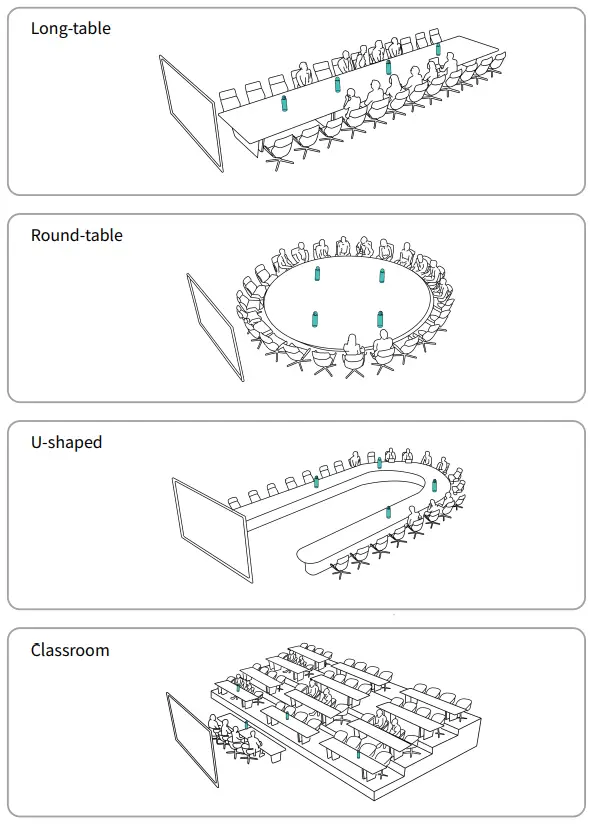
Kandao Meeting S
*Note
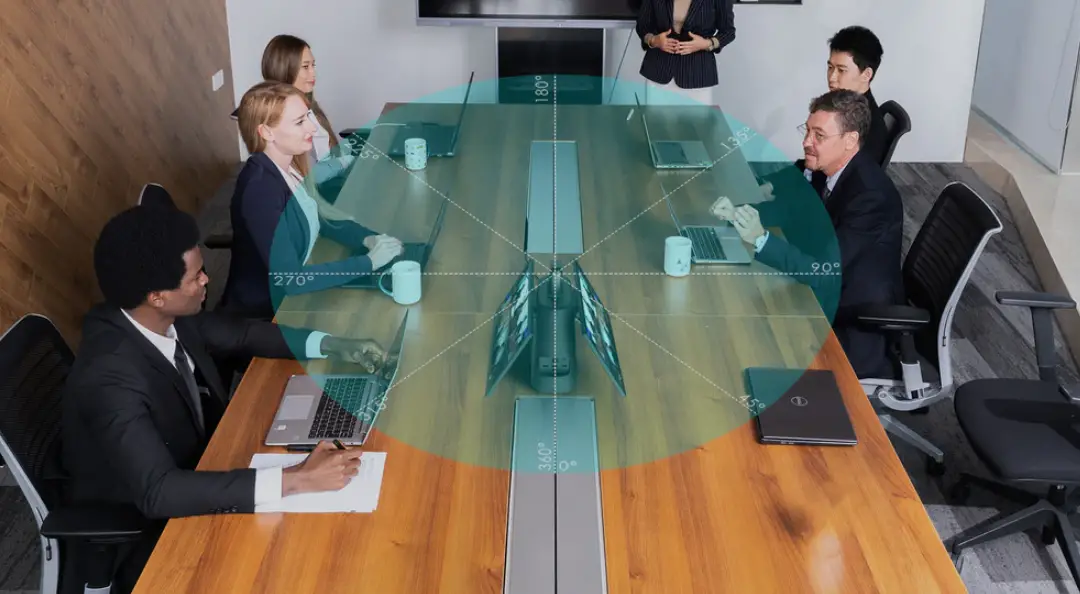
The lens of Kandao Meeting S is 180°, adjust the camera to make the view cover as many attendees as possible.
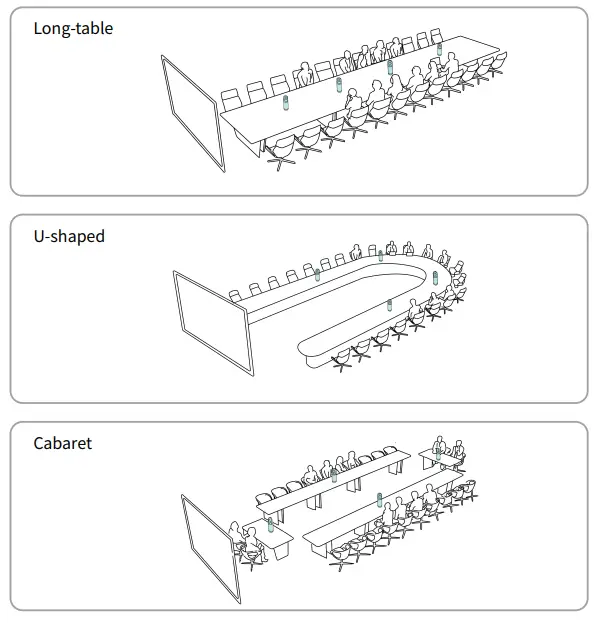
Kandao Meeting Pro
Meeting Omni Function Introduction
Devices
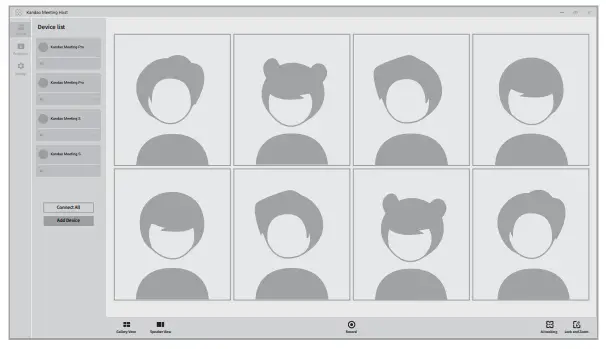
Device list
- Beep:Click to make the devices play sound and blink the light so that you can find it easily.
- Disconnect:Disconnect the conference camera with [Meeting Omni], but binding is kept.
- Connect:Connect the conference camera with [Meeting Omni], the view captured by this camera will be automatically added to the combination preview after connecting successfully.
- Remove:Remove the conference camera from the combination, and unbind to [Meeting Omni].
View Settings
- Gallery View:Active speakers are intelligently displayed in equal frames.
- Speaker view:The active speaker will be highlighted in a larger frame on the left, and other attendees are displayed in equal frames.
- Local Recording:Record the preview view of the [Meeting Omni] and sav it to the [Host PC], which is usually used for in-person meetings.
- AI Tracking:Intelligently identify the human faces of local attendees and track the speakers, and intelligently adjust the window layout and number.
- Lock and Zoom:It supports view lock and view layout selection. You can choose a layout of 1-8 people in the Gallery View, and choose a layout of 1-7 people in the Speaker View. It also supports view angle adjustment for each window.
*Note
Local recording resolution is the same as the “Kandao Meeting Omni” screen resolution, you can choose 720p or 1080p in “Settings”.
Screen Mirroring
- It will display the screen of the computer connected to the [Host PC] through [HDMI IN Port] (This is only applicable to [Host PC] with HDMI IN Port).
- When sharing the screen in the video conferencing software, open [Kandao Meeting Omni] – [Projection] to share the screen of the computer connected to the Host PC through [HDMI IN Port].
Settings
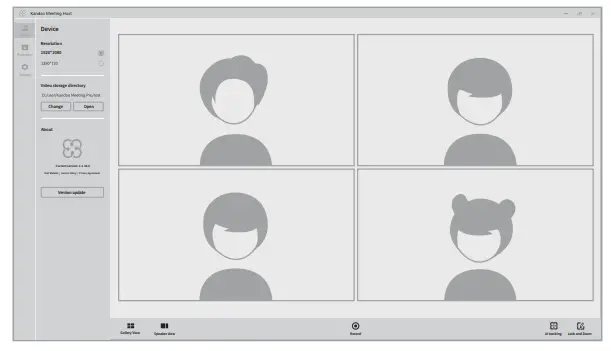
- Resolution:Set the resolution of video conferences and local recording videos, supporting 720p and 1080p.
- Video Save Location:Change/open the storage path of the recorded videos.
- Version:Display the current software version number.
- Update:After clicking, it will link to the Kandao official website and you can download and install the latest version. Please close [Kandao Meeting Omni] before updating.
www.kandaovr.com
Product Name: Kandao Meeting Omni
Manufacturer: KanDao Technology Co.,Ltd.
Address: 503, Building 1, Dayun Soft Parts Town, No. 8288, Longgang Avenue,
Heao Community, Yuanshan Street, Longgang District, Shenzhen
 KanDao - 360 VR Camera | 3D Camera | 3D 360 Camera | 3D VR Camera
 KanDao - 360 VR Camera | 3D Camera | 3D 360 Camera | 3D VR Camera