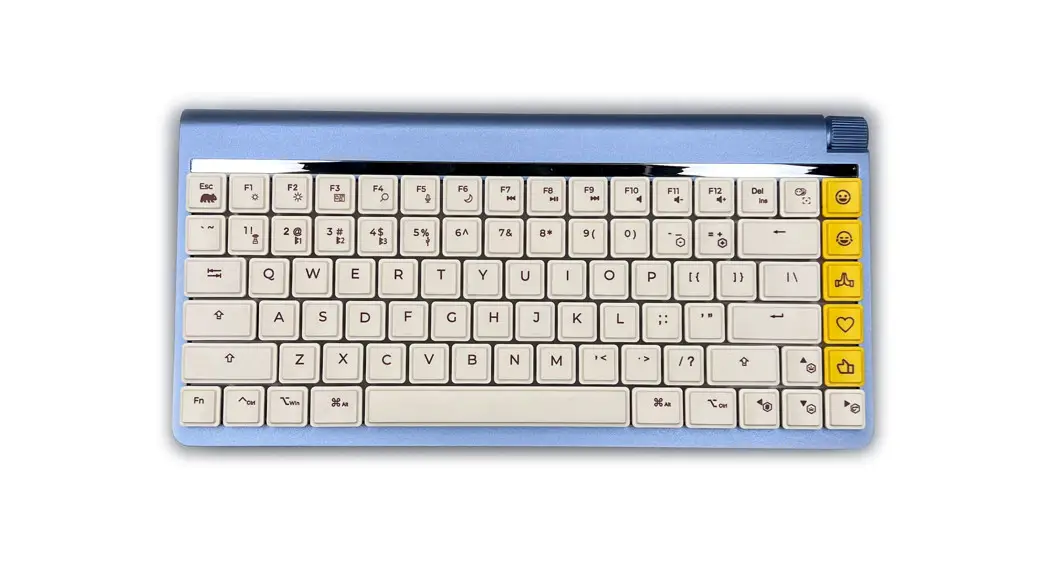
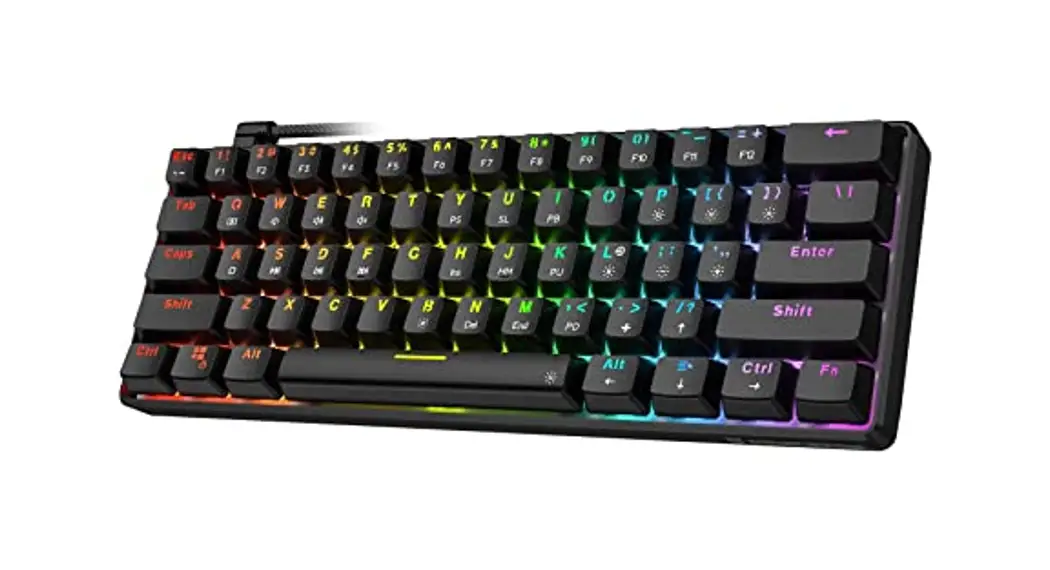
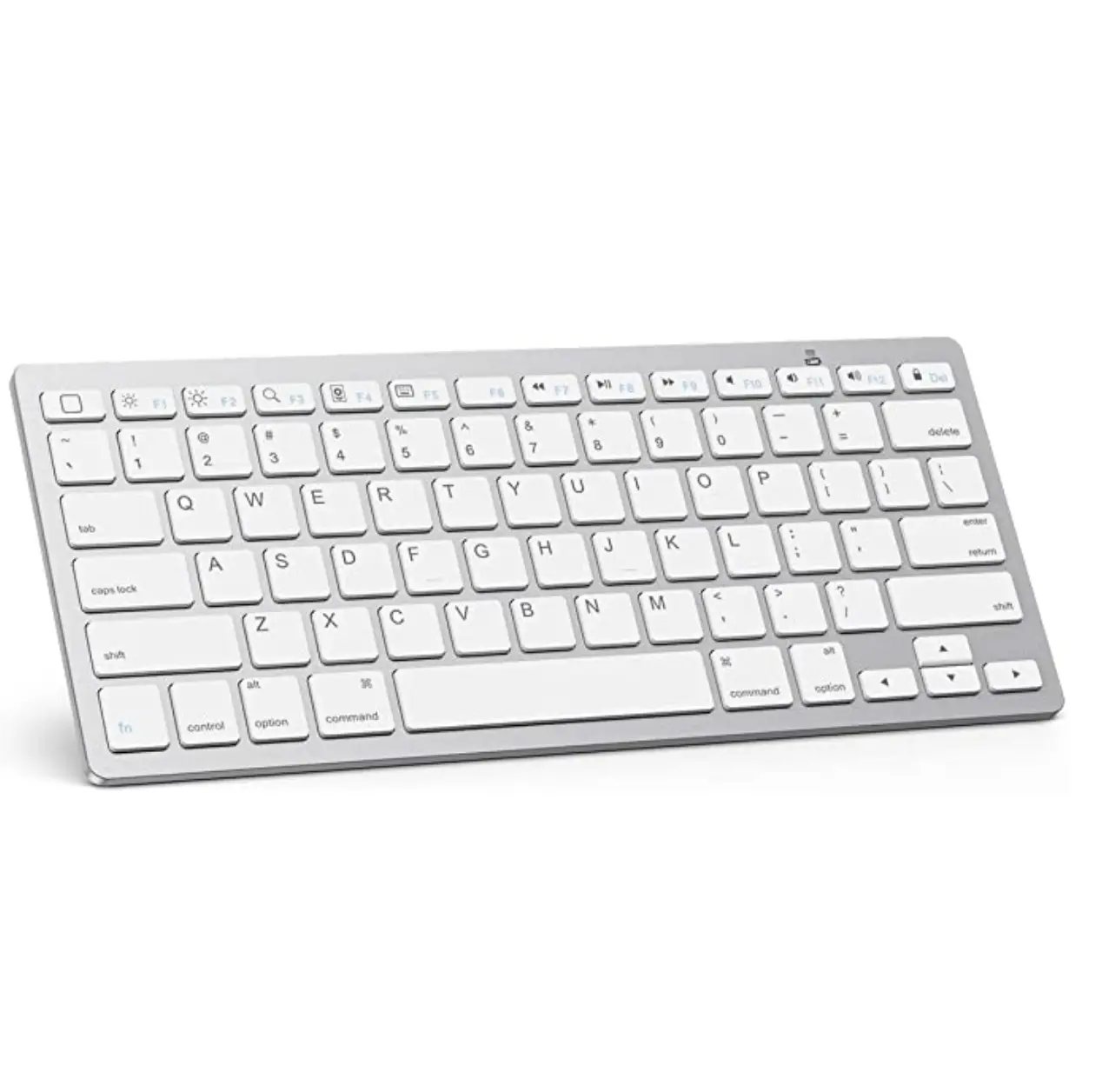
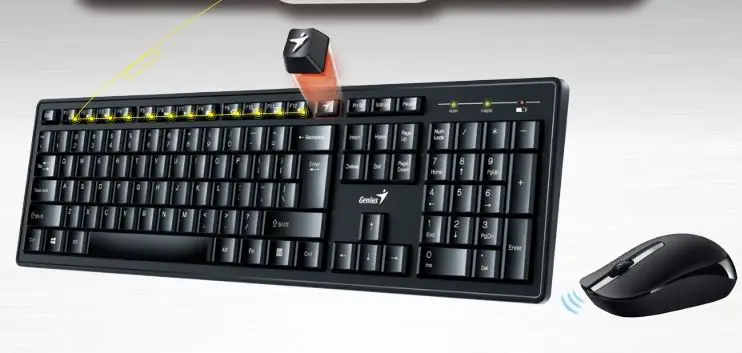
Maple Pro Professional Keyboard
Product Information: Maple Pro
The Maple Pro is a Bluetooth keyboard that can be paired with
your MAC or PC. It features a sleek design and offers a convenient
typing experience. With the Maple Pro, you can easily connect to
your host computer wirelessly and enjoy the freedom of typing
without cables.
Product Usage Instructions: Pairing the Maple Pro to your
Bluetooth host computer
- First, ensure that the Bluetooth on your MAC or PC is turned
OFF. - Press and hold the Fn key on the Maple Pro keyboard.
- While holding the Fn key, press one of the following keys: B1,
B2, or B3. Hold both keys simultaneously for three seconds. - The indication LEDs on the Maple Pro will start blinking.
- Now, go to your MAC or PC settings and set the Bluetooth to
ON. - Click on the Bluetooth setup option.
- A list of available devices will appear. Look for the device
named “Maple Pro #1,” “Maple Pro #2,” or “Maple Pro #3” depending
on which button you pressed in step 3. - Click on the “Connect” button next to the appropriate Maple Pro
device. - Your Maple Pro keyboard is now successfully paired and ready to
use with your MAC or PC.
Note: If you encounter any issues during the pairing process,
please refer to the troubleshooting section of the user manual or
contact our customer support for further assistance.
MAPLE PRO
INSTRUCTION
How to pair the Maple Pro to your Bluetooth host computer
1. First, set the Bluetooth on your MAC or PC to OFF
2. Then Press and hold “Fn” key and then press B1/B2/B3 for three seconds
3. Indication LEDs will blink
4. Now please set the Bluetooth on your MAC or PC to ON, and click the Bluetooth setup
5. Find the device named “Maple Pro #1/#2/#3” 6. Click “Connect” and your Maple Pro is good to go