
Factory Default Setting:
- Keyboard is in macOS mode
- Power switch on the underside of the keyboard is turned off
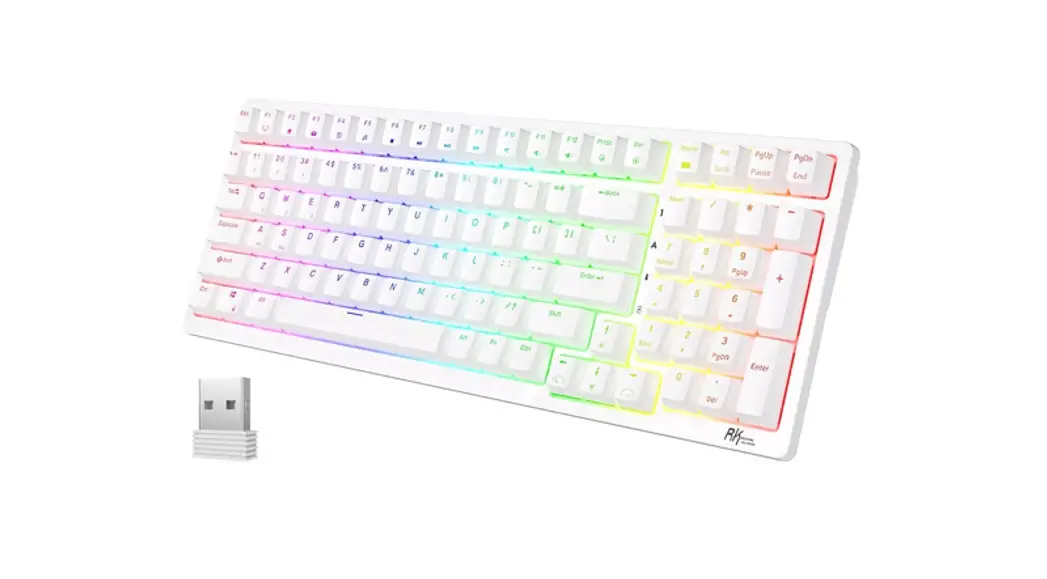
- 2.4GHz RF Receiver is paired with the keyboard
❖ Toggle between macOS mode and Windows mode
You must be in macOS Mode to use Mac hot keys. You must be in Windows Mode to use Windows hot keys.
| Enter macOS mode | LEDs status | Enter Windows mode | LEDs status |
| Hold Fn + A for 3 secs |  Two leftmost LEDs will blink a few seconds Two leftmost LEDs will blink a few seconds | Hold Fn + M for 3 secs | 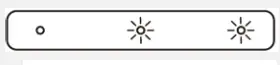 Two rightmost LEDs will blink a few seconds |
❖ Battery
- 5 hours is required to fully charge the internal battery. Charge the battery once a month for at least 2 hours.
- When the middle LED blinks along with any key presses, the battery power is low and charging is required.
- When the keyboard is connected to a USB host, the keyboard is automatically switched to USB mode.
- To conserve battery power, all LEDs are deactivated in wireless mode. Hold the Fn key to see all the current status of LEDs.
Wireless connection
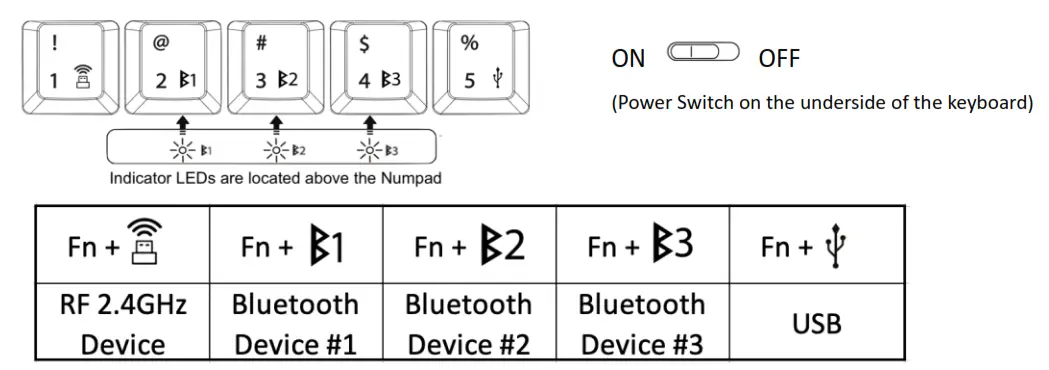
WM108 User Manual Version 1.1
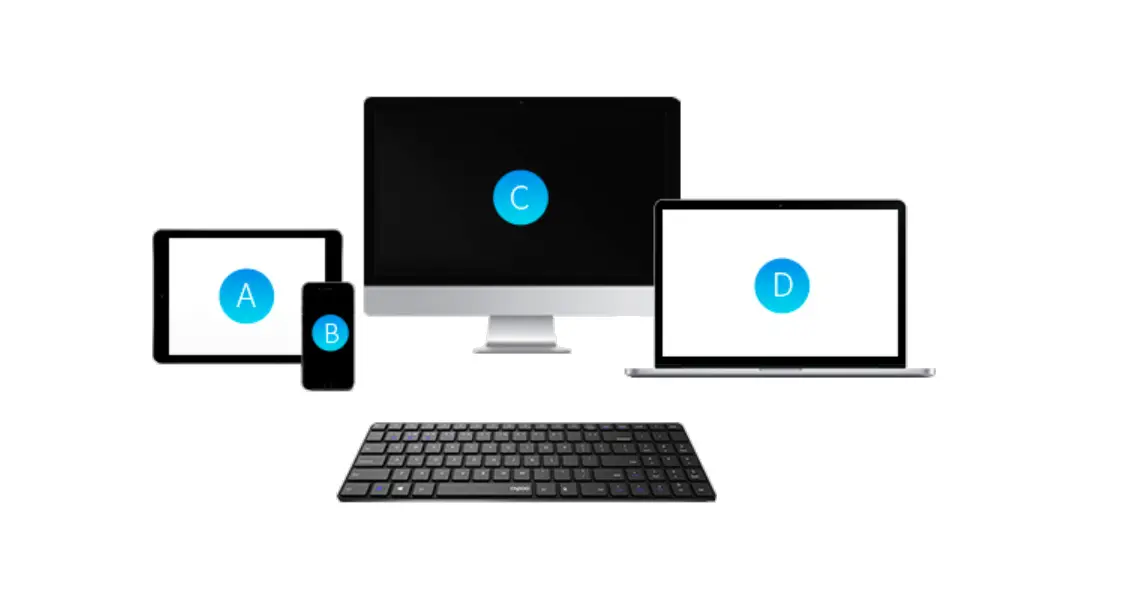
RF and Bluetooth pairing
| RF 2.4GHz Receiver | BT device #1 | BT device #2 | BT device #3 | |||
| STEP 1 | Turn ON the power switch on the underside of the keyboard | |||||
| STEP 2 | Plug the RF receiver into the host | Ensure Bluetooth SETUP dialog boxes are CLOSED before starting the Bluetooth pairing | ||||
| STEP 3 | Hold Fn + for 3 secs for 3 secs | Hold Fn + 1 for 3 secs 1 for 3 secs | Hold Fn + 2for 3 secs | Hold Fn +3 for 3 secs | ||
| STEP 4 |
|
|
|
| ||
| STEP 5 | Pairing succeeded | OPEN the Bluetooth SETUP dialog box on the target host, and search for new BT device | ||||
| STEP 6 | / | “WM108 #1” found on the BT list | “WM108 #2” found on the BT list | “WM108 #3” found on the BT list | ||
| STEP 7 | / | Pairing succeeded | ||||
 3 LEDs blink
 Middle LED blink
 Right LED blink
Switch Between Paired Hosts
| RF 2.4GHz Receiver | BT device #1 | BT device #2 | BT device #3 | ||
| STEP 1 | Turn ON the power switch on the underside of the keyboard | ||||
| STEP 2 | Plug the RF receiver into the host. Press Fn + for 1 sec | Press Fn +1for 1 sec | D1 for 1 sec2 | Press Fn + 3V2 for 1 sec | Press Fn +g3 for 1 sec |
| STEP 3 | 3 LEDs blink once | Left LED blink once | Middle LED blink once | Right LED blink once | |
| STEP 4 | RF mode ready | “WM108 #1” ready | “WM108 #2” ready | “WM108 #3” ready | |
Mouse function Simulation
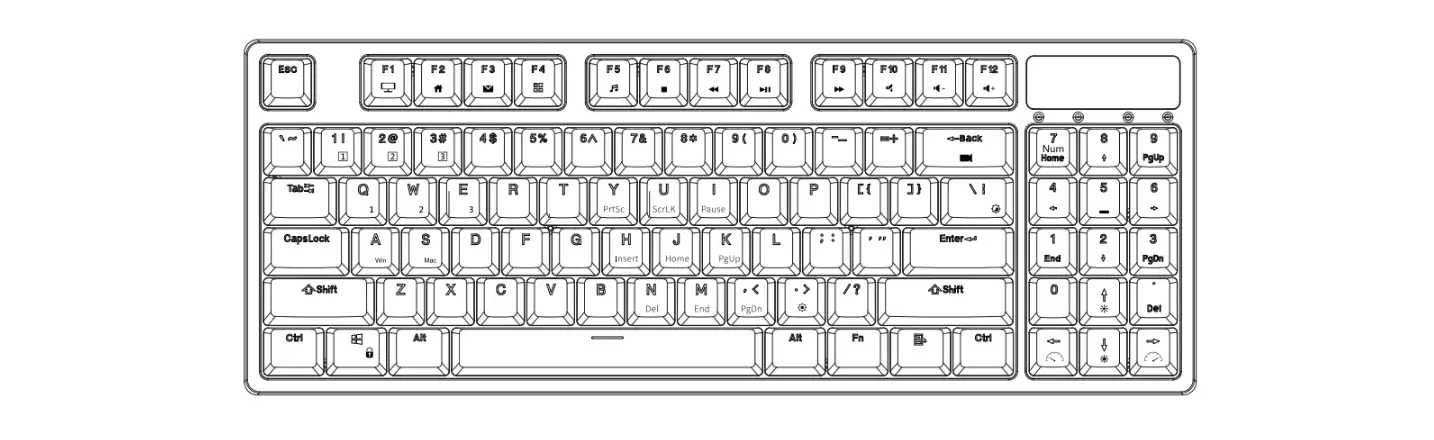
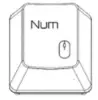 | Press Fn + “Num” to switch between Numpad and Mouse function Simulation |  | Press these keys for mouse scrolling |
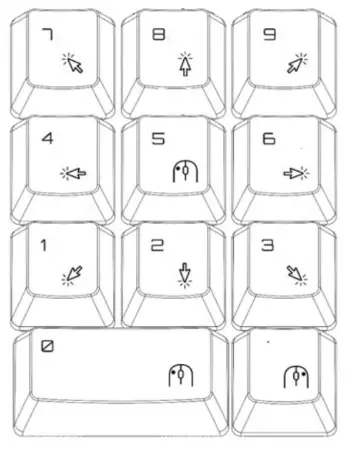 | 1 to 9 representing 8 directions of the mouse cursor | 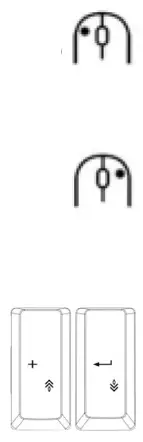 | Numpad 5 or 0 acts as Mouse Left click Numpad “.” acts as Mouse Right click Press these keys for mouse scrolling |
Special Function Keys
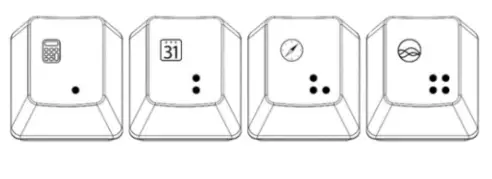
| PRESS DIRECTLY | Fn + Key | Fn + Key |
 CALCULATOR* |  Default Speed Default Speed | Macros + delay 15ms |
 CALENDAR* |  X2 Speed X2 Speed | Macros + delay 0.1s |
 BROWSER* |  X4 Speed X4 Speed | Macros + delay 0.5s |
 VOICE ASSISTANT* |  X8 Speed X8 Speed | Macros + delay 1s |
| *Requires setup in System Preferences | *For gaming purpose | *For macro editing |
Macro Editing Mode
- Press Fn + Ins to enter Macro Editing Mode and the rightmost LED will blink.
- Select any of the keys [ Q/W/E/R/T/Y/U/I/0/P ] to be programmed as the macro hot key.
- You can press Fn + [ • or : or . : or : : ] to add a delay between each character.
- After editing the macro, press Fn + Enter to save the macro.
- Repeat steps 2 to 4 to program more macros
- Once completed, press Fn + Ins to exit Macro Editing Mode
- After exiting Macro Editing Mode, press Fn + “macro hot key” to invoke the macro.
Shortcut Keys
| Hot Key | Press Directly** | Press with Fn Key** | Hot Key | Press Directly** | Press with Fn Key** |
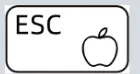 | ESC | Apple Menu Bar | 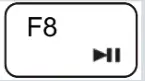 | F8 | Play/Pause |
 | Fl | Decrease Brightness |  | F9 | Next track |
 | F2 | Increase Brightness |  | F10 | Mute |
 | F3 | Launchpad |  | F11 | Volume Decrease |
 | F4 | Spotlight |  | F12 | Volume Increase |
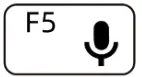 | FS | Dictation* | 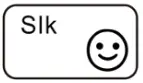 | Windows: Scroll lock macOS: Emoji Menu | Emoji Menu |
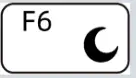 | F6 | Do Not Disturb* | 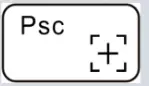 | Print Screen | Selectable Screen Capture |
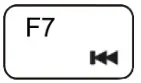 | F7 | Previous track | 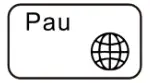 | Windows: PAUSE macOS: Lang. Select | Language Selection |
* Requires setup in System Preferences
** Toggle between all shortcut keys being pressed directly and all shortcut keys being pressed in conjunction with the Fn key by pressing and holding Fn + Tab for 2 seconds.
This device complies with part 15 of the FCC Rules. Operation is subject to the following two conditions: (1) this device may not cause harmful interference, and (2) this device must accept any interference received, including interference that may cause undesired operation. Any changes or modifications not expressly approved by the party responsible for compliance could void the user’s authority to operate the equipment.
NOTE: This equipment has been tested and found to comply with the limits for a Class B digital device, pursuant to Part 15 of the FCC Rules. These limits are designed to provide reasonable protection against harmful interference in a residential installation. This equipment generates, uses and can radiate radio frequency energy and, if not installed and used in accordance with the instructions, may cause harmful interference to radio communications.
However, there is no guarantee that interference will not occur in a particular installation. If this equipment does cause harmful interference to radio or television reception, which can be determined by turning the equipment off and on, the user is encouraged to try to correct the interference by one or more of the following measures:
— Reorient or relocate the receiving antenna.
— Increase the separation between the equipment and receiver.
— Connect the equipment into an outlet on a circuit different from that to which the receiver is connected.
— Consult the dealer or an experienced radio/TV technician for help. The device has been evaluated to meet general RF exposure requirement. The device can be u sed in portable exposure condition without restriction