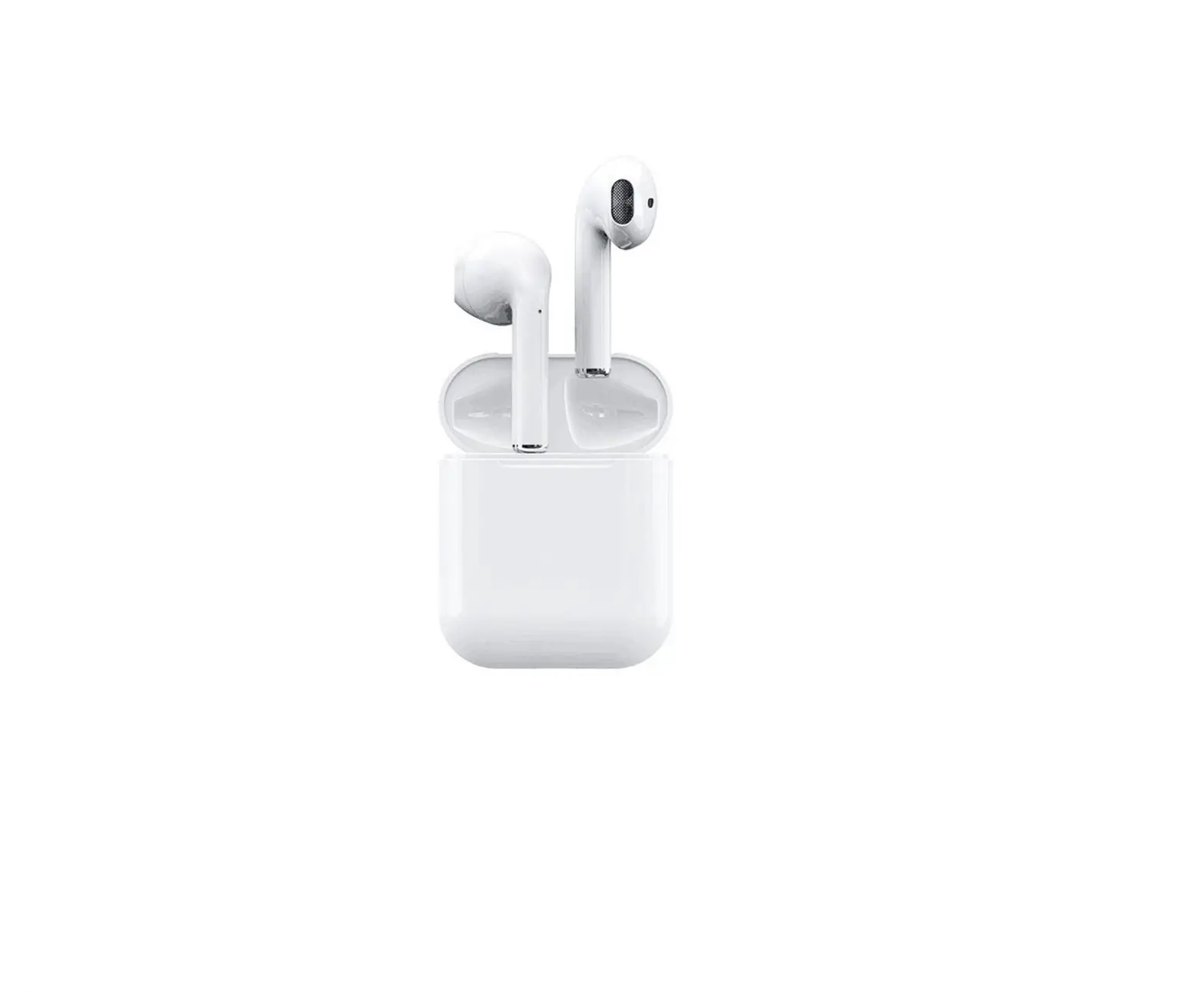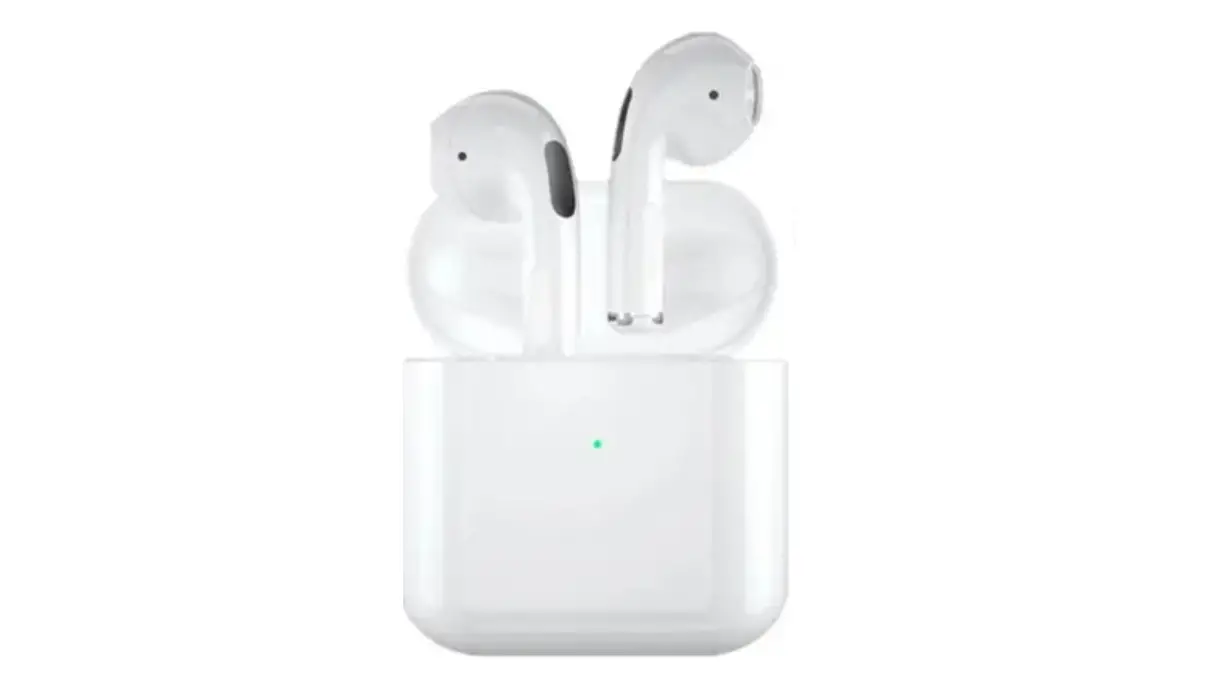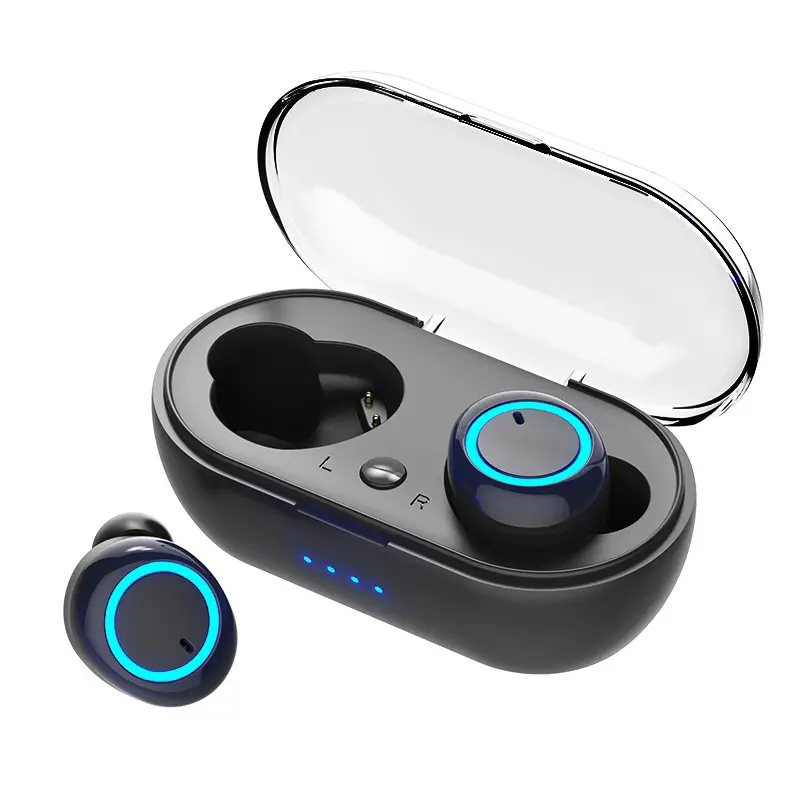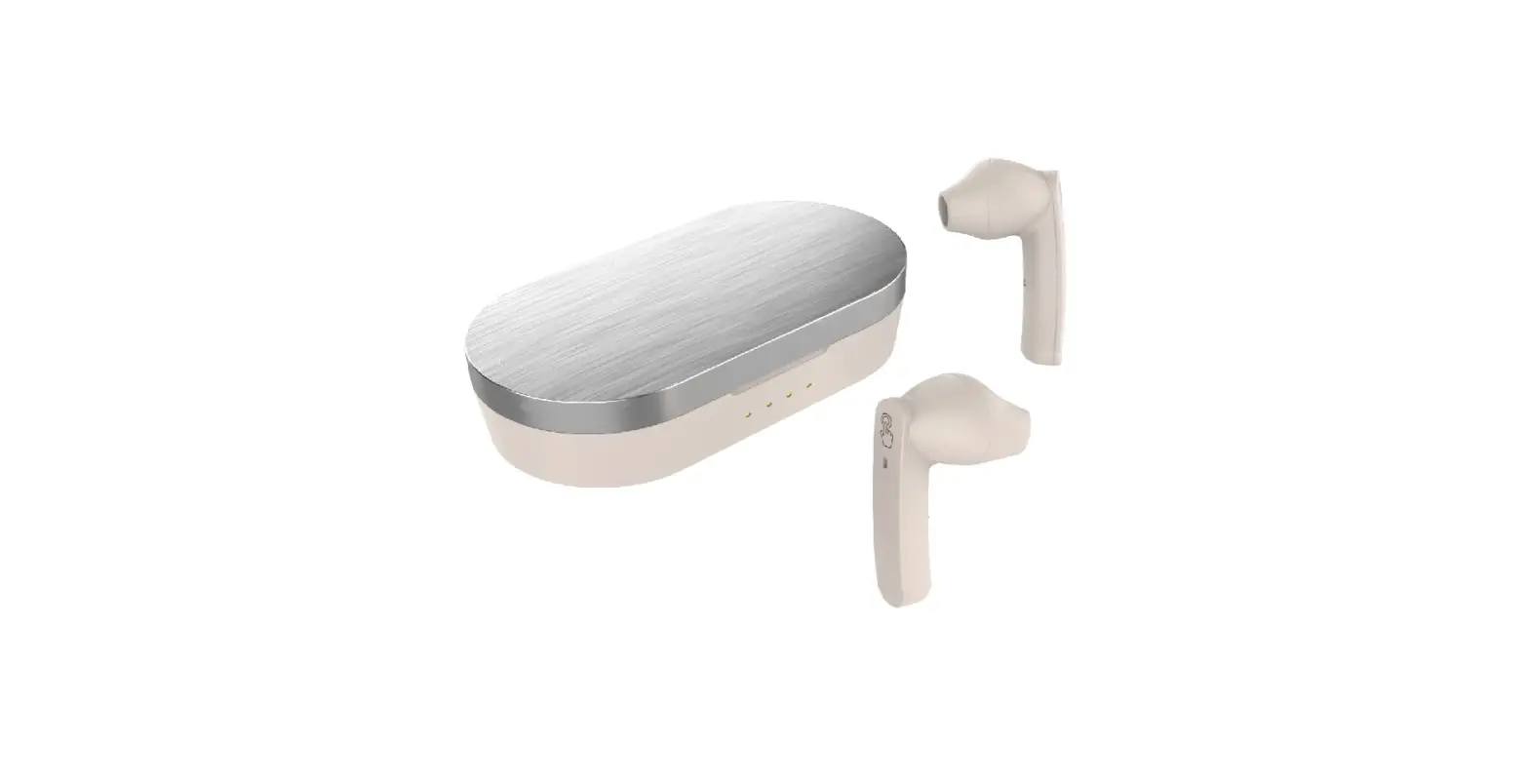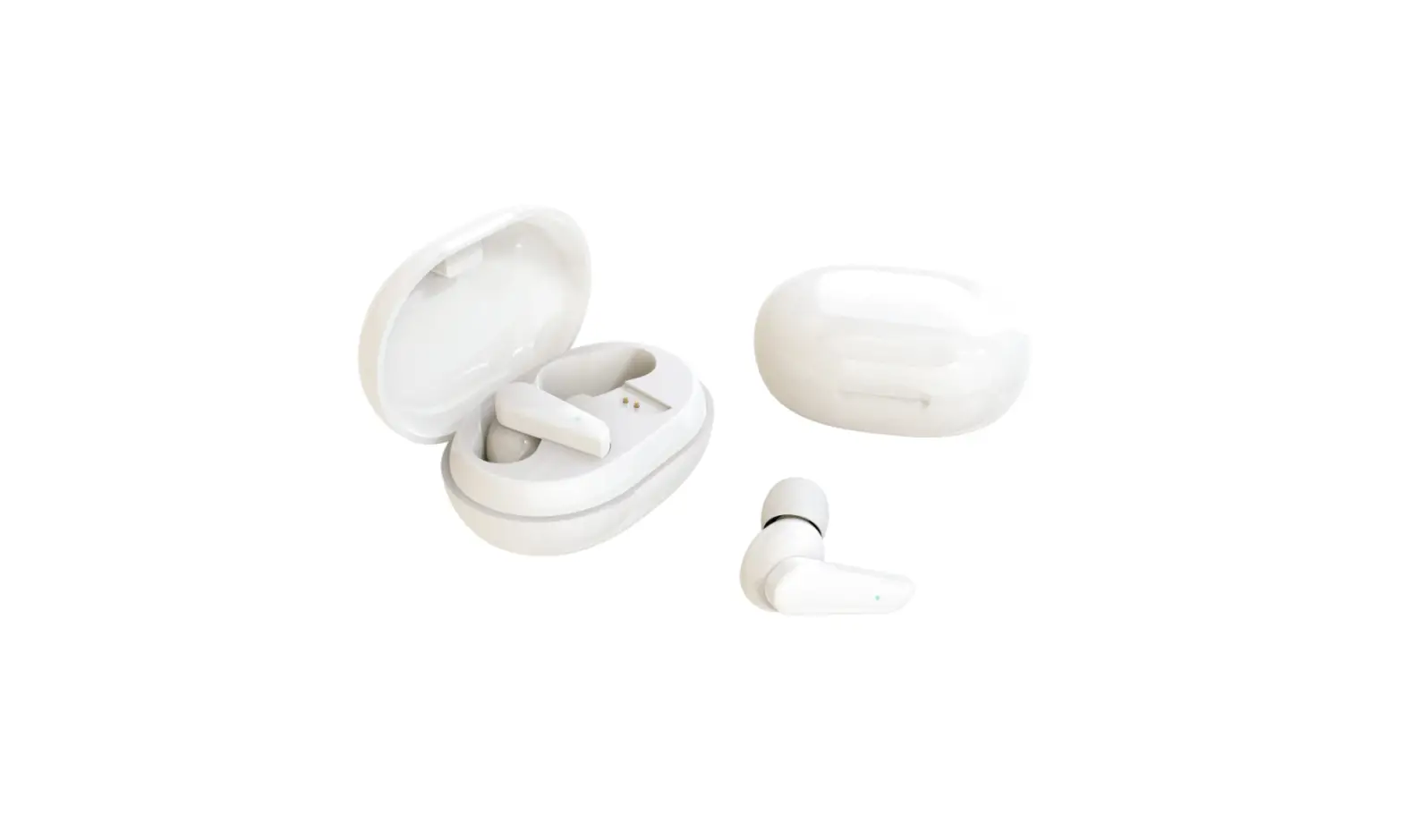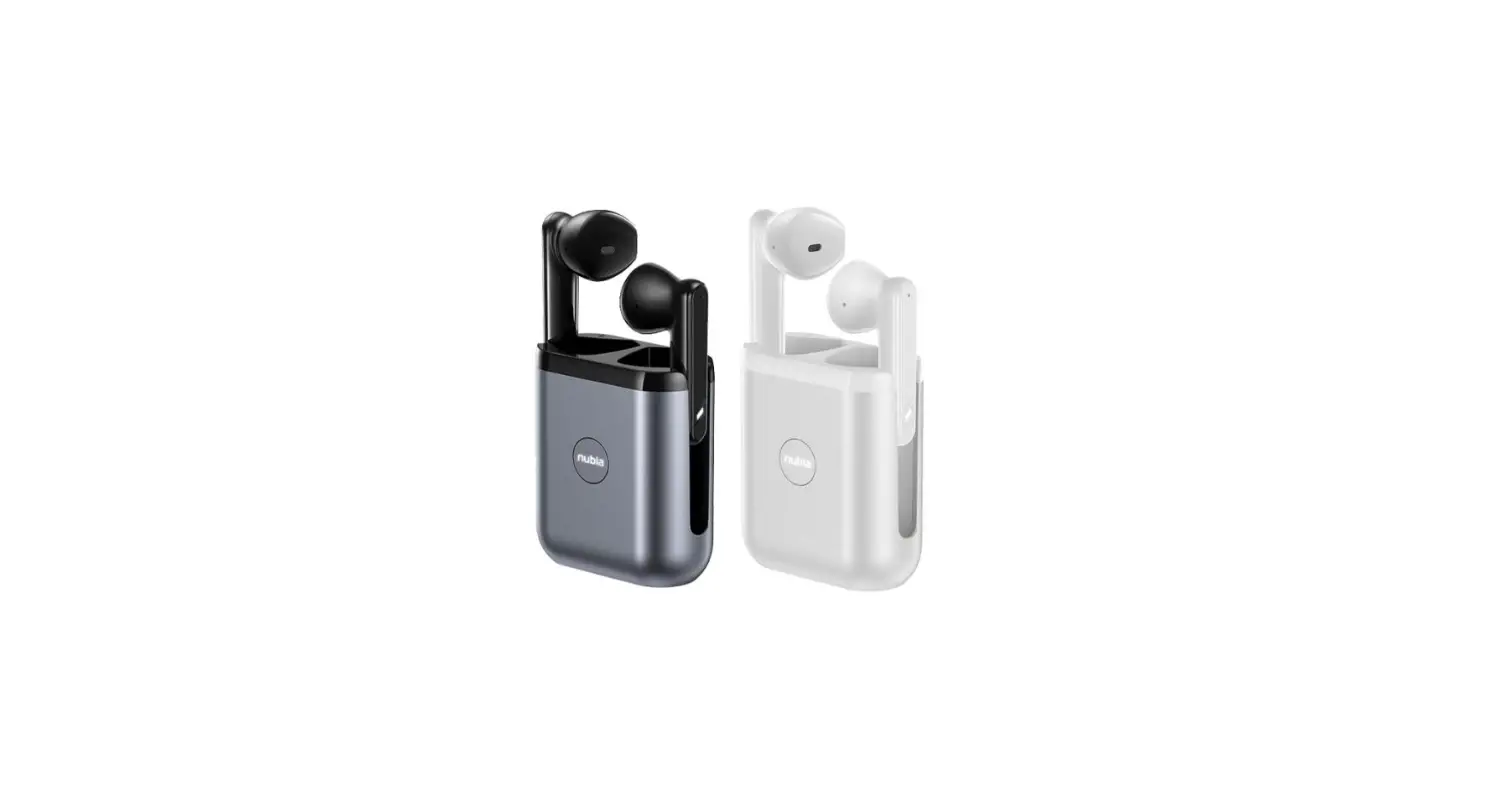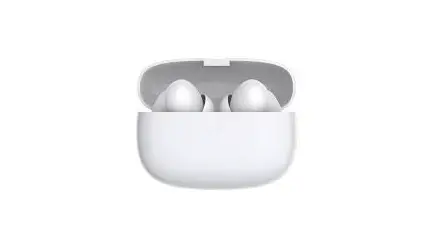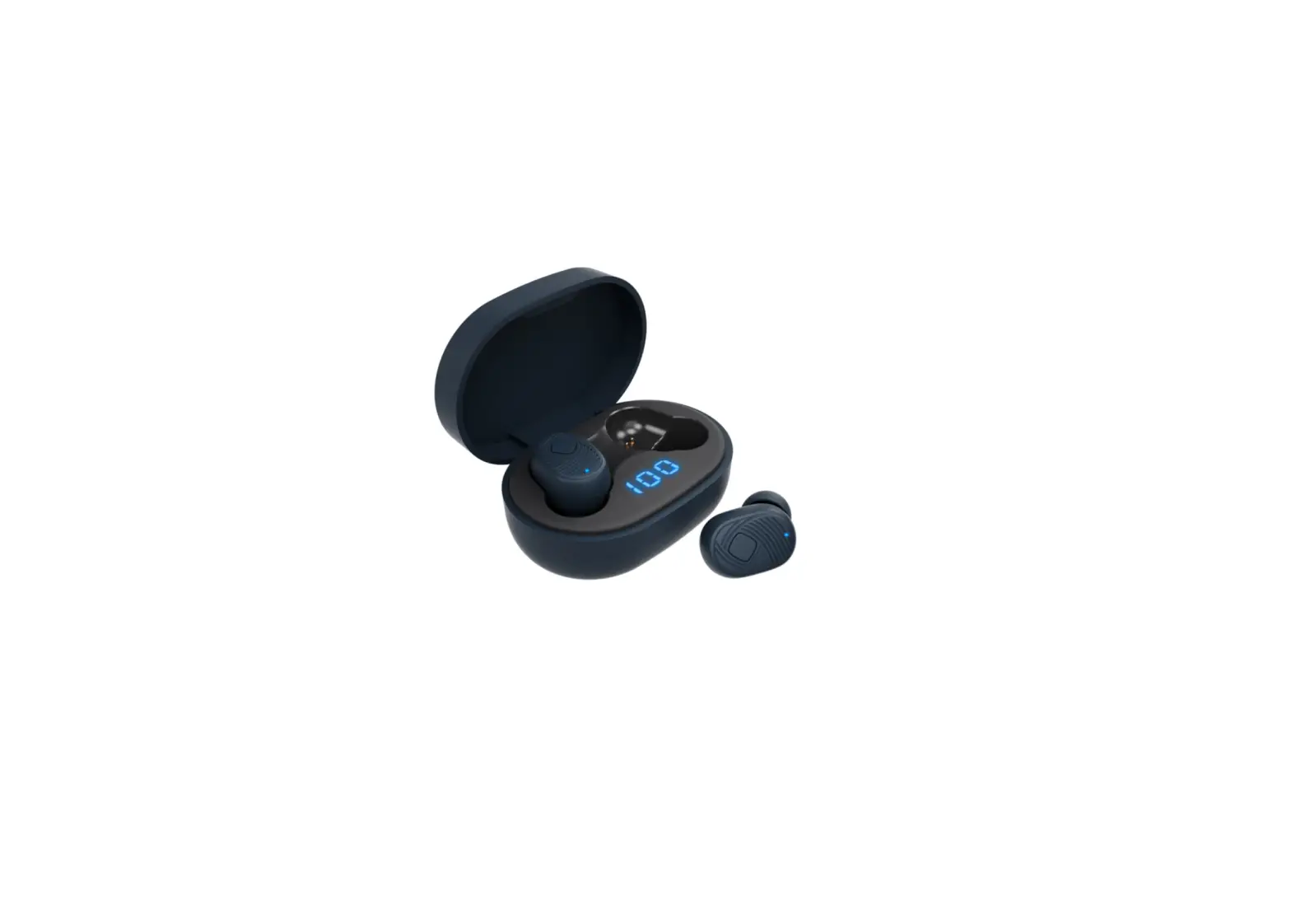

TWS Bluetooth Earbuds
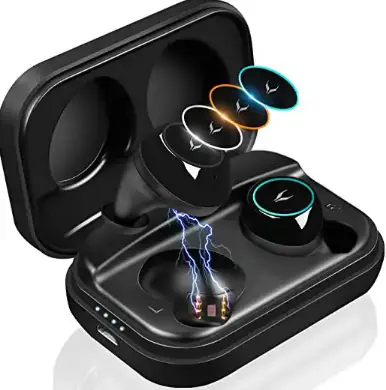
INSTRUCTION
SAFETY CAUTION
- Use earbuds while driving, please observe the national and regional regulation.
- Please put all the equipment and accessories can not be touched by the child or pet, which may cause suffocation and serious consequences.
- Please don’t use the product under too high or too low temperature environment. (Below -10 degree centigrade or Above- 45 degree centigrade)
- Extreme temperatures can cause deformations, reduce the charging capacity of the device, and shorten the service life.
- Do not use wet equipment, liquid which can cause severe damage to equipment.
- Please do not use wet hand operating equipment, equipment damage caused by water does not under the warranty scope.
- If the earbuds play at high volume for a long time, your hearing may be hurt and suggest using the lowest volume of the phone.
TWS OPERATION INSTRUCTIONS
Initial Earbuds Set Up/Pairing
- Step 1: Once both earbuds are removed from the case they will automatically power on, blue light on each earbud will be on.

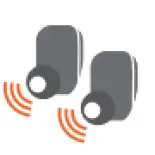
- Step 2: Once the earbuds are turned on wait for the prompt “DuDu”, this confirms that the earbuds are synced. Once pairing between 2 earbuds, a blue and red light will start to flash in the left earbud and a blue light flash in the right earbud.

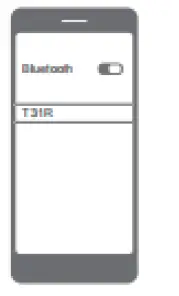
- Step 3: Go to the Bluetooth connection list on your smart phone or tablet and search for “T31R” Bluetooth name on your device. Click to connect. Both earbuds flash blue light indicating that the earbuds are connected to the Bluetooth device.

- Step 1: Once both earbuds are removed from the case they will automatically power on, blue light on each earbud will be on.
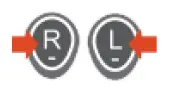
TWS OPERATION INSTRUCTIONS
- Auto Power On: Once both earbuds are removed from the case they will automatically power on, a blue light on each earbud will on about 1 second, a blue light of the left one will have 3 flashes at a time and the connection process will start.
- Manual Power On: Press and hold the main button on the
 earbud at the same time for about 3 seconds to power on. A blue light will on and begin to flash on the earbuds followed by a “Power On” message through the earbuds.
 - Auto Power Off: Place the earbuds back into the case and close the lid. Once they are put into the case, they will automatically power off and enter into the charged state when a red light flashing on each earbud.
- Manual Power Off Press and hold the main button on the earbud at the same time for about 3 seconds to power off. A blue light will on and begin to flash on the earbuds followed by a “Power Off” message through the earbuds.
- Music Play/Pause: Short press button could play or pause music playing.
- Music Next/Previous: Double press the main button of earbud to go to the next song. Double press the main button of earbud to go to the previous song.
- Answer Call: During incoming call, once press the main button of earbud once to answer a call.
- End Call: During a call, once press the main button of earbud to end a call.
- Reject Call:During an incoming call, double-press the main button of earbud to reject a call.
- Cancel Call:During the dialing state, once press or button to cancel a call.
- Low Battery Clarm:When the earbuds’ power is less than 20%, they flash a red light and follow by a “Low Battery” message through the earbuds.
- Low Battery Shutdown: When the earbuds run out of battery power, they will automatically shut off.
- Automatic Connection:After the initial set up and connection the earbuds will automatically connect to your device next time you turn them on. (Please ensure the Bluetooth is active on your device for automatic connection.)
- Restore Original Settings : Under power off status, press and hold the buttons for about 10 seconds, both earphones can be restored to Factory Settings with alternating red and blue lights flashing on both earbuds . Then the earbuds can be reused by auto or manually power on/off.
- Charging for Earbuds Put earbuds into the Charging Cases and close the lid to start the charging process.The charging earbuds will flash red lights until fully charged. Once fully charged the red light will turn off.
 earbud at the same time for about 3 seconds to power on. A blue light will on and begin to flash on the earbuds followed by a “Power On” message through the earbuds.
Case Power Indicator 
TECHNICAL SPECIFICATIONS
| Bluetooth Version | V5.0 |
| Bluetooth Distance | 10-15M |
| Earbuds Battery | 50mAh*2 |
| Charging Case Battery | 400mAh |
| Charging Time | About 1.5 hour |
| Music Playing Time | About 5 hours |
| Calling Talk Time | About 5 hours |
| Standby time | 200 hours |
FCC
This device complies with Part 15 of the FCC Rules. Operation is subject to the following two conditions:
- this device may not cause harmful interference, and
- this device must accept any interference received, including interference that may cause undesired operation.
NOTE: This equipment has been tested and found to comply with the limits for a Class B digital device, pursuant to part 15 of the FCC Rules. These limits are designed to provide reasonable protection against harmful interference in a residential installation. This equipment generates uses and can radiate radio frequency energy and, if not installed and used in accordance with the instructions, may cause harmful interference to radio communications. However, there is no guarantee that interference will not occur in a particular installation. If this equipment does cause harmful interference to radio or television reception, which can be determined by turning the equipment off and on, the user is encouraged to try to correct the interference by one or more of the following measures: –
- Reorient or relocate the receiving antenna.
- Increase the separation between the equipment and receiver.
- Connect the equipment into an outlet on a circuit different from that to which the receiver is connected.
- Consult the dealer or an experienced radio/TV technician for help