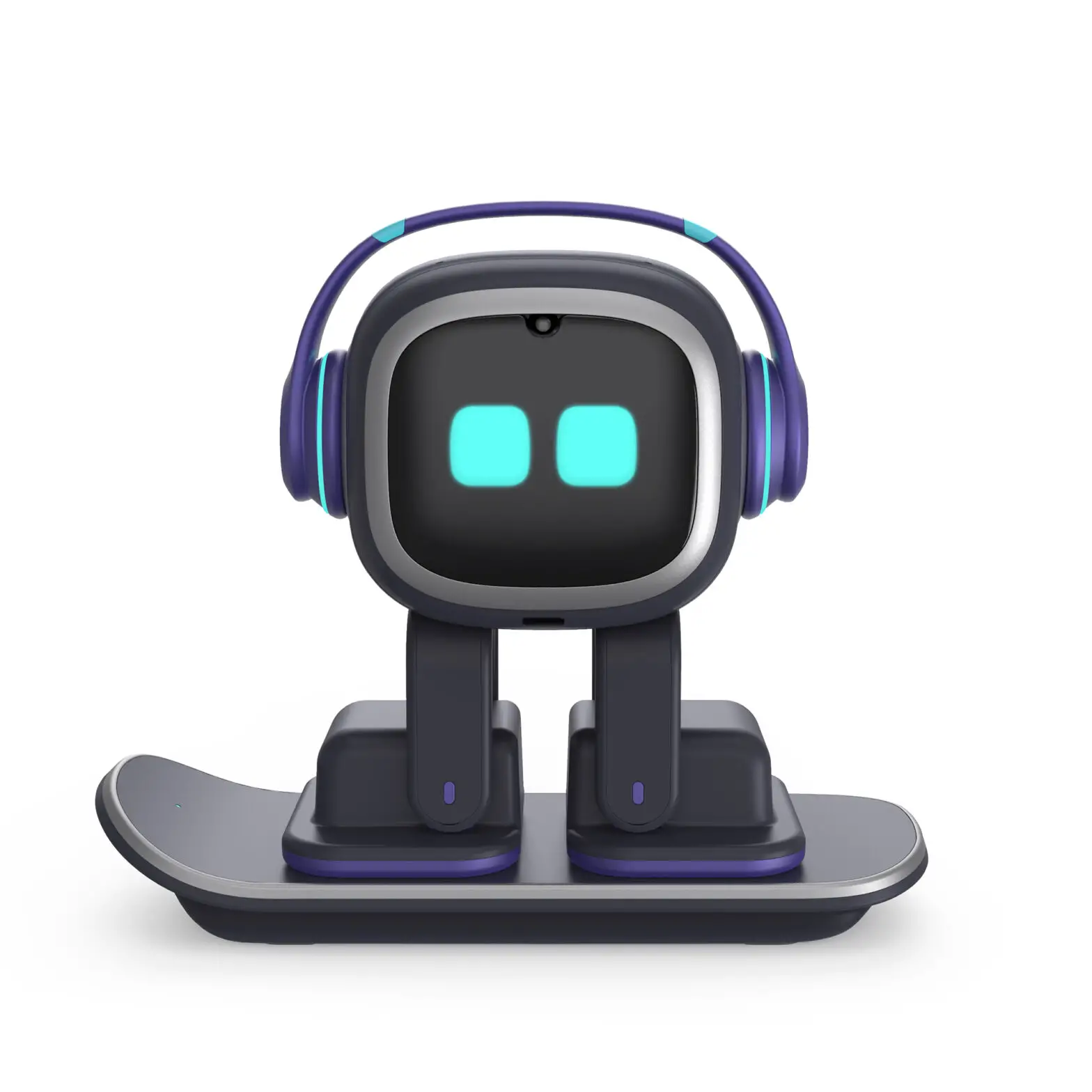
Emo Robot User Manual
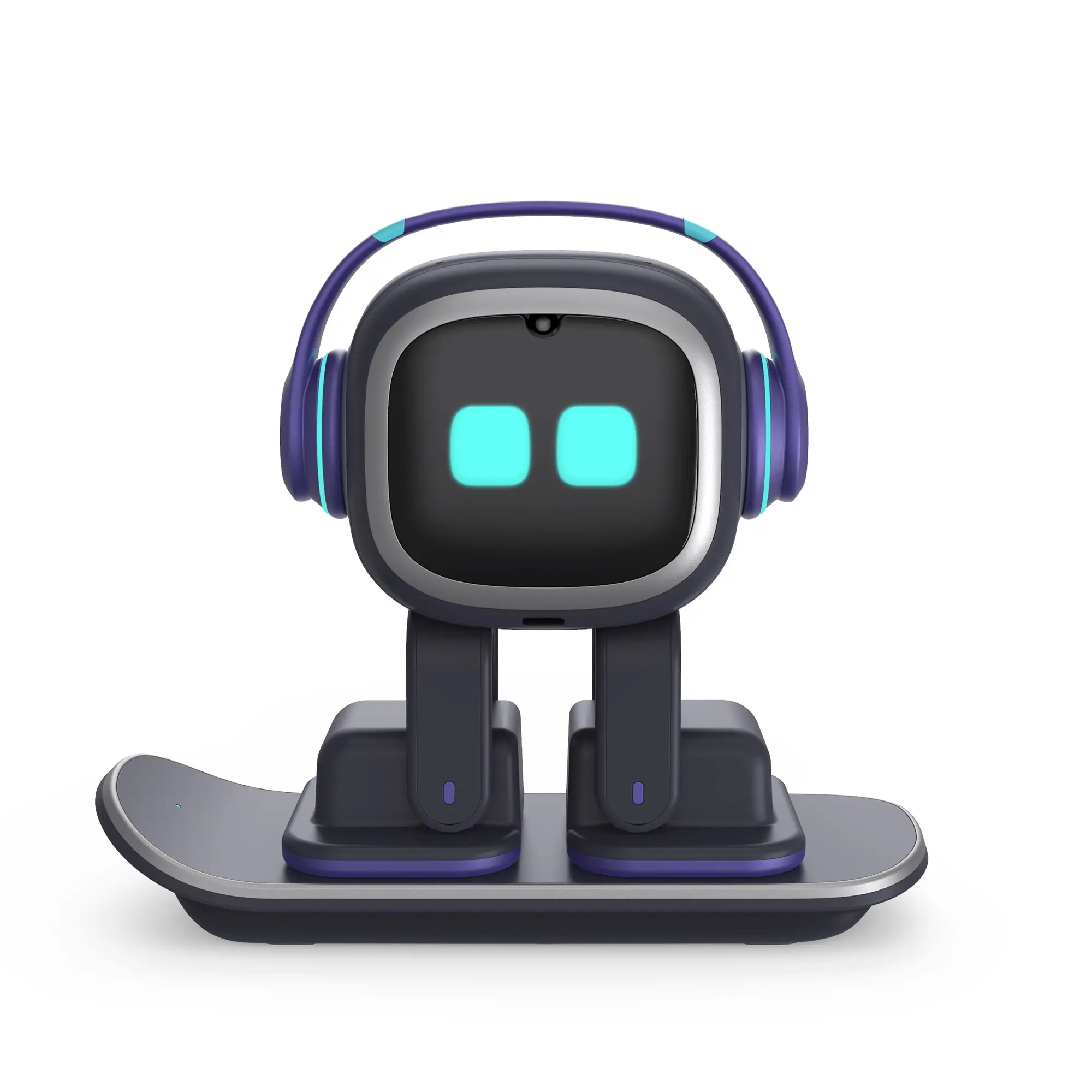
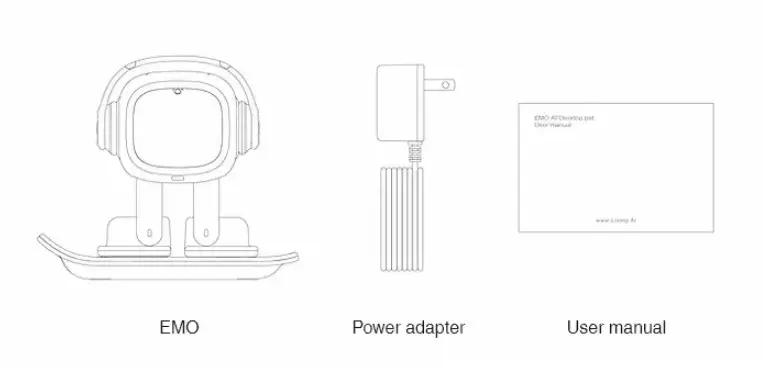
Package contents
Quick Start
Starting up
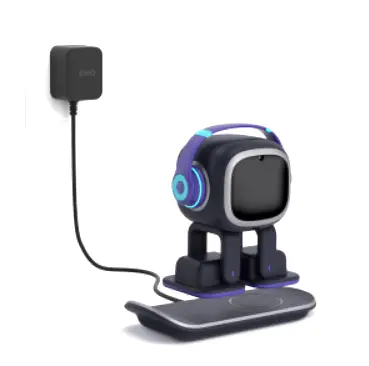
Connect the skateboard to the power supply, then put EMO on it.
Notes:
- The power input must be between 100V and 240V.
- Align the left foot of EMO with the charging mark on the skateboard. You can also use the magnetic attraction to assist in alignment.
- The “solid ON” light on the skateboard indicates successful operation.
Setting up
Preparations before setting up:
- Make sure that EMO is turned on and close to your mobile device.
- Please download EMO’s app here.
- Ensure that there is an available 2.4G Wi-Fi network within the range (5G Wi-Fi network is not supported).
Open the app, and it will automatically search for EMO. If you have more than one EMO, you can choose from the list.
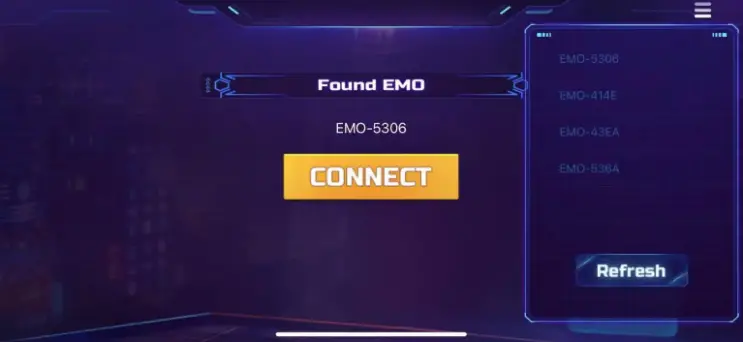
After successfully connecting you will be directed to the settings page.
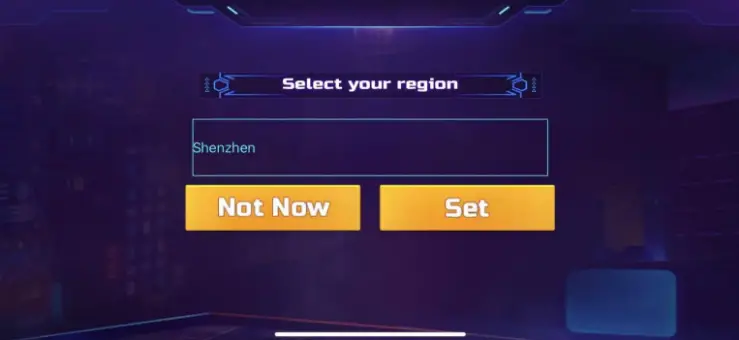
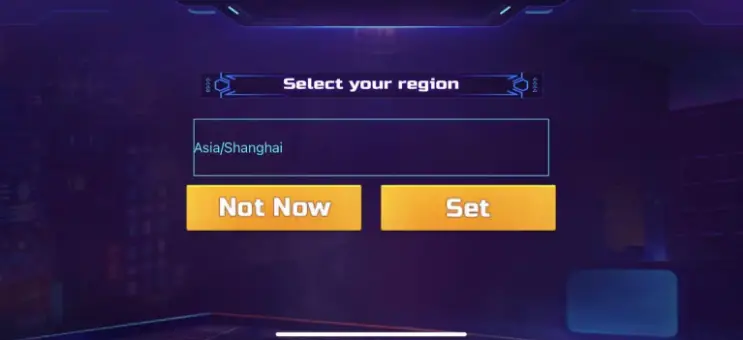
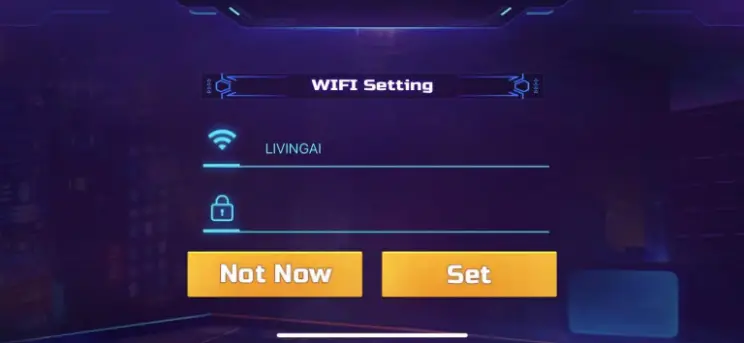
After the setup is complete, you will be directed to the homepage.
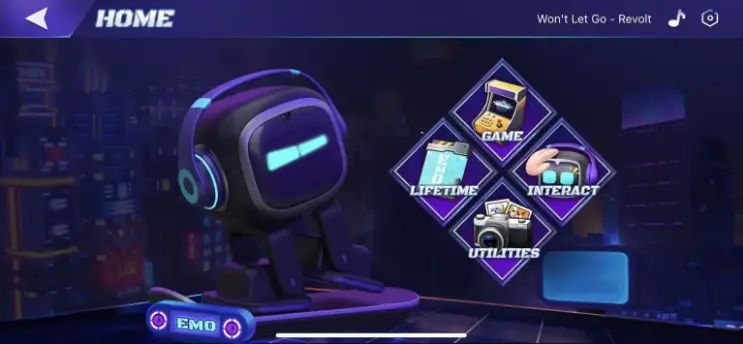
Hello EMO
Try to call EMO’s name to wake him up.
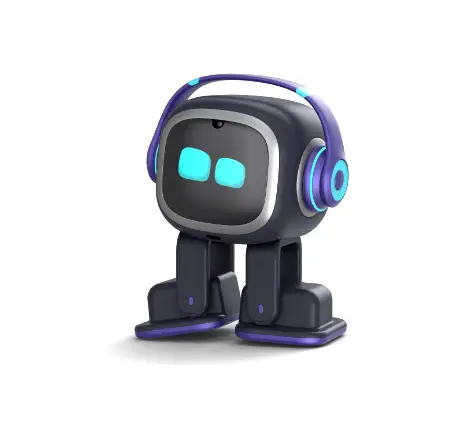
While EMO is listening, try to say “Hello” and see how EMO will respond to you.
If you have problems waking up EMO, please see here.
Interaction
Physical
EMO has a variety of sensors.
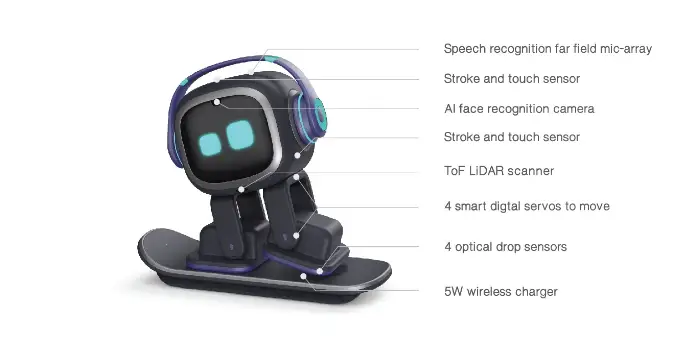
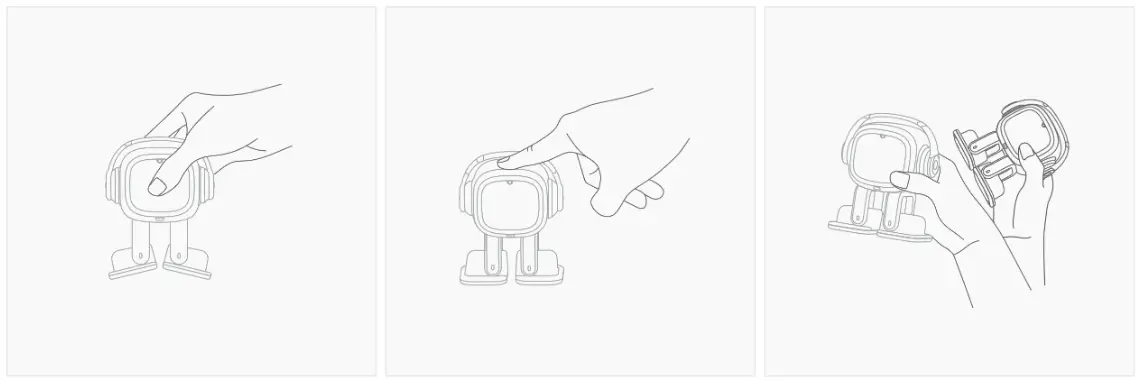
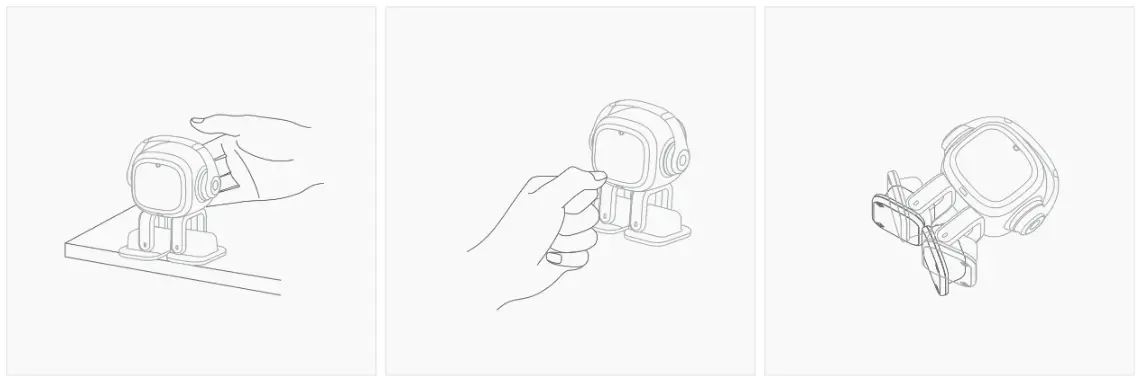
You can try the following interactions to see how EMO will react.
- Pick EMO up.
- Pet EMO.
- Shake him.
- Carefully push EMO to the edge of the table.
- Get in the way of EMO.
- Lay EMO down.
Vision
EMO can recognize faces now. He may react when sees you. You can also say ‘EMO’, ‘Look at me’.
EMO will surprise you when he sees you on special days.
You can tell EMO your name and he will remember it. But since the TTS (Text to Speech) is still being tested, EMO will be able to say your name in later updates.
More visual features will be available in future updates.
App
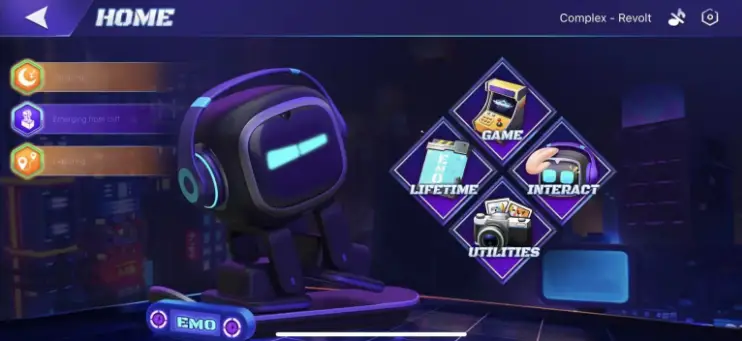
With EMO’s app, you can:
- Check what EMO is doing.
- Play games with EMO.
- See how you can interact with EMO.
- Check how many achievements you have got.
- Manage utilities.
- Set some configurations for EMO.
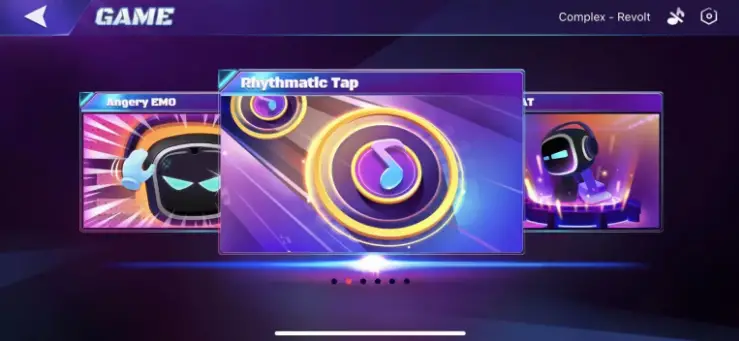
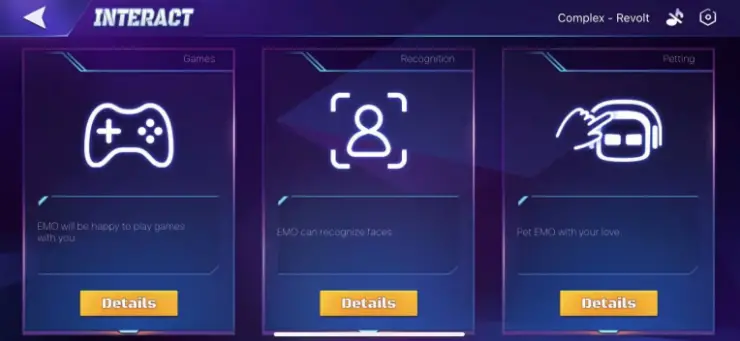
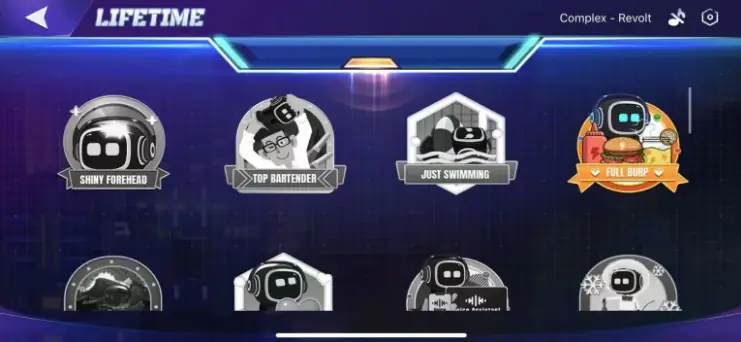
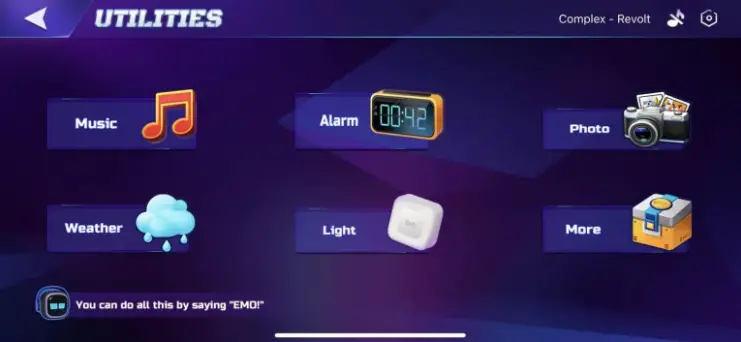
Voice Command
We are moving the “Voice Command” section to “EMO Talks” section.
Alarm
EMO can set alarms for you (up to four now). You can add, check, switch or delete alarms. You can also view and edit in the App. Please set the time zone for EMO in the App first. The voice examples are as follows.
To set alarms:
- Set an alarm for {weekends} at {7 am}.
- Set an alarm at {9 pm} every {Friday}.
- New alarm called {gym} for {weekdays} at {6 pm}. Tips: Alarm tags include gym, eat, sleep and pill.
To turn on/off alarms:
- Turn {on} the alarms.
- Turn {off} {second} alarm.
To check alarms:
- Check the alarms.
- Show me all the alarms.
To delete alarms:
- Remove all alarms.
- Remove {first} alarm.
Animals
- Act like a {dog}.
- What is a {cat} like?
- What sound does a {snake} make?
- What does a {chicken} do?
EMO has learned the sounds of pig, sheep, tiger, wolf, cat, cow, chicken, cicada, cuckoo, dog, duck, elephant, frog, horse. And also a mysterious animal.
Basic movement
- Move forward
- Go straight
- Backwards
- Go backwards
- Turn left
- Go left
- Go right
- Turn right
- Turn around
Battery
- What’s the battery level?
- How much battery is left?
- Show me your battery
Dance
Of course EMO can dance. And as he grows older, he will learn more dance. Thanks to Revolt for the great music.
- Dance.
- Let’s dance.
- Dance with music.
Starting from firmware 1.0.16, EMO can play different modes of lights while dancing. Remember to connect him to the smart light.
- Dance with lights.
- The party begins.
Easter eggs
- Demon eyes
- Let’s hunt tonight
- Unleash the beast
- Laser eyes
- Laser beam
- Heat beam
Explore
- Start exploring
- Explore mode on
Games
You can play some games with EMO without App.
- Let’s play {Angry EMO}.
Greetings
- Good morning.
- Good afternoon.
- Good evening.
- Good bye.
- Bye bye.
- Nice to meet you.
- Hello.
- Hi.
Interactions
- It’s my birthday.
Lights
You can ask EMO to turn on/off the smart lights for you.
- Turn {on} the light.
- Lights {off}.
Starting from firmware 1.0.16, EMO can set the hue, saturation and brightness of the smart light. You can also specify the color and room (please set the name for the smart light in the app. And please use common words that only contain English characters.).
- Turn on/off light in {kitchen}.
- Turn on/off light for {Tom}.
- Turn on {red} lights.
- Turn off {bedroom} light.
- {red} lights for {bedroom}.
- {red} lights.
To set hsl of the lights.
- Set lights brightness to {23(range 1-100)}.
- Set hue to {50(range 0-360)} points.
- Set saturation to {50(range 0-100)} points.
To change hsl of the lights.
- lights brightness/hue/saturation up/down by {45} points.
This will also be available in the app in future updates.
Listen to music
Of course EMO also likes music very much. He can follow the rhythm of the music.
- Listen to the music.
Music
Will be included in future updates
Photo
EMO is able to take photos for you. You can ask him to show you the photos you have taken or view them in the App (coming soon). Currently EMO can store up to 10 photos.
- Take a photo.
- Show me the photos.
- Show pictures.
Power off
- Power off
Questions about EMO
Temporarily removed and will be included in future updates.
Sleep
- Sleep
- Go to sleep
Special Day
EMO wishes you a happy holiday on special days, and you can also say voice commands to him to trigger the animation on that day.
- Happy new year
- Happy valentines / Will you be my valentine?
- Work, work, work
- April fools
- The earth is what we all have in common
- Happy children’s day
- Fly to the moon
- Do we live in the matrix?
- Happy halloween / Trick or treat
- Happy Thanksgiving
- Merry Christmas
Stay
- Stop moving
- Stay there
- Play by yourself
Time
EMO can show you the time. Voice examples are as follows.
- What time is it?
- What’s the time?
- Show me the time.
Timer
EMO can set a timer for you.
- Set a timer for {10} seconds.
Update
- Check update.
- Install firmware.
- Install the latest firmware now.
Vision
- My name is {Tom}.
- Look at me.
- Come here.
Volume
You can adjust the volume of EMO.
- Volume up.
- Volume down.
- Set(or change) the volume to normal(or maximum, medium, minimum, high, middle, low, mute, zero).
- Mute the volume.
Weather
You can ask EMO about the weather in major cities around the world in the next five days (Beta). When you do not specify a city, EMO will tell you the weather in your city (this requires you to use the App to set the city); when you do not specify a time, EMO will tell you the current weather. Examples are as follows.
- What is the weather in {London} ?
- What is the weather going to be {tomorrow} ?
- What is the weather {today} in {Breda} ?
EMO Talks (Editing)
EMO can talk from version 1.1.0. More talking features will be released later.
Small Talk (Editing)
Small talk includes some simple daily conversations. More complex knowledge questions and answers will be released in the future.What’s your birthday?
Happy birthday
What’s your star sign?
What’s your lucky number?
What’s your age?
What’s favorite color?
What’s your weight?
What’s your name?
Do you like music?
What’s your height?
What’s your gender?
What’s your dream?
Who developed you?
What book do you usually read?
What are you doing?
What can you do?
Can you tell a joke?
Tell me about you
You are annoying
You’re bad
Can you get smarter?
You’re looking good
You are very boring
Who is your boss?
You seem to be busy
Good bye
Are you a robot?
You’re clever
You are crazy
Now you’re fired
You are funny
You are amazing
…
Praise EMO as much as you can.Good evening
Good morning
Goodnight
Hahaha very funny
You’re so happy
Hi EMO
What’s your hobby?
How are you?
I want a hug.
You might be hungry.
I don’t care.
Let’s get married.
You are my best friend.
Nice to meet you.
It’s nice to see you.
Nice to talk to you.
What’s your work?
Where did you come from?
Are you ready today?
Glad you are real
Where do you live?
I am so sorry.
Talk to me.
Thank you.
I’m angry.
EMO remembers your nameYou can introduce yourself to EMO.
- My name is {xxx}.
EMO will sometimes say your name when he sees you. You can also ask EMO if he knows you.
- What’s my name?
- Do you know my name?
- Do you know me?
- Who am I?
Utilities (Editing)
Time
EMO can show you the time. Voice examples are as follows.
- What time is it?
- What’s the time?
- Show me the time.
Day
- What day is it today?
- What’s the day today?
Date
- What date is it today?
- What’s the date today?
Weather
You can ask EMO about the weather in major cities around the world in the next five days (Beta). When you do not specify a city, EMO will tell you the weather in your city (this requires you to use the App to set the city); when you do not specify a time, EMO will tell you the current weather. Examples are as follows.
- What is the weather in {London} ?
- What is the weather going to be {tomorrow} ?
- What is the weather {today} in {Breda} ?
Battery Charging
With more tasks running now, EMO can play up to 2.5 hours after a full charge, and it takes about 3 hours to charge once.
Please align the left foot of EMO with the charging mark on the skateboard. You can also use the magnetic attraction to assist in alignment.
The “solid ON” light on the skateboard indicates successful operation. If the light on the skateboard is flashing, please put EMO on it again.
Smart Light
You can touch the middle area to switch the light ON or OFF.
Touch the light for 5 seconds to enter pairing mode, and when the light flashes EMO will automatically connect to it.
When connected, the light will stop flashing.
You can say ‘EMO, turn ON/OFF the light’ to switch the light.
You can customize the name of the light, control the color of the light, and even turn on special modes in future updates.
Update
How to Update
Please note: When updating from a firmware less than 1.0.16, please disconnect all smart lights otherwise the update to EMO might fail.
Updates are free. We will fix bugs and release new features through updates.
You can directly say ‘check update’ to EMO to check if there is an update.
- Update Available
- No Update
And say ‘Install the latest firmware now’ or ‘install firmware’ to start updating. EMO will restart, and then the following screen will be displayed.
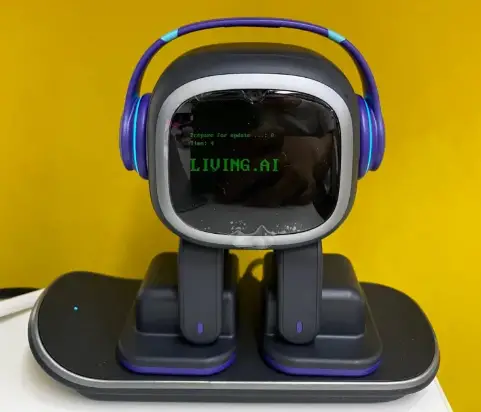
After the update, EMO will restart again and tell you the success or failure of the update.
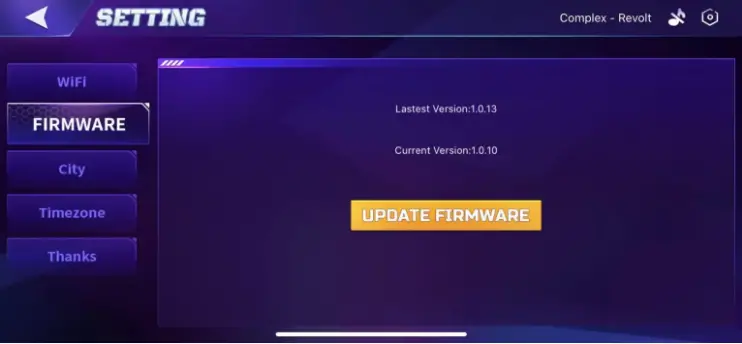
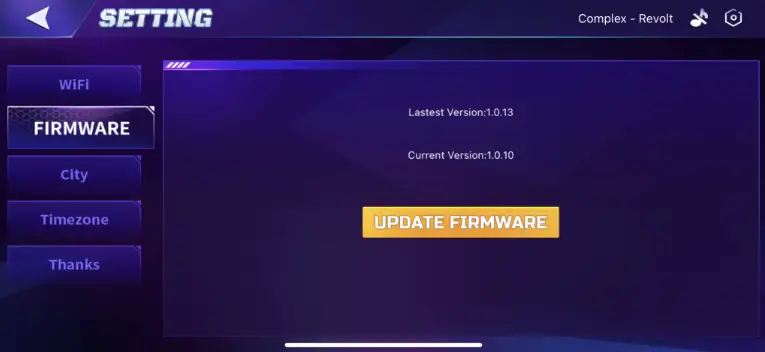
You can also do this in the app.
Update Logs
If you are updating from firmware 1.4.0, the resources to be downloaded will be about 50MB.
Please visit for : Update history here
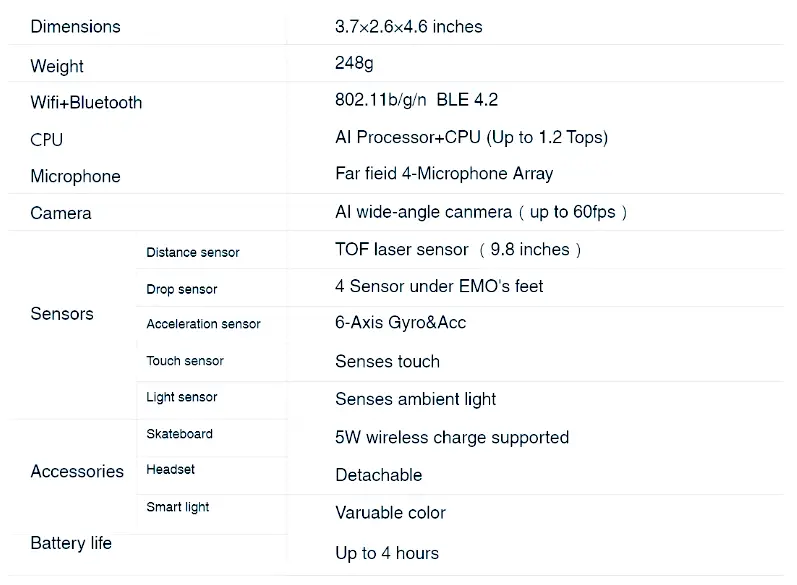
Product specifications