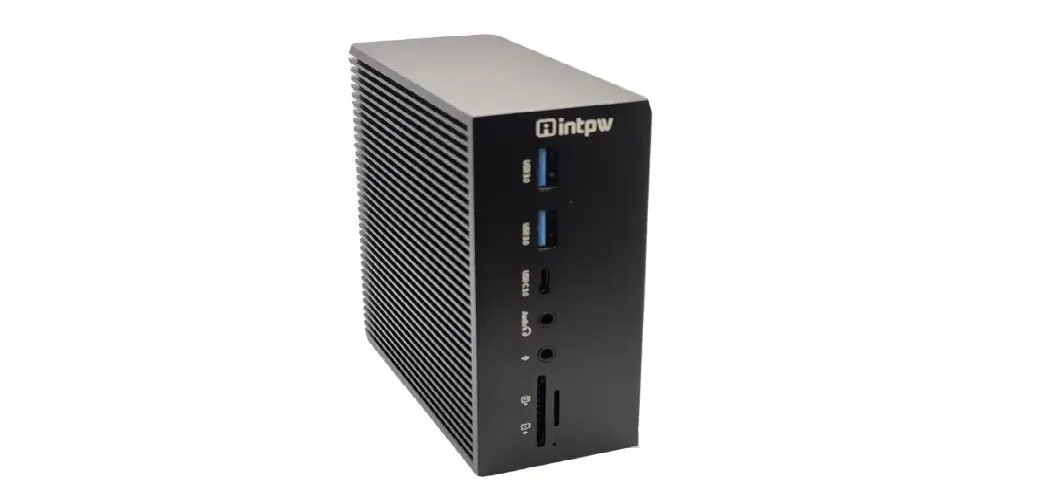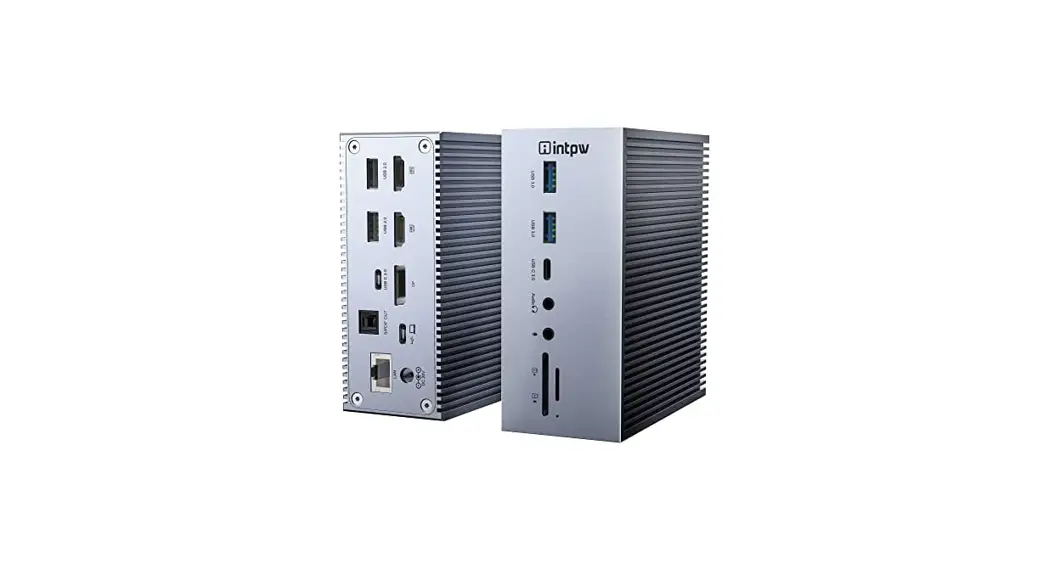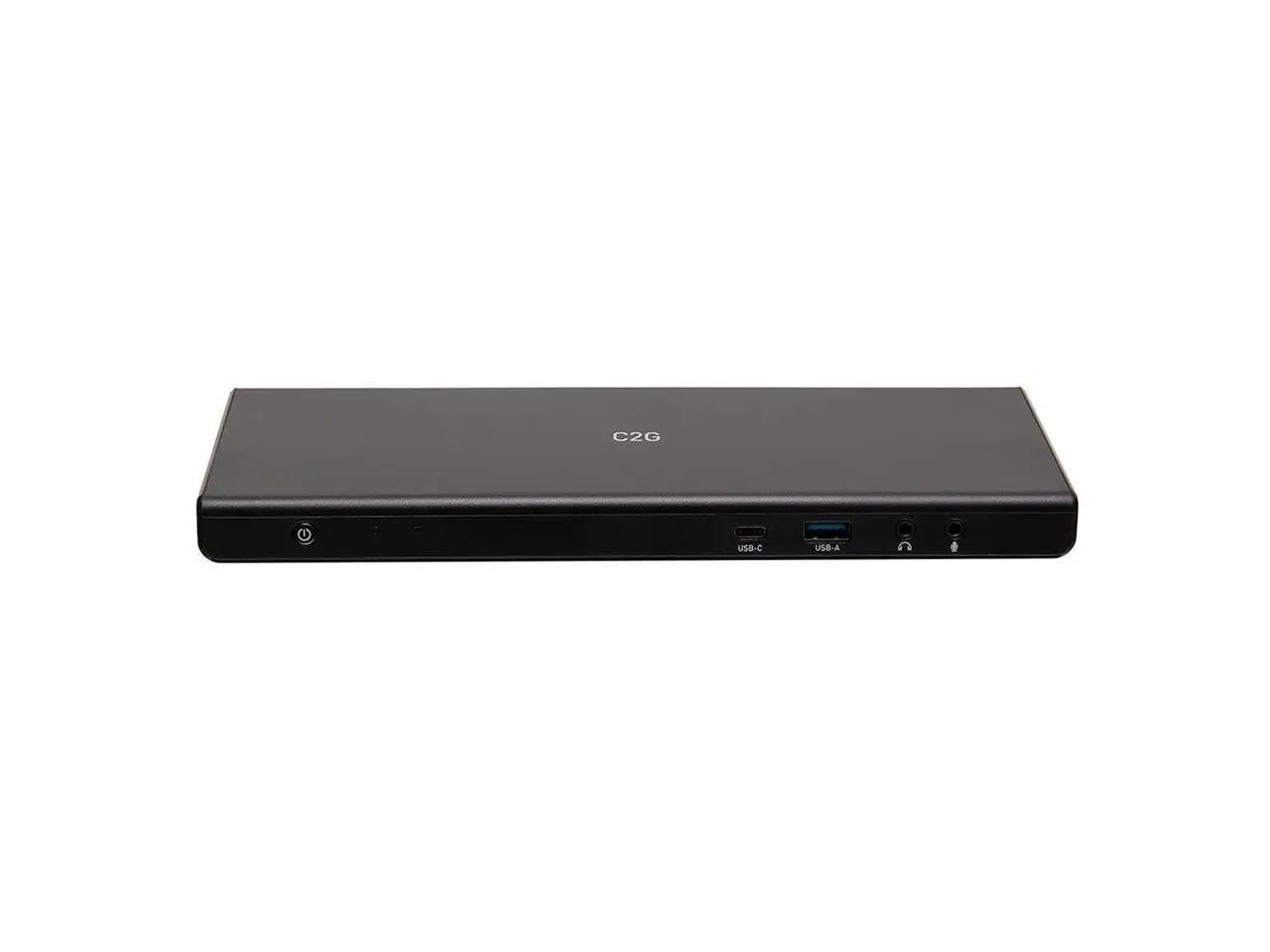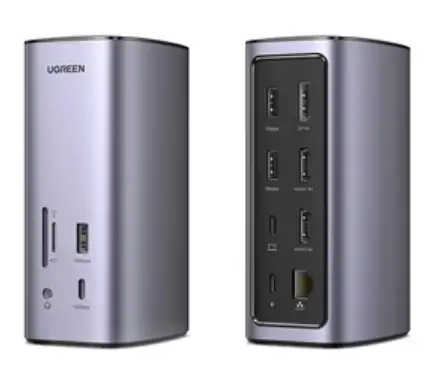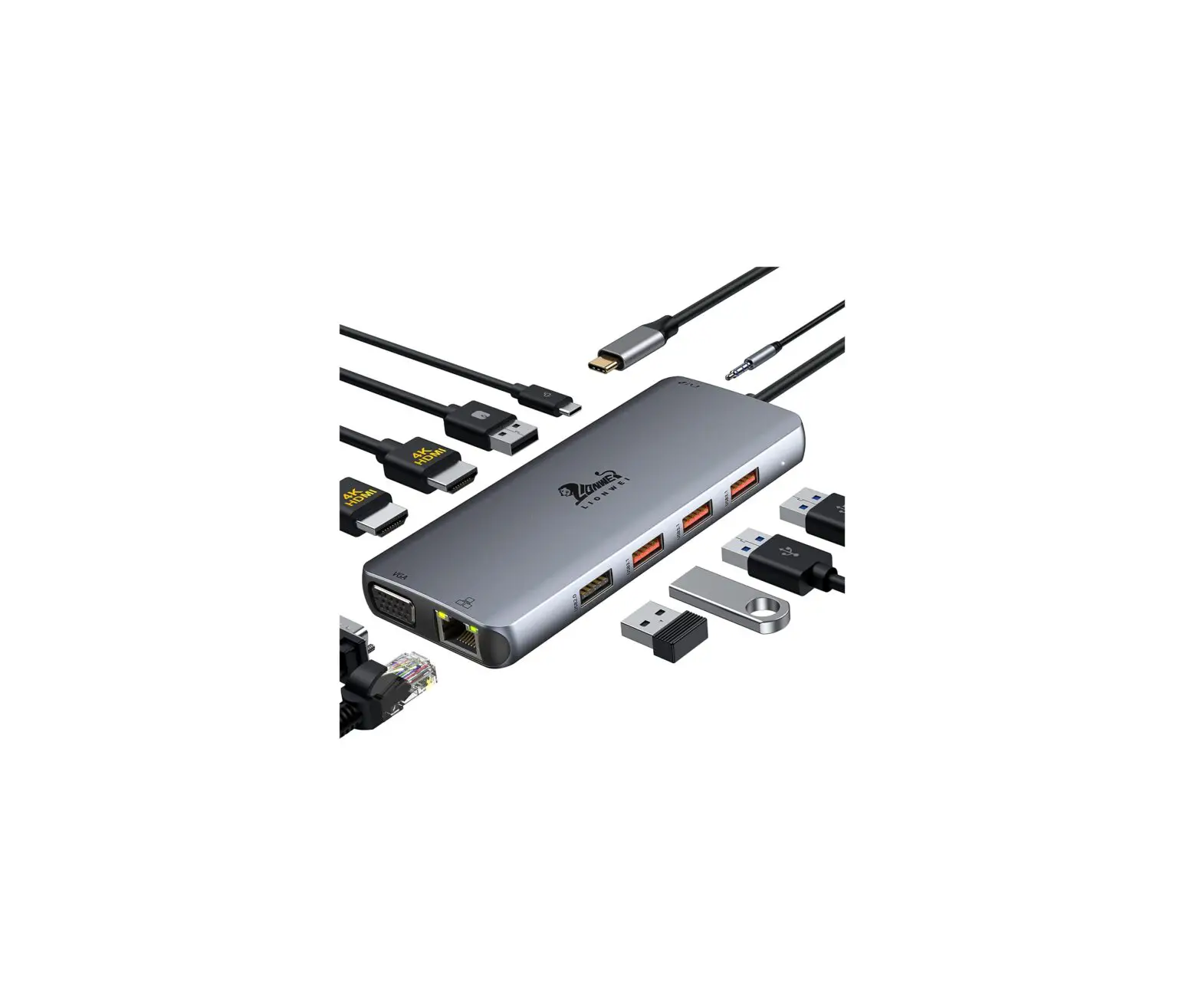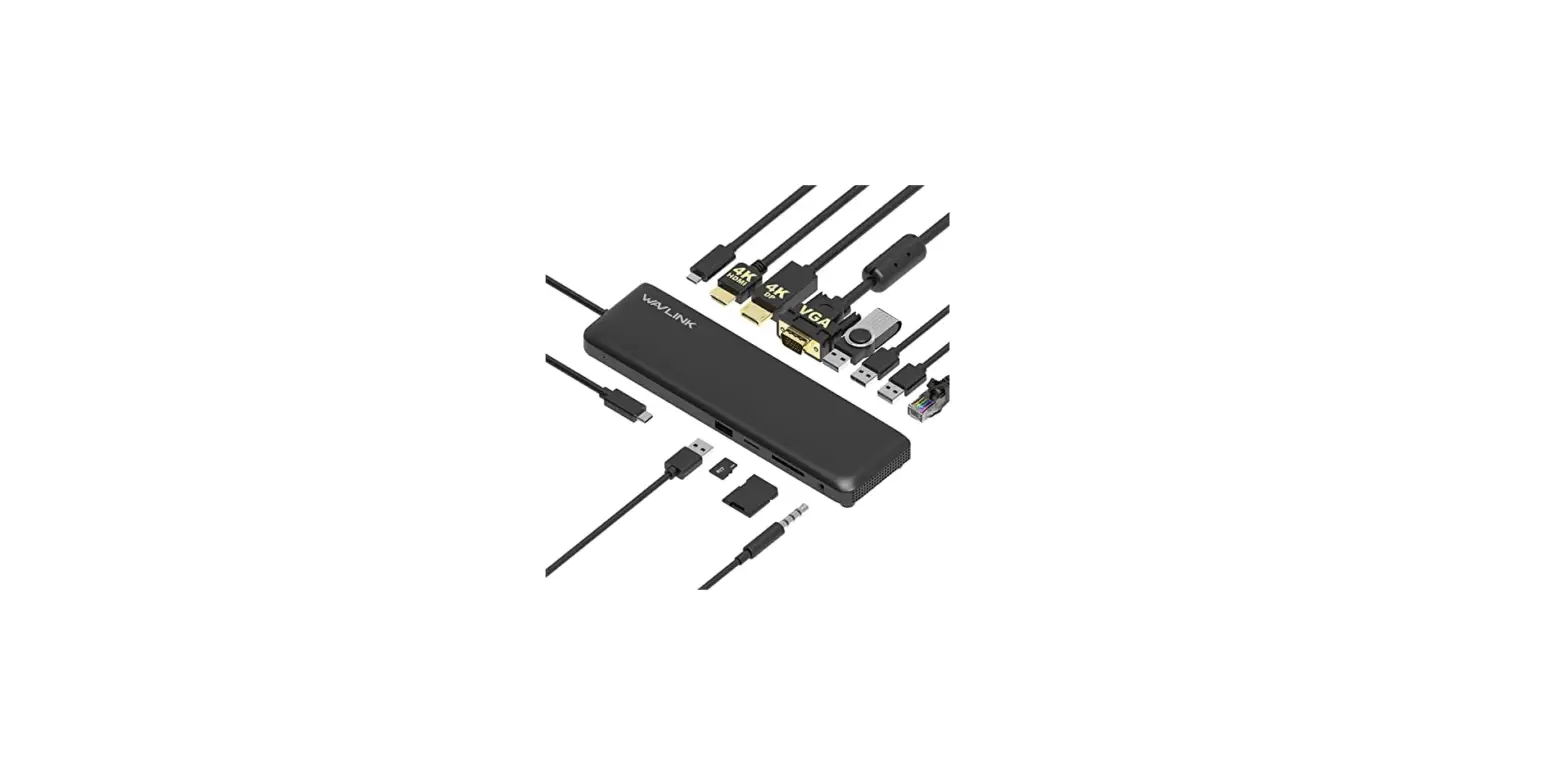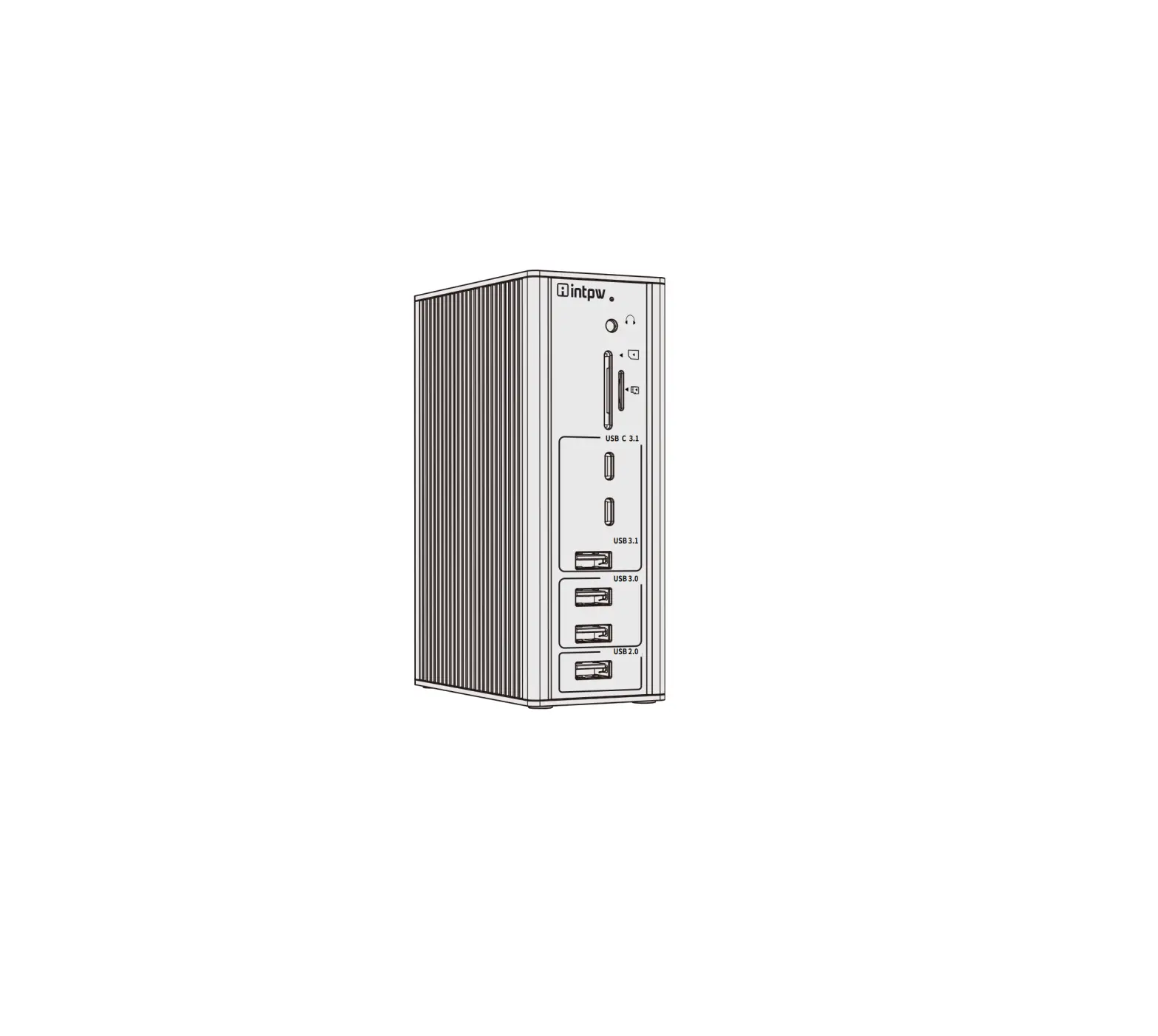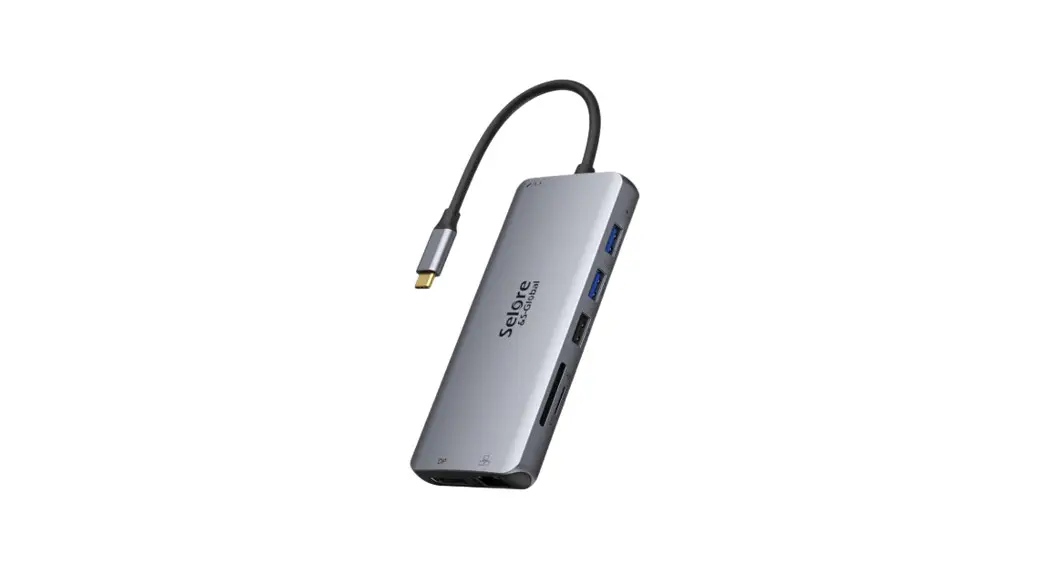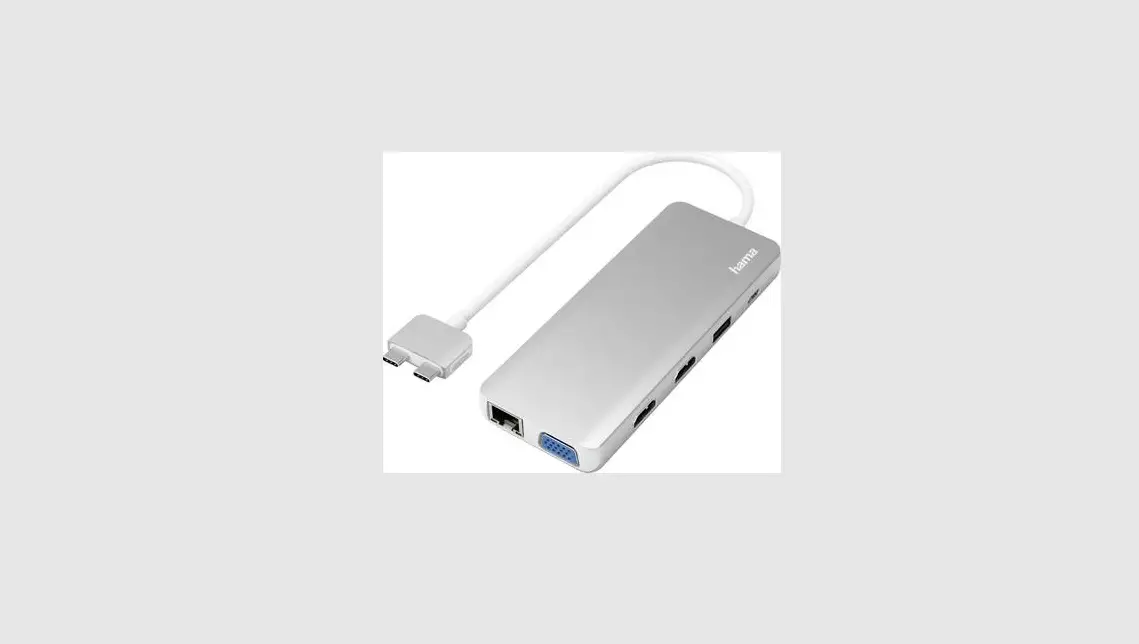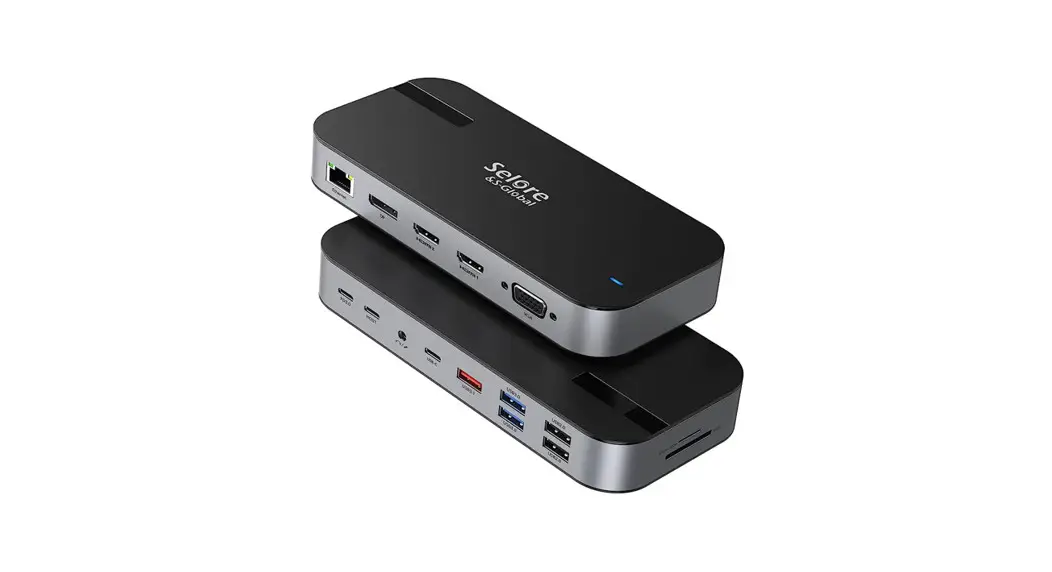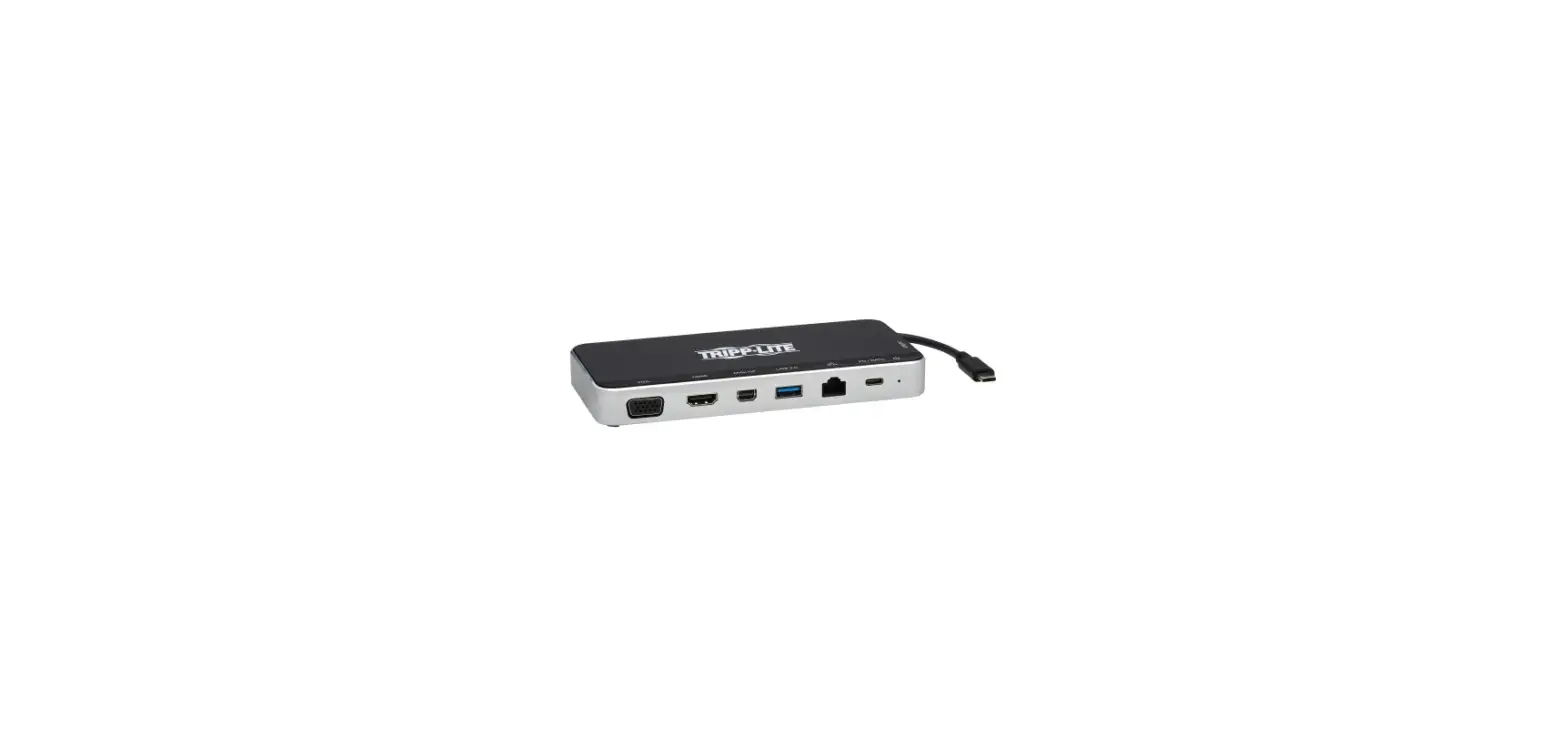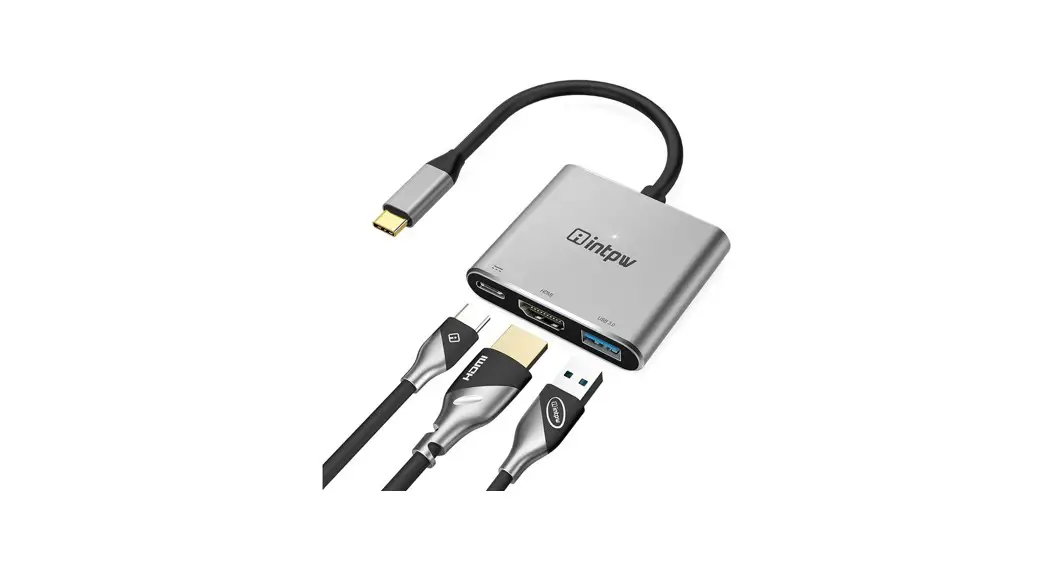

HDMI VGA Video output
– A: Firstly, make sure the computer is supported video output, then try to replace the host device / HDMI cableNGA cable for testing. further determine if it is a hub problem, if it is a hub quality problem, please contact us immediately, our customers support email: [email protected].
– A: Multi-stream transfer (MST). All connected displays can display different content. but Mac OS does not support MST technology. Snexing (SST): All connected displays will display the same content.Then determine if the lower wire is 2.0 or DP1.4 wire.
– A: The signal interrupt is due to computer screen resolution and refresh rate setting, you had better to set the appropriate refresh rate.
– A: The final resolution performance of HDMI output depends on the resolution supported of your devices. (Only when your devices and hdmi cable support 4K/8K resolution. the video output will be 4K/8K)
– A: First look at whether the computer itself is supported video output. then pull the HDMI cable, test if the VGA port can be used, if you can use it properly, it is a computer problem problem. please contact us immediately.
– A: It can’t support 1440 @ 60 Hz. but it can perfect support 1080@60 Hz. In fact, most USB C HUB or HDMI lines on the market cannot support 1440@60Hz or 4K@60 Hz. If you have any questions, please feel free to contact us, our customers support email is [email protected].
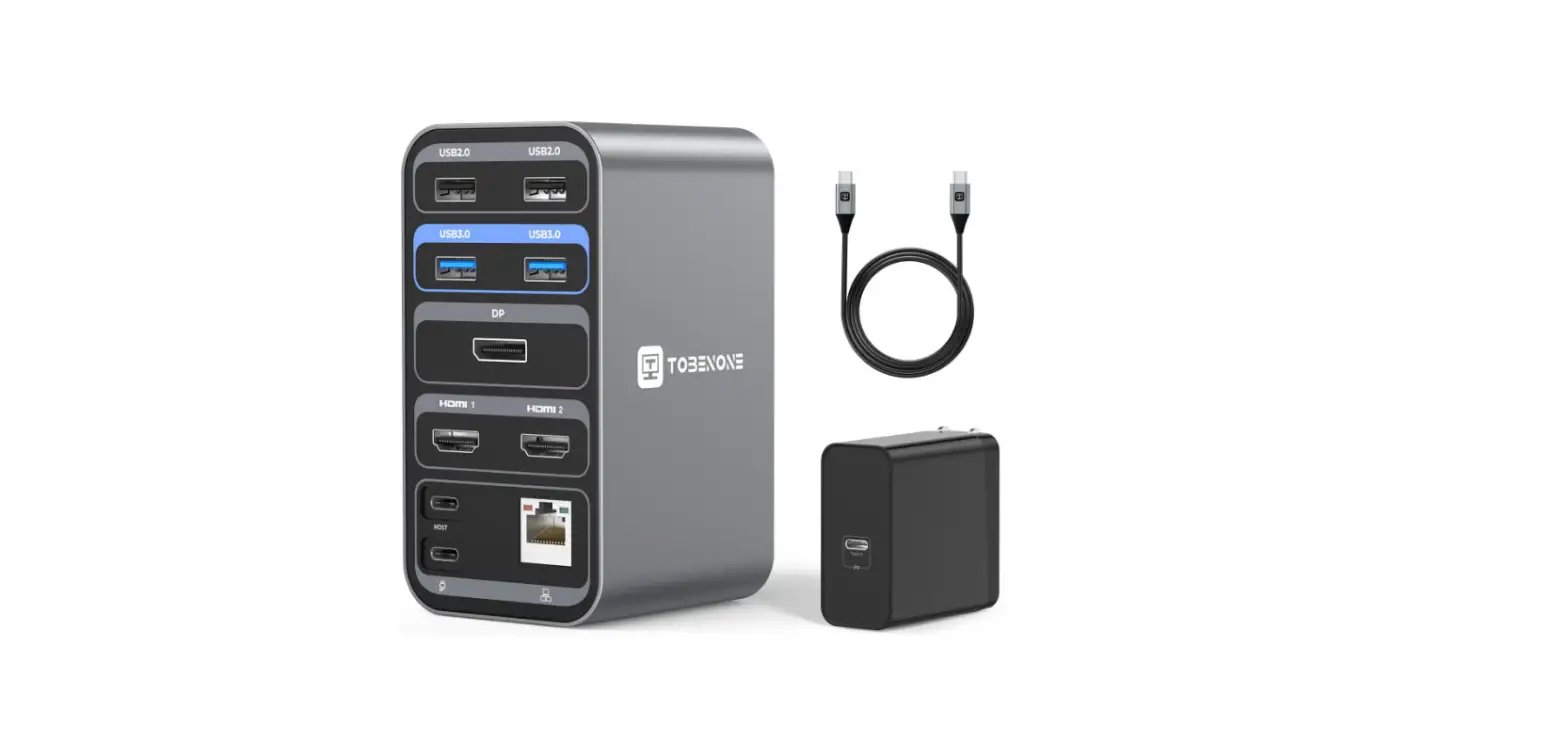
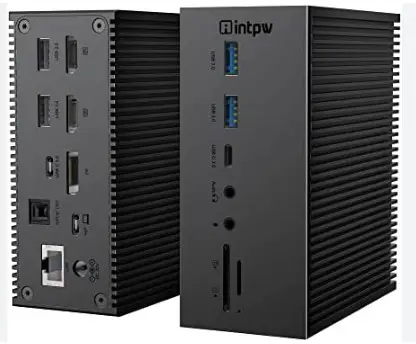
– A: First look at whether the computer itself is supported video output, this USB dock supports connection to three external displays: 2 HDMI port and 1 display port.
– Single display shows: 3840×2160@60Hz via HDMI port or Displayport.
– Double display shows: 3840×2160@30Hz passes 2 HDMI ports or via HDMI pods and display ports
– Triple Display shows: A 3840×2160@30Hz and the other two 1920×1080 @ 60Hz via HDMI ports and display ports.
– Single display shows: 3840×2160@30Hz via HDMI port or DisplayPort.
– Dual display shows: 1920×1080@60Hz passes two HDMI ports or via HDMI ports and display ports.
– Triple Display shows: A 1920×1080@60Hz and two other 800×600`660Hz via HDMI ports and display ports.
– For MacOS systems, triple displays resolution: 3 x 4K@3OHz MacOS only supports single stream transfer (SST), does not support multi-stream transfer (MST)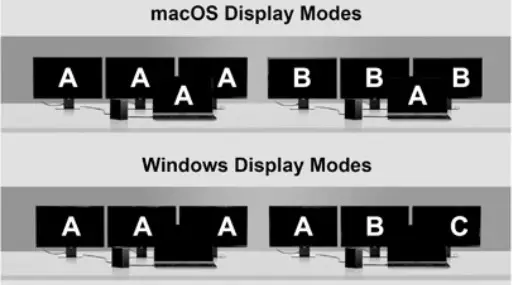
– A: Currently, only Windows 10, Windows 8 / 8.1 and Windows 7 support MST. Mac OS X or Chrome OSTM does not currently support it (although the rumors say that Chrome OS support is preparing, but not implemented).
– Multi-stream transfer (MST): All connected displays can display different content, and you can implement expansion mode. However, MACOS does not support MST technology, so Mac OS cannot implement each display to display different screens and content, and the Windows system is supporting MST technology, so most of the Windows system devices on the market can implement expansion mode
– Single Flow Transmission (SST): All connected displays will display the same content, that is. mirror mode Alternate mode: Allows certain non
– USB data and protocols (such as host video) via USB-C cables.
– Power supply: Make you power supply for supported systems without the need for traditional proprietary OEM chargers USB-C 3.1 GEN2 port is just a data transfer port.
– A: For Win laptops: click graphic settings or WIN + P to select mirror or extended mode For Mac laptops: Apple flags -System preferences – Display – mirror display (or no).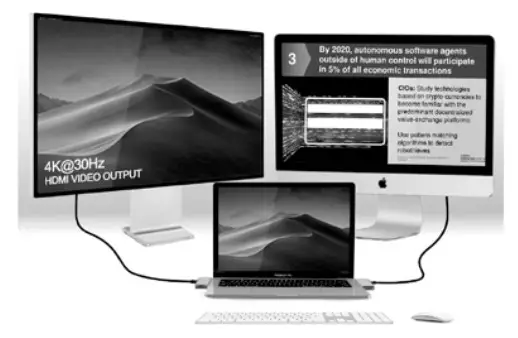
Enjoy Your Ultra HD.PIug&Play, No Extra Driver Needed
Apple > About This Mac > Displays > Displays Preferences >Arrangement > Mirror Displays >To rearrangement the display / To relocate the menu bar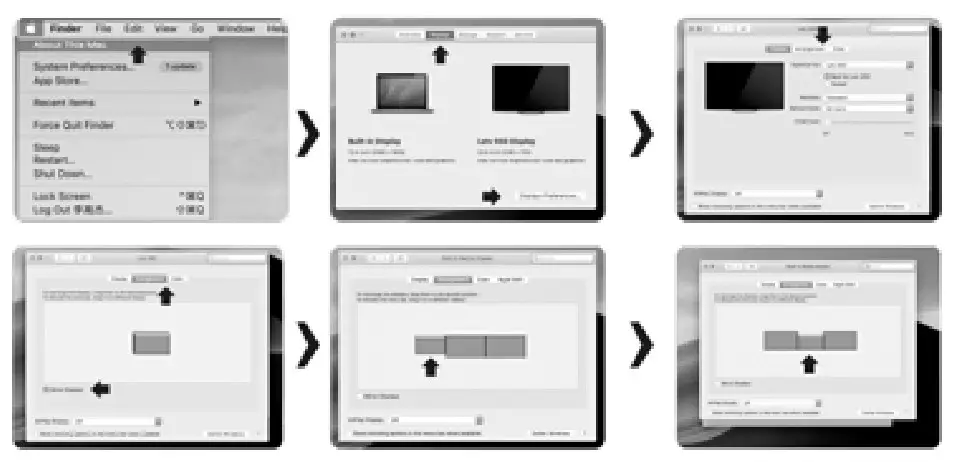
– A: If you select a non-mirror (extension mode) for your Mac OS system laptop (Apple laptop), it can only support two or more identical external screens, but due to Apple system restrictions, your laptop screen can not be with 3 Different images of external displays.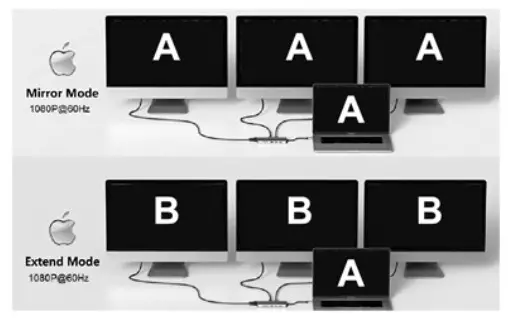
– A: First, make sure the type C port on your laptop is the Thunderbolt 3 port (supported PD charging). This means that the nativeo Type C port of the laptop needs to support video signal output, while checking if the HDMI cable and the input device HDMI port are intact.
– A: The Intel graphics card only supports three-screen display, so one of the four screens (including the notebook screen) will not be displayed. For the AMD graphics, all four screens will be displayed.
– A: This is an EDID (extended display identification data) process, which may black screen a few seconds. The recovery time depends on the graphics card (up to 1 minute) of the laptop and monitor.Please don’t worry. wait some minutes patiently.
– A: When the docking station is just connected to the external display.it is normal to a certain extent. It will be fine after a few seconds. If this problem persists, try reducing resolution.
– If your connected display is random, try to reduce resolution and refresh frequencies or update the graphics driver in “Graphics Set”.
– If you encounter any screen questions after waking up your laptop, restart the base.
– A: First look at whether the computer itself is supported video
– output,some of the device may have some functional
– compatibility issues,and you can try the following.
– Remove the Type-C extension from your laptop:
– Remove all external devices connected to the Dockup: and then connect the Type-C extension to your laptop: connect the PO charger to TYPE-C On the PD charging port of the Dock: to connect other interfaces. the above operation can solve the problem of other functions of PD power supply.
– A: First look at whether the computer itself is supported video output.For different systems, the extend mode is different, you can refer to the user’s use instructions to learn more clearly.
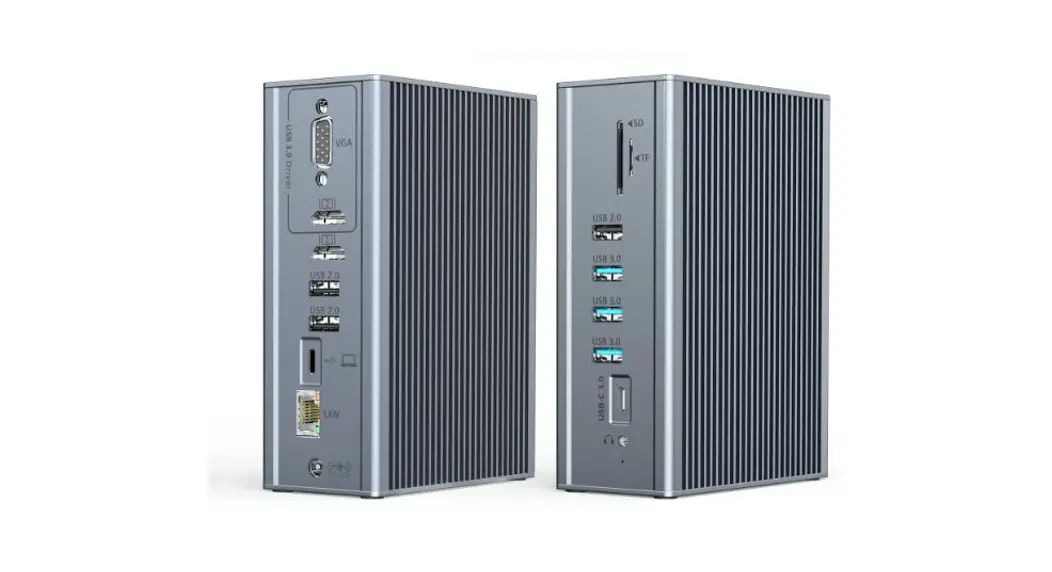
– A: When a single video output is required. the HDN111 or HDMI2 can only output 30 HZ. and the VGA can reach 60 HZ. When you need a dual video or three video output. the three interfaces can output 60 HZ. At the same time. you can also learn more about the “Video Matrix” in the manual.
– A: First look at whether the computer itself is supported video output, <1. Make sure the device’s TYPE-C interface supports video functions; <2. The correct source on the display / TV (which video pod is connected to select the corresponding source); <3. If it is a mobile phone connection After the phone is connected, the USB connection is selected in the mobile phone pop-up <4. Plug the HDMI line; <5. Restart the device; <6. If it is still unable to use the recommended replacement device or HDMI line test.
– A: It is related to the configuration of the computer. the computer needs time to allocate video data at the video output. especially the video output existing HDMI and VGA. and when there is DR there is more reaction time.
Data Transmission
– A: It will not affect your wifi usage. In rare cases. it will affect will usage. The solution is to keep the hub away from the wifi receiving source.
– A: It can work with two external hard drives, but the total capacity of the two hard drives must be less than 2TB
– A: The working frequency of USB3.0 5GHz, and the working frequency of will is generally 2.4GHz. Under normal circumstances. it will not be affected. Due to general technical problems. there will be mutual Interference in some cases, which is not a problem caused by hubs If you encounter this situation. please keep the hub away from the wifi signal receiving point to reduce interference.
– A: Support all ports to be used at the same time, it is recommended not to use high-power equipment to avoid equipment overload
– A: Because the mobile hard disk consumes a lot of power, if the device cannot recognize the mobile hard disk normally, there are two solutions C) Please connect the mobile hard disk to the device separately. do not use the docking station Connect the docking station to the PD charger, and then connect the mobile hard disk (note that you need to remove all external devices before reconnecting).11 the problem persists, please replace the device or mobile hard drive.
– A: In rare cases, you will encounter this problem Because the wireless mouse’s working frequency is 2.4GHz, the WIFI signal is also the Limited to the current overall technical reasons, not a hub problem). causing the mouse to freeze.the solution. Use the USB2.0 interface for the wireless mouse.
– A: Mackbook (MacBook Air and MacBook Pro) in 2020 due to MacOS system bugs, most of the external devices cannot be used by connecting USB2.0 interface accessories to the computer through the docking station and adapter, other computer models will not have similar problems Please pay attention to these computer models.
Charging Problem
– A: Not sure as I have used it for a wireless mouse – is your mouse connected to the keyboard as they may create the problem.
– A: Almost. Please note that your hosts USB-C port is required to support data. charging, and video (DP Alt mode).
– A: To ensure a stable connection, avoid connecting devices that exceed a total of 900 mA.
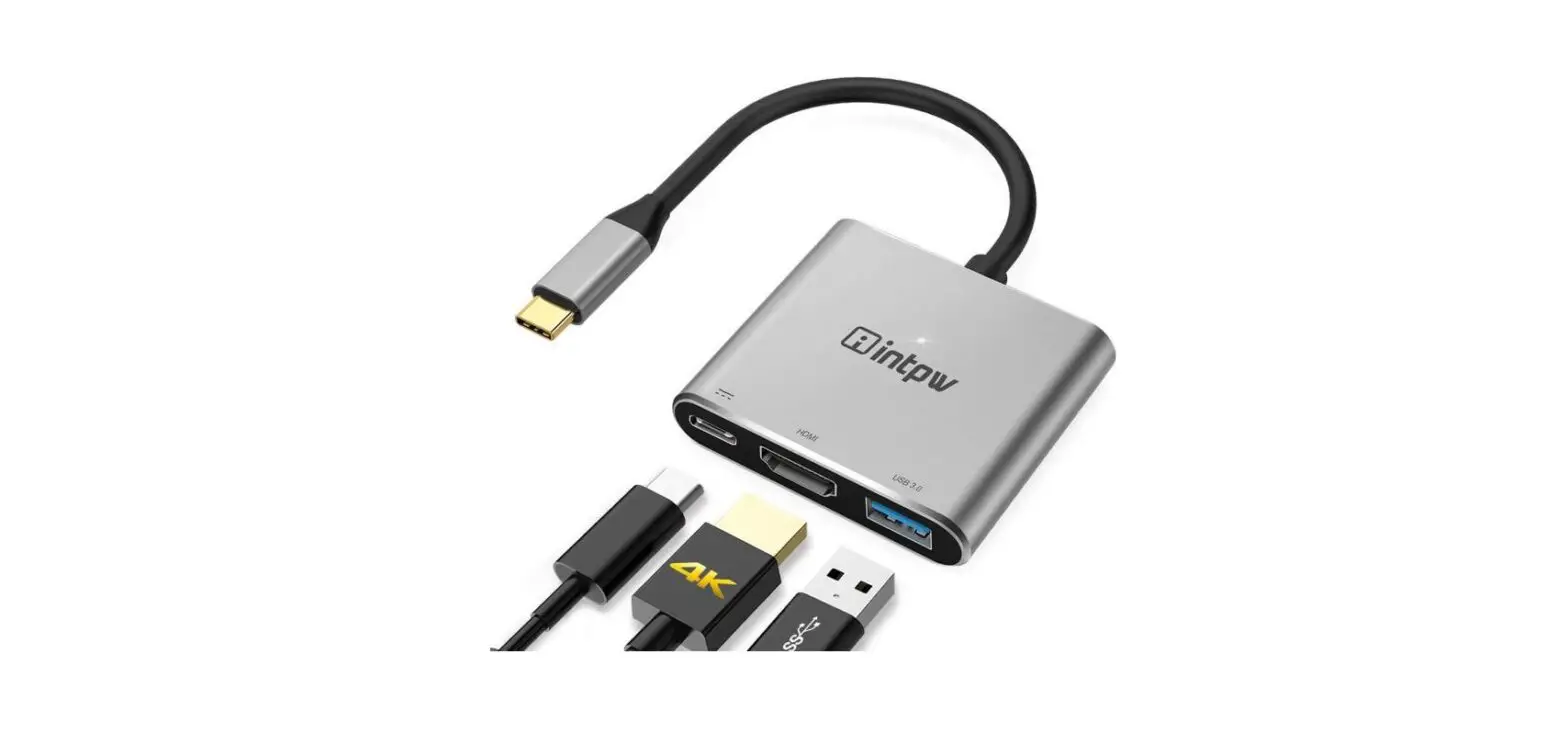
– A: The intpw USB C to HDMI Adapters type c port is just for charging, not for the data transmission. You can use the USB A 3.0 port to transfer.
– A: Yes. the PD port will charge your macbook pro when AC adapter you plug into it.
– A: First confirm whether the power adapter is normal, plug the power adapter into the laptop, and confirm whether the laptop can be charged. If it can be charged, you can make sure that there is no problem with the power adapter and the laptop. Send the docking station to the original factory for repair; if it cannot be charged.please reset the laptop. Apple laptop users need to reset the SMC.For the method of resetting the SMC. please refer to the instructions on Apple’s official website.
– A: Some devices may have compatibility issues with some functions, you can try the Remove all external devices connected to the docking station; O Connect the type-c docking station to the laptop: O Connect the PD charger to the type-c On the PD charging port of the docking station: 0 Connect devices with other interfaces. Normally follow the appeal operation to solve the problem of incompatibility with other functions of the PD power supply.
– A: Under normal circumstances, it is OK, it is high temperature resistant and can reach 50 degrees.
– A: The maximum output of 100W charging still depends on the charging power of your device (it is also related to the charging head and wire,100W requires a chip inside the wire).
– A: Adjust resolution, refresh rate and display driver.
– A: First, check whether the computer model supports it. Some devices may have some functional compatibility issues. You can try the following operations.
– Remove the type-c docking station from the laptop;
– Remove all external devices connected to the docking station:
– Connect the type-c docking station to the laptop:
– Connect the PD charger to the type-c On the PD charging port of the docking station:
– Connect devices with other interfaces. Normally follow the appeal operation to solve the problem of incompatibility with other functions of the PD power supply.
– A: The USB port is mainly used for data transmission, and the charging speed will be very slow. The power supply is provided by your PC/Apple USB port, so the power supply is limited by your own laptop.
Displaylink Issues
– A: DisplayLink is a technology that makes it easy to connect a computer to a universal docking station and use multiple devices such as external displays, extra USB ports, and audio or ethernet devices through the dock. intpw is not associated with DisplayLink. DisplayLink drivers are developed and hosted by DisplayLink.For more information on DisplayLink, please visit their website at https://www.displaylink.com/company.
– A: The secret to DisplayLink’s popularity is a codec that offers crisp text and graphics with very low (sub-frame) latency. This is crucial in desktop productivity uses where natural interaction with a mouse or touchscreen is required. Because the codec is link-aware it naturally fits a range of different data transports such as USB2. USB3, or Wifi. DisplayLink powers graphics in both 802. 11 ac and 802.11ad wireless docking.Because DisplayLink uses a driver-based host solution it is simple to support Display link across a range of OSes with no added host cost.Currently we support: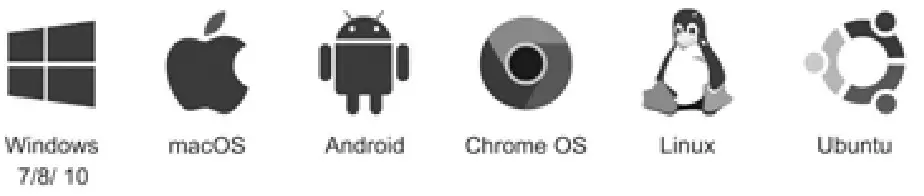
– A: Yes, a USB C port is the new USB connector. USB signals are always present on this connector, therefore will work with any existing DisplayLink enabled docking station. DisplayLink enabled docks will still work with USB C ports which are enabled for USB C alternate modes. Thunderbolt 3 or USB power delivery.DisplayLink provides a backwards compatible solution for USB C docking.A computer with only USB Type A ports can be connected to a DisplayLink enabled USB C dock. using a USB – A to C cable.A USB C computer can be connected to a DisplayLink enabled USB Type B dock using a USB Type A (Female) to USB C.
– A: Yes. A driver for Apple Mac computers is available from the DisplayLink Mac downloads area. The latest drivers are for OS X / macOS 10.11 onwards.
– A: Yes, a driver is available in the Play Store for Android OS 5.0 (Lollipop) and later.
– A: A release is available to be compatible with Ubuntu 14.04 and later.lt is available from the Ubuntu Downloads Page. DisplayLink has not created drivers for other packages, however the Ubuntu driver contains an open source component which is designed to be modified to enable the Ubuntu driver to be repackaged for any other Linux distro by the user community.Support for DL-1×5 and DL-1×0 devices is provided by the open source udl driver.
– A: There are three ways to expand your view with DisplayLink technology:
<1. USB Docking Stations. laptop users often want the extra features and convenience available in a USB docking station. In addition to USB graphics, USB docking stations include an extra array of peripherals that allow you to plug in your mouse, keyboard, printer, iPod, speakers.microphone, network connection and just about any other USB device -including additional USB graphics adapters for even more screen space!All of this can then be connected by just one USB cable to your notebook.making docking and undocking easy.
<2. USB Monitors: The DisplayLink hardware is built into the monitor for an all-in-one solution. A USB monitor is the easiest way to add an additional monitor to your PC in one product Just plug in the USB monitor into any available USB port and you’re ready to enjoy the productivity benefits of multiple monitors.
<3. USB Graphics Adapters: if you already have an extra monitor collecting dust then you can put it to use with a USB graphics adapter. Simply connect the HDMI/DVI VGA connector of your existing monitor to the adapter and plug the USB cable from your PC into the adapter. You will need one adapter for each additional monitor you wish to connect to your computer allowing you up to six USB displays – in addition to any you may already have’Before purchasing DisplayLink devices. please make sure that your computer meets the minimum system requirements.
– A: Sure! DisplayLink technology delivers full-screen video playback over USB. Just make sure that your computer meets the minimum system requirements for video playback.
– A: While DisplayLink technology is targeted primarily to productivity and video applications, it is suitable for the casual garner. If you’re a “power gamer”, looking for every edge possible over your opponents, you might want to go another route.
– A: DisplayLink makes using multiple monitors easy. Just install the DisplayLink software and connect a USB cable between the DisplayLink enabled monitor/adapter/peripheral and your PC. DisplayLink’s software will automatically configure the monitor for optimal picture quality and stores those settings for future use.
– A: Active cables and adapters contain have their own built in chip which converts the video signal from say DisplayPort to HDMI, they also convert the digital DisplayPort or HDMI signal to the analogue VGA signal Passive cables and adapters do not have such a conversion chip built in. Instead they rely on the source to do the conversion. Unless the source has the ability to output analogue over DisplayPort or HDMI then an active adapter is required for VGA output.
– A: When the Ethernet cable is connected to the USB docking station. there is no link and no LEDs come on. This is usually due to being connected to a half duplex port.The Ethernet on the DisplayLink docking stations support full duplex only. Half duplex connections are not supported.Connecting to older Ethernet hubs, which only support half duplex, rather than Ethernet switches will cause this is sue.Connect the Ethernet port to a full duplex Ethernet port on an Ethernet switch.
– A: A DisplayLink docking station can be unplugged from the USB port.There is no need to eject the DisplayLink hardware before disconnection.lf USB hard drives or flash drives are connected to the computer via the docking station, these should be ejected before unplugging the docking station to prevent data loss.
ThunderboltTM 3& Other Issues
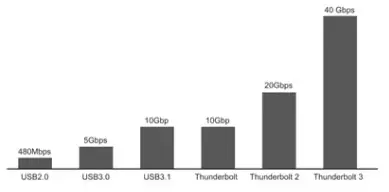
– A: Thunderbolt’ 3 the transmission speed from 20Gbps to 40Gbps,dual 4K 60 Hz or single 5K 60Hz; 15W bus-powered device, 100W PD charging, provides 10GbE speed point-to-point connection, to quickly transfer files between computers, perform PC migration or Set up shared storage.
– A: Thunderbolt? 3 Chip failure (whether in software or hardware) may mean limit (15w) not charging.
– A: Confirm whether the computer has thunderbolt 3 function.
– A: Some docking stations have an HDMI interface and a 3,5mm audio/microphone composite port. If the docking station is connected to the monitor through the HDMI interface, after the docking station is connected to the laptop.the laptop system determines that there is an external HDMI device and automatically switches the audio to HDMI output,so there is no sound from the speakers of the laptop.
(1) After connecting the docking station P1 and the notebook computer, the notebook computer system automatically selects the 3.5mm audio/microphone interface as the audio signal output port. that is. the notebook computer automatically selects the USB sound card as the sound output port:
(2) The docking station P1 is connected to the monitor through the HDMI interface. After the docking station is connected to the notebook computer, the notebook computer system automatically selects the HDMI interface as the output port of the audio signal_ If the user wants to choose the audio signal output terminal he needs, for example, the user wants to output sound through the speaker of the notebook, please set it according to the following method. The operating system of the laptop is Winl 0 as an example. and the setting method of the Apple Mac system is similar.Move the mouse to the lower right corner of the computer screen and select the speaker logo.
– A: This audio output interface is an external output device under Mac system. You need to make the following simple settings on your MacBook: System Preferences-Sound-Output, select the USB type of output device.
Compatible Systems Moder
| TYPE C Product Compatible Model | ||||||
| Computer | ||||||
| Apple | MacBook 2021/20202019231812017/2016/2015 | MacBook Pro 2021902020192018201717016 | MacBook Air 2021=02019/2018 | Apple Mao, Mac Pro/ Mac Irani 2018 | Pad Pro 2021/20202010/2018/ Pad Air 4 | Mac,look AO M11 Macbook Pro MI |
| Lenovo | lenovo Yoga 920 | Yoga 910 | Yoga 720/Lenovo Legion Y540 | Yoga 5 Pro | Thinkpad T470/4804enovo T470s | Lenovo yoga 71 |
| Dell | XPS 15 (9550, 95601 | XPS 13 (9350. 9360. 9370) | Del Latitude 350015400 | Den XPSIIXPS15 7590 | Del Inspron 7391 | Del Proc.son 7540 |
| Asu S | ZenBook 3 | ZenFone 3 Ultra | ZenBook Pro | ZenBook Flip | ASUS ROG Strix gamang laptop | |
| Huawei | Matobook | Matebock X | Matebook X Pro | |||
| Goog I e | Google 01.°mM:took r | CbnxneBook Pixelbook | ChromeBook Pixel | Google Peuelbook (201 7 | ||
| Microsoft | Solace Go | solace pro 8/Sudace Pro 7 | ||||
| Sa rnS u n g | Samsung Galaxy Tab 54155e | ENVY 13/ENVY X36041P Envy x364) | ||||
| HP | Spectre 131Spectra X380 | HP EiteBook Folio G1 | HP ZBOOKAIP Zbook 14u | HP ChromebookiHP Eitebook | HP Spectre x360 13′ | |
| Inspiron | Insplron 15 7000 | Inas:won 13 7000 | ||||
| Acer | Aspire Sstinch 125 / R13 / V15 Nitro | Ater Aspre 2015 | ||||
| Phone | ||||||
| Samsung | Samsung Galaxy 520/ 510/ 510 Plus/ S9 / 59 Plus / 58 / 58 Plus / Note 10/Nole9′ Note 8 | |||||
| Huawei | Huawei P40vP40 pro/P30/ P30 Prot P20 I P20 Pro/ Mate 201 Male 20 pro/ Male 10 / Mate 10 pro | |||||
| LG | LG V30 / V20,165 | |||||
| Microsoft | Lurno 950 I’ 950XL | |||||
| Can not work with (Continuously Updating) | ||||||
| HP | HP Pavilion 15 | HP EnieBook Fold 1040 G3 | HP 250 G8 notebook | |||
| Microsoft | Surface Book 2 | |||||
| Operating System | ||||||
| Operating n g | Mac OS X 10.X and future releases | Windows 8/10 32 and 64 brl and future releases | Lava | I Chrome OS |