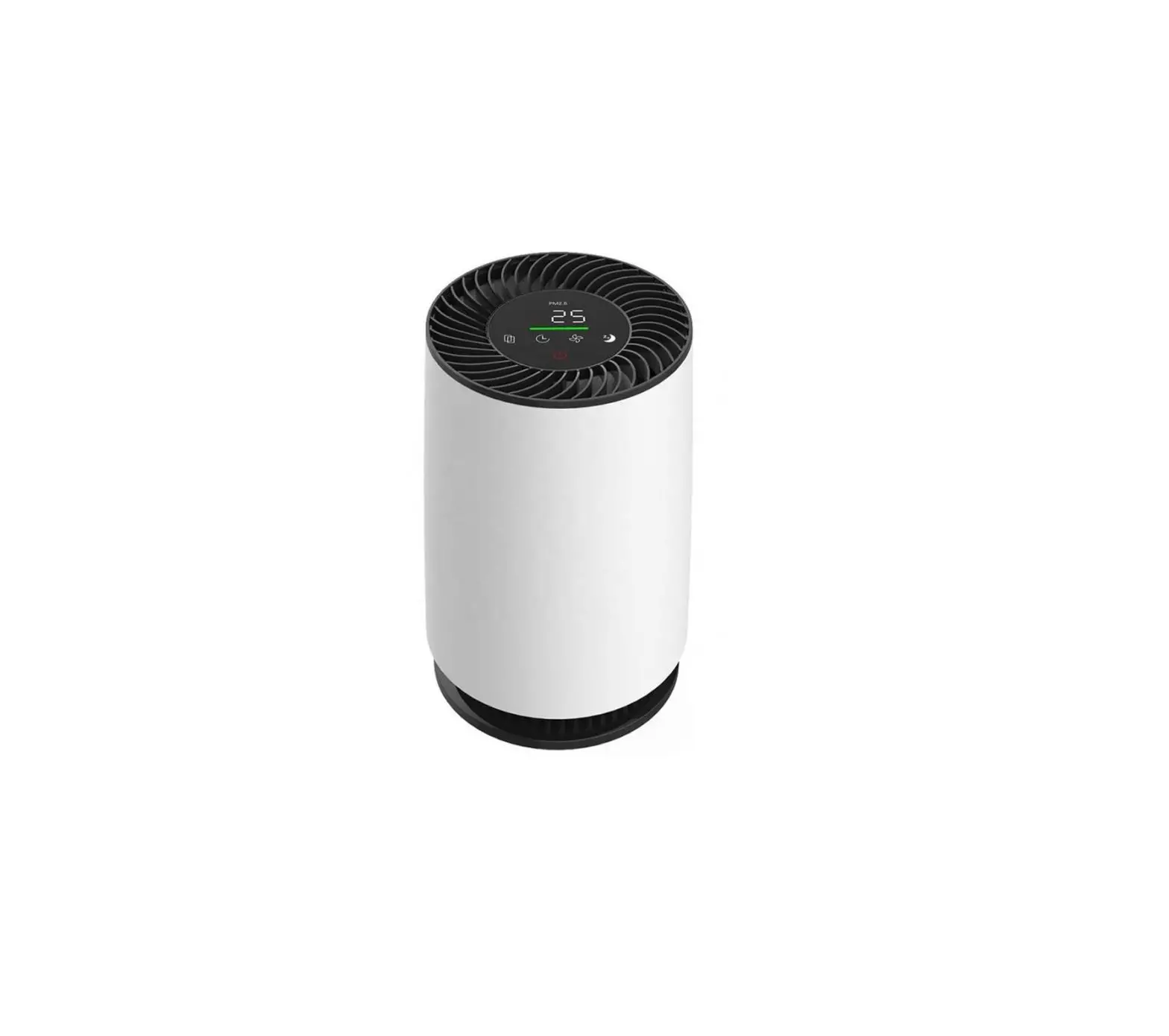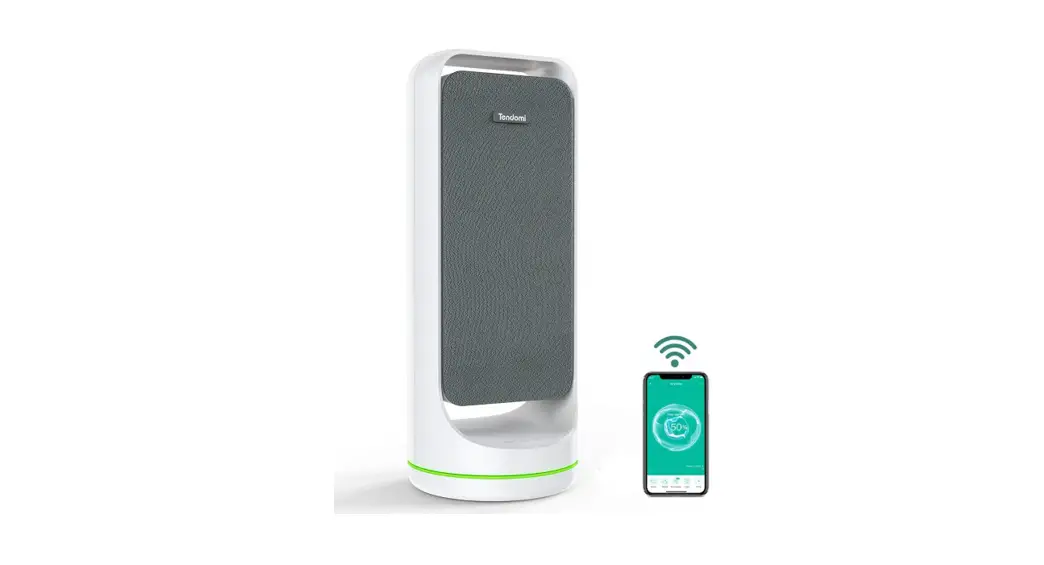

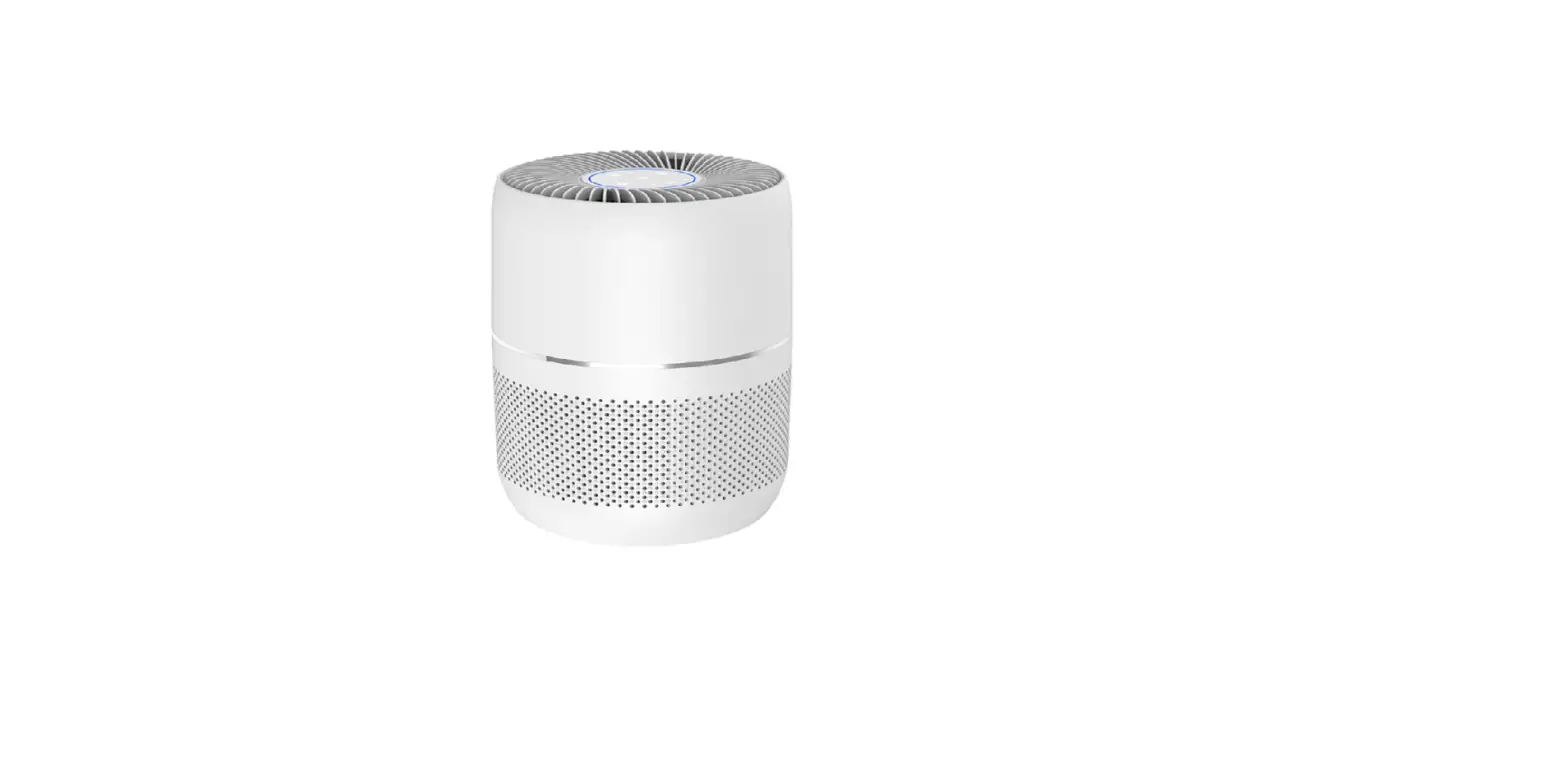
SMART WI FI AIR PURIFIER TP11S
APP OPERATION GUIDE
Download and Install “WeBack” App
Scan QR code, download and install; Or search “WeBack” App in Google Play or Apple app store, download and install.

WeBack

IOS
https://itunes.apple.com/cn/app/hui-ba/id1066738633?mt=8

Google Play
https://play.google.com/store/apps/details?id=com.yugong.Backome
Sign up /Log in
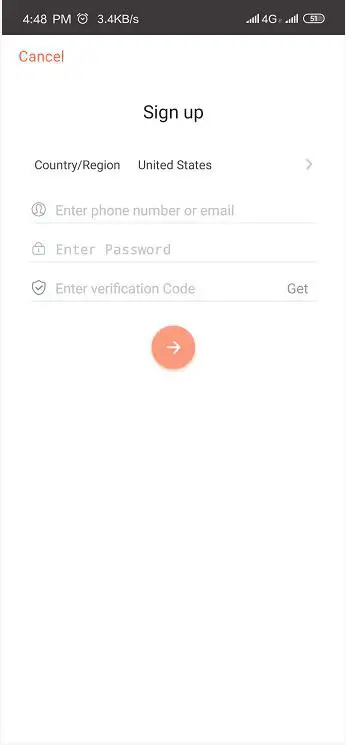
Enter the App, enter the mobile phone or email account, set the password, click to get the verification code, and after receiving the verification code, enter the correct verification code to complete the registration, then log in App.
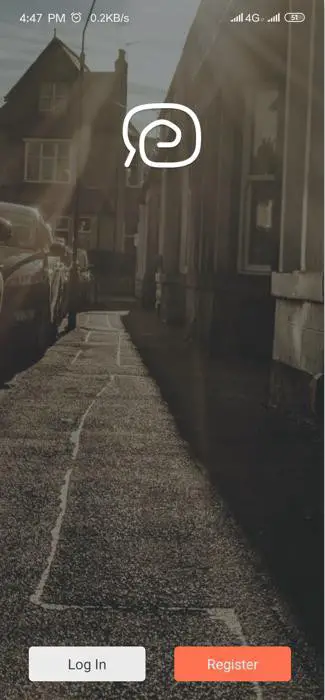
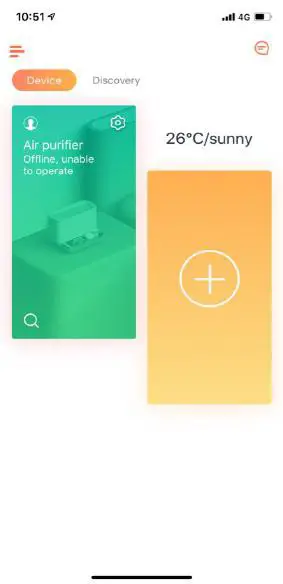
Log in the app, click “+”
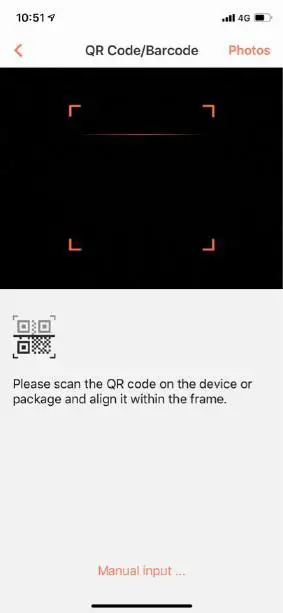
Scan the QR code on the device.
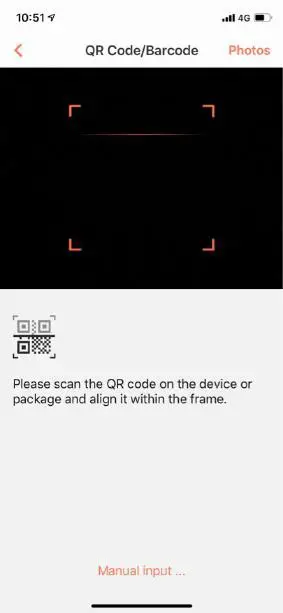
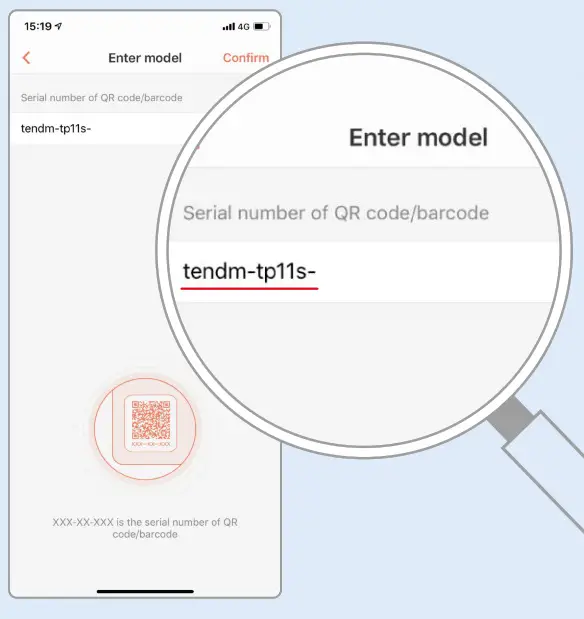
Or you can click the “Manual input” on this page. Enter the product code ( tendm-tp11s- ), then click “confirm” and enter the next step.
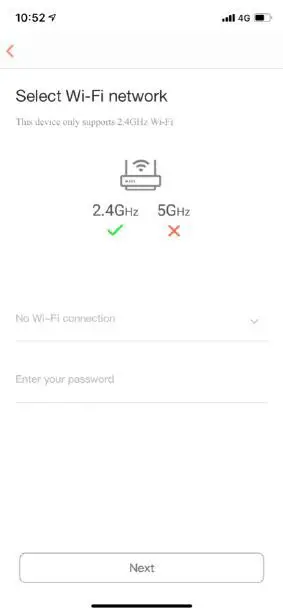
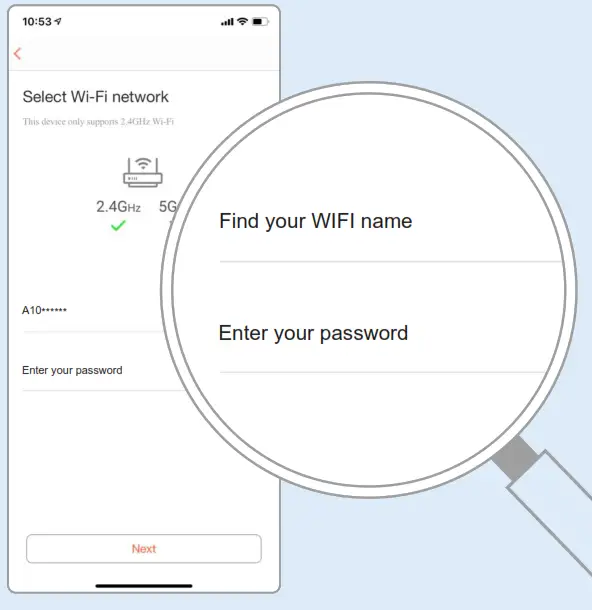
Select 2.4G wi-fi and enter your password. Click next.
(Please select 2.4G network. Using a 5G network will cause the connection to fail, then you need to turn on the GPS),
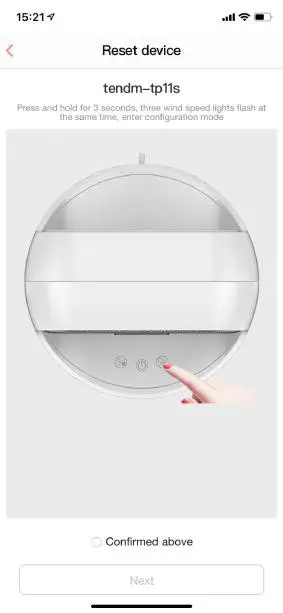
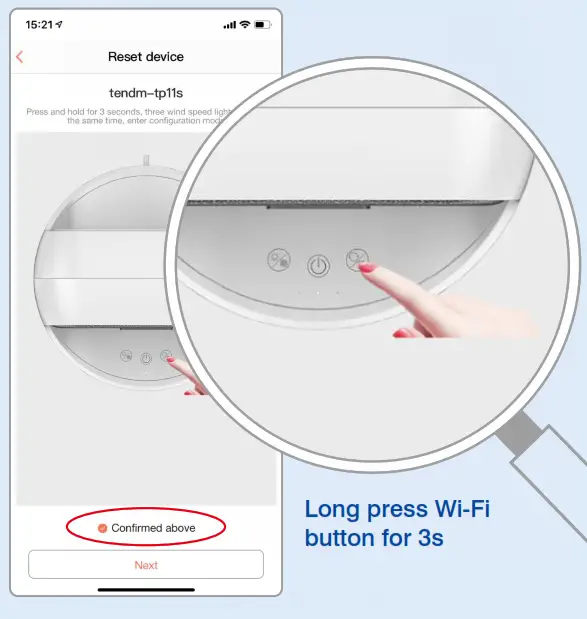
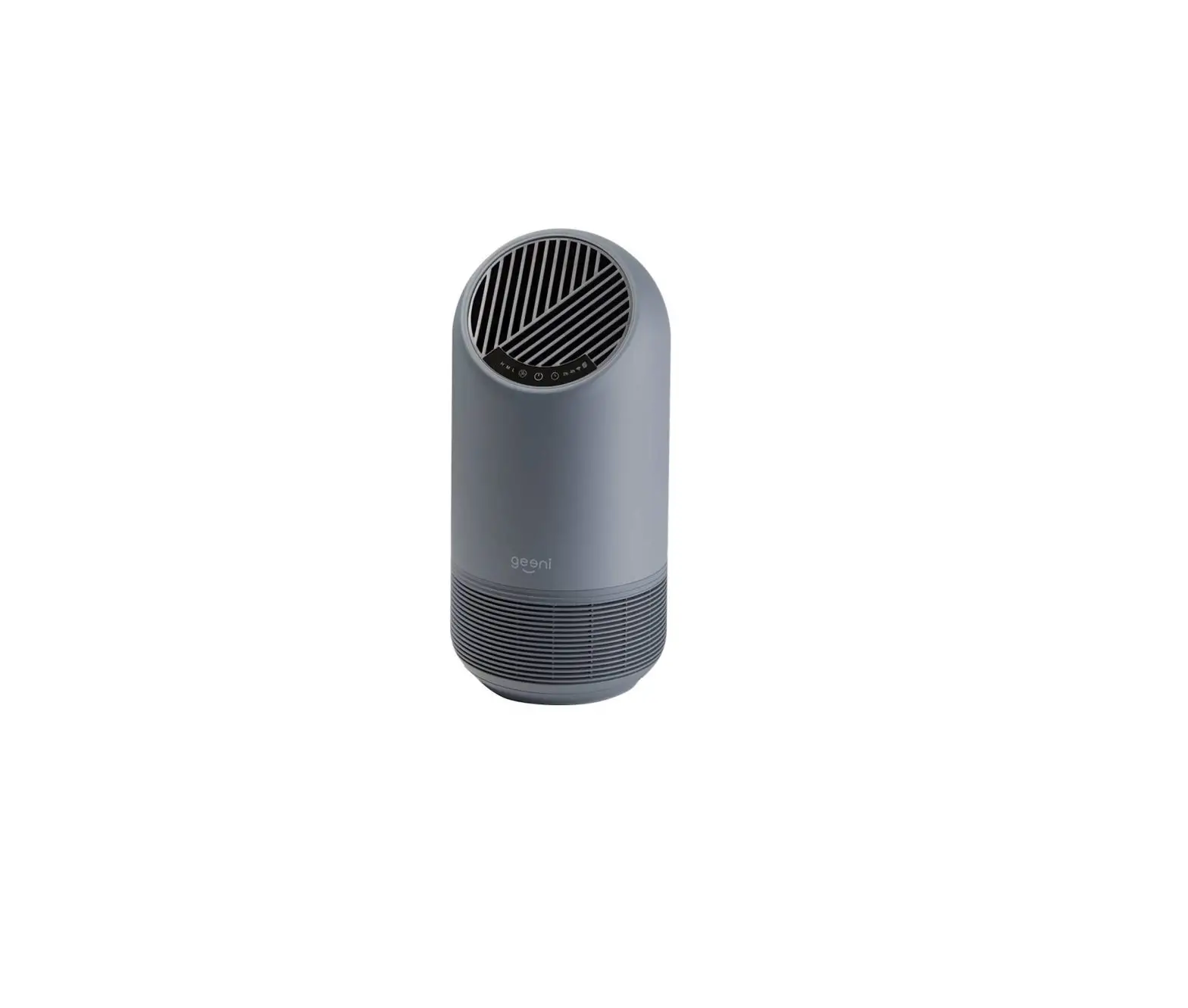
 Turn on the air purifier and press the WiFi button for 3 seconds 3 wind speed lights flash simultaneously, then enter the WiFi connection
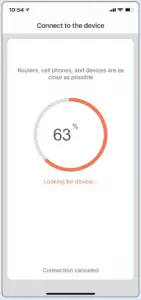
Connect to the device.
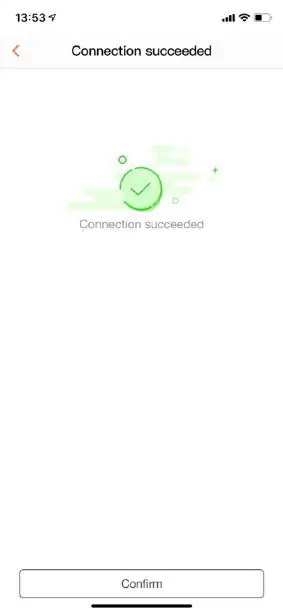
 Connection succeeded.
 Connection succeeded.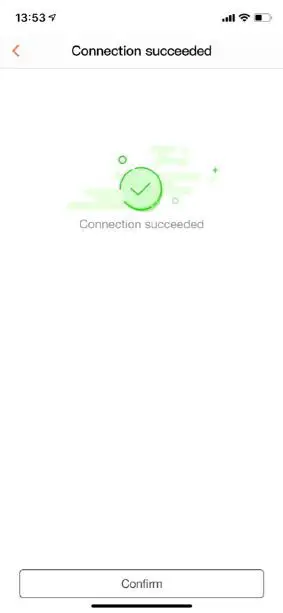
Note: It will cause network delay and enter compatibility mode when the network is not good or the App connected with too many appliances
Enter the Wi-Fi setting mode.1
 Choose SMART_DEVICE### and connect directly.
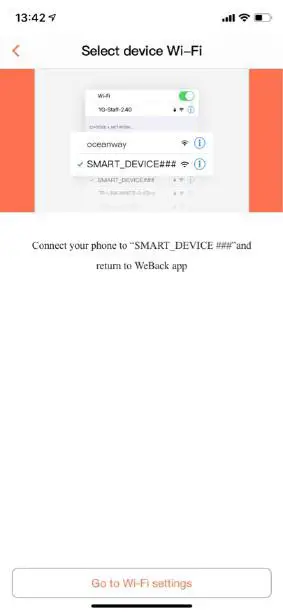 Choose SMART_DEVICE### and connect directly.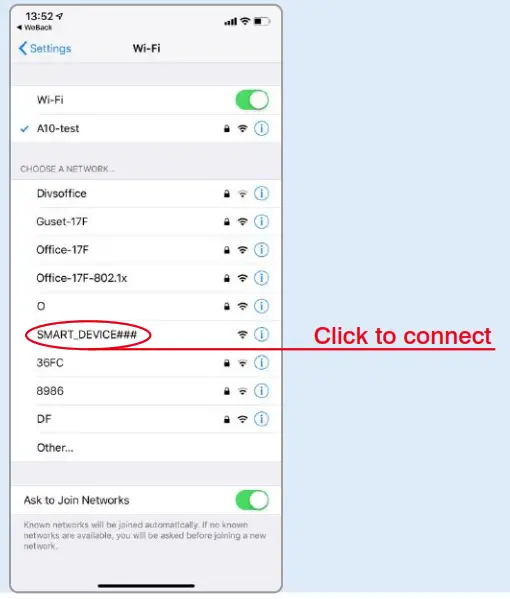
Connection succeeded.



![Levoit Smart True HEPA Air Purifier Instruction Manual [with WiFi]](https://manualsee.com/img/279/68975/2021/02/Levoit-Smart-True-HEPA-Air-Purifier-Instruction-Manual-with-WiFi.jpg "Levoit Smart True HEPA Air Purifier Instruction Manual [with WiFi]")