Contents hide

Midea Wifi M Smart Life App
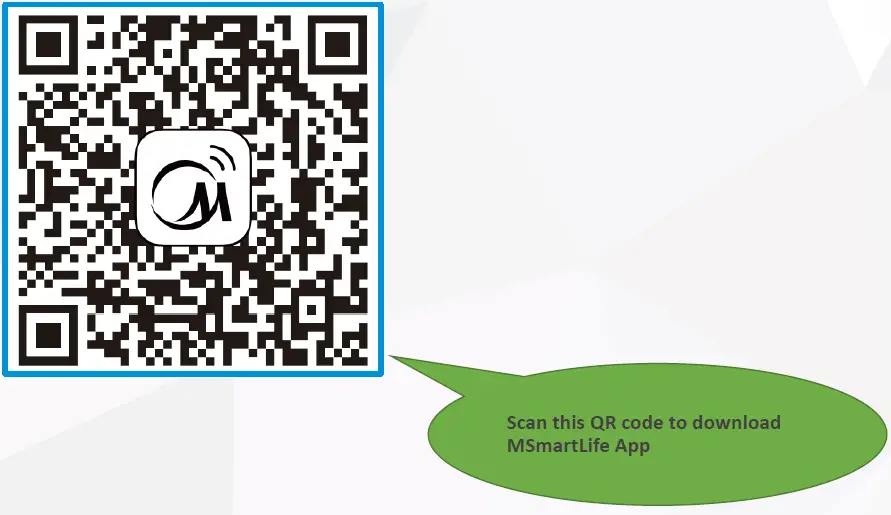
Downloading M Smart Life App
Open M Smart Life App and Login
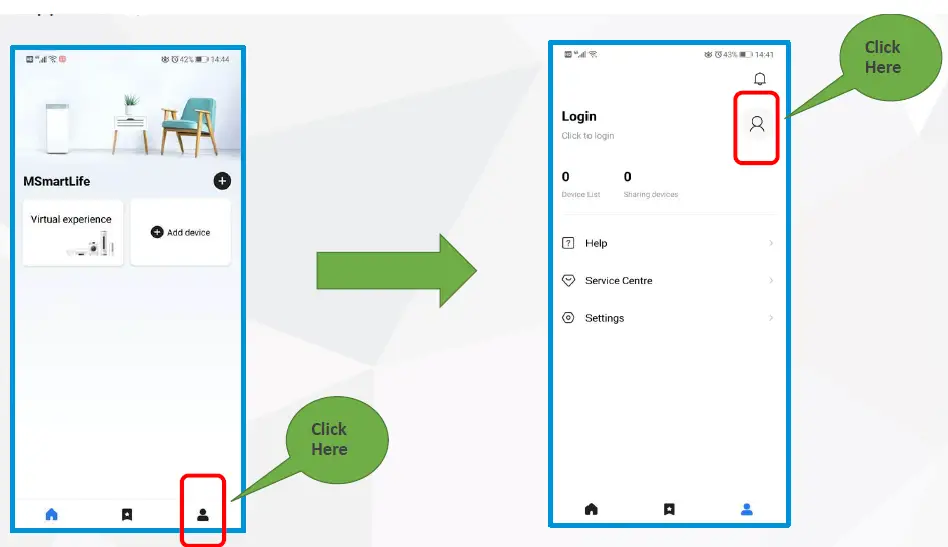
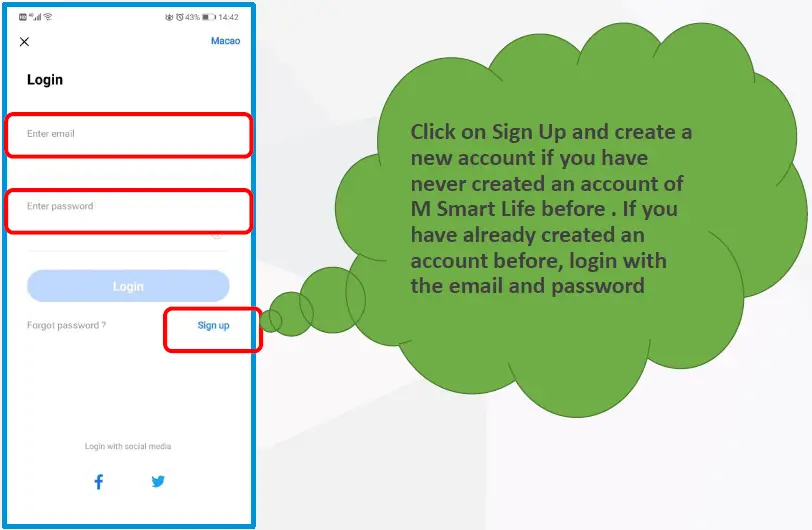
Login
Login the App
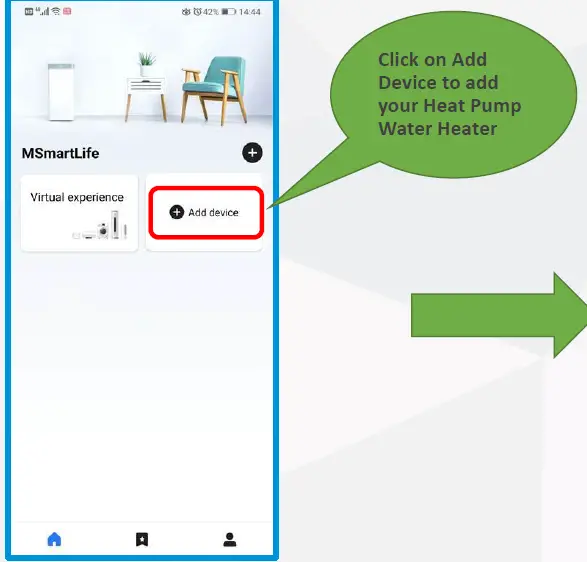
Click on “Add Device”
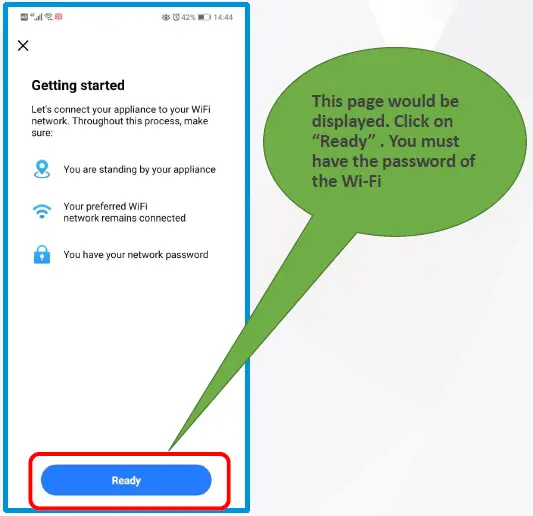
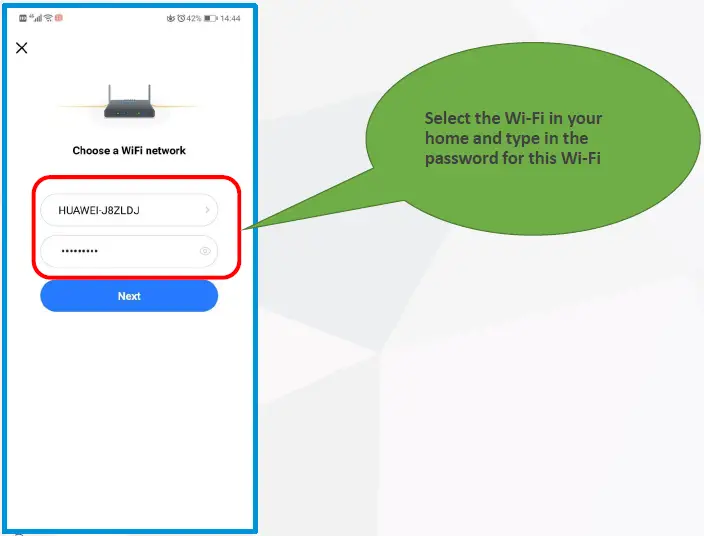
Selecting the Wi-Fi
Login to your home Wi-Fi
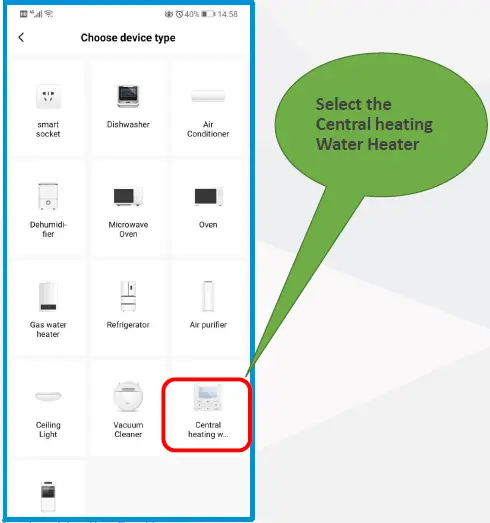
Select Commercial HPWH
Login to your home Wi-Fi
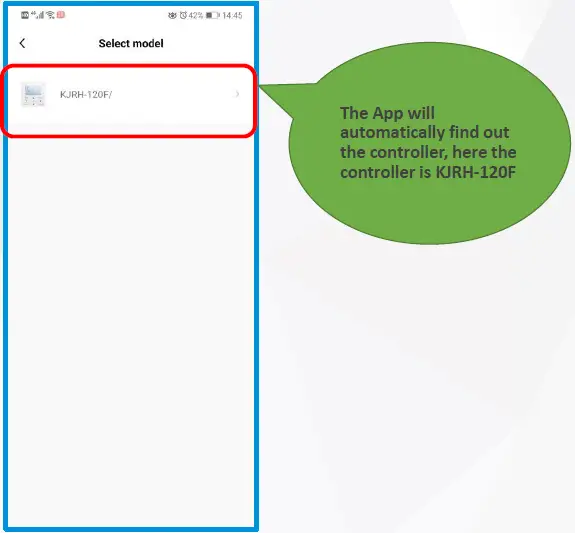
Agree and click OK
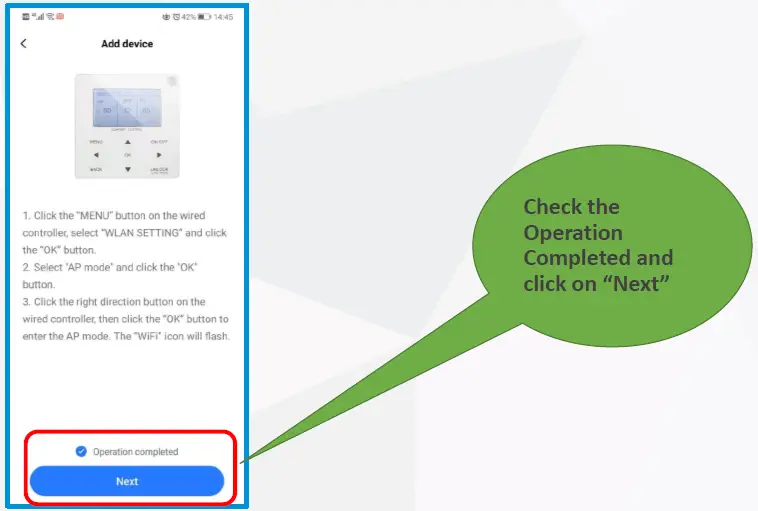
Start the Wi-Fi Module of Controller
Enter the Menu Button of the controller
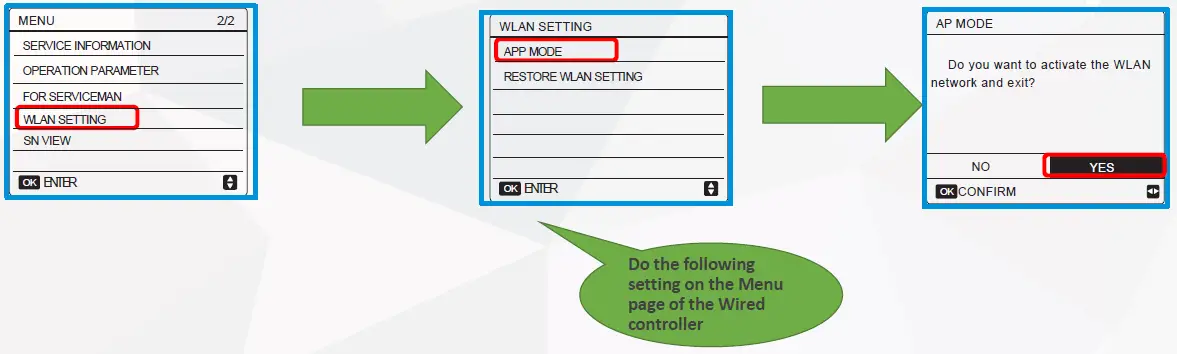
Start the Wi-Fi Module of Controller
Enter the Menu Button of the controller
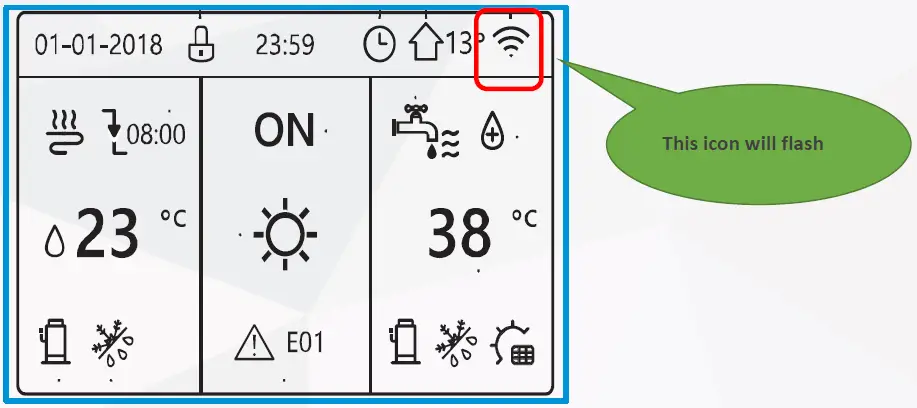
Connect to New Wi-Fi
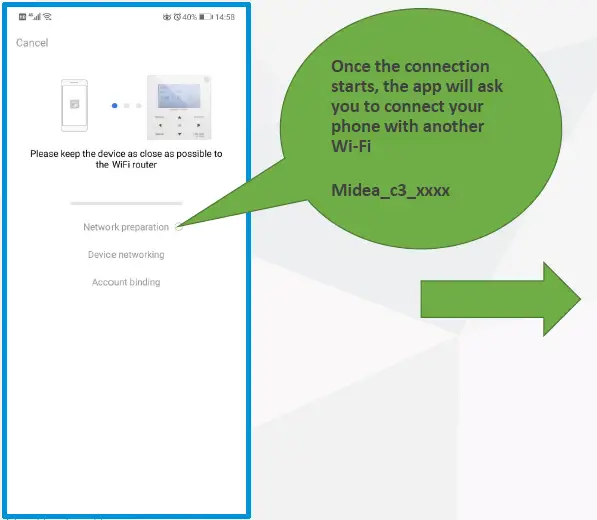
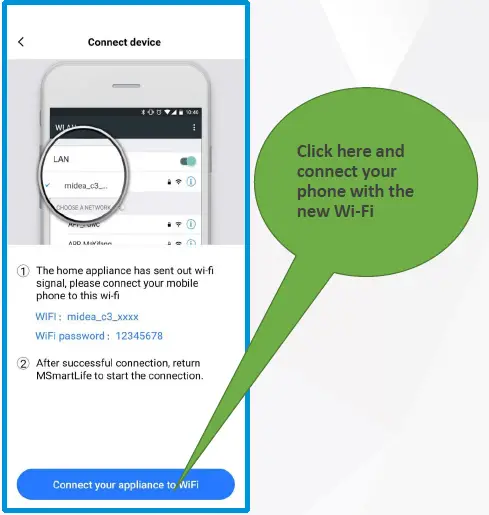
Finishing Up
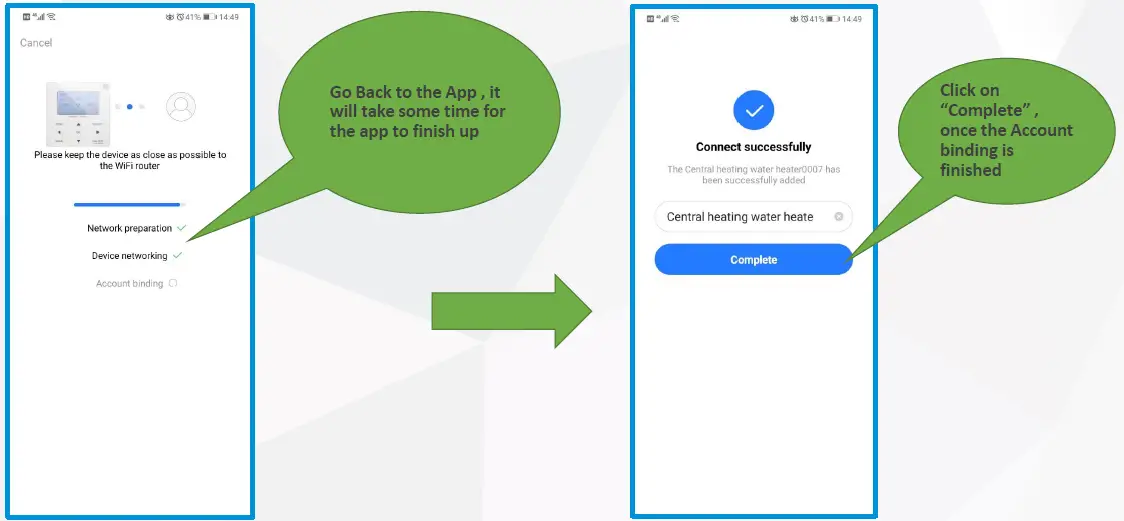
How to use the APP?
Functions of Various Buttons in App
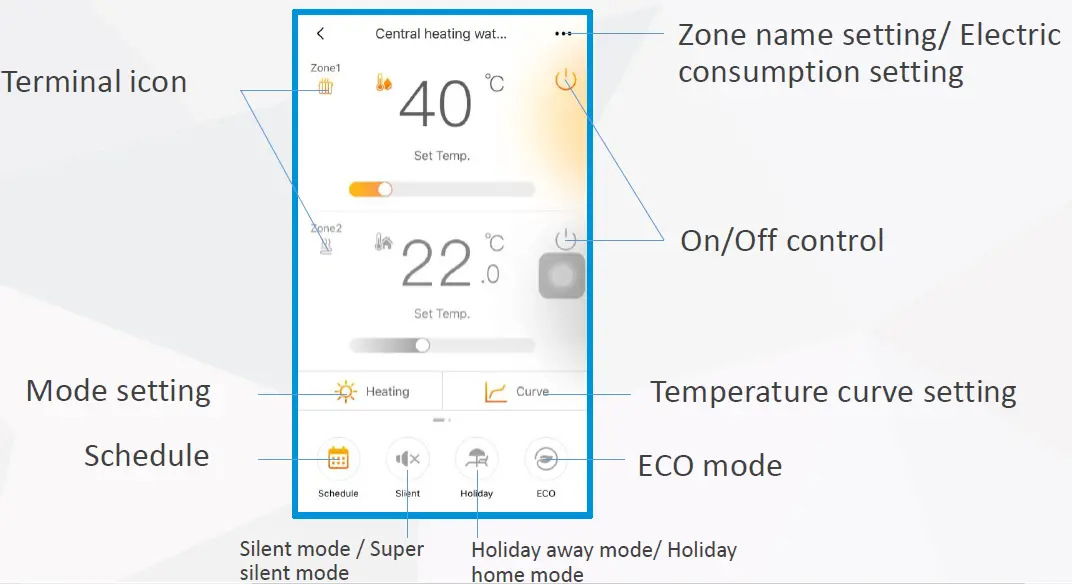
Note: APP interface changes from time to time as APP is updated and may change slightly vary from those in this document
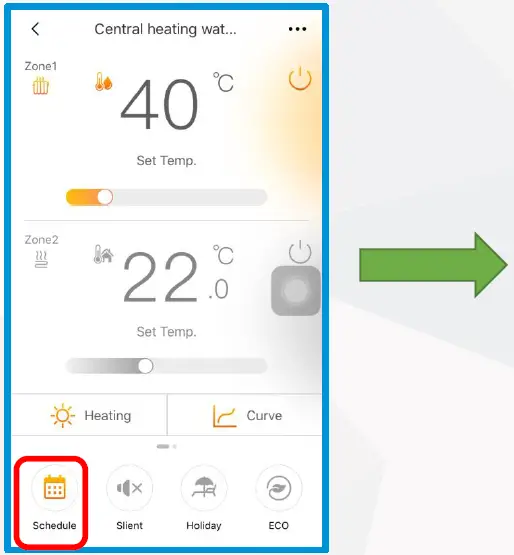
Schedule Function- Day Timer
- Tap the Schedule Icon to enter the Schedule Function

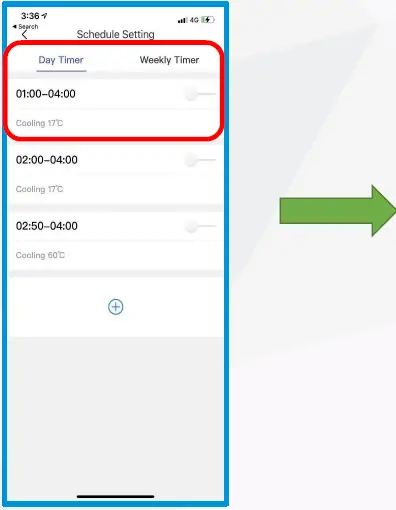
- There are 2 types of Schedule that is Day Timer and Weekly Timer

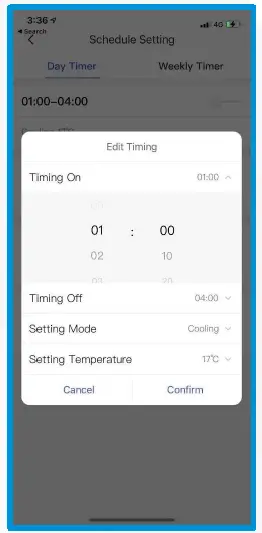
- Tap on any Schedule to adjust the detailed rules under this Schedule

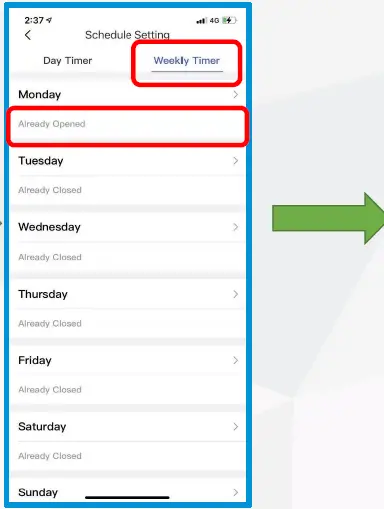
Schedule Function- Weekly Timer
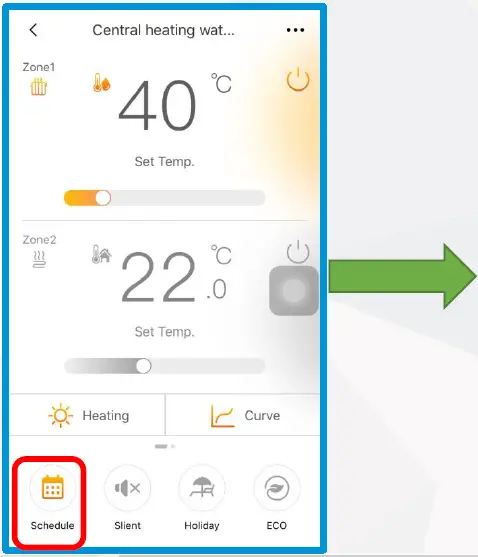
- Tap the Schedule Icon to enter the Schedule Function

- In the Weekly Timer Section, select any Day to set the Schedule for that day

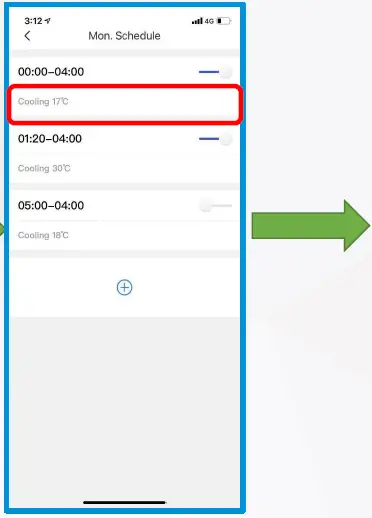
- Tap on any Schedule to adjust the settings under this Schedule

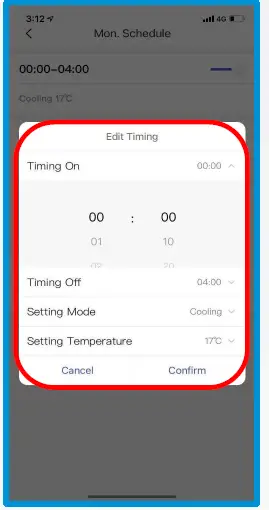
- Inside the Schedule you can set detailed rules

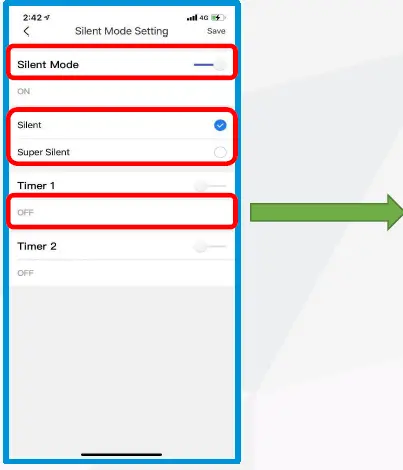
Silent Mode
- Tap the Silent Icon to enter the Silent Mode

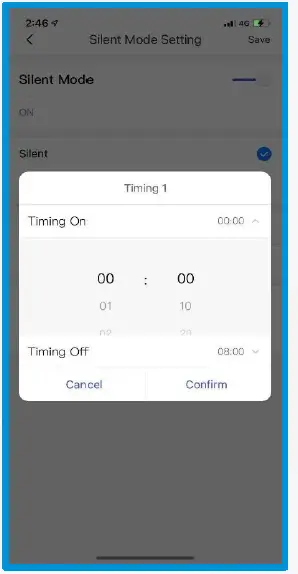
- Firstly turn on the Silent Mode and choose between the Silent and Super Silent Mode . Thereafter you can select the Timer for Silent mode to turn on and turn off

- Here you can set the Timer for different silent modes

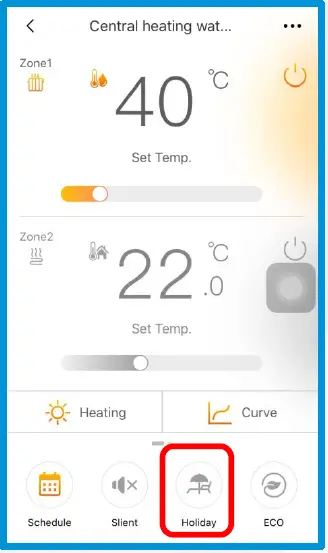
Holiday Function- Holiday Away
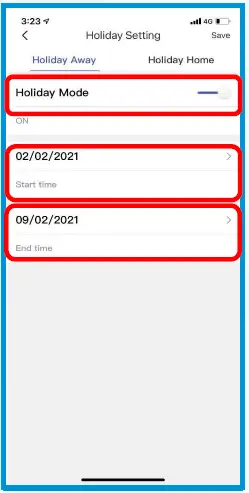
- Tap on the Holiday Icon and go to the Holiday Away Mode
- Firstly tap on the Holiday Mode to activate the Holiday Away mode and then select the Start and End time

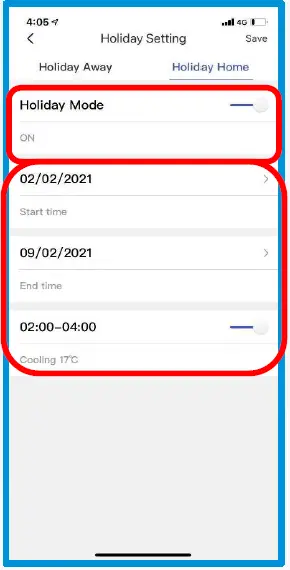
Holiday Function- Holiday Home
- Tap on the Holiday Icon and go to the Holiday Away Mode

- Firstly tap on the Holiday Mode to activate the Holiday Away mode and then select the Start and End time

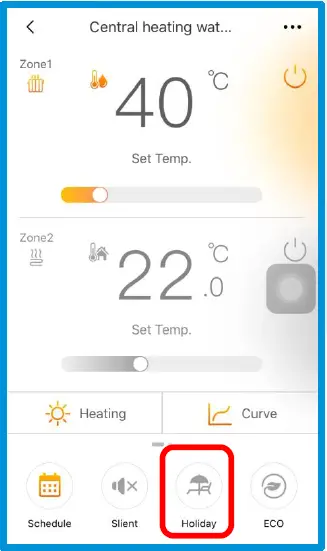
- Tap on the Holiday Icon and go to the Holiday Away Mode
- Firstly tap on the Holiday Mode to activate the Holiday Away mode and then select the Start and End time
Eco Function
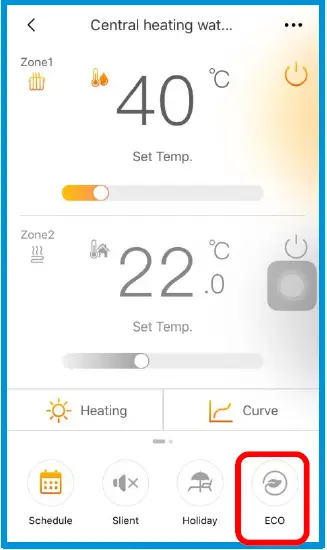
- Tap the Eco Function

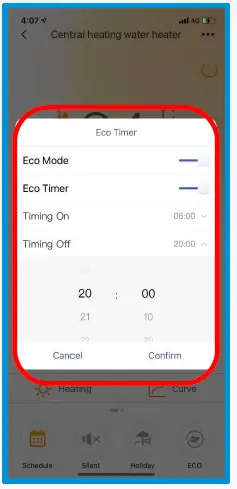
- Select the Timer On and Timer OFF for the Eco function here