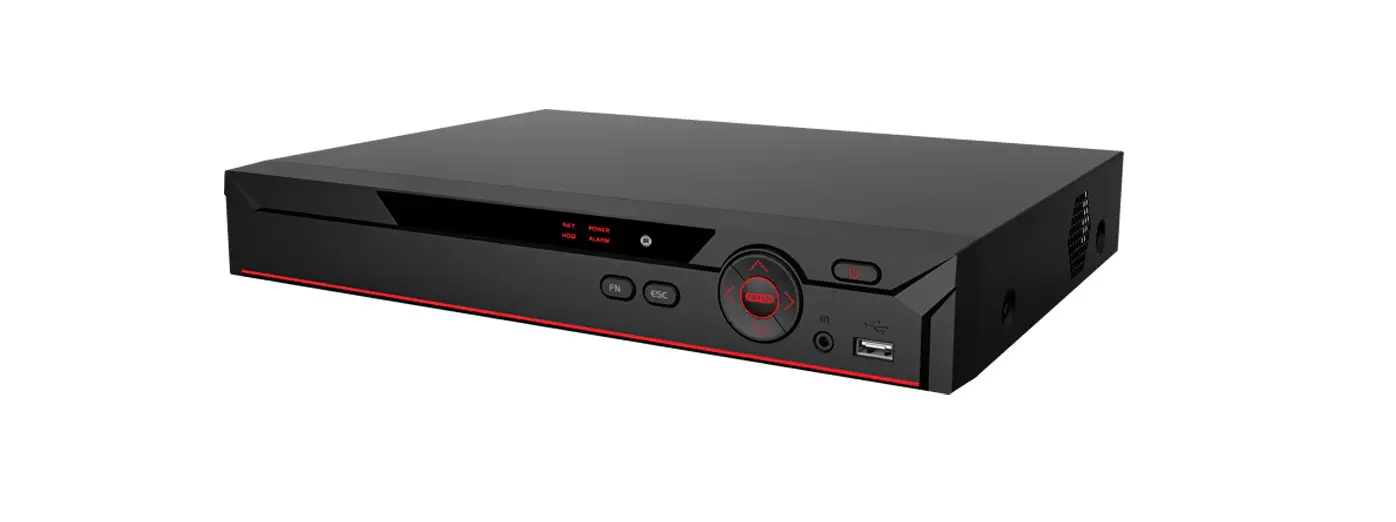
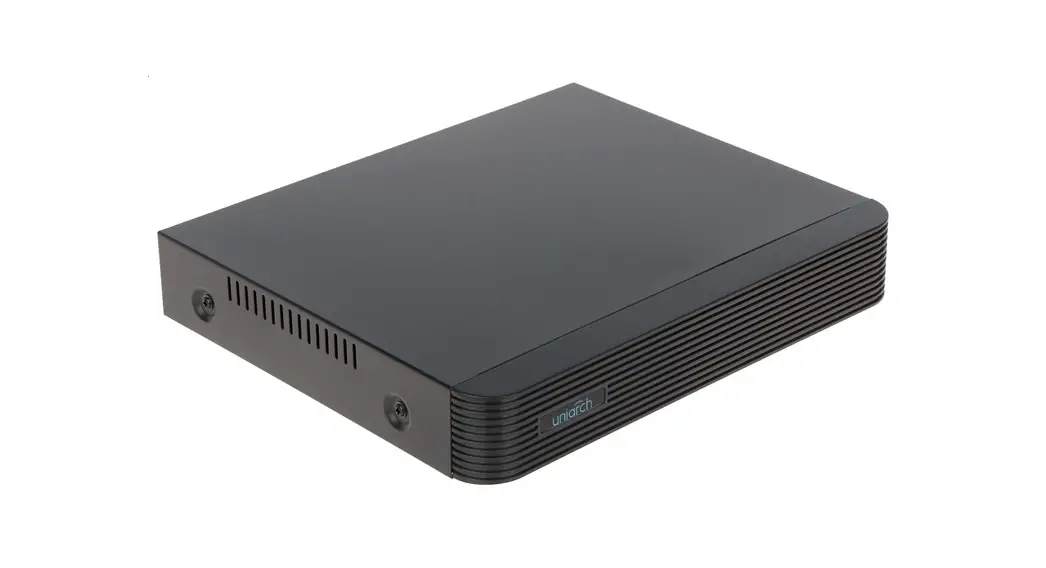
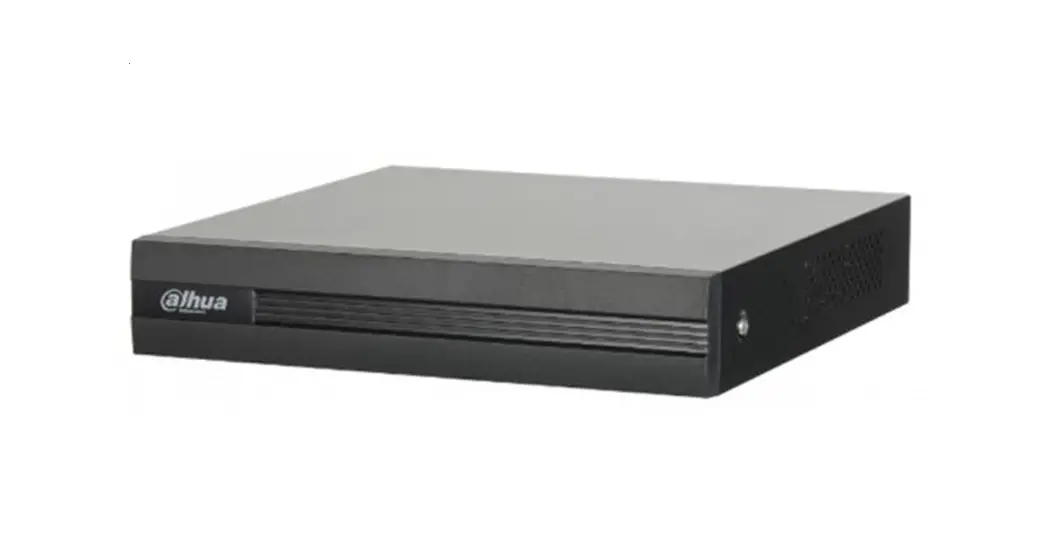
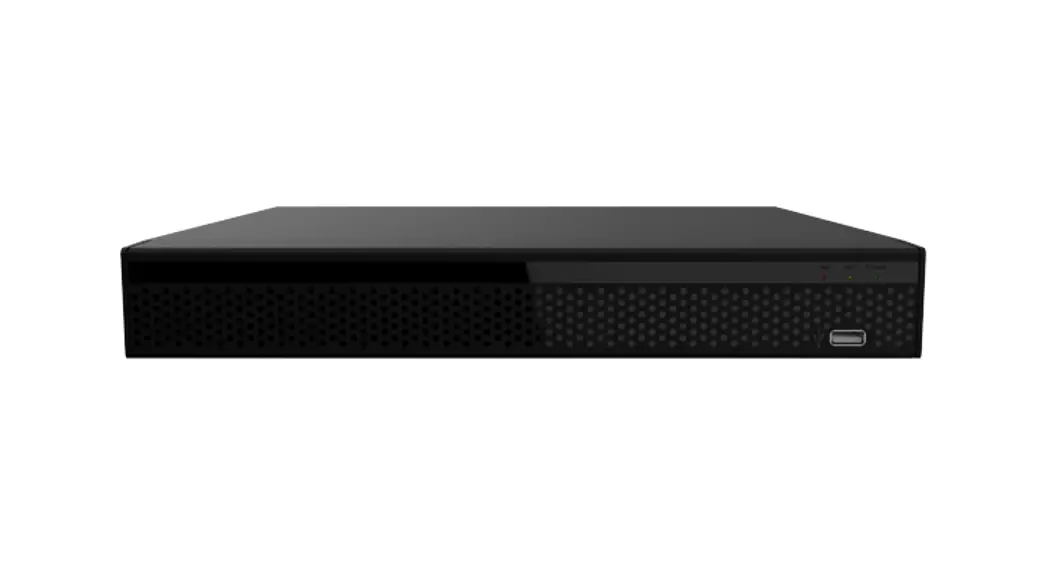
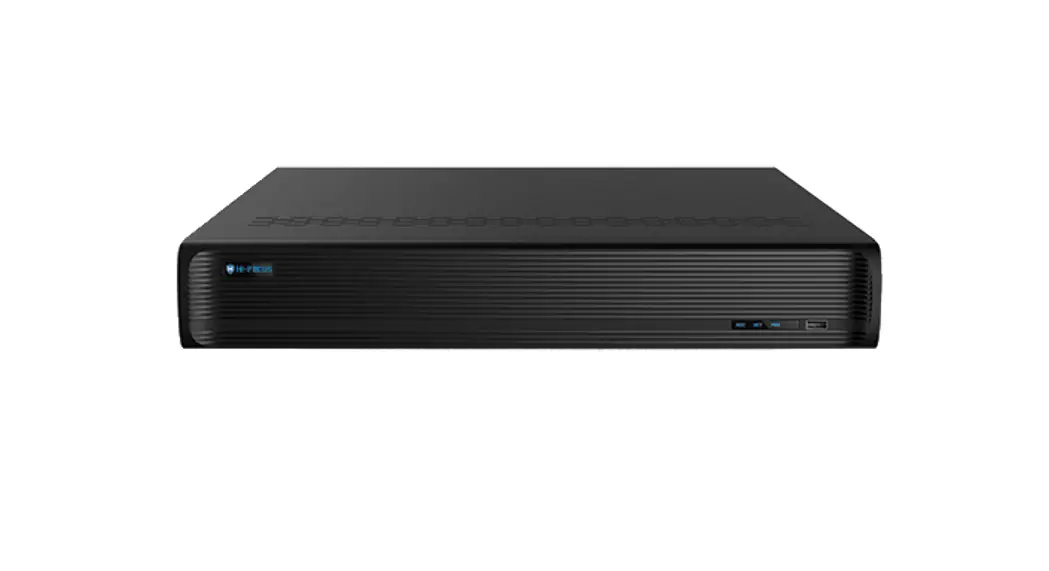
XVR Velocity Series Recorder
Product Information: Velocity Series XVR/NVR
The Velocity Series XVR/NVR is a video recording system that
allows you to playback and backup recorded videos from your
cameras. It has a user-friendly interface that allows you to easily
navigate through the playback and backup process.
Playback & Backup Process
- Click on the window symbol and go to Playback option.
- Select the date and click on OK.
- If recording is available, the channel will be highlighted and
you can choose the time you want to see. - Go to Start menu, then click on Playback.
- In the left side of the screen, you can find CAMERA, TIMELINE
& TIME ZOOM IN & OUT options. - Select the camera and click on the timeline to play the
video. - To expand the time, use ZOOM + & -.
- To take backup, select the start time and drag till the end
time and then click on the download symbol. - If you have inserted a pen drive, it will show the pen drive
name. Select that device and click OK. - Select time in timeline, click download symbol, then click
backup option. - Select pen drive, choose format as AVI, then click backup.
Search and Backup Process
- Go to START symbol, select Search and Backup option.
- Select the camera number you need to take backup on the
particular date and then click on open option. - There you can find the videos in one-hour files, minute wise
also available. - Select the file from the list and click Backup.
- Select pen drive, choose format as AVI, then click backup.
Note: If a pen drive is inserted, your file will be backed up on
that device.
VELOCITY PLAYBACK & BACKUP
1. PLAYBACK & BACKUP PROCESS: To check playback on velocity series XVR/NVR
Click on window symbol and go to Playback option Select the Date and click on OK. If recording available the Channel will be highlighted and you can choose the time whichever you want to see.
Go to “Start menu”, Then click “playback”.
In left side of the screen, you can find “CAMERA”,” TIMELINE” & “TIME ZOOM IN & OUT” option.
Select camera and click on timeline to play the video, To expand the time, use ZOOM + & -.
To take backup Just Select the start time and drag till the end time and the click on that
download symbol then if you inserted pen drive it will show pen drive name and select that device and click ok.
Select time in timeline, Click download symbol, Then click backup option,
Select pen drive Choose format as “AVI” Then click “BACKUP”
2. SEARCH AND BACKUP PROCESS: To take backup Go to START symbol, Select Search and Backup option.
There you can find different types of record options. Select which one will be comfortable for you and then you can take backup. First select the camera number you need to take backup on the particular date and the click on open option. There you can find the videos in one-hour files, minute wise also available.
You can choose which method you want. Select the file from the list and click Backup.
Select pen drive Choose format as “AVI” Then click “BACKUP”
If Pen drive is inserted then your file will be backed up on that device.