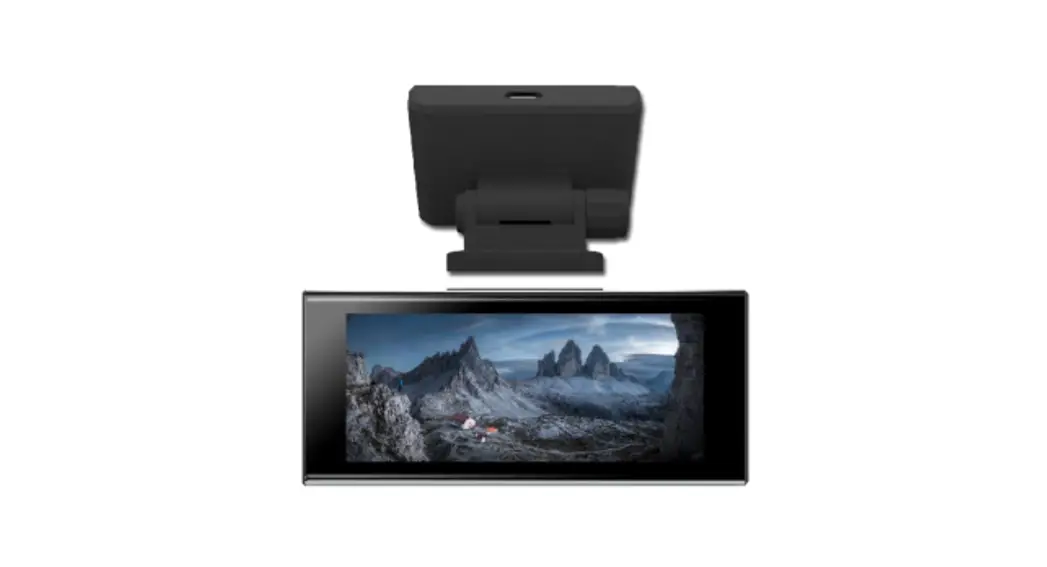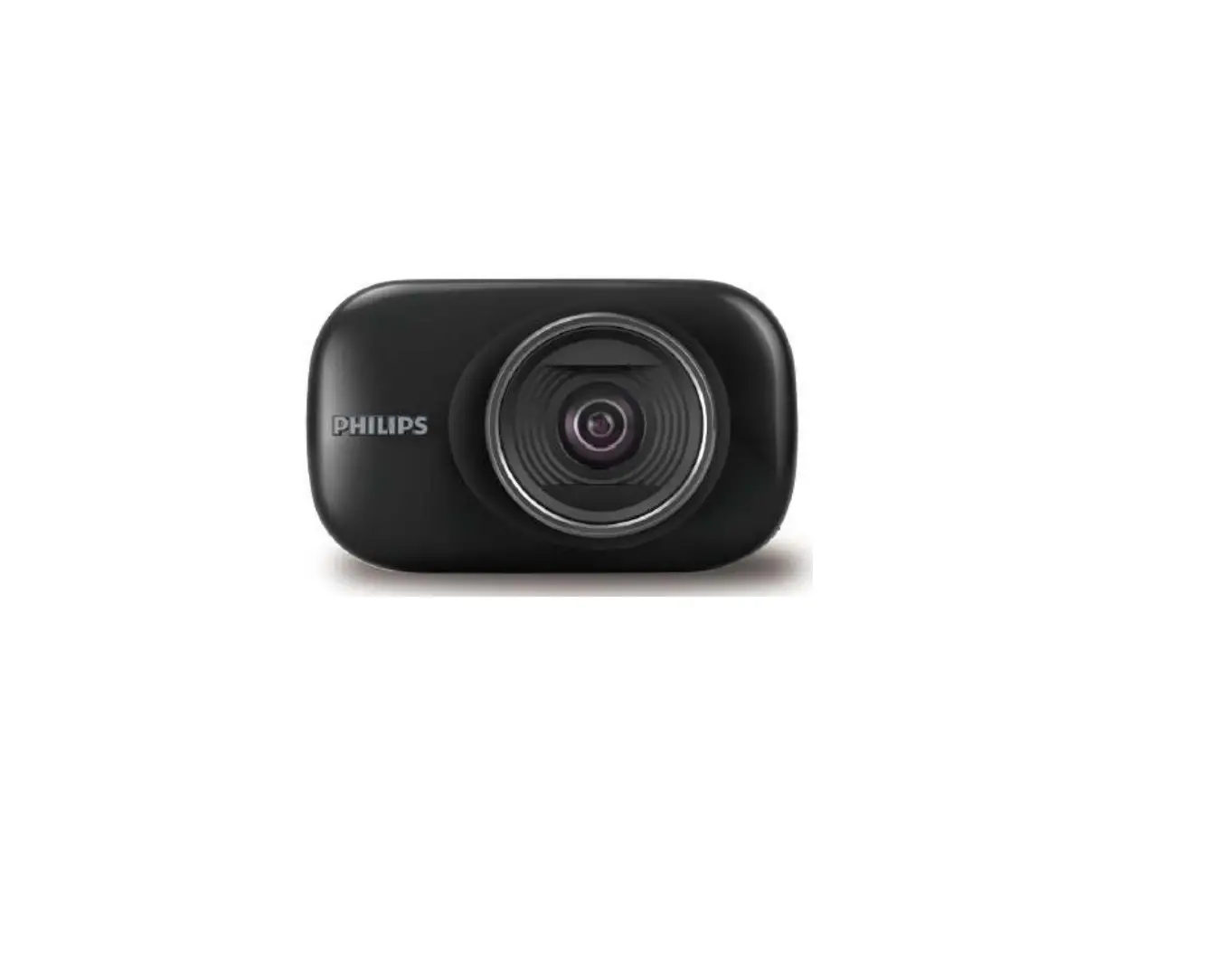
PHILIPS Automotive Driving Recorder
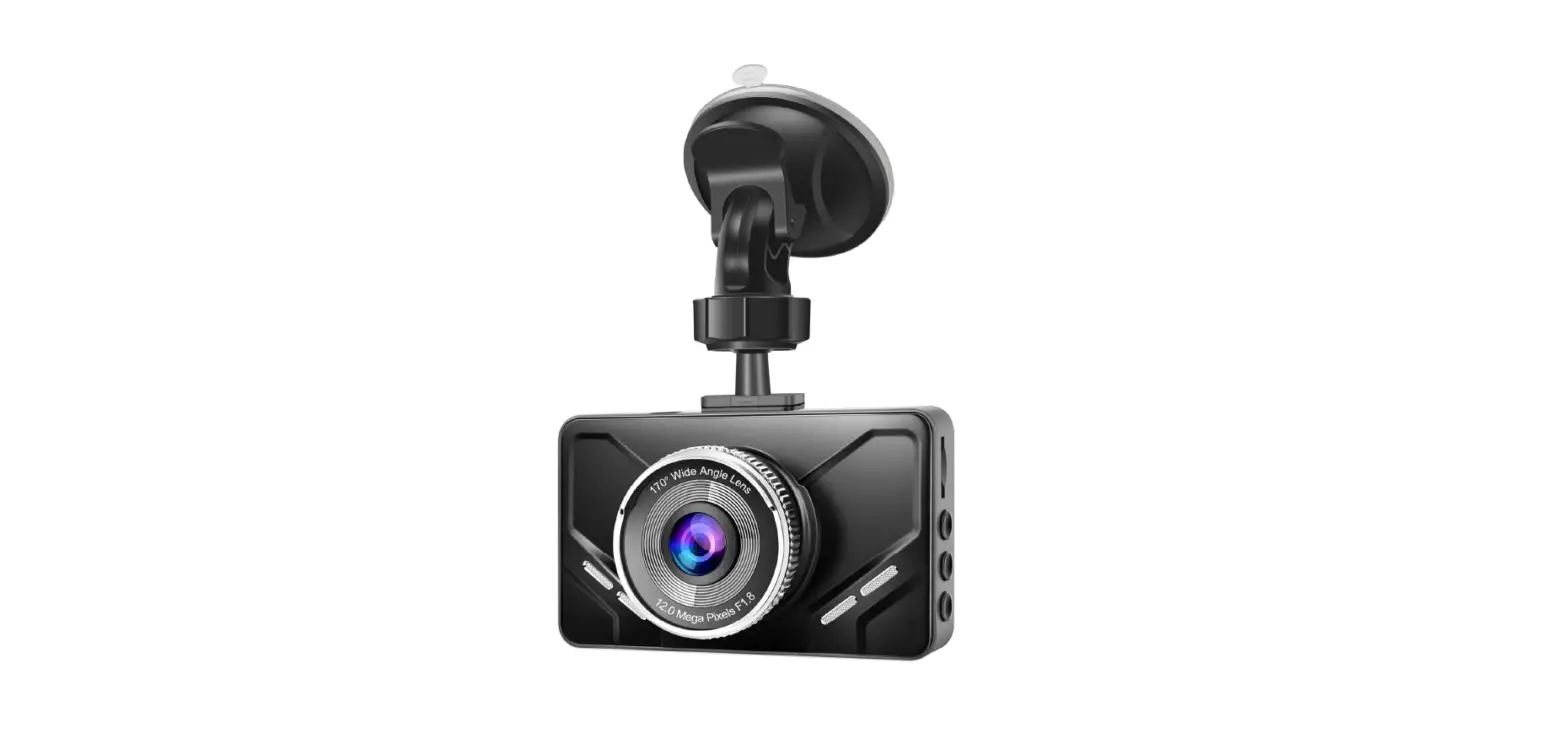
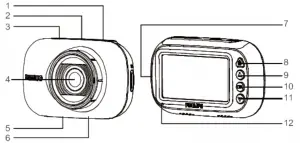
Product Overview / Device display
- Suction c up holder
- Micro USB port
- Mini USB port
- Lens
- Microphone
- Speaker
- Micro SD card slot
- Emergency/Return button
- Up button
- Enter button(OK)
- Down button
- Status indicator

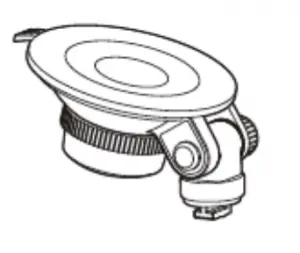 | 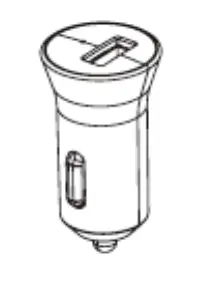 | 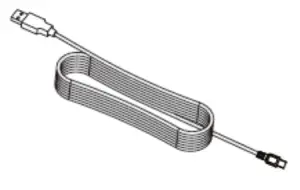 |
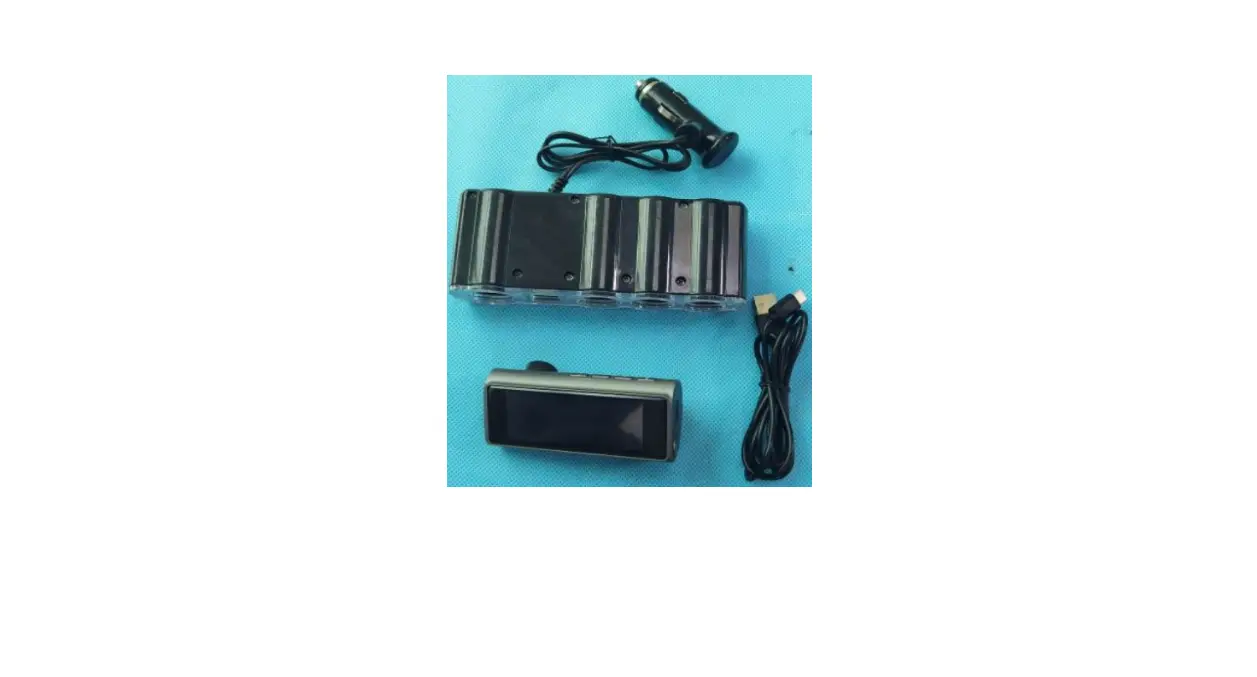
Bracket for suction mount x 1 | Charger x 1 | USB cable x 1 |
Quick Start
Insert SD Memory Card
Insert the memory card with the golden contacts side of the card facing the front of the camera.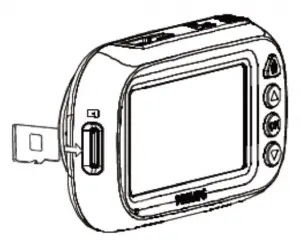
About the Micro SD card
- Please use a Micro SD card with a capacity of at least 16GB, Class 10 (maximum 128GB).It is recommended to use 32GB card or above if you are using the FHD rear camera module.
- Format your Micro SD card before first use by selecting “format SD card” in the system settings of your Go Sure device.
- The relationship between card capacity and recording time is given below.
Micro SD Card Capacity
ADR820 Single Camera ADR820 Dual Camera 1080P/30fps 720P/30fps 1080P/30fps 720P/30fps
32GB
320 minutes 520 minutes 160 minutes 260 minutes
64GB
640 minutes 1040 minutes 320 minutes 520 minutes 128GB 1280 minutes 2080 minutes 640 minutes 1040 minutes
- Install the suction cup onto the device.
- Find a suitable position on your windshield and lock the suction cup.
- Adjust the position of the device within the mount to ensure you’re recording a clear view of the road.
- Connect the USB cable to the Micro USB socket on the device.
- Plug the other end of this supplied car charger into the 12-24V DC outlet of your vehicle (running the wire under the glove box and around the edge of the windshield).
- Now your Philips GoSure will automatically turn on when you start your engine and will stop recording only when you turn it off again.
Note:
- Please use our dedicated car charger to avoid any device incompatibility issues.
- To avoid damaging the video recording, please unplug your device before inserting or removing your SD memory card.
- To remove the SD card, simply press down on the card and it will eject from the card slot automatically.
- If the car power supply doesn’t turn off automatically, it is recommended that you disconnect the device’s charger cable manually, to avoid draining your car’s battery.
Connecting the GoSure App
- To download the app, please search “Philips GoSure” in Apple’s App Store or the Google Play Store.

- Open your mobile phone Wi-Fi or WLAN settings. Find the “PHILIPS_xxxx” device and connect to it. The default password is “12345678”
- Now open the Philips “GoSure” app and you can watch live what the camera is recording, or playback older footage, and adjust other settings directly on your mobile phone.

Note:
- You need to reconnect the app to the device after modifying SSID or the password.
Using the GoSure App
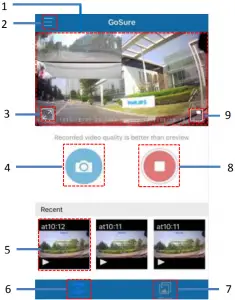
| No. | Function | Description |
1 | Live view display | Displays the road view in real-time. |
2 | Menu | Tap this icon to enter the menu settings. |
3 | Full screen icon | Tao this icon to enter full screen mode. |
4 | Camera icon | Tap this icon to take a photo. |
5 | Recent video file | Tap these thumbnails to watch the most recent recordings. |
6 | Live view tab | Tap this icon to enter the live view interface. |
7 | Album tab | Tap to enter your video album (where past recordings are stored). |
8 | Start/stop play icon | Tap this icon to start or stop recording |
9 | PIP switch | Switch to “Picture in Picture” mode. |
GoSure app system settings
No. | Main menu | Sub menu | Description |
| 1 | Device information | SSID | Device’s SSID number. |
| Password | Device app’ s user password. | ||
| Display Auto off | Set how long before the device’s display will turn off automatically. Or set the monitor always on. | ||
| 2 | Video | Video Duration | Setup the device video clip duration. |
| Resolution | Adjust video resolution settings. | ||
| Motion Detection | Select “ON” to trigger motion detection function. This will now detect movement in 1he field of view. In case any movement is detected, it will start recording automatically. If no more activity is detected, the device will automatically stop recording. Note: Motion detection function will not be available when the GoSure app is connected. | ||
| Voice Recording | Turn voice recording function on/off. | ||
| Time Stamp | Turn the date and time stamp on the recording on/off | ||
| GPS | Turn GPS on/off. The GPS module is optional (sold separately) | ||
| EV | Manually adjust the exposure level. | ||
| WDR | Turn Wide Dynamic Range(WDR) function on/off . | ||
| 3 | SD Memory Card | Status | SO memory card status. |
| Forma | Format the SD card. | ||
| 4 | Advanced functions | Collision Detection Sensitivity | Select the level of sensitivity to collision detection between high. medium and low sensitivity, or turn this function off . W hen switched on, this feature will detect any collision above a certain force threshold, automatically creating an emergency recording. This video file will be saved to the Emergency Recording folder. |
| Head Light Warning | Turn head light warning function on/off . | ||
| Driver Fatigue Alert | Turn driver function alert function on/off. | ||
| 5 | System | Firmware Ver. | Display information on the current firmware version |
| Set Date | Set mobile phone’s time to device. | ||
| Firmware Alert | Update device firmware. | ||
| 6 | Reset Default Setting | – | Reset all device settings to the factory default |
GoSure ADR820 user interface
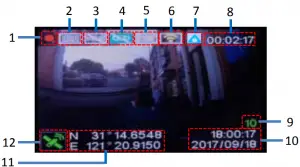
| NO. | Description |
1 | Recording/Stop indicator |
2 | Resolution indicator |
3 | WDR(Wide dynamic range) indicator |
4 | Voice recording ON/OFF indicator |
5 | Head light reminding ON/OFF indicator |
6 | WiFi connection stat us indicator Yellow: WiFi not connected Green: WiFi connected Mobile phone icon: App connected |
7 | Emergency recording indicator |
8 | Recording time |
9 | Fatigue index |
10 | Date/Time stamp |
11 | Location stamp |
12 | GPS status indicator Gray: GPS off Yellow: GPS not located Green: GPS located The GPS module is optional (sold separately) |
GoSure ADR820 system settings
Press the OK button to open the menu list, allowing you to adjust various device settings.
Set the Date and Time
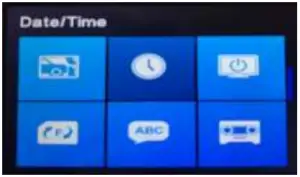
- Press OK to open the on-screen display menu.

- Press ▲/▼ to select clock icon and then press OK to enter date and time setting page.

- To adjust date and time field, press ▲/▼ to select the field.
- Press▲/▼ to select the value.
- Repeat steps 3-4 to adjust other fields.
- Press
 to save your changes.
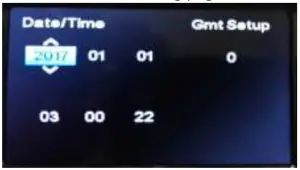
 to save your changes.
Function setting
| No. | Function | Menu icon | Description |
| 1 | Video |  | Operate normal and emergency video files, user scan play, pause, delete, lock and unlock the video files |
| 2 | Preview Mode |  | Set preview mode to picture in picture, single front camera or single rear camera display on LCD screen. |
| 3 | WIFI |  | Set WIFI open, dose, SSID and password, get APP download information. |
| 4 | Resolution |  | Set the video resolution to Full HD 1080p(FHD), and HD Premium |
| 5 | Video Time |  | Set video clip time to 1 minute, 3 minutes 5 minutes. |
| 6 | WDR (Wide Dynamic Range) |  | Turn the WDR function on/df. |
| 7 | Collision Detection |  | Select the level of sensitivity to Collison detection between high, medium and ION sensitivity, or turn this function off. When switched an, this feature will detect any collision above certain force threshold, automatically creating an emergency recording. This video will be saved to the Emergency Recording folder. |
| 8 | Date/Time |  | Set the date, time and time zone for the device. |
| 9 | Display Auto off |  | Format your TF card (MicroSD). Please format your card using the device before-you use it for the first time. |
| 10 | Format |  | English and Chinese are available for selection. |
| 11 | Language |  | Turn voice recording function on/ off. |
| 12 | Voice Recording |  | Manually adjust the exposure level. |
| 13 | EV |  | Set date and time marking on the video on/ off. |
| 14 | Date Stamp |  | Set date and time marking on the video on/ off. |
| 15 | Remind Light |  | Set remind light function on/ off |
| 17 | GPS |  | Turn GPS function on/ off. The GPS module is optional (sold separately) |
| 18 | Driver Fatigue Alert |  | Turn driver fatigue alert function on/off. |
| 19 | Default |  | Reset all device settings to the factory def au it. |
| 20 | About |  | Firmware version. |
Operating instructions
- button: Emergency button/Return button
- ▲ button: Up button/Voice recording on/off button
- OK button: Enter/Action button
- ▼ button: Down button/PIP mode button
Record video
Normal video recording
With a MicroSD memory card inserted, every time you turn on the device, it will automatically start recording with the default settings. When you switch your vehicle engine off, the camera will stop recording automatically. A normal video recording file is saved in the “NORMAL” folder (viewable in the GoSure app). The file name is the system time (hour, minute, second) as a prefix.
Emergency video recording
An emergency file will be automatically generated when you either press the emergency button (see 8.1) or the device detects a collision above a certain force threshold. This file will be stored in the “EMGREC” folder (again, viewable in you GoSure app).
Additional functions
Driver fatigue alert
To help drivers keep track of how tired they might be getting, the device comes with a fatigue alert. This takes into account various physiological and journey related parameters; for example, it considers the time of day and the time spent driving. The device will alert you every two hours of driving, to remind you that fatigue could be becoming an issue.
As well this alert, there is also a fatigue indicator on the device’s display. With a low fatigue rating below 60, the indicator is green. When the fatigue rating is between 60 and 80 the indicator is yellow and a warning alert sounds.
When the fatigue rating reaches 80, the indicator turns red and three warning beeps sound.
When you switch on this driver fatigue feature, it’s important that you set correct system time (so it knows at what time of day you’re driving). If you have this feature switched off, the fatigue rating will not be displayed on the screen.
Updating the device’s firmware
Firmware download
To update the firmware (the device’s in-built software), please download the latest file version from Philips.com or contact Philips Consumer Care for assistance.
How to update firmware
- Copy the firmware (ADR820.bin) to your SD memory card root folder.
- Then insert the memory card into the device and press the emergency button, before plugging in the power cable to the device.
- A green LED will then blink, indicating the device is updating automatically.
- When the device restarts it means the update was successful, please enter the menu and check the firmware version in “About”.
Technical specifications
| Automatic functions | Automatic recording Driver fatigue alert with fatigue index Collision detection & emergency file protection Seamless loop recording Auto exposure Auto white balance Head lighting warning Motion detection Date and time stamp Advanced night view |
| Image Sensor | 2.1 Mega pixels CMOS |
| Video Resolution | Full HD (1920xl080p) @30fps HD (1280x720p) @30fps |
| Display | 2.7″ LCD |
| Aperture Range | F/#1.8 |
| WiFi | 802.11 b/g/n 2.4GHz |
| APP controlled | IOS/Android |
| File format | .MP4 |
| Fixed Lens | FOV 140° {Diagonal) wide angle |
| Random Access Memory | 128Mx16 (2Gbits) DDR3 SDRAM |
| Internal Memory | 64Mb SPI Flash |
| ISO | 6400 |
| RTC | 5 days |
| Accessories | Micro USB Car Cigar Lighter Charger Quick Guide, Suction cup bracket |
| Languages | English, Chinese |

Lumileds is the warrantor of this product. The Philips trademarks are used under license from Koninklijke Philips N.V. (2017). © Lumileds Holding B.V. 2017. All rights reserved.
 Philips - United States | Philips