Software s Dstny Teams Telephony Software
QUICK GUIDE
TEAMS TELEPHONY – MORE FUNCTIONALITY, ONE INTERFACE
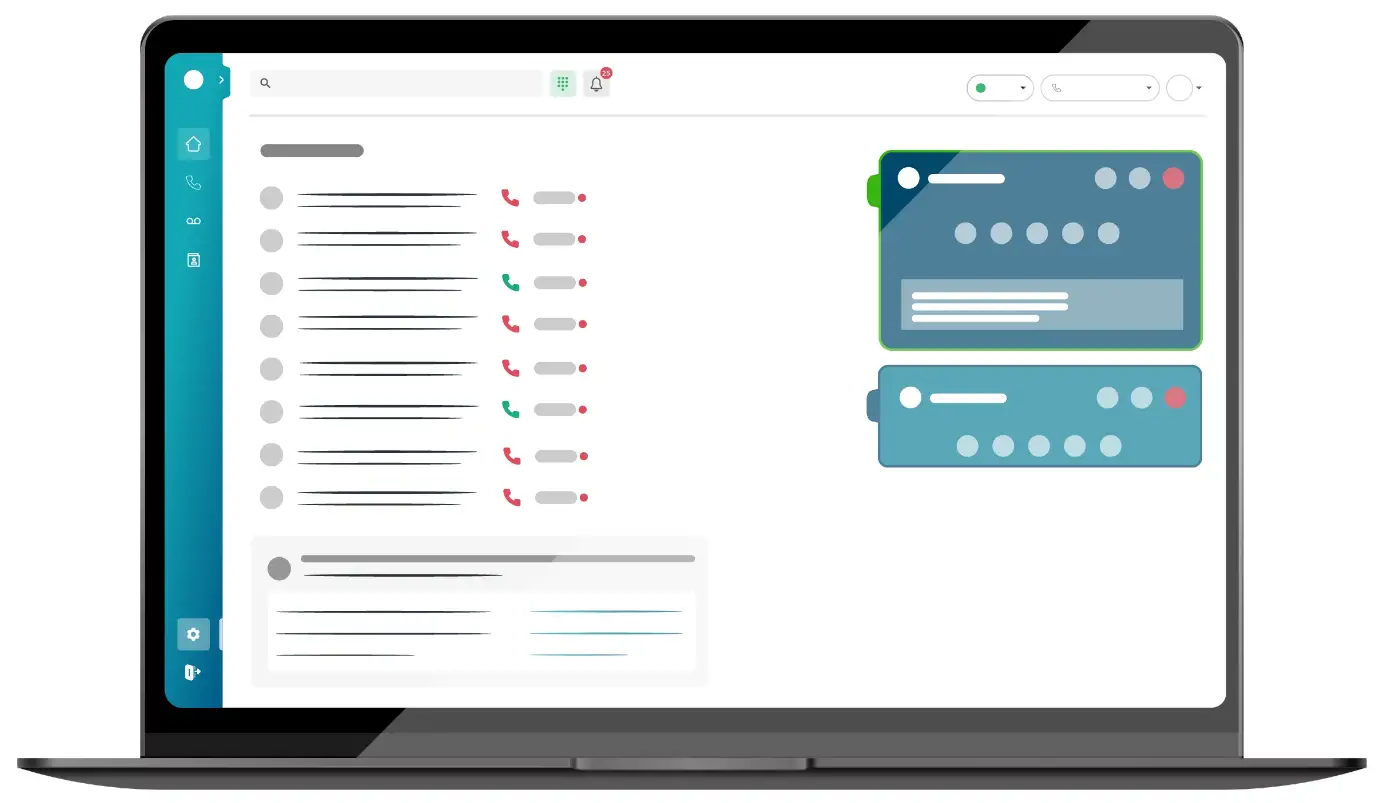
By integrating MS Teams with Dstny’s office phone system, you get everything in one interface, Team’s collaboration tool together with Soluno’s full-fledged business telephony.
- LOG IN WITH YOUR EXCHANGE INFORMATION
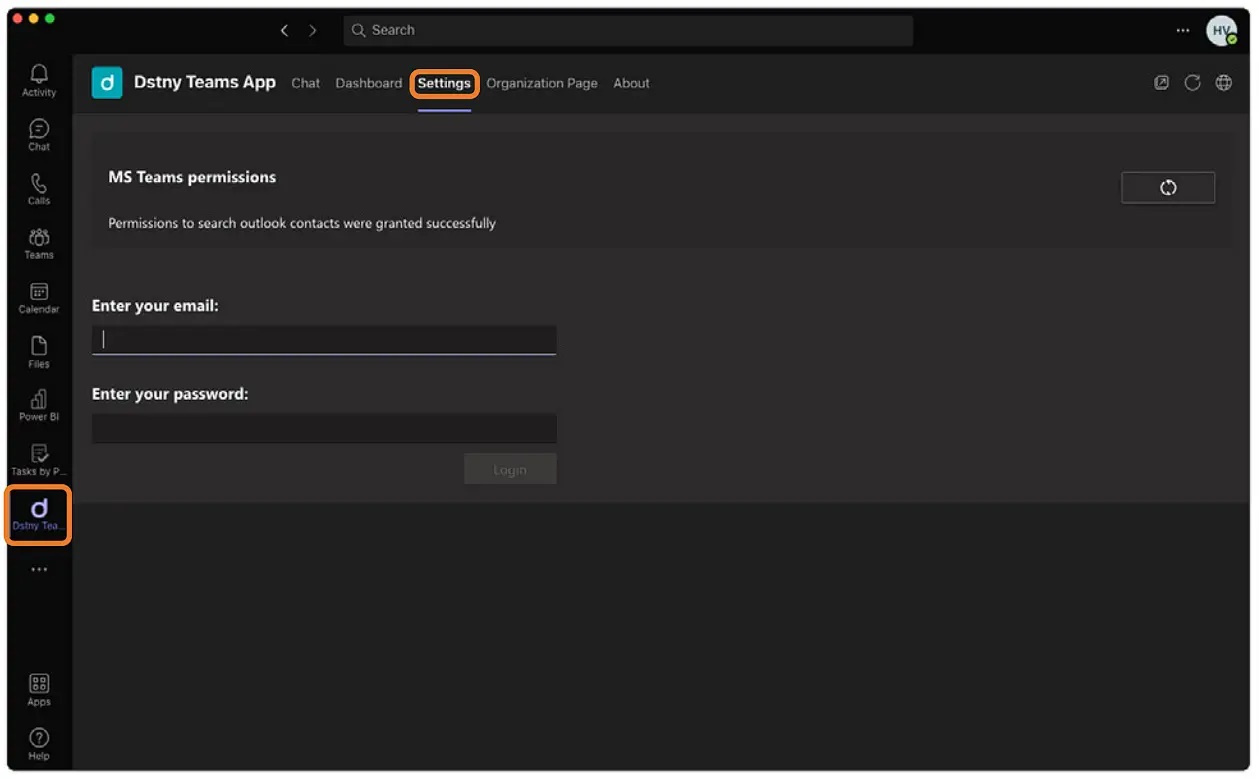
Open up the Dstny Teams app located in the left menu, make sure you are in the Settings tab, then log in with the same information that you use in the PBX.
- GRANT OUTLOOK CONTACTS
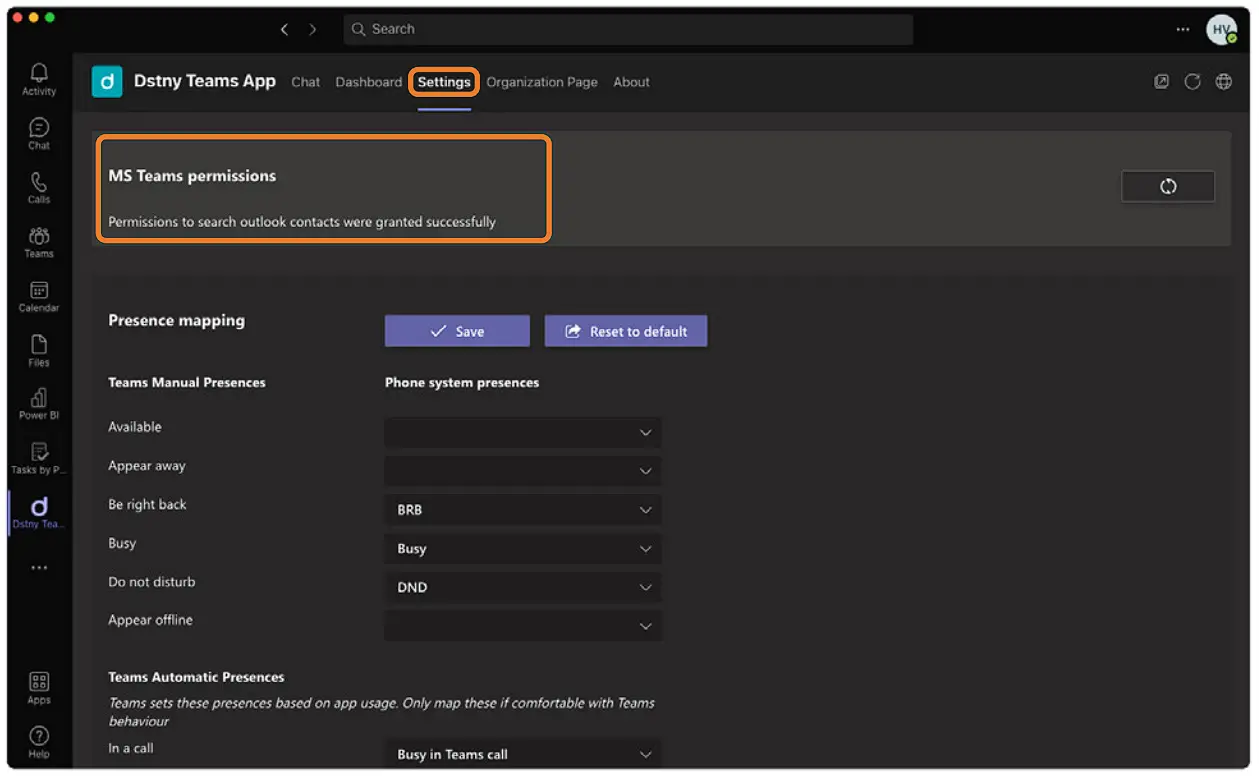
By allowing Teams to see your Outlook contacts, it will be easier for you to find contacts when you, for example, send texts. In Settings tab, click Grant Permissions, then you will be taken to a page where you choose which Outlook account you want to sync with Teams. - MAKE CALLS
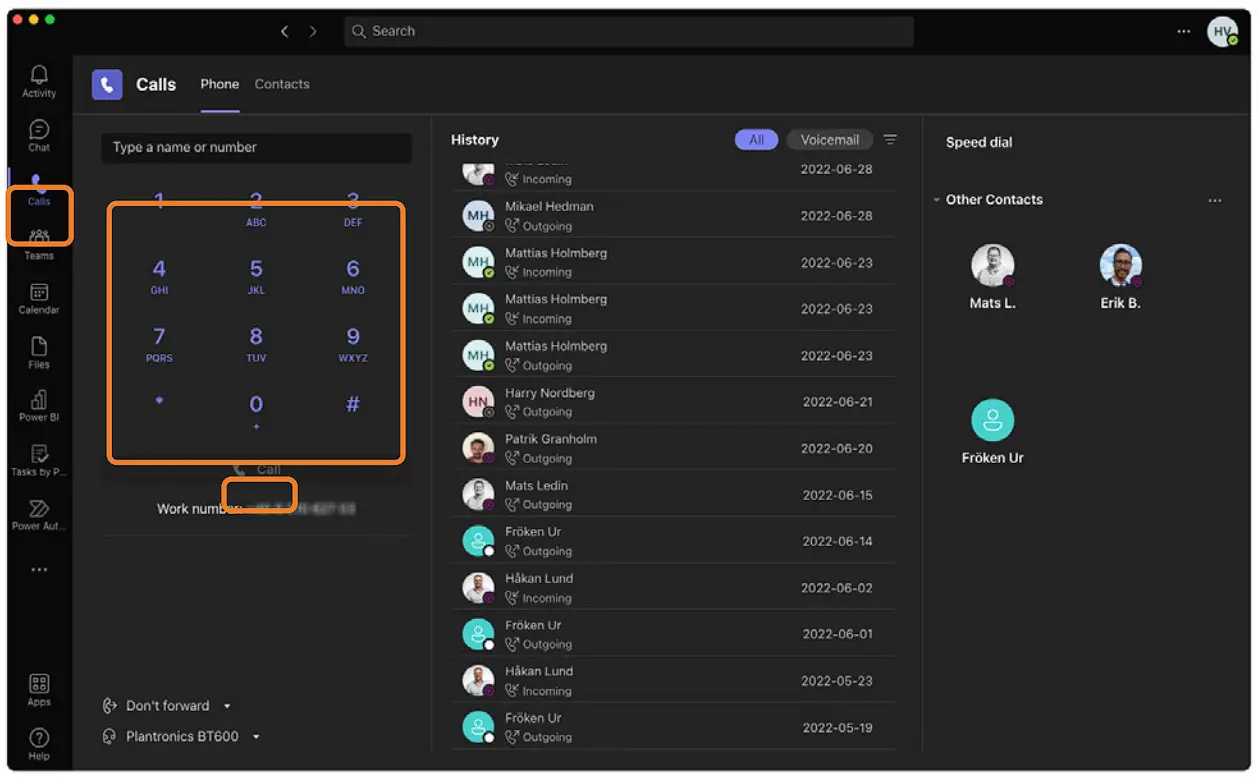
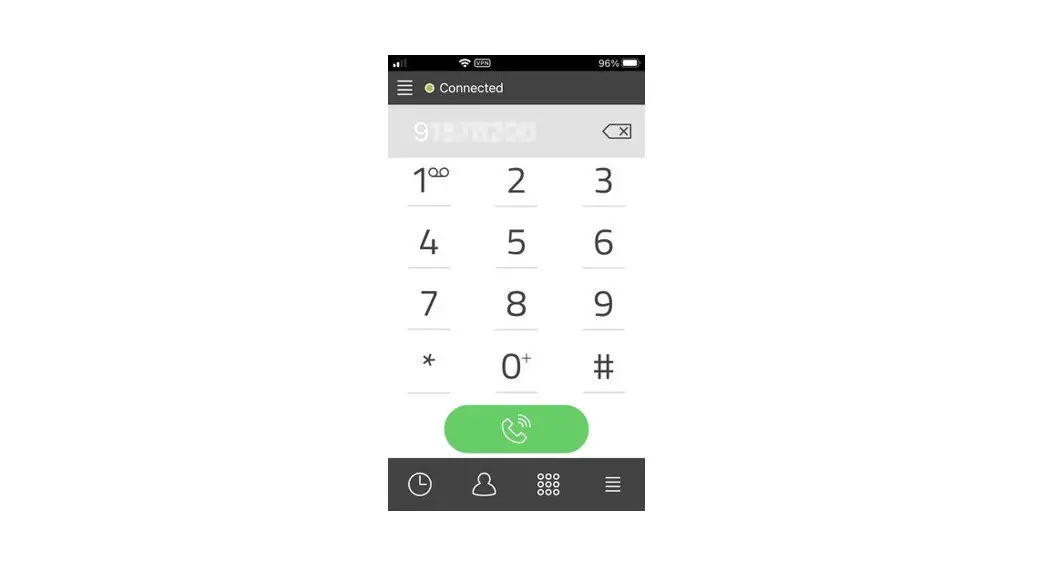
With Dstny’s integration, you can make internal as well as external contacts. To call an external contact, proceed as follows:- Go to Calls in the left menu
- Enter the phone number you want to call
- Click Call
You can also click on the phone numbers belonging to your Teams contacts to call them directly.
- SELECT CALLER ID
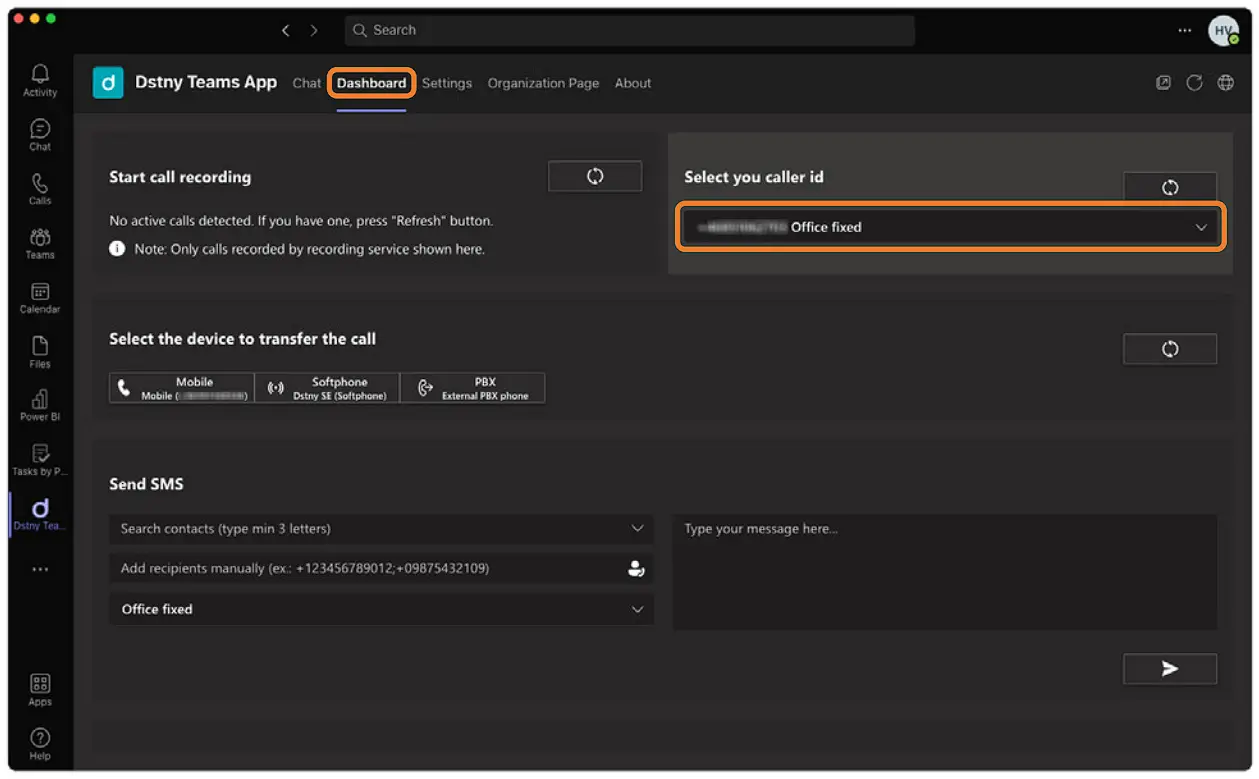
You can choose which caller ID you want to show when you make a call.- Make sure you are in the Dashboard tab in the Dstny Teams app
- Click on the field where your Caller ID is
- Select the number you want to be visible
- SEND TEXTS
It is easy to send text messages to Outlook contacts and external contacts via Teams.
- Search for a contact or enter a phone number manually
- Select which number should be the sender
- Write your message
- Click on the icon to send
- LOG IN AND OUT OF RESPONSE GROUPS
You can see, directly in the view, all the response groups you belong to. To log in and out of groups, drag the toggle button.

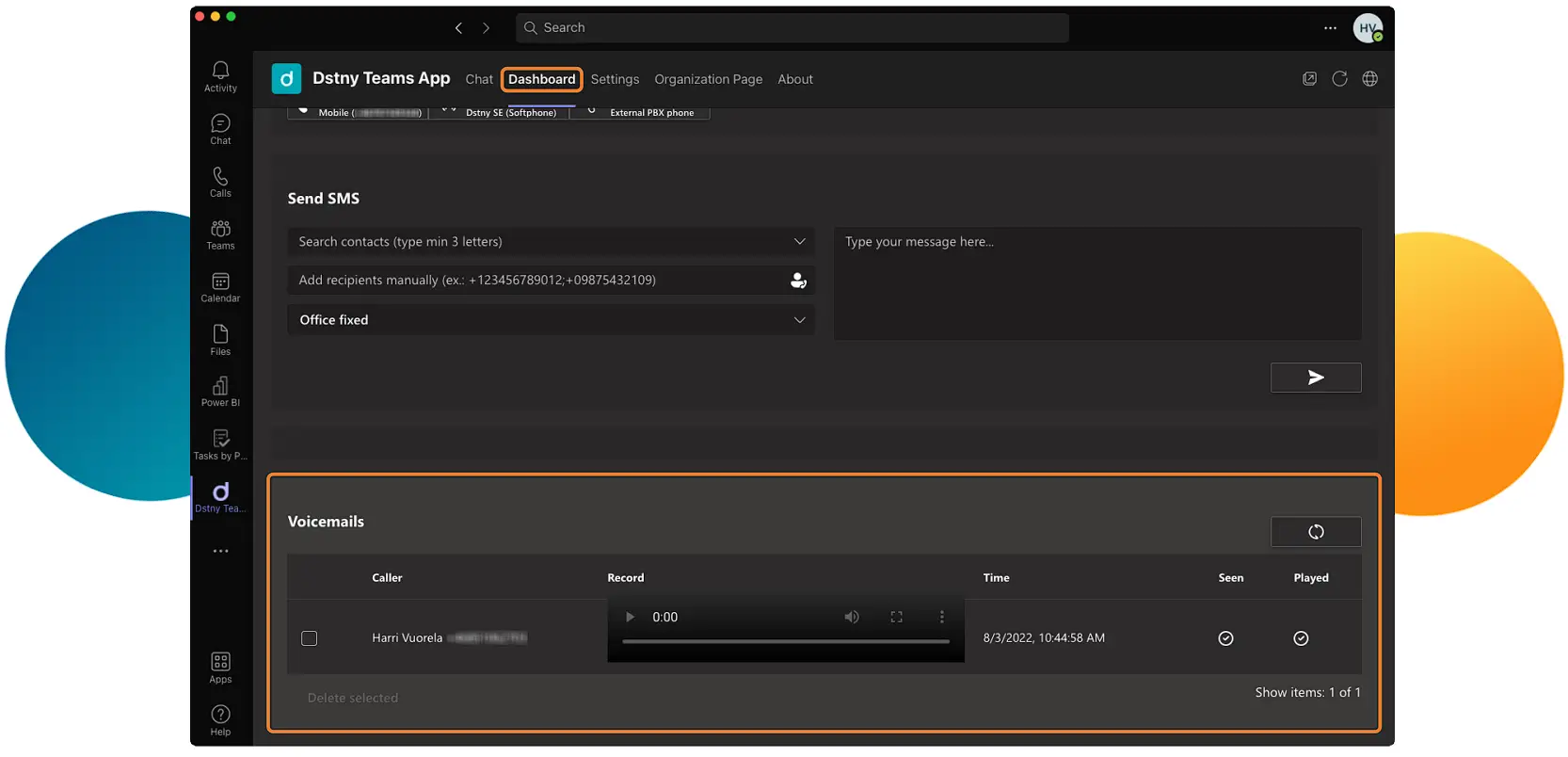
- LISTEN TO AND MANAGE VOICEMAILS
You can listen to your voicemails in Teams if you go to the tab Dashboard. Here you can see which voicemails you have seen and which you have listened to. The voicemail receives an ID, you can see which number it came from and when the message was sent. You can also discard voicemails, both one at a time or several at once.
- MAP YOUR PRESENCE
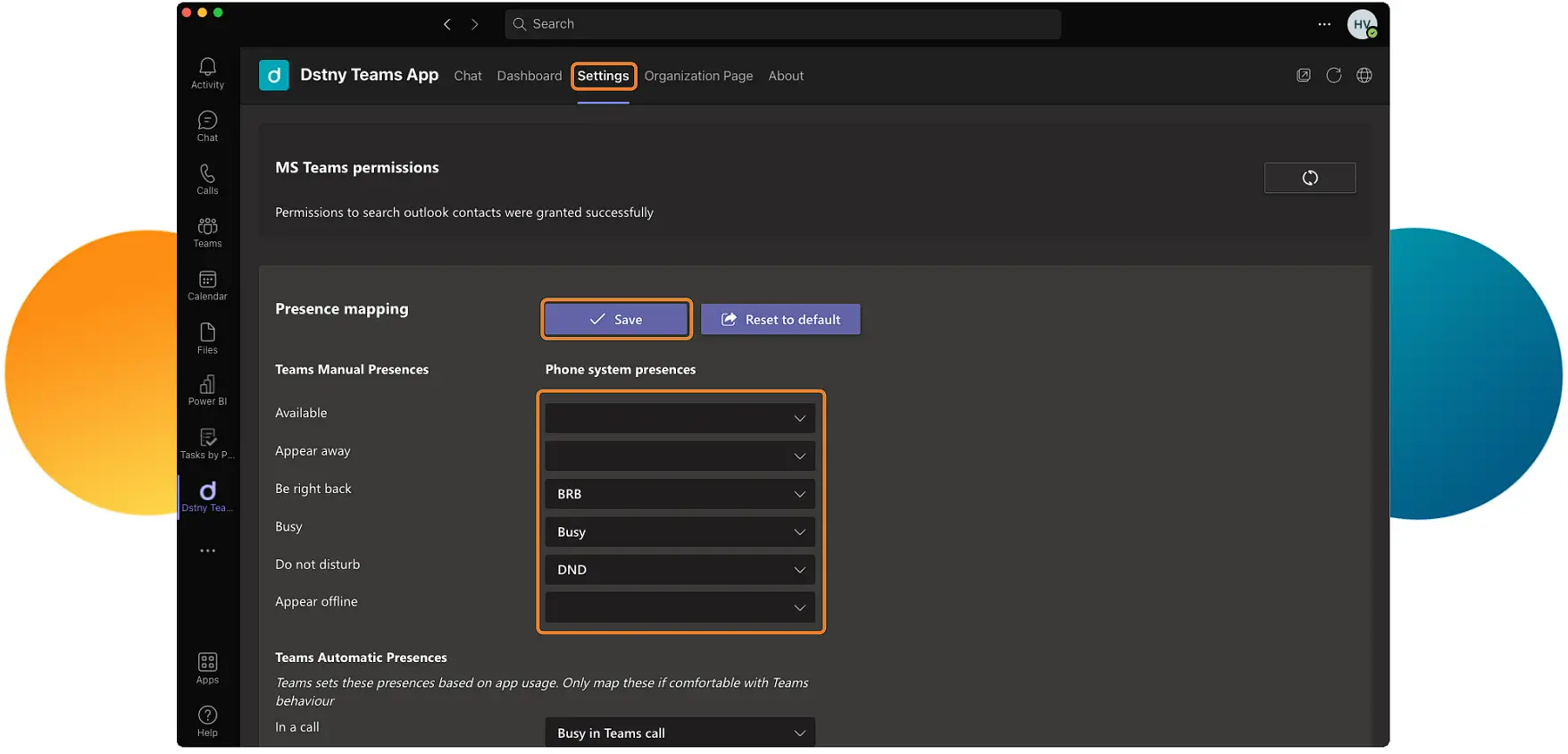
When you are in Dstny’s integration in Teams, you can set up your presence map. This way, you know that Team’s own references match those you have in the exchange. It is your presence in Teams that controls what your presence will be in your company PBX.- Go to Settings
- Choose the right presence
- Click on Save