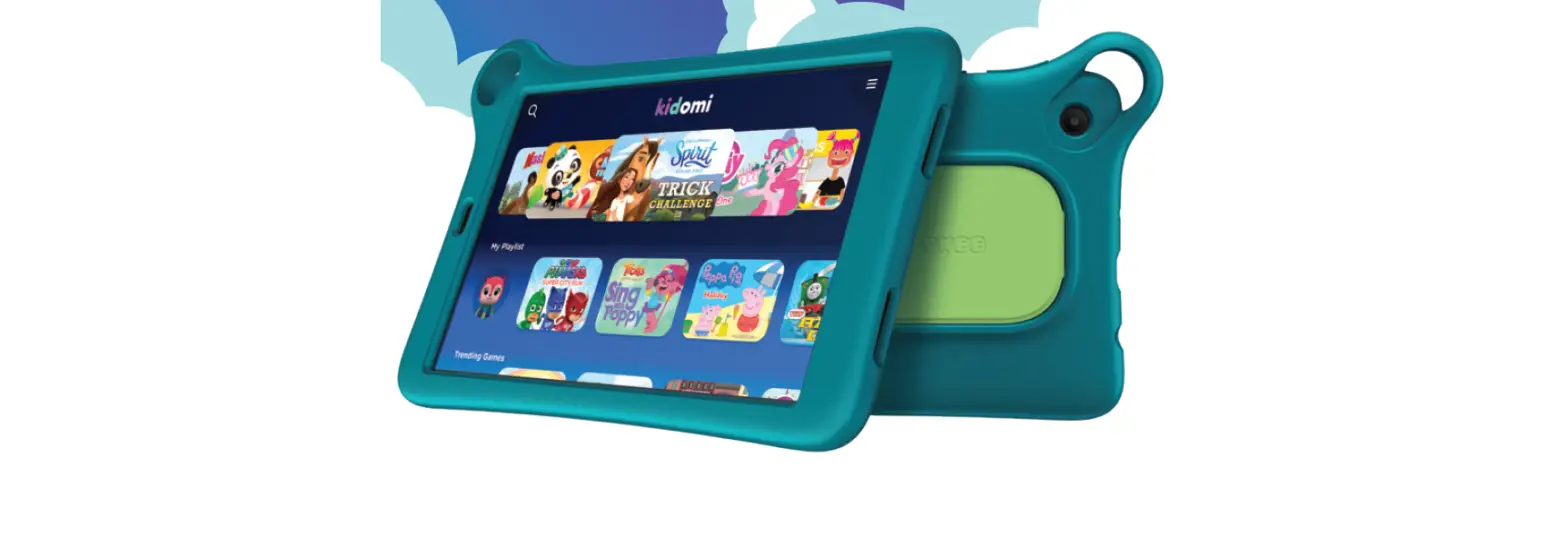
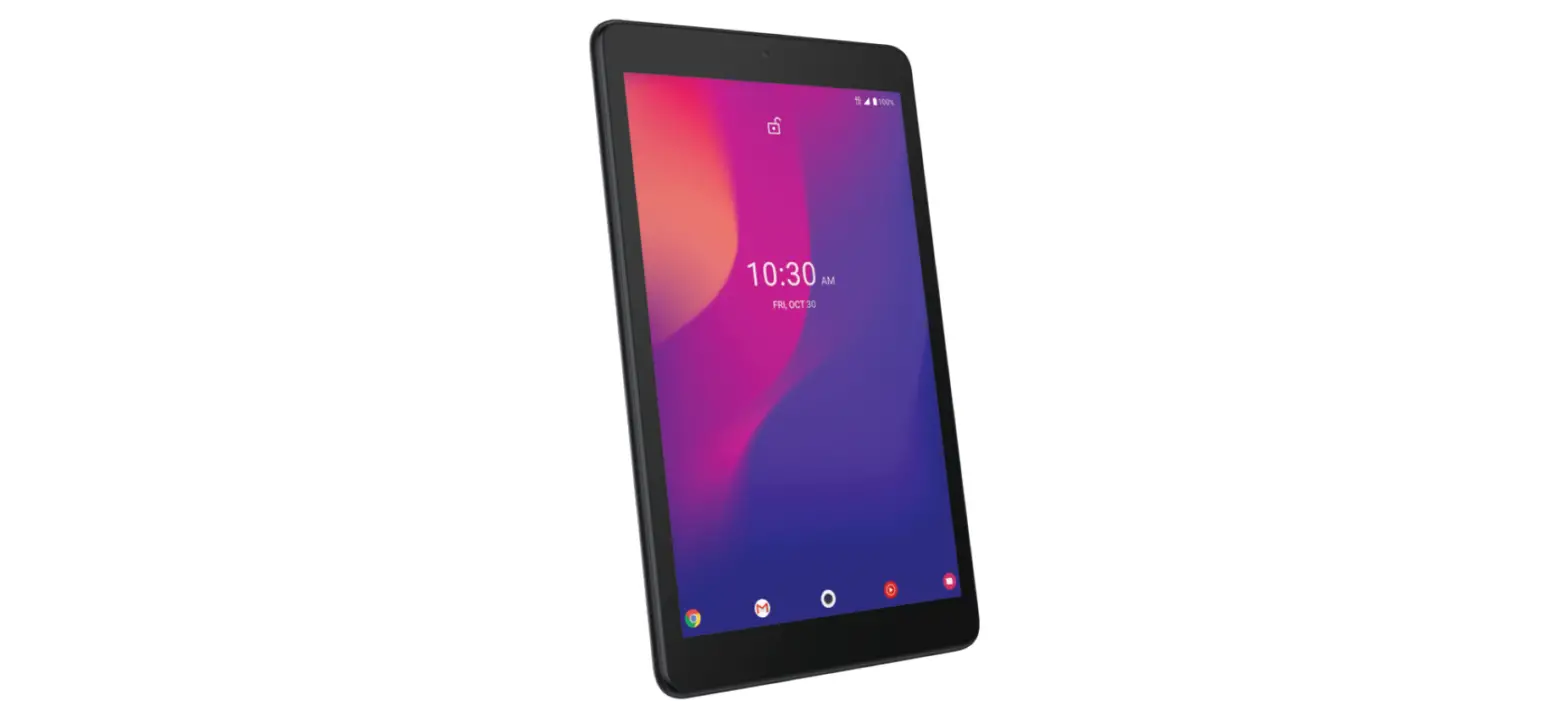
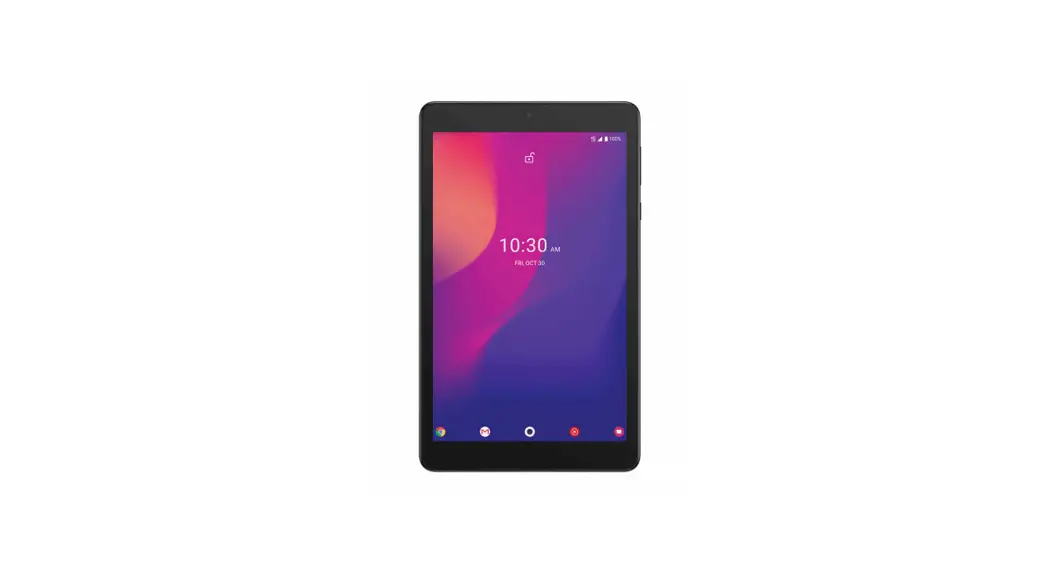
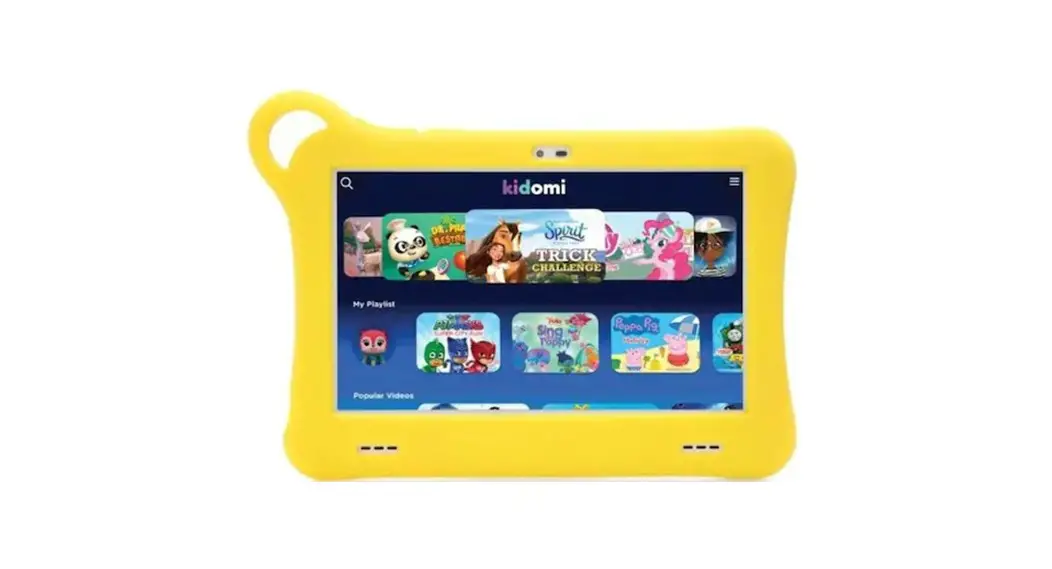
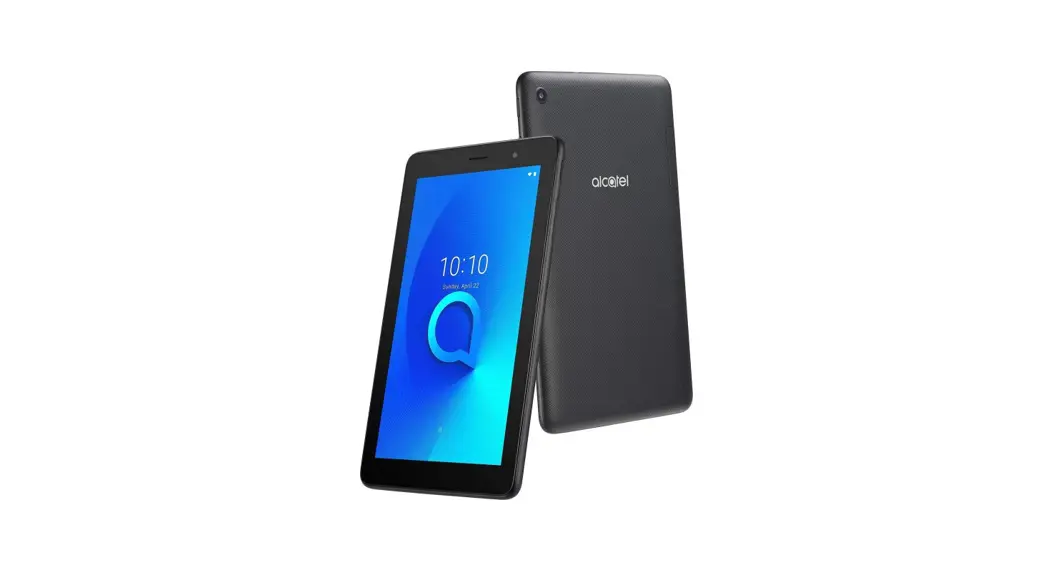
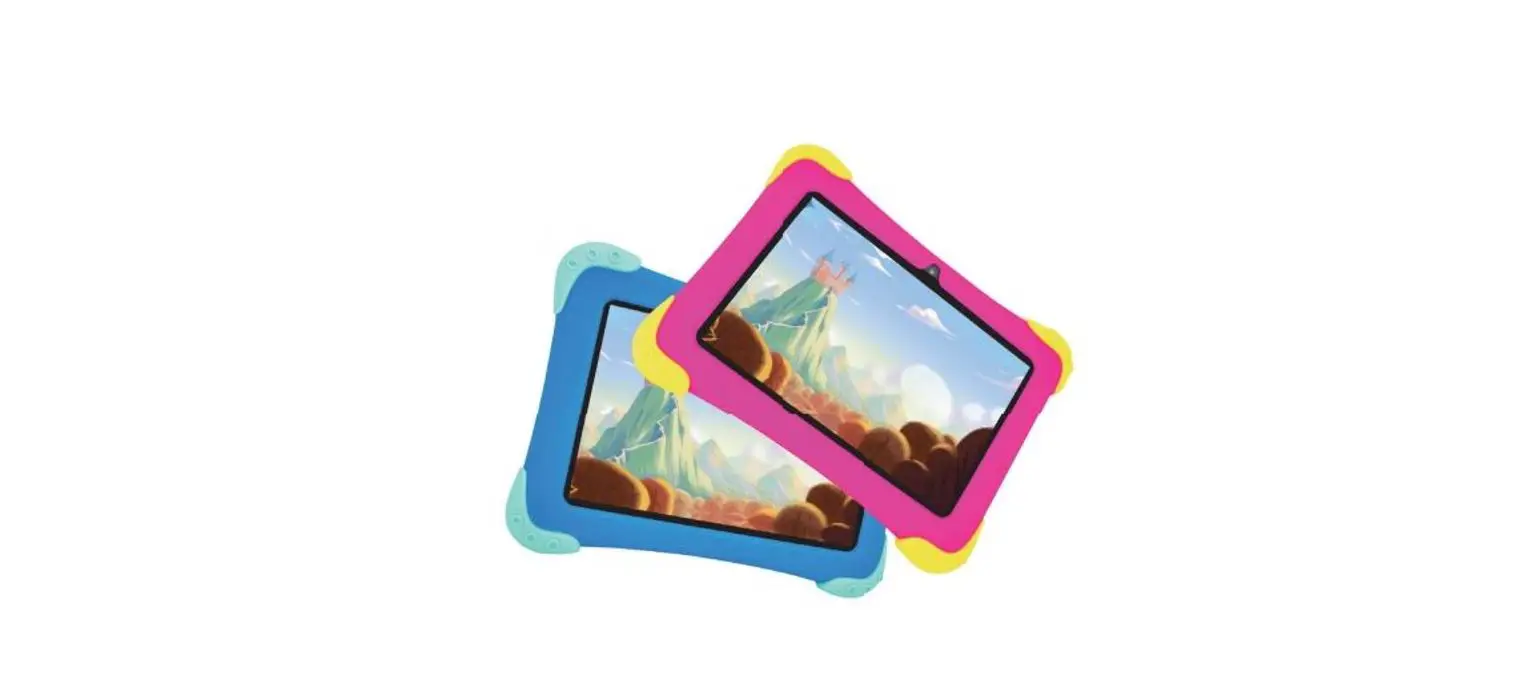
Joy Tab Kids 2 Smart Tablet
Product Information
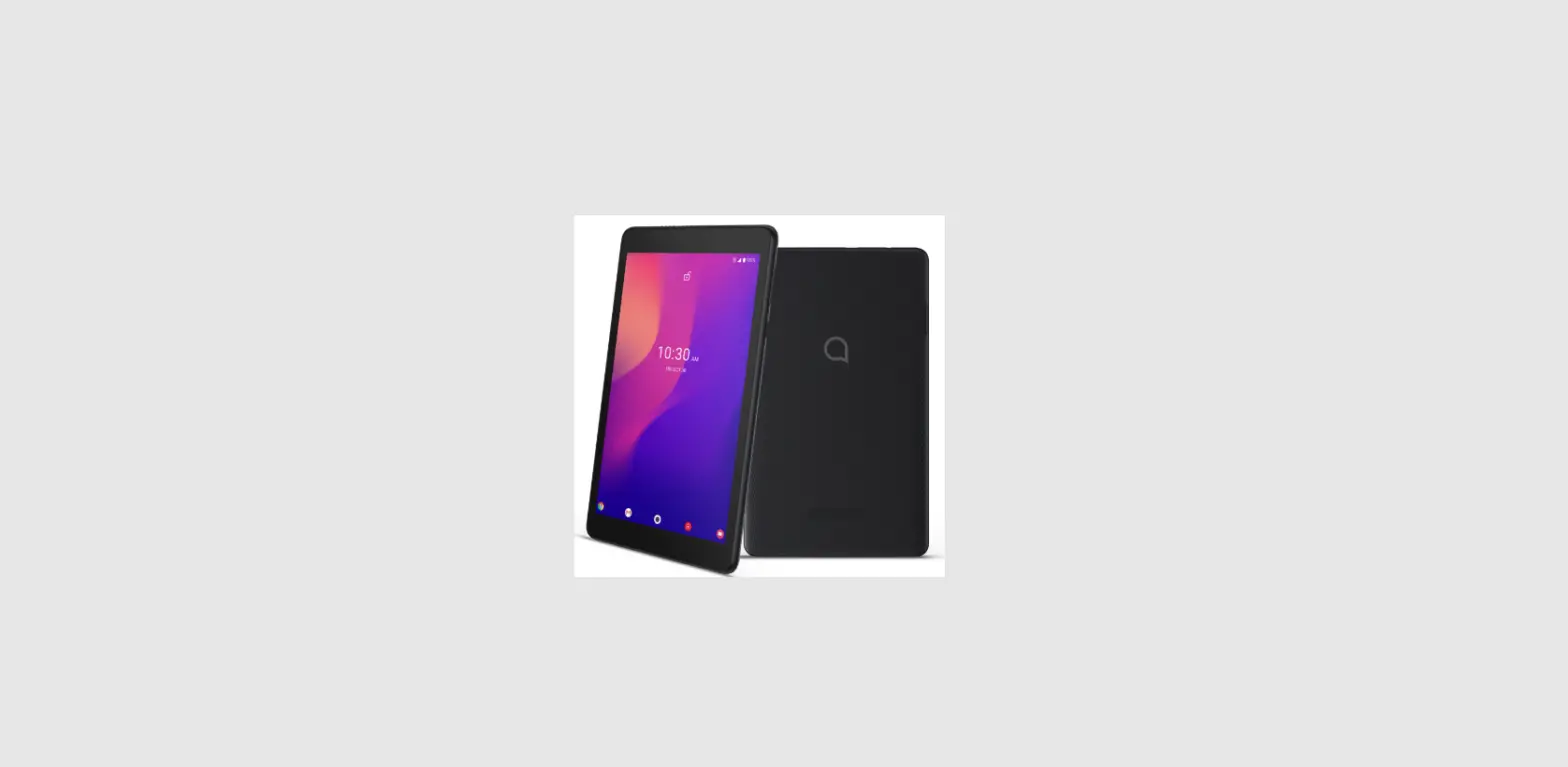
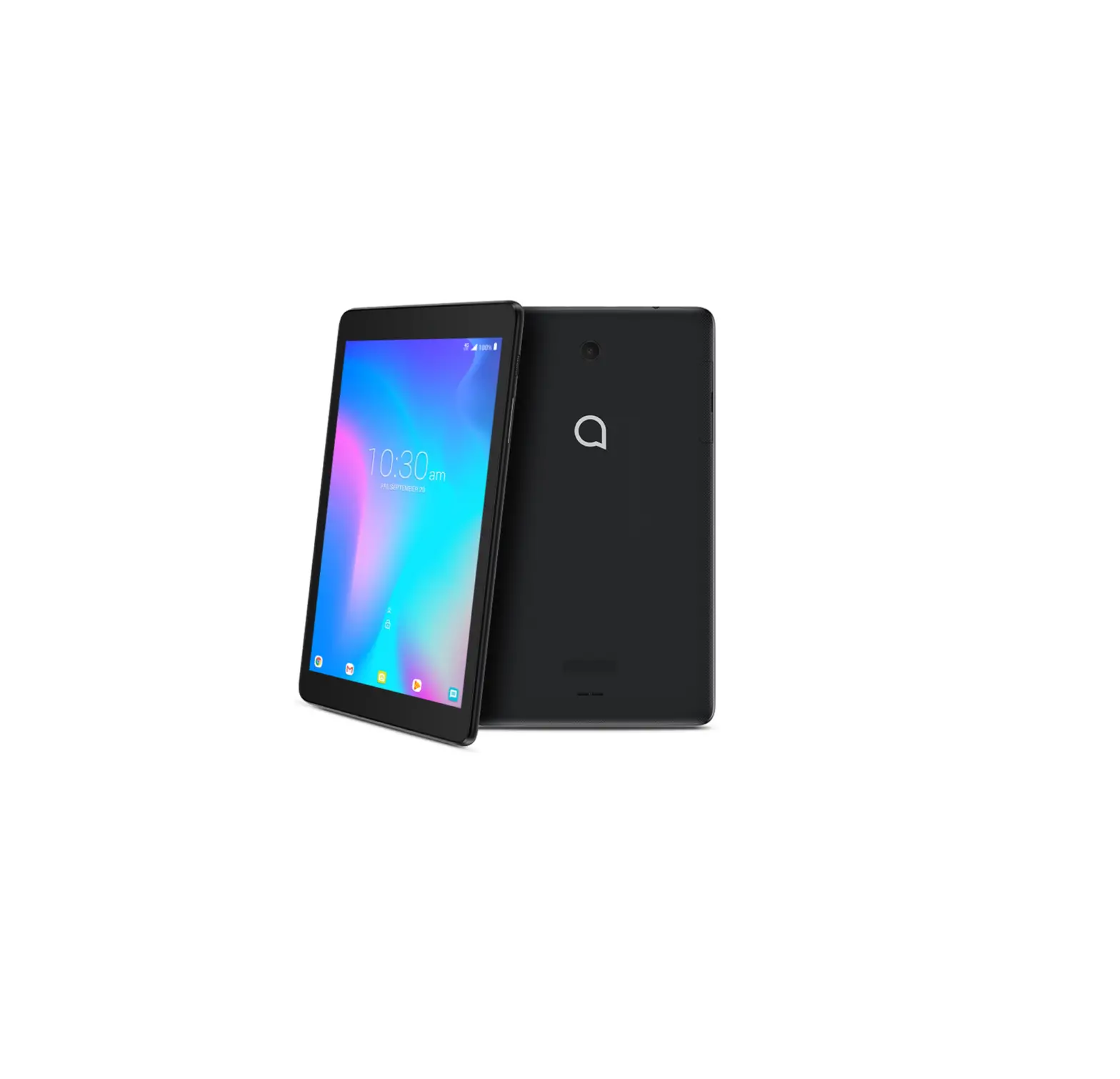
The product is a tablet with various features and capabilities.
It includes a microphone, headset connector, USB Type-C port, IR
sensor, front camera, SIM and microSDTM tray, volume keys, power
key, and speaker. The tablet supports Nano SIM cards and allows for
the insertion of a microSDTM card for additional storage. The
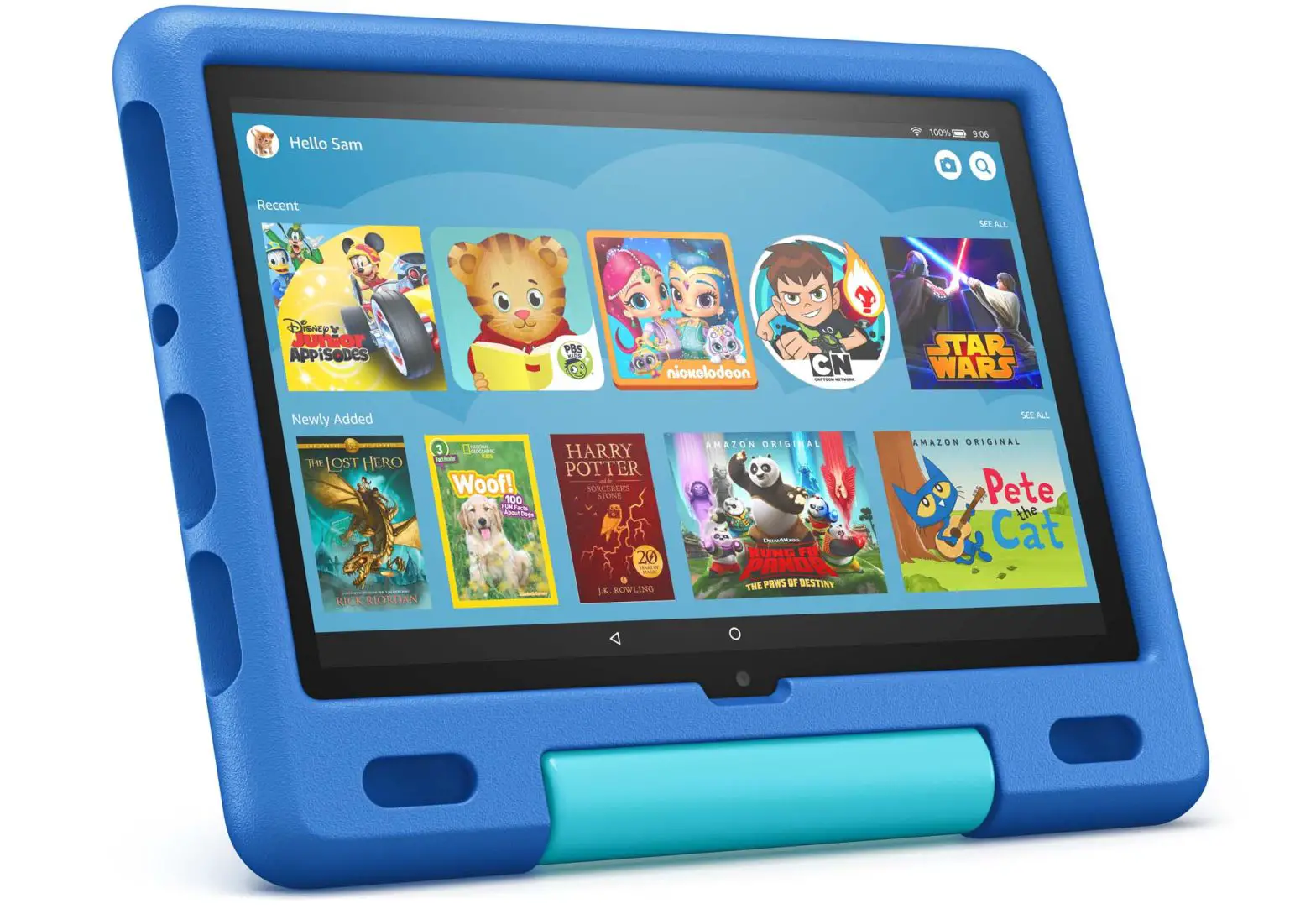
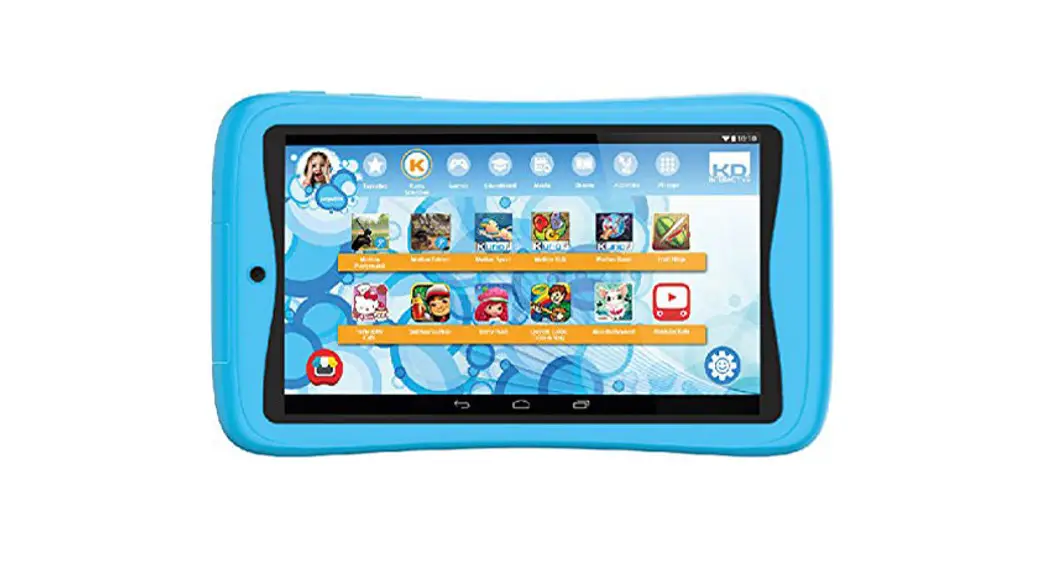
device also comes with Kidomi, a learning and gaming environment
for children.
Product Usage Instructions
1. Set up your SIM card
To set up your SIM card:
- Insert the provided SIM pin into the designated slot to eject
the SIM tray. - Gently slide out the SIM tray.
- Place or remove the Nano SIM card and microSDTM card in the
correct slots. - Note: MicroSDTM cards are sold separately. The SIM pin is
included in the box.
2. Set up Kidomi
To set up Kidomi:
- From the Kidomi login screen, touch “Get started” to create an
account or “Sign in” to access your account. - Customize your child’s playlist by selecting their categories
of interest and age range. - Enter your child’s first name and set up a PIN for
yourself. - Once the account setup is complete, your child can use the
device within the Kidomi learning and gaming environment. - To access the parent area, press the menu key located at the
top right of the home screen. Here, you can access parent features
and exit Kidomi by entering your PIN code.
3. Battery
To optimize battery performance:
- Before using the device for the first time, fully charge
it.
To charge the device:
- Insert the USB Type-C cable into the charge port.
- Connect the charger to a power outlet.
- Note: Please use the charger and USB Type-C cable that came
with your device to prevent damage or reduced battery
performance.
To optimize battery life:
- Adjust the screen brightness level by swiping up from the Home
screen, selecting “Settings,” then “Display,” and finally
“Brightness level.” Lowering the brightness level can optimize
battery usage. - Enable power saving mode by swiping up from the Home screen,
selecting “Settings,” then “Battery,” and finally “Battery Saver.”
Touch “TURN ON NOW” to activate power saving mode. - Adjust the screen timeout duration by swiping up from the Home
screen, selecting “Settings,” then “Display,” then “Advanced,” and
finally “Screen timeout.” Select your desired screen timeout
duration.
4. Security & Convenience
To secure your tablet:
- Swipe up from the Home screen, select “Settings,” then
“Security,” and finally “Screen lock” to activate the screen lock
feature.
Quick Start Guide
At a glance
Let’s get started. We’ll guide you through startup and tell you where to find more information about your tablet and its great features.
Microphone Headset connector
USB Type-C IR sensor
Front camera
SIM and microSDTM tray
Volume keys
Power key
Speaker
1
Set up your SIM card The SIM (Subscriber Identity Module) card identifies your device to the wireless network. You don’t need to power off your device before inserting or removing the SIM card. Note: Your device only supports Nano SIM cards. To avoid damage to your device, do not attempt to insert any other SIM types.
Insert the SIM pin that’s provided to eject the SIM tray and then slide it out gently.
Place or remove the Nano SIM card and the microSDTM card in the correct slot as shown.
Note: MicroSDTM cards are sold separately. SIM pin is included in the box.
2
SD
SIM
SD
SIM
Set up Kidomi When you configure the setup wizard in the device for the first time, the Kidomi login screen will appear.
1. From Kidomi login screen, touch Get started to create an account or touch Sign in to access your account.
2. Customize your kids playlist by selecting your child’s categories of interest and age range.
3. Enter your kids first name and then set up a PIN for yourself.
4. Once your account setup is complete, your kids can use the device while in the Kidomi learning and gaming environment.
5. To access the parent area, press the menu key located at the top right of the home screen. Here you can access parent features and exit Kidomi by entering your PIN code.
3
Battery
To optimize battery performance, be sure to fully charge your device before using it for the first time.
Charging the device
1. Insert the USB Type-C cable into the charge port as shown.
2. Connect charger to power outlet.
Note: Please use the charger and USB Type-C cable that came with your device. Using the wrong cable and charger may damage the charging port or reduce battery performance.
Optimize battery life
To optimize battery life, adjust your screen brightness and display timeout. 1. Adjusting brightness level: Lowering your screen
brightness level can optimize your battery level. To adjust the brightness level, swipe up from the Home screen and touch Settings > Display > Brightness level. To lower the brightness level, move the wheel to the left. 2. Power saving mode: Power saving mode minimizes battery usage to extend battery life. To explore power
4
management options, swipe up from the Home screen and touch Settings > Battery > Battery Saver. Then touch TURN ON NOW to activate power saving mode. 3. Adjust screen timeout: Sleep mode is a low power mode function and it significantly saves your battery power. Lower the amount of time your device stays on after you stop using it to optimize your battery level. To do so, swipe up from the Home screen and touch Settings > Display > Advanced > Screen timeout and select screen timeout duration.
Security & convenience
To secure your tablet from being used by others without your permission, activate the following security options:
Screen lock: Swipe up from the Home screen and touch Settings > Security > Screen lock.
Add Additional Apps to Kidomi Launcher
1. Select the Settings Cog from the Kidomi home screen 2. Select Parent Settings Menu > Enter PIN 3. Select the Child’s Profile 4. Select the Favorites Menu 5. Select the “Add Apps from This Device” button 6. Select the App you want to add to Kidomi from the list >
Confirm the addition
Note: 3rd party apps will appear in the child’s playlist under “Downloads”. Apps can be downloaded via the Google Play Store.
5
Approved firmware versions
This device will only operate with firmware versions that have been approved for use by your wireless carrier and the device manufacturer. If unauthorized firmware is placed on the device it will not function.
Information about safeguarding your device
We encourage customers to take appropriate measures to secure their devices and invites them to take advantage of the features available on this device to help secure it from theft and/or other unauthorized access and use. This device has a locking function (e.g., Security PINs) that can serve as a first line of defense against unauthorized use or access to stored information. Preloaded security applications that allow customers to track or locate misplaced devices can be found on several devices. Lost or stolen devices should be immediately reported to your wireless carrier so that proper measures can be taken to protect accounts. For additional information, visit your wireless carrier’s Privacy Policy.
Additional information
Use of some content or features may require qualifying service, or access to a Wi-Fi connection.
6
Alcatel is a trademark of Nokia used under license by TCL Communication Technology Holdings Limited. JOY TAB is a trademark of TCL Communication Technology Holdings Limited. © 2021 TCT Mobile Limited. All rights reserved.
TCL Communication Technology Holdings Limited reserves the right to alter material or technical specification without prior notice.
Printed in China CJB1UM002AAA