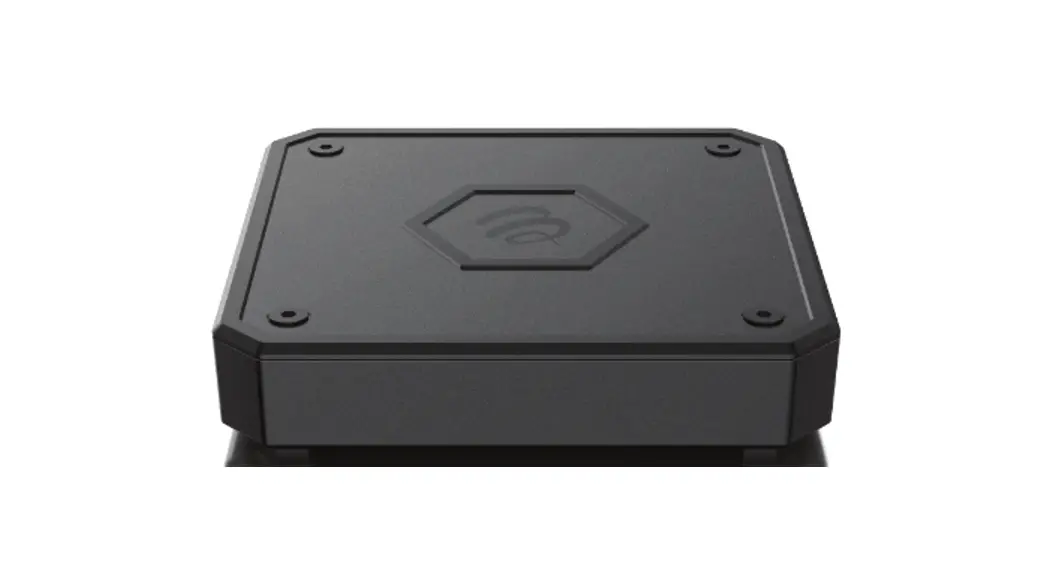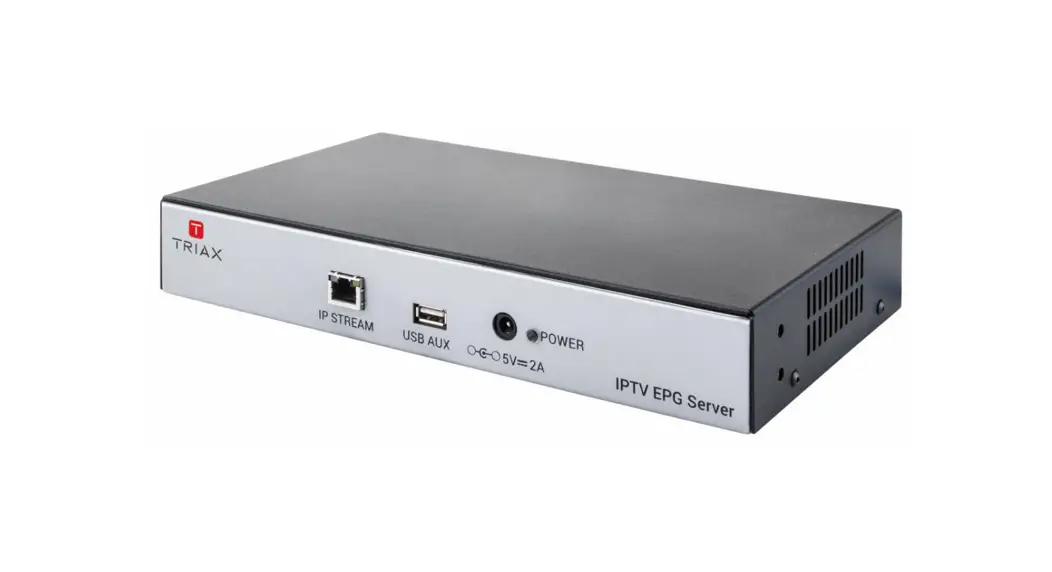
 492095 IPTV EPG Server
 User Manual
Safety regulations and notes
ATTENTION
- Failure to comply with the specified precautionary measures may cause serious injury to persons or damage to property.
- The assembly, installation, additional electrical wiring, servicing installation and commissioning may only be performed by suitably qualified persons, technicians or installers in compliance with safety regulations.
- Damage due to improper installation and commissioning, defective connectors on cables or any other incorrect handling will void the warranty.
CAUTION
- The devices meet the EU directives 2011/65/EU, 2014/30/EU and 2014/35/EU.
- The safety requirements are according to the standards EN/DIN EN 50083 resp. IEC/EN/DIN EN 60728 and must be observed, especially concerning equipotential bonding and earthing.
- Observe the relevant country-specific standards, regulations and guidelines on the installation and operation of antenna systems.
- Before starting installation or service work disconnect the receiving system from mains.
- Installation or service work should NEVER be undertaken during electrical / thunderstorms.
- Avoid short circuits!
- To ensure electromagnetic compatibility, make sure all connections are tight and that the covers are screwed on securely.
- Take action to prevent static discharge when working on the device!
- Due to the risk of fires caused by lightning strikes, we recommend that all mechanical parts (e.g. distributor, equipotential bonding rail, etc.) be mounted on a non- combustible base. Wood panelling, wooden beams, plastic covered panels and plastic panels are all examples of combustible bases.
 To prevent fire, short circuit or shock hazard
- Do not expose the unit to rain or moisture.
- Install the unit in a dry location without infiltration or condensation of water. In case of the formation of condensation wait until the system is completely dried.
- Do not expose it to dripping or splashing.
- If any liquid should accidentally fall into the cabinet, disconnect the power plug.
- Install the head-end station where it is protected from direct exposure to sunlight
- Install the head-end station not within the immediate vicinity of heat sources
- Do not install the head end in cabinets or recesses which are not ventilated.
- Do not place any vessels containing liquids on the head-end station.
- Do not place anything on the head-end station which could initiate fires.
To avoid any risk of overheating
- Install the unit in a well aired location and keep a minimum distance around the apparatus for sufficient ventilation
- Do not place anything on the unit that might cover the ventilation holes.
- Do not install the product in a dusty place
- Use the apparatus only in moderate climates (not in tropical climates)
- Respect the minimum and maximum temperature specifications
- Ensure that the headend station is adequately ventilated.
To avoid any risk of electrical shocks
- Controller must be correctly grounded according to applicable national regulations.
- For a complete disconnection from the mains, the mains plug must be pulled out of the mains socket. Ensure that the mains plug can be pulled out without difficulties.
- Pull out power plug when making connections of cables.
- To avoid electrical shock, do not open the housing.
To avoid interferences with LTE services in Europe
- Do not select a channel higher than UHF 48 in countries with LTE II / 700 operation
- Do not select a channel higher than UHF 60 in countries with LTE I / 800 operation
- Use coaxial cables with screening effectiveness of >85dB (Class A) at least or >95dB (Class A+
WEEE disposal Electronic devices should never be disposed of in the household rubbish. In accordance with directive 2002/96/EC of the European Parliament and the European Council from January 27, 2003 which addresses old electronic and electrical devices, such devices must be disposed of at a designated collection facility. At the end of its service life, please take your device to one of these public collection facilities for proper disposal.
Revision history
Version 1.0 IPTV EPG Server user manual – First release
Version 1.1 Update for Samsung REACH support
IPTV EPG Server
3.1 Introduction
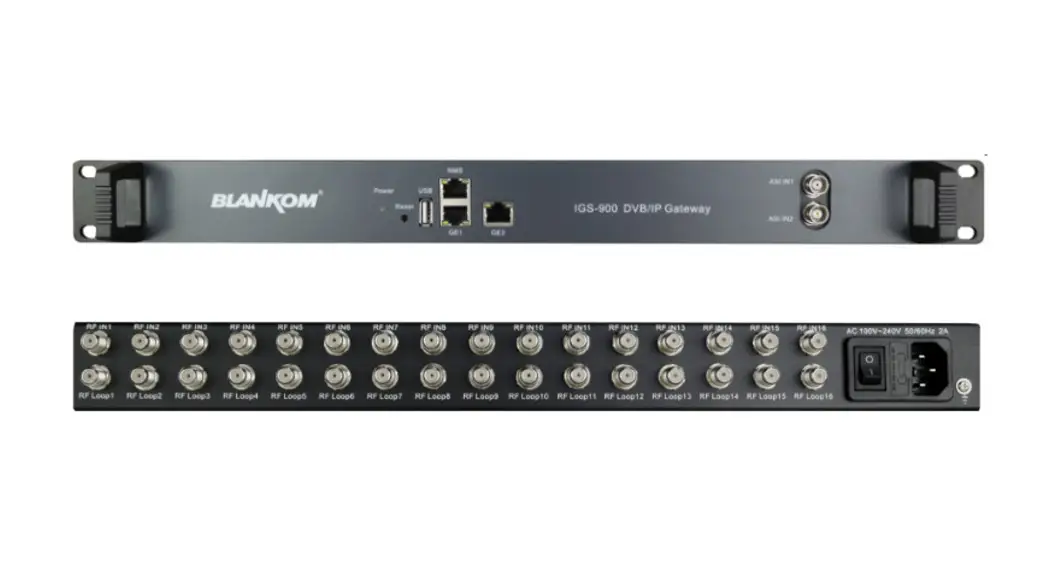
The IPTV EPG Server provides Middleware Solutions for Hotel IPTV systems with an eXtensive Markup Language (XML) file with the EPG data, normally contained in a DVB Transport Stream Barker Channel from satellite, cable and terrestrial antenna input to the TDX.
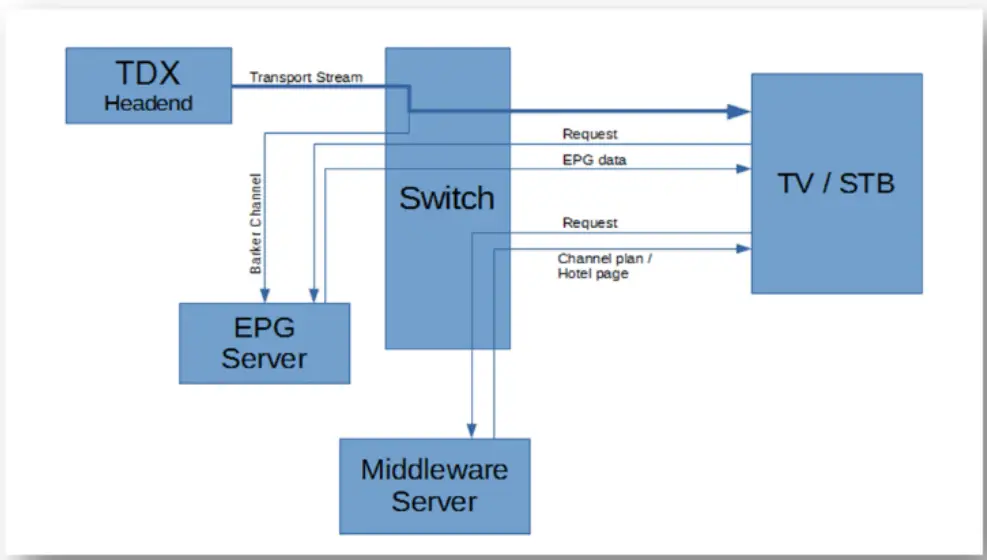 Figure 1: Example setup, based on Macnetix system
3.2 Packing contents
| 1 piece | IPTV EPG-Server |
| 1 piece | Power Supply |
| 2 pieces | Wall or Rack mounting brackets |
| 4 pieces | Screws |
3.3 Technical data
| Typo Art. no | IPTV MG Sow 492095 | |
| Functionality | EPG XML Server for IPTV | |
| I/O RJ45 Ethernet Connector | ||
| Supported speed | Mbps | 10/100/1000 |
| Cable Category | Cat 5e, Cat 6, Cat 7 | |
| Maximum Cable Length | m | 100 |
| Input USB AUX | ||
| Maximum power consumption | mA | 500 |
| Maximum supported disk size | TB | 2 |
| Maximum supported file size | GB | 4 |
| Maximum supported filename length | 255 characters | |
| General Data | ||
| I/O connector IP Stream | RJ45 Ethernet | |
| Input connector USB AUX | USB female | |
| Input connector DC | DC Jack 2mm inner diameter, 5.5mm outer diameter | |
| Current consumption (without USB Device present) | mA | 400 @5V |
| Input voltage (fed from TOU 232SA or optional from PSU | V | 485. |
| Operating temperature | °C | -10…+50 |
| Weight | kg | 1. |
| Dimensions | mm | 160x167x30 |
| Accessories | ||
| Power supply | 100…240VAC, +5VDC/3A, TRIAX Part no.: 310019 | |
Mounting the IPTV EPG Server
4.1 Installing the device
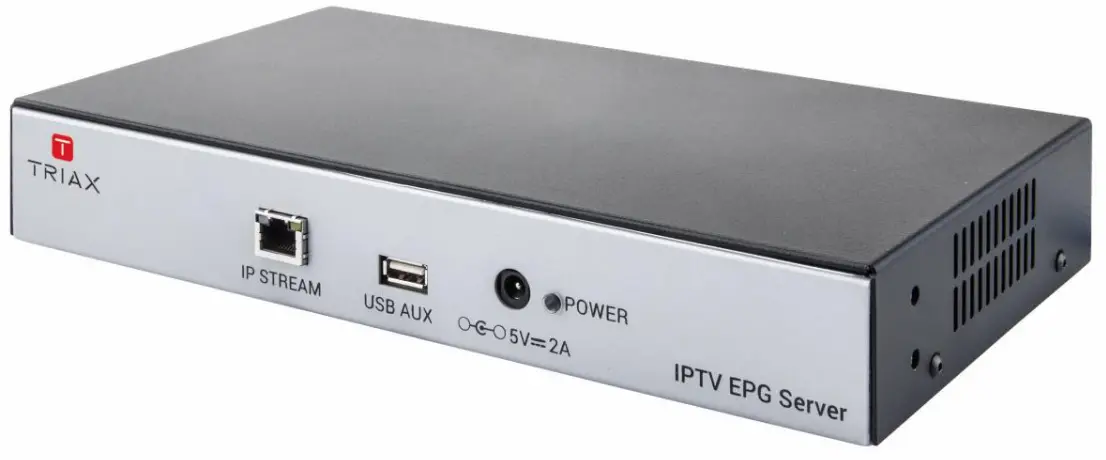
The IPTV EPG-Server can be mounted in a 19” rack or wall mounted in any direction needed.
4.2 Device overview
Installation & Easy Setup
5.1 Installation
5.1.1 Static IP address
A static address must be used on the computer you use to configure the headend. Refer to the computer’s operating software documentation for assistance on using static IP addresses.
5.1.2 Connecting to the EPG Server
Connect IPTV EPG Server to power. Using a computer on the same local network, type in the Server IP (default: http://192.168.0.200) into a browser to access the EPG Server Web Interface.
Enter user name and password (default “admin” and “Triax1234”) and press Enter.
Note:
The computer must have access to the same IP Subnet as the Server.
5.2 TDX Setup
Before getting started, make sure the headend is setup with a unique TSID and ONID and each channel has a unique SID.
Setup the headend to deliver an IP Barker channel (a transport stream containing only information about upcoming programs, thereby reducing the bandwidth required for the transport streams carrying the audio/video information) in order to provide the IPTV EPG Server with a transport stream of EPG data.
Note:
For information on how to set up an IP Barker channel, please refer to the “IP Output Configurations – EIT Barker channel” chapter of the TDX Headend System Main Unit User manual.
Take special note of the multicast IP address for the Barker channel, as this is needed for the rest of the setup procedure.
5.3 STATUS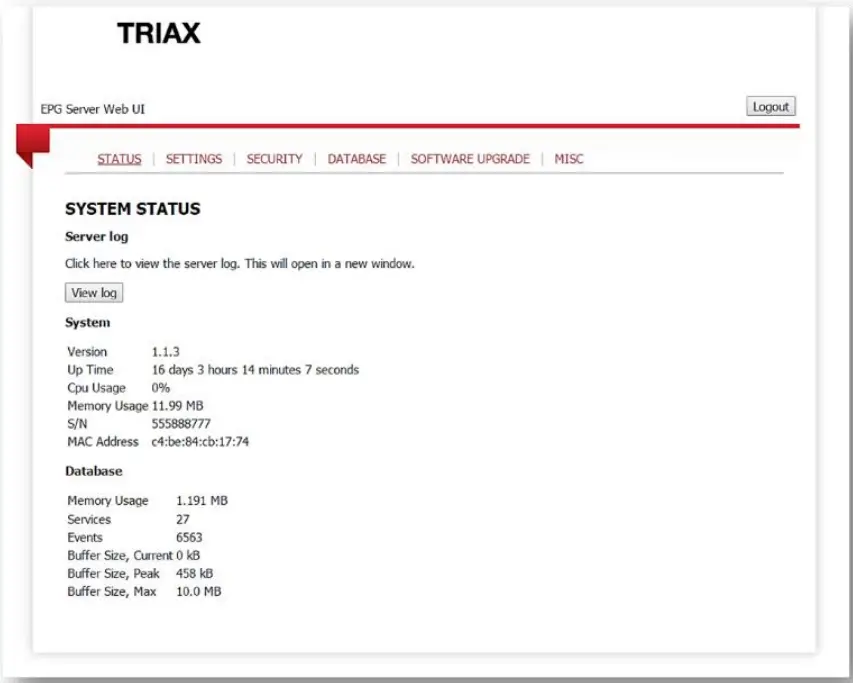
The Server Status page, gives basic information about the server. Take special note of the “Services” and “Events” fields. These show how many services the server is currently receiving data for, through the Barker channel. This number may differ from the number of services, reported by the TDX, since not all services actually have EPG data in their transport stream. The Events show how many programs are currently registered in the EPG server.
5.4 SETTINGS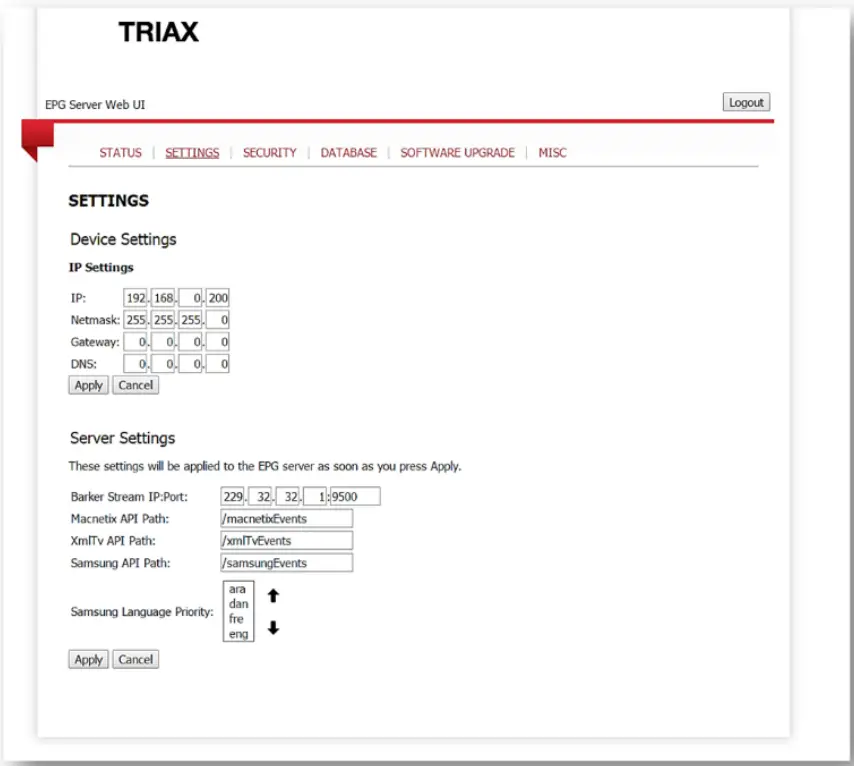
5.4.1 Device Settings
The Settings link takes you to the settings menu.
The Settings menu contains the static IP settings for the IPTV EPG Server and the Server Settings for listening to the Barker channel.
The IPTV EPG Server IP can be changed to a different subnet (e.g. the same as the TDX Service port). You can do so by changing it under “IP Settings”. It is not a necessary for the IPTV EPG Server to be on the same subnet as the TDX AUX port, they simply need to be connected to the same switch.
5.4.2 Server Settings
Enter the Barker channel IP you entered when setting up the TDX here.
You should now be able to access the EPG data in the selected XML format from your middleware solution.
Note:
To check the setup, you could enter the server address, followed by the path to see the raw xml file, e.g. http://192.168.0.200/xmlTvEvents.
Special note on Samsung SINC Server: Samsung Language Priority is a setting used for the Samsung SINC server system. Because the Samsung format is only designed for 1 language, the server will use the topmost language in this list that is available in the Barker stream. If the server has detected a new language that has not been prioritized yet, it will be printed in red until the changes are applied.
To update the IPTV EPG Server, click select file and in the dialog box, select the image file you received from Triax A/S. Select Open and return to the Software Upgrade page. The click the Upgrade button and wait for the IPTV EPG Server to restart.
5.4.3 How to change from SINC to REACH XML format
If changes are done, please make sure to update both the EPG Server and the TRIAX Transfer Service.
Changes at the EPG Servers GUI:
It will by default be supported only for SINC XML format and if the user wants to change the XML format to be comparable for his new REACH Server, then it is only needed to change the “Samsung API Path”.
The Settings link takes you to the settings menu.
The default value here is “/samsungEvents” and to change it to the comparable Samsung REACH XML format, just change the value to “/samsungEventsReach” and click the Apply button.
It should be applied right away and no need to restart.
Changes at the EPG Transfer Service GUI:
When changing the “Samsung API Path” at the EPG Servers GUI, it is needed to change it as well in the “Triax EPG Transfer Service” that should be located on the same system as the Samsung SINC/REACH Server.
The GUI looks like shown below: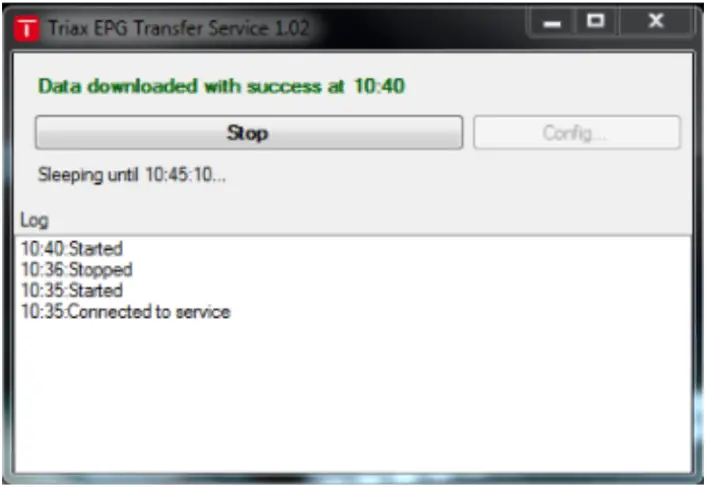
You need to change the parameters, press the stop button and then the config button.
In the Configuration window, it is possible to change:
- The IP address of the EPG Server
- The destination folder for the Samsung_epg.xml file for the SINC server. The location must always be “<SINC/REACH Server install directory>\htdocs\data\epgxml”
- The destination filename. This is required to be Samsung_epg.xml by the SINC server
- The refresh time for the application. The default is 5 min, but if desired this can be anywhere between 2 and 65537 minutes (default 5 minutes)
Change the “EPG Source URL” to the “Samsung API Path” that you entered earlier – change from “/samsungEvents” to “/samsungEventsReach”
The window will alert you if there are any problems with the data you have entered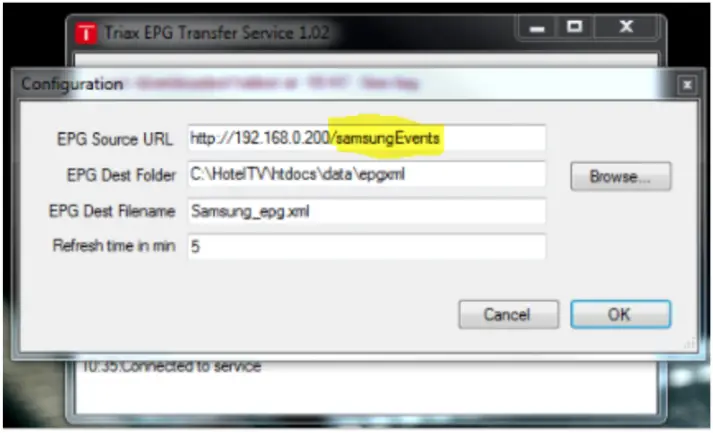
Every time the “Samsung API Path” is changed, it is needed to change it here as well to see the changes on the TV.
For more info see the manual for the “TRIAX EPG Transfer Service”:
5.5 SECURITY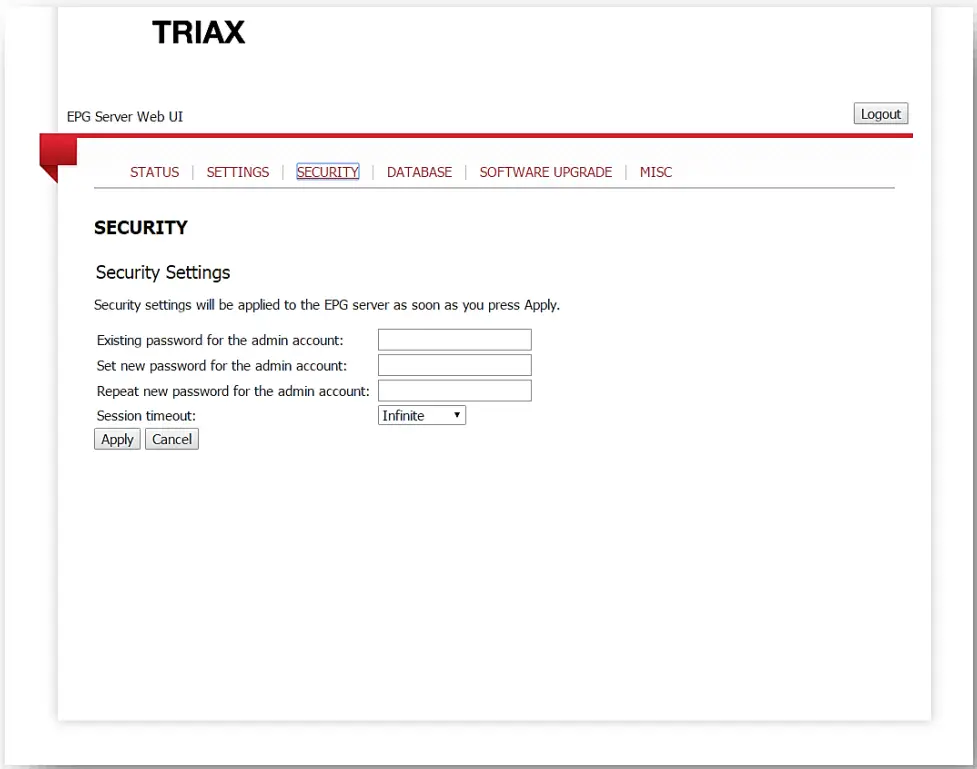
In this menu you can change the password for the EPG Server as well as the time that must pass for an auto logoff, if wanted. Default session timeout is infinite, but if the page is accessed from another PC, the password needs to be entered again
5.6 SOFTWARE UPGRADE
The IPTV EPG Server can be updated via the Ethernet port. This is done by going to the Software Upgrade page.
To update the IPTV EPG Server, click select file and in the dialog box, select the image file you received from Triax A/S – “xmls_fw_1.1.9.img”. Select Open and return to the Software Upgrade page. Then click the Upgrade button and wait for the IPTV EPG Server to restart (it can take up to 2 minutes). 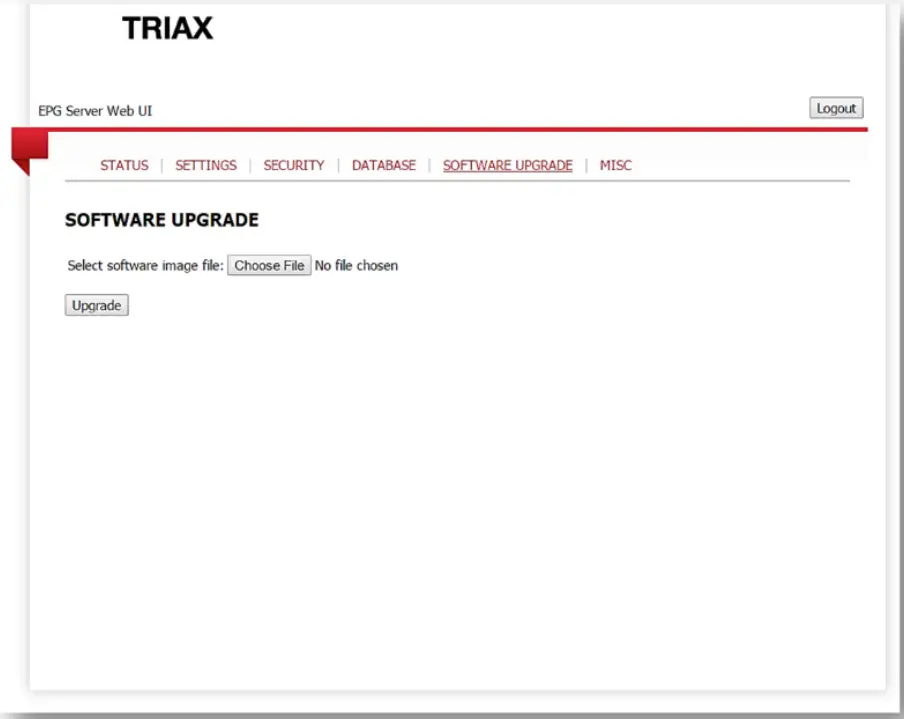
5.6.1 How to do an initial install (normal update not working)
If, for some reason, update through the GUI (described in section above) is not working, then it is possible to upgrade through a USB key. This is the same way if using a recovery image if the device is bricked or not accessible through the GUI.
Remember to export the config file because this is a clean install, and it is needed to import the saved config file back after the install.
How to install through USB key:
- Get the xmls_fw_initial_install_1.1.9.zip file
- Format the USB key driveasFAT32
- Unzip and copy everything to the USB key
- Insert the USB key into the EPGserver and power cycle the server
- Wait 2 minutes and then remove the USB key drive and power cycle the server again
5.7 MISC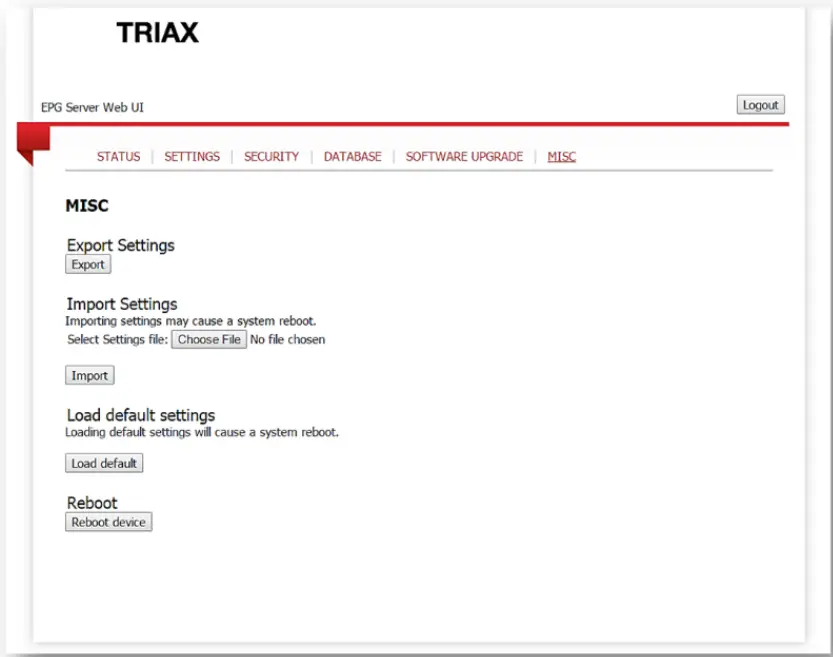
5.7.1 Importing and exporting settings
When setting up multiple identical systems, you can use the Misc page to export the settings from one IPTV EPG server to another. Simply click Export and save the file on a FAT32 formatted flash drive and plug it into the next Server. You can then use the dialog box to load the setting.
On this page you can also Load the Default settings and Reboot the device.
5.8 Output format
The function of the IPTV EPG Server is to translate the data provided by the TDX via the Barker channel to the supported XML file formats. The Barker channel itself does not contain the service names, but provides EPG data for each ONID/TSID/SID, i.e. the Original Network ID (ONID), the Transport Stream ID (TSID) and the Service ID (SID). In the IPTV EPG Server, this combination of ONID/TSID/SID is organized into a “DVB Triplet”, showing each ID as 3 sets of 4 hexadecimal numbers.
Example:
| ONID | TSID | SW | DVB Triplet |
| 43962 | 0 | 1 | abba00000001 |
So in order for the TV/STB to display the correct information for the corresponding service, the XML file triplets has to be paired with the Service names in the Service plan.
5.8.1 XMLTVFormat
The Triax preferred format is the open XMLTVFormat. This format provides a well-defined structure for the EPG data that can be used in a variety of devices. It should be noted, however, that the TDX, and thus also the EPG Server is providing the data in UTC time rather than local time, and the application reading the XMLTVFormat must therefore correct for the local timezone and DST before presenting it to the user.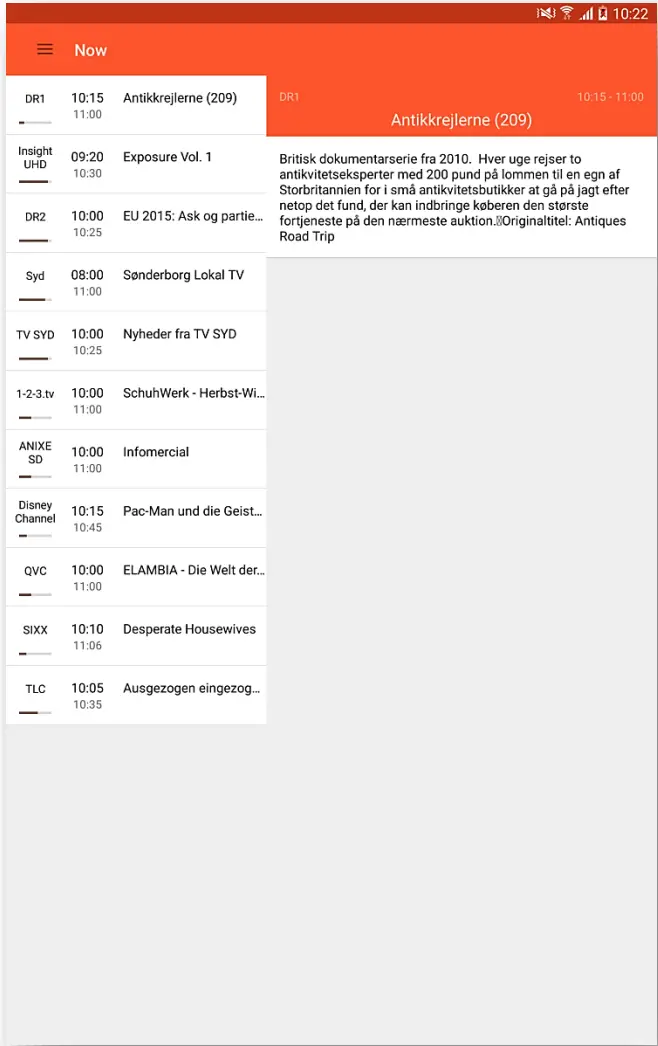
This picture demonstrates how the XMLTVFormat may be presented after a timezone correction and after the DVB Triplets have been translated into the actual service names.
5.9 Information necessary for the Middleware Server
The IPTV EPG Server is designed to provide EPG data to an IPTV Hospitality TV or Set Top Box. In these setups, the Middleware Server controls the channel mapping for the TVs, and the only channel information the IPTV EPG Server can extract from the Barker stream, is the Original Network ID (ONID), the Transport Stream ID (TSID) and the Service ID (SID). All this means that the Middleware Server must request the EPG data from the IPTV EPG server, using the ONID, TSID and SID.
To view this information on a TRIAX TDX, go to the TDX Service tool and select “Services”. Make sure the “IP” and “IP SID” boxes are checked. This will show you the SID for all the services that are currently mapped to IP addresses.
On the TRIAX TDX, the IP ONID is always 43962 and the IP TSID is always 0.
5.9.1 Samsung SINC Server and REACH Server
The Samsung SINC/REACH server is a middleware server designed primarily to run on local servers.
The difference between those two is the XML format output from the EPG Server needed for the SINC and REACH Servers.
When setting up the SINC server channel plan, first make sure the provided tray application is running. Then you can select the relevant EPG data as long as you know the SID. Note that the SIDs are delivered in HEX numbers from the IPTV EPG Server. This means that the number 10 is represented as an A, the number 11 is represented as a B and the number 15 is represented as an F. The SINC server has a special XML format and additionally requires a special tray application, running on the server, in order to copy the information to the required location on the server.
An alternative and sometimes easier way to set up the channel plan is to edit the Excel formatted channel plan that can be exported from the SINC server and add the values from the channel list that can be exported from the TDX.
When this is done, the channel list can be imported into the SINC server again.
Note:
The SINC server only supports service names of 15 characters or less (including spaces).
5.10 Troubleshooting
If you are unable to access the EPG data in the proper format, please check if the Status page has registered any Services and Events. If this is not the case, check the IP settings of both the IPTV EPG Server and the Headend.
Support
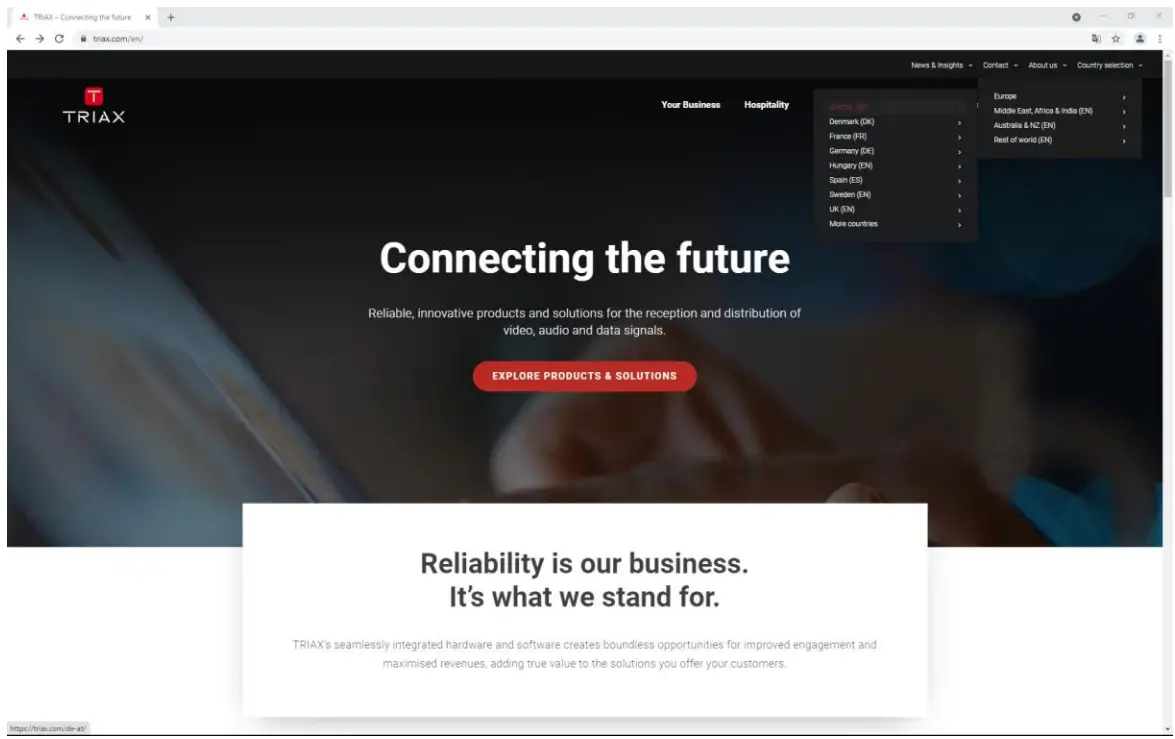
Support information in your language will be found on our country sites.
Go to www.triax.com and select your country.
Below the Support & Training menu you will find additional help and support information.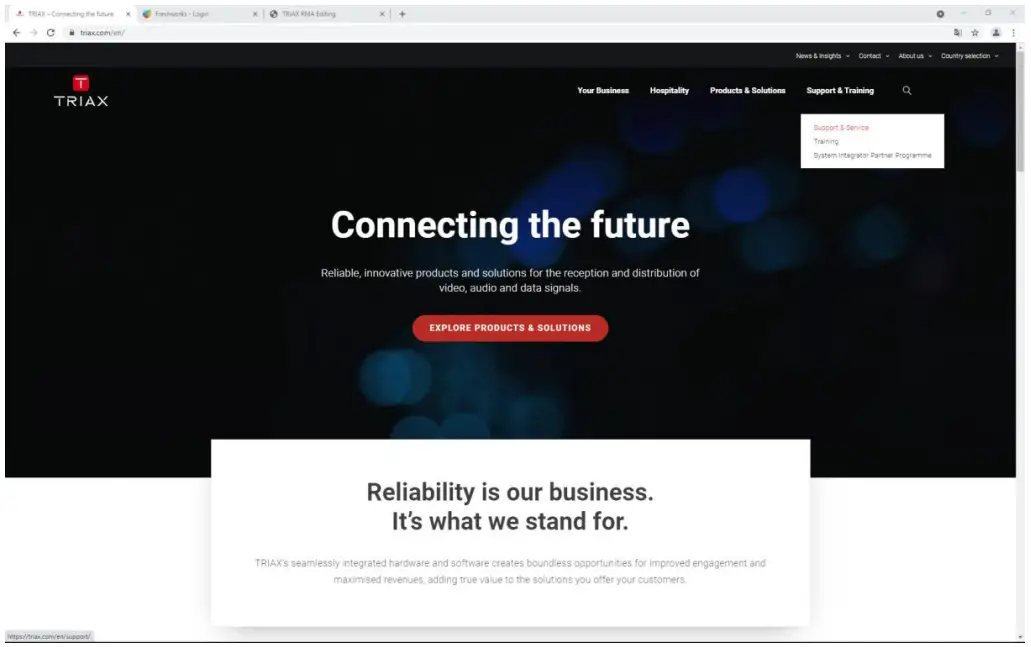
Terms and Abbreviations
| Term | Explanation |
| TBA | To Be Added |
| TBD | To Be Determined |
| PID | Packet Identification; According to standard ISO 13818-1 |
| SID | Service Identification; According to standard ISO 13818-1 |
| TSID | Transport Stream Identification |
| NIT | Network Identification Table; According to standard ETSI EN 300 468 |
| NID | Network Identification used in NIT; According to standard ETSI EN 300 468 |
| ONID | Original Network Identification used in NIT; According to standard ETSI EN 300 468 |
| STB | Set Top Box; DVB receiver that is connected to a TV set |
| Receiver | A device that receives a signal from a headend. An example could be a TV-set or a STB. |
| end-user | A person that uses a TV or receiver. |
| Installer | A person that installs, deploys and maintains the headend system |
| i/f | Interface |
| TS | Transport Stream; According to standard ISO 13818-1 |
| ES | Elementary Stream; According to standard ISO 13818-1 |
| Service | According to ETSI EN 300 468 |