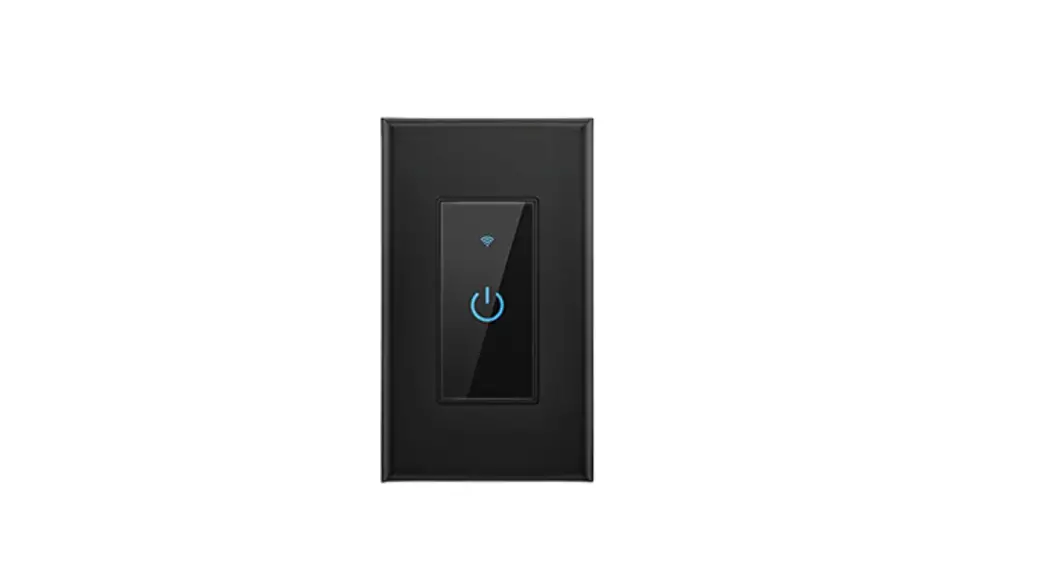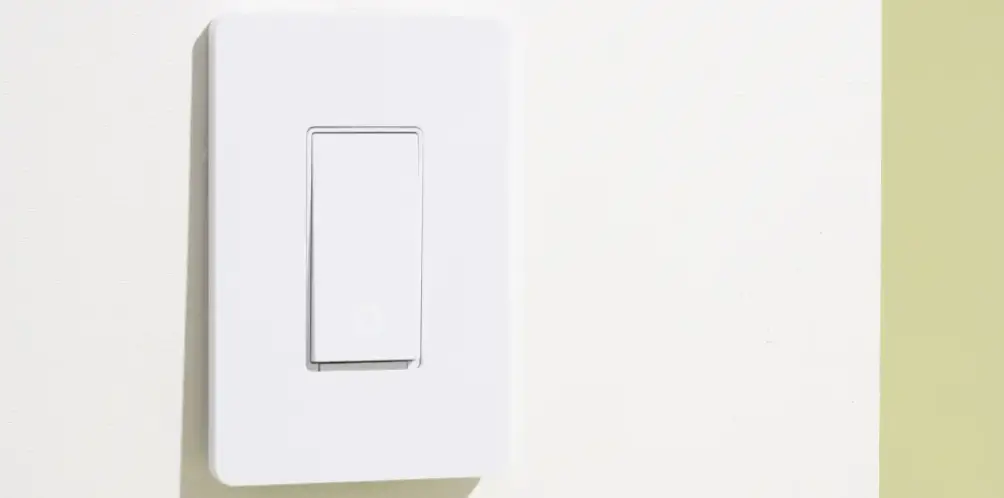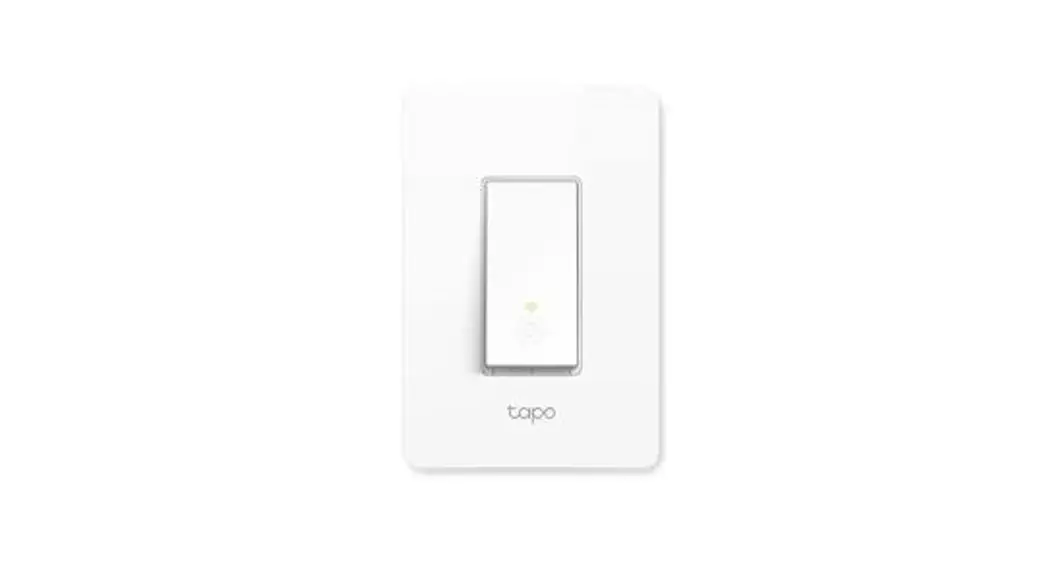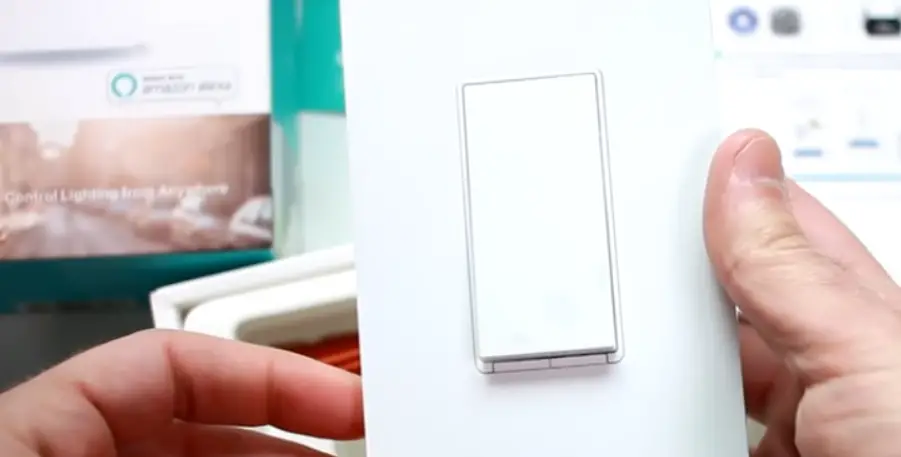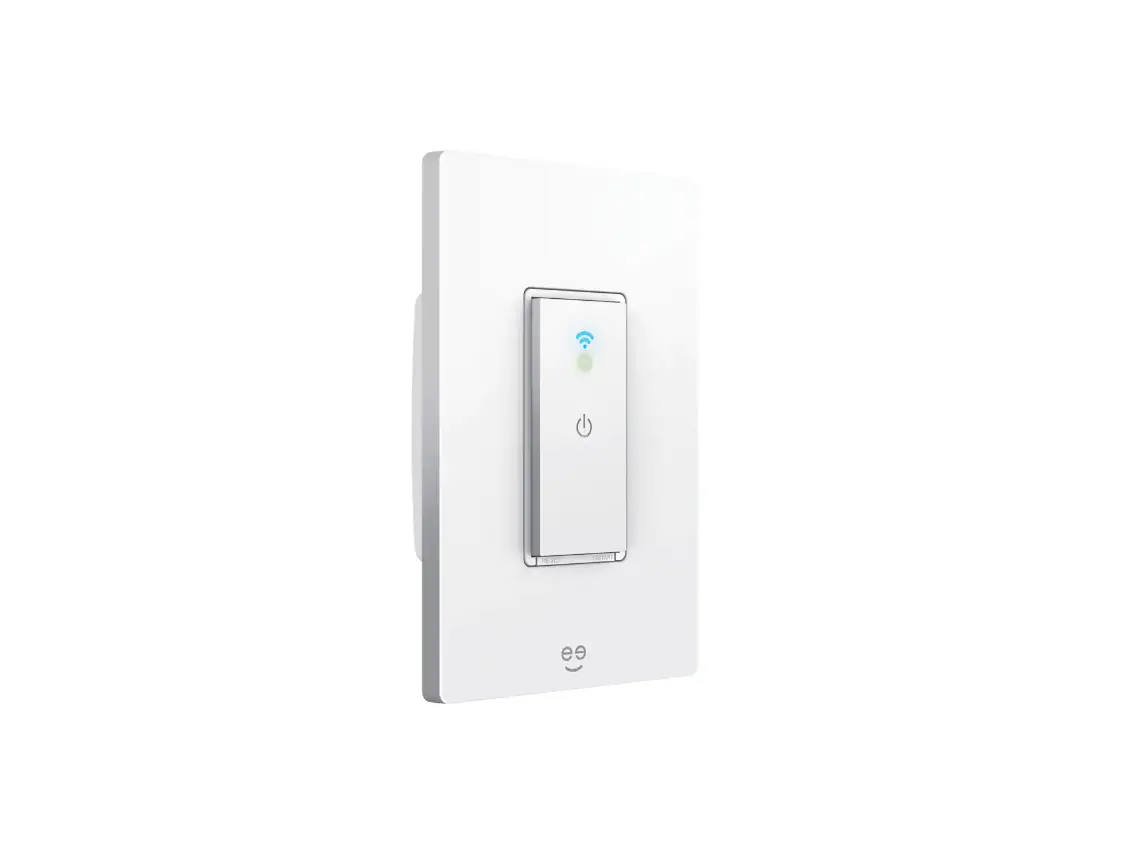

tp-link Tapo S505 Smart WiFi Light Switch
Wire Your Switch
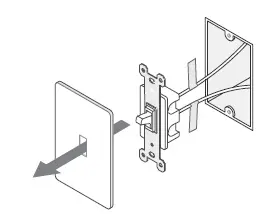
- Turn off the circuit breaker. Then remove the old wallplate of the wall switch and label the wires.
- Ground: Usually green or copper.
- Neutral: Usually white, not connected to the dumb switch.
- Line/Load: Usually black, and connected to the dumb switch.
Note: If you are unsure, consult a qualified electrician.
- Disconnect wires from the old switch.
- Connect the wires to the smart switch as shown below.
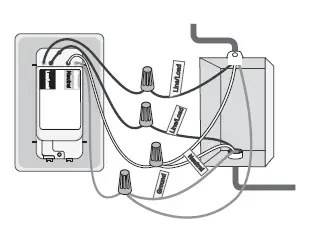
Note: No need to distinguish between Line and Load wires.
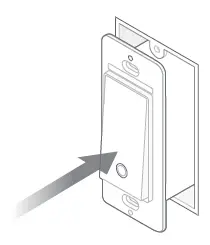
- Line up the switch with the mounting holes. Secure it with screws.

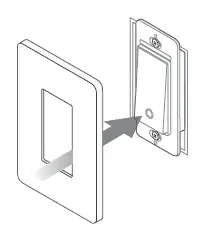
- Attach the wallplate and turn on the circuit breaker. Then the wiring is finished.

Set Up Your Switch
DOWNLOAD APP
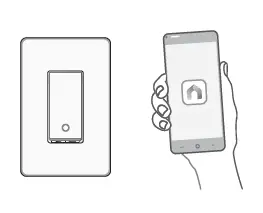
- Get the Tapo app from the App Store or Google Play.
SET UP
- Tap the button in the app. Select Switches and then your model. Follow the step-by-step app instructions to set up your smart switch.

Set Up with Matter
This is a Matter-certified device. You can integrate it into any Matter ecosystem you prefer for easy control.
How to Set Up
A Matter-supported controller and smart home app of the same ecosystem are required
- Turn on Bluetooth on your phone.
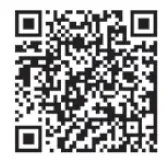
- Open your selected smart home app and enter the provided numeric setup code on your device or scan the Matter QR code on the provided label.
- Follow the instructions in the app to complete setup.
Note: Setup processes may vary between ecosystems.
Failed to Set Up?
- Try to connect your phone to a stable 2.4 GHz Wi-Fi network with internet access instead of a 5 GHz network.
- Press the Restart button once to restart your device.
- Refer to the FAQ for detailed instructions: https://www.tp-link.com/support/faq/3520/
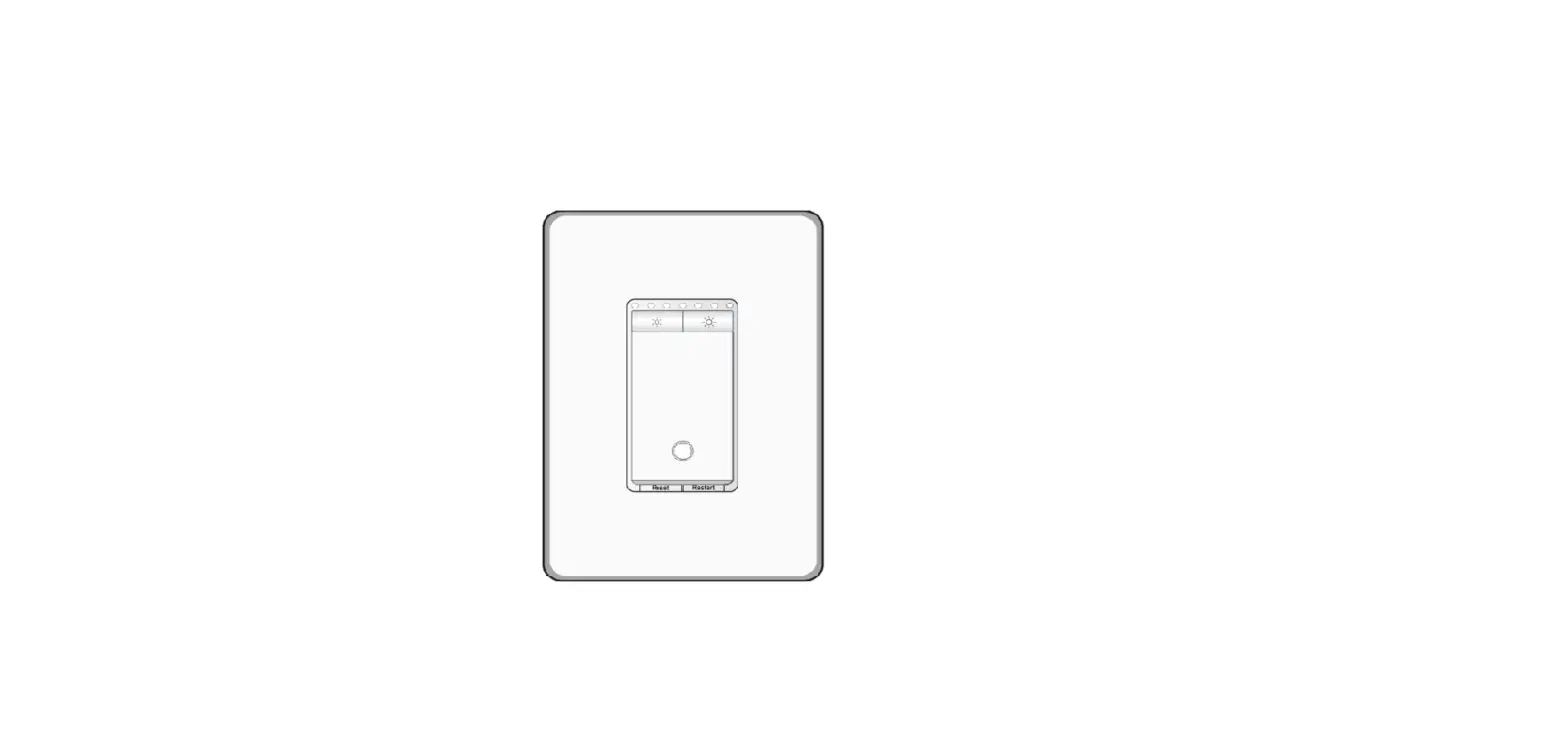
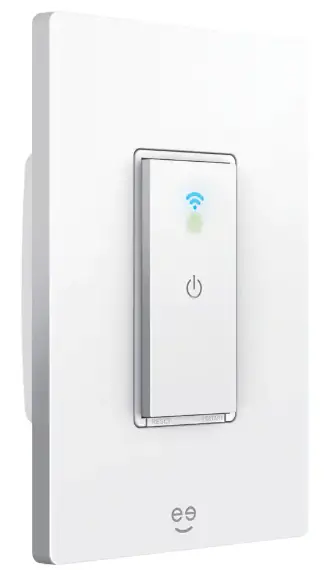
Appearance
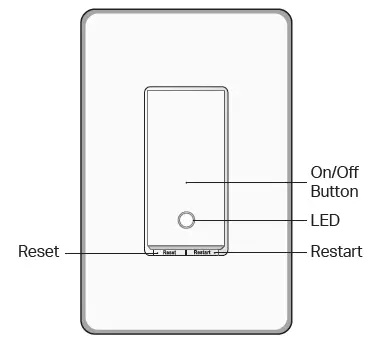
Button Explanations
| Reset | Press and hold for about 5s to reset Wi-Fi while keeping other settings. Press and hold for about 10s to restore your switch to factory default settings. |
| Restart | Press to restart your switch. |
LED Status
| Solid amber | Starting up; disconnected from cloud. |
| Blinking amber & green | Ready for setup. |
| Blinking green | Connecting to Wi-Fi. |
| Stay green for 30s | Connected to Wi-Fi. |
| Solid red | Disconnected from Wi-Fi. |
| Blinking amber | Device resetting. |
| White | Light fixture is off. |
| Blinking green slowly | Firmware upgrading. |
Specifications
- Rating: 100-120 V~ 50/60 Hz
- Load: 15 A General Use, 600 W Incandescent, 120 W Max Ceiling Fan, 1/6 HP Motor.
- Operation temperature: 0~40 ℃
- Method of mounting included: Independently mounted (Vertically position only);
- Operating control, Type 1.C action
- Pollution Degree 2, Rated Impulse Voltage 2500 V
- Software Class A, NEMA Type 1
CAUTION
High Voltage-Disconnect power supply before servicing
MISE EN GARDE
Haute tension. Débrancher l’alimentation électrique avant d’utiliser
Safety Notice
Before installing, servicing or removing the switch, read and follow all safety precautions including the following:
CAUTION-Risk of Electric Shock – More than one disconnect switch may be required to de-energize the equipment before servicing. A Circuit breaker which disconnects the Line and Neutral conductor simultaneously is suitable. Ensuree power is off at the circuit breaker before removing or installing any switch. Use a non-contact voltage tester to ensure the power is off. The Smart Switch must be installed and used in accordance with the National Electric Code (NEC) or your local electrical code. If you are unfamiliar with these codes and requirements, or are uncomfortable performing the installation, consult qualified electrician. Do not install the Smart Switch with wet hands or when standing on wet or damp Surtaces. Install only in a suitable UL Listed outlet box (suitable dimensions: H> 2.95 inJ75 mm, W> 1.81 in./46 mm, D> 2 in/51 mm).
Support
For technical support, the user guide and other information, visit https://www.tapo.com/support.
 Support | Tapo
 General Questions about Matter | TP-Link