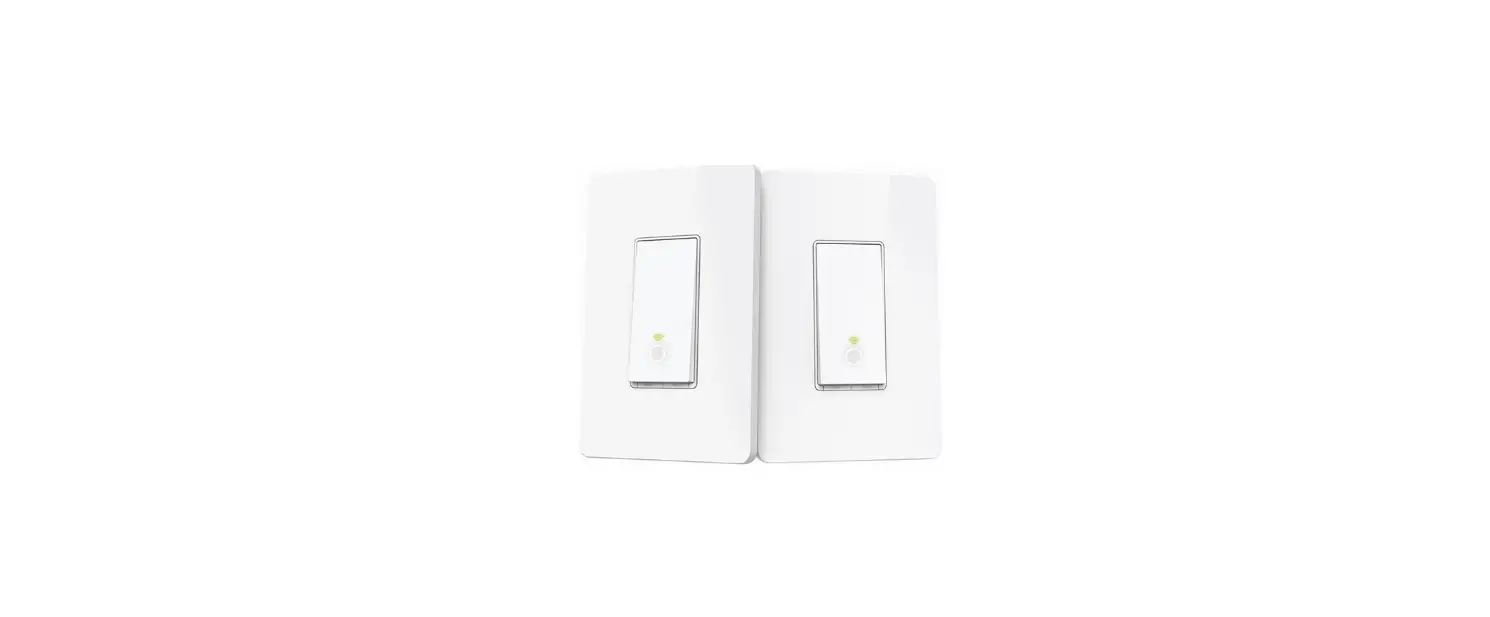
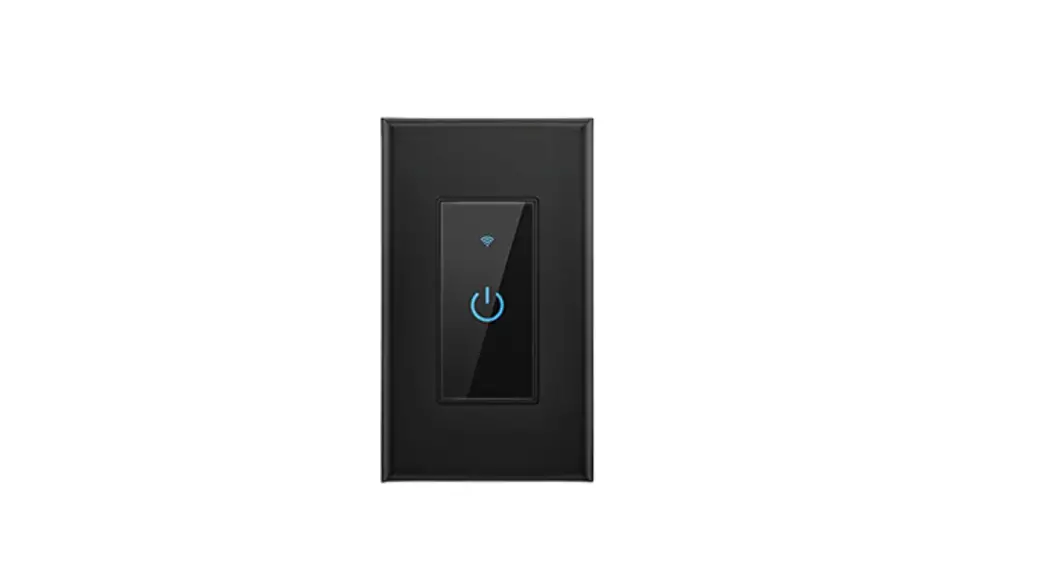
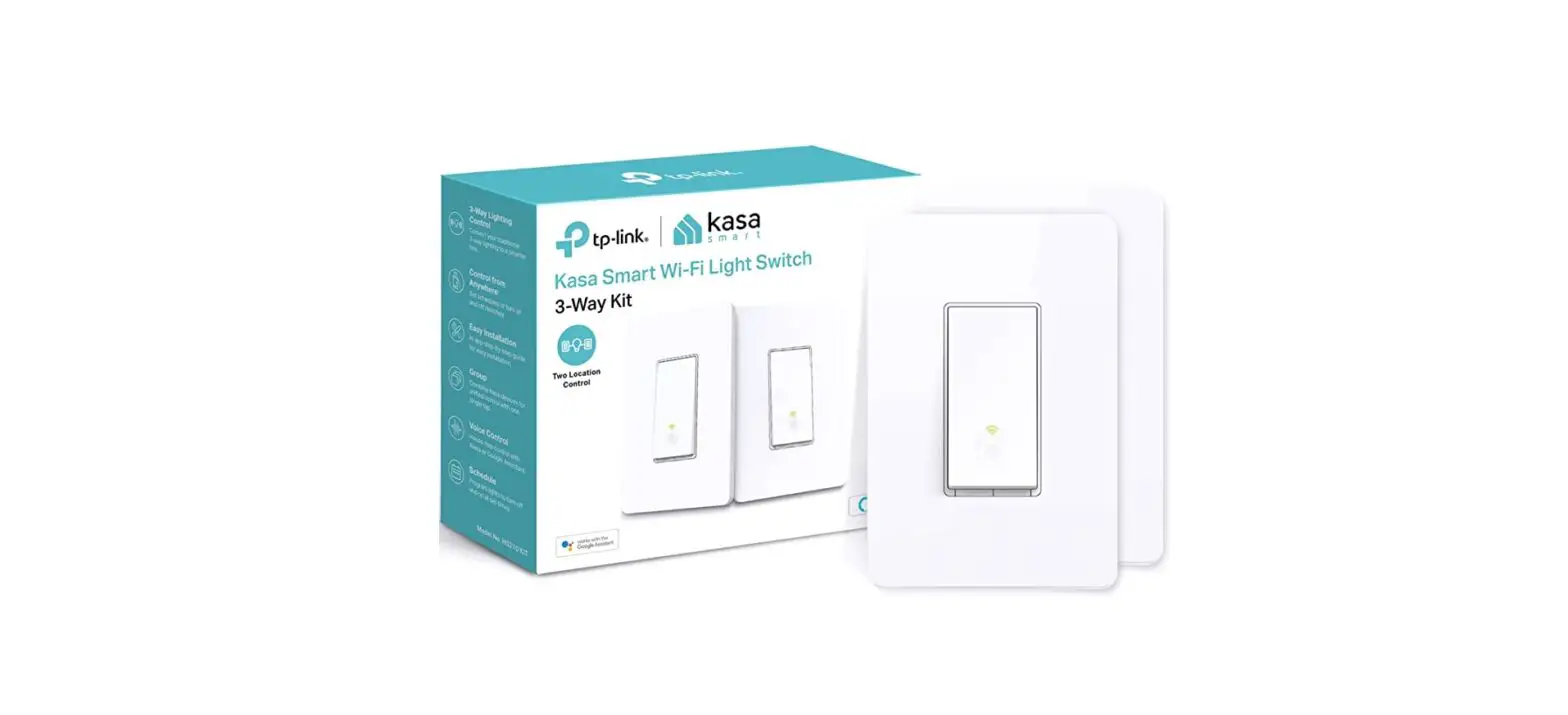
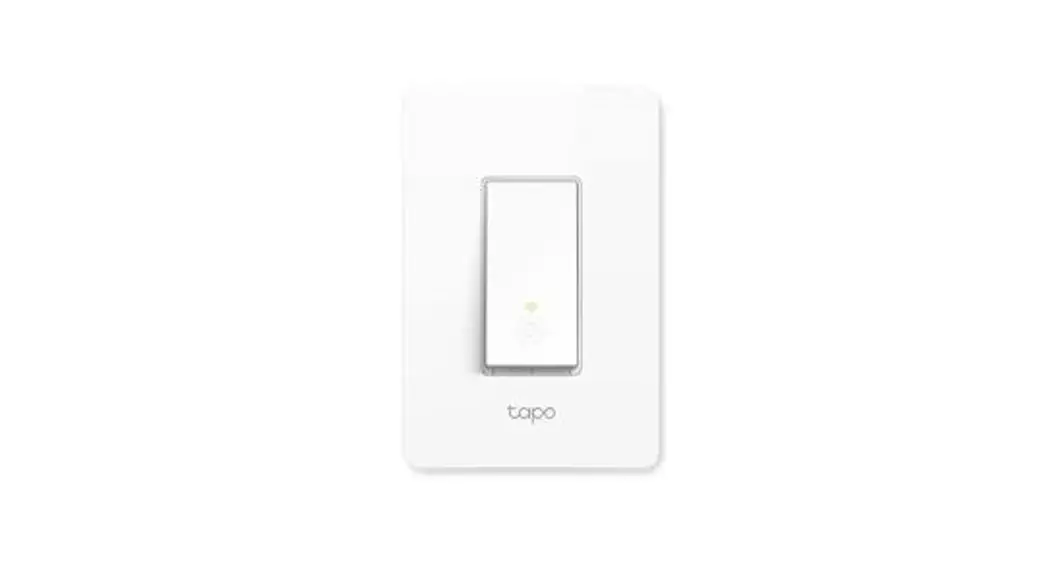
TS15 Smart Wi-Fi Light Switch
Product Information: Smart Wi-Fi Light Switch
This user guide provides a brief introduction to the Smart Wi-Fi
Light Switch, Matter, and regulatory information. Please note that
features may vary by model and software version, and availability
may also vary by region.
Conventions
In this guide, the following conventions are used:
- Blue: Key information appears in blue,
including management page text such as menus, items, buttons,
etc. - Underline: Hyperlinks are in blue and
underlined. Clicking on them may redirect you to a website.
Ignoring this type of note might result in a malfunction or damage
to the device.
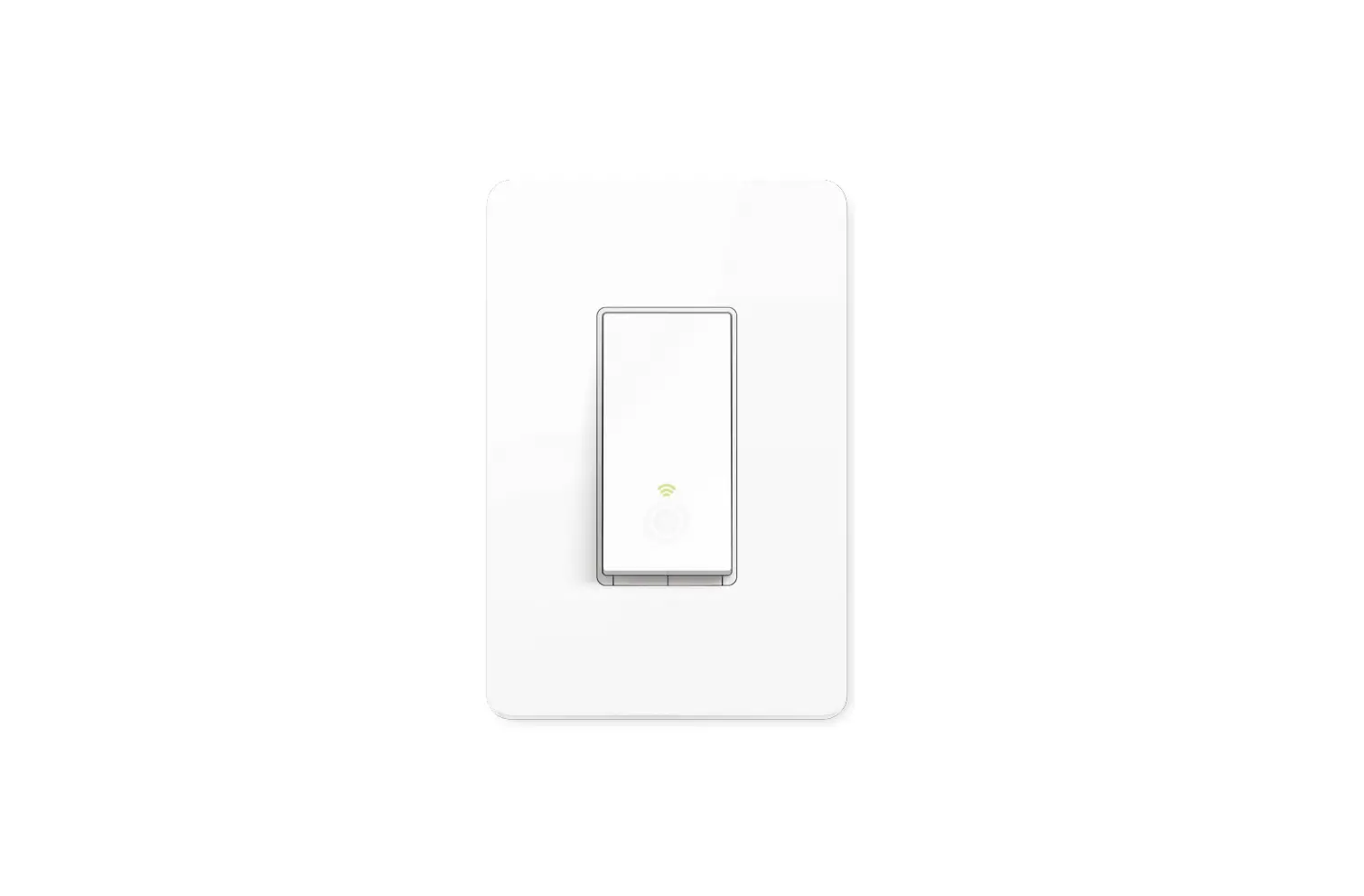
Appearance
The Smart Wi-Fi Light Switch has the following features:
- Reset Button: Press and hold for about 5s to
reset Wi-Fi while keeping other settings. Press and hold for about
10s to restore your switch to factory default settings. - Restart Button: Press to restart your
switch. - LED Status: The LED on the switch indicates
various statuses such as starting up, ready for setup, connecting
to Wi-Fi, connected to Wi-Fi, disconnected from Wi-Fi, device
resetting, light fixture off, and firmware upgrading.
Detach the Wallplate
To detach the wallplate, carefully insert a flat-bladed
screwdriver into the opening at the bottom of the wallplate and
pull forward to remove it.
Wire Your Switch
Follow the steps below to wire your Smart Wi-Fi Light Switch. If
you are not familiar with basic electrical wiring, please consult
an electrician.
- Before You Start:
- Consult a qualified electrician if you are unsure about the
wiring. - Prepare the following tools: philips and slotted screwdriver,
pliers, wire strippers, and a voltage detector. - Ensure that your switch is in an area with a strong Wi-Fi
signal.
- Consult a qualified electrician if you are unsure about the
- Step 1. Turn Off Power and Remove the Wallplate:
- Turn off the circuit breaker.
- Remove the old wallplate of the wall switch and label the
wires. - CAUTION: Risk of Electric Shocks – High Voltage – Disconnect
power supply before servicing.
- Step 2. Expose Your Switch Wiring:
- Remove the screws securing your old switch to the wall
box. - Gently pull the switch out and disconnect wires from the old
switch. - Note: No need to distinguish between Line and Load wires.
- Remove the screws securing your old switch to the wall
- Step 3. Label and Connect the Wires:
- Use the labels and wire nuts to connect the wires to the smart
switch as shown.
- Use the labels and wire nuts to connect the wires to the smart
- Step 4. Install Your Smart Switch:
- Gently fold all of the wires back into the wall box.
- Line up the switch with the mounting holes and secure it with
screws.
- Step 5. Attach the Wallplate and Turn on Power:
- Attach the wallplate.
- Turn on the circuit breaker.
- The wiring is now finished.
Set Up Your Switch
Follow the steps below to set up your switch.
User Guide
Smart Wi-Fi Light Switch
©2023 TP-Link 1910013405 REV1.0.0
Contents
About This Guide ·············································································································································1 Introduction ························································································································································2 Appearance ························································································································································3 Wire Your Switch···············································································································································5 Set Up Your Switch ·········································································································································8 Set Up Your Smart Switch via Matter····································································································9 Authentication ················································································································································12
About This Guide
This guide provides a brief introduction to the Smart Wi-Fi Light Switch, Matter and regulatory information.
Please note that features available in Tapo may vary by model and software version. Tapo availability may also vary by region. All images, steps, and descriptions in this guide are only examples and may not reflect your actual Tapo experience.
Conventions
In this guide, the following convention is used:
Convention Description
Blue
Key information appears in blue, including management page text such as menus, items, buttons and so on.
Underline
Note:
Hyperlinks are in blue and underlined. You can click to redirect to a website. Ignoring this type of note might result in a malfunction or damage to the device.
More Info
· Specifications can be found on the product page at https://www.tapo.com. · Our Technical Support and troubleshooting information can be found at https://www.tapo.com/support/.
1
Introduction
With the Tapo Smart Wi-Fi Light Switch, Matter, smarten up your traditional lights. · Matter Certified Integrate Matter-certified Tapo devices with other Matter end products into your preferred ecosystem. · Voice Control Manage your smart switch with voice commands via Amazon Alexa, Apple Siri®, or Google Assistant. · Remote Control Instantly turn connected devices on/off from wherever you are through the Tapo app. · Schedule Preset a schedule to automatically manage devices. · Auto-Off Automatically turns off a connected device after the device is left on for a set time. · Away Mode Randomly turns devices on and off at different times to give the appearance that someone is home. · Smarter with Sensors Create Smart Actions triggered by Tapo smart sensors for greater automation (Tapo Smart Sensors are sold separately.
When working with a Tapo Smart Sensor, the Tapo Hub is required.).
2
Appearance
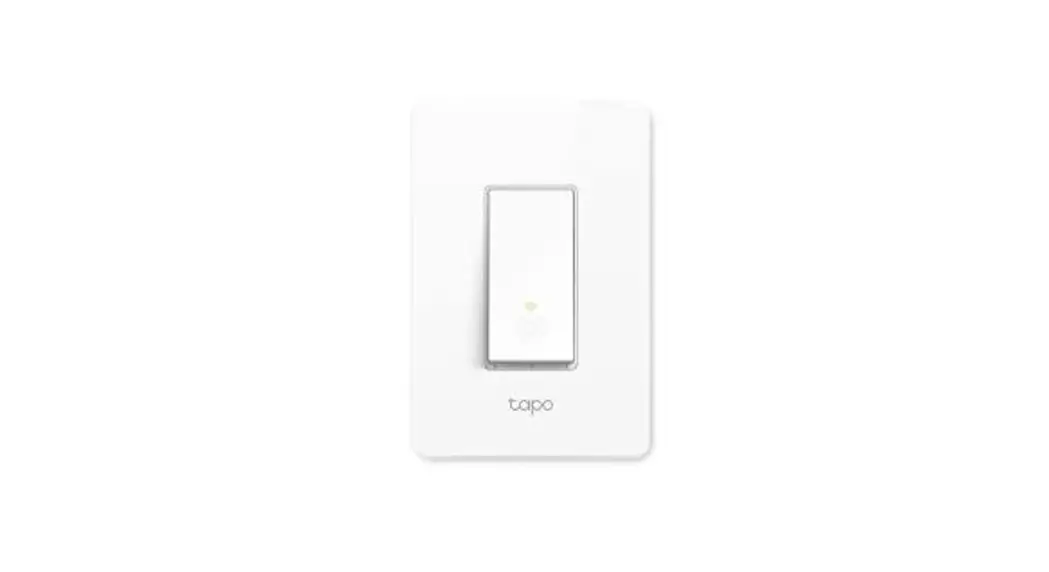
Reset
On/Off Button LED
Restart
Button Explanations
Reset
Press and hold for about 5s to reset Wi-Fi while keeping other settings.
Press and hold for about 10s to restore your switch to factory default settings.
Restart Press to restart your switch.
LED Status
Solid amber Blinking amber & green
Starting up; disconnected from cloud.
Ready for setup.
Blinking green
Connecting to Wi-Fi.
Stay green for 30s
Connected to Wi-Fi.
Solid red
Disconnected from Wi-Fi.
Blinking amber
Device resetting.
White Blinking green slowly
Light fixture is off. Firmware upgrading.
3
Detach the Wallplate
Carefully insert a flat-bladed screw driver the opening at the bottom of the wallplate and pull forward to remove the wallplate.
Matter Numeric Code · For Matter initial setup.
*Images may differ from your actual product.
Note: Your can find another Matter setup code label in the package and stick it anywhere you like as needed for initial matter setup.
4
Wire Your Switch
Follow the steps below to wire your Smart Wi-Fi Light Switch. If you are not familiar with basic electronical wiring, please consult an electrician.
Before You Start
1. Prepare Baisc knowledge of Wiring · Ground: Usually green or copper. · Neutral: Usually white, not connected to the dumb switch. · Line: Usually black and coming from the circuit breaker. · Load: Usually black. One end is connected to the light.
Note: If you are unsure, consult a qualified electrician. 2. Prepare Your Tools Prepare a philips and slotted screwdriver, pliers, wire strippers and a voltage detector. 3. Check Wi-Fi Strength Make sure your switch is in a area with strong Wi-Fi signal.
5
Wire Your Switch
Step 1. Turn Off Power and Remove the Wallplate Turn off the circuit breaker. Then remove the old wallplate of the wall switch and label the wires.
CAUTION Risk of Electric Shocks – High Voltage – Disconnect power supply before servicing.
MISE EN GARDE Risque d’électrocution – Haute tension. Débrancher l’alimentation électrique avant d’utiliser.
Step 3. Label and Connect the Wires
Use the labels and wire nuts to Connect the wires to the smart switch as shown below.
Step 2. Expose Your Switch Wiring
Remove the screws securing your old switch to the wall box. Gently pull the switch out and disconnect wires from the old switch.
Note: No need to distinguish between Line and Load wires. 6
Step 4. Install Your Smart Switch Gently fold all of the wires back into the wall box. Line up the switch with the mounting holes. Secure it with screws.
Step 5. Attach the Wallplate and Turn on Power
Attach the wallplate and turn on the circuit breaker. Then the wiring is finished.
7
Set Up Your Switch
Follow the steps below to set up your switch.
Step 1. Download Tapo App
Get the Tapo app from the App Store or Google Play, or by scanning the QR code below.
Step 2. Log In
Open the app, and log in with your TP-Link ID. If you don’t have an account, create one first.
Step 3. Add Your Switch
Tap the button in the app and select your switch. Then follow app instructions to set up your switch.
OR
8
Set Up Your Smart Switch via Matter
Visit
https://www.tp-link.com/support/faq/3520/
Scan QR Code
· Matter setup in different ecosystems · Multi-admin setup and videos · Features supported in different ecosystems · Troubleshooting & Help
9
Set Up via Matter
This is a Matter-certified device. You can integrate it into any Matter ecosystem you prefer for easy control.
Before You Start
· Factory reset your device before setup. · A Matter-supported controller and smart home app of the same ecosystem are required. For optimal performance, please update them to the latest version. · The Matter setup code on the device is only applicable for the initial ecosystem. To add it to a new ecosystem, you will need to generate a new setup code from a smart home app of an already-established ecosystem in your home. · Take a photo of the Matter setup code for backup. · Bluetooth will be turned off 15 minutes after the device is powered up. Restart your device to re-enter setup mode.
How to Set Up
*Setup processes may vary between ecosystems. 1. Turn on Bluetooth on your phone. 2. Open the smart home app, then scan the Matter QR code or enter the provided numeric setup code (usually can be found on your device). 3. Follow the instructions in the app to complete setup.
Failed to Set Up?
· Try to connect your phone to a stable 2.4 GHz Wi-Fi network with internet access instead of a 5 GHz network. · Restart your device, controller or phone. · Make sure IPv6 is enabled on your router.
10
Matter is still developing and the progress of each platform may differ from one another. There may also be different device performances and bugs that have no relation to the device itself. TP-Link is working hard to optimize user experience with other CSA members to provide better services. We have professional Technical Support and R&D team. If you have any questions, feel free to contact us. Your feedback matters!
Contact us at www.tp-link.com/support
for Technical Support, FAQs & more
11
Authentication
FCC compliance information statement
Product Name: Tapo Smart Wi-Fi Light Switch, Matter Model Number: Tapo S505, TS15 Responsible party: TP-Link USA Corporation Address: 10 Mauchly, Irvine, CA 92618 Website: http://www.tp-link.com/us/ Tel: +1 626 333 0234 Fax: +1 909 527 6804 E-mail: [email protected] This equipment has been tested and found to comply with the limits for a Class B digital device, pursuant to part 15 of the FCC Rules. These limits are designed to provide reasonable protection against harmful interference in a residential installation. This equipment generates, uses and can radiate radio frequency energy and, if not installed and used in accordance with the instructions, may cause harmful interference to radio communications. However, there is no guarantee that interference will not occur in a particular installation. If this equipment does cause harmful interference to radio or television reception, which can be determined by turning the equipment off and on, the user is encouraged to try to correct the interference by one or more of the following measures: · Reorient or relocate the receiving antenna. · Increase the separation between the equipment and receiver. · Connect the equipment into an outlet on a circuit different from that to which the receiver is connected. · Consult the dealer or an experienced radio/ TV technician for help. This device complies with part 15 of the FCC Rules. Operation is subject to the following two conditions:
12
1. This device may not cause harmful interference. 2. This device must accept any interference received, including interference that may cause undesired operation. Any changes or modifications not expressly approved by the party responsible for compliance could void the user’s authority to operate the equipment. Note: The manufacturer is not responsible for any radio or TV interference caused by unauthorized modifications to this equipment. Such modifications could void the user’s authority to operate the equipment.
FCC RF Radiation Exposure Statement
This equipment complies with FCC RF radiation exposure limits set forth for an uncontrolled environment. This device and its antenna must not be co-located or operating in conjunction with any other antenna or transmitter. “To comply with FCC RF exposure compliance requirements, this grant is applicable to only Mobile Configurations. The antennas used for this transmitter must be installed to provide a separation distance of at least 20 cm from all persons and must not be co-located or operating in conjunction with any other antenna or transmitter.” We, TP-Link USA Corporation, has determined that the equipment shown as above has been shown to comply with the applicable technical standards, FCC part 15. There is no unauthorized change is made in the equipment and the equipment is properly maintained and operated.
Issue Date: 2021.03.25
13
Canadian Compliance Statement
This device contains licence-exempt transmitter(s)/receiver(s) that comply with Innovation, Science and Economic Development Canada’s licenceexempt RSS(s). Operation is subject to the following two conditions: (1) This device may not cause interference. (2) This device must accept any interference, including interference that may cause undesired operation of the device. L’émetteur/récepteur exempt de licence contenu dans le présent appareil est conforme aux CNR d’Innovation, Sciences et Développement économique Canada applicables aux appareils radio exempts de licence. L’exploitation est autorisée aux deux conditions suivantes : 1) L’appareil ne doit pas produire de brouillage; 2) L’appareil doit accepter tout brouillage radioélectrique subi, même si le brouillage est susceptible d’en compromettre le fonctionnement.
Radiation Exposure Statement:
This equipment complies with IC radiation exposure limits set forth for an uncontrolled environment. This equipment should be installed and operated with minimum distance 20cm between the radiator & your body.
Déclaration d’exposition aux radiations:
Cet équipement est conforme aux limites d’exposition aux rayonnements IC établies pour un environnement non contrôlé. Cet équipement doit être installé et utilisé avec un minimum de 20 cm de distance entre la source de rayonnement et votre corps
Industry Canada Statement
CAN ICES-3 (B)/NMB-3(B)
NCC Notice
14
BSMI Notice
· · · · · ·
Equipment name
Tapo Smart Wi-Fi Light Switch, Matter
Unit
PCB
Lead (Pb)
— –
Tapo S505, TS15 Type designation (Type)
Mercury
(Hg)
Restricted substances and its chemical symbols
Cadmium
(Cd)
Hexavalent chromium
(Cr+6)
Polybrominated
biphenyls (PBB)
Polybrominated diphenyl ethers
(PBDE)
15
1. 0.1 wt % 0.01 wt % Note 1″Exceeding 0.1 wt %” and “exceeding 0.01 wt %” indicate that the percentage content of the restricted substance exceeds the reference percentage value of presence condition. 2. Note 2″ ” indicates that the percentage content of the restricted substance does not exceed the percentage of reference value of presence. 3.- Note 3The “-” indicates that the restricted substance corresponds to the exemption.
Safety Information
Before installing, servicing or removing the switch, read and follow all safety precautions including the following: · Follow all national and local safety regulations and practices. If you are uncertain or uncomfortable when performing the installation, consult a
qualified electrician. · CAUTION Risk of Electric Shock More than one disconnect switch may be required to de-energize the equipment and luminaire before servicing.
A circuit breaker which disconnects the Line and Neutral conductor simultaneously is suitable. Ensure power is off at the circuit breaker before removing or installing any switch. Use a non-contact voltage tester to ensure the power is off. · Do not install the Smart Switch with wet hands or when standing on wet or damp surfaces. · Keep the device away from water, fire, humidity or hot environments. · Do not attempt to disassemble, repair, or modify the device. If you need service, please contact us. · Do not use the device where wireless devices are not allowed. · Rating: 100-120 V~ 50/60 Hz · Supported Load: 15 A General Use, 600 W Incandescent, 120 W Max Ceiling Fan, 1/6 HP Motor. · Operation temperature: 0~40°C · Install only in a suitable UL Listed outlet box (suitable dimensions: H > 2.95 in./75 mm, W > 1.81 in./46 mm, D > 2 in./51 mm).
16
CAUTION Electrical switch integrated in this product is only intended for functional purposes. De-energized the product at the circuit breaker before servicing.
Explanation of the symbols on the product label Symbol
Alternating current
Explanation
Indoor use only
RECYCLING This product bears the selective sorting symbol for Waste electrical and electronic equipment (WEEE). This means that this product must be handled pursuant to European directive 2012/19/EU in order to be recycled or dismantled to minimize its impact on the environment. User has the choice to give his product to a competent recycling organization or to the retailer when he buys a new electrical or electronic equipment.
17
 Link: Simple, secure one-click payments
 TP-Link Product Support - Wireless Networking Equipment Support
 Tapo Smart | Smart Devices for Smart Living