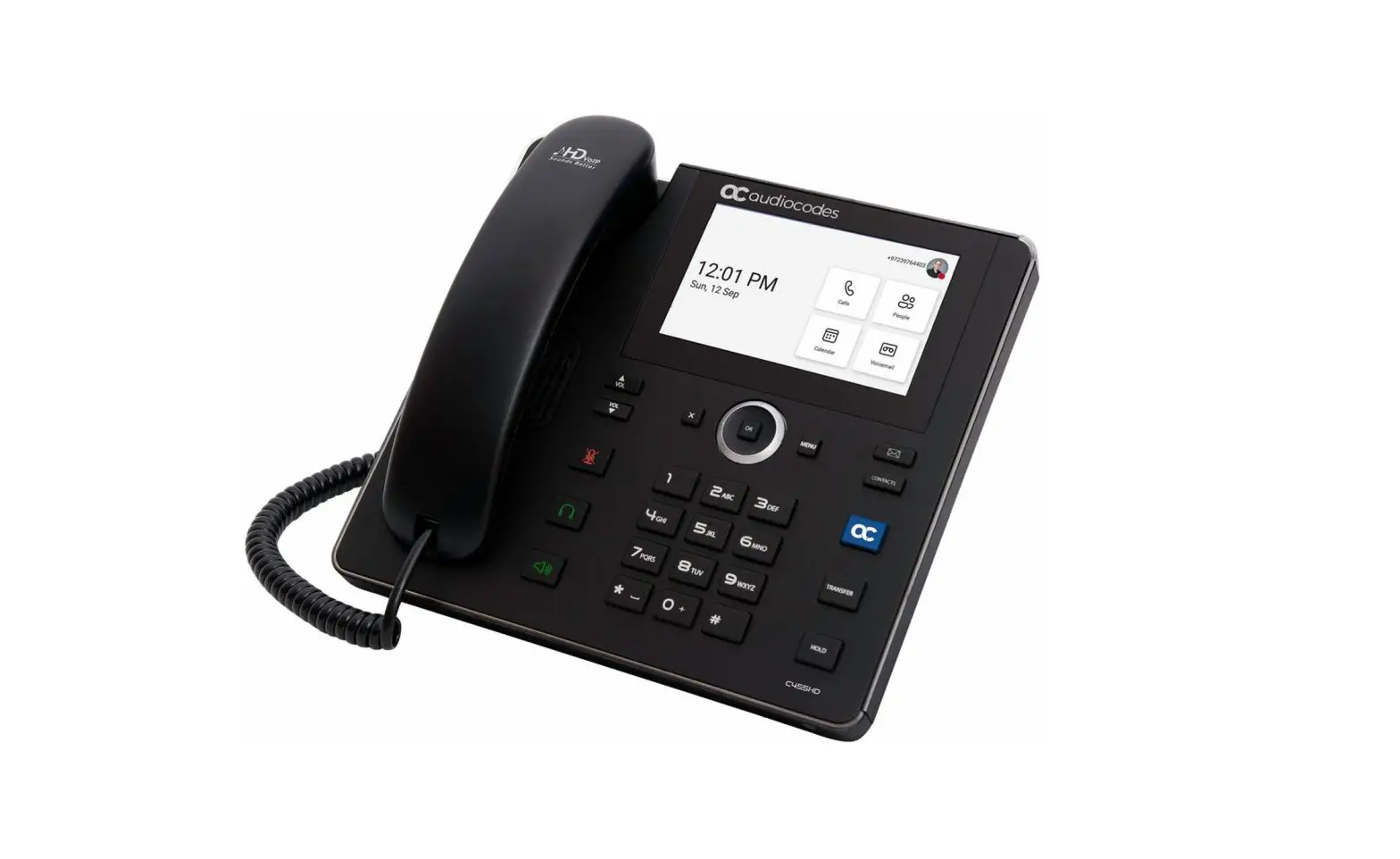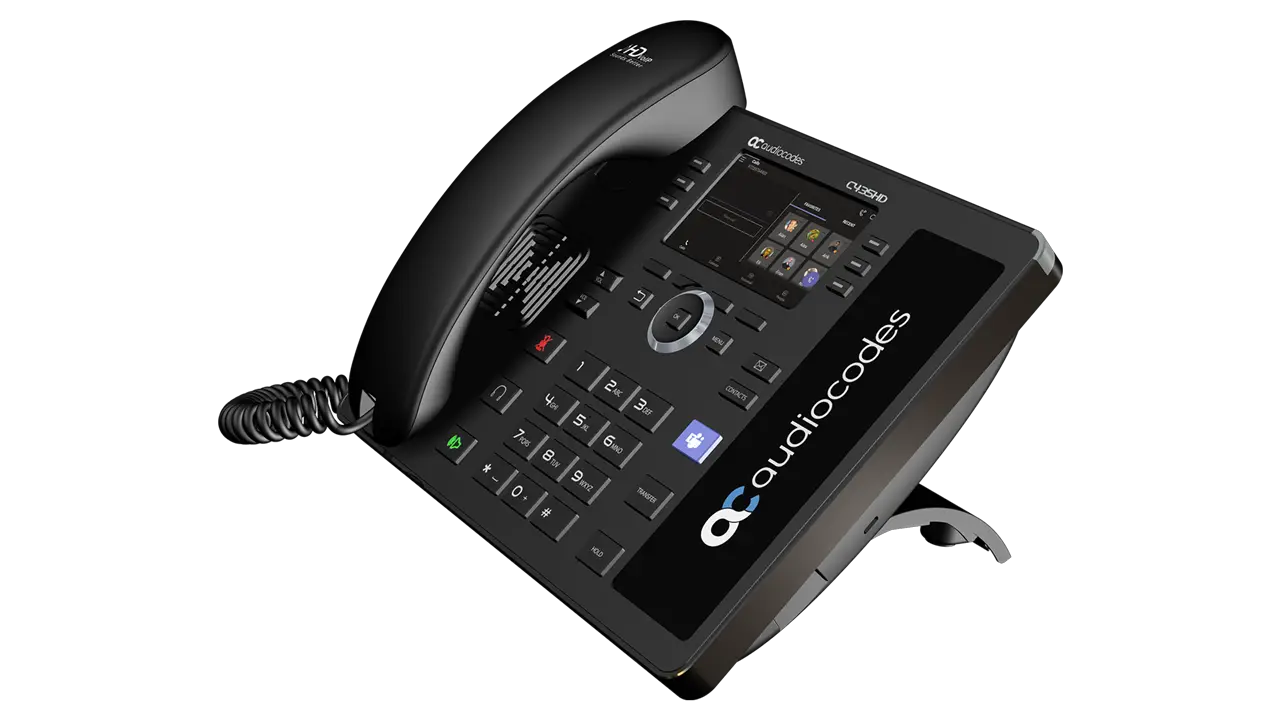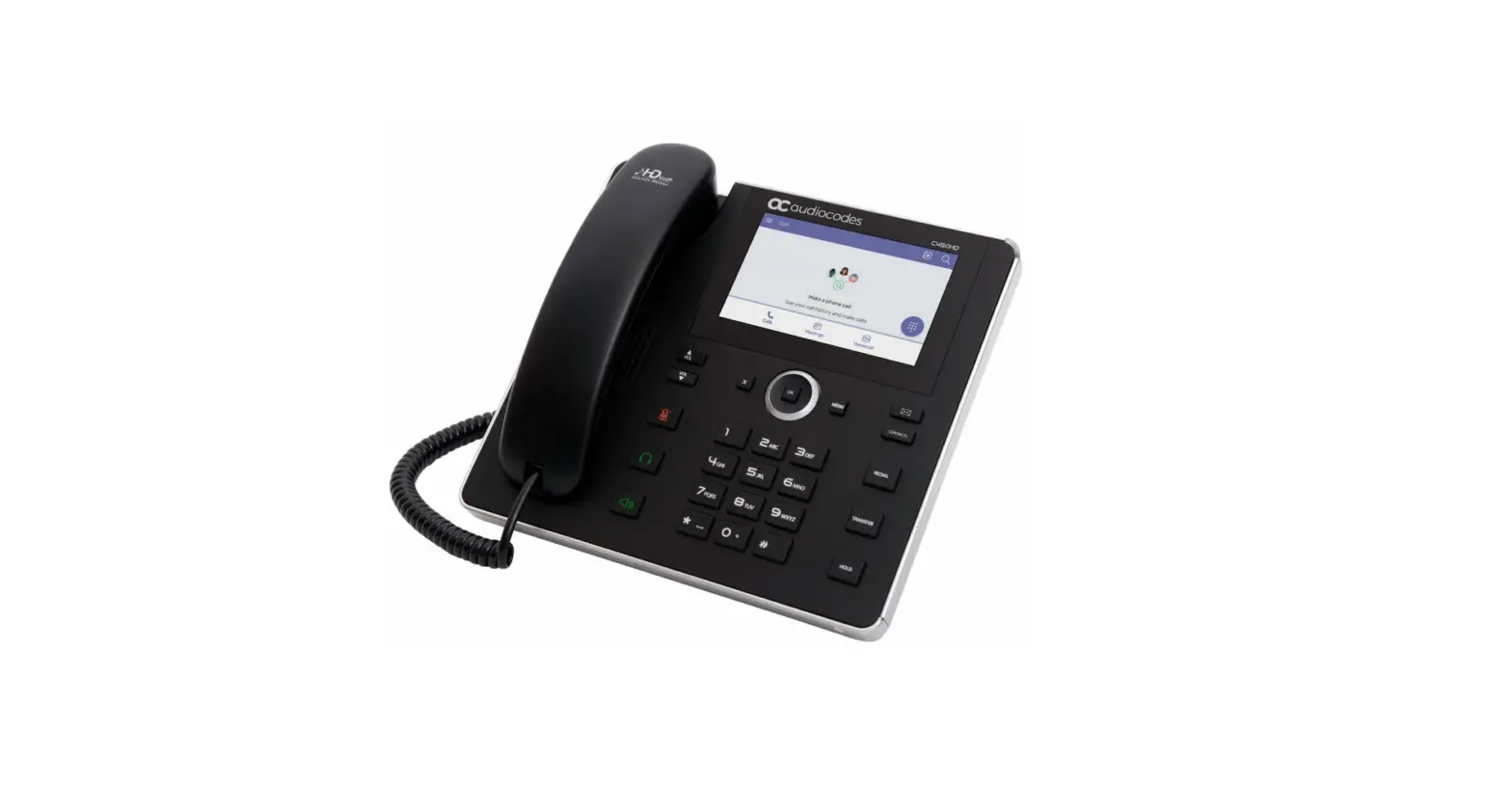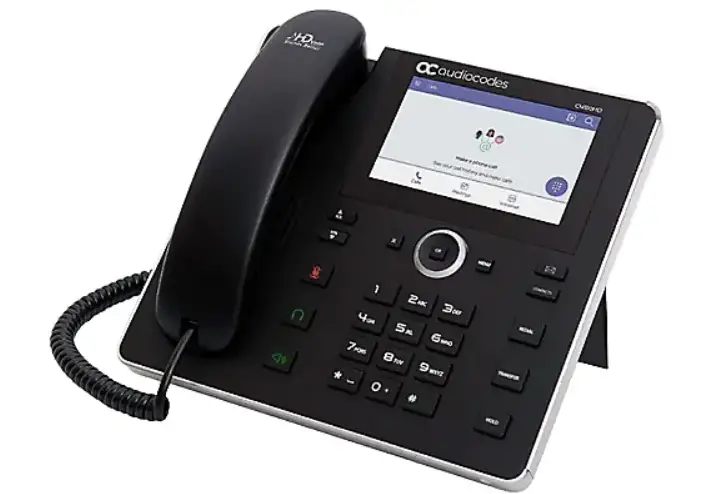

audiocodes C455HD Microsoft Teams WiFi IP
Before Installing
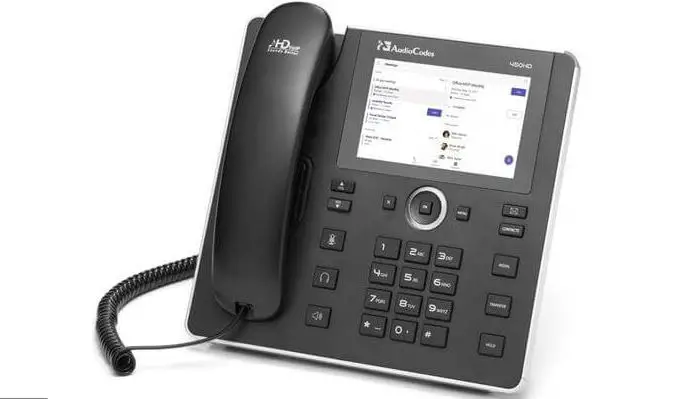
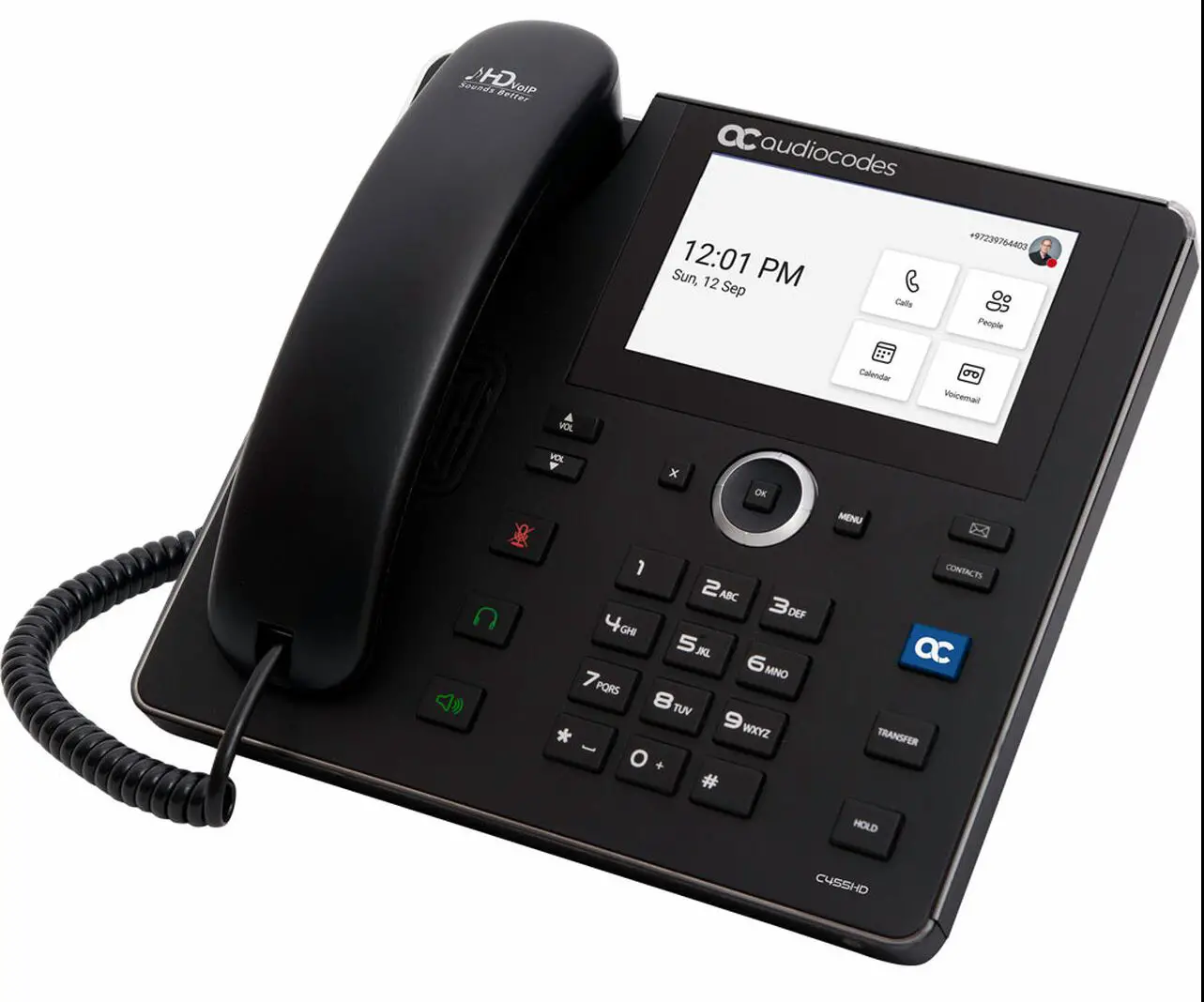
Congratulations on purchasing your AudioCodes C455HD for Microsoft Teams IP Phone!
Before installing your phone, make sure the following items are included in the shipped box / boxes:
- C455HD IP Phone
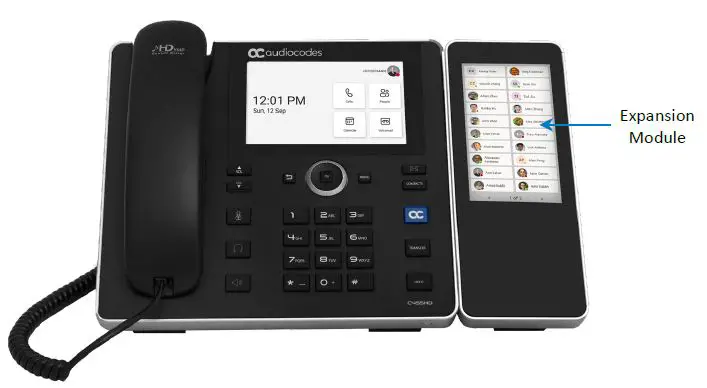
- Expansion Module (optional, supported on C455HD models whose CPN suffix is DBW and purchased separately).
- AC power adapter (optional)
- Cat 5e Ethernet cable
- Handset
- Handset cord
- Desktop stand
- Wall mount
Physical Description
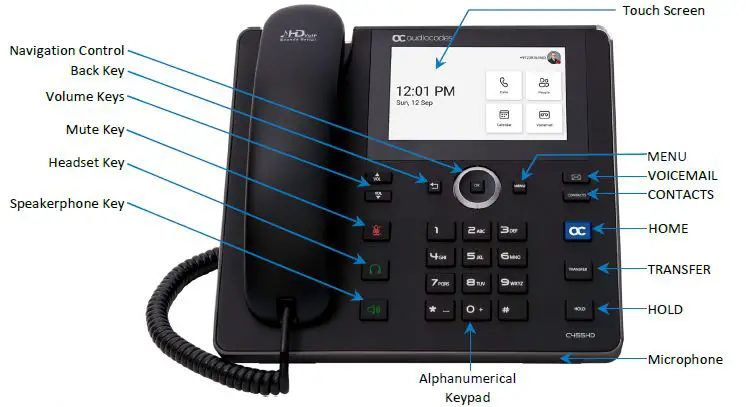 Note: The Expansion Module option is purchased separately as a standalone unit. For instructions on how to connect it to the phone, see the C450HD and C455HD Expansion Module Installation Guide.
  Warning: Prior to connecting power, refer to the Compliancy and Regulatory Information document at https://www.audiocodes.com/library/technical-documents.
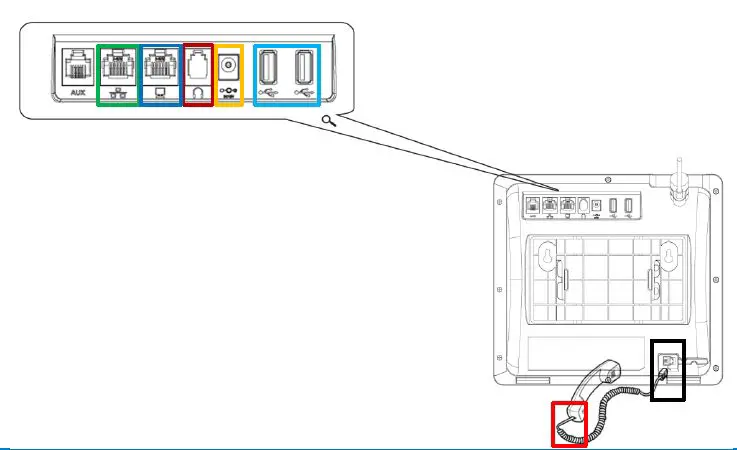
To cable the phone:
- [Refer to the illustration below] Connect the short, straight end of the phone cord to the handset and the longer straight end of the cord to the handset jack on the phone.
- (Optional) Connect a headset to the RJ-9 headset port , or to the white USB port
- Connect the RJ-45 PC port to a computer with a CAT5 / 5e straight-through Ethernet cable.
- Connect the connector tip of the AC power adapter to the phone’s DC 12V power socket and connect the two-prong AC adapter directly to the electrical wall outlet. When the phone
- powers up, all the LEDs momentarily light up.
Mounting the Phone on a Desktop or Wall
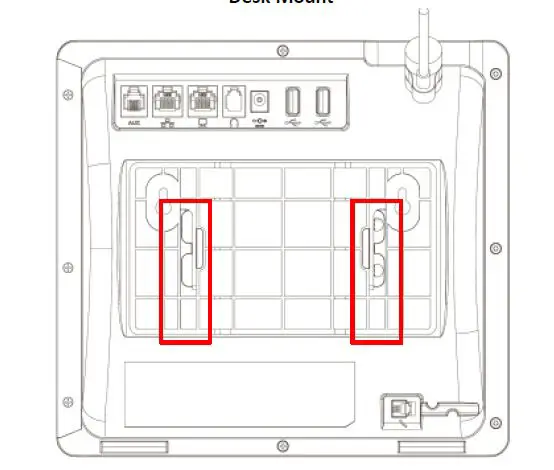
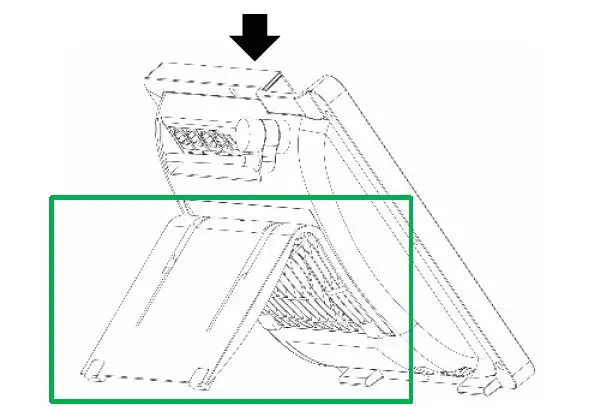
- Desktop: Slide the L-shaped stand’s short or long edge slots onto these rails.
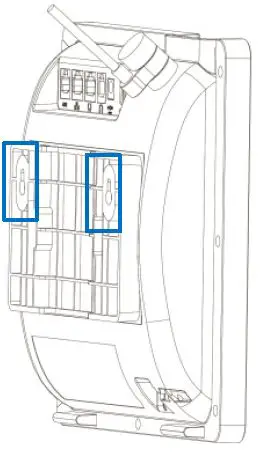
- Wall: Slide the wall mount fitting onto these rails.
Desk Mount
Wall Mount
 Signing in
 Signing in
To sign in to your account:
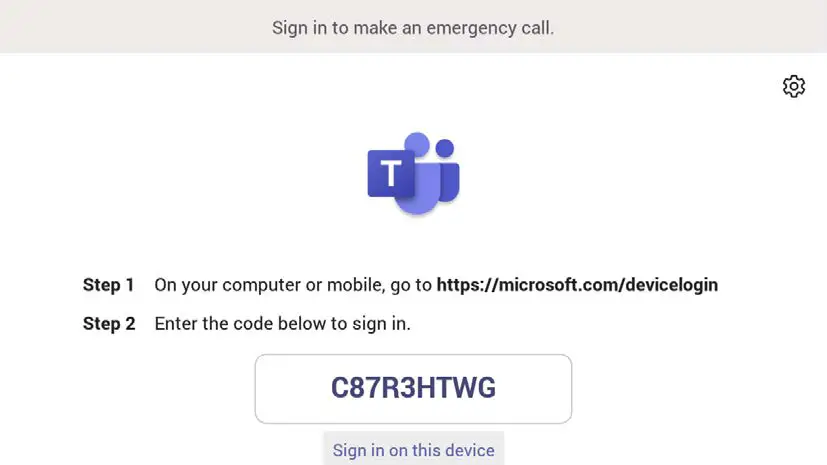
- Connect the device to the network.

- Point your browser to https://microsoft.com/devicelogin as instructed.

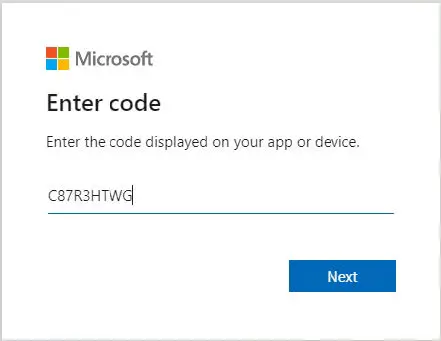
- In the browser, enter the code as shown and click Next.

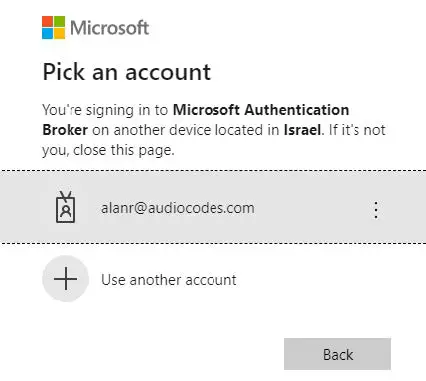
- Click the account, close the ‘Microsoft Authentication Broker’ window, and then Continue.
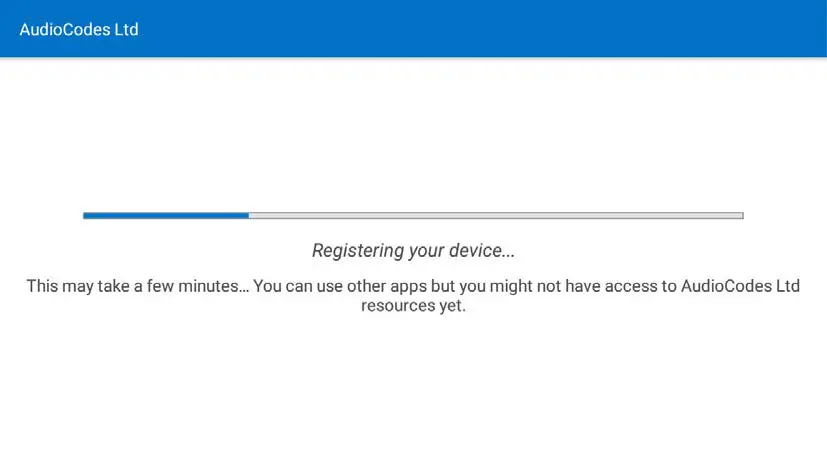
- View the home screen; you’ve successfully signed in.
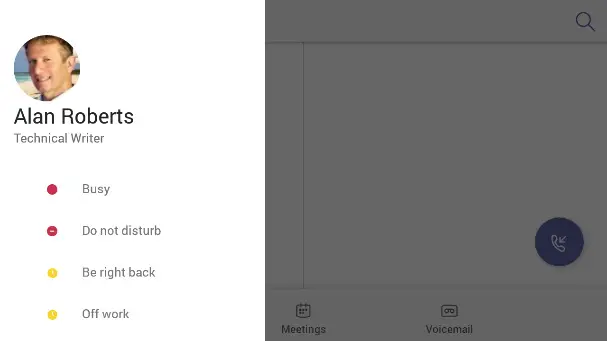
Changing your Presence Status
To change your presence status: Swipe right, touch the current presence status, and then select the status you require.
 For basic phone operations, refer to Microsoft documentation and the User’s and Administrator’s Manual.
Connecting to a Router via Wi-Fi
Note: This section is applicable only to models with Wi-Fi functionality (models whose CPN suffix is DBW).
The phone can connect to an Access Point via Wi-Fi. The Wi-Fi interface can be used to make VoIP calls over Wi-Fi when the phone is installed in an environment free of LAN/cables.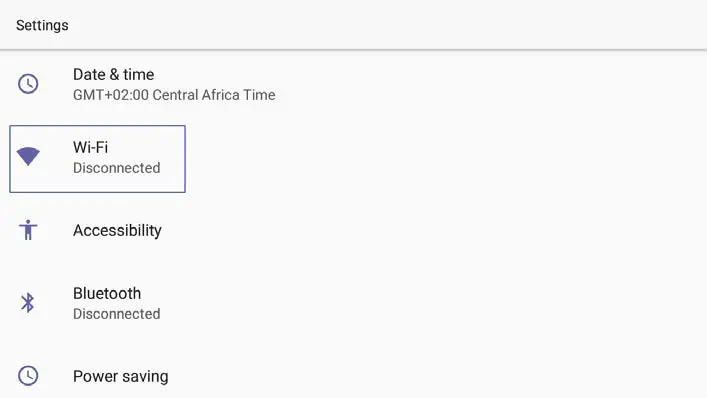 You can connect to Wi-Fi by navigating to the ‘Settings’ menu, and then selecting the Wi-Fi option.
Enabling or Disabling Wi-Fi
To enable Wi-Fi:
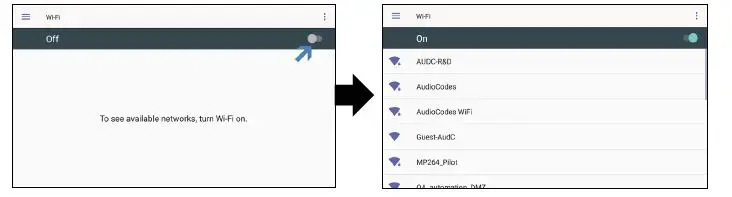
- Turn Wi-Fi on by moving the switch in the upper right corner (Wi-Fi is disabled by default).

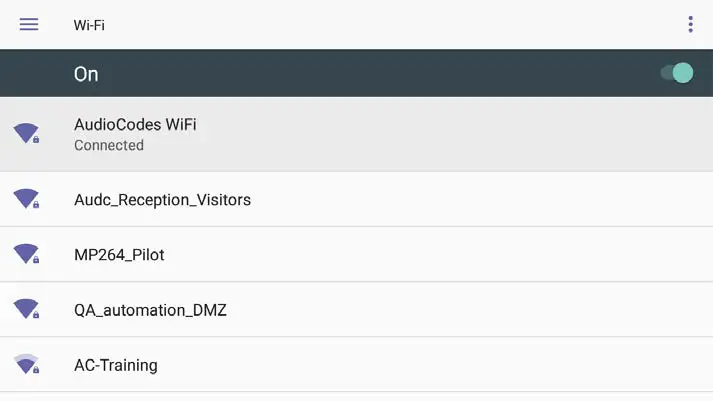
- After enabling Wi-Fi, “Searching for Wi-Fi networks…” is displayed. The phone then displays the available Wi-Fi Access Points. Select the desired Wi-Fi Access Point (network).
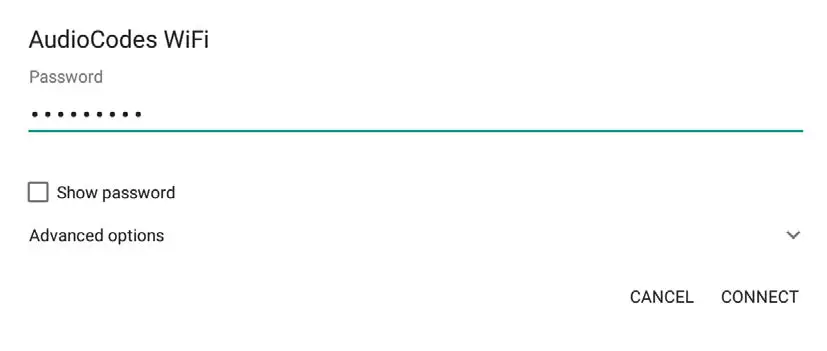
- Enter the Wi-Fi password if needed, and then tap Connect.

- When connected to the Access Point, “Connected” is displayed:

Configuring Bluetooth
Note: This section is applicable only to models with Bluetooth functionality (models whose CPN ends with suffix DBW).
The Bluetooth interface is used to connect the phone to a wireless headset or speaker.
To pair and connect a remote Bluetooth device:
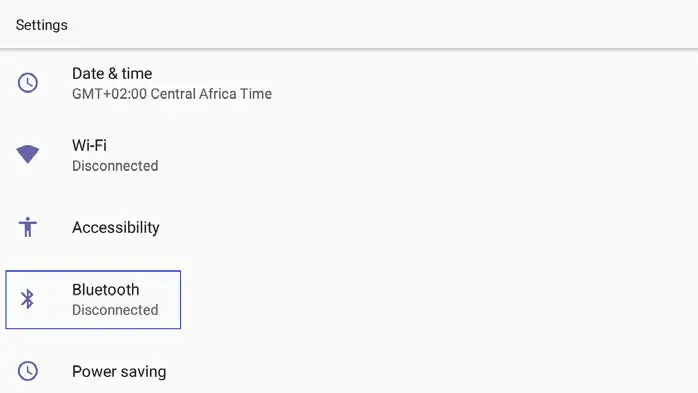
- Press the phone’s MENU hard key to access the ‘Settings’ menu.

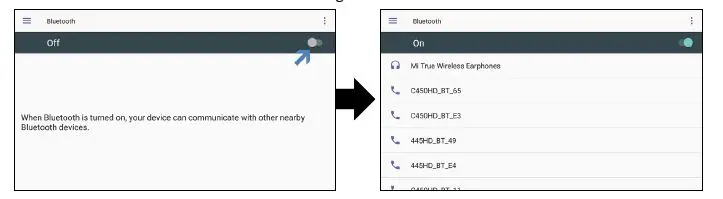
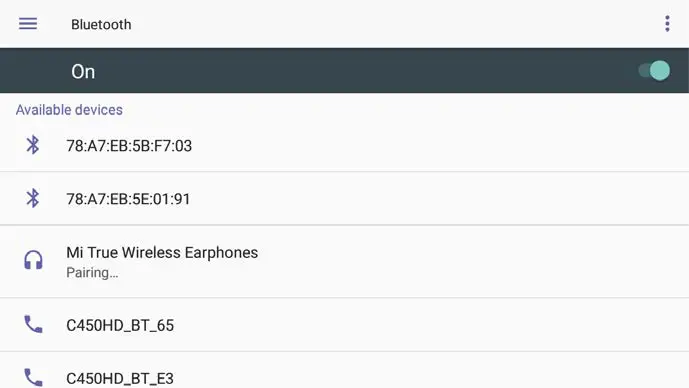
- In the Settings screen, select the Bluetooth option, and then in the Bluetooth screen, move the switch to On to start Bluetooth scanning.

- Select the desired Bluetooth device to pair. If prompted for the Bluetooth Pairing code, enter it, and then touch Pair.

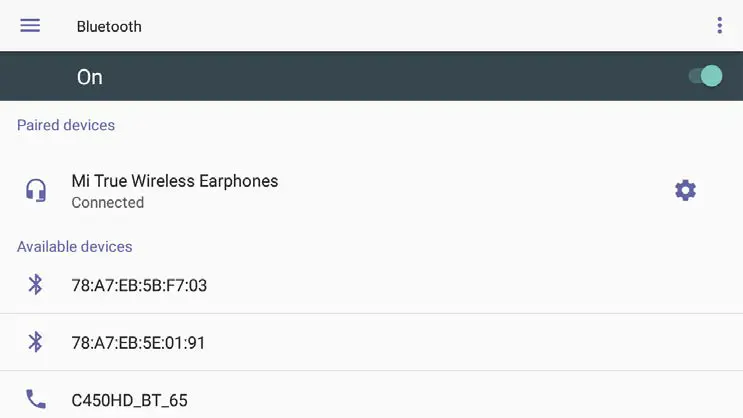
- Once successfully paired, the Bluetooth audio device appears under the ‘Paired devices’ section. To connect, touch the device name.
- To unpair, touch the gear icon on the right of the device name, and then click Forget.

FCC WARNING
Prior to operating this device, refer to the device’s Regulatory Information and FCC warnings.
Notice Information
Information contained in this document is believed to be accurate and reliable at the time of printing. However, due to ongoing product improvements and revisions, AudioCodes cannot guarantee accuracy of printed material after the Date Published nor can it accept responsibility for errors or omissions. Updates to this document can be downloaded from https://www.audiocodes.com/library/technical-documents. This document is subject to change without notice. Date Published: Nov-17-2021 Document #: LTRT-13365