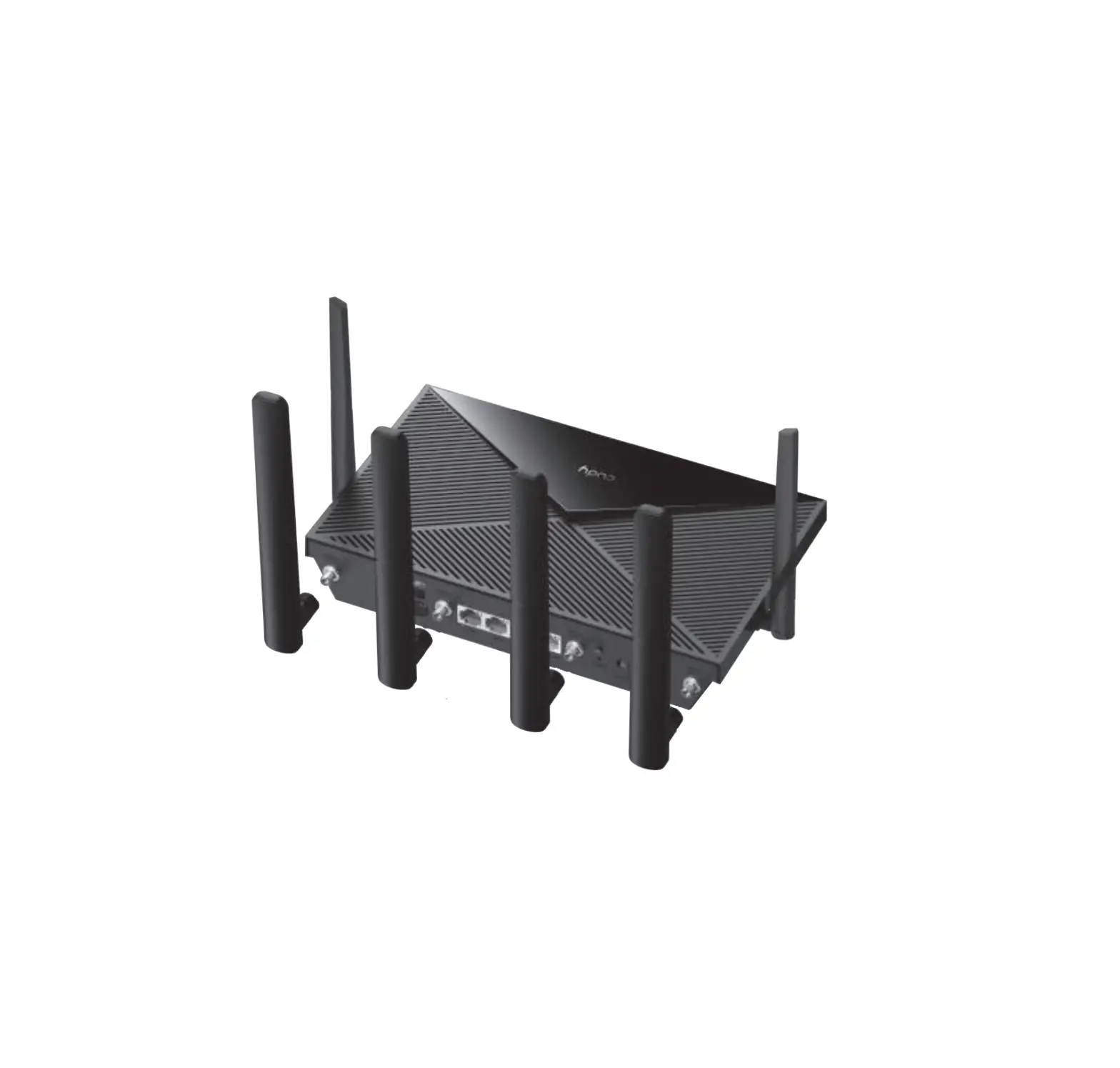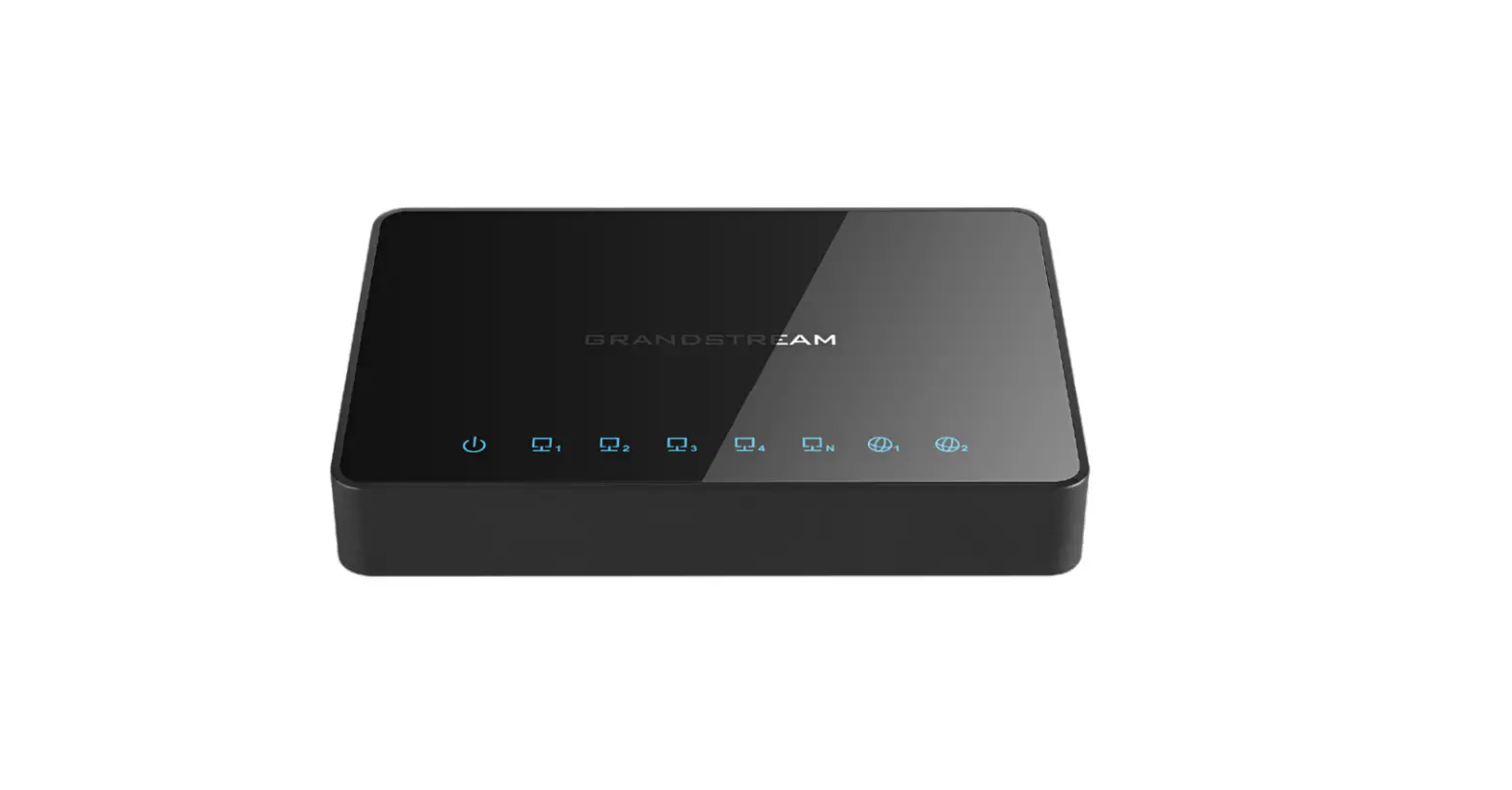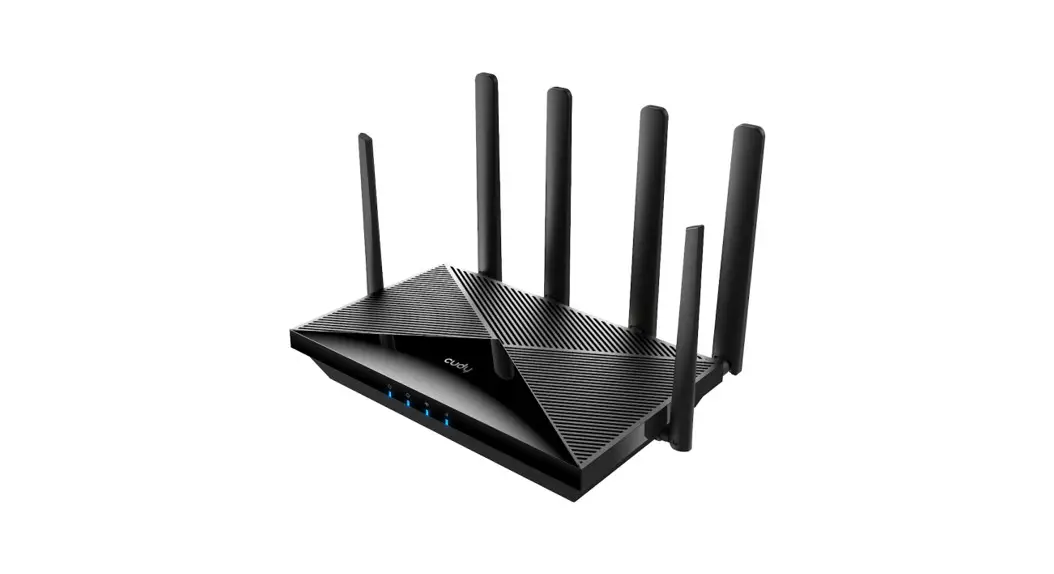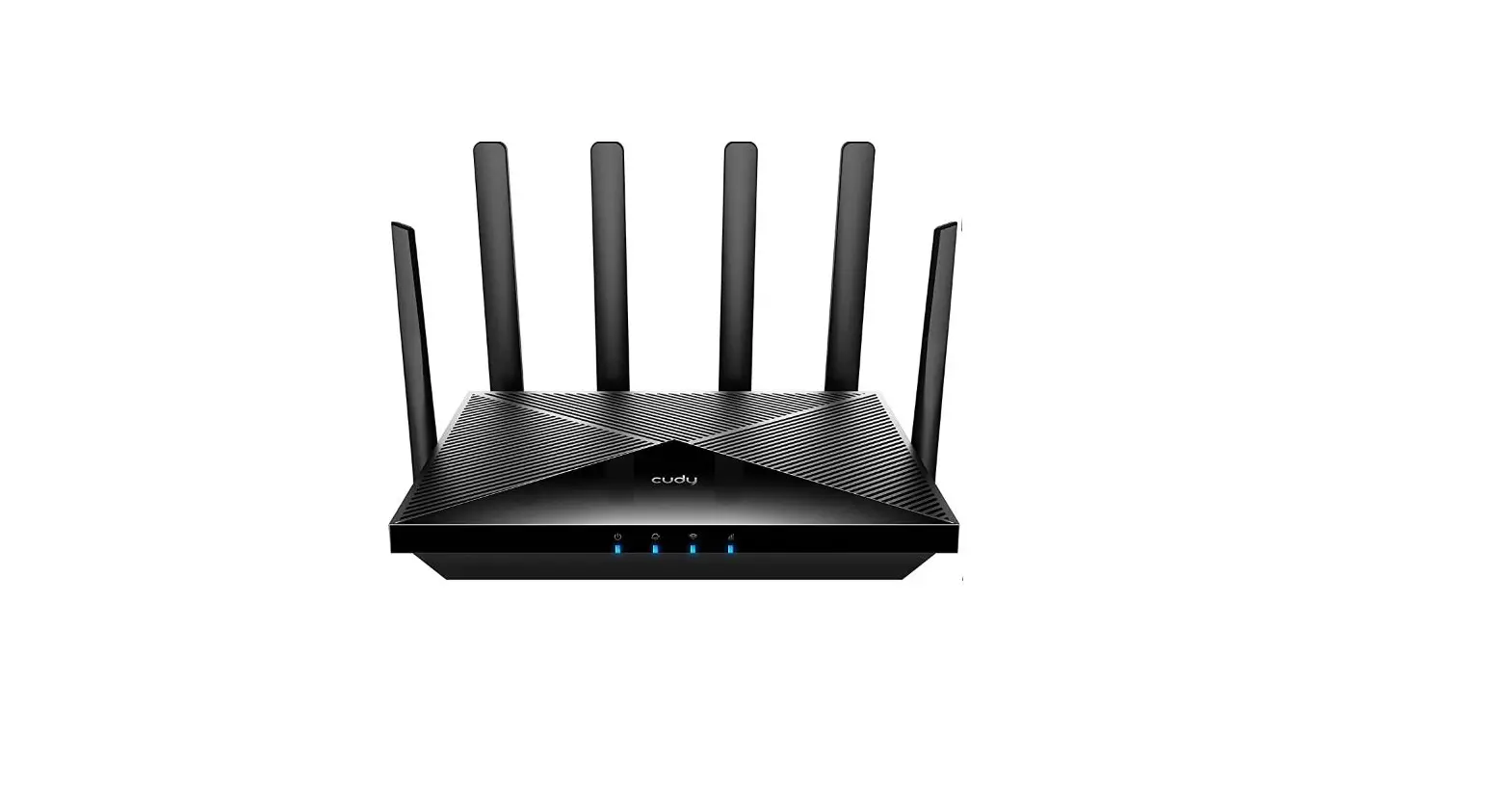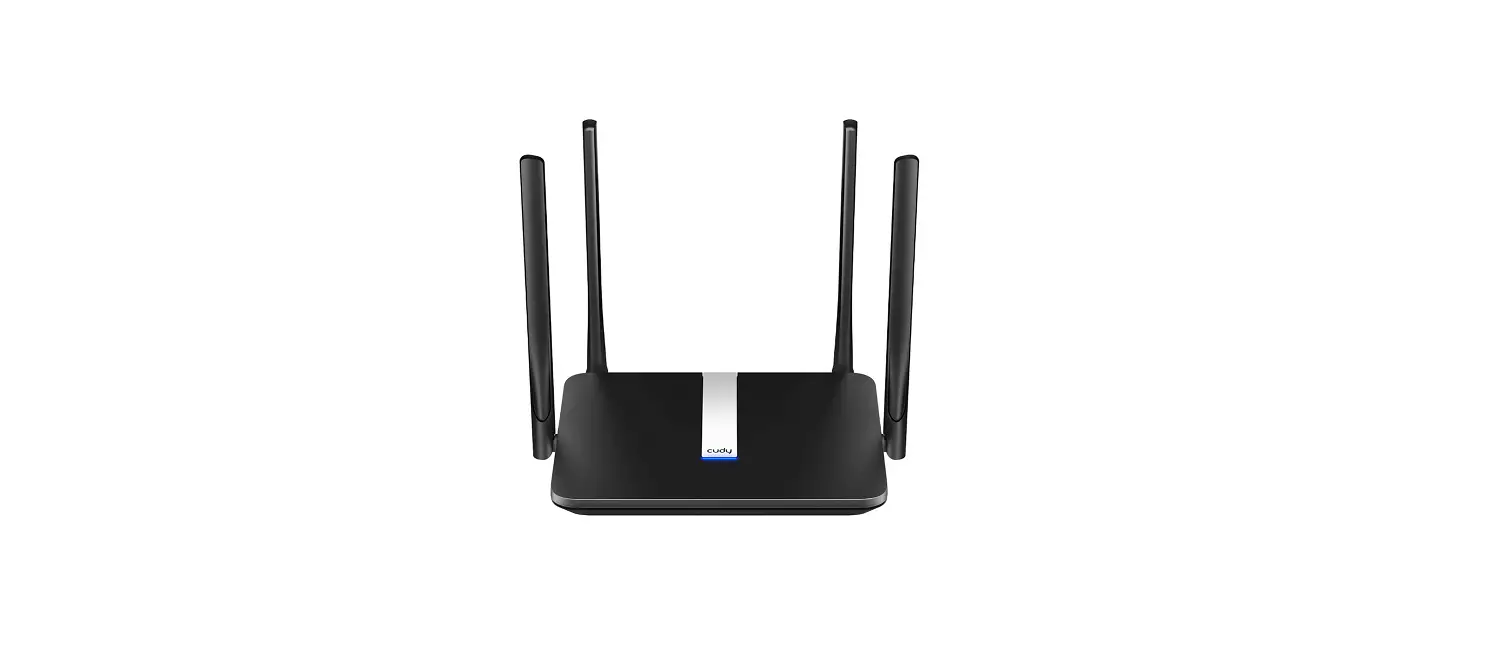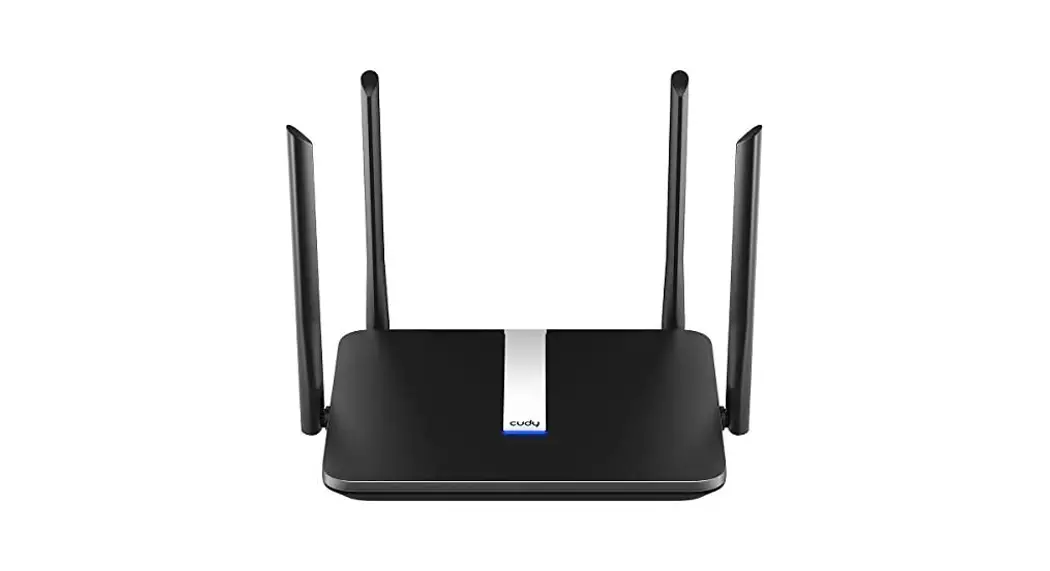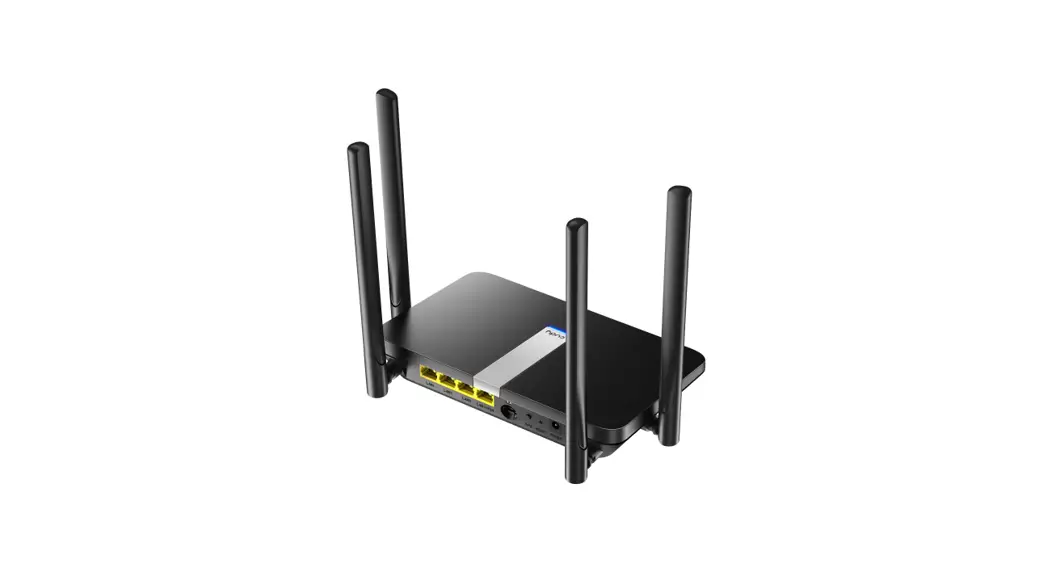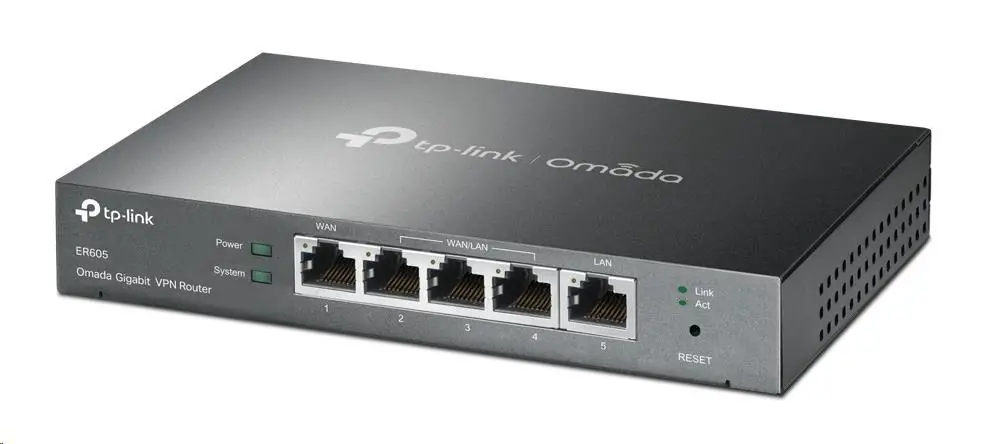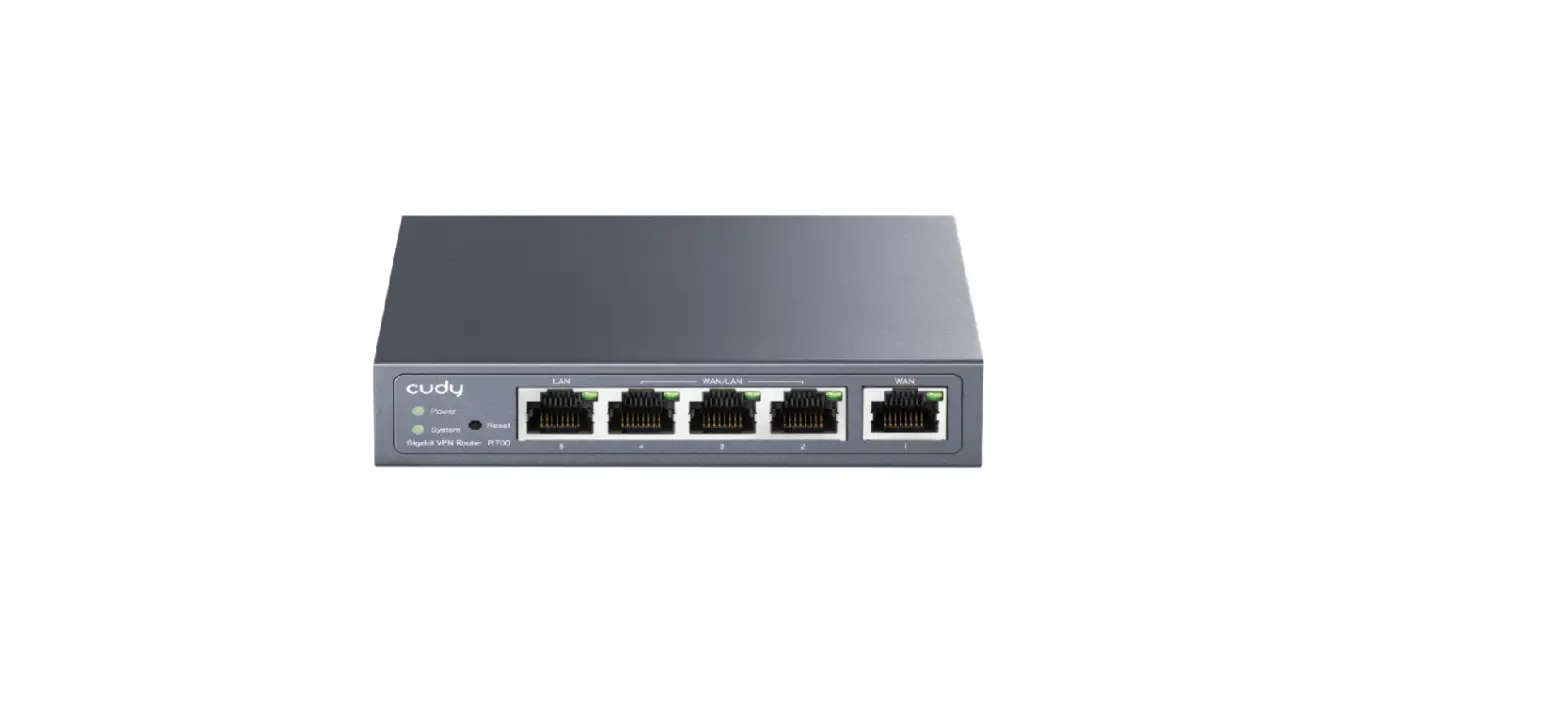
 R700 Gigabit Multi-WAN VPN Router
Installation Guide
 R700 Gigabit Multi-WAN VPN Router
Connection
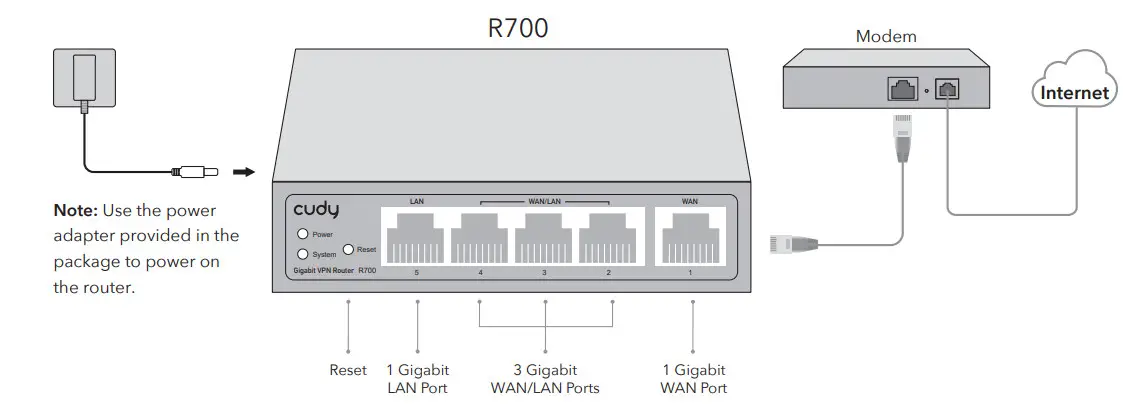
Need help? Email: [email protected]
 Driver & Manual: www.cudy.com/download
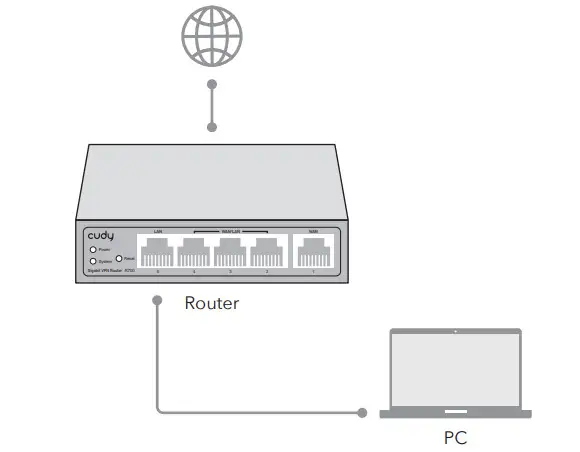
- Connect a computer to the LAN port of the router with an RJ45 cable properly. If your computer is configured with a fixed IP, change it to Obtain an IP address automatically.

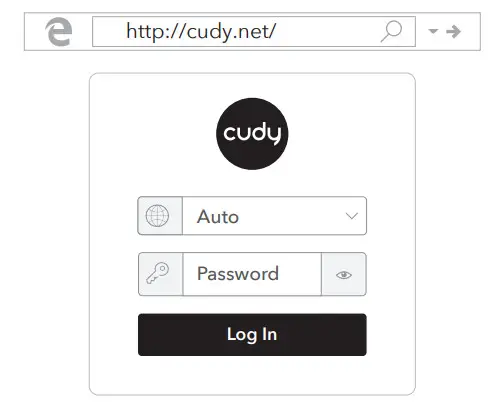
- Launch a web browser, and enter http://cudy.net/ or http://192.168.10.1/ in the address bar. Use admin for password to log in.
 Note: If the login window does not appear, please refer to FAQ > Q1.
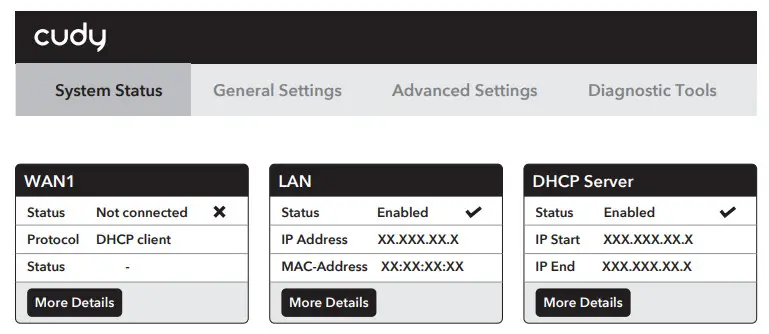
 - After a successful login, you can configure the function by clicking the menu on the top of the screen.
 Configure WAN/LAN Ports: General Settings -> WAN Mode
Setup Internet Connection: General Settings -> WAN Settings
Setup VPN Parameters: General Settings -> VPN
 Note: If the login window does not appear, please refer to FAQ > Q1.
 Configure WAN/LAN Ports: General Settings -> WAN Mode
Note: If the login window does not appear, please refer to FAQ > Q1. Enjoy the internet!
| Name | Indication |
| Power | On: Power on |
| Off: Power off | |
| System | Blinking slowly: System startup process |
| Blinking fast: Factory reset process | |
| Steady on: System startup is complete | |
| Link/Act | On: Connecting to a device but no activity |
| Off: No device connected to the corresponding port | |
| Blinking: Transmitting or receiving data | |
| Reset | Press and hold 6 seconds to reset the router to its factory default settings. |
Support
For technical support, the user guide and more information,
please visit: http://www.cudy.com/support
[email protected]
Frequently Asked Questions (FAQ)
Q1: What can I do if the login window does not appear?
A1: If the computer is set to a static IP address, change its settings to obtain an IP address and DNS server address automatically.
A2: Verify that http://cudy.net/ or 192.168.10.1 is correctly entered in the web browser .
A3: Use another web browser and try again.
A4: Reboot your router and try again.
A5: Disable and then enable the network adapter being used.
FCC Statements:
This device complies with part 15 of the FCC Rules. Operation is subject to the following two conditions: (1) This device may not cause harmful interference, and (2) this device must accept any interference received, including interference that may cause undesired operation.
GNU General Public License Notice
The software code in this product was created by third parties and is licensed under the GNU General Public License (“GPL”). If applicable, Cudy (“Cudy” in this context refers to the Cudy entity offering respective software for download or being in charge of the distribution of products that contain respective code) makes the corresponding GPL source code available upon request via the official website, either independently or with the assistance of third parties (such as Shenzhen Cudy Technology Co., Ltd.).
For GPL-related questions, email [email protected]. In addition, Cudy
offers a GPL-Code-Centre under https://www.cudy.com/gplcodecenterdownload where users can get the GPL source codes used in Cudy products for free.
Please note, that the GPL-Code-Centre is only provided as a courtesy to Cudy’s customers but may neither offer a full set of source codes used in all products nor always provide the latest or actual version of such source codes.
The GPL code used in this product is subject to the copyrights of one or more authors and is supplied WITHOUT ANY WARRANTY. 
EU Declaration of Conformity
Cudy hereby declares that the device is in compliance with the essential requirements and other relevant provisions of directives 2014/30/EU, 2014/35/EU, (EU) 2015/863 and 2011/65/EU.
The original EU declaration of conformity can be found at http://www.cudy.com/ce.
 Cudy CE