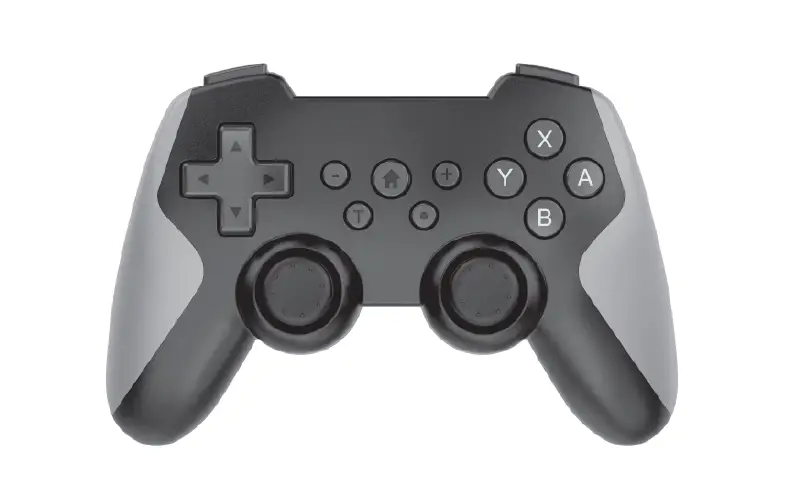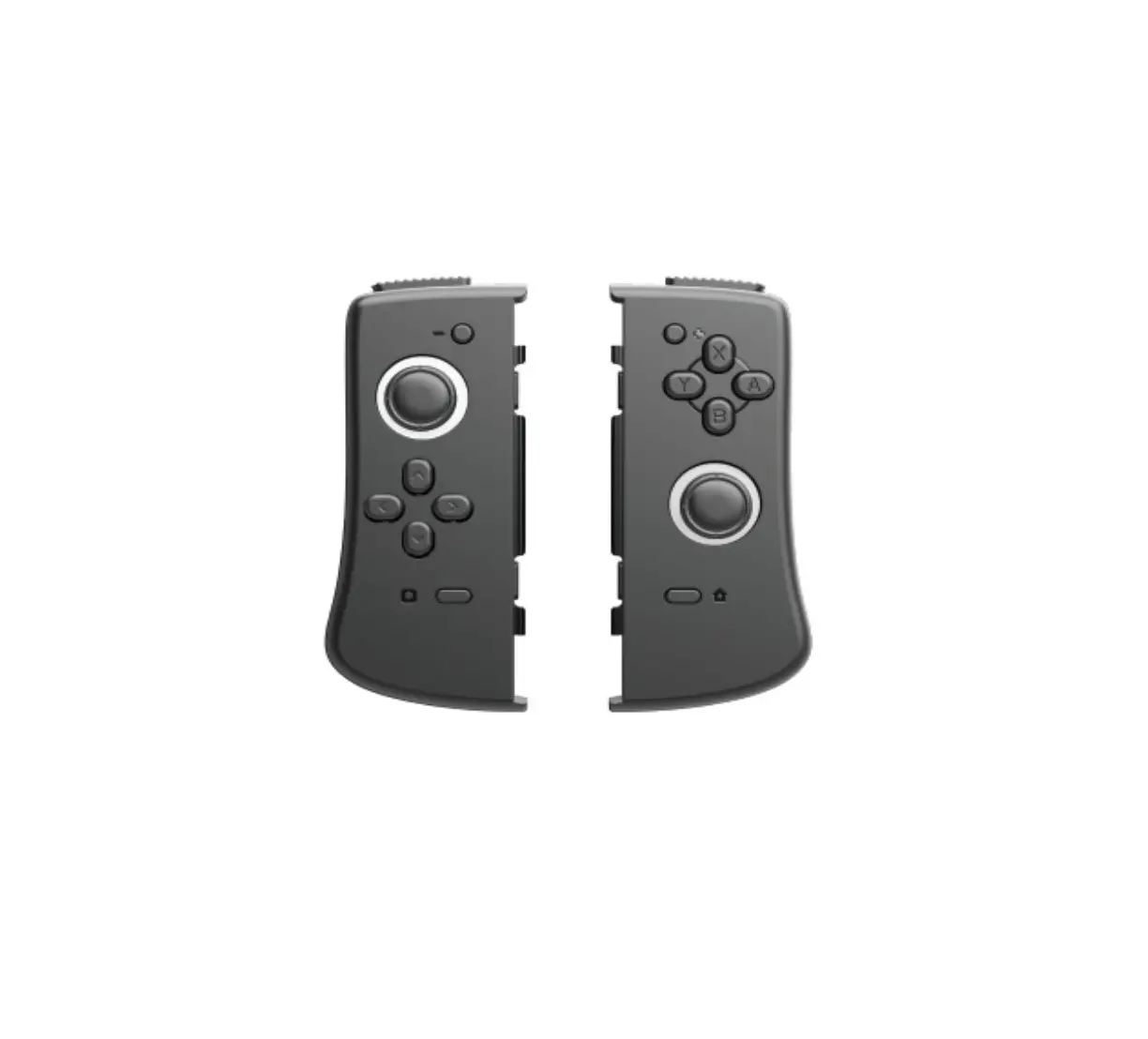
 GuliKit NS09 KingKong 2 Pro Controller
 GuliKit NS09 KingKong 2 Pro Controller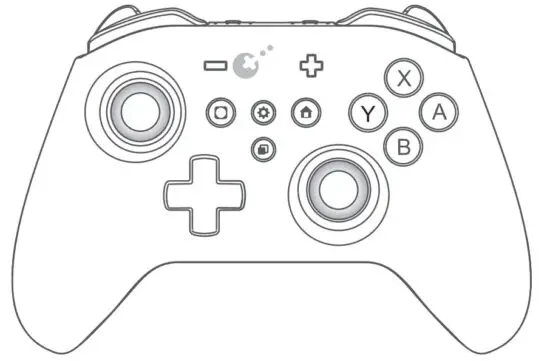
Thank you for choosing GuliKit products.
GuliKit is a design-driven brand of game accessories.
Everything we do is for breakthroughs and innovations.
We firmly believe in thinking differently and we strive to make gaming easier and more fun.
Everyone can be a hero in their own mind!
Pair on computer
Pair with Bluetooth (Computer needs to have Bluetooth):
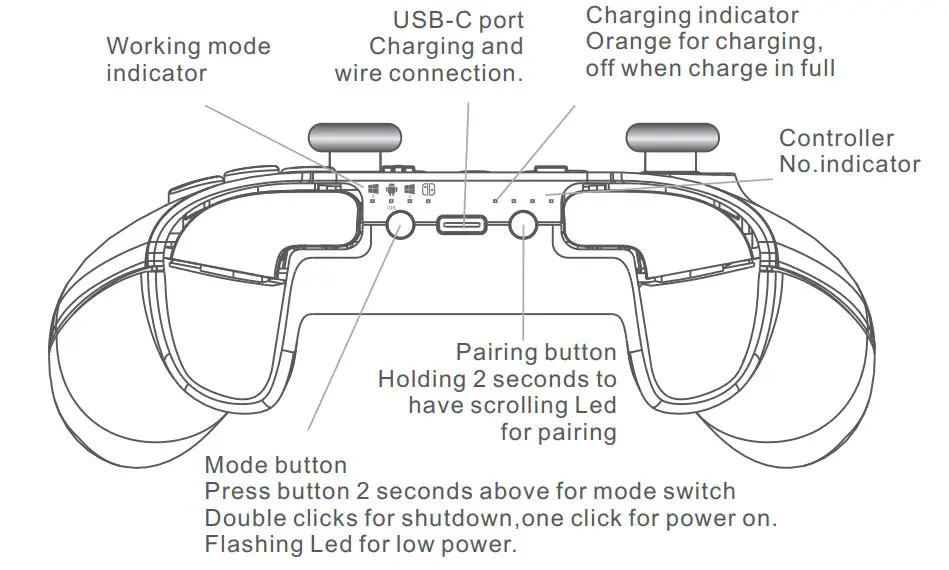
- Hold the mode button on controller to switch it to PC XINPUT mode.
- Press the pairing button on controller 2 seconds to start pairing with scrolling LED indication.
- Go to Bluetooth setting on computer and search new device, choose”GuliKit Controller” and connect.
- Pairing is completed once it shows successful connection to new controller.
Use with wired connection:
Switch to the right mode on the controller for your computer,connect the controller and computer with the USB C to USB A cable.
USB A port on the backside of host computer is recommended if it is a desktop.
*DINPUT is the old connection protocol on Windows and it is recommended to play retro games on Windows or simulator.
Mostly it is XINPUT mode for new games on Windows now.
Pair on Switch
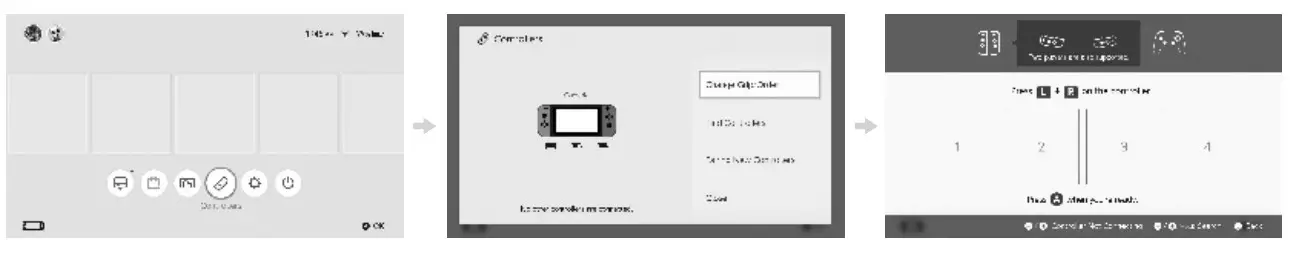
How to pair GuliKit controller with Switch:
- Go to controller seting on Switch as above photo indicated.
- Press pairing button on controller 2 seconds and start pairing.
- Pairing is completed once Switch shows successful connection to new controller.
Another way for controller connection.
Place Switch to Switch dock and set Switch to pairing mode,connect the controller to
Switch dock by using the USB A to USB C cable,Switch will get connected automatically with the controller quickly after seconds,unplug the cable, and Switch is still paired wirelessly with the controller.
Controller can be also used with the cable plugged as a wired controller.
Pair wireless on Android, iOS, macOS devices
- Hold the mode button on controller to switch it to Android iOS mode.
- Press the pairing button on controller 2 seconds to start pairing with scrolling LED indication.
- Go to Bluetooth seting on mobile phone and search new device, choose”Xbox Wireless Controller” and connect.
- Pairing is completed once it shows successful connection to new controller.
Calibration on sticks, ZL,ZR
When controller is on, press L,R,A and D-pad Left at the same time to have auto quick calibration on sticks, ZL,ZR with a vibration after completion. Please do not touch sticks, ZL,ZR during the process.
Calibration on gyroscope
When controller is on, place it on tabletop,press “+,-, A and D-pad Left” at the same time to have auto quick calibration on gyroscope with a vibration after completion.
*Gyroscope calibration is not needed if there is no issue on it.
 APG button (Auto Pilot Gaming)
 APG button (Auto Pilot Gaming)
APG activation: Press APG button 3 seconds to start recording with a long vibration, controller will next record all inputs before the button is pressed again to stop recording or auto stop when time runs up to 10 minutes.
There is a short vibration when recording is completed.
It can record operations upto 10 minutes.
Auto Pilot Gaming: Controller starts auto operation one time for what it has recorded by one click on APG button.
Double clicks let it run continuesly.
(Sticks can be still operated during Auto Pilot Gaming)
Any button press except sticks will stop Auto Pilot Gaming .
All setings are made by holding button and pressing relavant button.
Setings are cleared by default upon restart under normal mode, but can be saved under Professional Player Mode.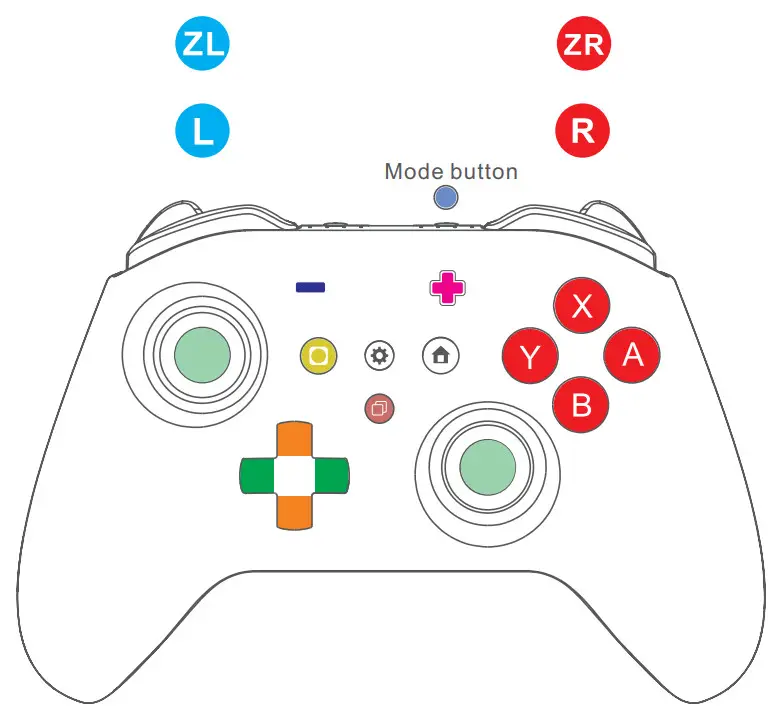
Controller automatically shuts down in case of no any button action in 10 minutes.
Controller wakes up by pressing any one of A,B,X,Y,Home and Mode buttons.
Controller will not shut down under modes of auto repeated Turbo shooting,
Auto-Pilot Gaming and wired connection.
Professional Player Mode

- Short vibration: Start Professional Player Mode.
All settings will be saved even after restart. - Long vibration: Back to default mode,controller will have factory reset once shutdown.
Repeated shooting

- One vibration: Hold button to start repeated shooting, release button to stop. 20 shootings per second.
- Two vibratons: Click to start continuous repeated shooting, click again to stop.
- Long vibration: Cancel and back to default.
A-B X-Y inter change

- One vibration: A-B,X-Y buttons swap.
- Long vibration: cancel and back to default.
Vibration seting

Up for adding vibration,down for reducing vibration.
4 levels vibration adjustment.
The lowest level is vibration off.
Share Auto Pilot Game file

Turn on controller,press the Gear button and APG button together to turn controller into Read/Write mode, connect controller to PC with a USB data cable, a flash drive “GuliKit dat” will show up and you will see a file “Auto.apg” which is the APG recording file for Auto Pilot Gaming.
You may copy it and share to your friends,and also you may copy others’ to replace it in this drive.
* Note: controller will auto turn off after Auto.apg replacement is completed.
You may also double click Mode button to turn off controller.
Motion Sense Aim Assist on PC
- One vibration: Low sensitivity.
- Two vibrations: Medium sensitivity .
- Three vibrations: High sensitivity.
- Long Vibration: Cancel Motion Sense Aim Assist
(+pressing L in game, + ZL buttons is for Motion Sense Aim Assist function effective when pressing ZL in game.)+L buttons is for Motion Sense Aim Assist function effective when
Clear all setings

Long vibration once for clearing completion.
No Dead Zone Mode

- Short vibration: No dead zone in stick center.
- Long vibration: cancel and back to default.
ZL ZR sensitivity seting

- One vibration: 600% higher sensitivity.
- Long vibration: Cancel and back to default.
( + D-pad Left button for ZL trigger adjustment, + D-pad Right button for ZR trigger adjustment.)
Stick sensitivity seting

- One vibration: 50% sensitivity.
- Two vibrations: 100% sensitivity. (default value)
- Three vibrations: 150% sensitivity.
( R3 L3 stand for buttons of pressing stick down. Each stick is set individually. )
FAQS
Just input. Even if you open the controller, the buttons only fit in one slot.
This controller is based on the Nintendo Switch Pro controller. It looks like an X-Box controller but it is different. There does not seem to be a strike pack that supports the Switch Pro controller so, no.
You can assign those buttons in a pattern and just hit one of the programmable buttons in the back to initiate the command. For example, Mortal Kombat you have to hit a combination pattern to do a finish him move. You submit the joystick command and then hit one of your programmable rear buttons to do the rapid A+B+Y+Y.
Yes it does but since the switch doesn’t have analog joycons you wouldn’t be able to take advantage of this on any games on the switch
Yes. This controller is a bit problematic with the d-pad. The other inputs are good tho
No sorry, maybe read the little book it came with may have something in there but mine only disconnects maybe after 10 minutes of not moving the controller.
If you are referring to the retro receiver adapter for the NES or SNES, the answer is no. I could get it to connect to mine (only in Switch mode) but it disconnected within 10 seconds and the buttons did nothing while it was connected.
You would need a Cronus or something cheaper that just sends the inputs through the official controller.
Xbox controllers don’t connect to the Xbox via Bluetooth. They use a custom wireless protocol, and Bluetooth has more latency. That’s why they also have the dongle for PC
Yes! It will also keep it fully charged.
This wireless switch controller is only compatible with Nintendo Switch/ Switch OLED, Switch Lite, Windows PC, Android IOS and macOS; and supprt steam and Emulator. (And our new bluettoth adapter are under development. Once finished few months later, this controller will be also compatible with PS & Xbox. Please Stay tuned )
The gyro worked in all the games I tested.
Standard Amazon 30 day .warranty
No, there is no such option.
Yes, this switch controller is work for Nintendo Switch/ Switch OLED, Switch Lite, Windows PC, Android IOS and macOS; and supprt steam and Emulator. (And our new bluettoth adapter are under development. Once finished few months later, this controller worked with the bluettoth adapter will be also compatible with PS & Xbox. Please Stay tuned )
According to the manufacturer website, it preferred to update the firmware in a Windows environment however since the steam deck is using linux you could update the firmware from there
Yeah, we are supposed to do both the V3.9 (or higher) and the V1.10 firmware updates. You could update 3.9 first, but it doesn’t matter which one you update first.
Yes, it will work with your phone via Bluetooth. No, your phone won’t update it, and no you don’t need to update it to use it with your phone, but it’s always good to keep your firmware current.