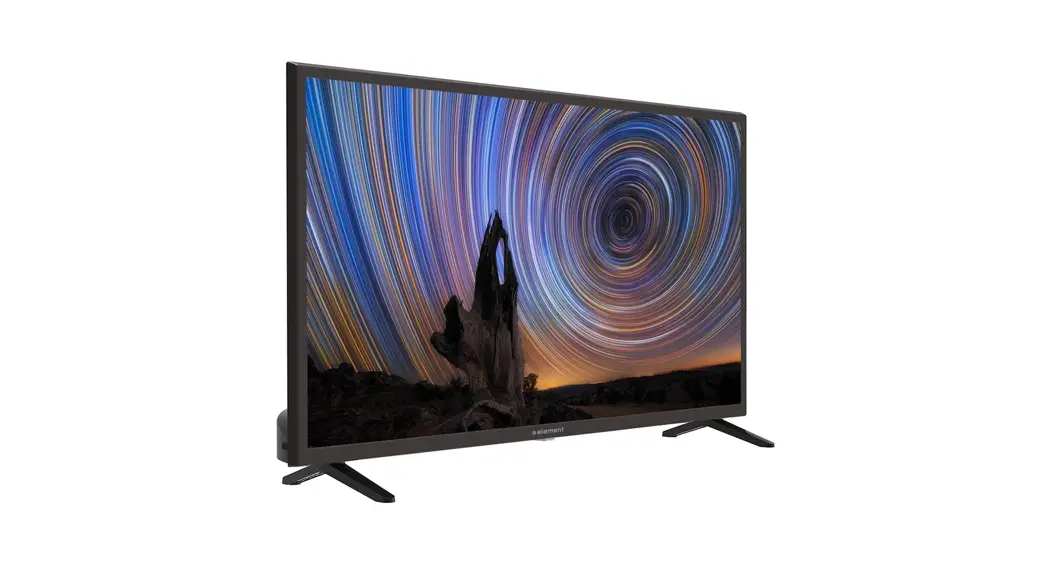

QUICK START GUIDE
Element, the Element Logo, and Bring it home are trademarks of Element Brand Holding, LLC. ©2021, Element Brand Holding, LLC, All Rights Reserved.
FOR SUPPORT, VISIT ELEMENTELECTRONICS.COM/SUPPORT
WHAT’S INCLUDED
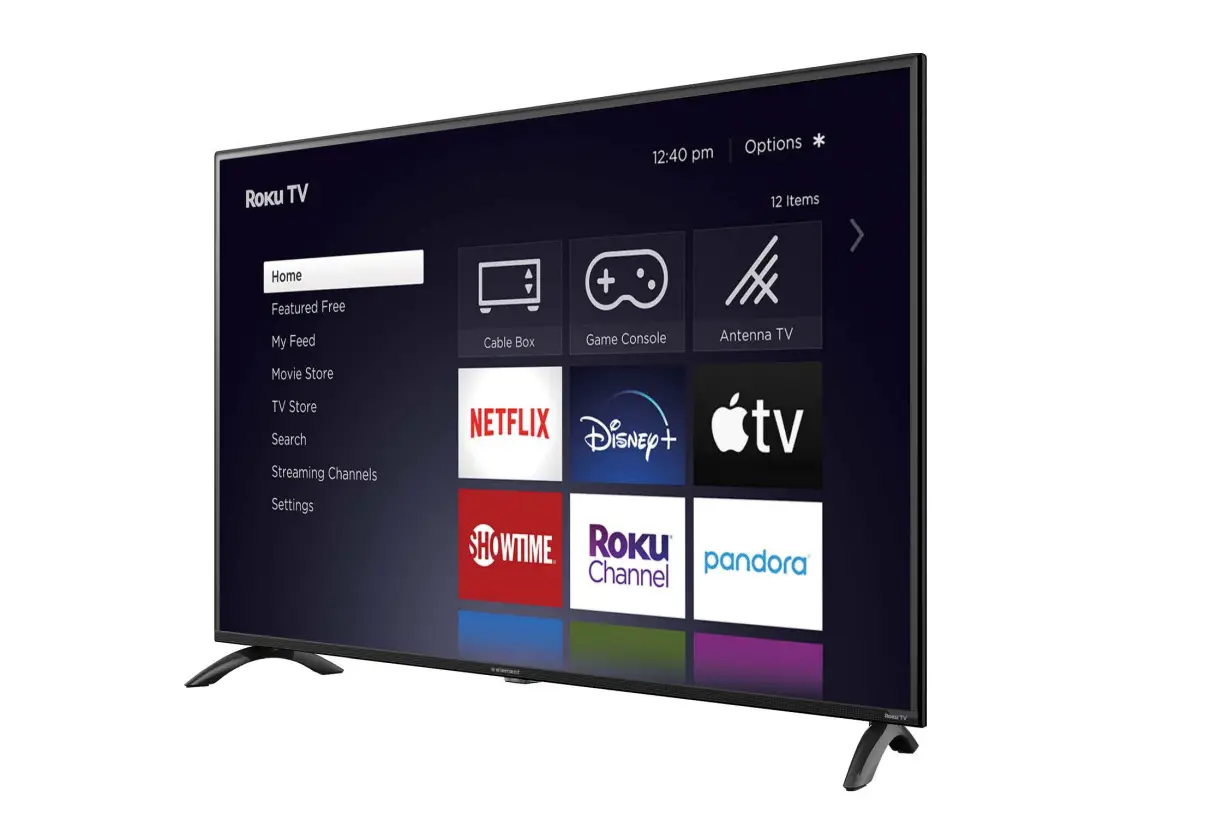
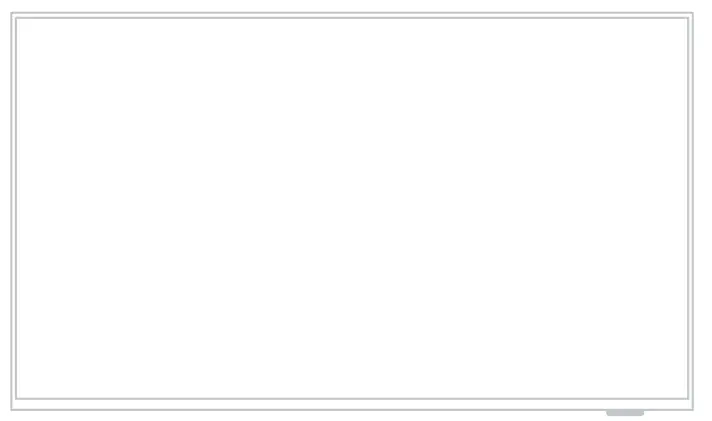 Your new TV!
| TV Stand | 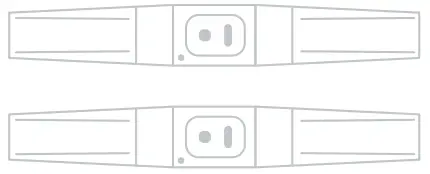 |
| 4 Stand Screws | 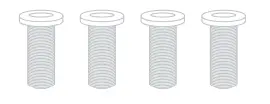 |
| Remote | 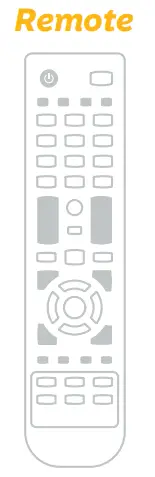 |
| 2 AAA Remote Batteries | 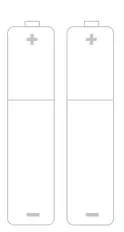 |
WE’RE HERE TO HELP
Find resources and get help with product setup, connecting devices, technical issues, downloading manuals, and more!
We’re available 24 hours a day, 7 days a week at elementelectronics.com
 1.888.842.3577
 [email protected]
CONNECT DEVICES TO YOUR TV
Check to ensure that you have selected the right cables for the ports and that they are connected securely (cables and external devices not included). Loose connections can affect your picture and audio quality. Actual connections may vary by model. Please refer to the actual product.
| Connect an outdoor or indoor antenna. | 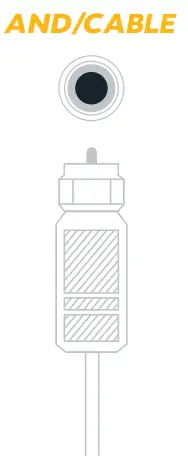 |
| Connect a Blu-ray or DVD player, gaming console, streaming device, or other external devices to your TV. Highest quality audio/visual connection. | 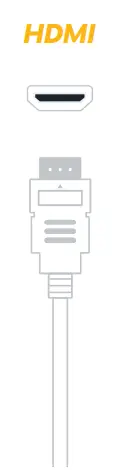 |
| Connect an optical cable from an external digital audio system. | 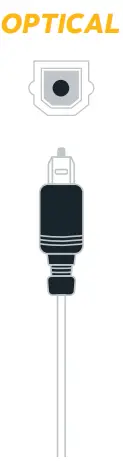 |
| Connect headphones or external speakers. | 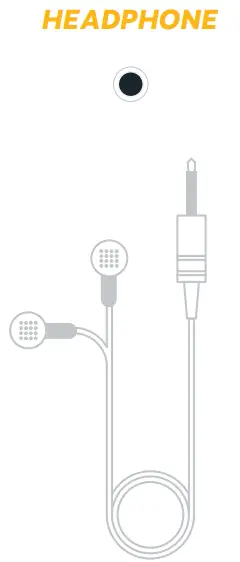 |
| Connect a USB device for browsing photos, music, movies, or pausing live TV. | 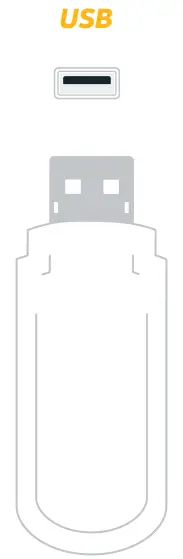 |
CONNECT DEVICES TO YOUR TV continued)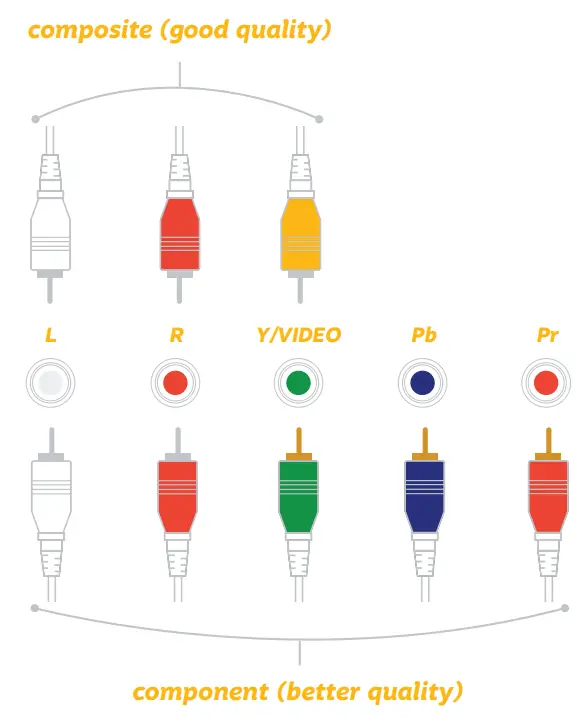
Connect a composite video (yellow) or component video (green/blue/red) and left-right audio cables fromn external AV device.
SETTING UP YOUR TV
| Place Batteries in Remote Power your TV remote by inserting the included batteries carefully matching (+) and (-) indicated inside the battery compartment. TIP: Always replace dead batteries with two brand-new batteries from the same manufacturer. Never use damaged batteries. If your remote gets warm/hot during use, discontinue use and contact customer support immediately. | 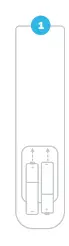 |
| Plugin and rn on TV Plug your TV into the wall outlet and press the power button on your remote control. | 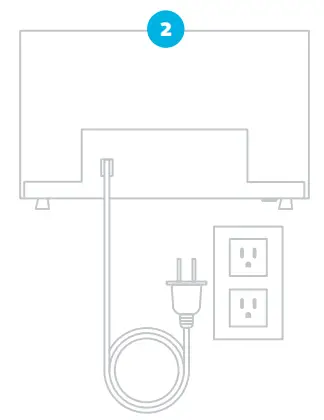 |
| Power button | 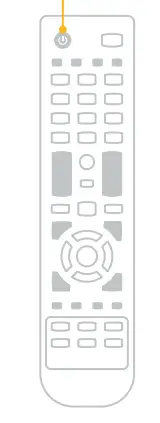 |
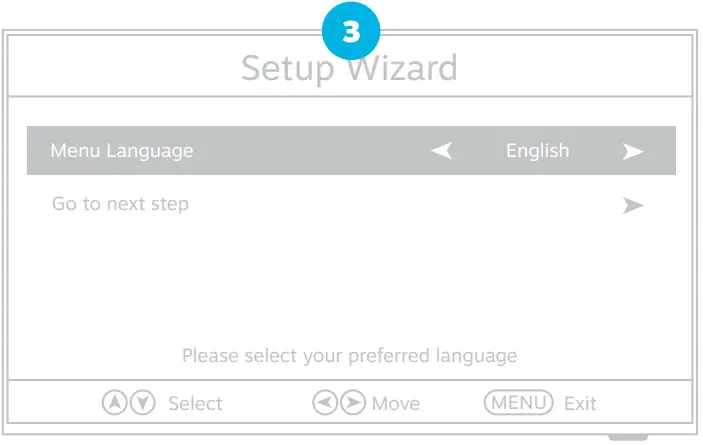 Press the buttons on your remote to select or change a setting. When you’re finished, press MENU to exit the Setup Wizard. Menu Language: Select the language you want to be displayed in the menu. The default language is English. Time: Select the time zone and daylight saving time. Air/Cable: Select whether you want to watch TV with an antenna (Air) or through a cable/satellite box (Cable). Auto Scan: Search and store available channels automatically. If your remote gets warm/hot during use, discontinue use and contact customer support immediately. Plugin and turn on the TV Plug your TV into the wall outlet and press the power button on your remote control.
 It’s super easy, just head on over to elementelectronics.com/register
BENEFITS OF REGISTERING YOUR PRODUCT:
 Support |  News & Offers Take advantage of the latest news and special off er from Element. News & Offers Take advantage of the latest news and special off er from Element. |  Updates Stay current with important product updates and notifications. |  Warranty Receive a 2-year warranty with |
QUICK START GUIDE
FOR SUPPORT, VISIT ELEMENTELECTRONICS.COM/SUPPORT