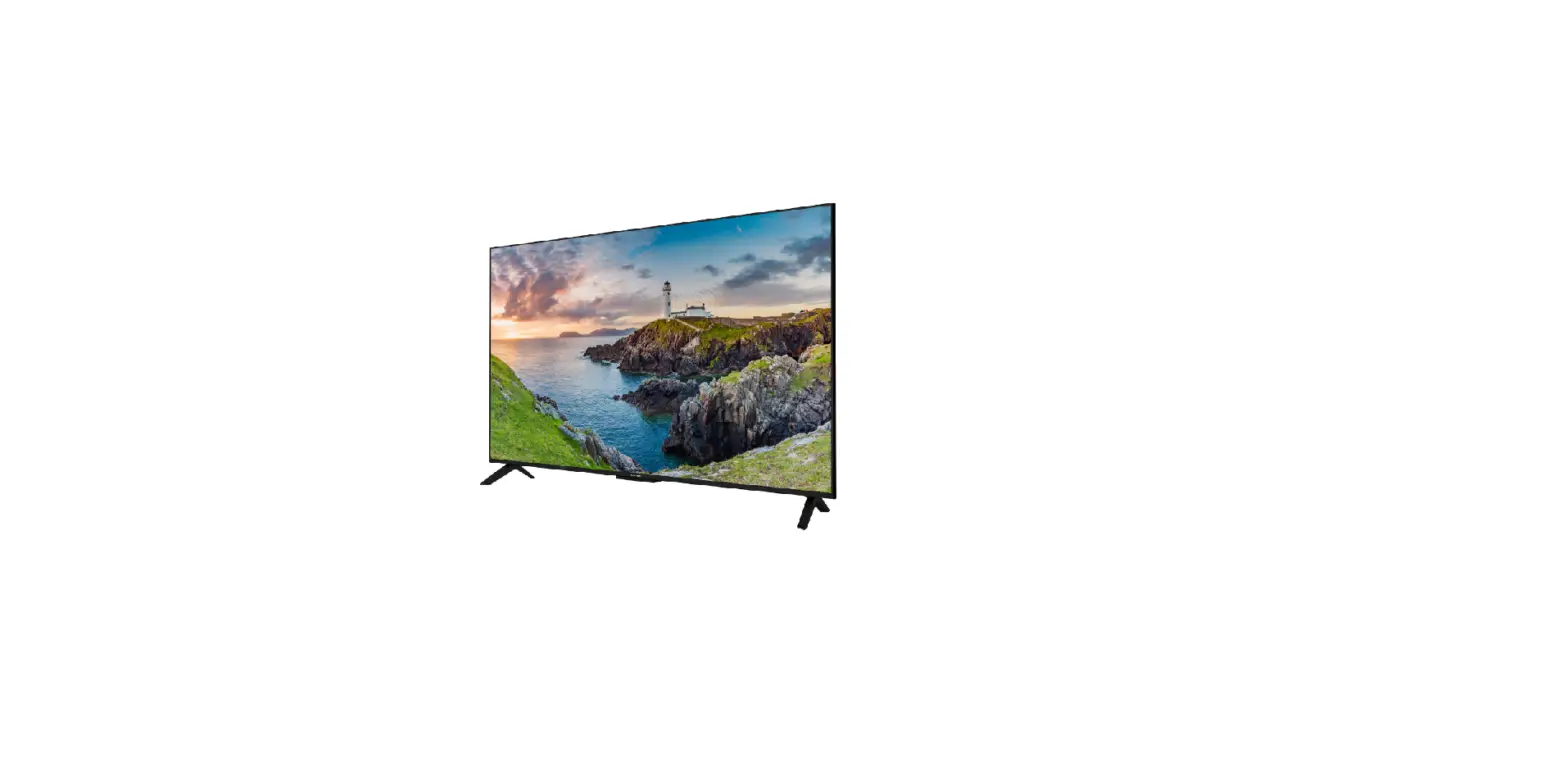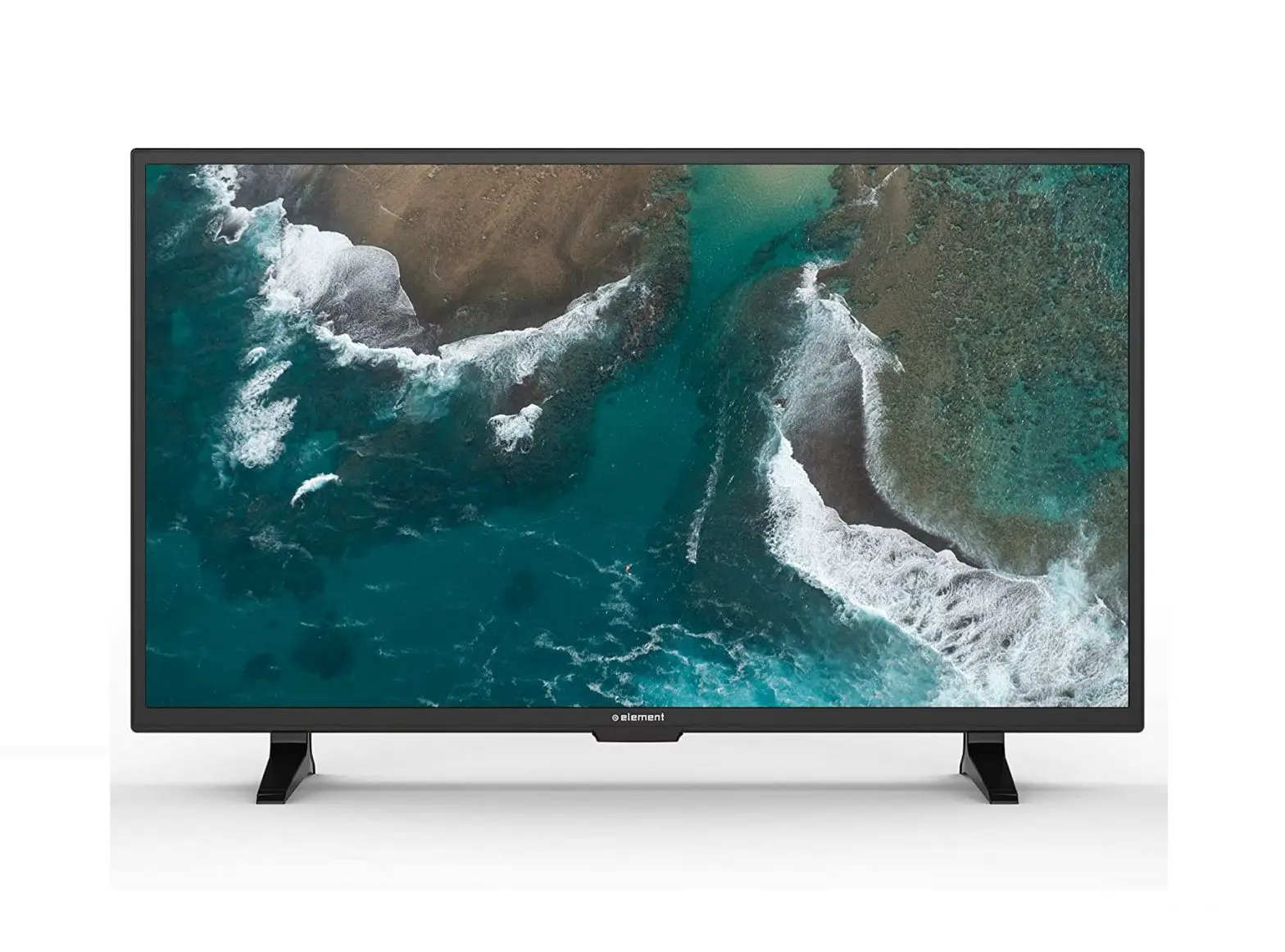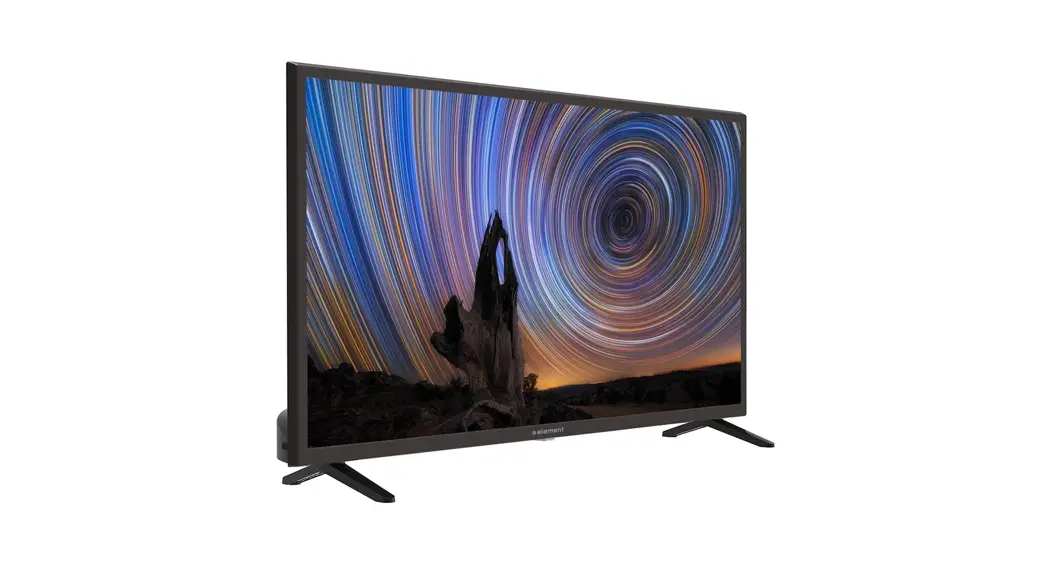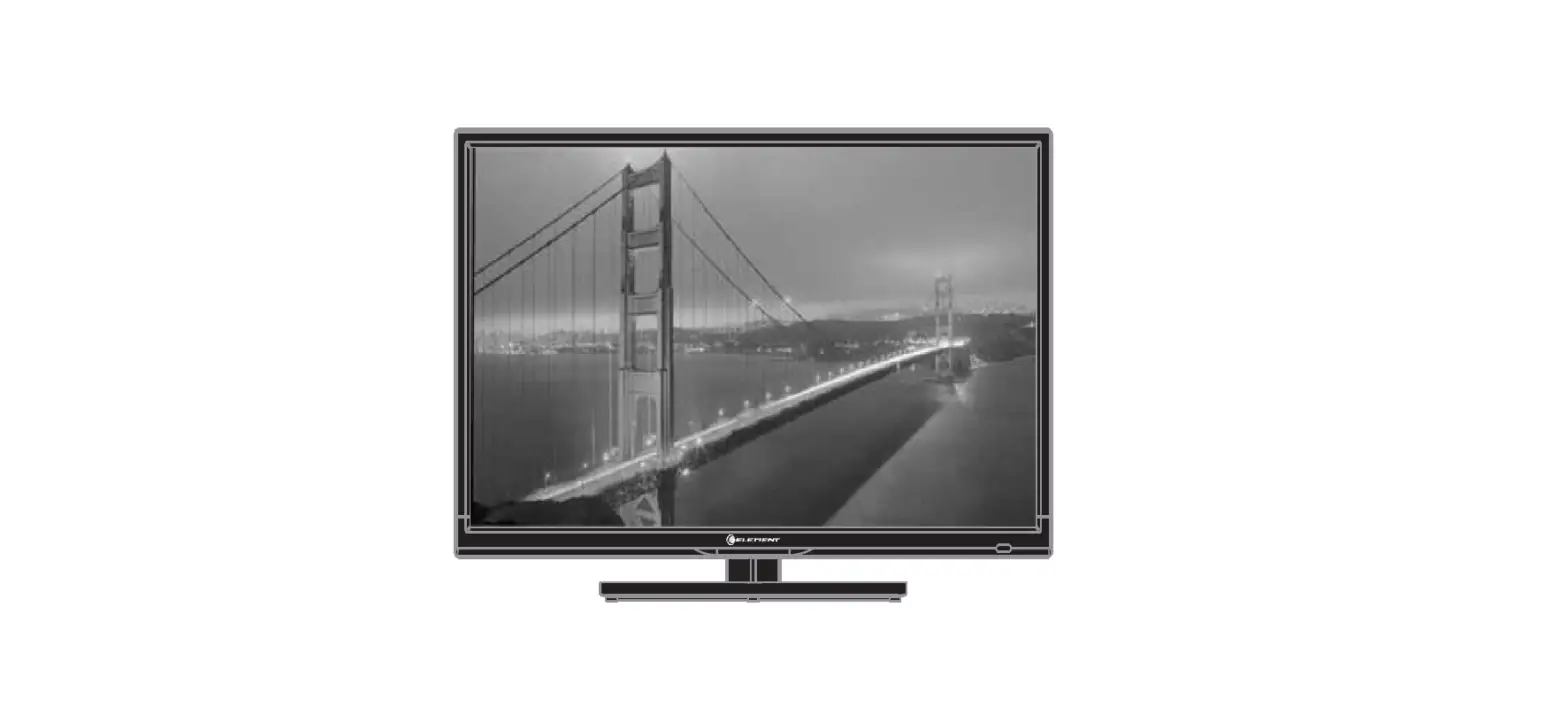

Element ELEFW328 LED HD TV
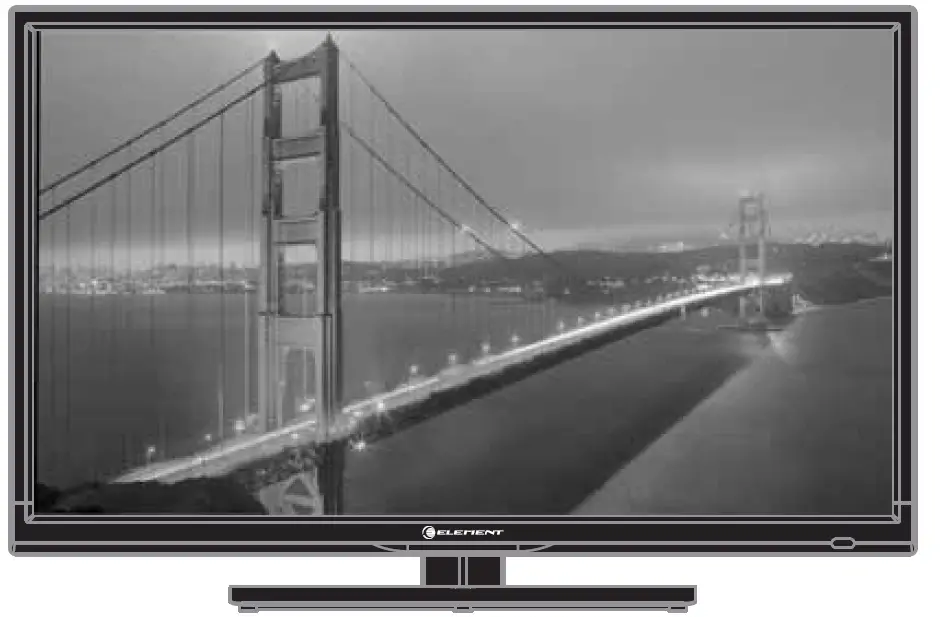
Read all of the Instructions before using this TV and keep the manual In a safe place for future reference.
IMPORTANT INFORMATION
CAUTION: RISK OF ELECTRIC SHOCK DO NOT OPEN
The lightning flash with arrowhead symbol, within an equilateral triangle, is intended to alert the user to the presence of un-insulated dangerous voltage within the product’s enclosure that may be of sufficient magnitude to constitute a risk of electric to persons.
The exclamation point within an equilateral triangle is interded to al er the user to the presence of important operating and maintenance (servicing) instruction the literature accompanying the appliance.
CAUTION
- USE OF ANY CONTROLS, ADJUSTMENTS, OR PROCEDURES OTHER THAN THOSE SPECIFIED HEREIN MAY RESULT IN HAZARDOUS RADIATION EXPOSURE.
- These servicing instructions are for use by qualified service personnel only. To reduce the risk of electric shock, do not perform any servicing other than that contained in the operating instructions unless you are qualified to do so. Refer to service manual for servicing instructions.
FCC STATEMENT
Please note that changes or modifications not expressly approved by the party responsible for compliance could void the user’s authority to operate the equipment.
This device complies with Part 15 of the FCC Rules. Operation is subject to the following two conditions:
- This device may not cause harmful interference.
- This device must accept any interference received, including interference that may cause undesired operation.
“Warning: Changes or modifications to this unit not expressly approved by the party responsible for compliance could void the user’s authority to operate the equipment.”
NOTE: This equipment has been tested and found to comply with the limits for a Class B digital device, pursuant to Part 15 of the FCC Rules. These limits are designed to provide reasonable protection against harmful interference in a residential installation. This equipment generates, uses and can radiate radio frequency energy and, if not installed and used in accordance with the instructions, may cause harmful interference to radio communications. However, there is no guarantee that interference will not occur in a particular installation. If this equipment does cause harmful interference to radio or television reception, which can be determined by turning the equipment off and on, the user is encouraged to try to correct the interference by one or more of the following measures:
- Reorient or relocate the receiving antenna.
- Increase the separation between the equipment and the receiver.
- Connect the equipment into an outlet on a circuit different from that to which the receiver is connected.
- Consult the dealer or an experienced radio/TV technician for help.
Important Safety Instructions
Note
- Read these instructions.
- Keep these instructions.
- Heed all warnings
- Follow all instructions.
- Do not use near water.
- Clean only with dry cloth.
- Do not block any ventilation openings. Install in accordance with the manufacturer’s instructions.
- Do not install near any heat sources such as radiators, heat registers, stoves, or other apparatus (including amplifiers) that produce heat.
- Do not defeat the safety purpose of the polarized or grounding-type plug. A polarized plug has two blades with one wider than the other. A grounding type plug has two blades and a third grounding prong. The wide blade or the third prong are provided for your safety. If the provided plug does not fit into your outlet, consult an electrician for replacement of the obsolete outlet.
- Protect the power cord from being walked on or pinched particularly at plugs, convenience receptacles, and the point where they exit from the apparatus.
- Only use attachments/accessories specified by the manufacturer.
- Use only with the cart, stand, tripod, bracket, or table specified by the manufacturer, or sold with the apparatus. When a cart is used, use caution when moving the cart/ apparatus combination to avoid injury from tip-over.
- Unplug this apparatus during llghtnlng storms or when unused for long periods of time.
- Refer all servicing to qualified service personnel. Servicing la required when the apparatus has been damaged in any way, such es power~upply cord or plug i, damaged, liquid haa been spilled or obJee1:$ have fallen Into the apparatus, the apparatus has been exposed lo rein or molswre, does not operate normally, or has been dropped.
- Apparatus a hall not be exposed to dripping or splashing and that no objects filled with liquid, suchas vases, shall be placed on the apparatus.
- WARNING: To reduce the risk of firs or electric shock, do not expose this apparatus to rein or more.
- Mains plug or appliance coupler ia used ae the disconnect device, aha II be readily operable.
WARNING: The battery (battery or batteries or battery pack) shall not be exposed to exceaslve heat such as sunshine, fire or the like.
This equipment is a Class II or double-insulated electrical appliance. It has been designed in such a way that it does not require a safety connection to electrical earth.
PREFACE
ENERGY STAR® Qualification
This ELEMENT product has earned the ENERGY STAR® for meeting U.S. Federal energy efficiency guidelines as set by the Department of Energy and Environmental protection agency. The ENERGY STAR® program exists to provide energy-saving guidelines and help promote energy efficient products and practices. Changes to certain features, settings and functions of this TV can change and/or increase its power consumption. Home Mode is the mode in which the product qualifies for ENERGY STAR®. Standard Mode optimizes the video effects when use at a retail showroom or demo environment. This mode the video setting may increase energy consumption beyond the limits required for ENERGY STAR® qualification.
Thank you for buying this TV! Please read this manual thoroughly before operating the TV. Make sure the TV was not damaged in transit. Should the TV be damaged, do not install it and contact your dealer. Check that you have all the accessories according to the model.
SAFETY PRECAUTIONS
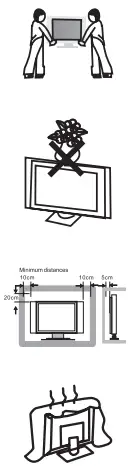
- Put the TV on a stable surface.
- Do not place any material on the TV.
- Do not use the TV with fixtures other than those provided or suggested by the manufacturer.
- Do not block or cover the ventilation openings on the TV.
- If you have a wall mount, check that it is steady.
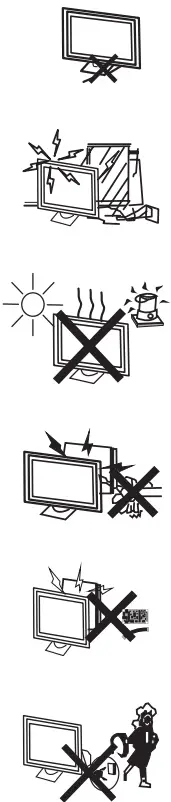
- Power cord and cables must be properly placed and protected to prevent people from stepping on them and causing the TV to fall.
- Keep the TV dry and away from humidity.
- Keep the TV away from heat sources.
- Unplug the TV before cleaning it. Do not use solvent or liquid to clean the TV. Only clean the TV with a soft and dry cloth.
- In case of troubleshooting, do not use spare parts other than those suggested by the manufacturer. Using inadequate spare parts can lead to electric shocks, short-circuits fire. or other incidents.
- Unplug the TV during lightning storms or when unused for long periods of time.
IN THE CARTON
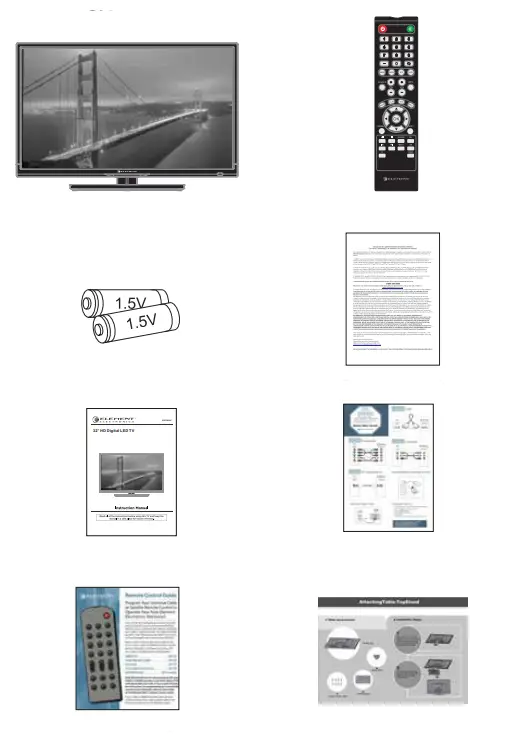
- LEDTVSET
- Remote Control
- AAA Batteries
- Warranty Card
- USER’S MANUAL
- Quick Start Guide
- Remote Control Guide
- AttachingTable-TopStand
FRONT/BACK CONNECTIONS OF TV
Front View
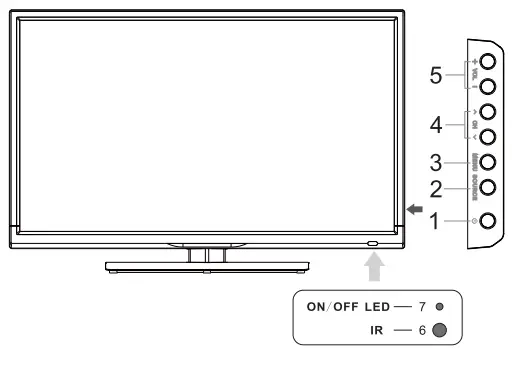
- Press
 the button to turn the TV on or off.
 - Press SOURCE to select the input source.
- Press MENU to bring up the main menu on the screen.
- Press CHA or CHV to scan through channels.
- Press vOL+ or VOL- to increase or decrease the volume.
- REMOTE SENSOR: Infrared sensor for the remote control.
- POWER INDICATOR: Shows red in standby mode. Shows blue when your TV is turned on.
 the button to turn the TV on or off.
Back View and Control Connections
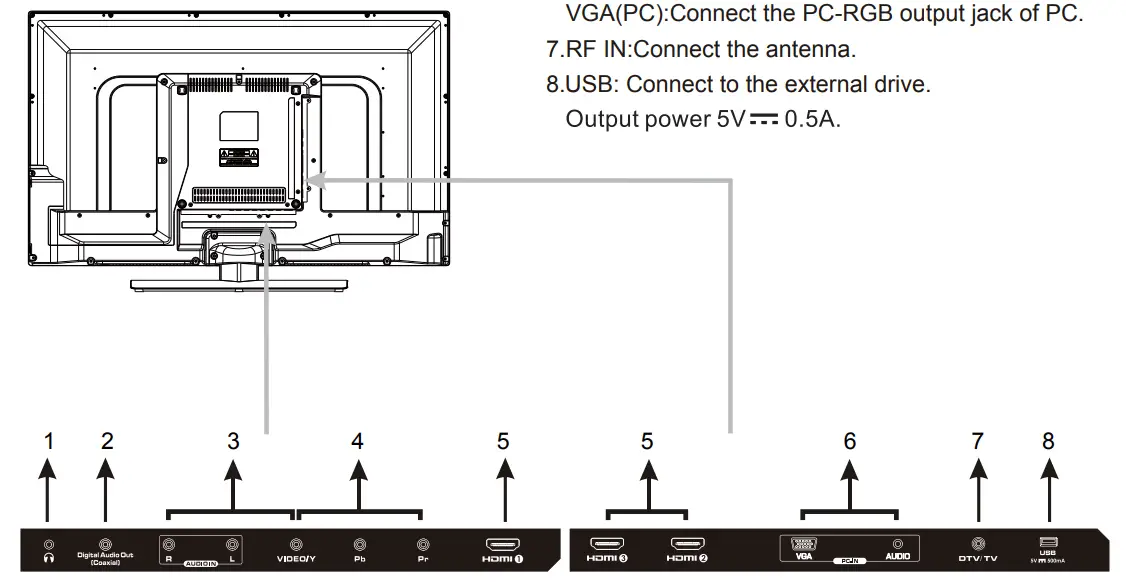
- EARPHONE Connect a stereo headphones for private listening.
- COAXIAL out: Connect the COAXIAL receiver.
- AV: Connect the Video and Audio output.
- Component IN: Connect the YPbPr output.
- HDMI1/ HDMI2/HDMI3: Connect the HDMI output jack of DVD.
- PC AUDIO: Connect the Audio output jack of PC. VGA(PC): Connect the PC-RGB output jack of PC.
- RF IN: Connect the antenna.
- USB: Connect to the external drive.
Output power 5 V: -:: 0.5A.
TV INSTALLATION DRAWINGS
Power Cord Connection
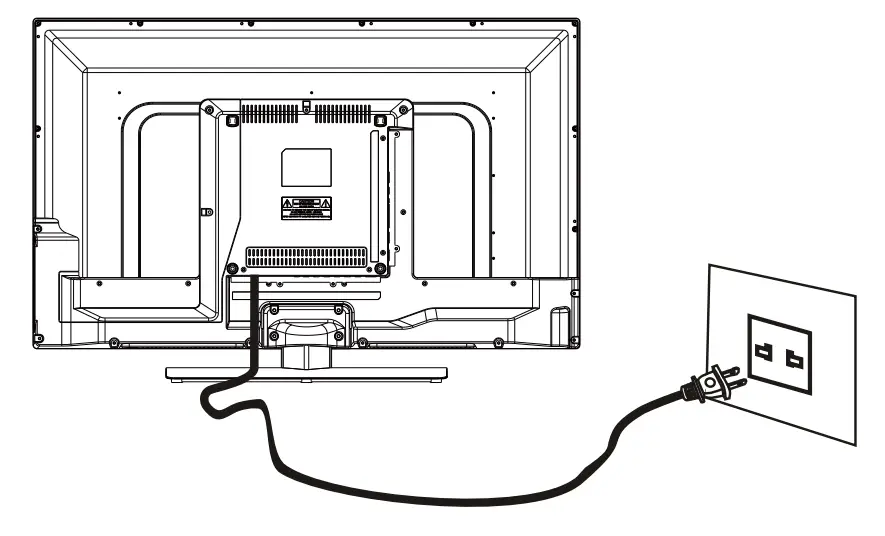
- Connect the power cord correctly as shown.
- Press the Power button of your LED TV to turn on the LED TV. The power indicator on the front panel lights up in blue.
Antenna Connection
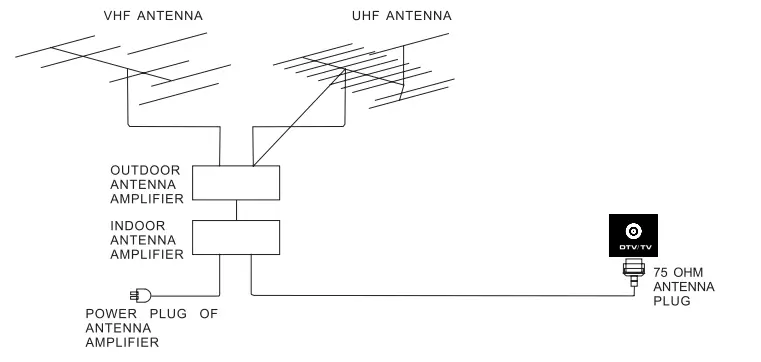
To ensure good picture and sound, TV antenna system needs to be installed. The antenna system as shown can be sourced from TV equipment shops, which will provide service for correct installation and connection. After installation, insert the 75-ohm antenna plug into the antenna jack as shown.
AV Connection
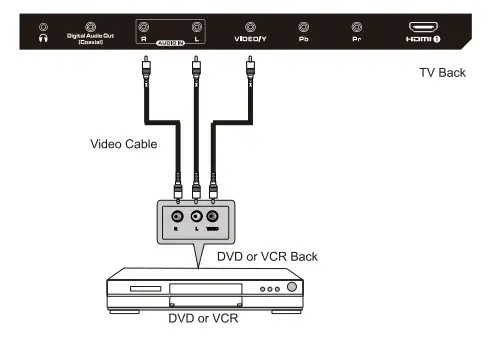
Connect the VIDEO and AUDIO output jack of the DVD or VCR to the VIDEO and AUDIOjacks on the set using the RCA cable. Match the jack colors: Video is green, Audio left is white, and Audio right is red. Select the AV input source using the SOURCE button on the remote control.
YPbPr(Component) Connection
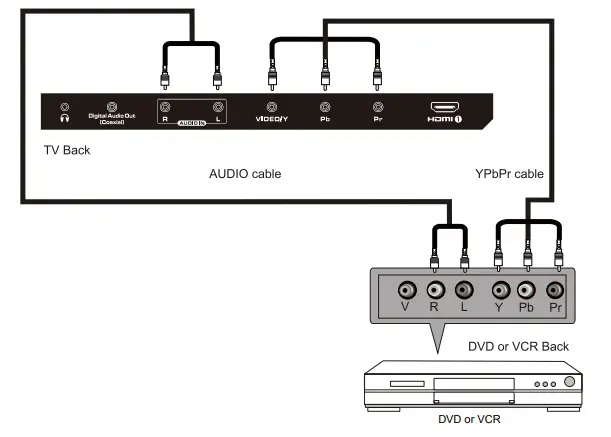
Connect the YPbPr output of the DVD or VCR to the YPbPr input on the set. The picture quality is improved; compared to connecting a regular vcR to the video input. Connect the Audio output of the DvD or VCR to the Audio input jacks on the set using the RCA cable. Match the colors of the jacks:Y is green, Pb is blue, Pr is red, Audio left is white and Audio right is red. Select the component input source using the SOURCE button on the remote control.
VGA(PC) Connection
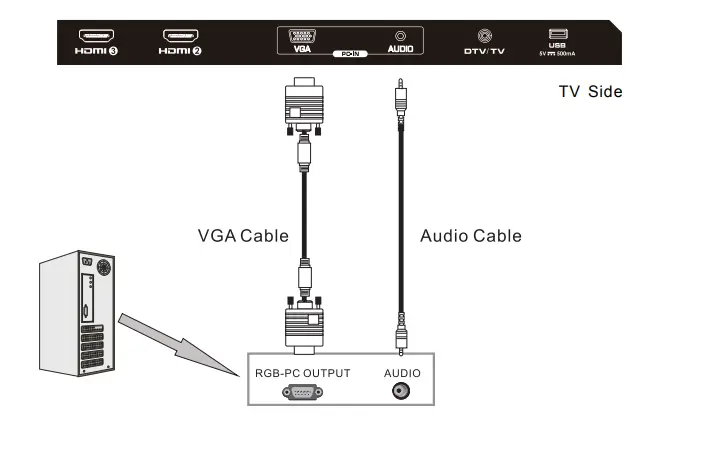
Connect the RGB output of the PC to the VGA(PC) jack on the set. Connect the AUDIO Output of the PC to the PC AUDIO jack on the set. Select the VGA input source using the SOURCE button on the remote control
COAXIAL Connection
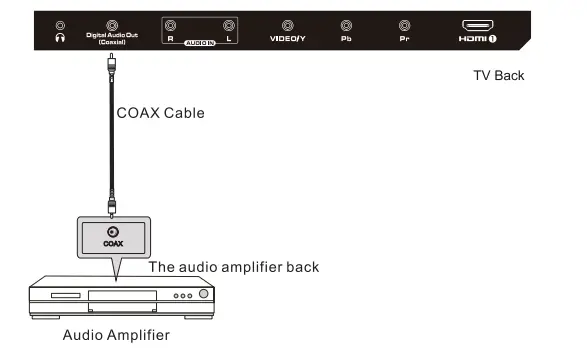
Connect to Audio Amplifier device to the Coaxial output jack on the TV.
HDMI connection
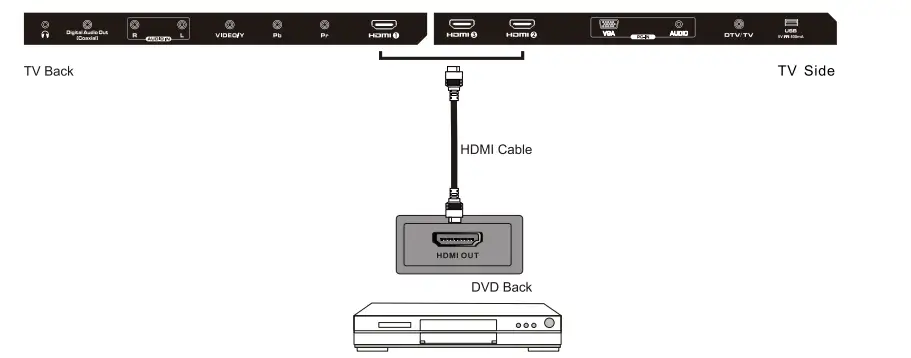
HDMI plug which replaces the HDMI connection allows the transfer of all audio/video/control signals through one cable only. These signals are transferred in digital.
USB Function
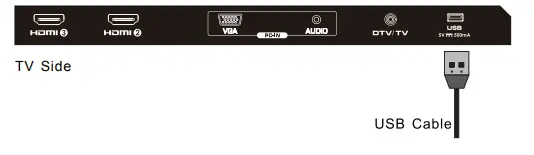
Insert the USB flash, drive to the USB port, select USB input source via the SOURCE button on the remote control.
Wall Mounting
The TV is provided with mounting holes for a VESA approved wall mounting bracket (NOT SUPPLIED). Remove the screws holding the base to the base bracket and lift the base away (do not remove the base mounting brackets). Mount the VESA bracket using 4 x M5 x 8 isometric threaded screws (not supplied). Do not use screws longer than 12mm; damage will occur to the internal parts.
Caution: Your new TV is heavy; please consult with a professional wall mount installer to perform this installation.
REMOTE CONTROL
REMOTE CONTROL INSTRUCTIONS
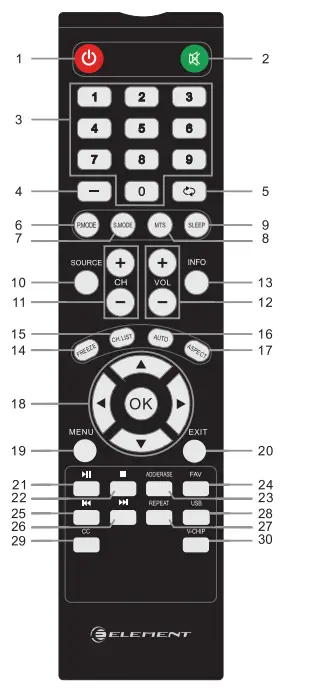
Note: The picture of remote controller is only for reference and is subject to the real one.
- : Turn the LED Tv ON or OFF.
 : Press to mute the sound. Press again or press Vol+ to un-mute the TV.
- NUMBER BUTTONS: Press 0-9 to directly change the TV channel.
- -: Press this button to enter a program number for multiple program channel such as 2-1,etc.
- C9: Return to the previous channel viewed.
- P.MODE: Press repeatedly to cycle through the available video picture modes.
- S.MODE: Press to cycle through the different sound settings.
- MTS: Choose Mono, stereo or sap for analog TV input. Choose English, French or Spanish for DTV input.
- SLEEP: Sleep button, setting TV power off time.
- SOURCE: Press SOURCE to display the OSD input source, press
 to select an input source, and then press OK to confirm.
 - CH+ICH-: Press to scan through channels.
- VOL+/VOL: Press to increase/decrease the sound level.
- INFO: Press to display the source and channel’s information.
- FREEZE: Freeze pictures for TV.
- CH.LIST: Press to display the TV program list.
- AUTO: Automatically adjust the Horizontal/Vertical position in PC(VGA) mode.
- ASPECT: Press to select Aspect Ratio. (As follow Wide, Cinema, Zoom, Normal, Point to Point, etc)
- (Note: This function when play DTV HD signal is not available)
- THUMBSTICK
 : Allows you to navigate the on-screen menus and adjust the system settings to your preference.
 - MENU: Display the main TV menu.
- EXIT: Press the Exit to exit the operation.
- : Press to playback or pause the program.
 : Press to stop media play.
- ADD/ERASE: Add or Erase favorite channels.
- FAV: Press to display the favorite list in TV mode.
 : Press to return to previous chapter or track.
 : Press to skip to next chapter or track.
- REPEAT: In USB source, press to repeat All or None.
- USB: Press to enter the USB source.
- CC: Press to display the closed caption.
- V-CHIP: Press to enter the V-CHIP menu.
 : Press to mute the sound. Press again or press Vol+ to un-mute the TV.
 to select an input source, and then press OK to confirm.
 : Allows you to navigate the on-screen menus and adjust the system settings to your preference.
 : Press to playback or pause the program.
 : Press to stop media play.
 : Press to return to previous chapter or track.
 : Press to skip to next chapter or track.
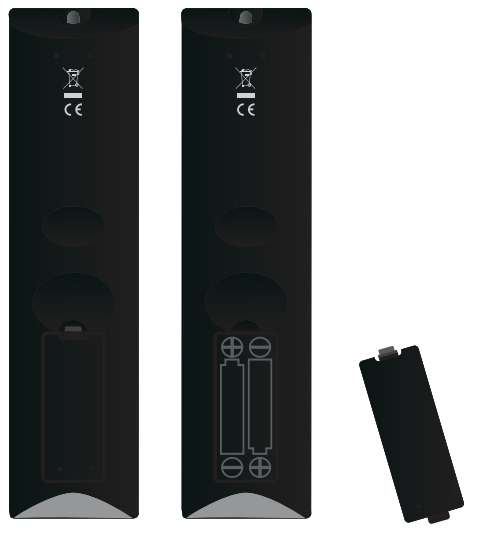
Remote Control Setup
- Open the cover.
- Use two AAA-size batteries. When inserting the batteries, make sure correct polarities “*and marks on the batteries line up correctly with compartment markings.
- Replace the battery cover.
To prevent battery leakage which may result in bodily injury or damage to the remote
- Install all batteries correctly, and as marked on the remote control.
- Do not mix old and new batteries, and do not mix alkaline, standard (carbon-zinc) or rechargeable (ni-cad, ni-mh, etc.) Batteries.
- Remove batteries when the remote is not used for a long period of time.
Basic Operations
- Press
 the button to select your desired mode, then press OK to enter.
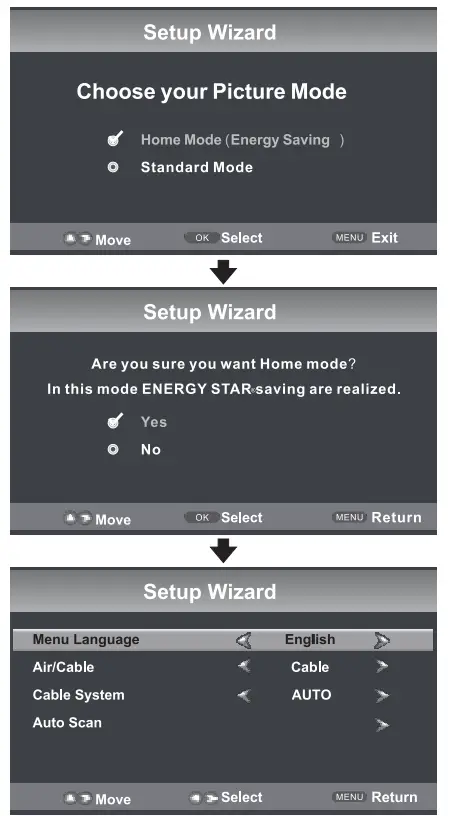
Select Your Onacrean Language Preference
Note: If using your LEO TV for the firet time, you should eelect the language which will be used f’or dlsplaylng menus and Information boxes.
- Press,◄/►buUoo to select Menu Langu1199.
- Press
 buttontoselac:tyourdElllired language.
 - When you are satidfied with your choice, press◄/► button to select the Auto Scan, press► button to search channel.
Volume adjustment
- Preas VOL+/- to adjust the volume.
- lf you want to ewilcl! the sound off, press the MUTE K, and press again to resume.
Navigating the Onscreen Display
- Press the MENU button to display the main menu.
- Use ◄/► buttons to navigate and select the available menus.
Choosing a TV Channel
- Press the CHA/CHvat the bottom of the panel or CH+/CH-on the remote control to scan through channels.
- Enter the channel number with the 0-9 remote keys, then press ‘OK’ to confirm.
Selecting Input Source
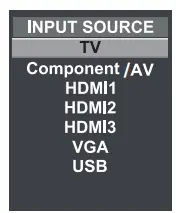
You can display the input screen menu by pressing SOURCE on the remote control or SOURCE at the bottom of the panel, press ◄/► button to select, press “OK” to confirm.
Picture Menu Options
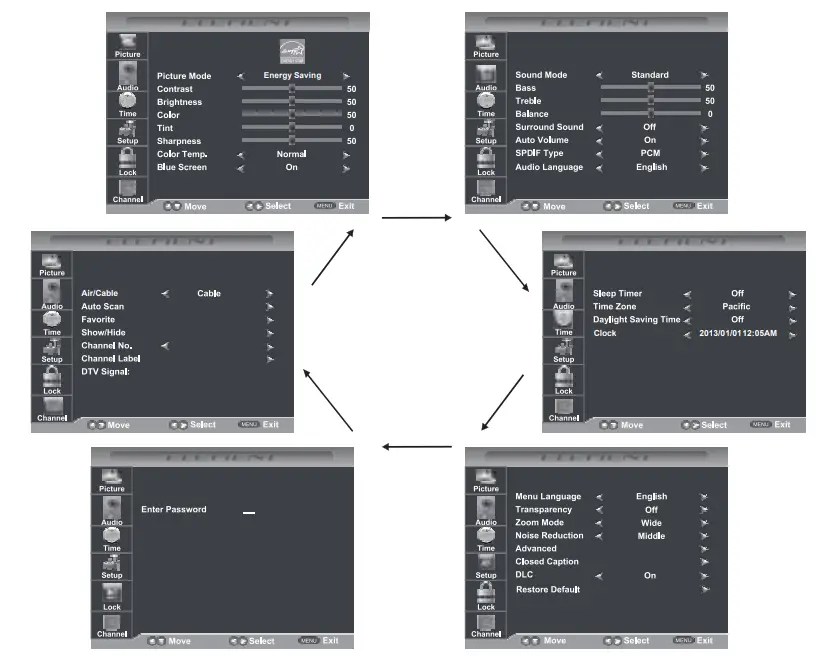
Press the MENU at the bottom of the panel or on the remote control and then use a/ to move the PICTURE menu, pressor OK to enter (see picture below).
NOTE: Adjust the parameters of the picture, the Picture Mode is automatically converted to User Mode.
Picture Mode
Select the type of picture which best corresponds to your viewing preferences by selecting Picture Mode in the PICTURE menu. You may select the picture mode directly by pressing the P.MODE button on the remote control.
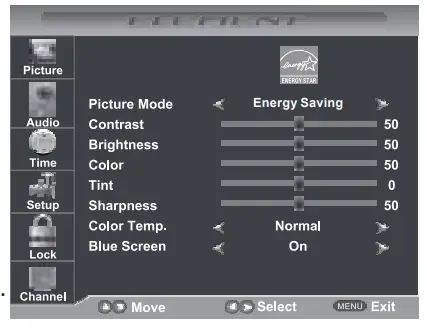
Contrast
Press and then use ◄/ ► to adjust the contrast of the picture.
Brightness
Press and then use ◄/ ► to adjust the brightness of the picture.
Color
Press and then use ◄/ ► to adjust the color of the picture.
Tint
Pressand then use ◄/ ► to adjust the tint of the picture.
Sharpness
Press.&./ T and then use ◄/ ► to adjust the sharpness of the picture.
Color Temp
Press and then use ◄/ ► to select Normal, Warm, Cool.
Blue Screen
Press and then use ◄/ ► to select On or Off.
Press the MENU at the bottom of the panel or on the remote control and then use to move the AUDIO menu, press ► or OK to enter (see picture below).
NOTE: Adjust the parameters of the sound, the Sound Mode is automatically converted to User Mode.
Sound Mode
Press and then use ◄/► to select Standard, Music, Movie or User.
Bass
Press and then use ◄/► increase or decrease the level of the lower-pitched sounds.
Treble
Press and then use ◄/► to increase or decrease the level of higher-pitched sounds.
Balance
Press and then use ◄/► to adjust the audio output between left and right speakers.
Surround Sound
Press ◄/► to switch surround sound On or Off.
Auto Volume
Press◄/► to switch auto volume control On or Off. This function allows volume to be controlled automatically.
SPDIF Type
Press ◄/► to select between PCM or RAW.
Audio Language
Press ◄/► to select audio languages among: English, French, and Spanish.
Time Menu Options
Press the MENU at the bottom of the panel or on the remote control and then use to move the TIME menu, press ► or OK to enter (see picture below).
Sleep Timer
Press and then use ◄/► to set up the sleep timer among: Off, 5min, 10min, 15min, 30min, 45min, 60min, 90min, 120min, 180min or 240min.
Timezone
Press and then use ◄/► to set up the time zone among: Pacific, Alaska, Hawaii, Eastern, Central or Mountain.
Daylight Saving Time
Press and then use ◄/► to set up the daylight saving time On or Off.
Press the MENU at the bottom of the panel or on the remote control and then use to move the SETUP menu, press ► or OK to enter (see picture below).
Menu Language
Press and then use ◄/► to select menu language among: English, Fran9ais or Espanol.
Transparency
Press and then use ◄/► to turn on or off the transparency function.
Zoom Mode
Press and then use ◄/► to select the zoom mode among: Wide, Zoom, Cinema , Normal or Just Scan.
Noise Reduction
Press and then use ◄/► to select the noise reduction mode among: Weak, Middle, Strong, Off.
Advanced
Press and then use► to select the advanced options between H-POS, V-POS, Clock, Phase, Auto ( only used in VGA source mode.)
H-POS
Press and then use ◄/► to adjust the H-POS of the picture.
V-POS
Press and then use ◄/► to adjust the V-POS of the picture.
Clock
Press and then use ◄/► to adjust the Clock of the picture.
Phase
Press and then use ◄/► to adjust the Phase of the picture.
Auto
Press and then use ► to adjust the picture.
Closed Caption
Press and then use ► button to enter into the following menu.
CC Mode
Allows you to select the CC Mode among: Off, On or CC on Mute.
Basic Selection
Allows you to select the basic selection among: CC1, CC2, CC3, CC4, Text1, Text2, Text3 and Text4.
Advanced Selection
Press and then use ◄/► to select the advanced selection among Service1, Service2, Service3, Service4, Services or Service6.
OPTION
Press and then use ► to enter into the following menu.
Press and then use ◄/► to select.
DLC
Press and then use ◄/► to dynamic luminance Control On or Off.
Restore Default
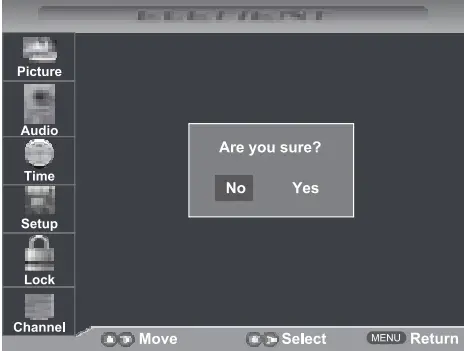
Select “Restore Default”, press ► or OK, and it will display “Are you sure?”, Select “Yes” to select the factory default settings.
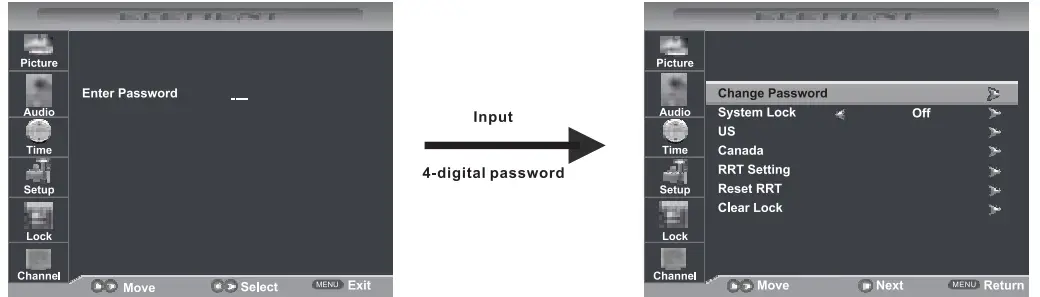
Press the MENU at the bottom of the panel or on the remote control and then use to move the LOCK menu, press ► or OK to enter ( see picture below ). Use the numeric keys to input 4-digital password, then the screen will display the junior menu. After settings, press MENU button to exit.
NOTE: The factory password is 0000.
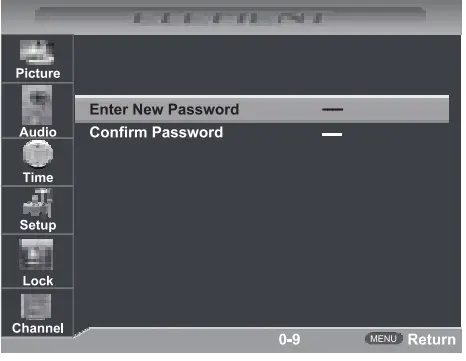
Change Password
Use button to select the “Change Password” item, then press ► button to enter into the following menu. Input the new 4-digital password and input it again to confirm.
System Lock
Allows you to turn on or off the system lock. If you turn off the system lock, then the following items(US, Canada, RRT Setting and Reset RRT) will unable to use.
us
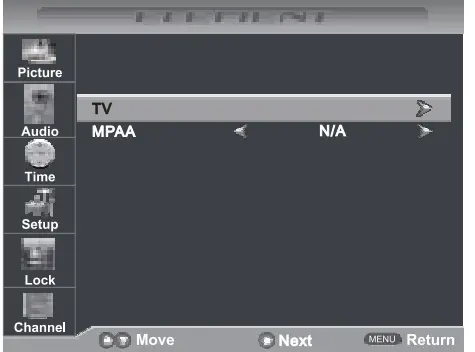
Use button to highlight the “US”item, then press ► button to enter into the following menu
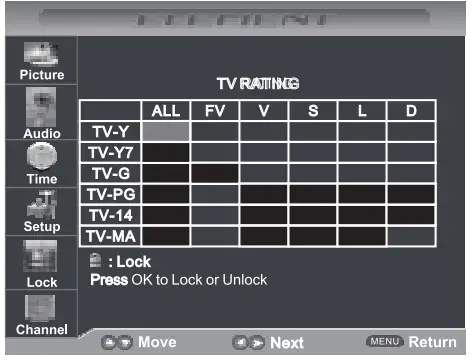
TV(Rating)
Press button to select TV Rating, then press OK button to adjust. A sub-menu will appear as below.
MPAA(Rating)
Press  button to select Rating among: N/A,G,PG,PG-13, R,NC-17 and X.
Canada
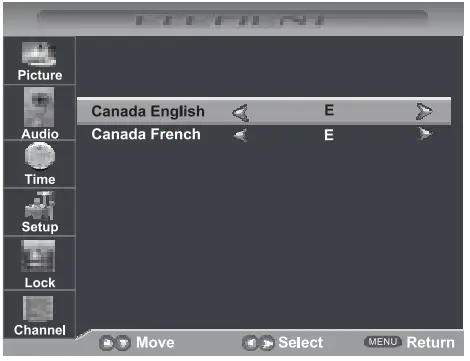
Use button to highlight the “Canada” item, then press ► button to enter into the following menu.
- Canada English
- Picture Use ◄/► buttons to select among: E, C, CB+, G, PG, 14+ and 18+. I; C.nacla Engllsh E ►
- Canada French
- Use ◄/► buttons to select among: E, G, Bans+, 13ans+, 16ans+ and 1 Bans+.
RRT Setting
- Rating Region Table setting.
Reset RRT
- Allows you to reset the RRT setting.
Clear Lock
Clear the system lock settings.
Information
Motion Picture Association of America (MPAA) Rating System
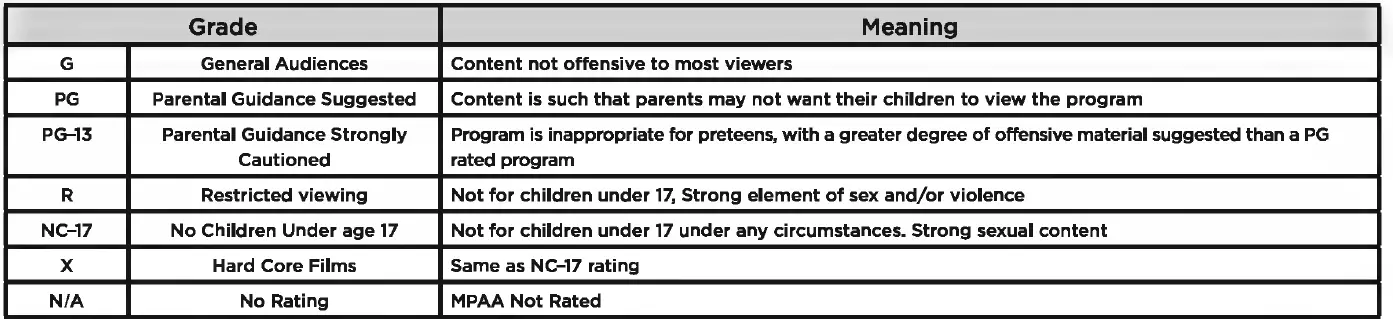
TV Parental Guideline Rating System

Canadian Rating
- Canadian English is used throughout all English-speaking Canada (C, C8+, G, PG, 14+, 18+).
- Canadian French is used in Quebec (G, 8 ans+, 13 ans+, 16 ans+, 18 ans+)
Note: The V-Chip will automatically block certain categories that are “more restrictive”. If you block TV-Y category, then TV-Y7 will be automatically blocked. Similarly, if you block TV-G category, then all the categories in the “young adult” will be blocked (TV-G, TV-PG, TV-14, and TV-MA).
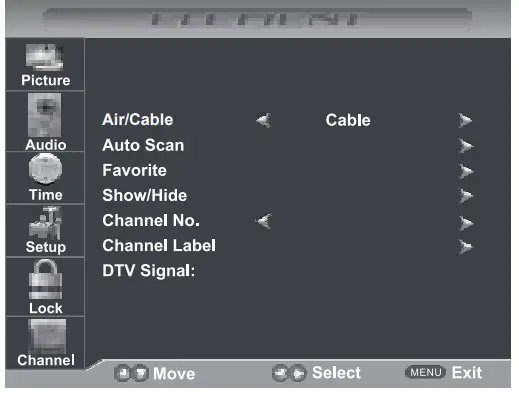
Press the MENU at the bottom of the panel or on the remote control and then use to move the CHANNEL menu. Press ► or OK to enter (see picture below).
Air/Cable
Allows you to select antenna between Air and Cable.
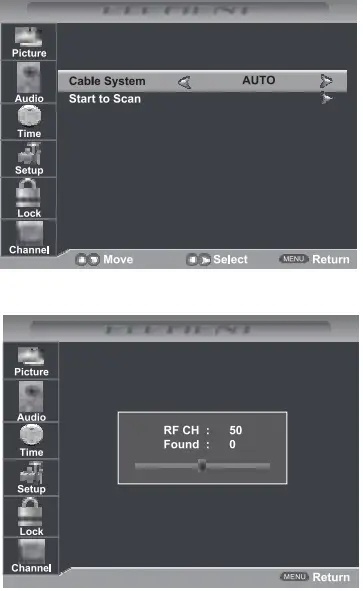
Auto Scan
Use button to highlight Auto Scan”, then
press ► button to enter into the following menu.
If you select “Air”as input signal in Antenna item, you can press ► button to search the channels automatically. The receivable channels will be stored automatically. When searching channels, press MENU to stop.
If you select “Cable”as input signal in Antenna item, allows you to select Cable System among: AUTO, STD, IRC and HRC. Use button to highlight the “Start to Scan”, then press ► button to search the channels automatically. The receivable channels will be stored automatically. When searching channels, press MENU to stop.
Favorite
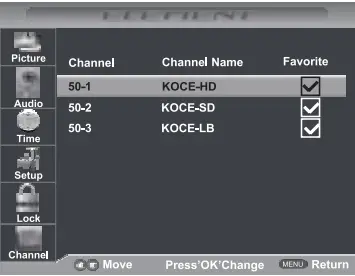
Allows you to add these channels which you desired as the favorite channels. Use button to highlight the “Favorite”item, then press ► button to enter into the following menu.
Use button to highlight the desired item, then press OK button to add or remove the highlighted channel as favorite.
Show/ Hide
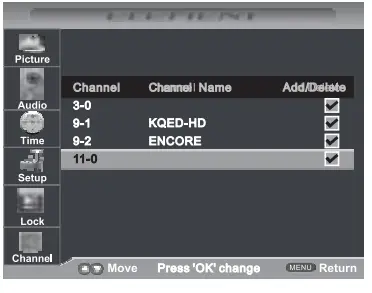
- Allows you to show or hide the channels.
- Use button to highlight the “Show I Hide” item, then press ► button to enter into the following menu.
Use button to highlight the desired item, then press OK button to show or hide the highlighted channel.
Channel No
- Display the number of current channel.
Channel Label
- Display the label of current channel.
DTVSignal
- Display the quality of current DTV signal.
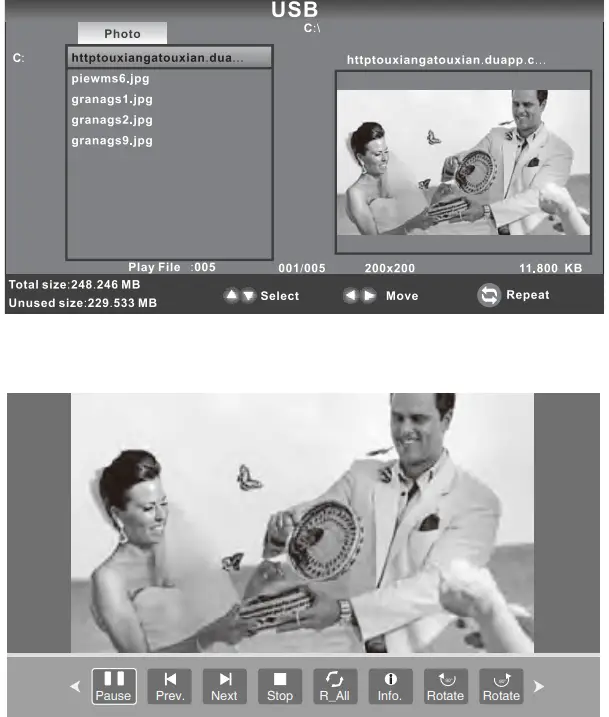
Note: Before operating USB menu, plug in USB device, then press SOURCE button to set the Input Source to USB.
Photo Menu
- Press button to select Photo in the main menu.
- Press button to select drive disk you want to watch, then press OK button to enter.
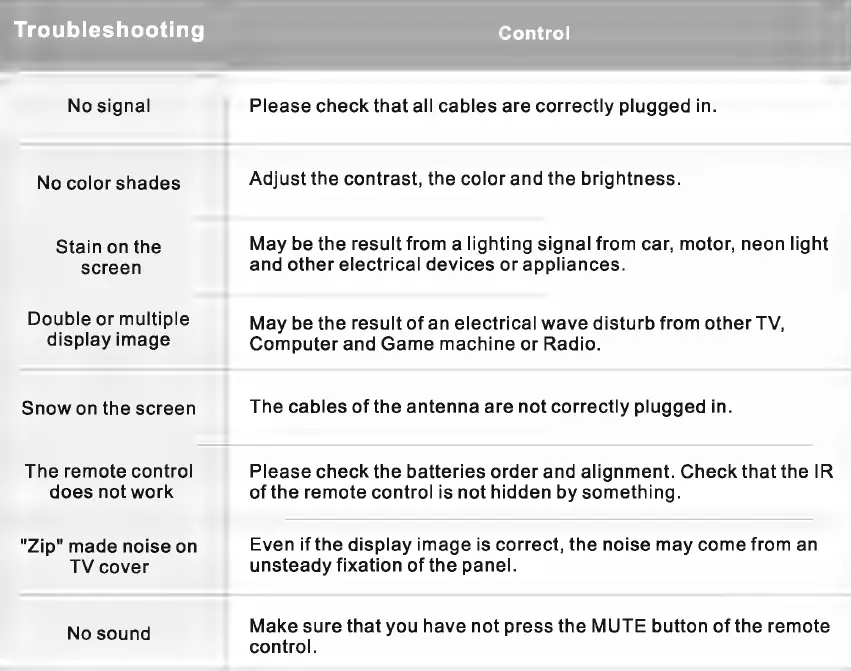
TROUBLESHOOTING
Please check if you can solve problems by troubleshooting yourself.
MAINTAINING
- Do not use your TV in areas that are too hot or too cold, because the cabinet may warp or the screen may malfunction. Your TV works best in temperatures that are comfortable to you.
- Storage temperatures are 32° to 122°F (0° to 50°C).
- Working temperatures are 32° to 104 °F (0° to 40°C).
- Do not place your TV in direct sunlight or near a heat source.
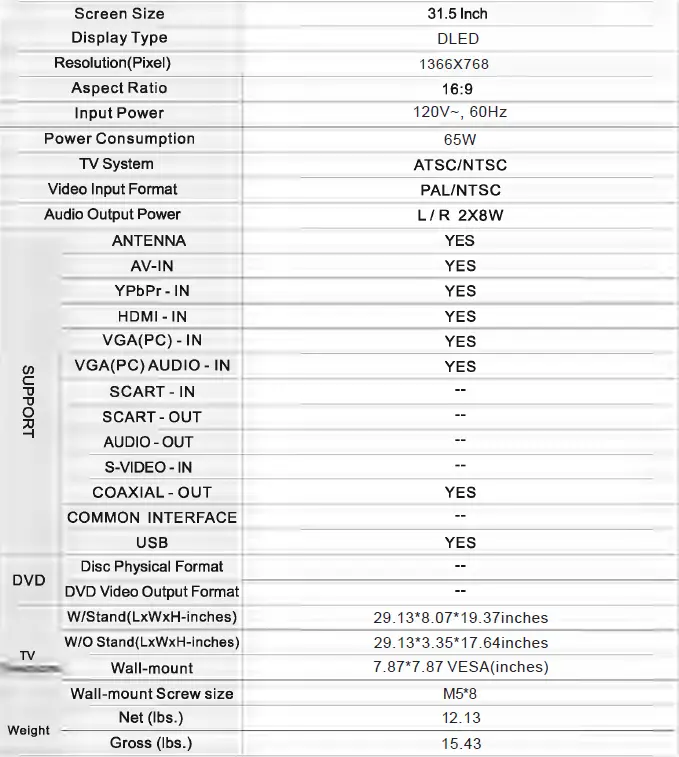
SPECIFICATIONS
This manual is only for your reference, any change to the design and specification will not be advised.
This product contains electrical or electronic materials. The presence of these materials may, if not disposed of properly, have potential adverse effects on the environment and human health. Presence of this label on the product means it should not be disposed of as unsorted waste and must be collected separately. As a consumer, you are responsible for ensuring that this product is disposed of properly. To find out how to properly dispose of this product, please go to www.elementelectronics.com and click on Sustainability.
HDMI
This TV incorporates High-Definition Multimedia Interface (HDMI™) technology. HDMI, the HDMI logo and High-Definition Multimedia Interface are trademarks or registered trademarks of HDMI Licensing LLC.