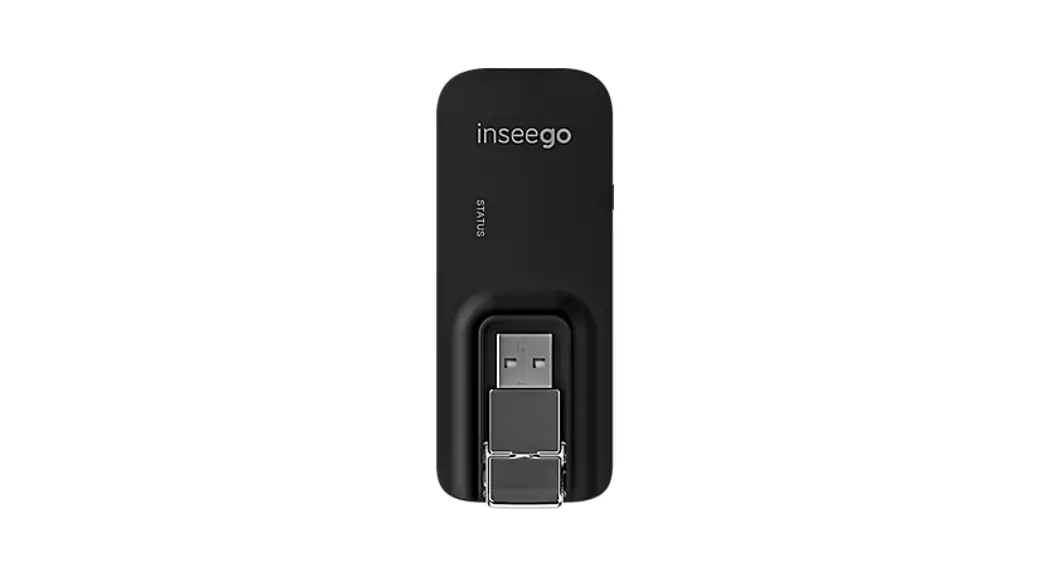
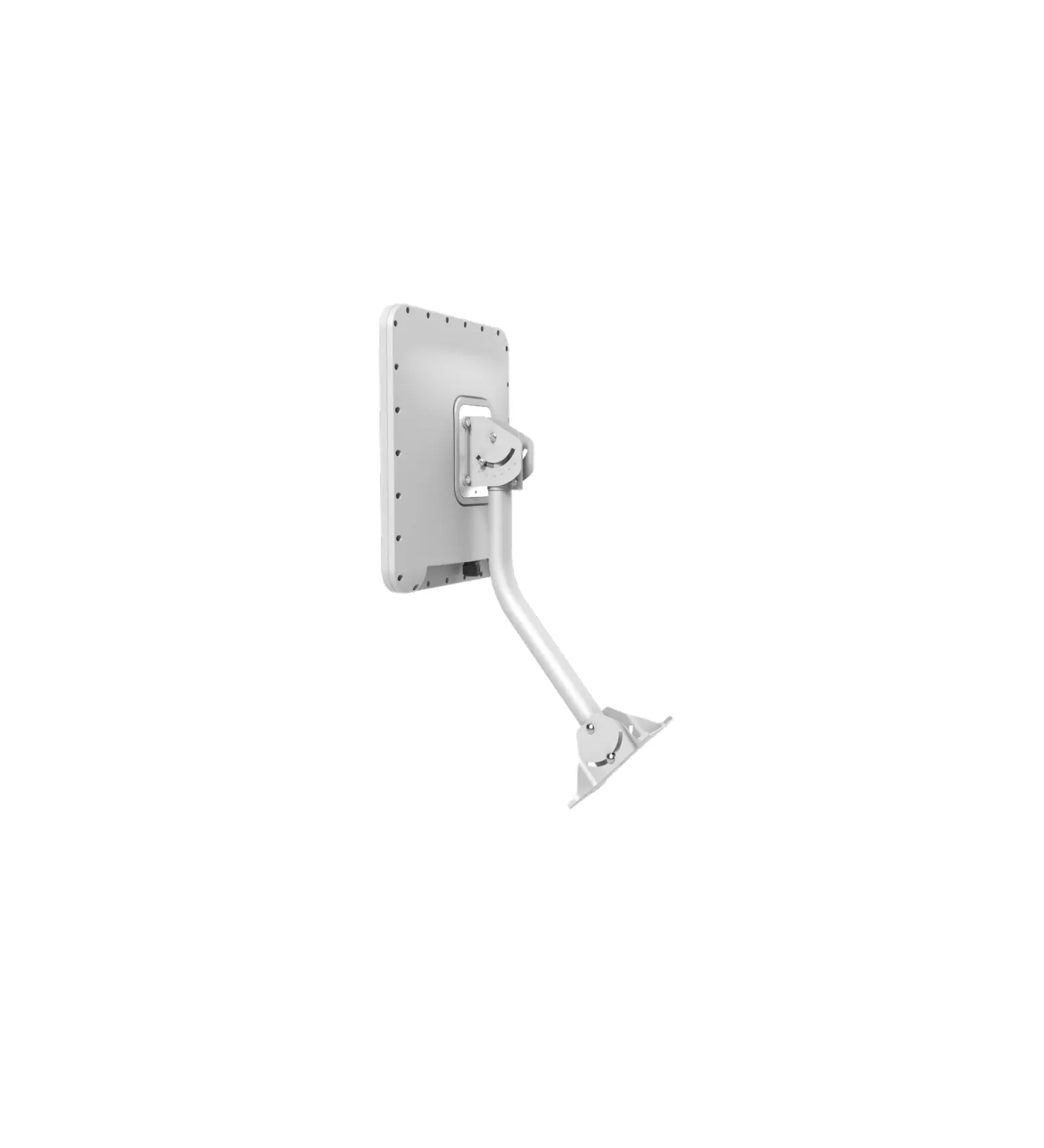
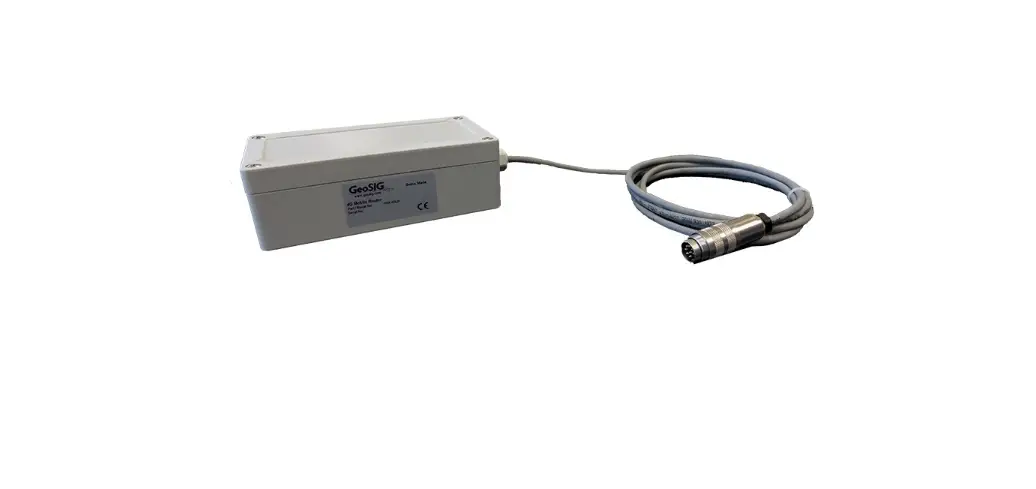
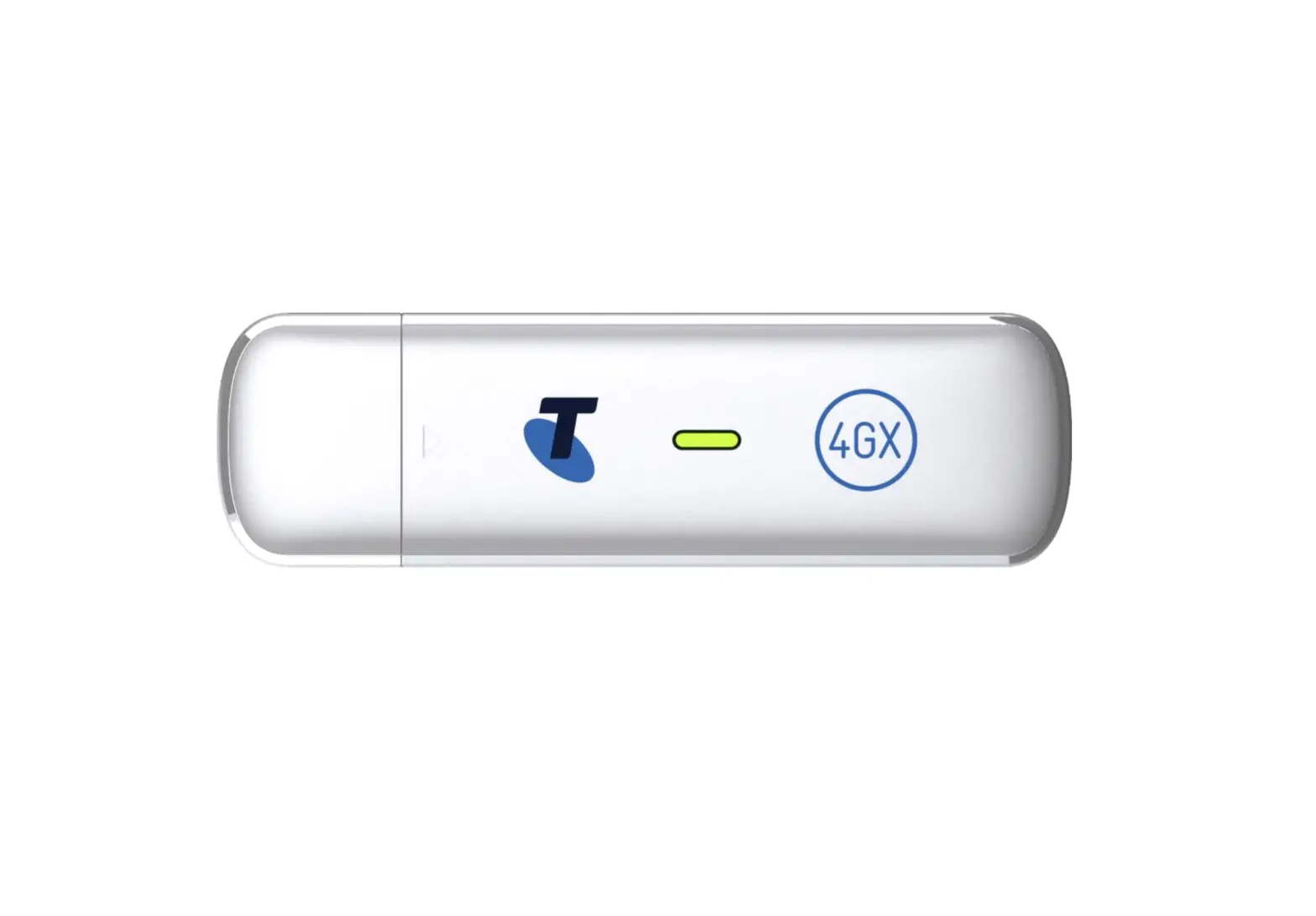
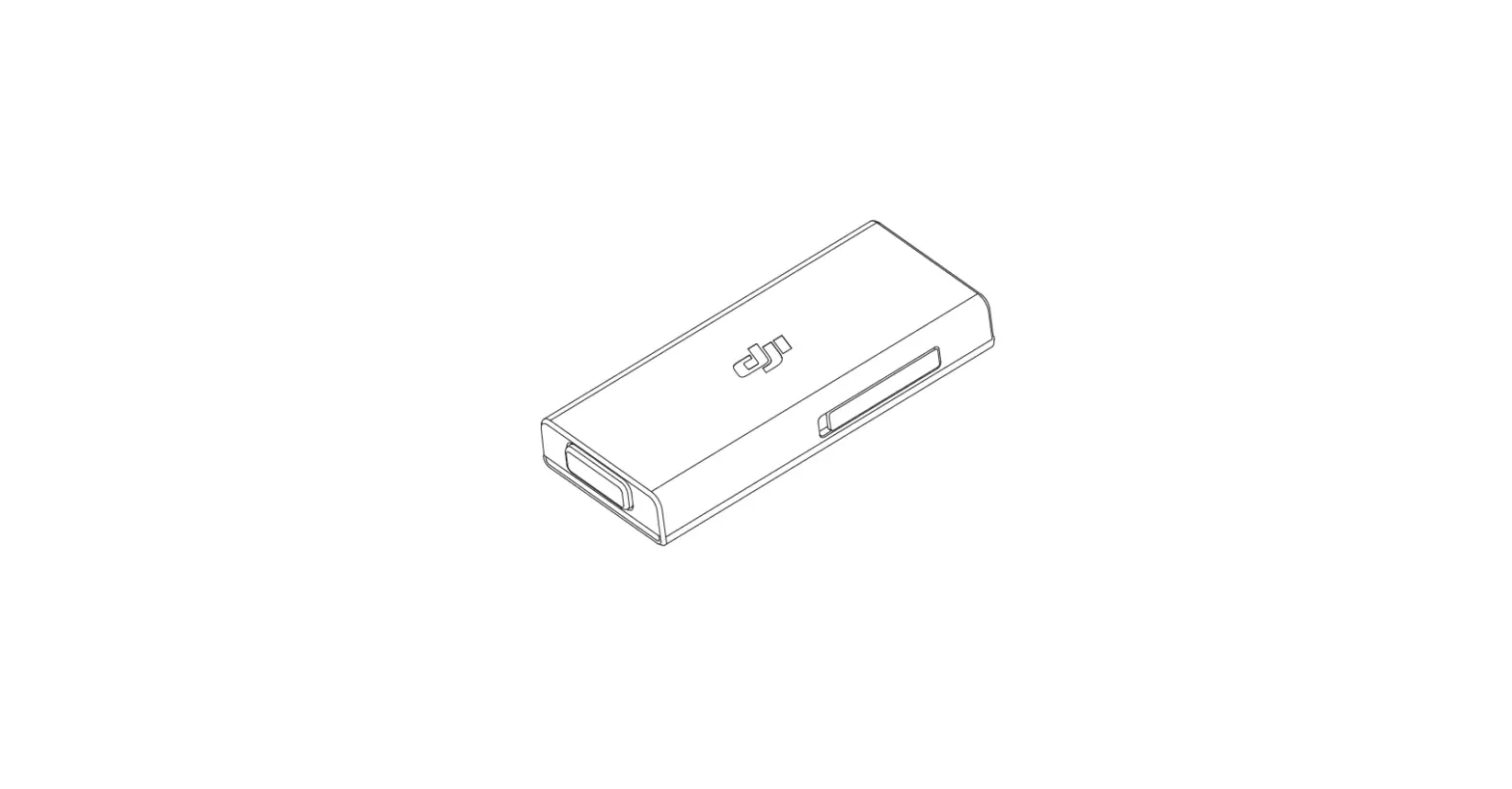
3G, 4G Cellular Modem
Product Information
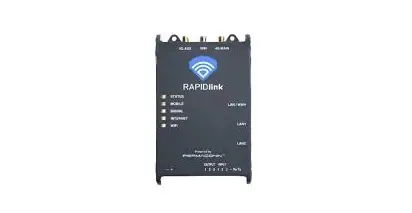
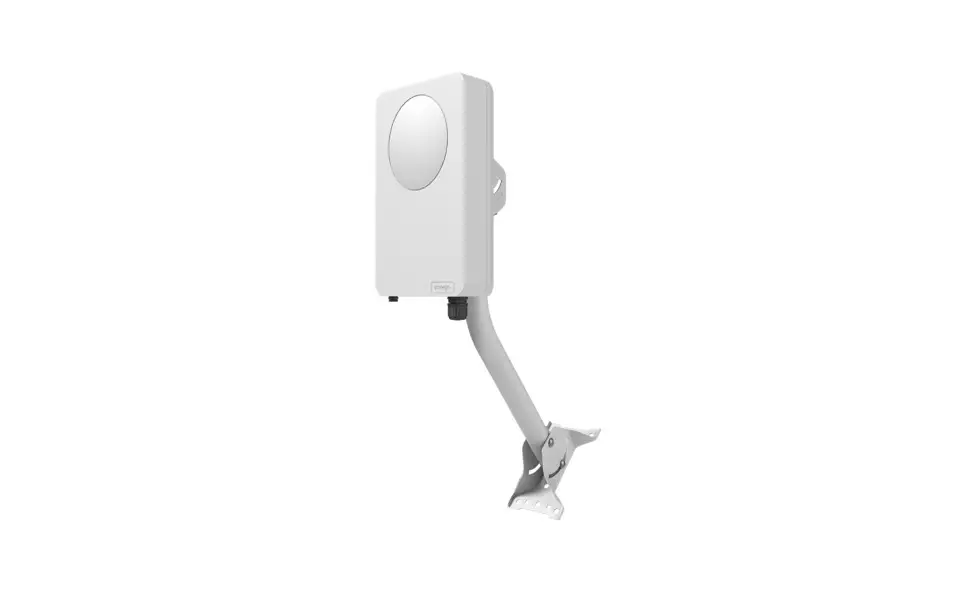
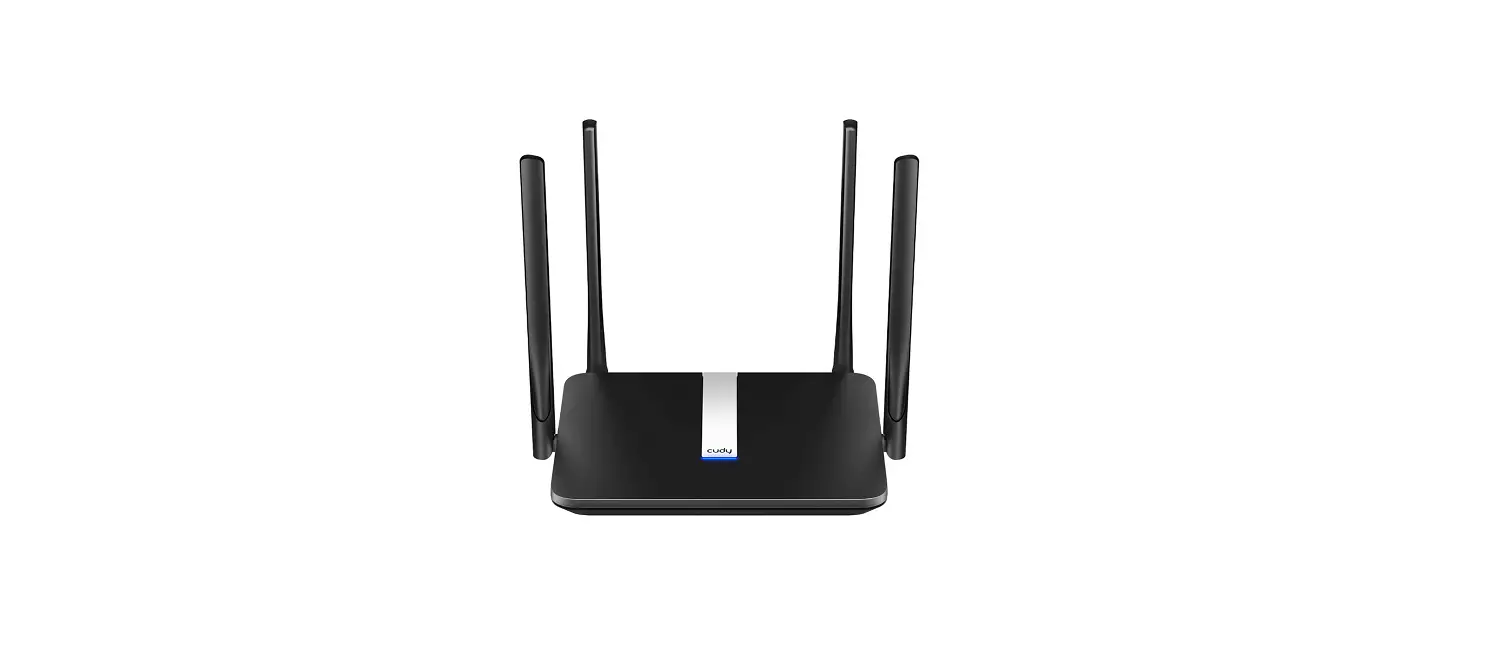
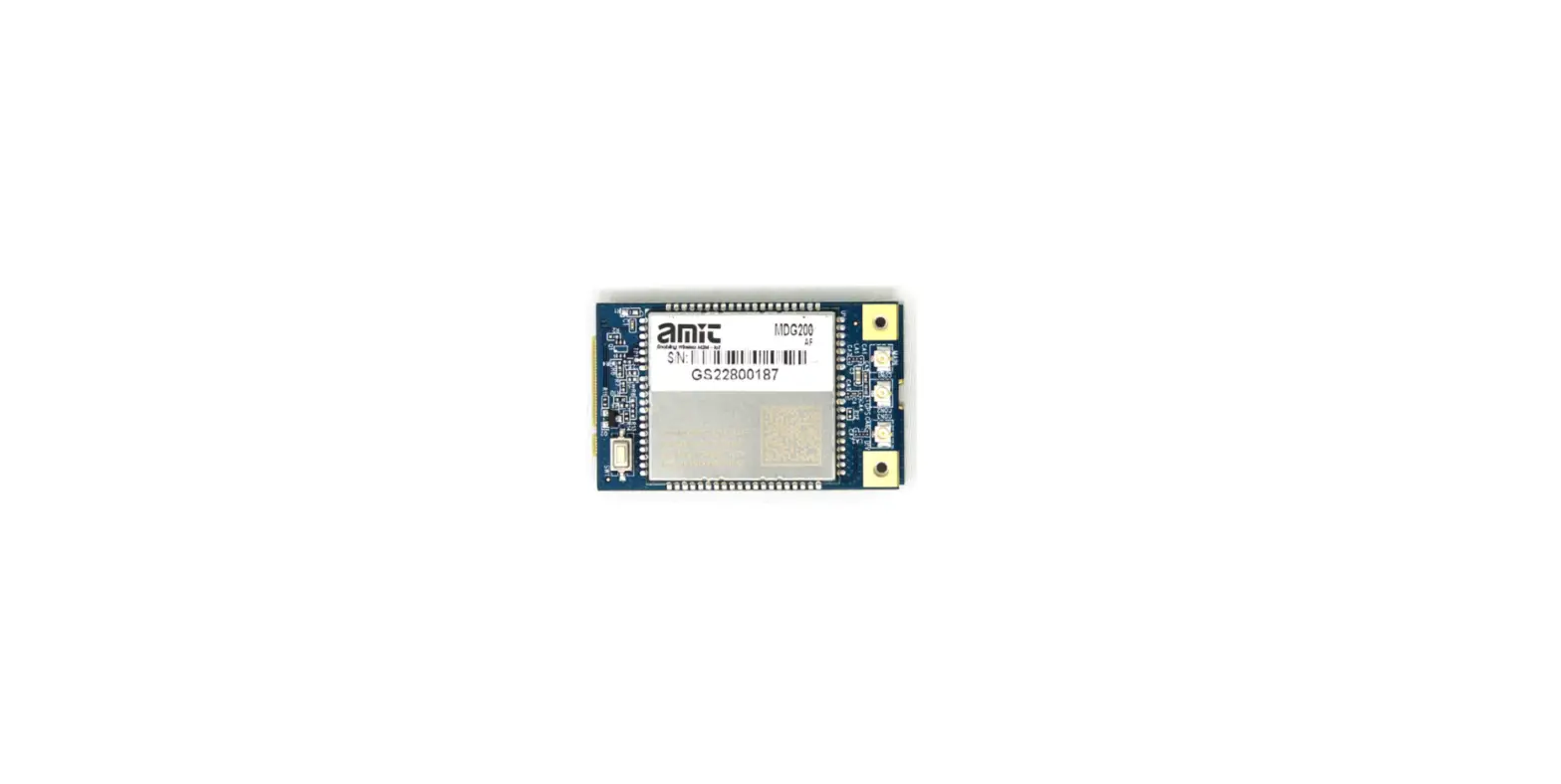
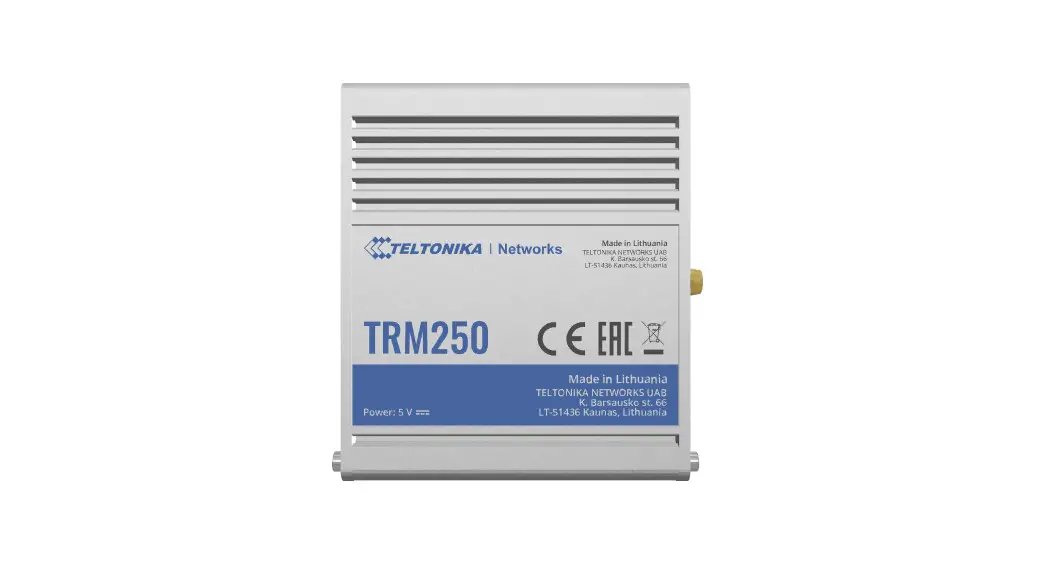
The 3G/4G Cellular Modem is a device designed to provide
wireless connectivity using cellular networks. It supports both 3G
and 4G signals, allowing users to access the internet and connect
to various services and applications.
Features:
- Supports 3G and 4G signals
- Includes antennas for optimal 4G signal reception
- Equipped with an Ethernet port for wired connections
- 12V DC Supply port for power input
Contact AC SOLAR WAREHOUSE for any inquiries or assistance
regarding the product. Phone: 07 4028 3979
Product Usage Instructions
LEDs Status
The device has several LEDs that indicate different statuses.
Here is a summary of the LED indications:
| LED | Status | Indication |
|---|---|---|
| Mobile Signal | Green Flashing | Processor OK |
| Red Flashing | Processor Rebooting | |
| Off | Processor Off/No power | |
| Internet Wi-Fi | Green Flashing | Data traffic |
| Green ON | No data traffic | |
| Amber ON | Standby | |
| RAPIDlink LEDs | Red Flashing | Data plan exhausted |
| Red ON | Offline | |
| Green ON | Good signal strength | |
| Activity | Amber ON | Moderate signal strength |
| Red ON | Poor signal strength | |
| Off | No signal strength | |
| Wi-Fi | Green Flashing | Data traffic |
| Green ON | No data traffic | |
| Amber ON | Connectivity issue | |
| Red ON | Unit is offline | |
| Wi-Fi | Green ON | Wi-Fi connected |
| Amber ON | Wi-Fi no internet | |
| Red ON | Not connected | |
| Off | Wi-Fi not enabled |
Installation of 3G/4G Cellular Modem
Version 3.0 — March/2023
Antennas for 4G signal
Ethernet port
12V DC Supply port
· The data service for the 3G/4G Cellular modem will need to be activated through the Rapidlink portal (https://au.rapidlink.com/sign-in).
· You can choose to either activate your device under AC Solar Warehouse’s account or register to have your own Rapidlink account created.
· If you choose to create your own Rapidlink account, then please follow section 5 from the Installation manual.
· Screw two of the three antennas onto the 4G Main & Aux SMA connectors. Note that the antennas will have a label on them to distinguish which one is for which port. The WIFI antenna is not required.
· Connect either LAN1 or LAN2 ports to the device requiring internet connection using the Ethernet cable supplied.
AC SOLAR WAREHOUSE
PHONE 07 4028 3979
Copyrightã
· Power the device with 12V DC using the DC power supply provided. From the DC supply, wire the blue wire to negative and the brown wire to a circuit breaker or fuse rated at 10A or less. Wire the red and black wires to the 12V DC supply terminals of the modem. (shown in the picture above)
· When the `MOBILE’ LED is green and steady, the device is connected to the cellular network. This may take up to 3 minutes.
· Record the serial number of the 3G/4G Cellular modem and the installation site for any future troubleshooting. (Serial number is required to remotely access the device)
· For technical support call AC Solar Warehouse on (07) 4028 3979.
LEDs Status Mobile
Signal Internet Wi-Fi
RAPIDlink LEDs
Activity
Indication
Green Flashing
Processor OK
Red Flashing
Processor Rebooting
Off
Processor Off/No power
Green Flashing
Data traffic
Green ON
No data traffic
Amber ON
Standby
Red Flashing
Data plan exhausted
Red ON
Offline
Green ON
Good signal strength
Amber ON
Moderate signal strength
Red ON
Poor signal strength
Off
No signal strength
Green Flashing
Data traffic
Green ON
No data traffic
Amber ON
Connectivity issue
Red ON
Unit is offline
Green ON
Wi-Fi connected
Amber ON
Wi-fi no internet
Red ON
Not connected
Off
Wi-Fi not enabled
AC SOLAR WAREHOUSE
PHONE 07 4028 3979
Copyrightã
 RAPIDlink