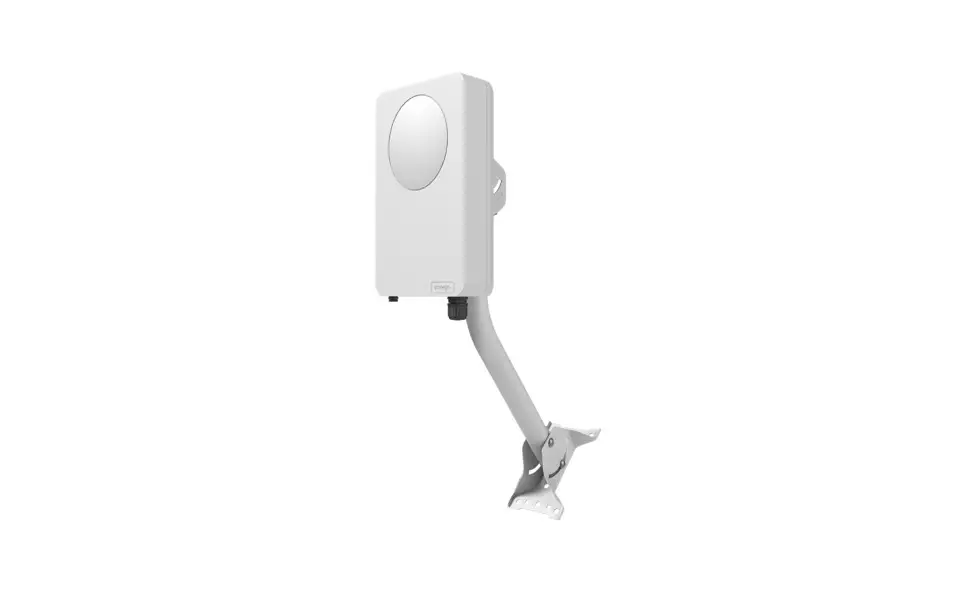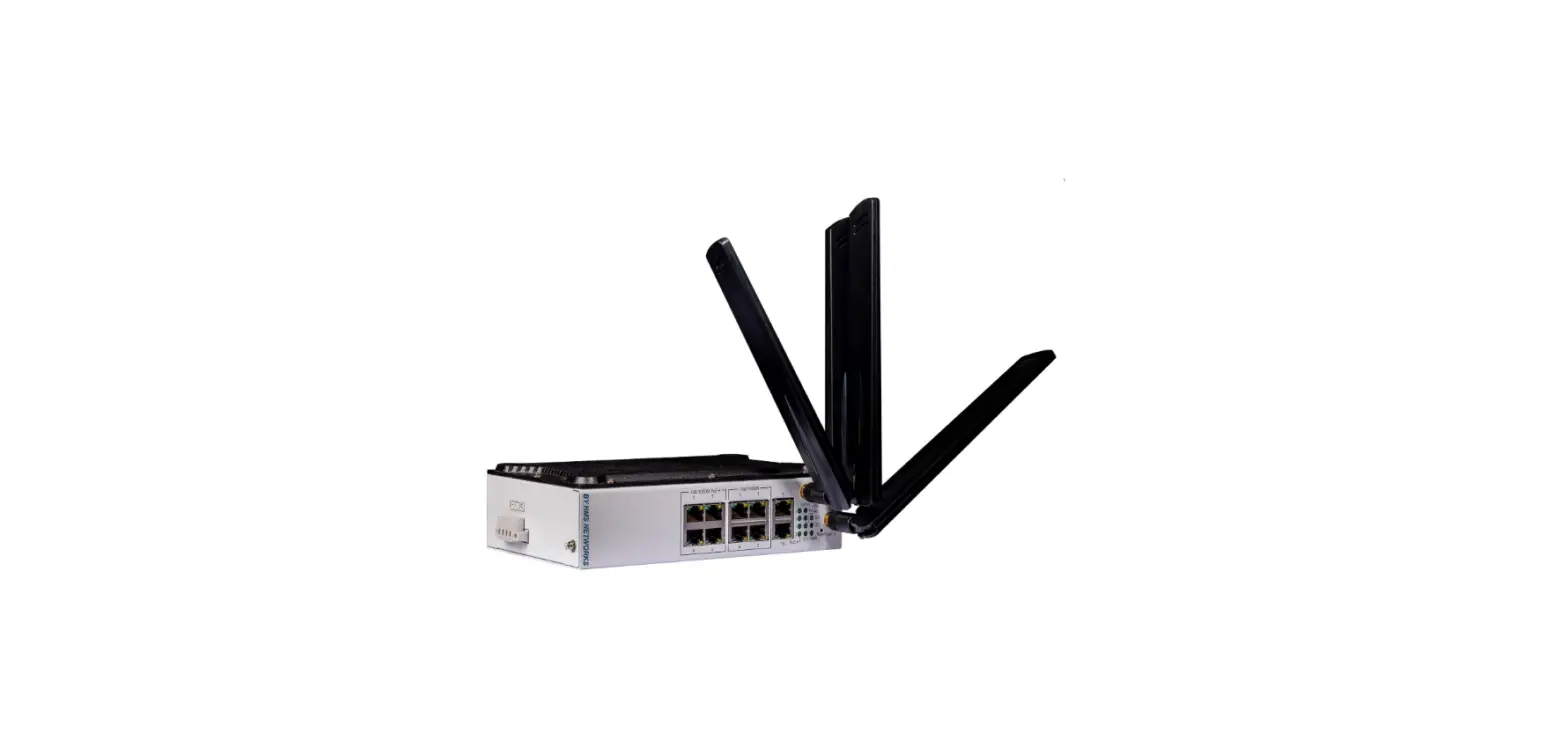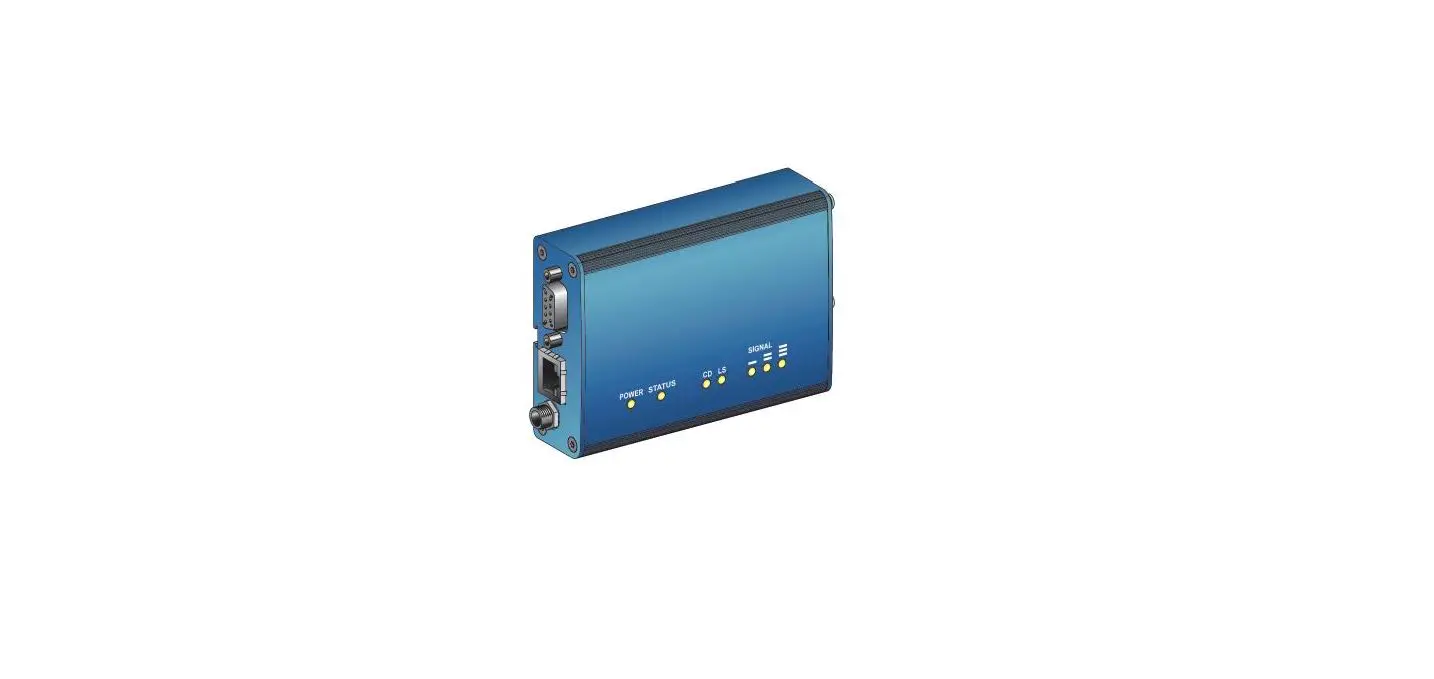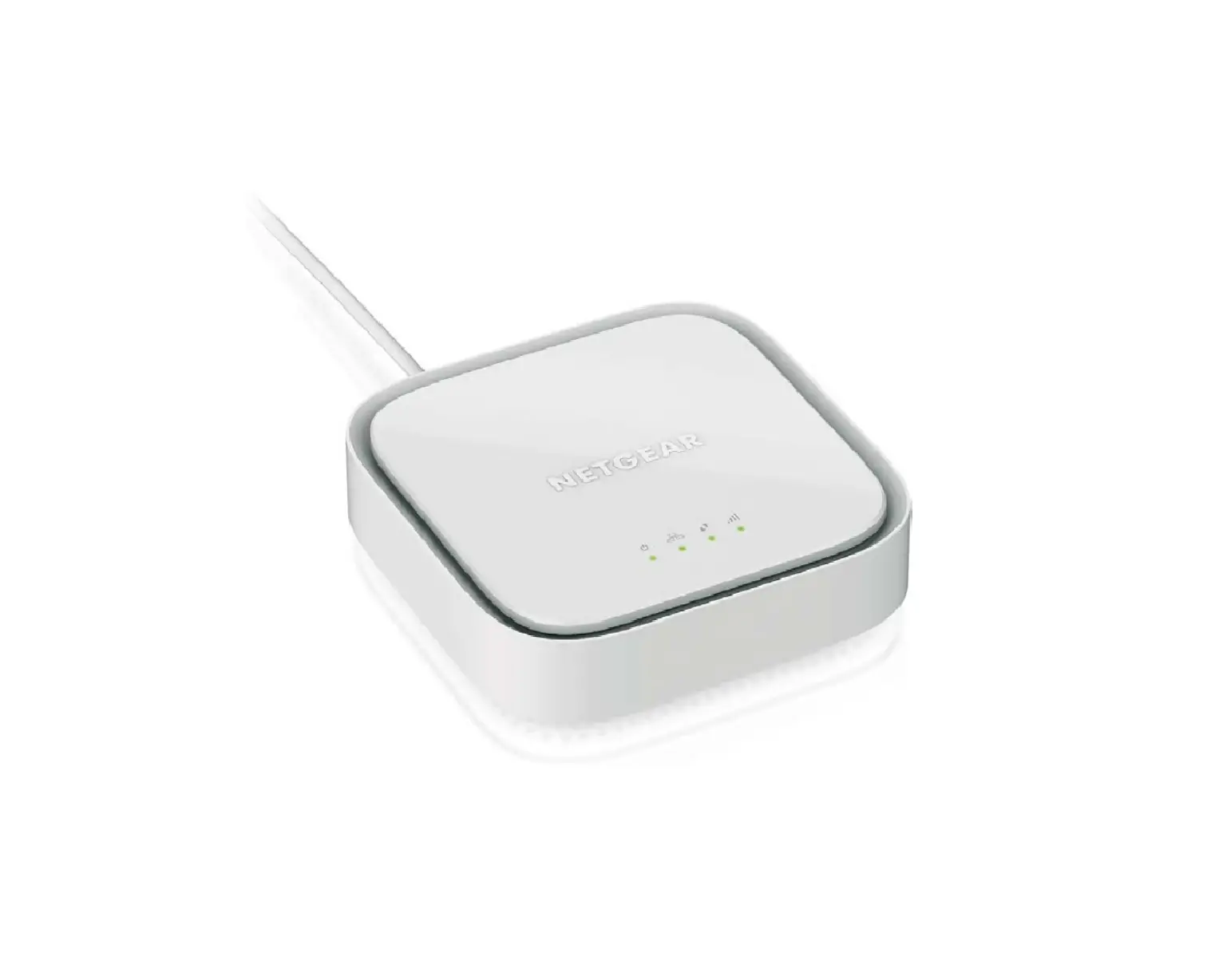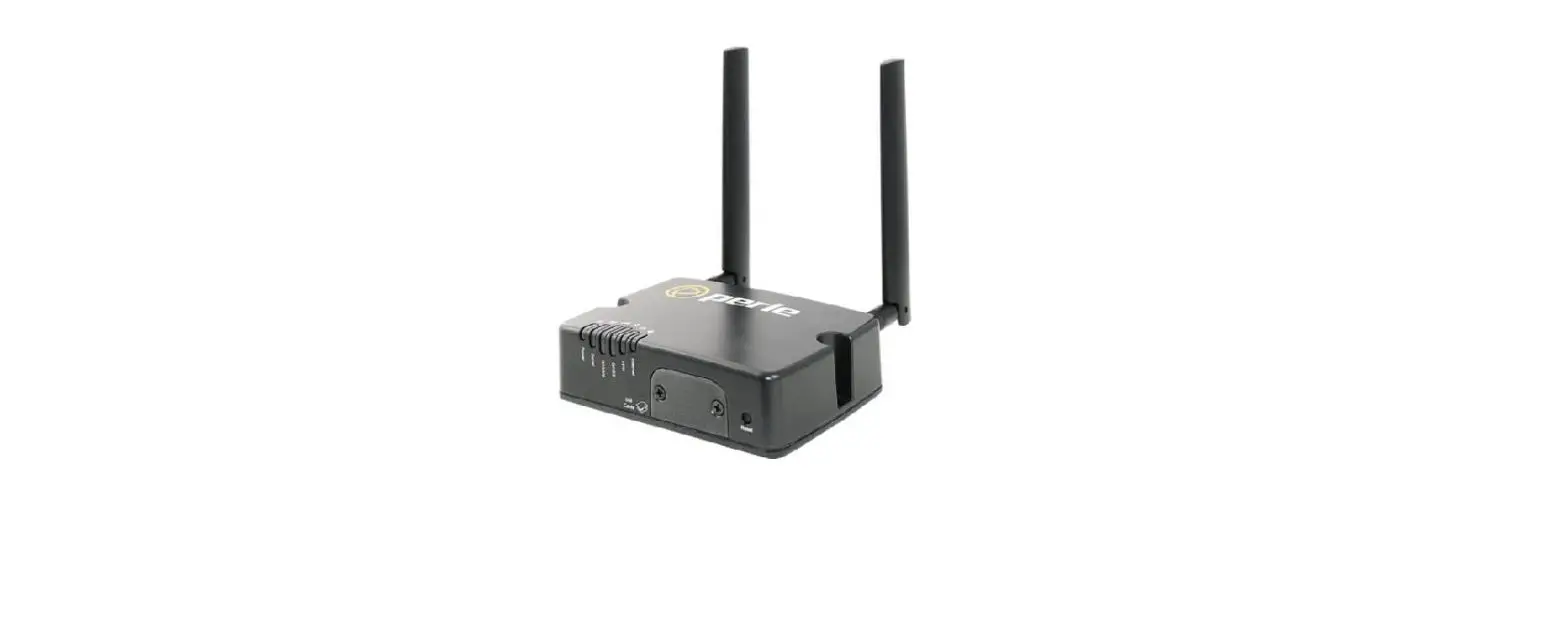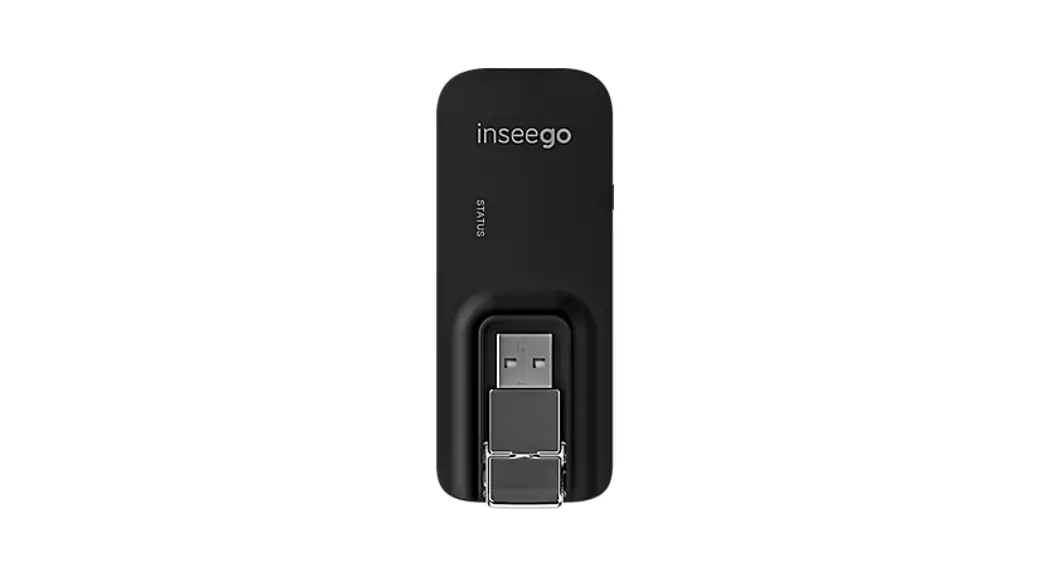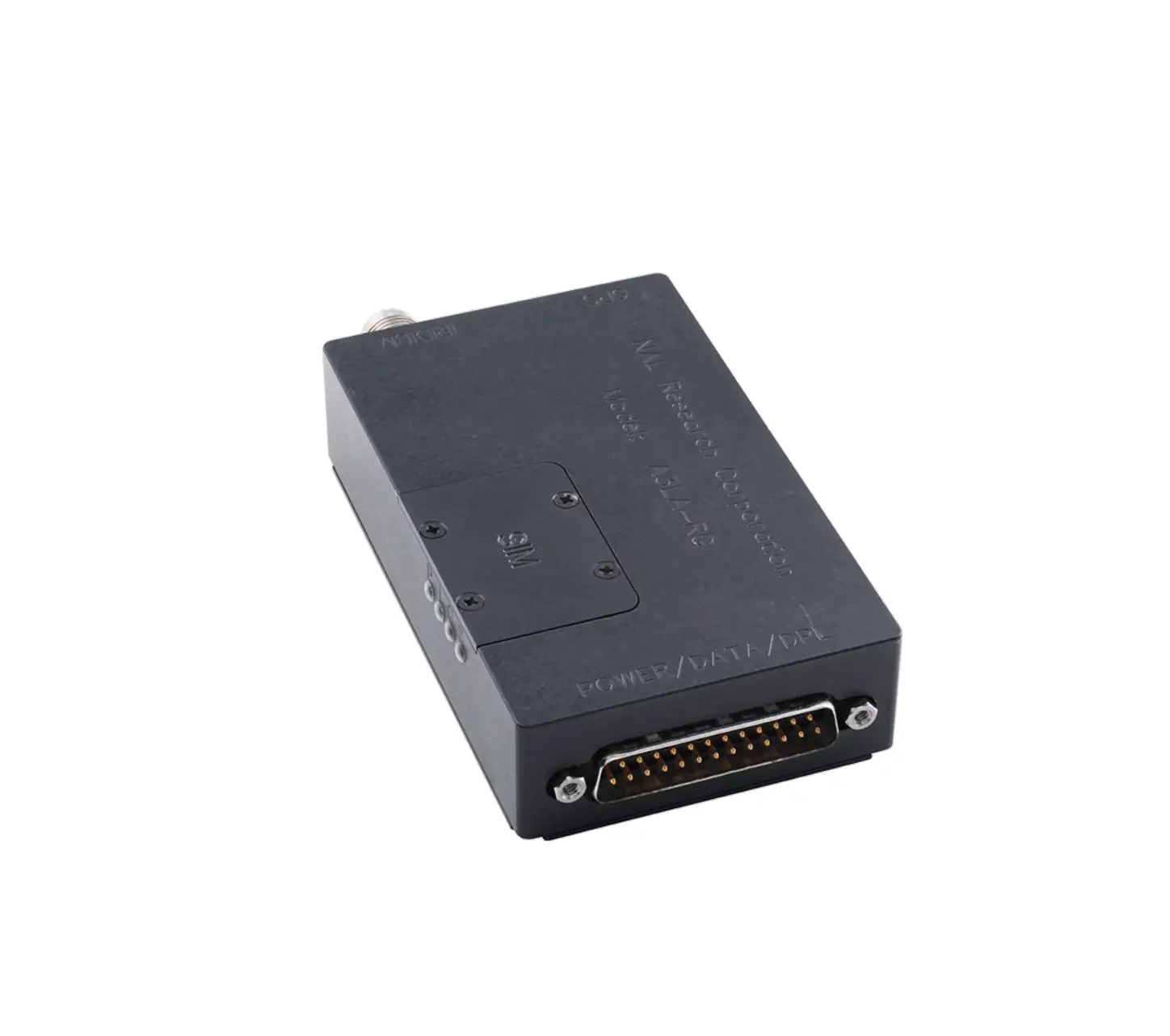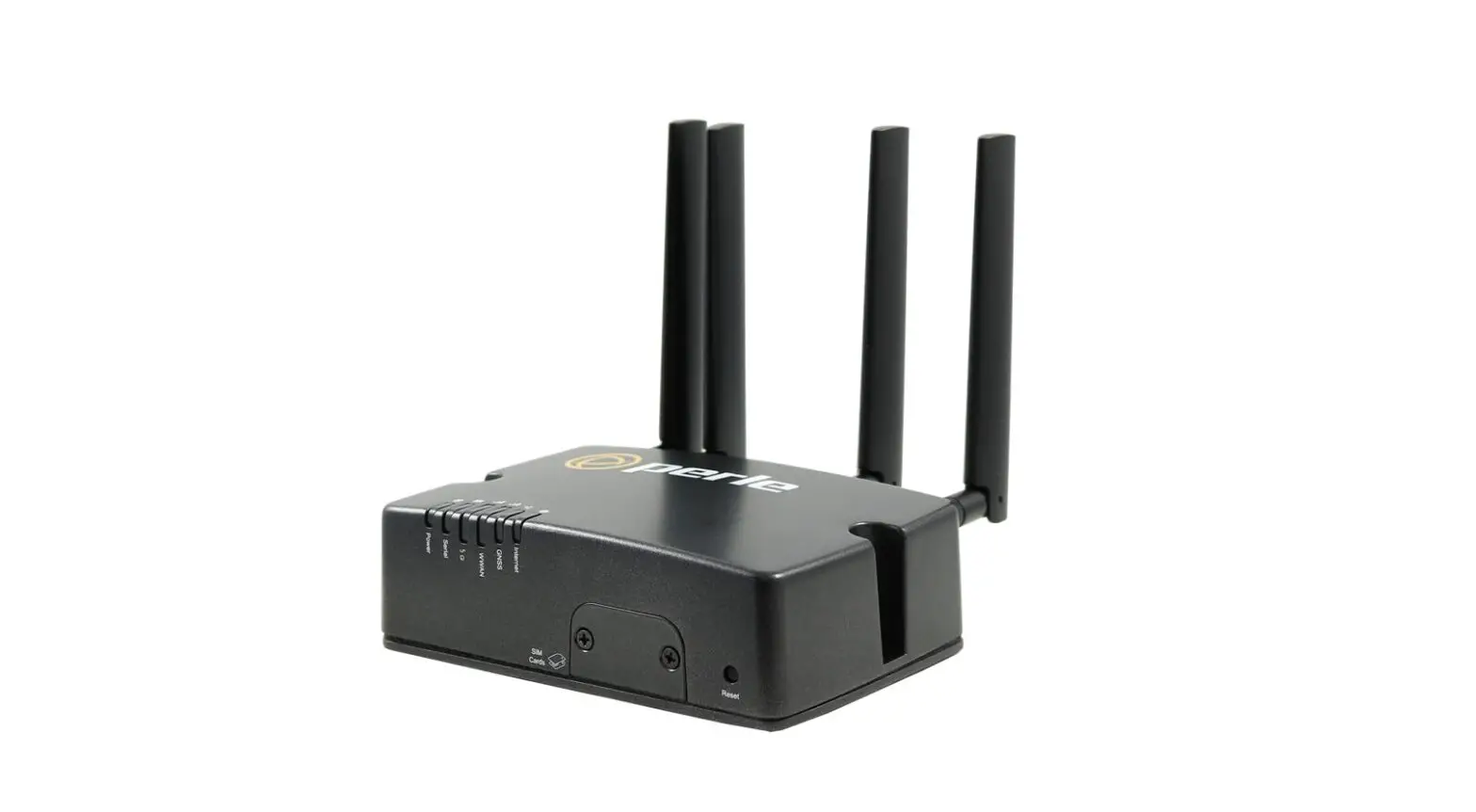
 Warehouse RL 10 3G/4G Cellular Modem With 5yr Data Plan
Installation Guide
Version 2.0 – August/2021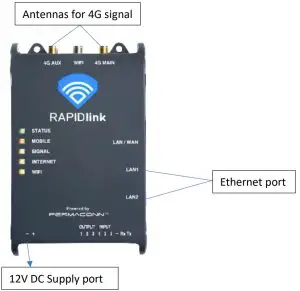
- The data service for the 3G/4G Cellular modem will be activated prior to shipping from AC Solar Warehouse.
- Screw two of the three antennas onto the 4G Main & Aux SMA connectors. Note that the
antennas will have a label on them to distinguish which one is for which port. The WIFI antenna is not required. - Connect either LAN1 or LAN2 ports to the device requiring internet connection using the Ethernet cable supplied.
- Power the device with 12V DC using the DC power supply provided. From the DC supply, wire the blue wire to negative and the brown wire to a circuit breaker or fuse rated at 10A or less.
Wire the red and black wires to the 12V DC supply terminals of the modem. (shown in the picture above) - When the ‘MOBILE’ LED is green and steady, the device is connected to the cellular network.
This may take up to 3 minutes. - Record the serial number of the 3G/4G Cellular modem and the installation site for any future troubleshooting. (Serial number is required to remotely access the device)
- For technical support call AC Solar Warehouse on (07) 4028 3979.
AC SOLAR WAREHOUSE
PHONE 07 4028 3979
Copyrightã
| RAPID ink LEDs | ||
| LEDs | Activity | Indication |
| Status | Green Flashing | Processor OK |
| Red Flashing | Processor Rebooting | |
| Off | Processor Off/No power | |
| Mobile | Green Flashing | Data traffic |
| Green ON | No data traffic | |
| Amber ON | Standby | |
| Red Flashing | Data plan exhausted | |
| Red ON | Offline | |
| Signal | Green ON | Good signal strength |
| Amber ON | Moderate signal strength | |
| Red ON | Poor signal strength | |
| Off | No signal strength | |
| Internet | Green Flashing | Data traffic |
| Green ON | No data traffic | |
| Amber ON | Connectivity issue | |
| Red ON | Unit is offline | |
| Wi-Fi | Green ON | Wi-Fi connected |
| Amber ON | Wi-fi no internet | |
| Red ON | Not connected | |
| Off | Wi-Fi not enabled | |