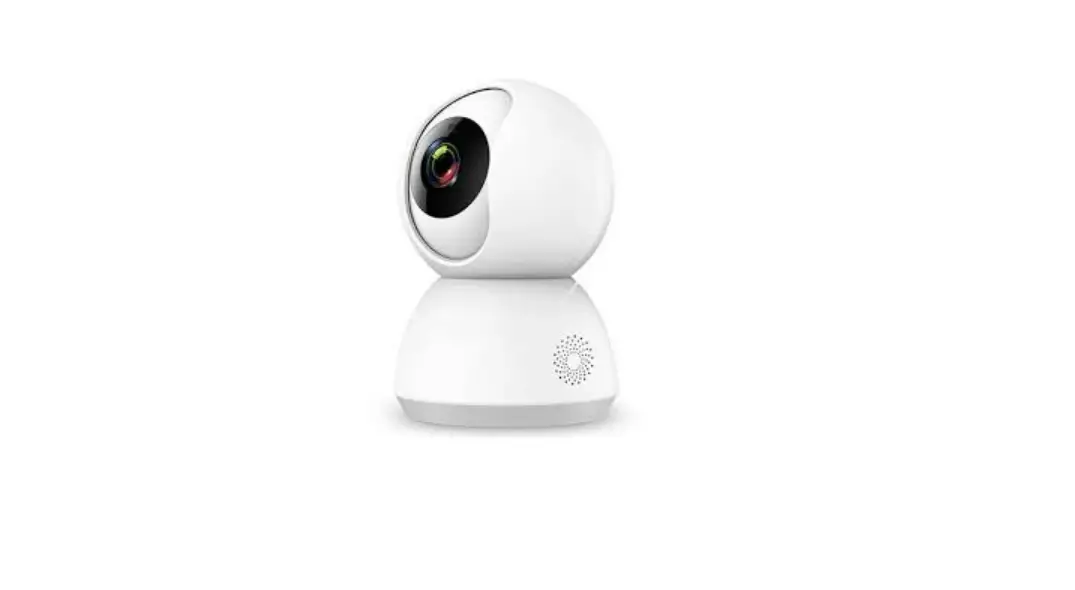
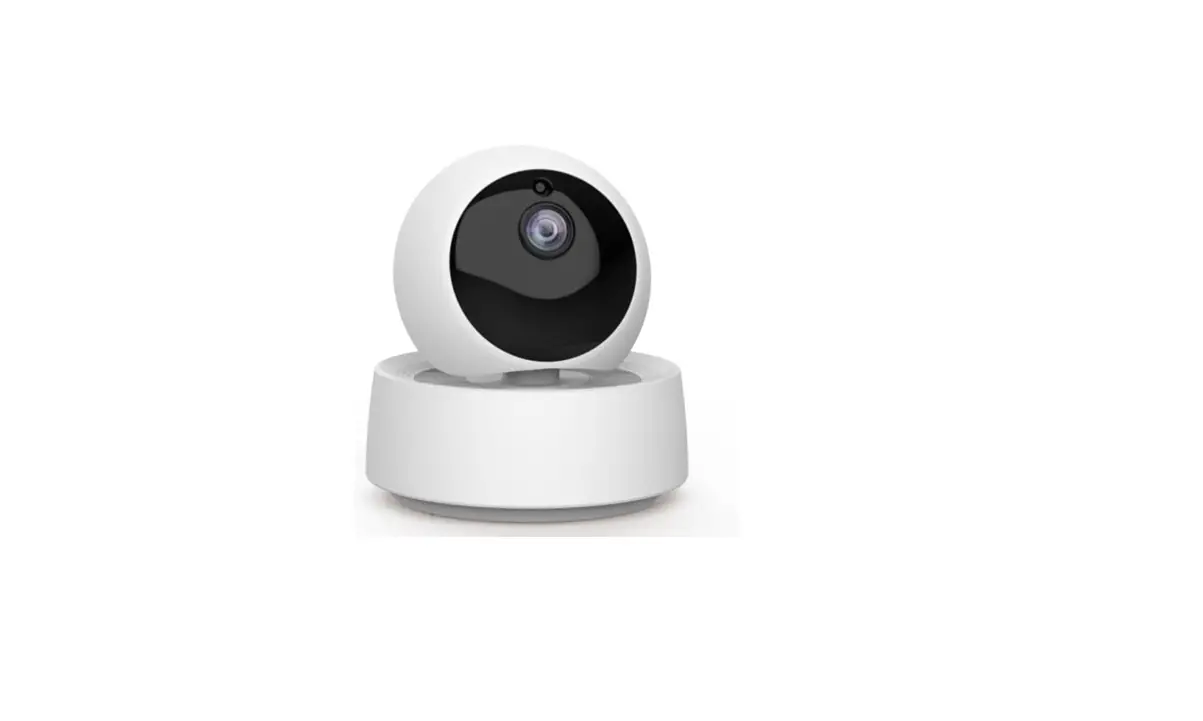
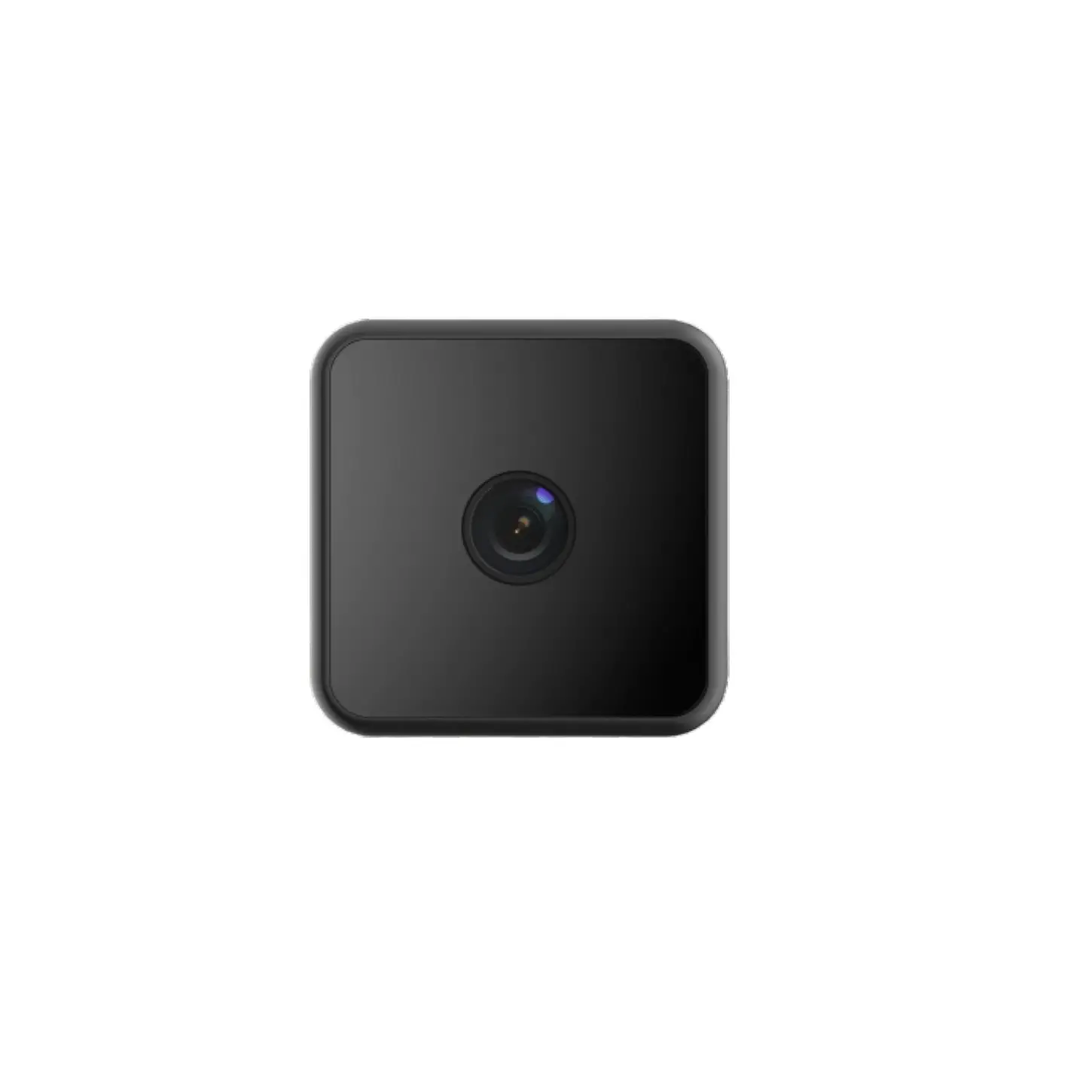
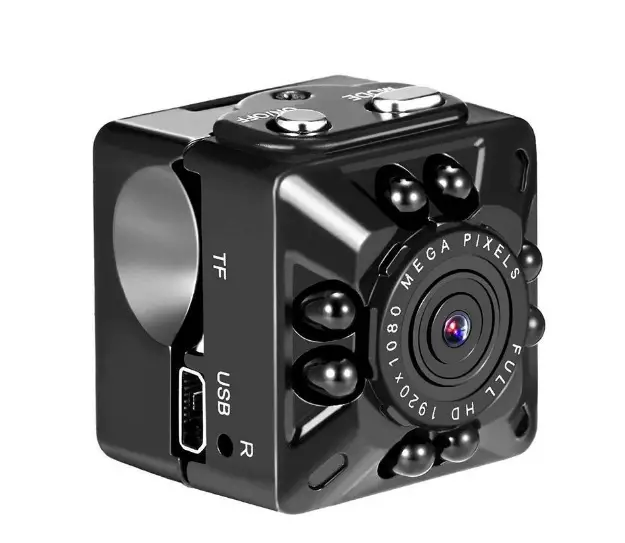
M1 Smart Camera with Littlelf Smart App
Product Information
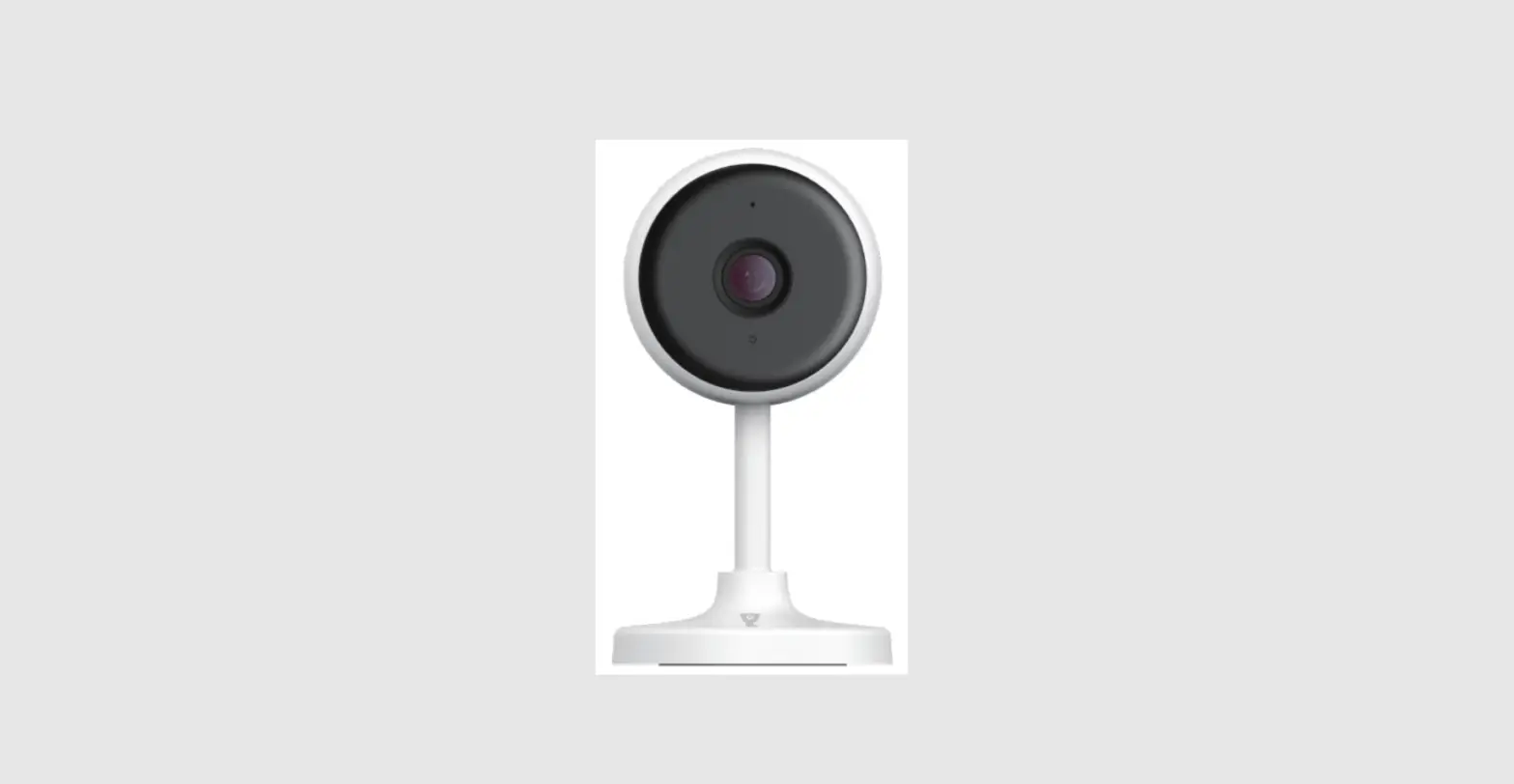
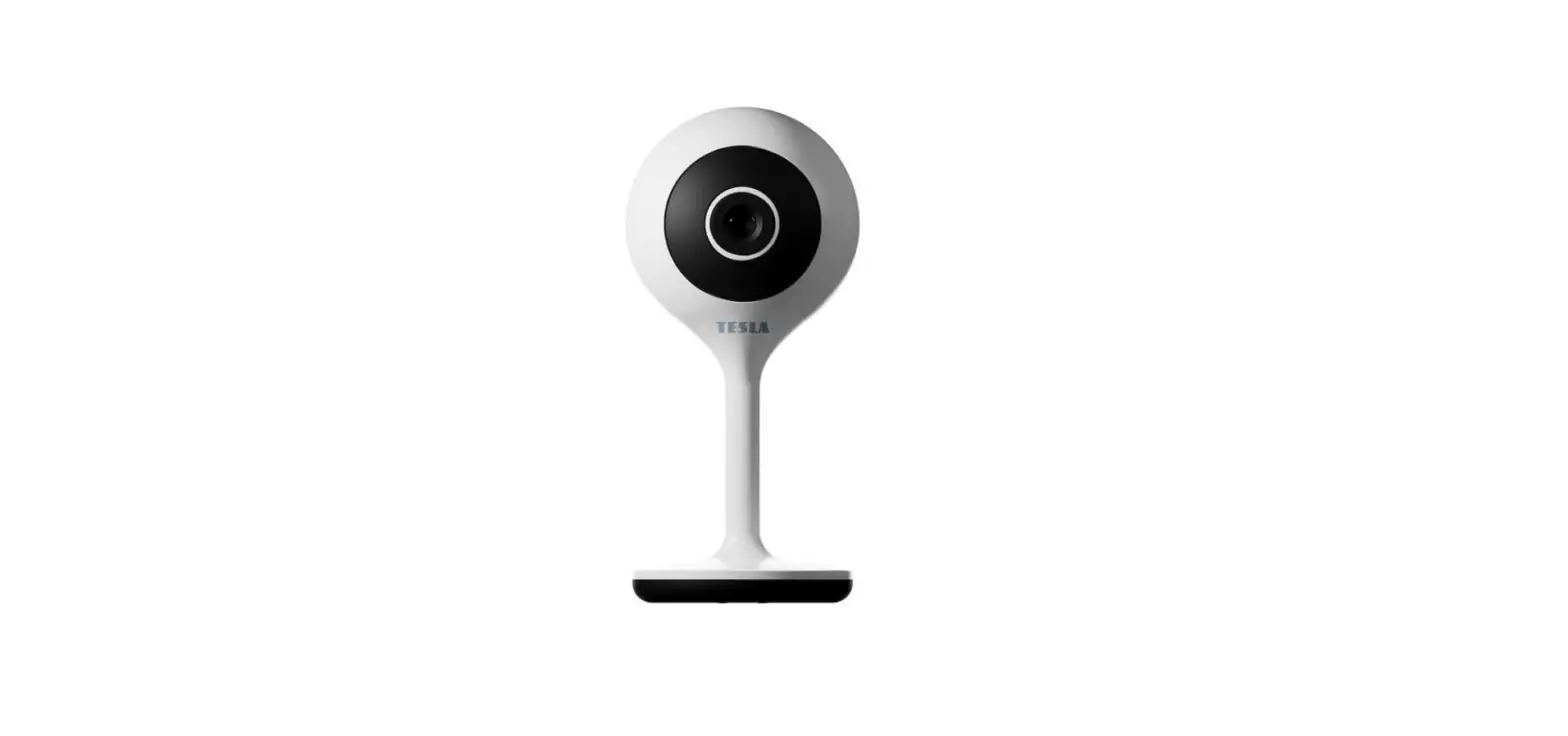
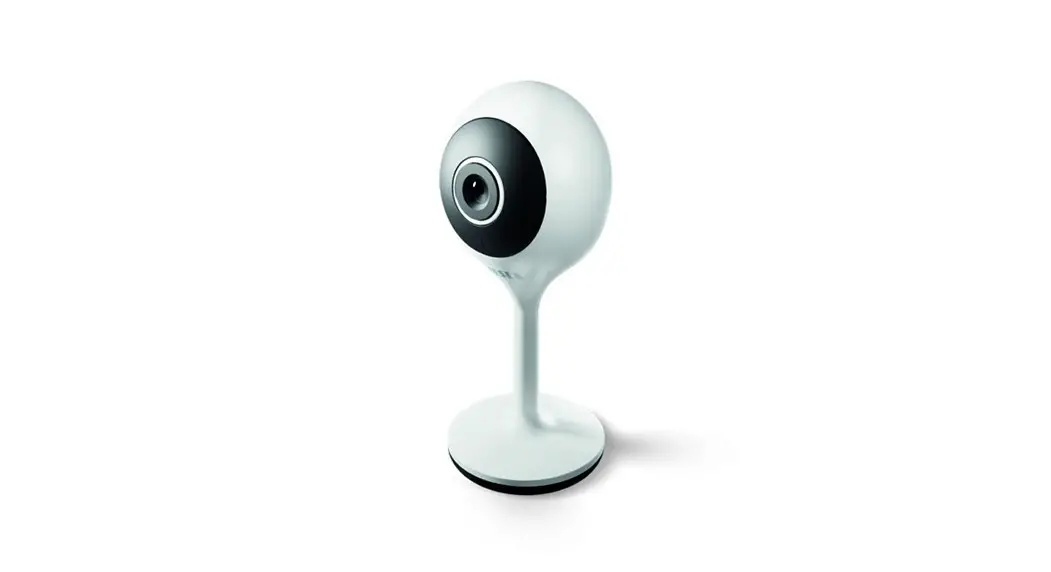
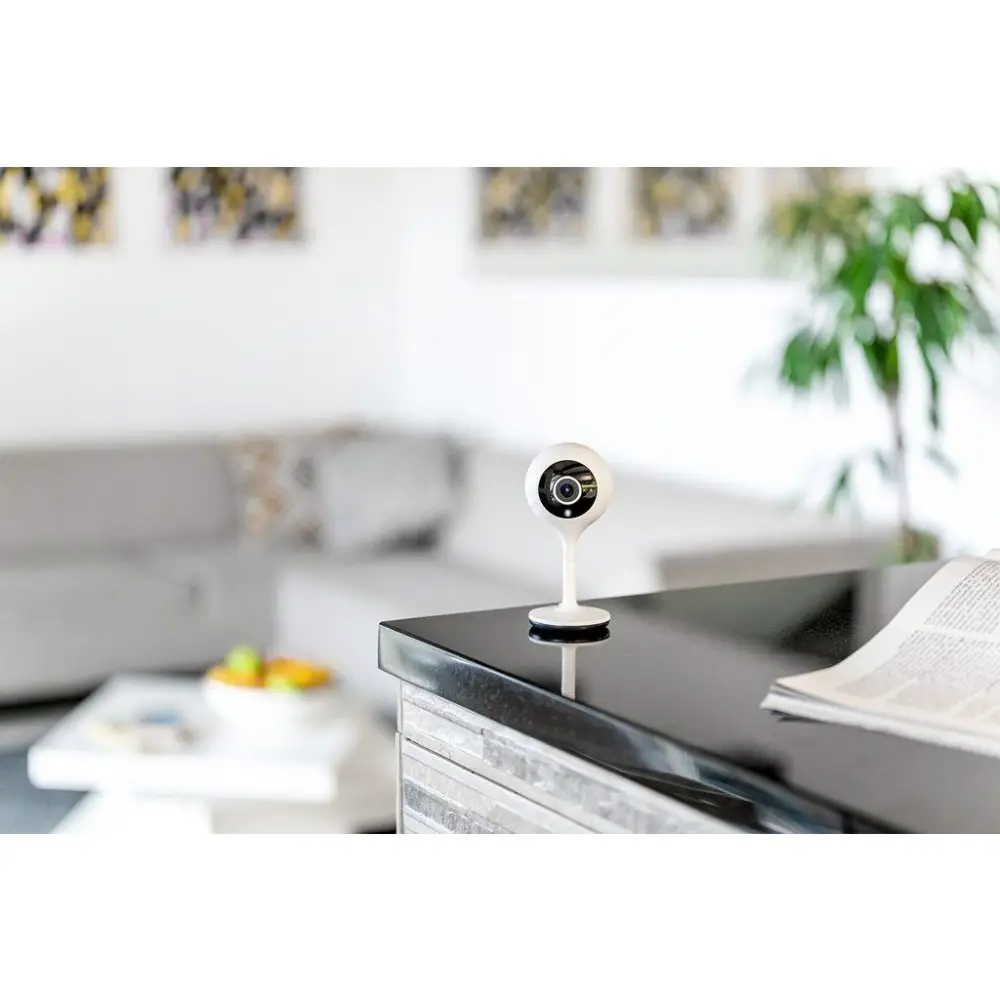
The product is a Littlelf Smart Camera (Model: Cam M1) with the
following dimensions:
- Height: 163mm
- Width: 159mm
Product Usage Instructions
Step 1: Download and Register on Littlelf Smart APP
- Download the Littlelf Smart APP on your mobile phone.
- Register an account on the APP using your email.
Step 2: Power On and Connect to WiFi
- Power on the camera.
- Ensure that your mobile phone is connected to a 2.4GHz WiFi
network.
Step 3: Add the Camera to the APP
- Open the Littlelf Smart APP.
- Click the “+” or “Add Device” button on the home page.
- Select “Cam M1” from the options.
- Check and confirm the camera status, then click “Next”.
- Align the QR code on the phone screen with the camera lens to
scan. - After hearing the beep, click “Hear the beep”.
Step 4: Wait for Network Configuration
Wait for the network configuration to be successful.
Step 5: Start Using the Camera
Once the network configuration is successful, you can start
using your camera.
Storage Methods
The camera supports two storage methods:
- Cloud storage: You can choose to subscribe to
a cloud storage package to automatically save videos. - Micro SD card storage: You can insert a Micro
SD card and turn on the record button to save event
recordings.
Frequently Asked Questions
Q1: How do you troubleshoot a security camera?
If the white light flashes rapidly during connections, follow
these steps to troubleshoot:
- If the light is not flashing white, try another cable and
plug. - Update software and firmware.
- Reset to factory settings.
- Check whether the router password is correct (not the APP
account password). - Ensure that the camera is close to the router and has strong
and stable signals. - Make sure your device is connected over a Wi-Fi band of 2.4
GHz. (Check if the 2.4 GHz band and 5GHz band share the same Wi-Fi
account. If so, configure two accounts and switch to the 2.4 GHz
band during network connection.)
Q2: How to record after inserting the SD card?
To record after inserting the SD card, follow these steps:
- Click the “…” icon in the top right corner of the live video
interface. - Select “Settings”.
- Click “Recording Settings”.
- Turn on “Local Recording”.
Q3: How do I have my cameras automatically record a video when
motion is detected?
If you have inserted a micro SD card into the camera, follow
these steps:
- Open the app and click the settings icon in the top right.
- Click “Recording Setting”.
- Open “Local Recording” and choose the recording mode.
- Select “Event Recording”.
163x159mm
De Bedienungsanleitung
1.What’s New
A 24/7 ONLINE CHAT function has been added to the Littlelf Smart APP. For any question, just click the “Live Chat”button to reach us, we are always here to help.
My home
Gabriela
Chat with us:
Cam M1
Common Functions
2.What’s in the Box
1 x Quick Start Guide 1 x Power Adapter 4 x Wall Anchors
1 x Litokam Camera 4 x Screws 1 x Pin
Status Light
Lens Microphone
Speaker
1.Was gibt’s Neues
Die Littlelf Smart App wurde um eine 24/7 ONLINE CHAT Funktion erweitert. Wenn Sie Fragen haben, klicken Sie einfach auf die Schaltfläche “Live Chat”, um uns zu erreichen. immer für Sie da.
Gabriela
Chatten Sie mit uns:
Cam M1
Allgemeine Funktionen
2.Was ist in der Box
1 x Kurzanleitung 1 x Netzteil 4 x Wandanker
1 x Litokam Kamera 4 x Schrauben 1 x Stift
Statusleuchte
Objektiv Mikrofon
Sprecher
> >
> >
3.How to Set Up
Step1 Download “Littlelf Smart”APP and register an account on APP via Email.
Step2 Power on the camera, and make sure your mobile phone is already connected to WiFi (only 2.4Ghz WiFi is supported)
Step3 Open the “Littlelf Smart” APP, click “+” or “Add Device” button on the home page (Picture 1); Then click “Cam M1″ (Picture 2) , please check and confirm the camera status then click ” Next” (Picture 3).
1
2
3
Cam S1
Cam M1
Cam A1
Step4 Please align the QR code on the phone screen with the camera lens to scan (keep at a distance of 15-20cm), after hearing the beep, click “Hear the beep” (Picture 4).
Step5 Waiting for the network configuration to be successful, and then please start enjoying your camera(Picture 5).
4
5
Cam M1
4.Storage Methods
1. Cloud storage
You can choose to subscribe to a cloud storage package by following the steps below, and then the camera will save video automatically.
1My home
2
Cam M1
Common Functions
2. Micro SD card storage Or you can choose to insert a Micro SD card then turn on the Record Button to save the event recordings.
5.Frequently Asked Questions
Q1: How do you troubleshoot a security camera? A: The white light flashes rapidly during connections, it can be connected normally, if the light is in another abnormal state please follow these 6 quick tips to fix your security camera troubleshooting: 1). If the light is not flashing white, please try another cable and plug to check 2). Update software & firmware
3). Reset to factory settings 4). Check whether the router passwordcwifi password but not APP account password 5). Close to the router and ensure that the network environment has strong and stable signals. 6). Ensure that your device has been added over a Wi-Fi band of 2.4 GHz. (Check whether the 2.4 GHz band and 5GHz band share the same Wi-Fi account. If so, we recommend that you configure two accounts and switch to the 2.4 GHz band during network connection.)
Q2: How to record after inserting the SD card
A: Please follow these steps 1). Click the “….” which is in the top right corner of the live video interface; 2). Select the “Settings” ; 3). Click the “Recording Settings” ; 4). Turns on the “Local Recording”
Q3: How do I have my cameras automatically record a video when motion is detected? A: If you have inserted the micro SD card to camera, please operate as below steps:
1). Open the app and click the settings icon in the top right. 2). Click recording setting 3). And then please open the local recording and choose the recording mode 4). Select the event recording.
Q4: What should I do when my device is frozen (can’t retrieve the video)?
A: To troubleshoot,please follow these steps: 1). Please switch to SD mode to check whether you can see video; 2). Please restart the router and reset the camera and reconnect it again to check this situation; We recommend that you place the camera as close to the router as possible. 3). Whether the camera can be viewed when the phone is connected to a hotspot; 4). Whether other mobile phones can view the camera normally; 5). Check whether the firmware is the latest version. To check this on the app, choose Home–Tap device icon–Top right button–Check for Device Updates. If the issue persists, we recommend that you remove your device and then add it again.
6.Litokam Customer Care
More questions on installations and usage?
Check out the FAQs and Guide Video on Littlelf Smart APP or Litokam official website. (Scan the code on the right side)
Need more help?
Litokam
We provide timely online customer service via APP/TEL/Website at PT 08:00-10:00/17:30-20:00/21:30-08:00
Littlelf Smart APP Live Chat Website: www.litokam.com Tel: US&CA Toll free +1(866)722-6296 (Mon-Sun 11:00AM-6:30PM PT) Email: [email protected]
Follow us on: @Litokam
Warranty Terms (Please contact us to activate the warranty service) 1. 30-day return policy and 12-month limited warranty. 2. Lifetime professional tech support provided by Litokam.
3.Wie stellt man das ein
Schritt 1 Laden Sie die “Littlelf Smart”APP herunter und registrieren Sie ein Konto auf der APP per E-Mail.
Schritt 2 Schalten Sie die Kamera mit und stellen Sie sicher, dass Ihr Mobiltelefon sichergestellt wird ist bereits mit WLAN verbunden (nur 2,4 GHz WLAN wird unterstützt)
Schritt 3 Öffnen Sie die “Littlelf Smart” -App, klicken Sie auf “+” oder “Gerät hinzufügen” -Taste ein die Homepage (Bild 1); Klicken Sie dann bitte auf “CAM M1” (Bild 2), bitte, bitte Überprüfen Sie und bestätigen Sie den Kamera -Status und klicken Sie dann auf “Weiter” (Bild 3).
1
2
3
Cam S1
Cam M1
Cam A1
Schritt 4 Bitte richten Sie den QR -Code auf dem Telefonbildschirm mit dem aus Kameraobjektiv zum Scannen (in einer Entfernung von 15 bis 20 cm) nach dem Hören Klicken Sie auf “Hören Sie den Piepton” (Bild 4). Schritt 5 Waiting for the network configuration to be successful, and then please start enjoying your camera(Picture 5).
Cam M1
4.Storage -Methoden
1. Wolkenspeicher Sie können ein Cloud -Speicherpaket abonnieren Durch die folgenden Schritte folgt die Kamera Videos automatisch speichern.
M1y home
2
Cam M1
Cam M1
Allgemeine Funktionen
2. MICRO SD -Kartenspeicher Oder Sie können eine Micro -SD -Karte einfügen und dann einschalten Die Schaltfläche “Daten” zum Speichern der Ereignisaufnahmen.
5. Frequent gestellte Fragen
F1: Wie beheben Sie eine Überwachungskamera?
A: Das weiße Licht blinkt schnell während der Verbindungen, es kann normal angeschlossen werden. Wenn sich das Licht in einem anderen abnormalen Zustand befindet, folgen Sie bitte diesen 6 schnellen Tipps, um Ihre Fehlerbehebung bei der Fehlerbehebung Ihrer Überwachungskamera zu beheben:
1). Wenn das Licht nicht weiß blinkt, versuchen Sie es mit einem anderen Kabel und stecken Sie es, um zu überprüfen 2). Software und Firmware aktualisieren 3). Auf Werkseinstellungen zurücksetzen 4). Überprüfen Sie, ob das Router -Passwort cWiFi -Passwort, jedoch nicht App -Konto -Passwort 5). In der Nähe des Routers und sicherstellen, dass die Netzwerkumgebung starke und stabile Signale hat. 6). Stellen Sie sicher, dass Ihr Gerät über ein Wi-Fi-Band von 2,4 GHz hinzugefügt wurde. (Überprüfen Sie, ob das 2,4-GHz-Band und das 5-GHz-Band das gleiche Wi-Fi-Konto teilen. Wenn ja, empfehlen wir Ihnen, zwei Konten zu konfigurieren und während der
F2: So erfassen Sie nach dem Einsetzen der SD -Karte
A: Bitte befolgen Sie diese Schritte 1). Klicken Sie auf “….”, die sich in der oberen rechten Ecke der Live -Videoschnittstelle befindet. 2). Wählen Sie die “Einstellungen” aus; 3). Klicken Sie auf die “Aufzeichnungseinstellungen”; 4). Schaltet die “lokale Aufnahme” ein
F3: Wie habe ich meine Kameras automatisch? Ein Video aufnehmen, wenn Bewegung erkannt wird?
A: Wenn Sie die Micro -SD -Karte in die Kamera eingefügt haben, arbeiten Sie bitte unter den folgenden Schritten: 1). Öffnen Sie die App und klicken Sie oben rechts auf das Symbol Einstellungen. 2). Klicken Sie auf Aufzeichnungseinstellung 3). Und dann öffnen Sie bitte die lokale Aufzeichnung und wählen Sie den Aufnahmemodus aus 4). Wählen Sie die Ereignisaufzeichnung.
F4: Was soll ich tun, wenn mein Gerät eingefroren ist (das Video kann nicht abrufen)?
A: Befolgen Sie die folgenden Schritte: Um Fehler zu beheben: 1). Bitte wechseln Sie zum SD -Modus, um zu überprüfen, ob Sie Video sehen können. 2). Bitte starten Sie den Router neu und setzen Sie die Kamera zurück und verbinden Sie sie erneut, um diese Situation zu überprüfen. Wir empfehlen Ihnen, die Kamera so nah wie möglich am Router zu platzieren. 3). Ob die Kamera angezeigt werden kann, wenn das Telefon an einen Hotspot angeschlossen ist; 4). Ob andere Mobiltelefone die Kamera normal anzeigen können; 5). Überprüfen Sie, ob die Firmware die neueste Version ist. Um dies in der App zu überprüfen, wählen Sie das Symbol “TAP -Geräte – Top -Top -Top -Top -Schaltfläche – für Geräte -Updates untersuchen. Wenn das Problem bestehen bleibt,
6.Litokam Kundenbetreuung
Weitere Fragen zu Installationen und Nutzung?
Schauen Sie sich die FAQs an und führen Sie das Video an Littlelf Smart App oder auf der offiziellen Website von Litokam. (Scannen Sie den Code auf der rechten Seite)
Benötigen Sie weitere Hilfe?
Litokam
Wir bieten einen zeitnahen Online-Kundenservice per APP/ Website um GMT+8,00:00-02:00/9:30-12:00/13:30-24:00.
Littlelf Smart APP Live Chat Website: www.litokam.com Tel: US&CA Toll free +1(866)722-6296 (Mon-Sun 11:00AM-6:30PM PT) Email: [email protected]
Folgen Sie uns auf@Litokam
Garantiebedingunge
(Bitte kontaktieren Sie uns, um den Garantieservice zu aktivieren) 1. 30-tägige Rückgaberichtlinie und 12-monatige Gewährleistung.
2. Professioneller technischer Support auf Lebenszeit von Litokam.
FCC Statement
This device complies with part 15 of the FCC rules. Operation is subject to the following t wo conditions: (1) this device may not cause harmful interference, and (2) this device mu st accept any interference received, including interference that may cause undesir ed operation. Caution: Changes or modifications not expressly approved by the party responsible for compliance could void the user’s authority to operate the equipment. NOTE: This equipment has been tested and found to comply with the limits for a Class B digital device, pursuant to part 15 of the FCC Rules. These limits are designed to provide reasonable protection against harmful interference in a residential installation. This equip ment generates uses and can radiate radio frequency energy and, if not installed and use d in accordance with the instructions, may cause harmful interference to radio communic ations. However, there is no guarantee that interference will not occur in a particular insta llation. If this equipment does cause harmful interference to radio or television reception, which can be determined by turning the equipment off and on, the user is encouraged to t ry to correct the interference by one or more of the following measures: – Reorient or relocate the receiving antenna. – Increase the separation between the equipment and receiver. – Connect the equipment into an outlet on a circuit different from that to which the receiver is connected. -Consult the dealer or an experienced radio/TV technician for help important announcement
Radiation Exposure Statement To comply with FCC RF exposure compliance requirements, this grant is applicable to only mobile configurations. The antennas used for this transmitter must be installed to provide a separation distance of at least 20 cm from all persons and must not be co-located or operating in conjunction with any other antenna or transmitter.
ISED Statement
– English: This device complies with Industry Canada license – exempt RSS standard(s). Operation is subject to the following two conditions: (1) This device may not cause interfe rence, and (2) This device must accept any interference, including interference that may cause undesired operation of the device. The digital apparatus complies with Canadian CAN ICES-003 (B)/NMB-3(B). – French: Le présentappareilestconforme aux CNR d’Industrie Canada applicables aux appareils radio exempts de licence. L’exploitationestautorisée aux deux conditions suivantes: (1) l’a ppareil ne doit pas produire de brouillage, et (2) l’utilisateur de l’appareildoit accepter tout brouillageradioélectriquesubi, mêmesi le brouillageest susceptible d’encompromettre le f onctionnement. L’appareil numérique est conforme à la canadienne CAN ICES-003 (B)/NMB-3(B).
Radiation Exposure Statement To comply with FCC RF exposure compliance requirements, this grant is applicable to only mobile configurations. The antennas used for this transmitter must be installed to provide a separation distance of at least 20 cm from all persons and must not be co-located or operating in conjunction with any other antenna or transmitter.
Pour se conformer aux exigences de conformité d’exposition RF de la FCC, cette subvention est applicable uniquement aux configurations mobiles. Les antennes utilisées pour cet émetteur doivent être installées de manière à fournir une distance de séparation d’au moins 20 cm de toutes les personnes et ne doivent pas être colocalisées ou fonctionner conjointement avec toute autre antenne ou émetteur.
 Litokam | Smart Camera Brand