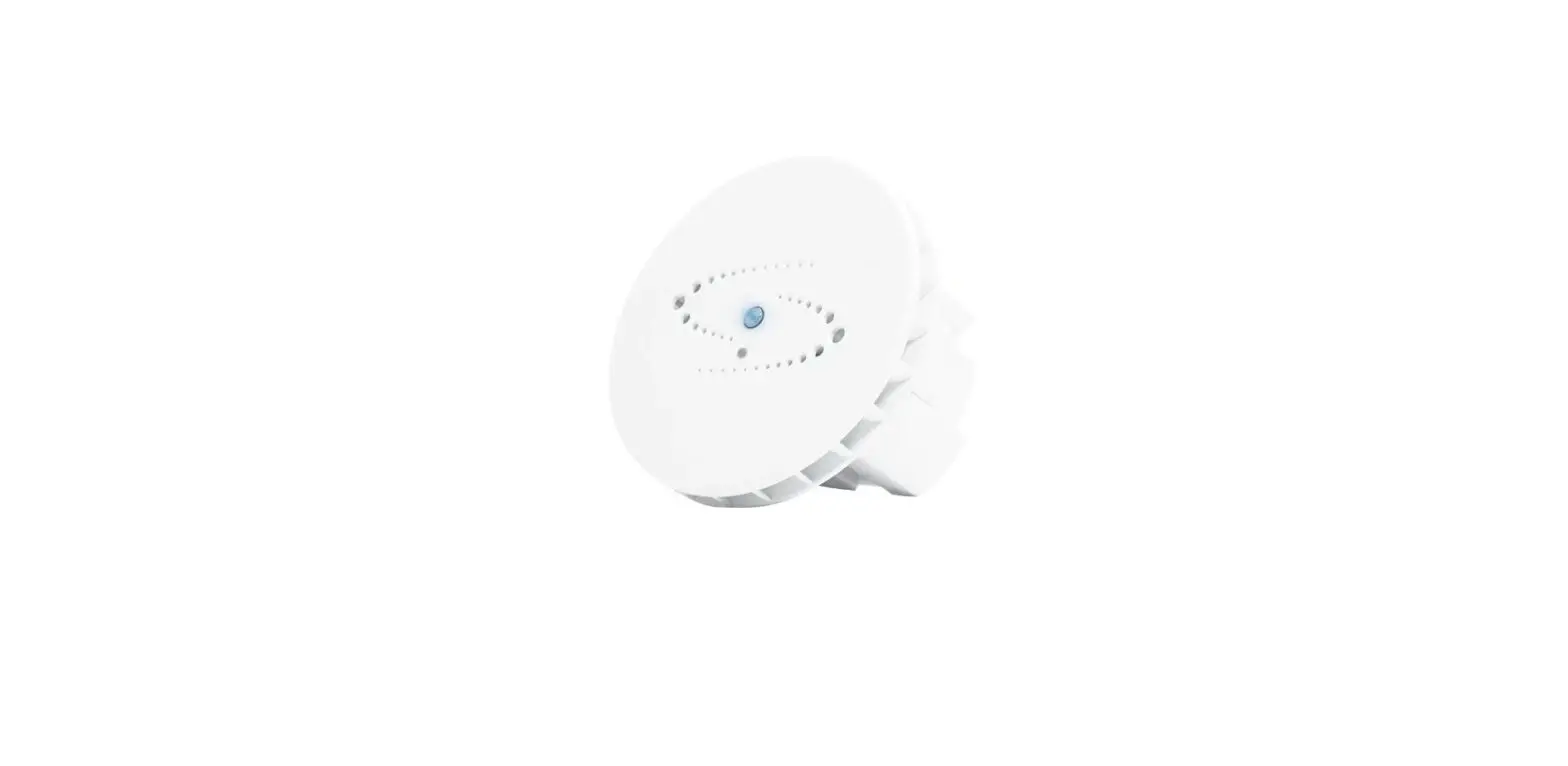
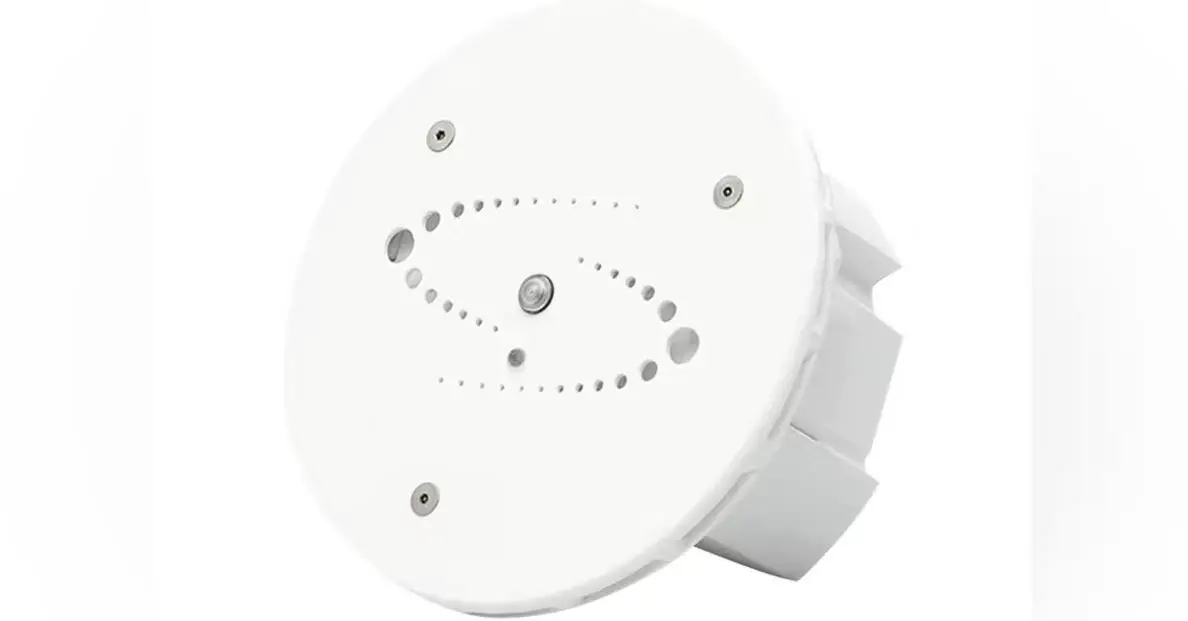
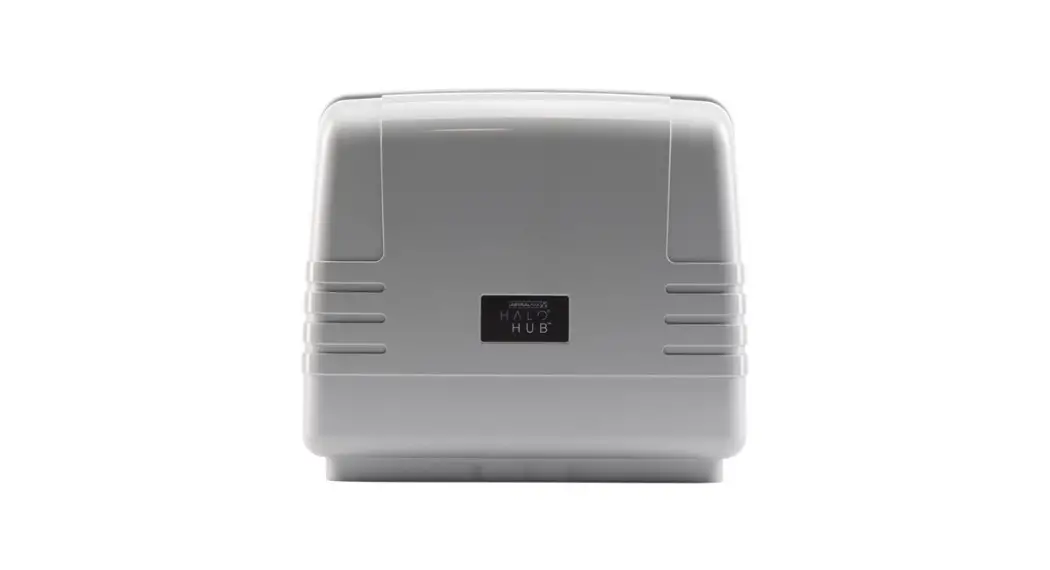
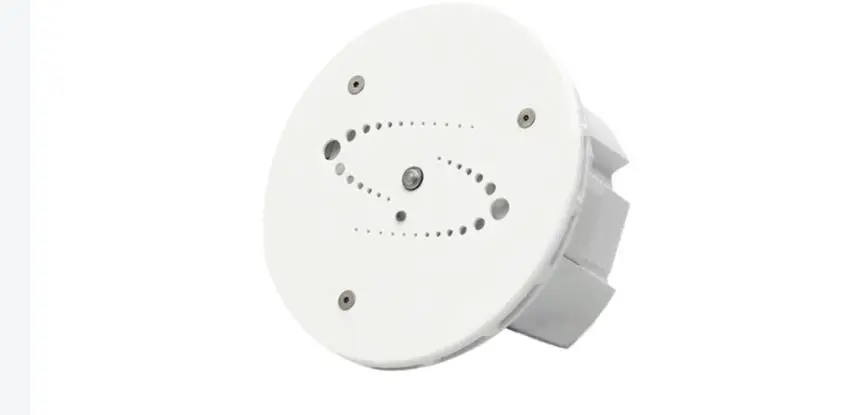
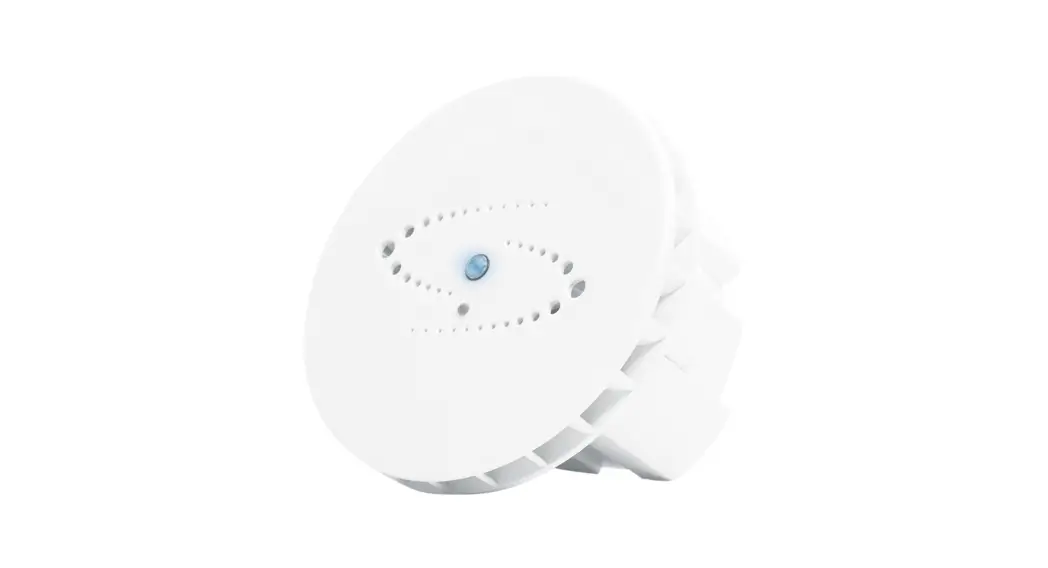
HALO Integration
Product Information
Spot AI builds a modern AI Camera System to create safer
workplaces and smarter operations for every business. For more
information, visit www.spot.ai.
Product Usage Instructions
- In the Spot AI Dashboard, click the Integrations tab.
- Scroll down to HALO and click Create Integration.
- Name your integration and click Next.
- Copy the Msg Set and Msg Reset URLs and keep them handy. We
will use the same URL for all HALO devices. - Open up your HALO device GUI.
- Click Actions.
- Select the checkbox for Msg Set and Msg Reset for all events
you would like to notify your Spot AI system about. - Click Save and return to the HALO GUI home page.
- Click Integration.
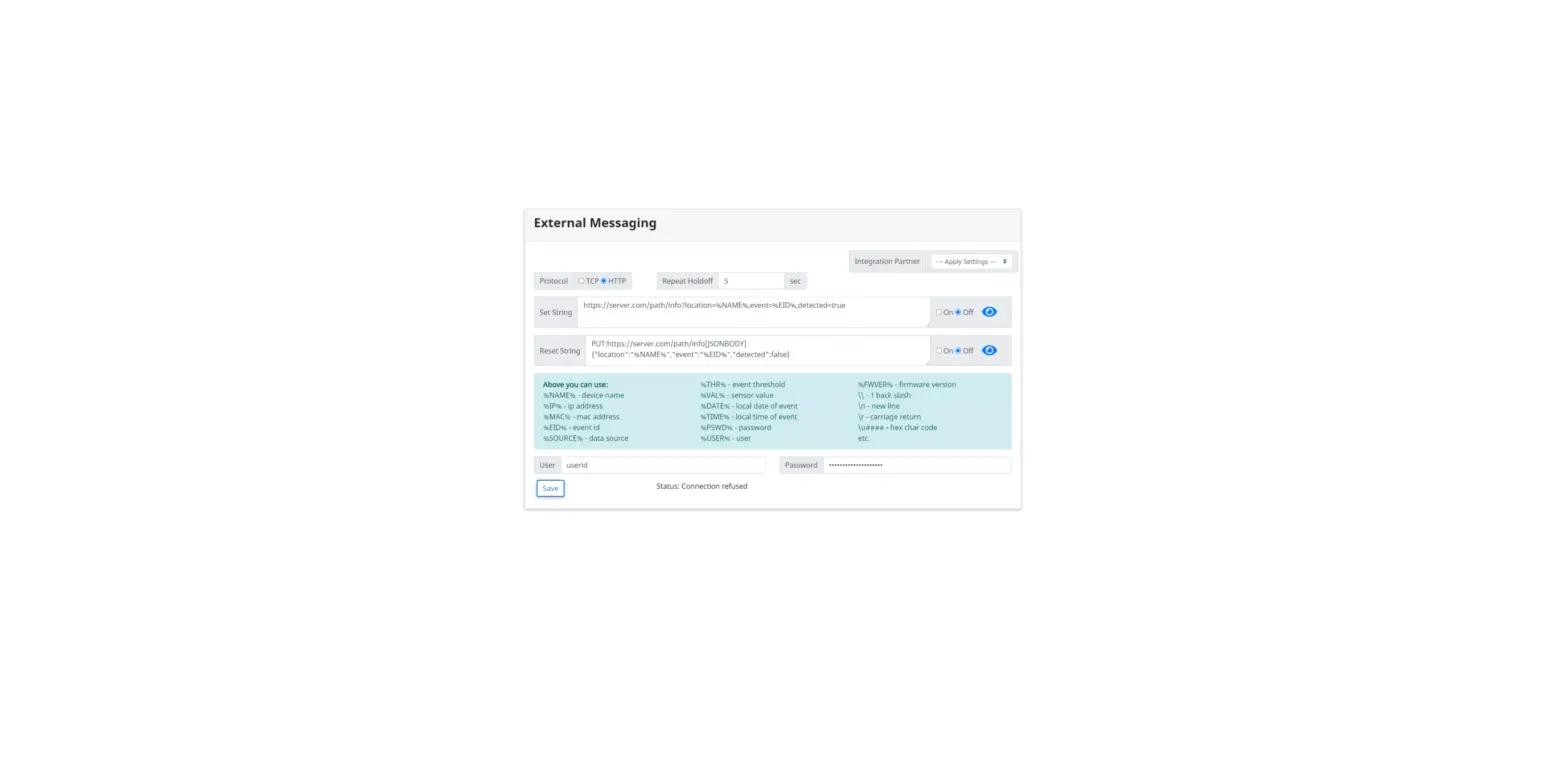
- Under protocol, select HTTP.
- Paste the Msg Set URL we saved from earlier into the Set String
text field. - Paste the Msg Reset URL we saved from earlier into the Reset
String text field. - Toggle Msg Set notifications to On.
- Toggle Msg Reset notifications to On.
- Click Save, check that you see Status: OK, and close the
window. - We will now be returning to the Spot AI Dashboard.
- Name your device and fill in your HALO sensor’s MAC address. If
you wish to add more devices, simply click the plus sign (+). - If you don’t remember your sensor’s MAC address, you can view
it in the HALO GUI. - For each HALO sensor, use the camera drawer to select up to
four cameras. - You’re all set up!
- If you’d like, you can return to your HALO GUI and click Test
in the Actions window. You should see your event show up in the
Spot AI Dashboard.
HALO Integration Setup Guide
1. In the Spot AI Dashboard, click the Integrations tab. 2. Scroll down to HALO and click Create Integration.
3. Name your integration and click Next. 4. Copy the Msg Set and Msg Reset URLs and keep them handy. We will use the same URL
for all HALO devices.
Spot AI builds a modern AI Camera System to create safer workplaces and smarter operations for every business. For more information, visit www.spot.ai.
5. Open up your HALO device GUI. 6. Click Actions. 7. Select the checkbox for Msg Set and Msg Reset for all events you would like to notify
your Spot AI system about.
8. Click Save and return to the HALO GUI home page. 9. Click Integration.
Spot AI builds a modern AI Camera System to create safer workplaces and smarter operations for every business. For more information, visit www.spot.ai.
We will be performing 5 actions on the HALO’s Integration window. 10. Under protocol, select HTTP. 11. Paste the Msg Set URL we saved from earlier into the Set String text field. 12. Paste the Msg Reset URL we saved from earlier into the Reset String text field. 13. Toggle Msg Set notifications to On. 14. Toggled Msg Reset notifications to On. 15. Click Save, check that you see Status: OK and close the window.
Spot AI builds a modern AI Camera System to create safer workplaces and smarter operations for every business. For more information, visit www.spot.ai.
16. We will now be returning to the Spot AI Dashboard. 17. Name your device and fill in your HALO sensor’s MAC address. If you wish to add more
devices, simply click the plus sign (+). 18. If you don’t remember your sensor’s MAC address, you can view it in the HALO GUI:
19. Repeat steps 518 for all your HALO sensors. 20. Once you have added all your HALO sensors, click Next. Spot AI builds a modern AI Camera System to create safer workplaces and smarter operations for every business. For more information, visit www.spot.ai.
21. For each HALO sensor, use the camera drawer to select up to four cameras.
22. You’re all set up! 23. If you’d like, you can return to your HALO GUI and click Test in the Actions window. You
should see your event show up in the Spot AI Dashboard.
Spot AI builds a modern AI Camera System to create safer workplaces and smarter operations for every business. For more information, visit www.spot.ai.
 Spot AI: Video Intelligence for Better Decision-Making