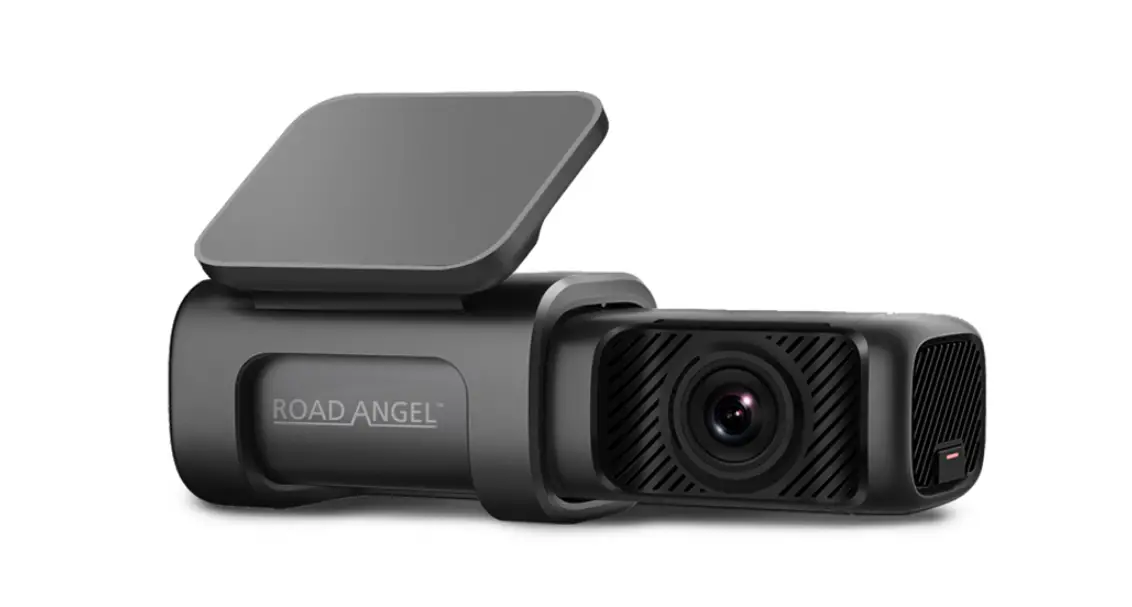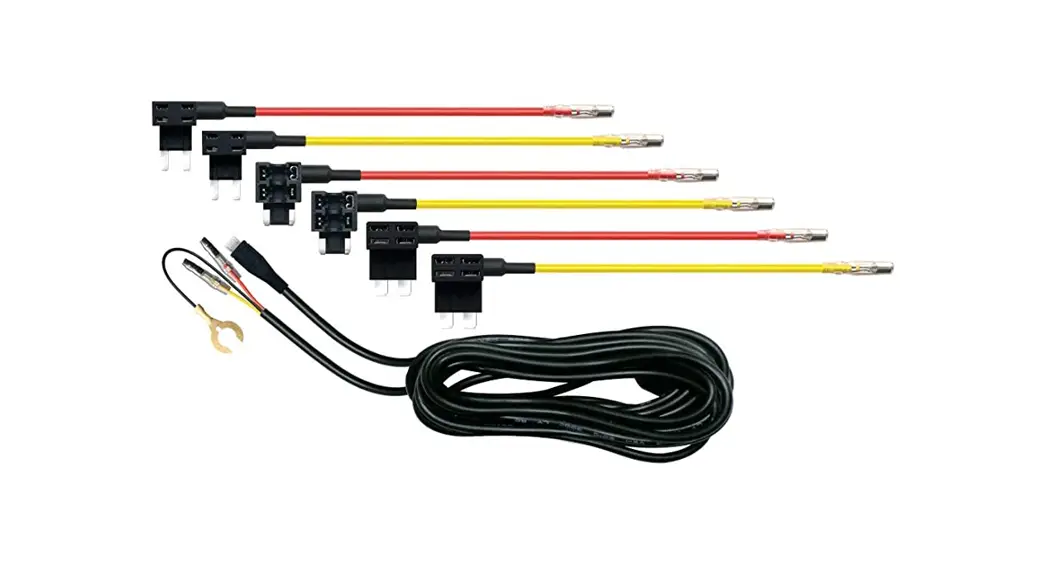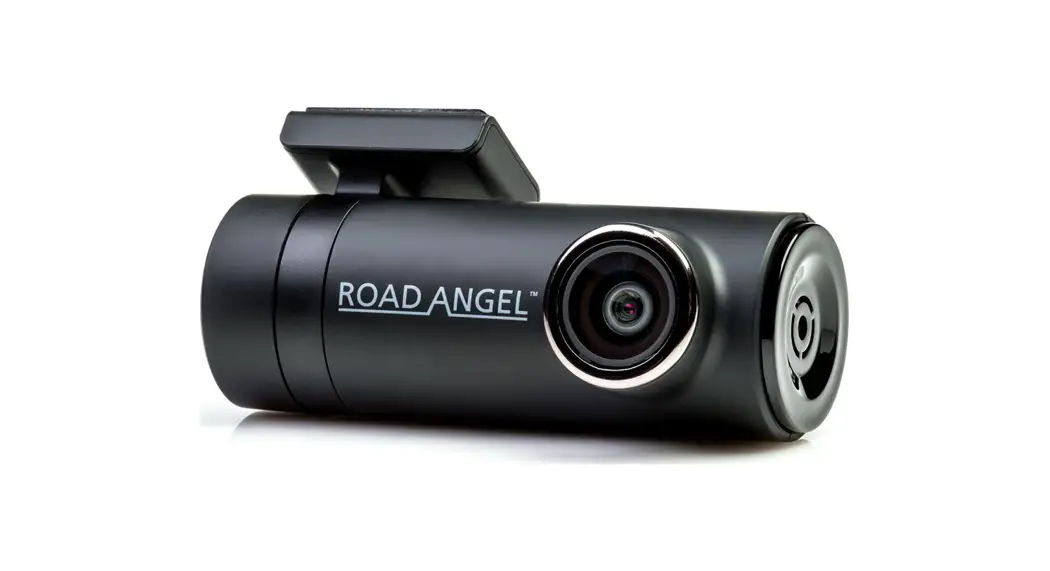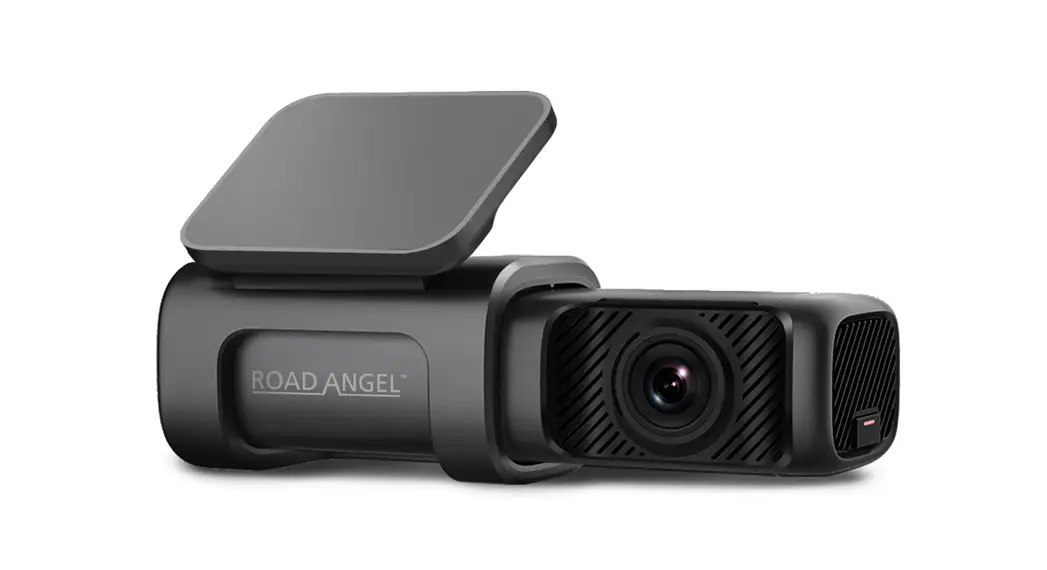

AURA HD4K HALO ULTRA
Need Help?
+44 (0) 330 320 3030
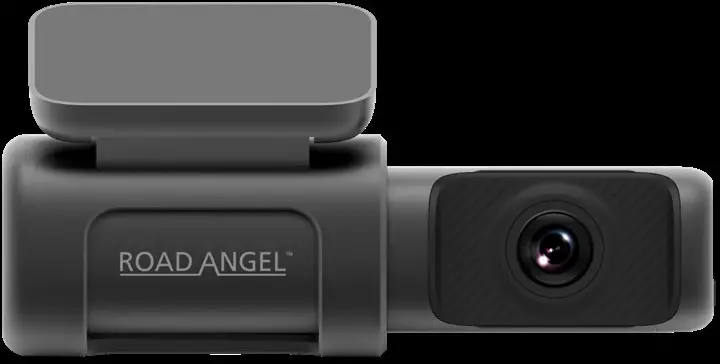
QUICK START GUIDE
RoadAngelGroup.com
0330 320 3030
For a better in-app experience please disconnect you mobile data while using the app.
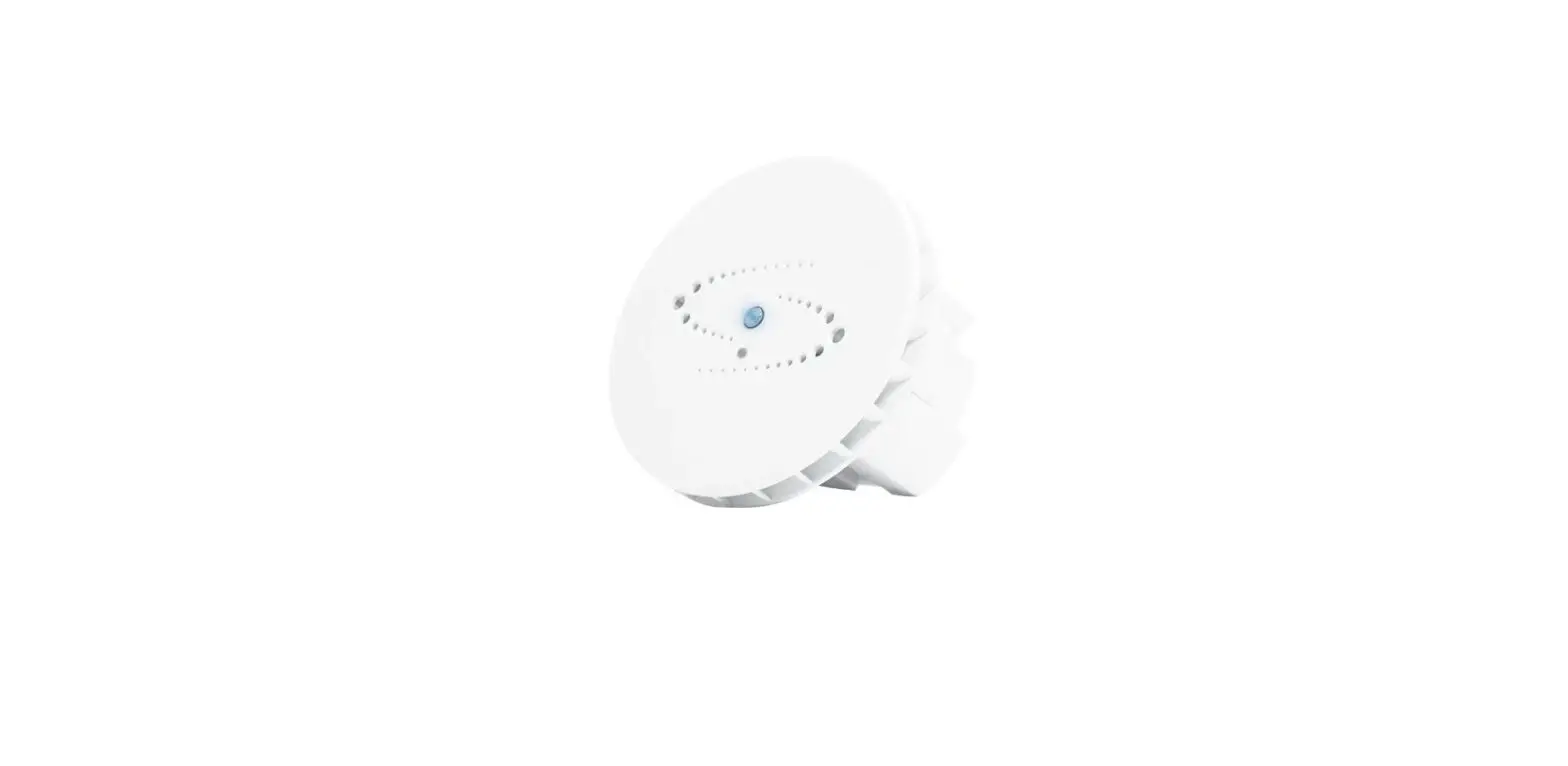
What’s In The Box
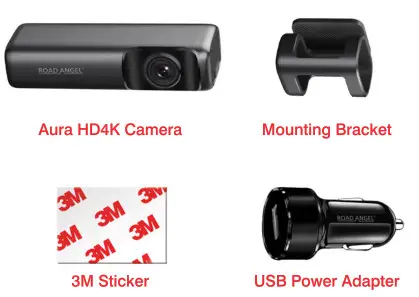
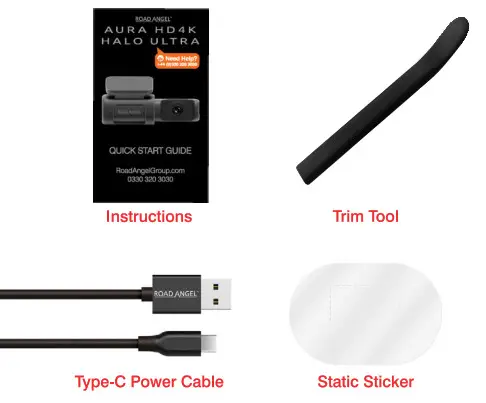
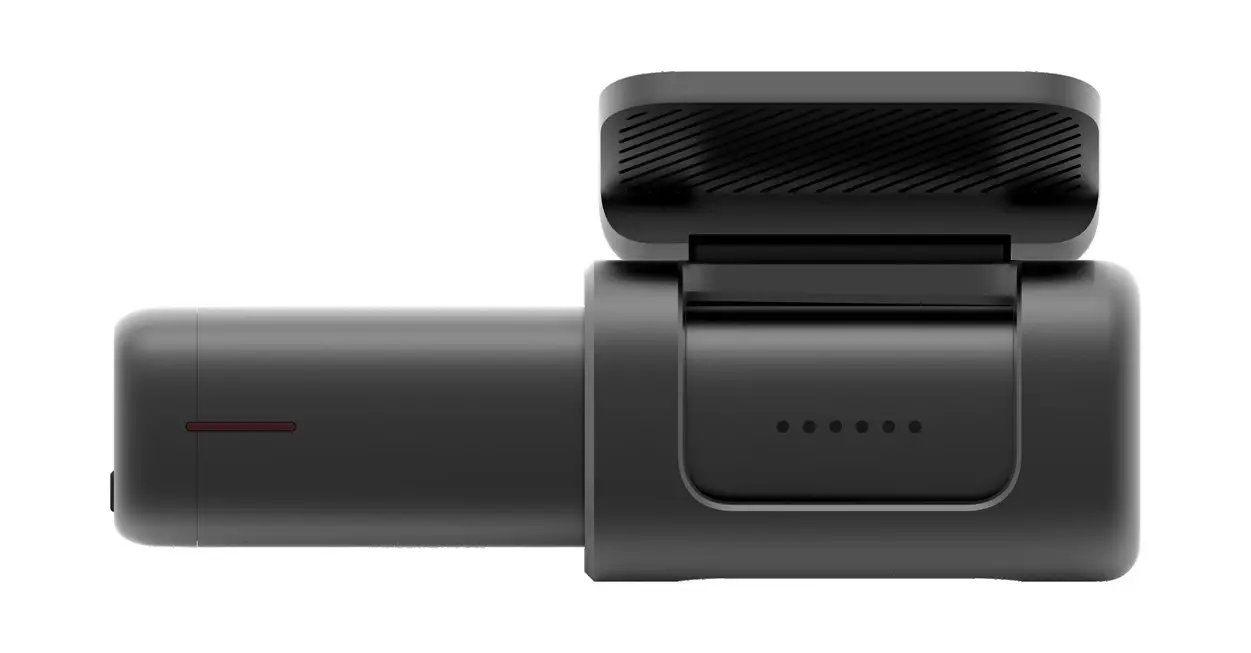
At a glance
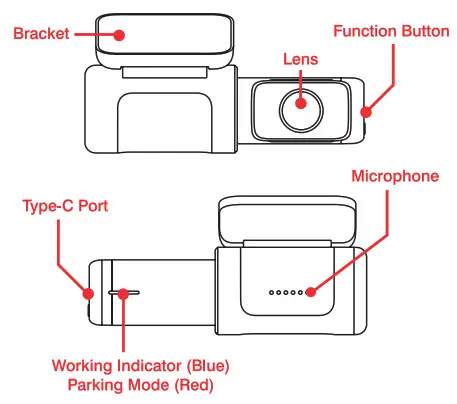
LED Indicator instructions
| Working Indicator | Normal recording | Constant Blue Light |
| Parking Monitoring | Constant Red Light | |
| Upgrading | Quick Flash Red Light | |
| Collision or Photos | Quick Flash Purple Light | |
| USB Data Transmit | Constant Green Light | |
| Storage Error | Quick Flash Green Light | |
| Button | Single Press | On/Off Recording |
| Reset | Long Press (6 Seconds) |
There is no power on/off button for the Aura HD4K
Getting Started
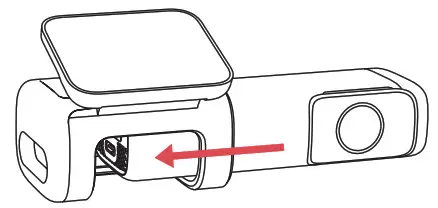
- Gently slide the Aura HD4K into the Windscreen Mount.
- Clean the area of the Windscreen where the Aura HD4K is to be mounted with window cleaner and allow to dry.
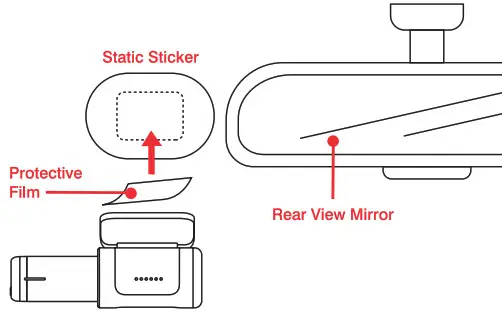
- Remove the protective film from the Static Sticker and apply to the Windscreen. We recommend applying the Static Sticker to the side opposite of the driver, next to the Rear View Mirror.

- Peel off the protective film from the Dash Cam Sticky Pad and apply directly onto the Static Sticker.

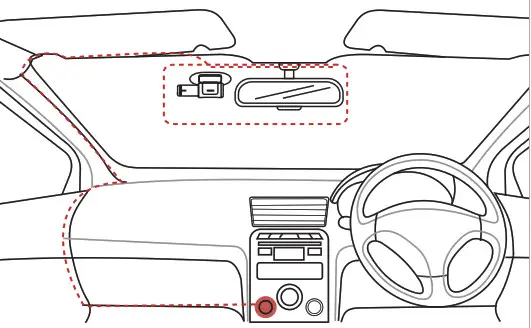
- Use the trim tool to lift the edges of the Windscreen and surrounding mouldings to hide the cable, Ensure the cable is the correct way around before fitting.
- Connect the cable to the Dash Cam vis the Type-C port and the USB to the adapter and 12V Power source.
- Turn on the car’s ignition and check everything is working correctly, The Aura HD4K will automatically power up and start recording.
 Adjust the angle of the lens by adjusting the bracket.
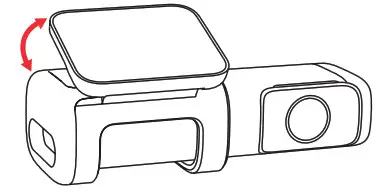 Adjust the angle of the lens by adjusting the bracket.
App Install
Scan the QR Code to download the Road Angel App. Download the Road Angel App from the Google Playstore or Apple Appstore using the above QR code. Alternatively, navigate to your preferred Appstore and search for Road Angel Halo.

Wi-Fi Setup
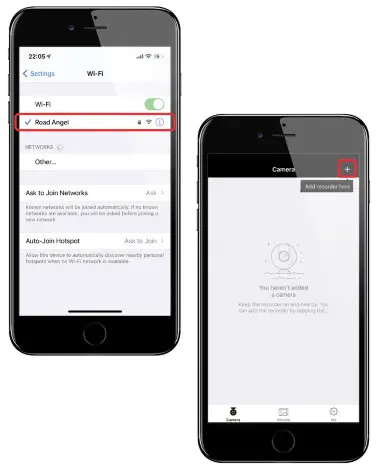
Launch the App. Press the ‘+’ icon in the top right corner.
Then follow the instructions that will be shown in the App on how to connect the device via Wi-Fi. Once connected successfully you may return to the Halo App.
* The default Wi-Fi password is set to ‘1234567890’.
Live Preview
|
|
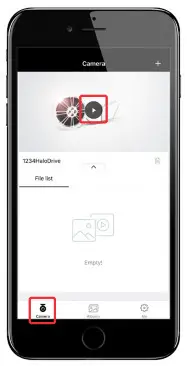 To preview the Dash Cam’s currently recording footage, select the Camera tab at the bottom of the app and press the Play icon on the screen. This will display a real time view of the live Dash Cam dean footage.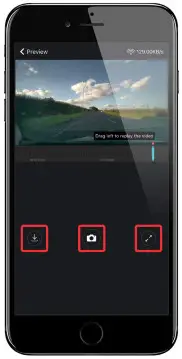
Video Playback
|
|
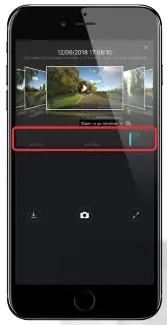 To playback footage, slide ames the scroll bar which will ais show you a thumbnail of the moment about to be viewed along with the date and time.
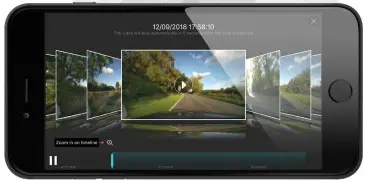 You can rotate your phone to the side to enhance the experience. This also works for Live Preview, Photo Viewing, Video Viewing, and Downloading Footage.
Download Footage
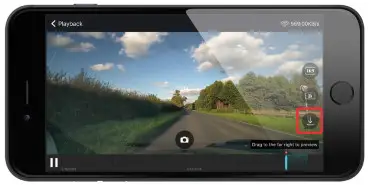 When in the Video Playback mode, select the Download icon on the right of the screen which will take you to the download screen. When in the Video Playback mode, select the Download icon on the right of the screen which will take you to the download screen. | 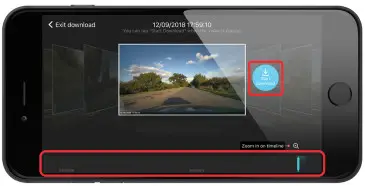 To create a clip of what has been recorded, slide the viewing bar to the right to scroll backwards in time and to the left to go forwards. A thumbnail of what moment you are on with a date and time will be displayed to help select the right clip. Press ‘Start Download’ on the right of the thumbnail, the footage will begin playing showing you what is being saved. To create a clip of what has been recorded, slide the viewing bar to the right to scroll backwards in time and to the left to go forwards. A thumbnail of what moment you are on with a date and time will be displayed to help select the right clip. Press ‘Start Download’ on the right of the thumbnail, the footage will begin playing showing you what is being saved. |
|
|
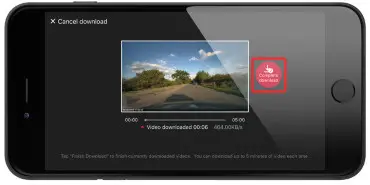 When you are happy with the length of the clip, press ‘Complete Download’.
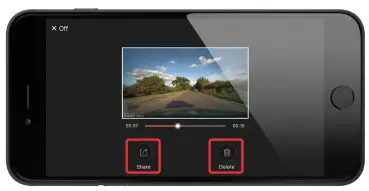 This will show you a thumbnail of the created clip, giving you the option to ‘share’ or ‘delete’ the clip. The clip is stored in the App Album tab and can be played back at your leisure or downloaded to your phone.
For a better in-app experience please disconnect your mobile data while using the app.
AURA HD4K HALO ULTRA
See www.roadangelgroup.com/support/ for the full user manual.
Illustrations and manual contents are subject to change without notice, this paper manual will not be updated.