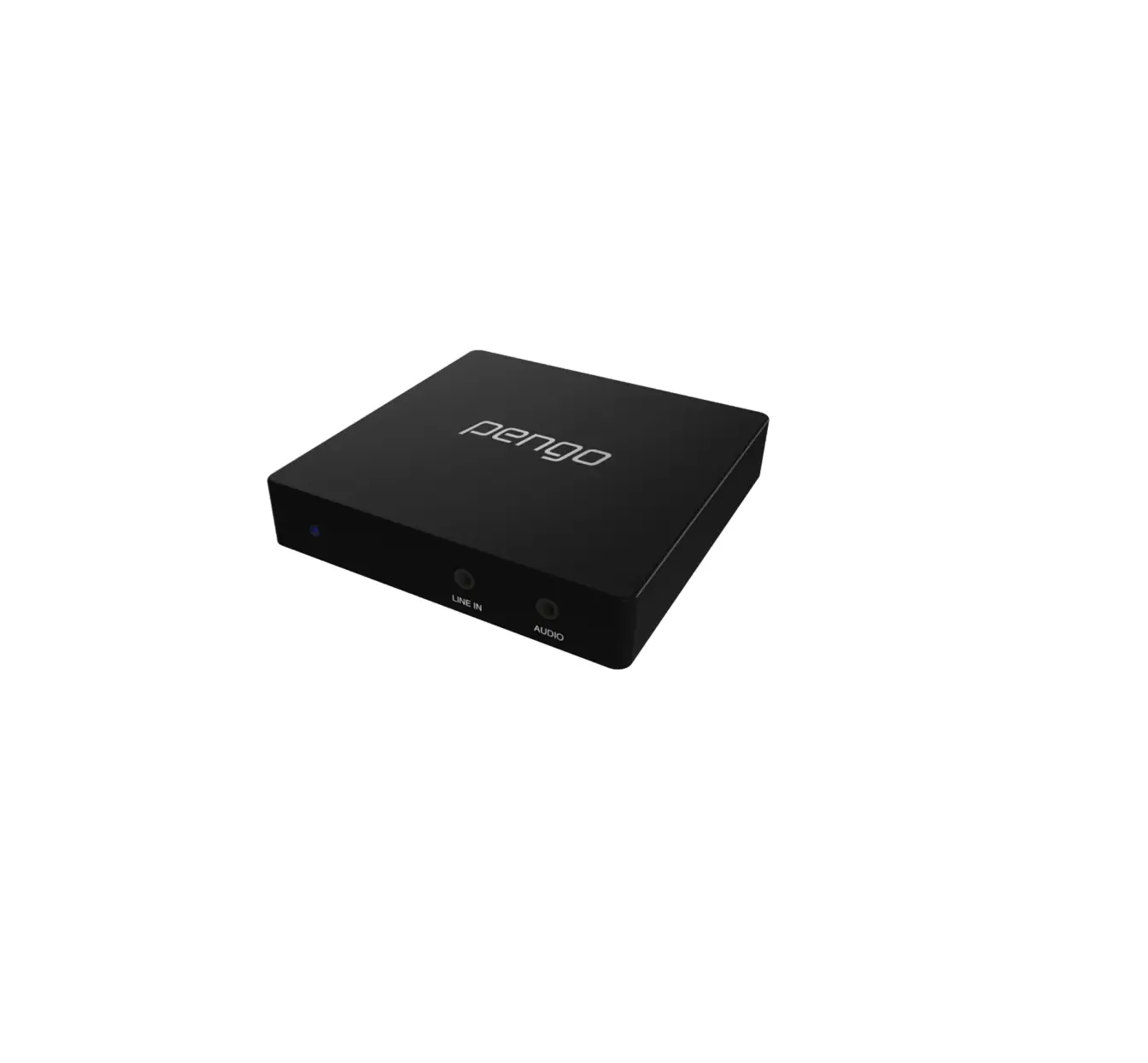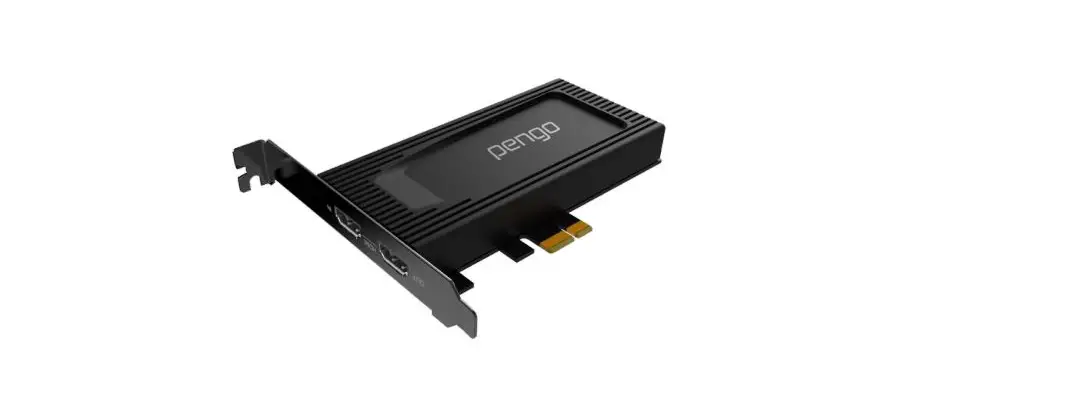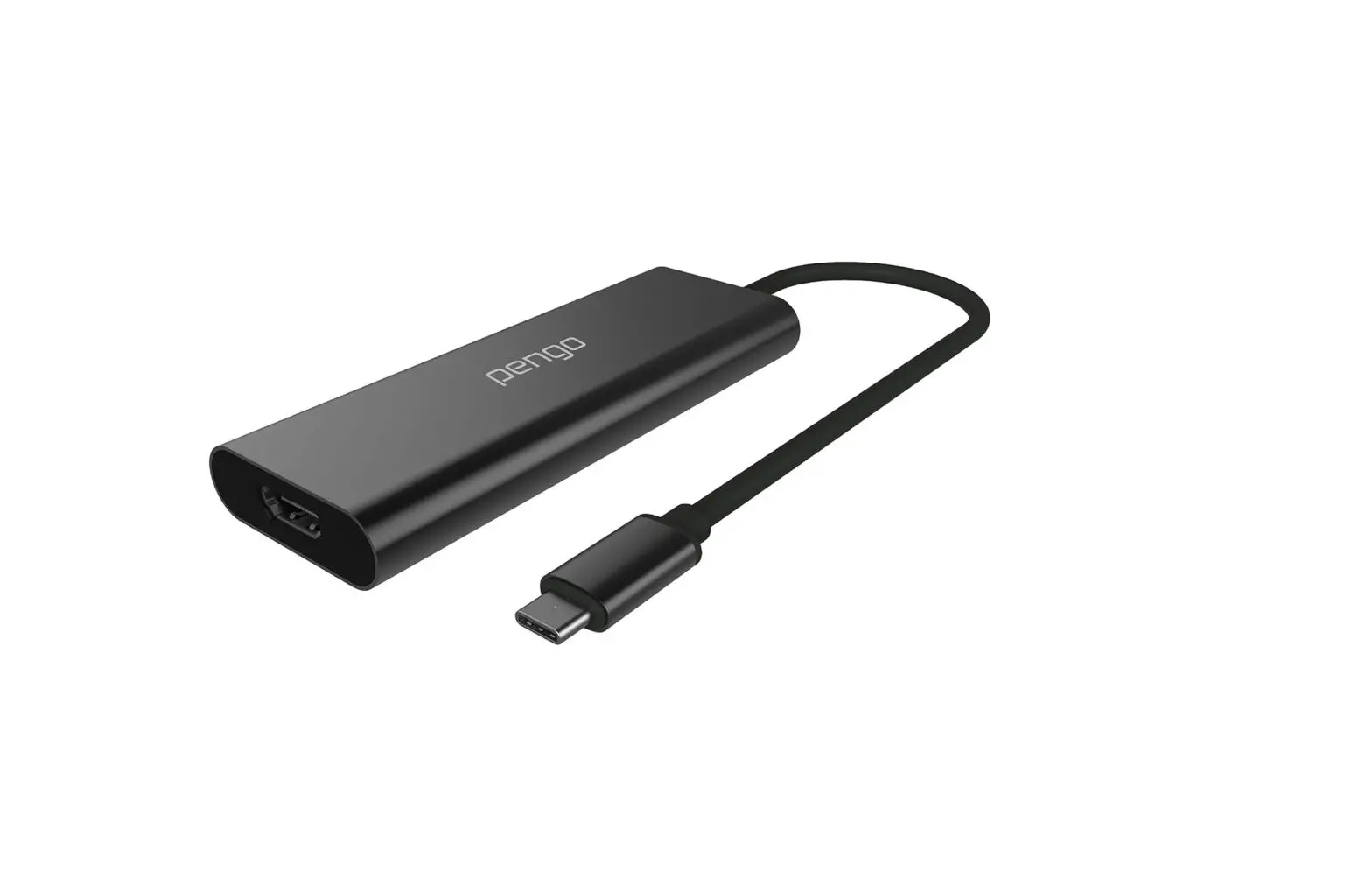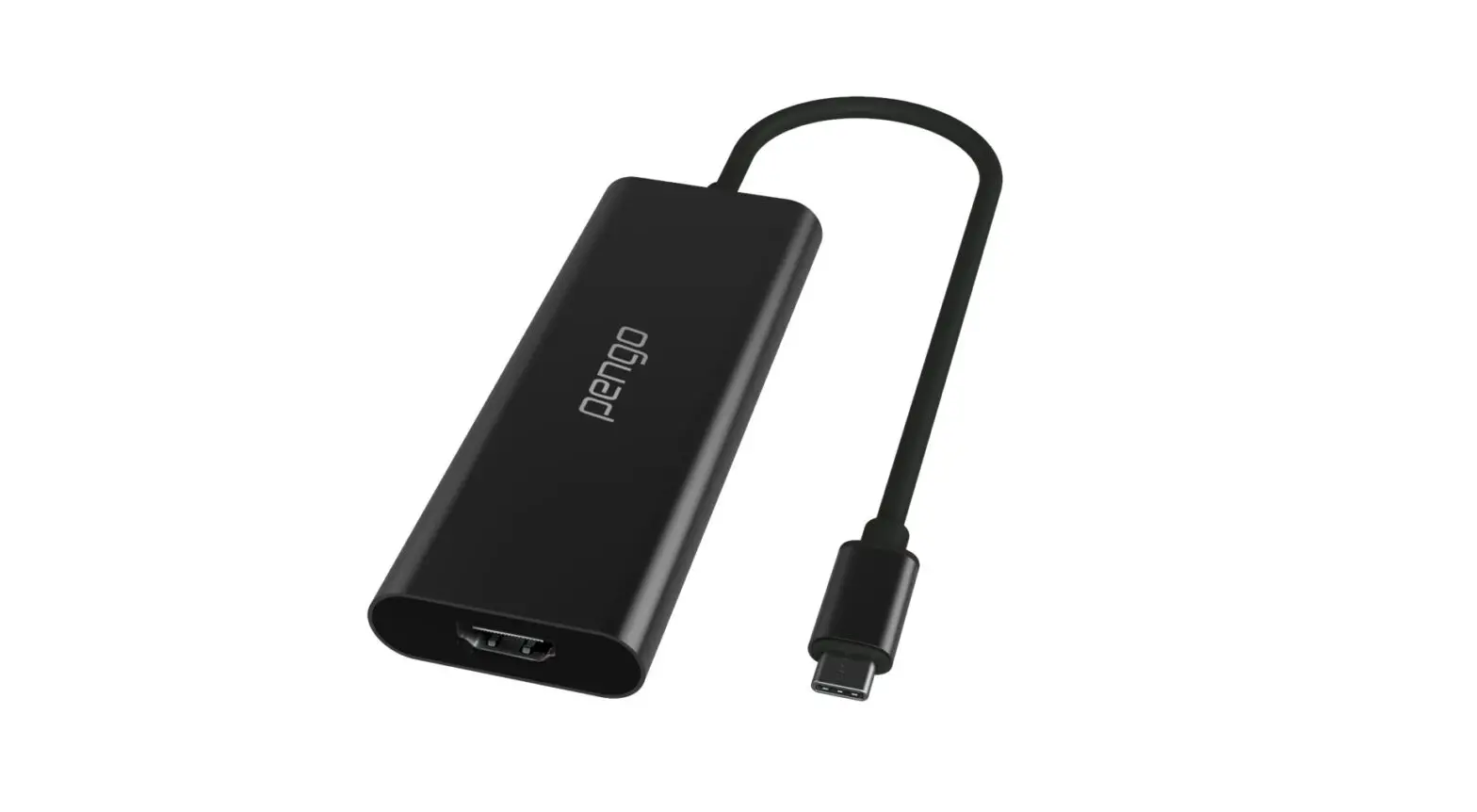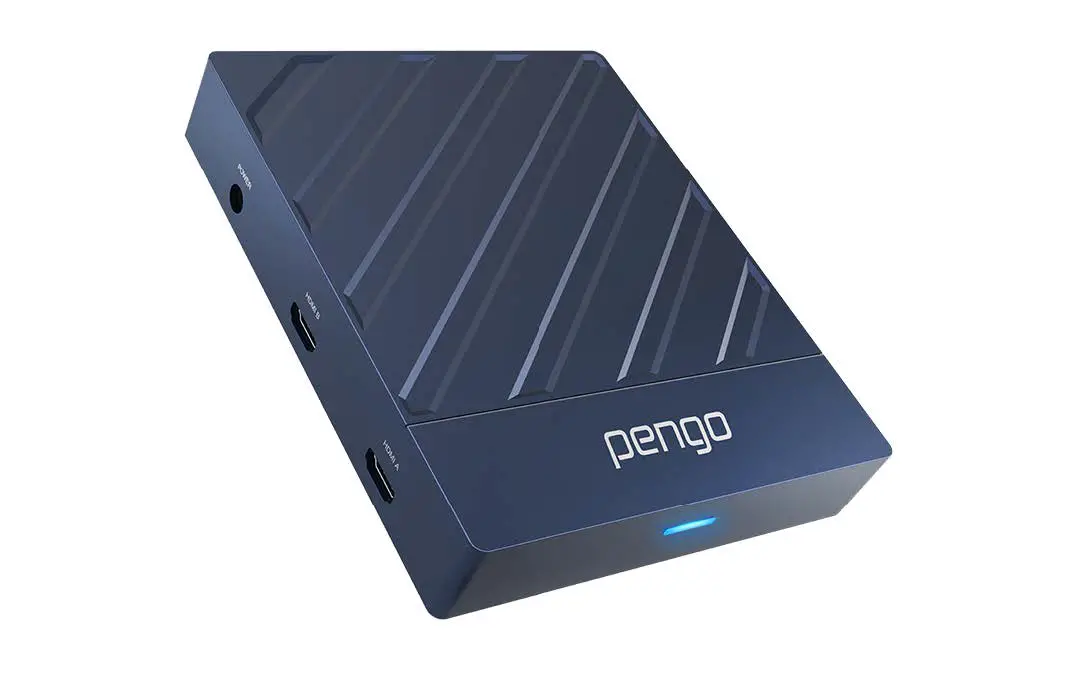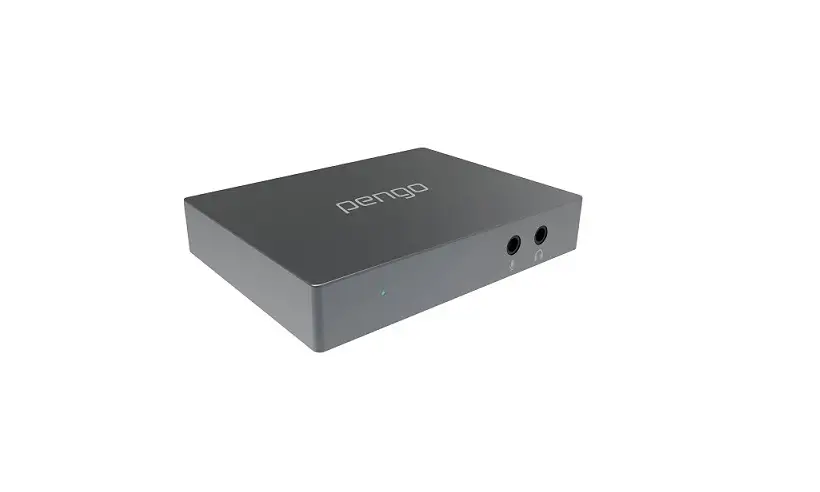
pengo 4K HDMI Grabber Video Capture Box User Manual
Introduction
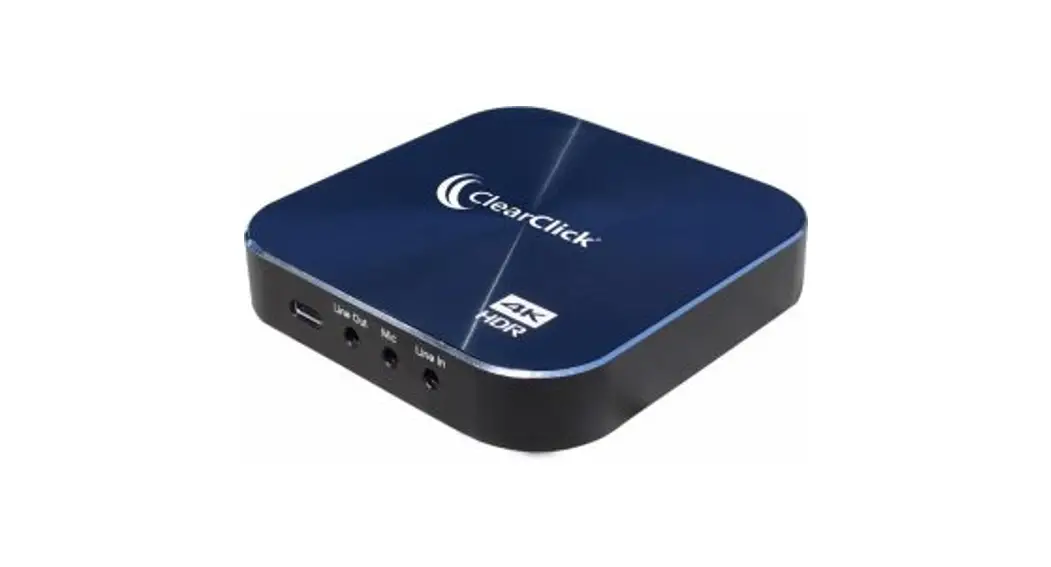
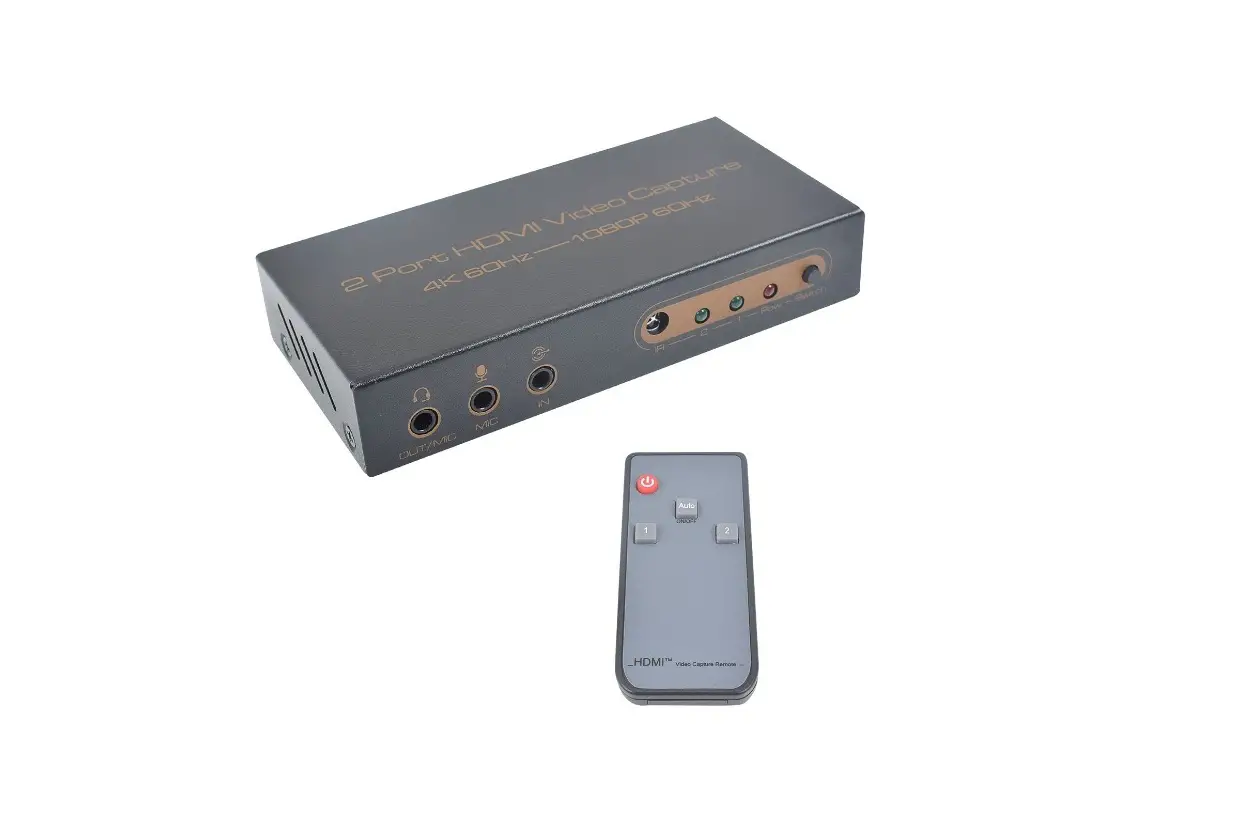
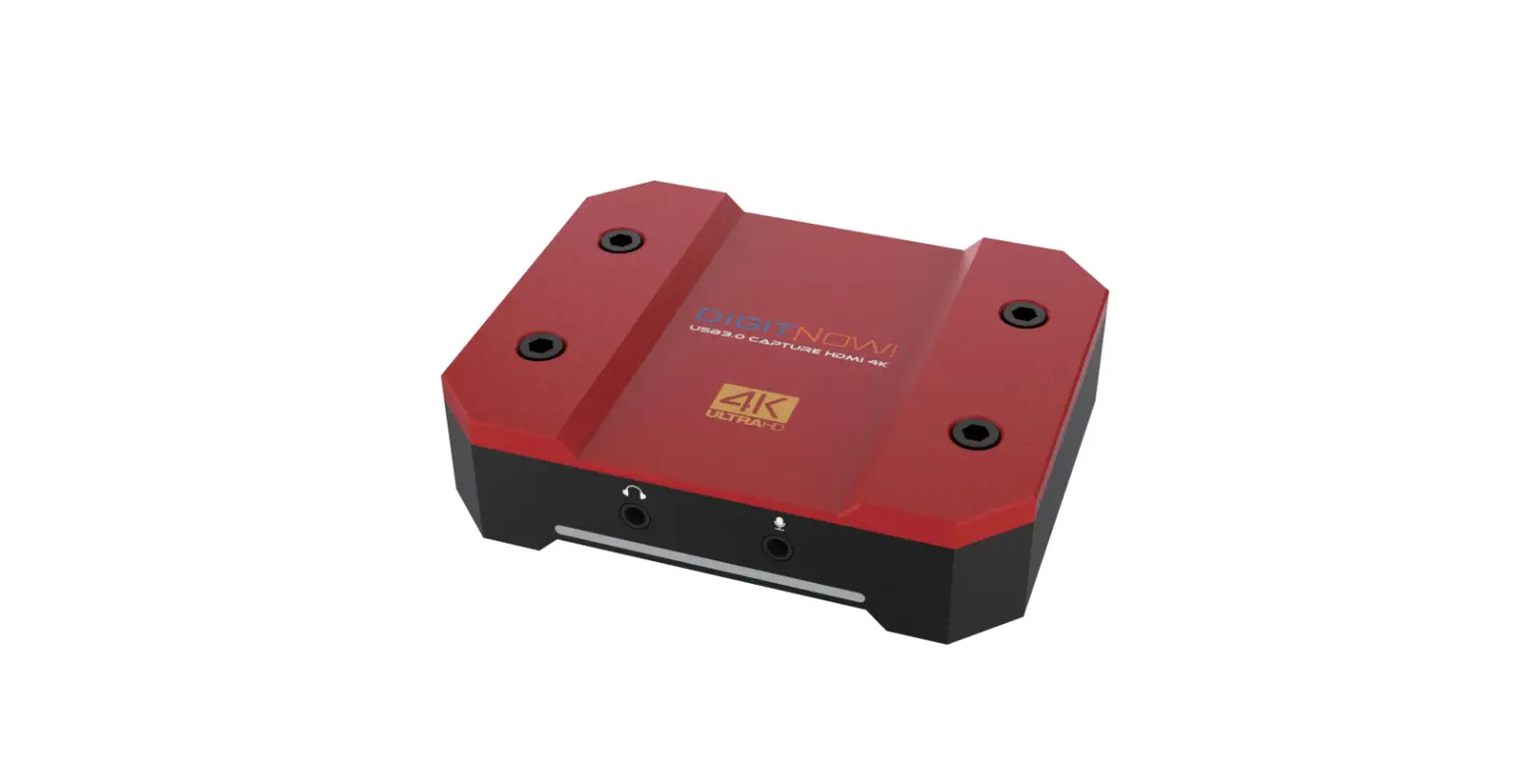
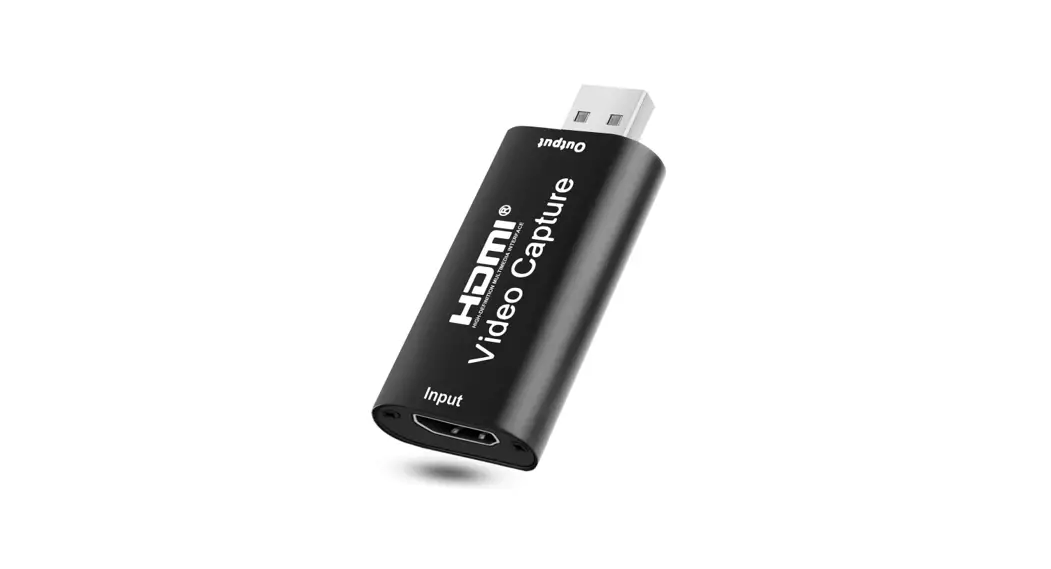
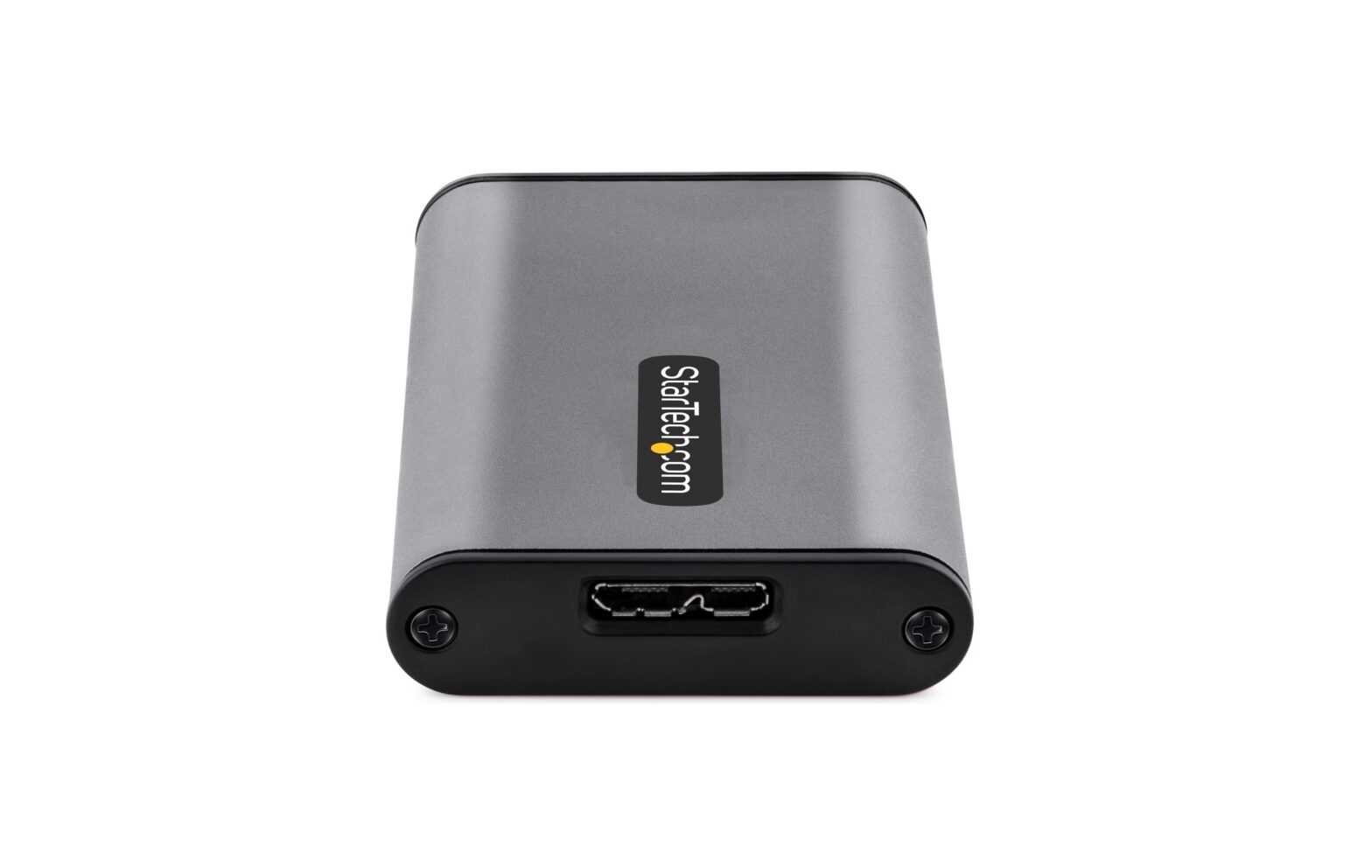
The Pengo 4K HDMI Grabber is designed to support a 4K UHD Video output and capture audio/video HDMI Source. Transferring audio/video between the grabber and your PC/NB via USB easily enables streamers to capture each sound and movement. Using the Pengo 4K HDMI Grabber will allow a stable video capture in 1920 x 1080p at 60 fps without affecting the performance of your computer.

Features
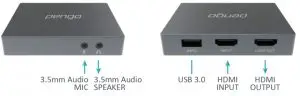
- Supports HDMI 2.0 4K @ 60 fps 4:4:4 input
- Supports HDMI 2.0 Pass-through output
- USB 3.0 Video Capture at 1080p @ 60 fps
- Supports UVC 1.0 Supports microphone input
- Supports 3.5mm stereo headphone output
- Captures PS4 Pro and Xbox One X game display
- GUI Control interface for Windows
Inside the box
- Pengo 4K HDMI Grabber x 1
- User Manual x 1
- USB 3.0 Cable x 1
Specifications
| DESCRIPTION | 4K UHD HDMI to USB 3.0 Video Grabber | |
| INPUT INTERFACE | 1 x HDMI type A | 1 x 3.5mm audio input |
| INPUT RESOLUTION | 640 x 480p, 60Hz 1280 x 720p, 30Hz, 50Hz, 60Hz 1920 x 1080p, 24Hz, 25Hz, 30Hz, 50Hz, 60Hz 3840 x 2160p, 24Hz, 25Hz, 30Hz, 50Hz, 60Hz | |
| HDMI VIDEO SAMPLING | G 4:4:4 format | |
| OUTPUT INTERFACE | 1 x HDMI type A, loop-through output | |
| 1 x USB Type A (USB 3.0, USB 2.0), supporting UVC video and audio | ||
| 1 x 3.5 mm audio output | ||
| OUTPUT RESOLUTION | Up to 3840 x 2160p @ 60 Hz via HDMI 640 x 480p, 60Hz 1280 x 720p, 30Hz, 50Hz, 60Hz 1920 x 1080p, 24Hz, 25Hz, 30Hz, 50Hz, 60Hz 3840 x 2160p, 24Hz, 25Hz, 30Hz, 50Hz, 60Hz | |
| Up to 1080p @ 60 Hz via USB 640 x 480p, 60Hz 1280 x 720p, 30Hz, 50Hz, 60Hz 1920 x 1080p, 24Hz, 25Hz, 30Hz, 50Hz, 60Hz | ||
| UVC COLOR SPACE | YUY2 (4:2:2), RGB 4:4:4 (MJPG) | |
| AUDIO INPUT | HDMI, 16-bit PCM encoded audio at 44.1kHz, 48kHz, 96kHz and 192kHz sampling rates | |
| Stereo microphone input | ||
| AUDIO OUTPUT | 16-bit PCM encoded audio at 48kHz sampling rates | |
| Stereo headphone output | ||
| OS SUPPORT | Microsoft Windows (8 and above) Mac OS X (10.13 and above) | |
| ENVIRONMENT | Operating temperature 0 ~ 45℃ Operating humidity 20 ~ 90% Storage temperature -20 ~ 60℃ | |
| DIMENSION | 65 x 85.6 x 15.2 mm (W x L x H) | |
| WEIGHT | 91 G | |
System Requirements
| CPU: | i5 Dual Core 2.8GHz or higher |
| RAM: | 4GB or higher |
| OS | Microsoft Windows (8 and above) Mac OS X (10.13 and above) |
Note: Not able to record HDCP content (ie: DVD, BlueRay player…etc )
Installation
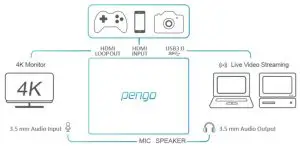
- Connect Pengo 4K HDMI Grabber into the computer USB 3.0 Port using the USB 3.0 cable inside the package.
- Plug in your devices (ie: PS4 Pro, Xbox One X) with an HDMI Cable into the HDMI input port.
- Plug in your display device (ie: monitor) with a HDMI Cable into Pengo 4K HDMI Grabber LOOP out port.
- Plug in your 3.5mm headphones and microphone into their perspective ports.

Operating Instructions (Windows with PotPlayer)
- PotPlayer
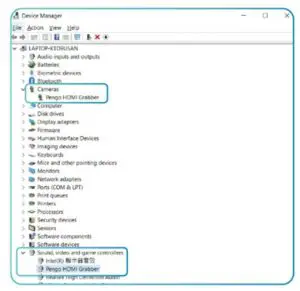
1.1 After plugging in your device, go to [ Device Manager ] to make sure [ Pengo HDMI Grabber ] is detected
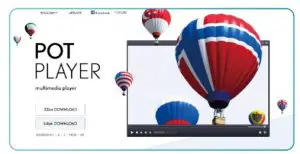
1.2 Download PotPlayer : https://potplayer.daum.net/ (install base on your OS version)
1.3 Open PotPlayer (different versions will have different interface)
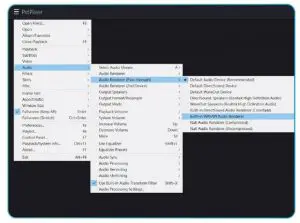
1.4 Sound settings
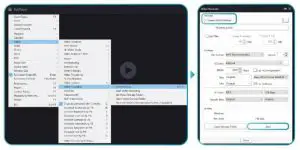
Under PotPlayer menu, go to Audio -> [ Audio Renderer (Passthrough) ] -> select [ Built-in WASAPI Audio Renderer ]
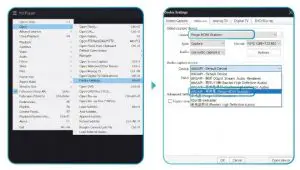
1.5 Select Device
I. Under Menu > Open -> Device Settings
II. Under Webcam -> Video capture device, under Device select -> [ Pengo HDMI Grabber]
III. Audio capture device -> under Device select -> [ WASAPI Mic (Pengo HDMI Grabber) ]
IV. Press [ Open device], You’ll be able to see your video and audio
1.6 Video Recording
I. Go to the Menu -> Video -> Video Recording -> Record Video
II. Select your storage location
III. Press [ Start ]
Operating Instructions (Mac OS with VLC or QuickTime) **Newer version of VLC might not work
- VLC
1.1 Download VLC at https://www.videolan.org/index.html
1.2 Open VLC
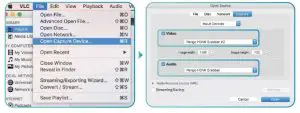
1.3 Go to File -> Open Capture Device
1.4 Under Capture, check the video and audio box and select [Pengo HDMI Grabber] and press Open
- QuickTime
2.1 Open QuickTime
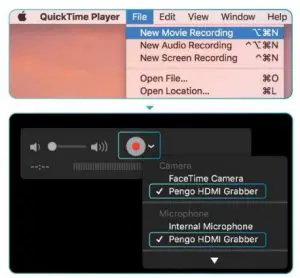
2.2 Go to File -> New Movie Recording
2.3 If your display does not appear, next to the record RED button drop down menu, select [ Pengo HDMI Grabber]
Note:
- It is recommended to use our USB 3.0 cable.
- Different version will have slightly different interface.
- Make sure your source does not have HDCP, we do not support HDCP.
- Make sure your device is not 1080i. We do not support 1080i. We support 1080p.
- Please contact us if you have any issues.
- We reserve the right to make any updates without prior notice.
- Please register your Pengo product at: www.pengohome.com/register
 PengoHome.com
 Global Potplayer
 VLC: Official site - Free multimedia solutions for all OS! - VideoLAN