 Quick Start Guide
QG000165
TMD3719
TMD3719 EVM
ALS/Color and Proximity Sensor
Out of the Box
 For a detailed description of the TMD3719 ALS and Proximity Sensor Module Evaluation Kit,
please refer to User Guide:
- UG000499
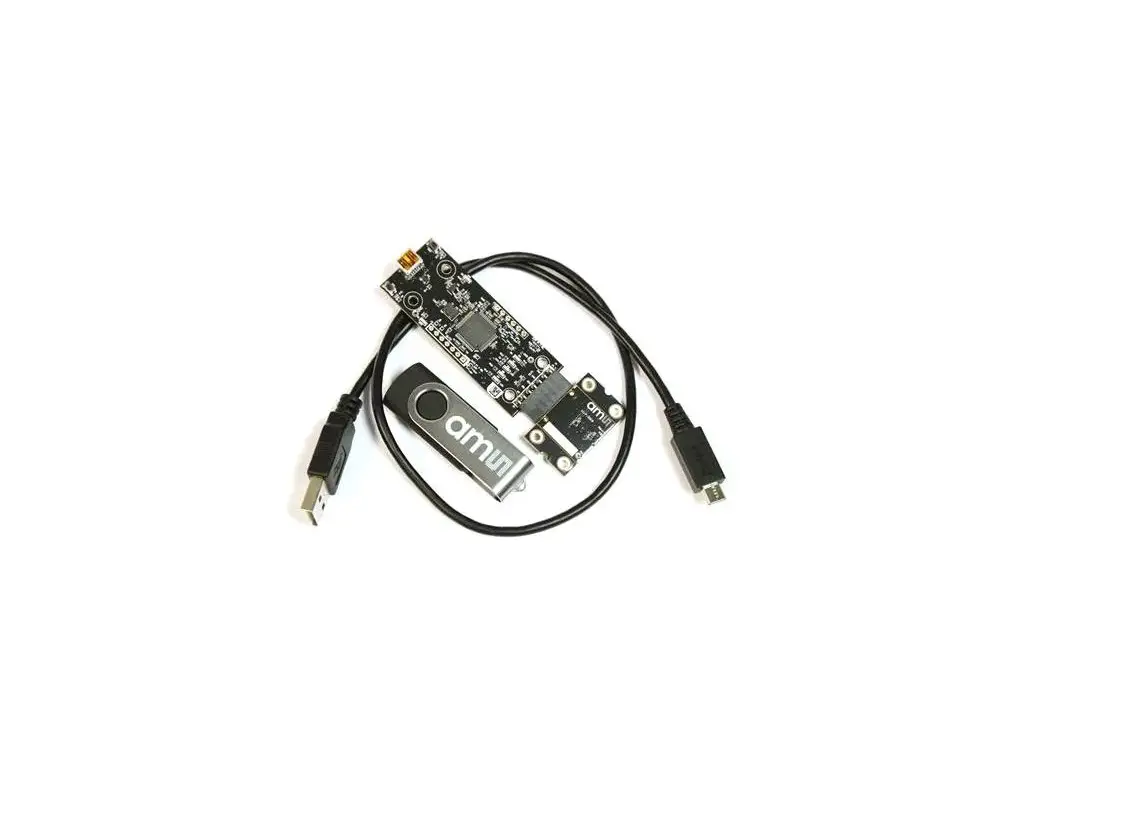
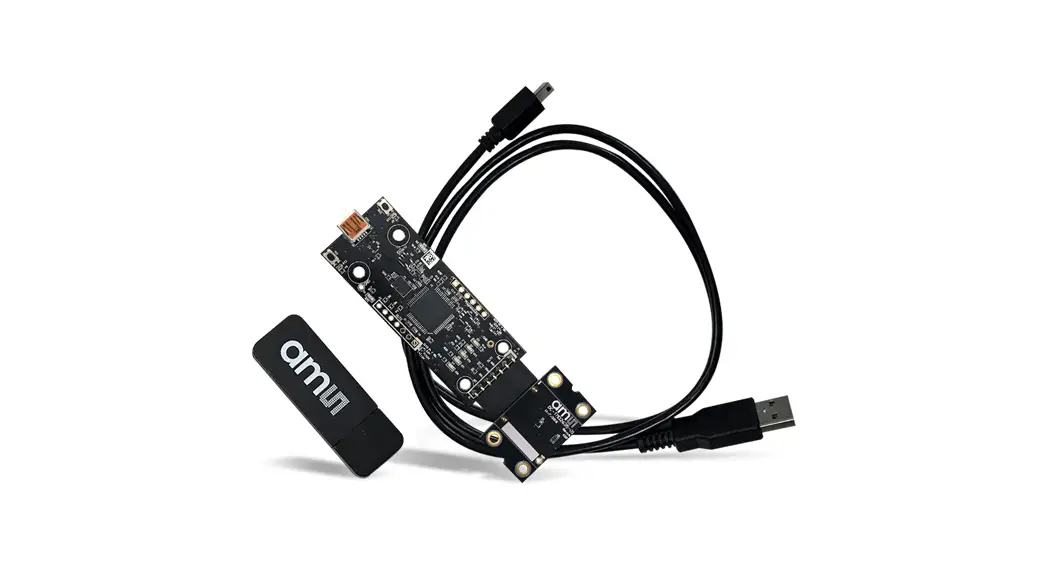
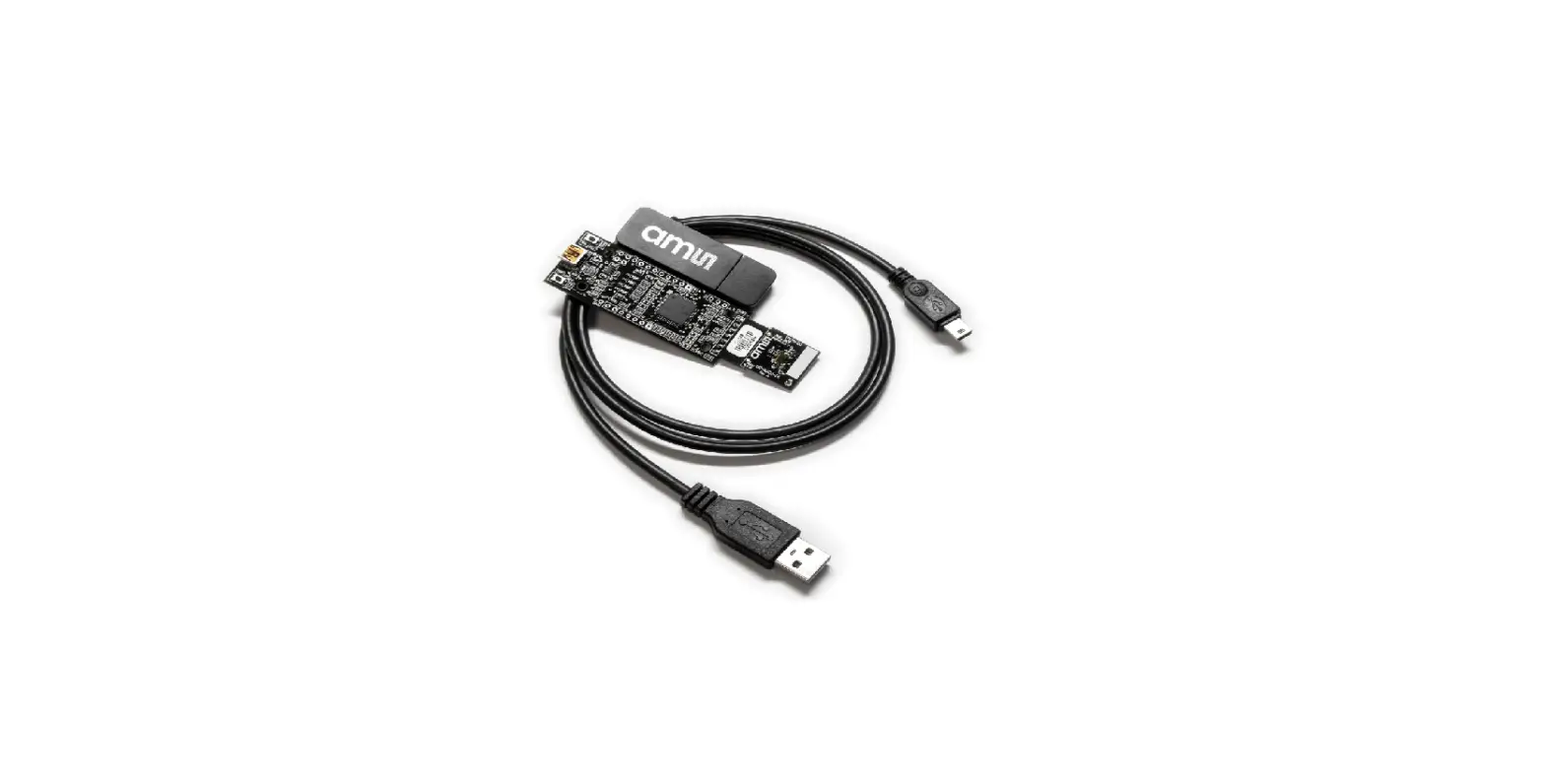
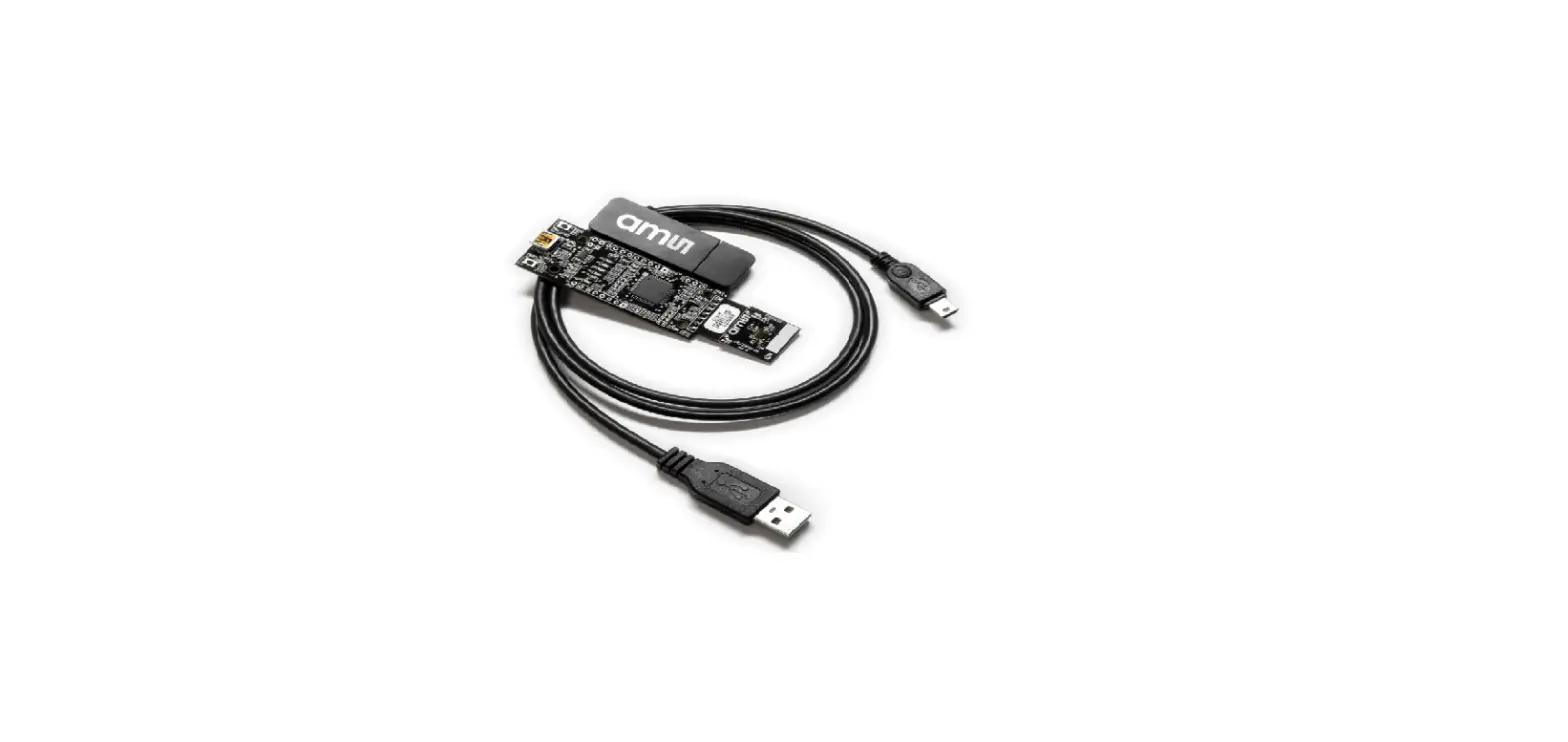
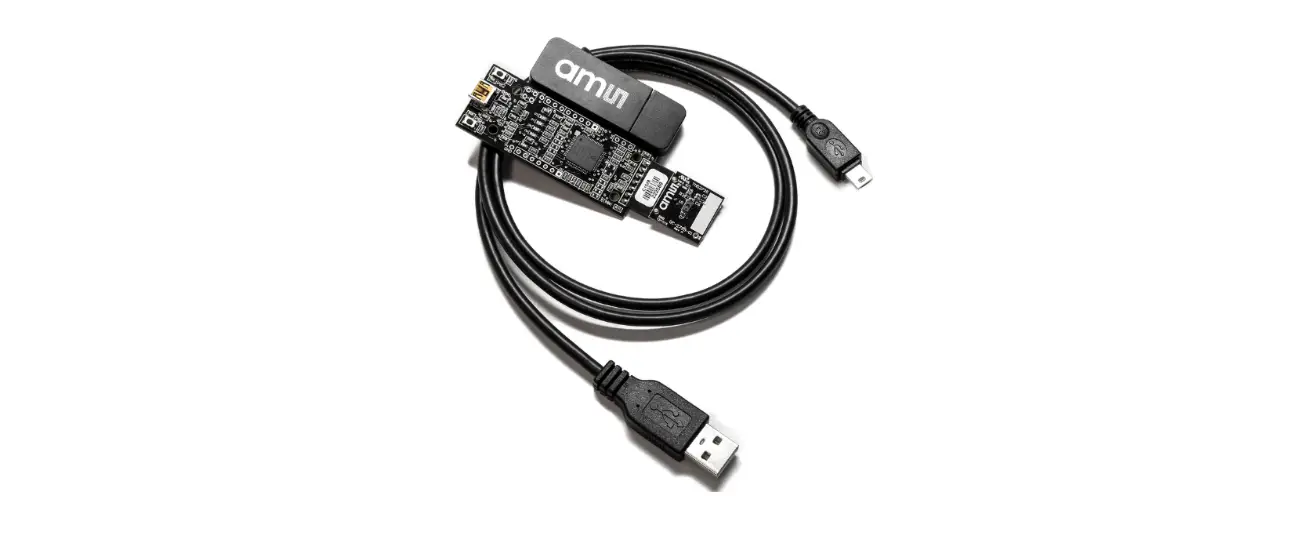
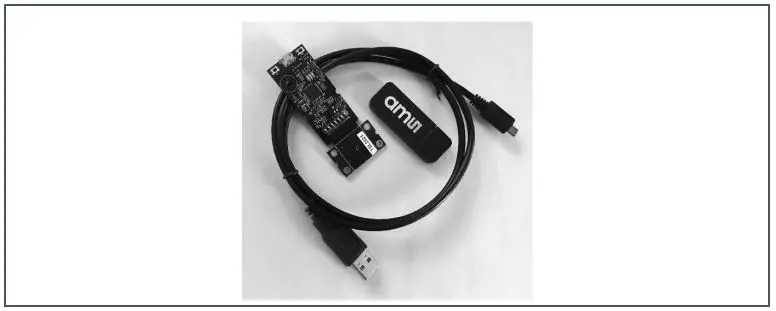
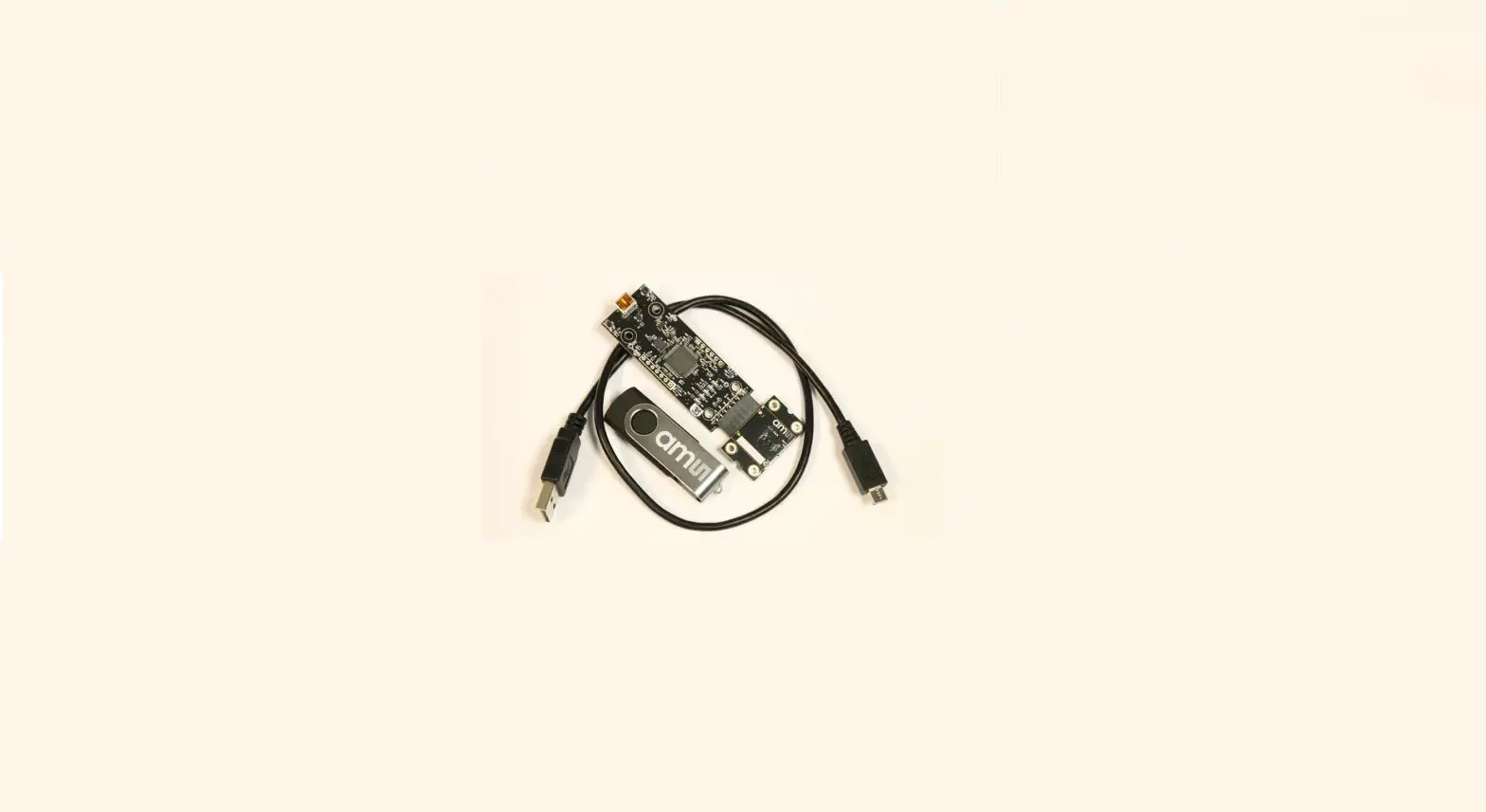
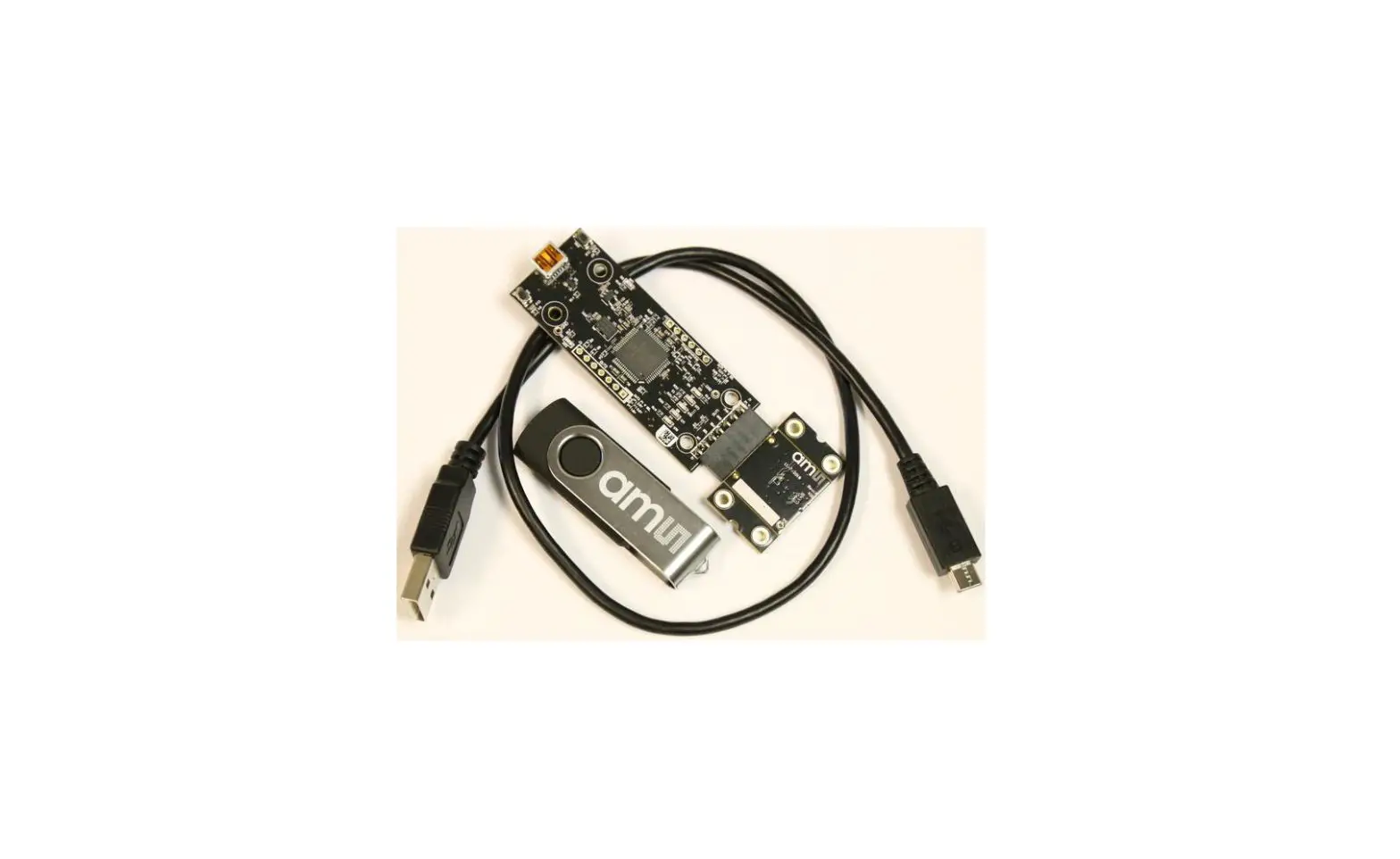
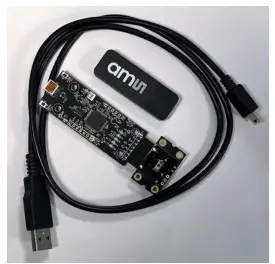
Each TMD3719 Evaluation Kit comes with the following components:
Figure 1:
Evaluation Kit Contents
| No. | Item | Description |
| 1 | TMD3719 Daughter Card | PCB with TMD3719 sensor installed |
| 2 | EVM Controller Board | Used to communicate USB to I2C |
| 3 | USB Cable (A to Mini-B) | Connects EVM controller to PC |
| 4 | Flash Drive | Includes application installer and documents |
Software Installation
- Plug the amp flash drive into an unused USB port
- Double-click the Setup.exe file on the flash drive, or click Start > Run and type E:setup.exe and press Enter. IMPORTANT: Use the appropriate drive letter in the above command to install the software. Flash Drive will commonly be assigned the next available drive letter for example C: hard drive, D: CD-ROM, E: flash drive
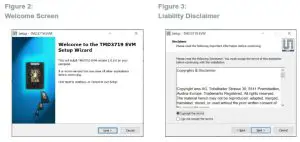
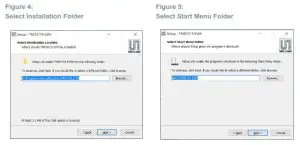
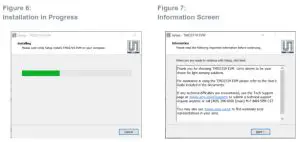
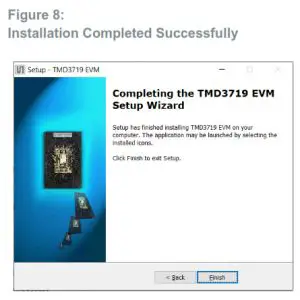
- The Setup Wizard will open and guide you through the installation of the TMD3719 host software, (Figure 2 through Figure 8)
- At the end of the installation, click Finish to exit the setup.
Connect Hardware
Plug the TMD3719 Daughterboard into the Controller board (Figure 1). Always use ESD procedures when handling the EVM.
Using the enclosed USB cable, plug the mini-B connector into the EVM module. Using the other end of the cable, plug the USB A-connector into a USB port on the computer.
When the USB cable is connected, the green LED should flash momentarily on power up to indicate that power is being received via the USB interface, and the controller board processor is running. If the
green LED does not flash, check the USB cable connections; unplug the USB cable and try again. If the green LED still does not flash, check the PC for USB error messages.
Start the Application
To start the application select ams > TMD3719 EVM > TMD3719 EVM on the All Programs menu. The default installation directory depending on the device and the operating system you are using is:
C:\Program Files\ams\TMD3719_EVM (Windows 32 bit operating systems)
C:\Program Files (x86)\ams\TMD3719_EVM (Windows 64 bit operating systems)
A different install path may be selected by the user during the install (Figure 4). When started, the TMD3719 window will open on the PC and automatically connect to the hardware.
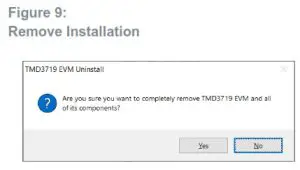
To remove the software from your computer (Figure 9), select ams > TMD3719 EVM > Uninstall TMD3719 EVM or use the Windows Control Panel.
| Headquarters | Please visit our website at www.ams.com |
| AMS AG | Buy our products or get free samples online at www.ams.com/Products |
| Tobelbader Strasse 30 | Technical Support is available at www.ams.com/Technical-Support |
| 8141 Premstaetten | Provide feedback about this document at www.ams.com/Document-Feedback |
| Austria, Europe | For sales offices, distributors and representatives go to www.ams.com/Contact |
| Tel: +43 (0) 3136 500 0 | For further information and requests, e-mail us at [email protected] |
Copyright as AG. Trademarks Registered. All rights reserved. The material herein may not be reproduced, adapted, merged, translated, stored, or used without the prior written consent of the copyright owner.
AMS AG shall not be liable to the recipient or any third party for any damages, including but not limited to personal injury, property
damage, loss of profits, loss of use, interruption of business or indirect, special, incidental or consequential damages, of any kind, in connection with or arising out of the furnishing, performance or use of the technical data herein. No obligation or liability to recipient or any third party shall arise or flow out of ams AG rendering of technical or other services.