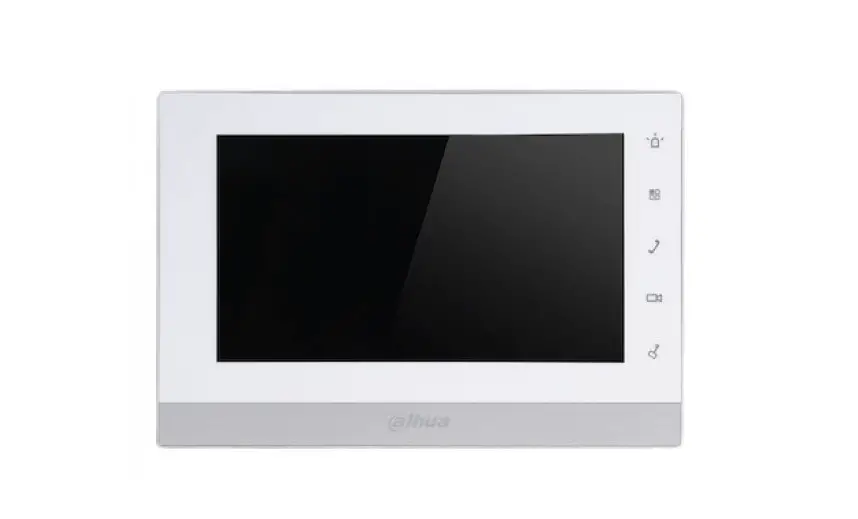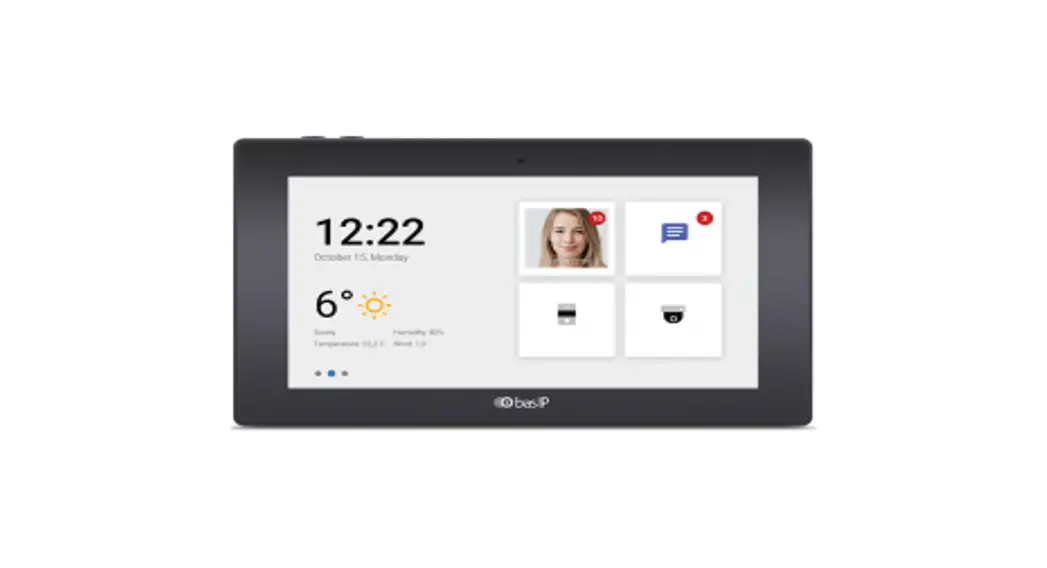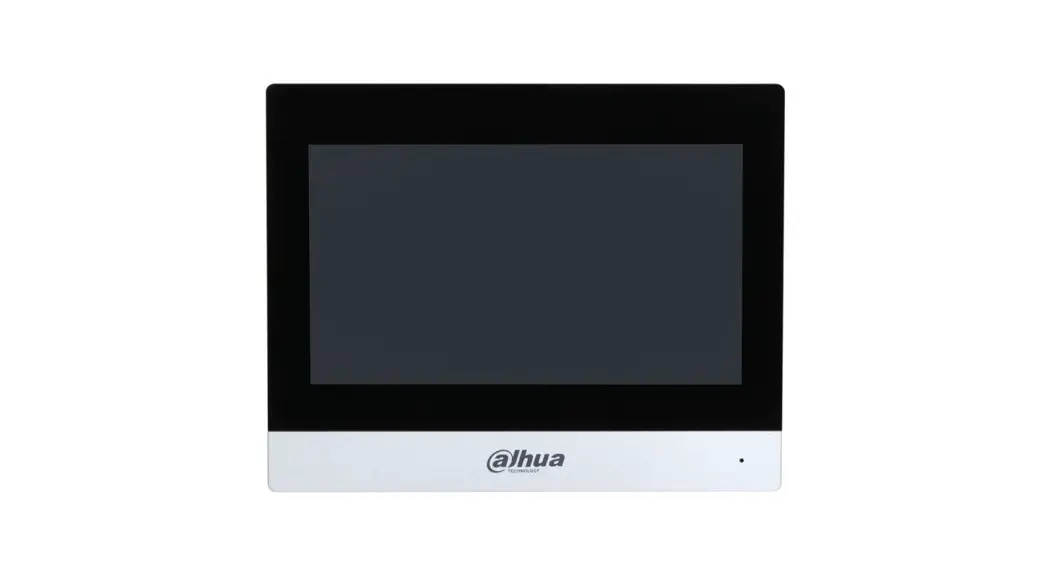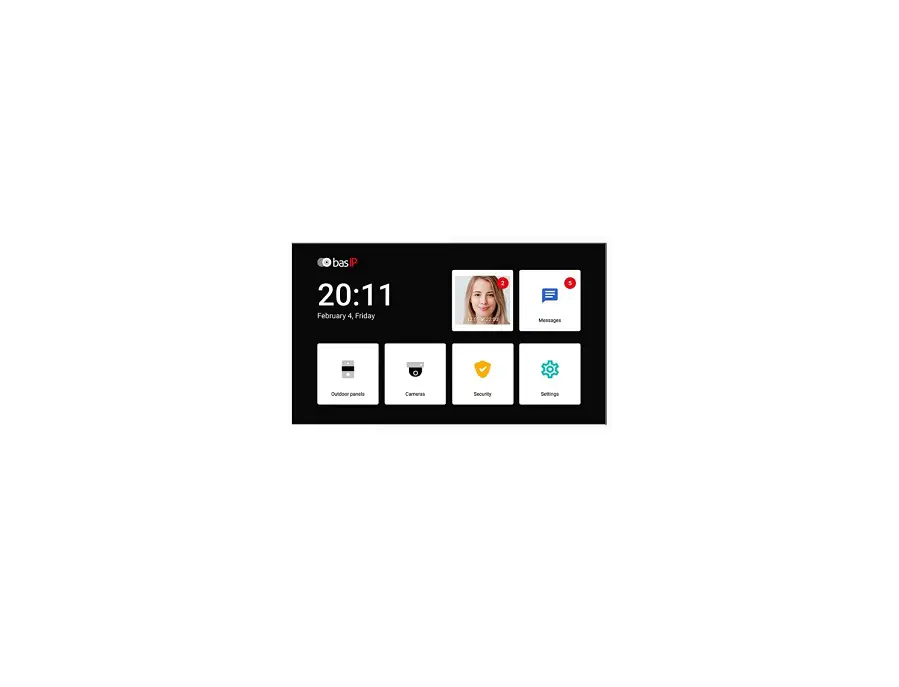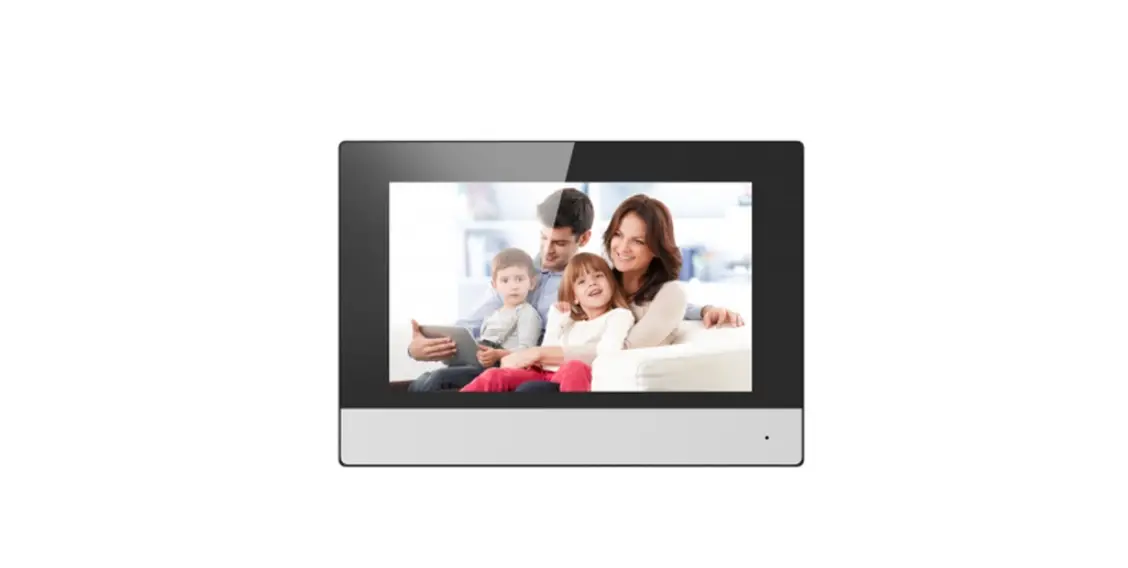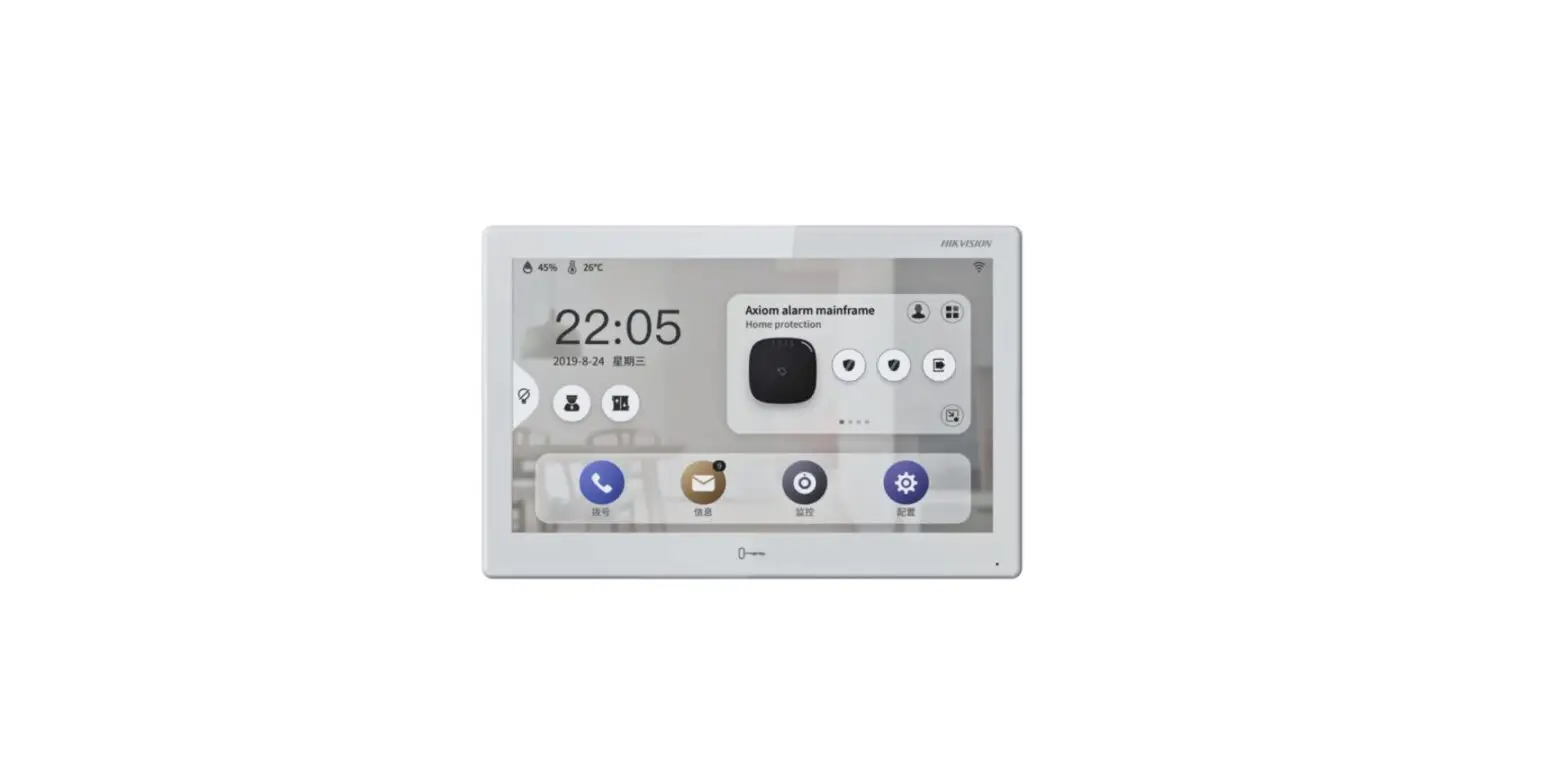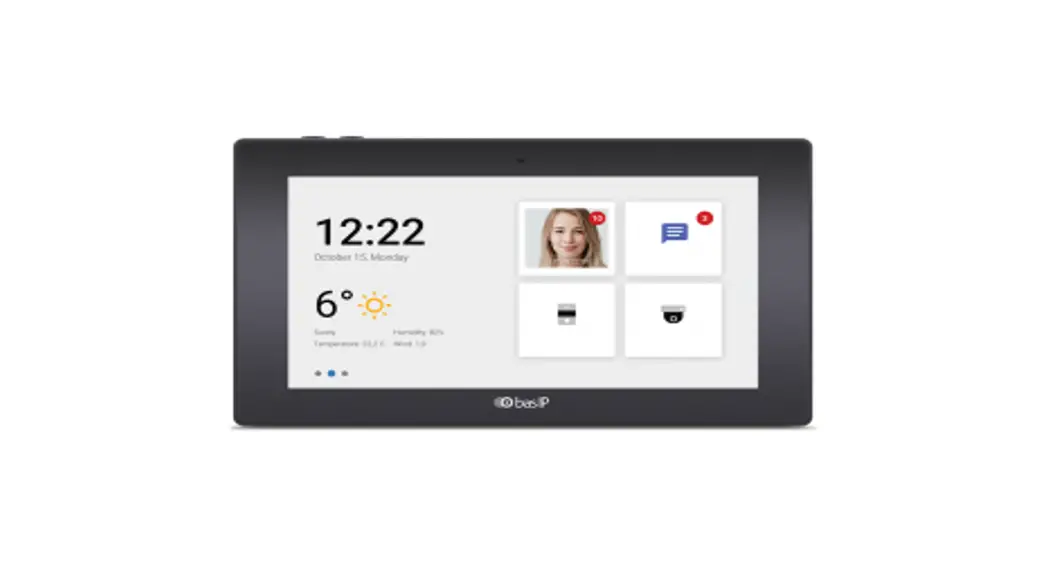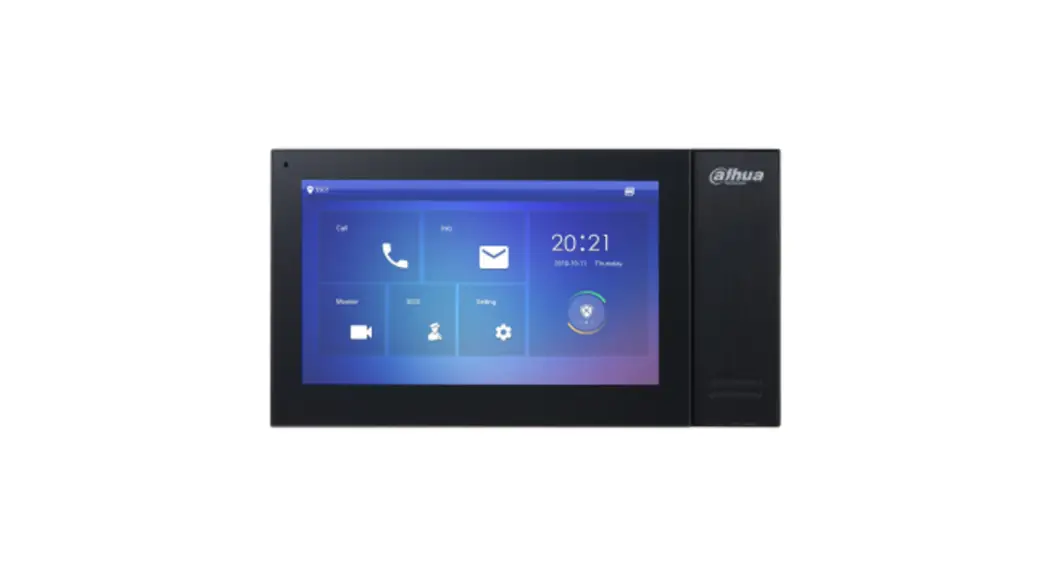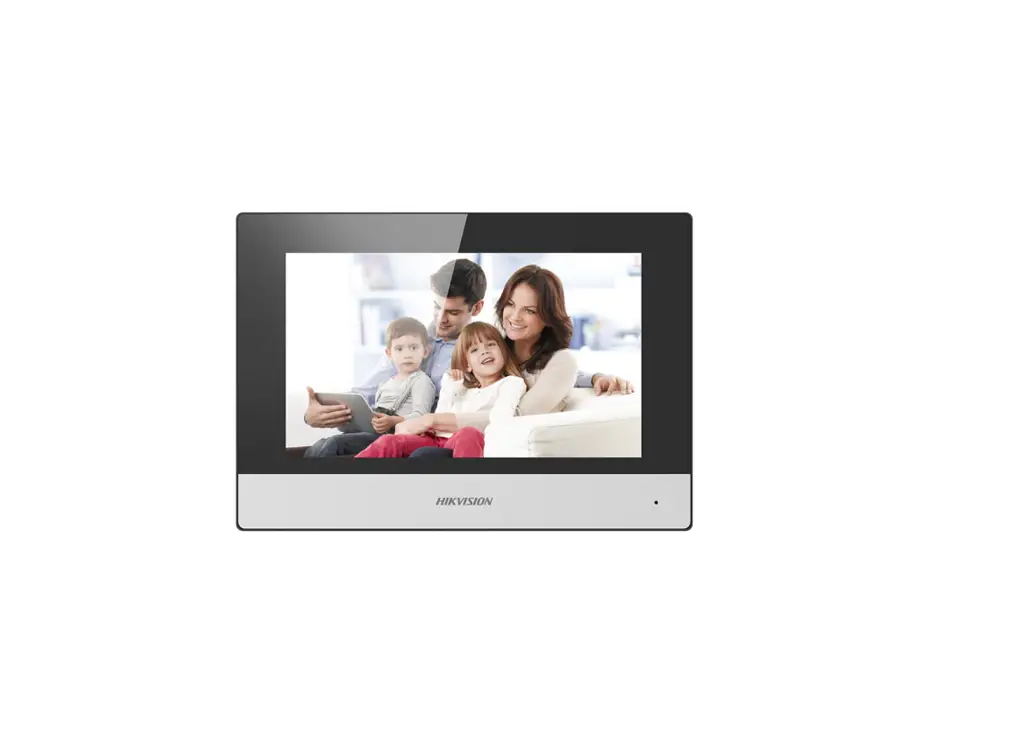

NEXhome DH-I66S Series 7 Inch LCD Android Indoor Station
 Before use
 Before use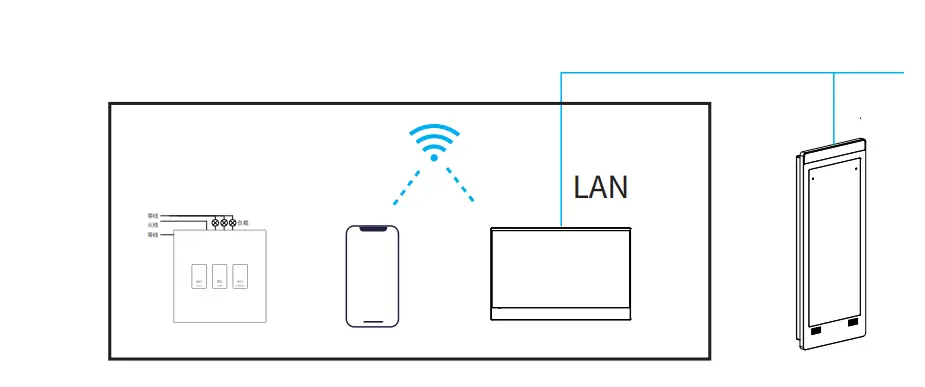
Please prepare the following items before installation. Only the device in the product package.
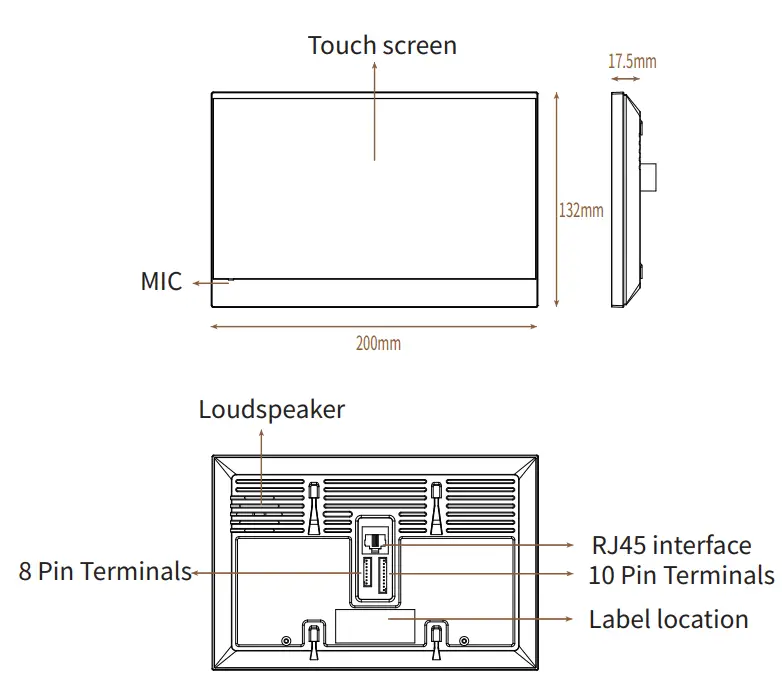
Product Overview
Installation
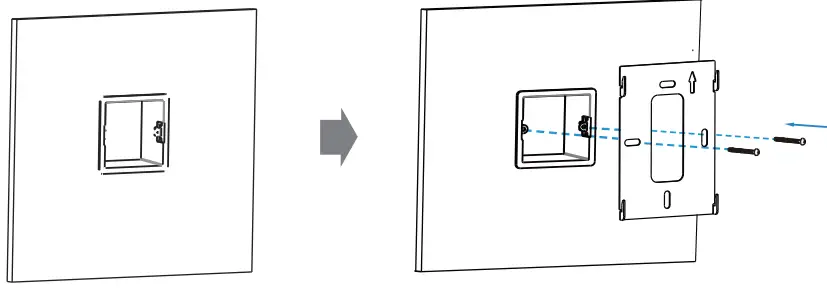
- With embedded box in the wall
- Make sure all cables in the embedded box.
- Fix the wall bracket on the embedded box with two screws.

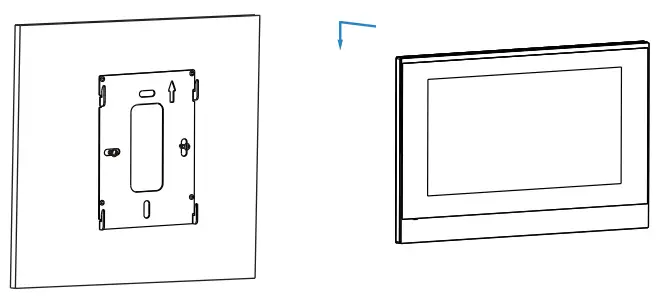
- After the device is connected to the power cord, network cable, and zone line,Push down to fix the device securely.
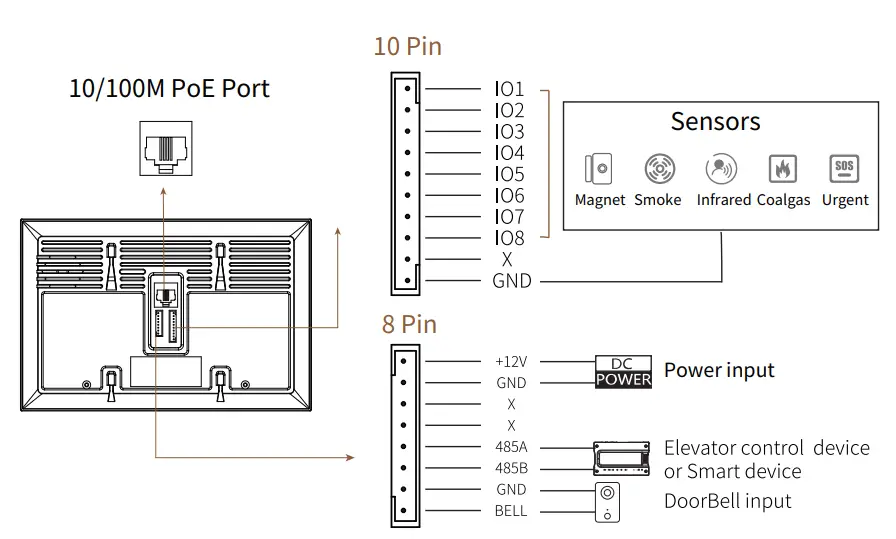
Device Wiring
Specifications
| OS Display | Android 7 Inch LCD |
| Resolution | 1024×600 |
| Input power | DC12V / 1A |
| PoE | Support |
| WiFi | Support |
| ZigBee | Support |
| Bluetooth | Support |
| Front panel | ABS |
| Working Temperature | -10℃ ~ 55℃ |
| Working Humidity | 10%~95%RH |
| Equipment size | 200×132×17.5mm |
Stats
| Voice Arming |  Voice Voice Mute Mute
|
 Unstart Unstart  Non-networked Non-networked | |
| Gateway | |
 Unauthorized Unauthorized  Server Exception Not online Server Exception Not online Online Online | |
 Connected,but not access door unit Connected,but not access door unit | |
| LAN WAN |  Not connected Not connected  Connected Connected |
 Connected,but not access door unit Connected,but not access door unit  Connected Connected | |
 Disarm
 Arming
Intercom
Make a call
The user can call the management center or other residents. Press Intercom icon to enter the room address , then choose to call out.
Receive a call
After receiving the call, the user authenticates the visitor through the video, and then chooses to unlock or refuse.
Unlock
During the talk, press the unlock icon in talking interface to unlock the door.
Monitor
In the monitor interface,press icon to receive the video from doorway IPC or indoor IPC or community IPC any time.
Smarthome Gateway
- Network topology
Operating instructions
- The device is powered on and connected to Wi-Fi.Ensure the device gateway status is

- Go to the Settings-WLAN of your phone,select and connect to the same Wi-Fi.
- Search “AIhome-SmartLife” in iOS App store or Google play to download the APP.Complete registration and login.
- Then enter the device’s application “Setting→System info”,
click“Allow access”. - Begin to add smart devices through APP,See AIHome APP user’s instruction manual for details.
About the use of wireless
When users need to remotely control the smart home, they need to connect to the smart home platform through Wi-Fi.And smart home terminals, such as panels and sensors, connect to DH-I66(GWP) through ZigBee. User can also connect smart terminals through Bluetooth, such as smart panels,Bluetooth speakers.
Warning
This equipment has been tested and found to comply with the limits for a Class B digital device, pursuant to part 15 of the FCC Rules. These limits are designed to provide reasonable protection against harmful interference in a residential installation. This equipment generates, uses and can radiate radio frequency energy and, if not installed and used in accordance with the instructions, may cause harmful interference to radio communications. However, there is no guarantee that interference will not occur in a particular installation. If this equipment does cause harmful interference to radio or television reception, which can be determined by turning the equipment off and on, the user is encouraged to try to correct the interference by one or more of the following measures:
- Reorient or relocate the receiving antenna.
- Increase the separation between the equipment and receiver.
- Connect the equipment into an outlet on a circuit different from that to which the receiver is connected.
- Consult the dealer or an experienced radio/TV technician for help.
Any Changes expressly or modifications not approved by the party responsible for compliance could void the user’s authority to operate the equipment. This device complies with part 15 of the FCC Rules. Operation is subject to the following two conditions:
- This device may not cause harmful interference,
- this device must accept any interference received, including interference that may cause undesired operation.
FCC Radiation Exposure Statement
- This equipment complies with FCC radiation exposure limits set forth for an uncontrolled environment .
- This transmitter must not be co-located or operating in conjunction with any other antenna or transmitter.
- This equipment should be installed and operated with minimum distance 20cm between the radiator &you body.
Fujian Nexhome Intelligent Technologies Co., Ltd.
ADD: 7th floor, building 1, No. 9, Gaoxin Avenue, Shangjie Town,Minhou County,Fuzhou,China
Sites:www.nexhome.cn
 星网天合NEXhome——智能家居与智慧社区解决方案供应商