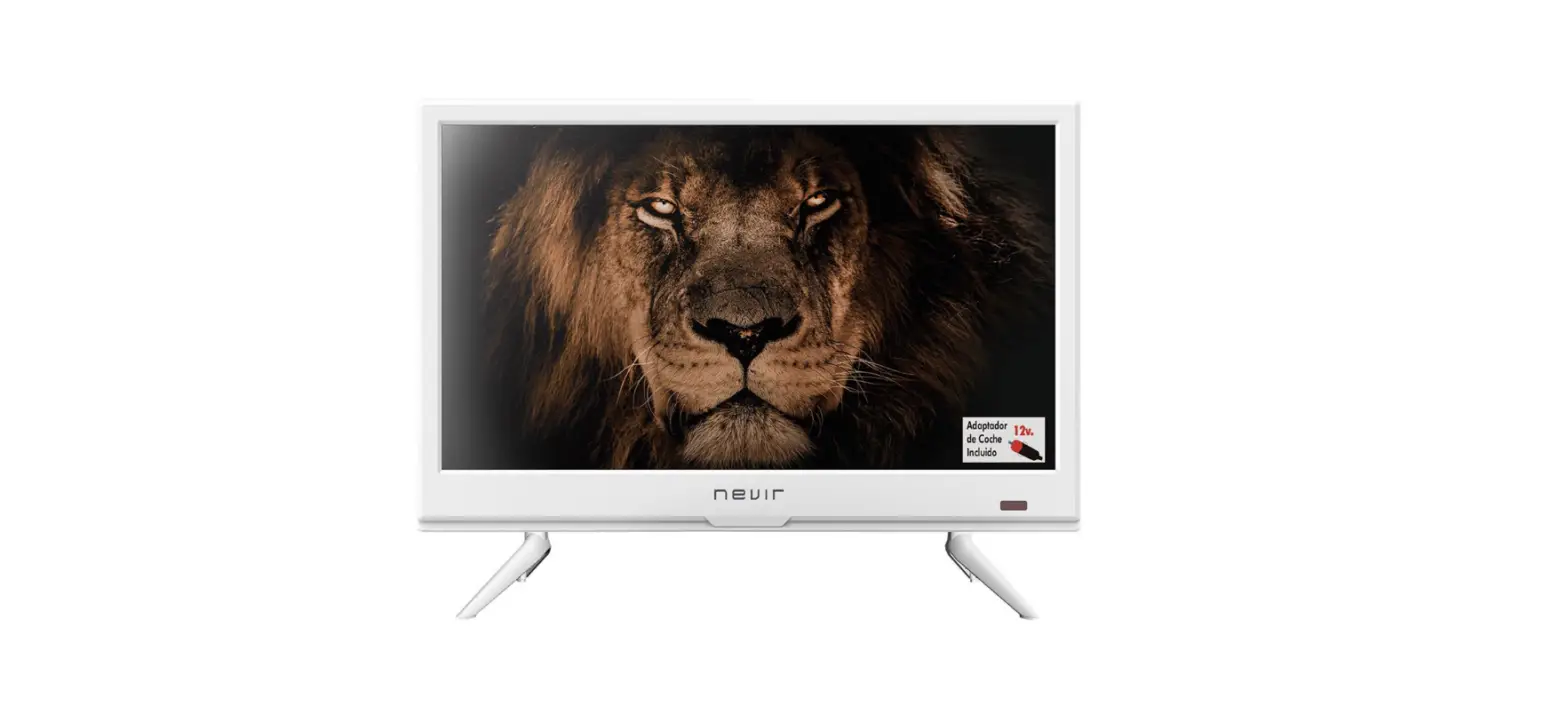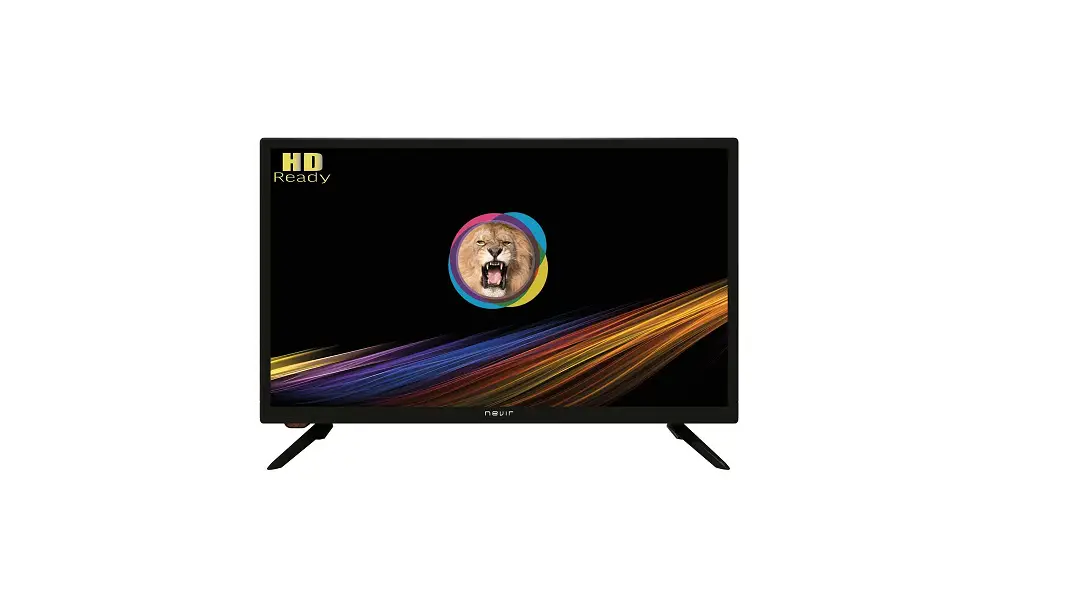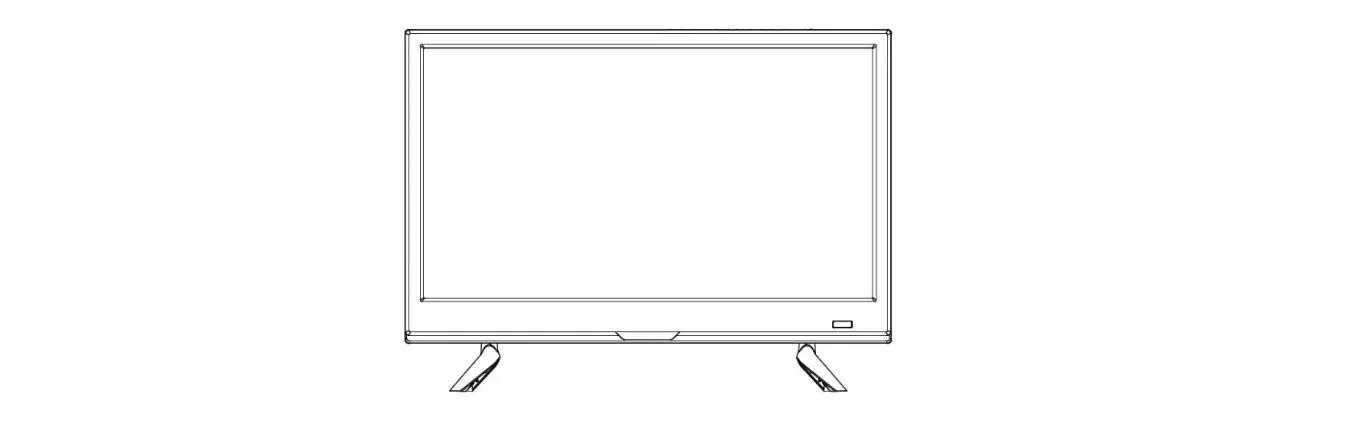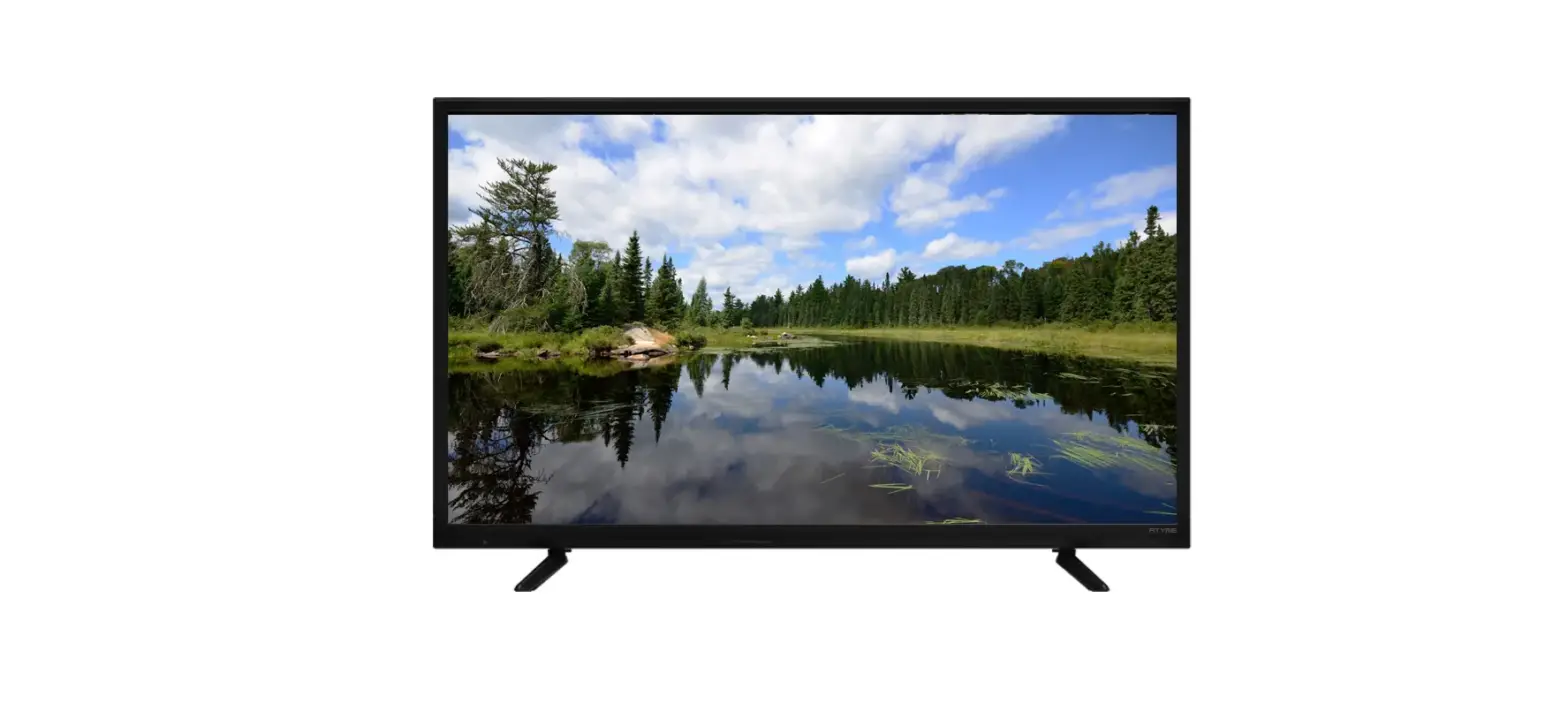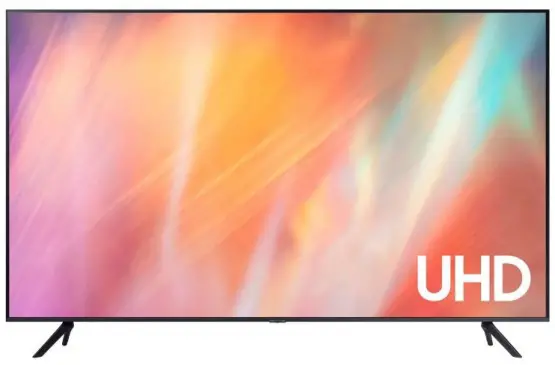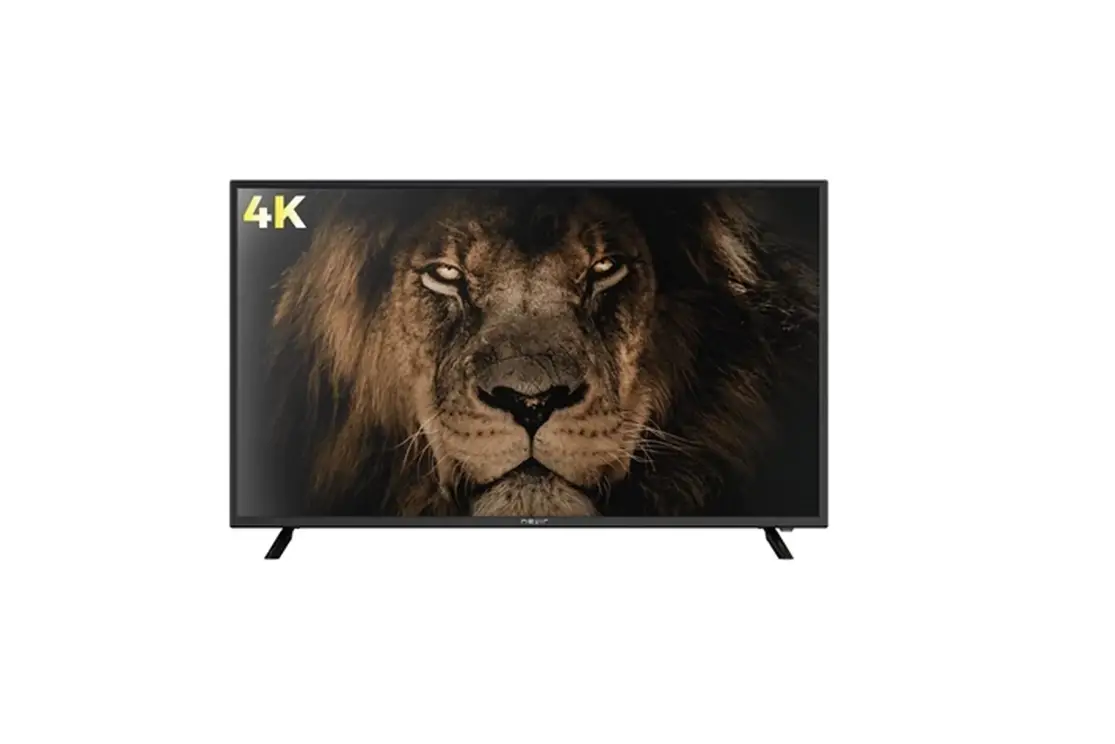
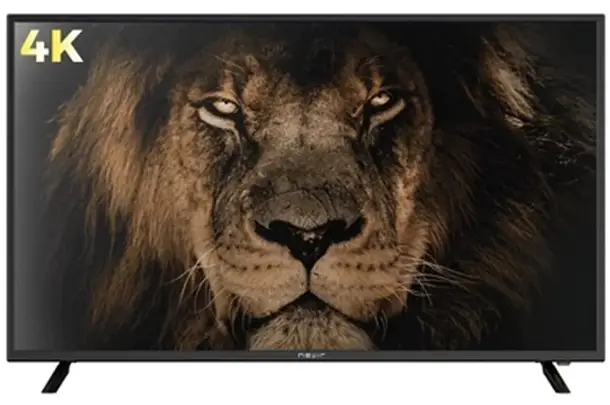
nevir NVR-8077-434K2-SMA-N 4K Smart LED TV
Installation
- Locate the TV in a room where direct light does not strike the screen. Total darkness or a reflection on the picture screen can cause eyestrain. Soft and indirect lighting is recommended for comfortable viewing.
- Allow enough space between the receiver and the wall to permit ventilation.
- Avoid excessively warm locations to prevent possible damage to the cabinet or premature component failure.
- Do not install the TV in a location near heat sources such as radiator, air ducts, direct sunlight, or in a place somewhere like close compartment and close area. Do not cover the ventilation openings when using the TV.
- The indicator light will last about 30 seconds to go out after cutting off the electricity, during this period, you cannot repower it on until the indicator light goes out, thanks a lot for your attention!
- To prevent the spread of fire, keep candles or other open flames away from this product at all times.
CAUTION
RISK OF ELECTRIC SHOCK DO NOT OPEN
CAUTION:
- TO AVOID THE RISK OF ELECTRIC SHOCK.
- DO NOT REMOVE COVER (OR BACK).
- NO USER- SERVICEABLE PARTS INSIDE.
- REFER SERVICING TO QUALIFIED SERVICE PERSONNEL.
 This is symbol is intended to alert the user to avoid the risk of electric shock, do not disassemble this equipment by anyone except a qualified service personnel.
 This symbol is intended to alert the user to the presence of important operating and maintenance instructions in the literature accompanying the equipment.
 This equipment is a Class II or double insulated electrical appliance. It has been designed in such a way that it does not require a safety connection to electrical earth.
Caution
- High voltages are used in the operation of this product.
- Do not open the product’s casing. Refer servicing to qualified service personnel.
- Caution To prevent fire or electrical shock hazard, do not expose the main unit to rain or moisture, do not place objects filled with liguids, such as vases, on the apparatus. )
- Caution Do not drop or push objects into the television cabinet slots or openings. Never spill any kind of liquid on the television receiver.
- Caution Avoid exposing the main unit to direct sunlight and other sources of heat.
- Do not stand the television receiver directly on other products which give off heat. E. g. video cassette players, Audio amplifiers. Do not block the ventilation holes in the back cover. Ventilation is essential
- Caution Never stand on, lean on, push suddenly the product or its stand. You should Pay special attention to children.
- Caution Do not place the main unit on an unstable cart stand, shelf or table. Serious injury to an individual, and damage to the television, may result if it should fall.
- Caution When the product is not used for an extended period of time, it is advisable to disconnect the AC power cord from the AC outlet.
- Caution The LED panel used in this product is made of glass. Therefore, it can break when the product is dropped or applied with impact. Be careful not to be injured by broken glass pieces in case the LED panel breaks.
Main unit description
Control Panel Button Function
- SOURCE: Select the input signal.
- MENU: Press to select the main menu.
- VOL+ Volume up.
- VOL-: Volume down.
- CH+: TV channel up.
- CH-: TV channel down.
- POWER : Turn the TV on or off. TV Terminal Connections
TV Terminal Connections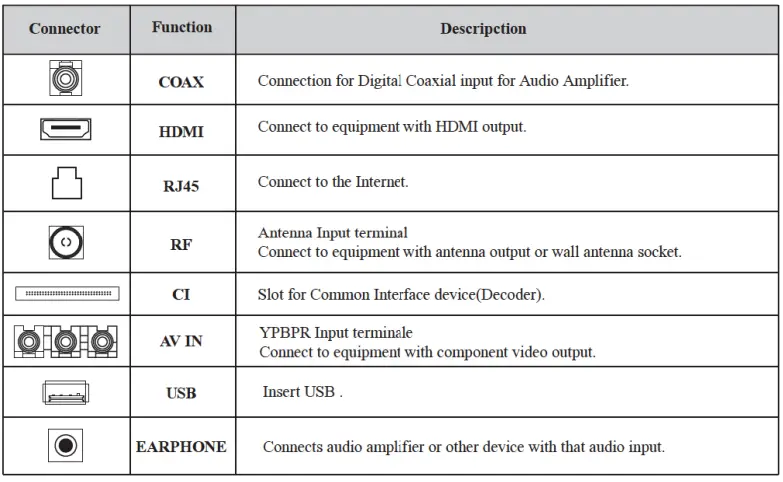
Optional Configuration as below:
Connect the USB to the USB jack on the set.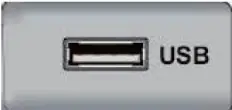 NOTE
NOTE
- It is only 500 mAMAX of DC current output when you connect with USB jack
- To ensure the Mobile HD works well, you slh.ould use other power supply for the Mobile HD. And do not use the USB jack in the same time.
Remot control 


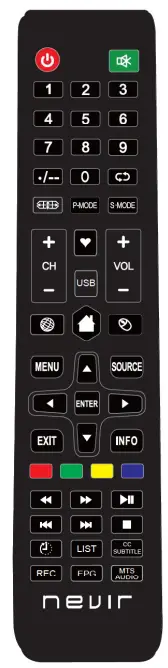
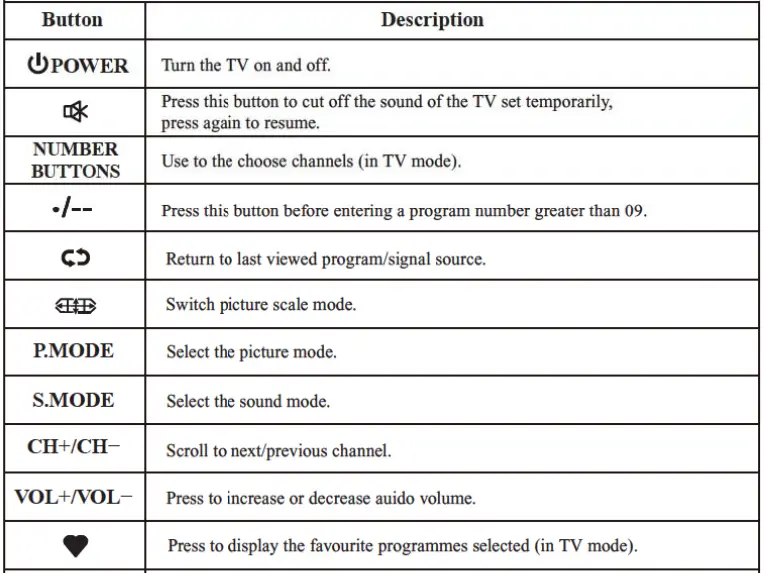
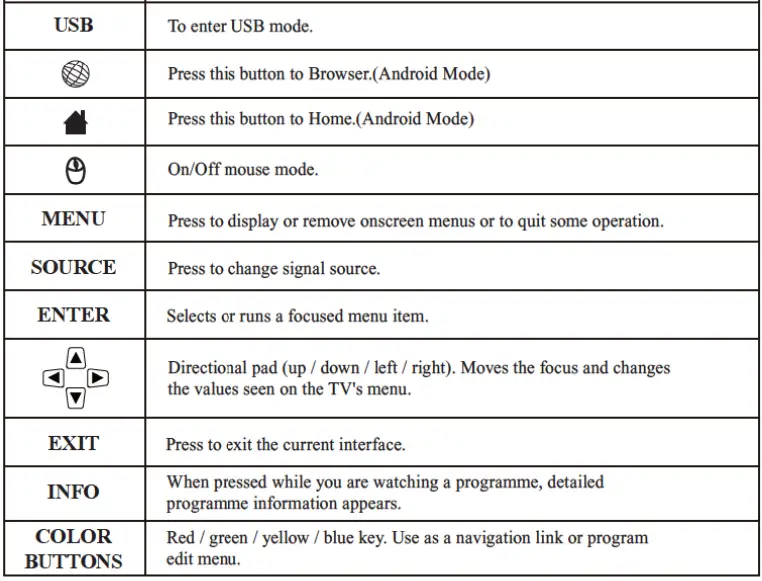
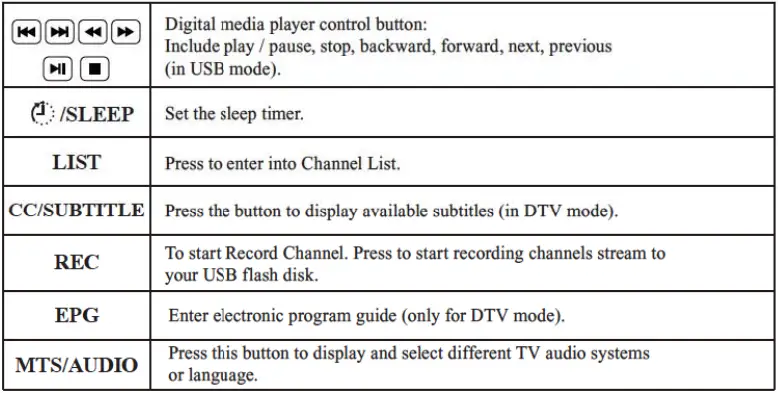
Note:
- All picture in this manual are examples, only for reference, actual product may differfrom the picture.
- The button not mentioned here are not used.
SELECT INPUT SOURCE
- Press SOURCE button to display the input source input list;
- Press
 button to select the input source you want to watch:
 - Press ENTER button to enter the input source;
- After entering the source, for example DTV:
- Press MENU button to display the MAIN OSD MENU;
- Pressbutton to select the MENU you want;
- Press ENTER button to enter the sub menu, and press EXIT button to return back to the previous menu.
- Press button to select the option and then press ENTER button or
 button to enter the submenu, press
  button to adjust the value or pressbutton to select in the sub menu;
 - You can press MENU button to save and return back to the previous menu, and press EXIT button to exit the entire menu.
Hotel mode
Press SOURCE button and 4588, then enter hotel mode.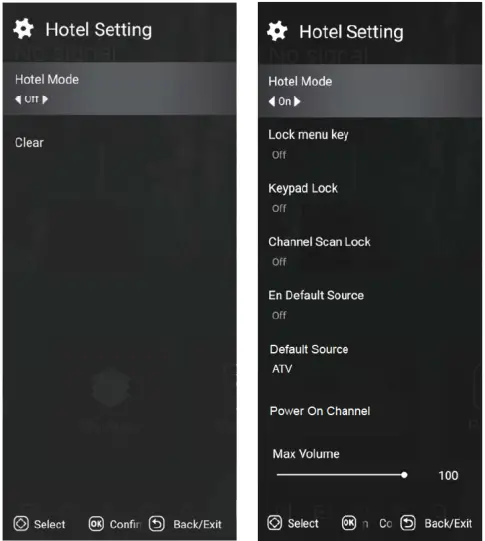
Press TV MENU button to display the main menu. Press button to select Picture in the main menu, and then press ENTER button to enter.
- Pressbutton to select the option that you want to adjust in the Picture menu, and then press ENTER button or button to enter.
- Pressbutton to adjust or pressbutton to select. And press ENTER button to select the sub menu
- After finishing your adjustment, press MENU button to save and return back to the previous menu, and press EXIT button to exit the entire menu.
Picture Mode
Pressbutton to select Picture Mode, then press ENTER button to enter and press button to select. (Available Picture Mode: User, Standard, Dynamic Mild You only can change the value of brightness, contrast, sharpness, color, when the picture is in User mode.
Colour Temperature
Press button to select Colour Temperature, then press ENTER button to enter and button to select Standard, Cool, Warm.
Aspect Ratio
Press button to select Aspect Ratio, then press ENTER button to enter and press button to adjust. Then press MENU button to return back the previous menu directly.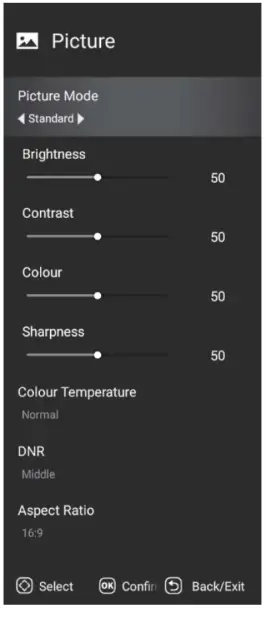
Press MENU button to display the main menu. Pressbutton to select Sound in the main menu, and then press ENTER button or button to enter.
- Press button to select the option that you want to adjust in the Sound menu, then press ENTER button to enter.
- Press button to adjust or press to select. and press ENTER button to select submenu.
- After finishing your adjustment, Press MENU button to save and return back to the previous menu, or press EXIT button to exit the entire menu.
Sound mode
Pressbutton to select Sound mode, and then press ENTER button to enter. And then pressbutton to select. (Available Sound mode: User, Standard, Music, cinema). You can change the value of bass and treble, Balance and EQ, when the sound is in User mode.
Balance
Press button to select Balance, then press ENTER button to enter and press button to adjust. Then press MENU button to return back the previous menu directiv.
Surround
Press button to select surround, then press ENTER button to enter and press button to adjust. Then press MENU button to return back the previous menu directly.
Digital Audio output
Press button to select SPDIF Output, then press ENTER button to enter and press button to select. (Available SPDIF mode: RAW, PCM. OFF) Then press ENTER button or button to enter and press button to adjust, then press MENU button to return back the previous menu directly.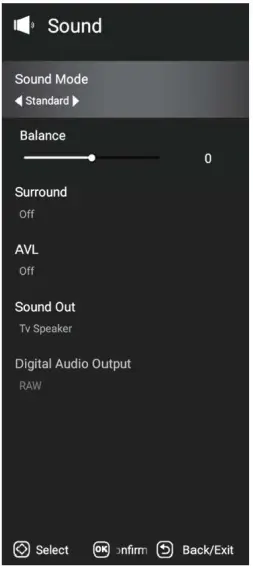
Timer Menu
Press button to select Timer, then press ENTER button to enter and press button to adjust. Then press MENU button to return back the previous menu directly.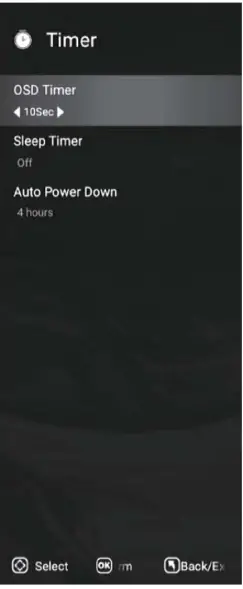
System lock
Press button to select System Lock, then press ENTER button to enter and pressbutton to adjust. Then press MENU button to return back the previous menu directly.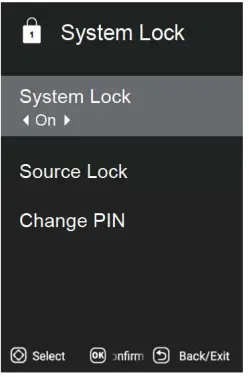
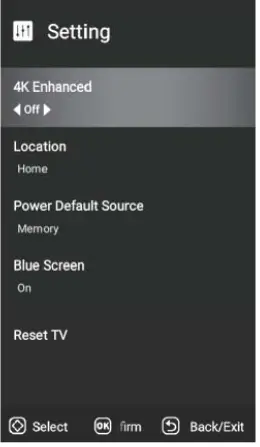
Setting Menu
Press MENU button to display the main menu. Press button to select SETTING in the main menu, and then press ENTER button to enter.
- Press button to select the option that you want to adjust in the SETTING menu, and then press ENTER button to enter.
- Press button to select and press ENTER button to select the sub menu.
- After finishing your adjustment, press MENU button to save and return back to the previous menu, or press EXIT button to exit the entire menu.

Channel Menu
Press MENU button to display the main menu. Pressbutton to select setup in the main menu, then press ENTER to enter.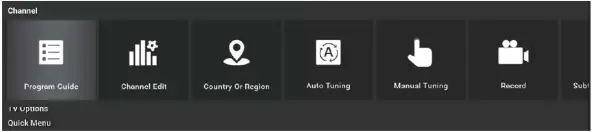
- Pressbutton to select the option that you want to adjust in the Channel menu, then press ENTER orbutton to enter.
- Press button to adjust or pressbutton to select.
- After finishing your adjustment, press MENU button to save and return back to the previous menu and press EXIT button to exit the entire menu.
Program Guide
In the DTV source, you can start channel information function by pressing Program Guide button on the remote control. The prompt window will appear as follows: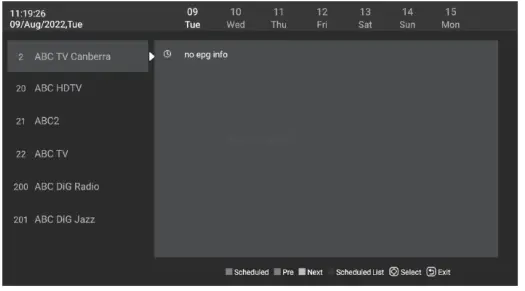
Channel Edit
Pressbutton to select Channel Edit, and then press ENTER button to play the channel selected. The menu will appear as follows: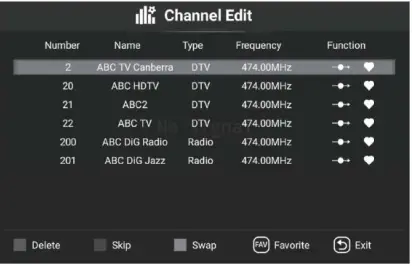
Auto Tuning
Pressbutton to select Auto Search, and then press ENTER button to enter.Select OK to search, The menu will appear as follows: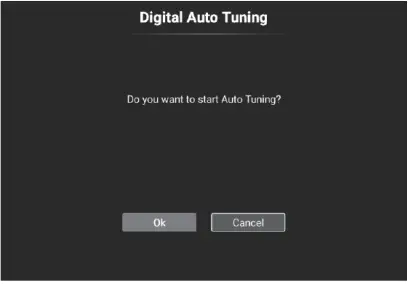
Manual Tuning
Press button to select Manual Tuning, and then press ENTER button to enter.Select Start Scan to search The menu will appear as follows:
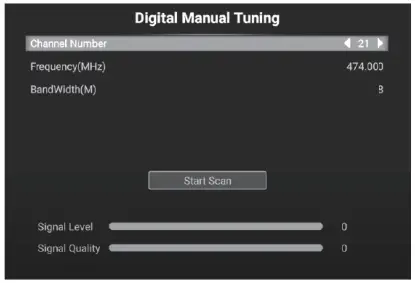
Home Page
Press MENU button to display the main menu. Press button to select HOME and press ENTER button to select the sub menu.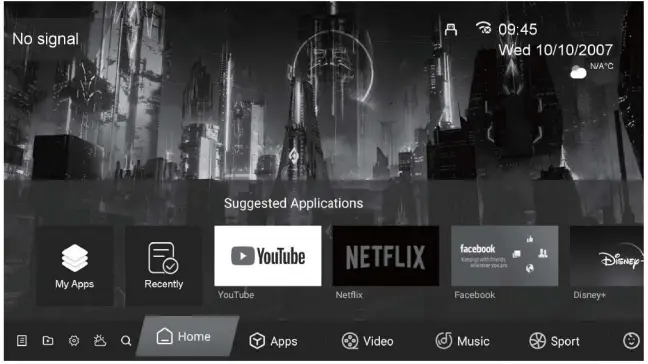
Press button to select Apps in the Source Menu, and then press ENTER or to enter.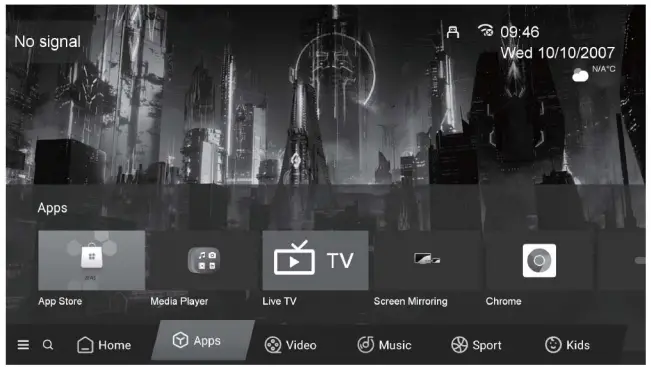
Setting
Pressbutton to select Setting in the Source Menu, and then press ENTER orto enter.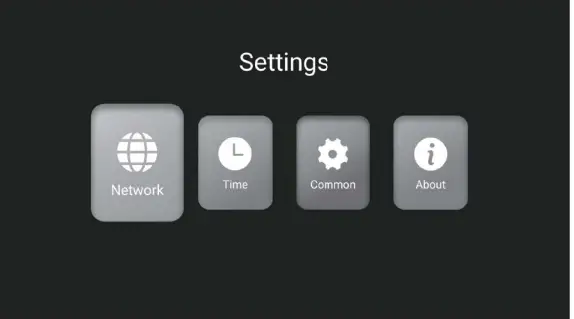
Press button to select the Network Setting that you can open the Wi-Fi. As the figure shows.
Pressbutton to select the Time Setting. As the figure shows.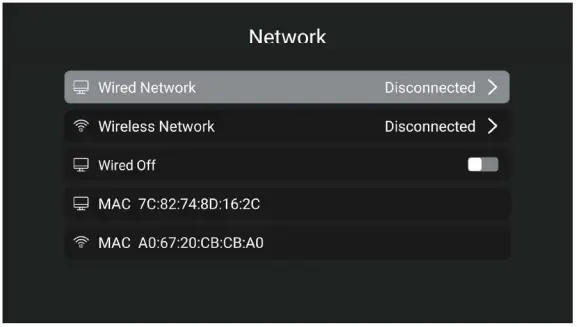
Press button to select the Common. As the figure shows.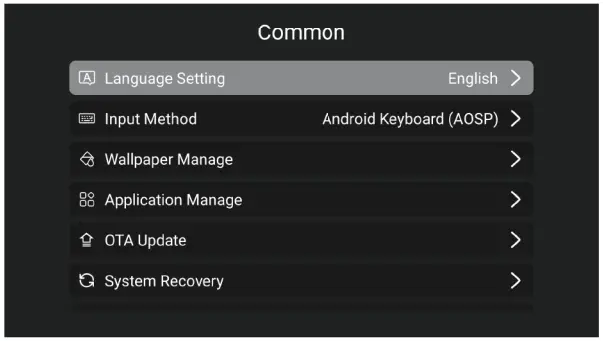
Media Play
File Manager
Click the ush icon in the upper right corner of the home page to enter the file manager page. As shown below: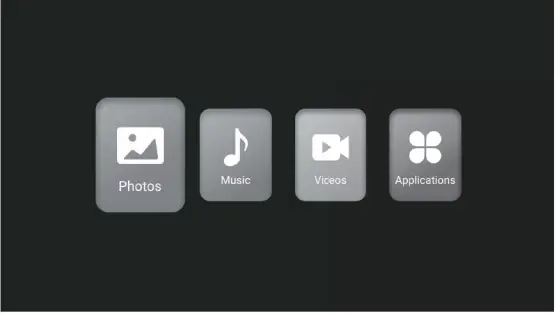
Photo
Press button to select Photos in the main menu, and then press ENTER button to enter. Press EXIT button to return back to the previous menu.
Music
Press button to select Music in the main menu, and then press ENTER button to enter. Press EXIT button to return back to the previous menu.
Video
Press button to select Video in the main menu, then press ENTER button to enter. Press EXIT button to return back to the previous menu.
Applications
Press button to select Applications in the main menu, then press ENTER button to enter. Press EXIT button to return back to the previous menu.
Trouble Shooting
Before consulting service personnel, check the following chart for possible solutions.
| PROBLEM | SOLUTION |
| TV will not turn on | • Make sure the power cord is plugged in. • The batteries in the remote control may be Exhausted; replace the batteries. |
|
No picture, no sound | •Check the cable between TV and antenna/ external AV device. • Press the power button on the remote. • Press the SOURCE button the remote, then press the
|
|
Poor picture, sound OK | • Check the cable between TV and antenna/ external AV device. • Try another channel, the station may have broadcast difficulties. •Adjust the brightness/contrast in the Video menu. Check that the unit is set to PAL |
| Audio noise | • Move any infrared equipment away from the TV |
The TFT LED panel uses a panel consisting of sub pixels which requires sophisticated technology to produce. However, there may be a small number of bright or dark pixels on the screen. These pixels will have no impact on the performance of the product.
If at any time in the future you should need to dispose of this product please note that: Waste electrical products should not be disposed pf with household waste. Please recycle where facilities exist. Check with your Local Authority or retailer for reveling advice. (Waste Electrical and Electronic Equipment Directive)