KILOVIEW Leading solution provider of IP-based video transmission
NDI Core Introduction
 | Website for more information about NDI Core https://www.kiloview.com/en/ndi/ndi-Core/ |
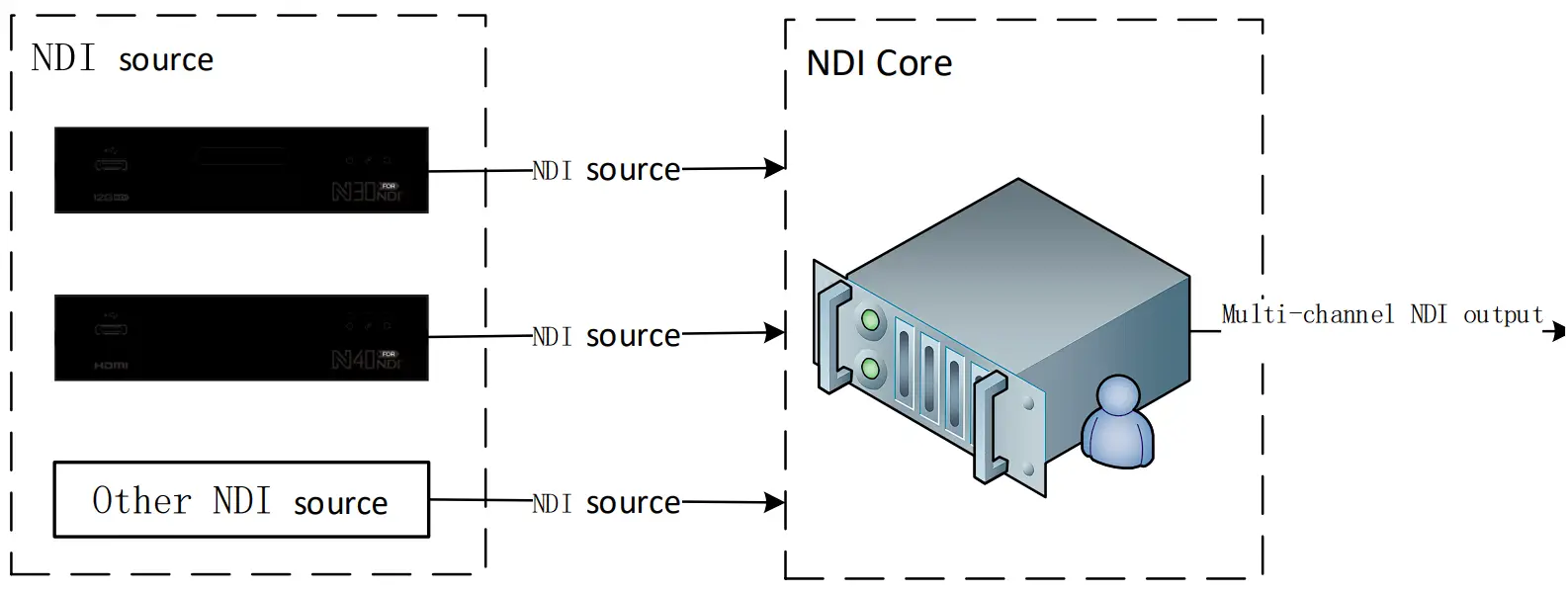
 | Introduction NDI Core mainly solves the issue that the NDI encoder cannot be pulled by multiple back-ends at the same time. NDI Core virtualizes the video source into multiple NDI channels for output, and integrate more functions such as video source switching and video play play. By creating a play list, users can freely set the program source, dynamically adjust the playback sequence, playback time to achieve the sequence, loop, and switch playback of video sources.
|
Login to NDI Core
Enter http://serverIP:81/ in the browser and log in to the NDI Core system. The user name and the password both are admin by default.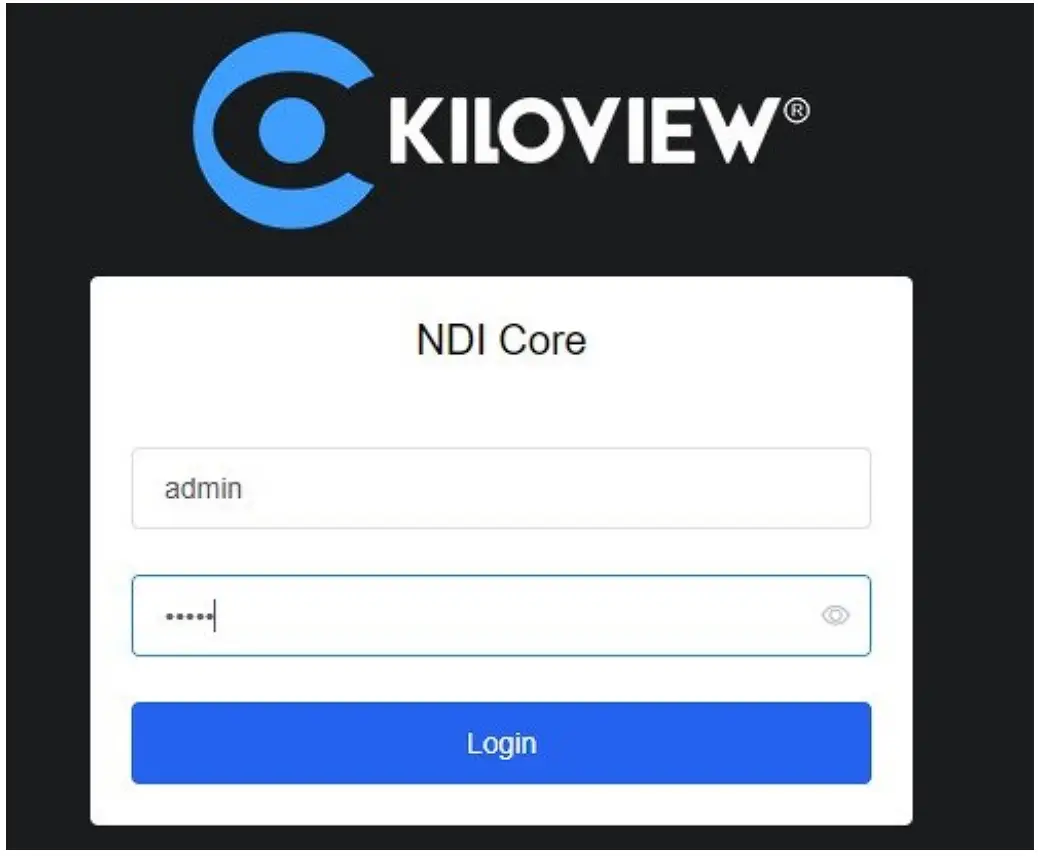
 | Note
|
 | More information about NDI Core system deployment https://www.kiloview.com/en/support/docs/kiloview-ndi-core-server-deployment-guide/kiloview-ndi-core-server-deployment-guide/ |
Dashboard
Click “Dashboard” on the WEB page to check the system information includes network status, system status, resources and logs.
Network status
Shows all network device information and traffic statistics on the NDI server.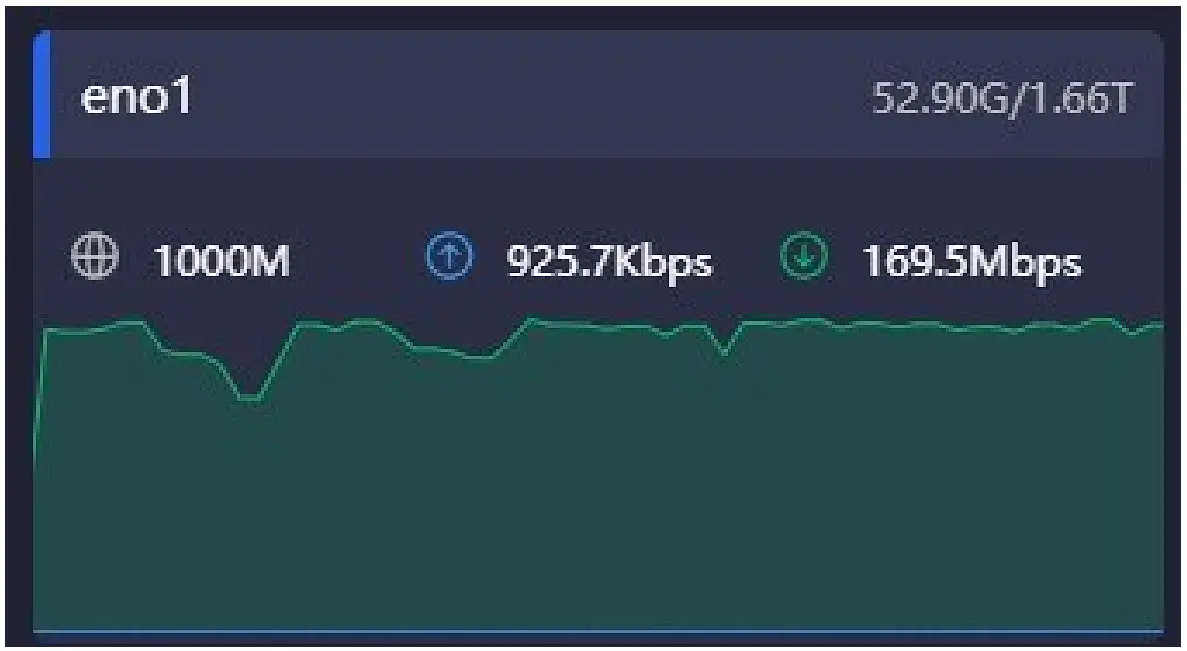
| Introduction
|
 :The maximum bandwidth of the current device
 :Real-time traffic output of the current device
 :Real-time traffic input of the current device
System status

| Introduction When the system memory and CPU are too high, please confirm whether the performance of the NDI Core device is insufficient due to a large number of transmissions. You may need to update your hardware system. The time line below shows the memory and CPU usage in the past time, and the current time is 0s.
|
Resources
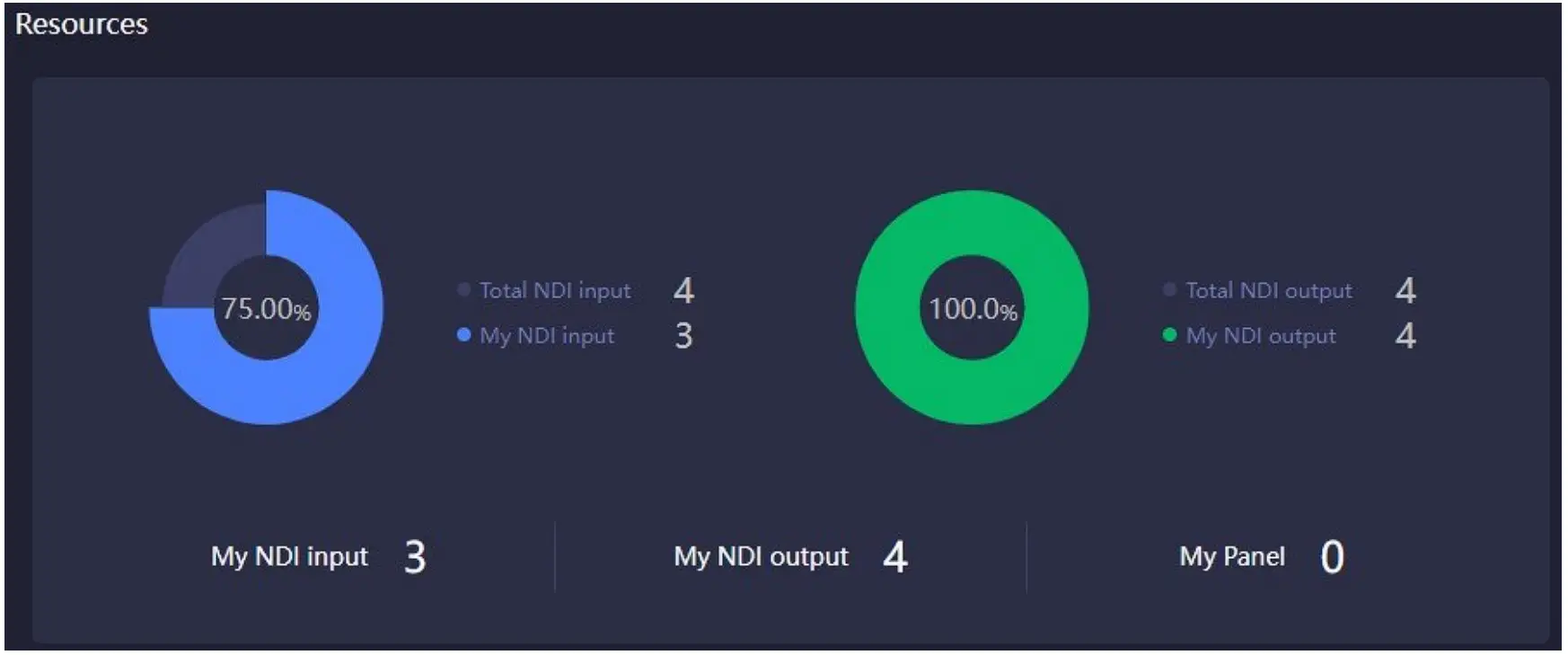
| Introduction Shows the number of inputs and outputs of NDI Core.
|
Log
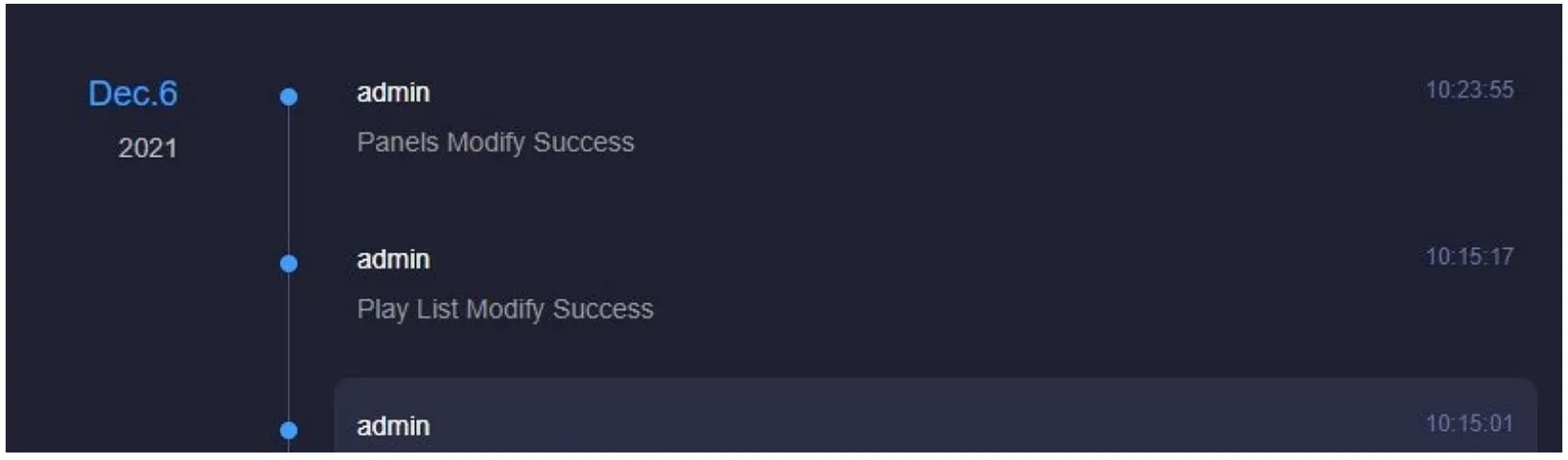
Statistics of all operations on the NDI Core system include the time and the account of the operation, which is conducive to troubleshooting.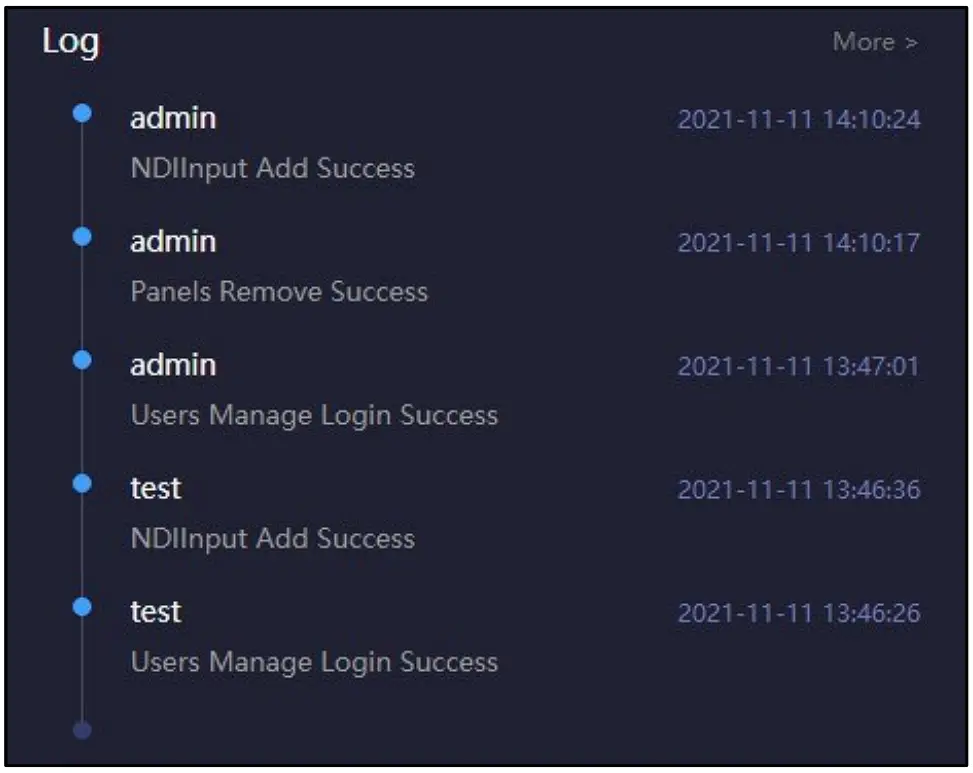
Source Management
Click “Source Management” to enter to the NDI input or output to add and manage video sources.
NDI Input
Click “NDI Input’ to enter the NDI input source management page. Click “Add Source”, all NDI sources under the same network segment will be automatically discovered and displayed. Select the NDI video source that needs to be added and saved.
| Introduction Not all discoverable NDI sources transmitted by the NDI Core system. Only the video sources added to the NDI Core can be switched and copied. |
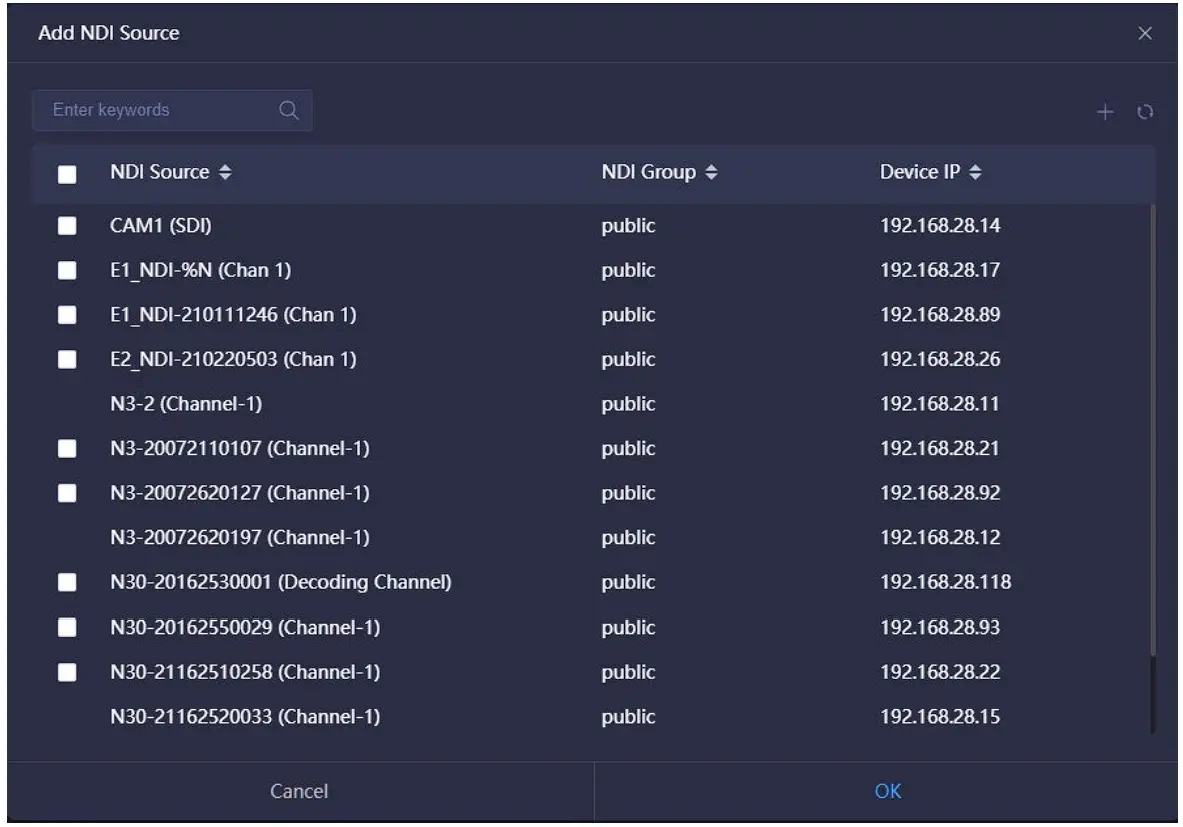
The sources automatically discovered by the above method are the sources under the same subnet in the LAN, and the sources are in the public group. If the sources are not in the same subnet or not in the public group, please add it to the list manually. Click to add it manually.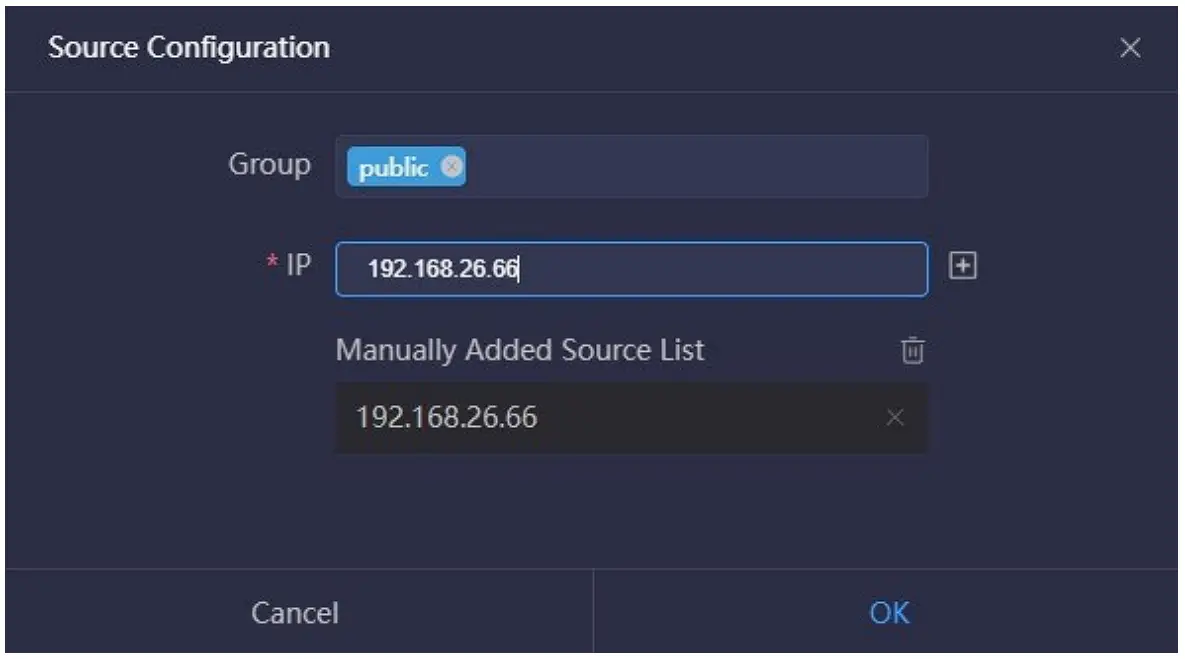
| Introduction
|
 :Delete all IP addresses in the list.
NDI Output
Create NDI virtual output, realize NDI output by controlling input NDI source or play list, and support single NDI source input and output with multiple NDI channels. Click “NDI Output” to enter the NDI output management page. Click “Add Source” to create an NDI output channel.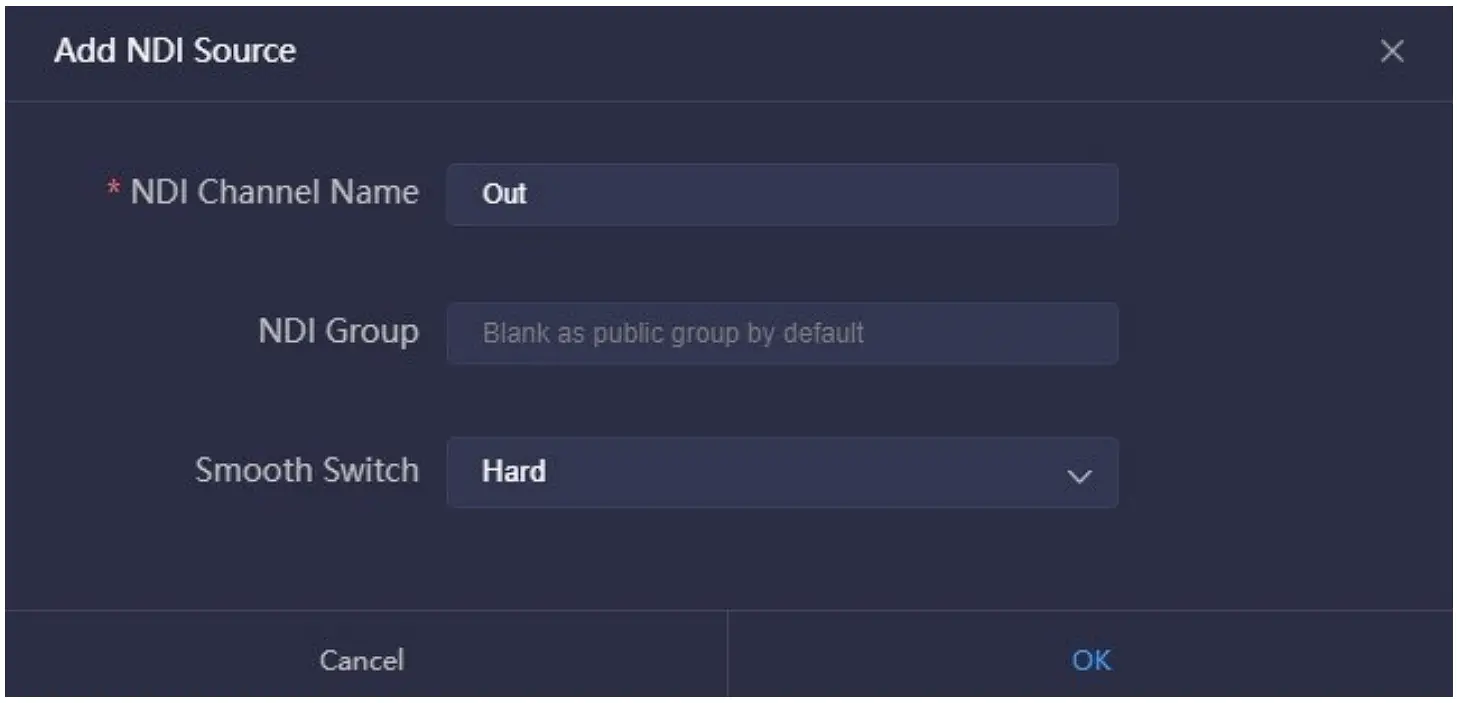
| Introduction
|
Panel Control
Click “Panel Control” to create a control panel, configure the NDI input and output, provide cross and IO panel switching options, support single play and loop play configurations.
Add Panel
Click “Add Panel” under the “Panel Control” to create a switch configuration panel associated with NDI input and output.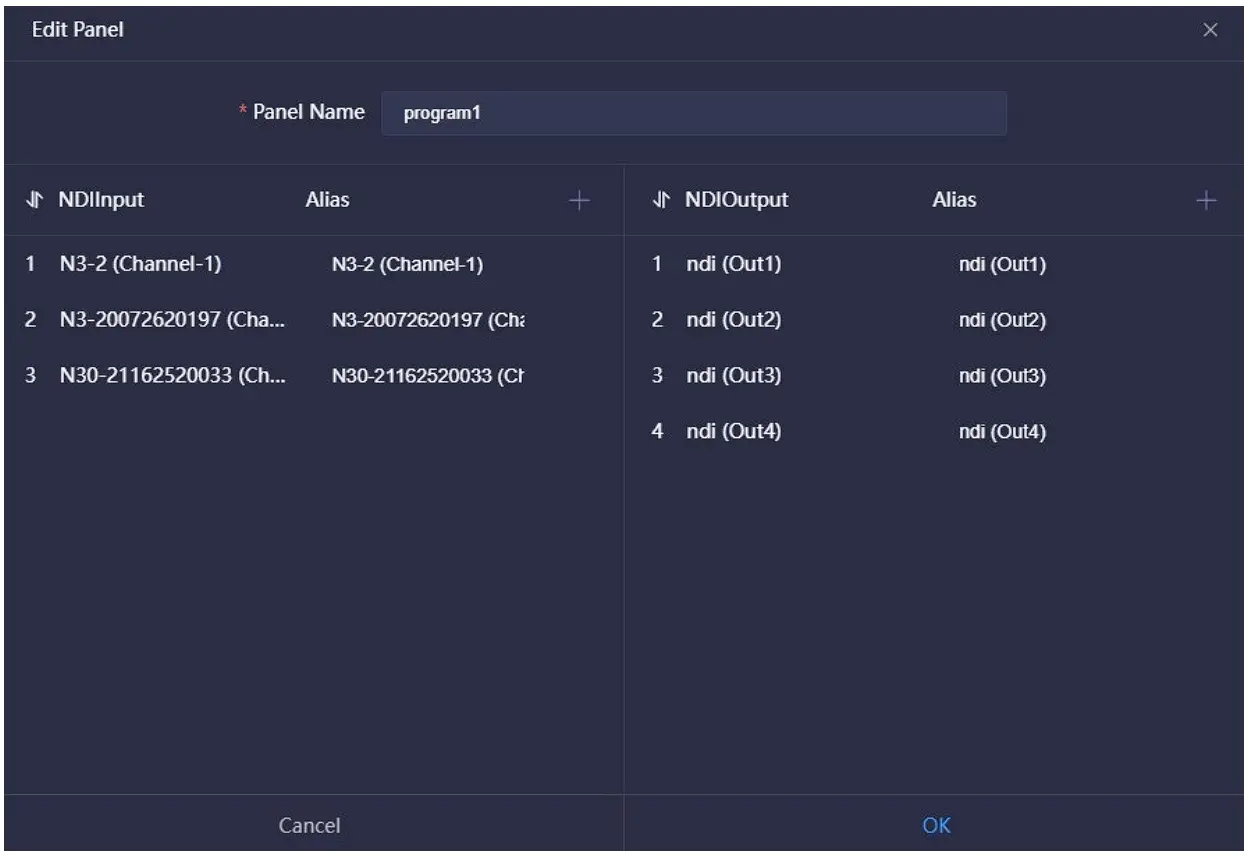
| Introduction
|
Panel Management
Enter the panel created, click “General” to check the information of the NDI input and output and the status and the configuration of the play list. Intersection and IO Panel are two different styles of operation panel with same function, you can choose the one you like. You can configure and switch the NDI input and output, and configure the play list of the NDI output.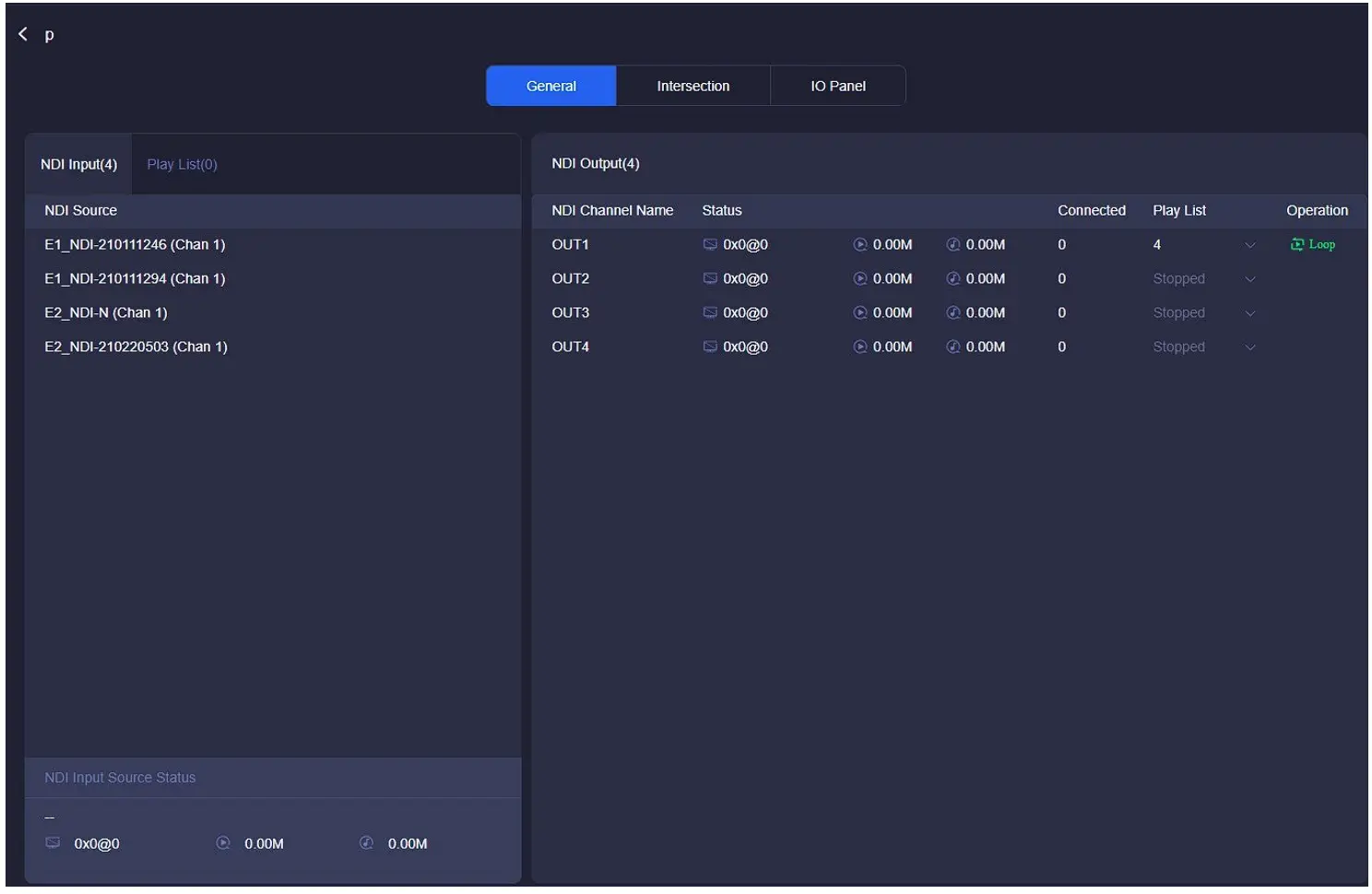
① NDI Input Source Status
Select the video source and the information status of the source will be displayed at the bottom.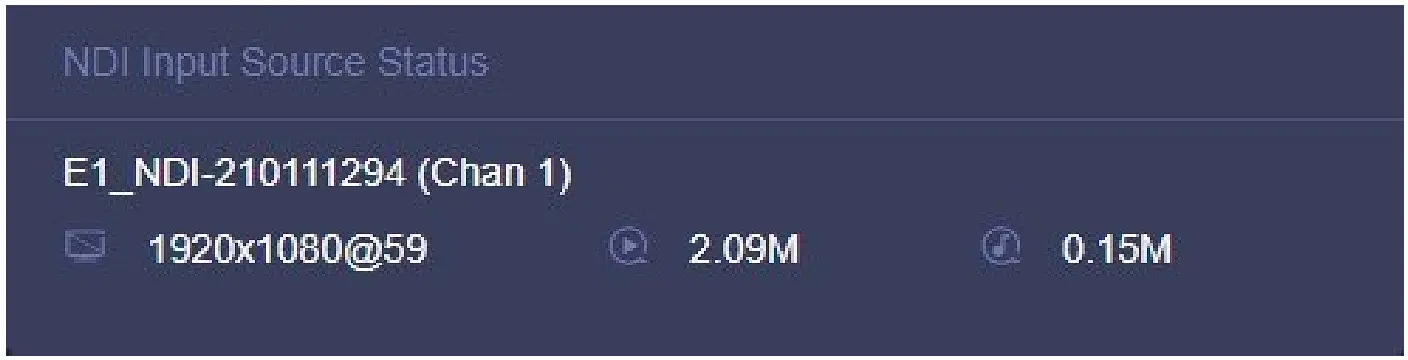
| Introduction
|
 :The resolution and frame rate of the source
 : The real-time bit rate of the video encoding
 : The real-time bit rate of the audio encoding
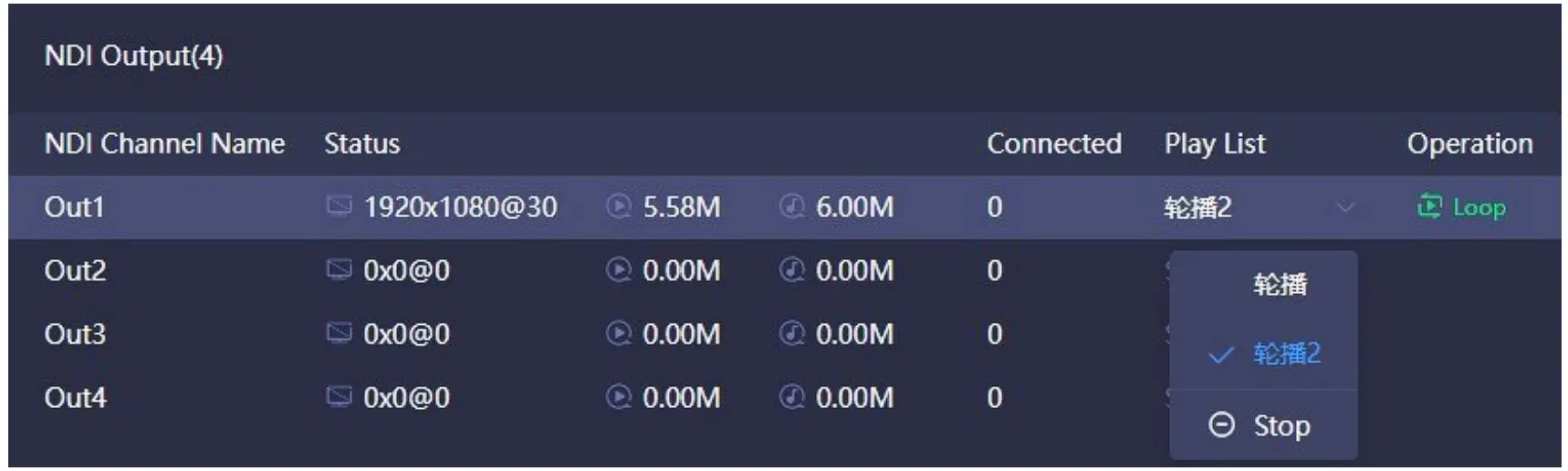
② NDI Output
The NDI output channel created when the panel is added, if there is a device at the back end to pull a certain output, the output status will display the decoded resolution, frame rate, video and audio bitrate.
| Introduction
|
③ Play List (Only available with NDI Core Pro and Customized Hardware version)
When the NDI output channel selects “Loop”, all the NDI input video sources in the list will be displayed. A circle of time progress status will appear on the right side of the video source.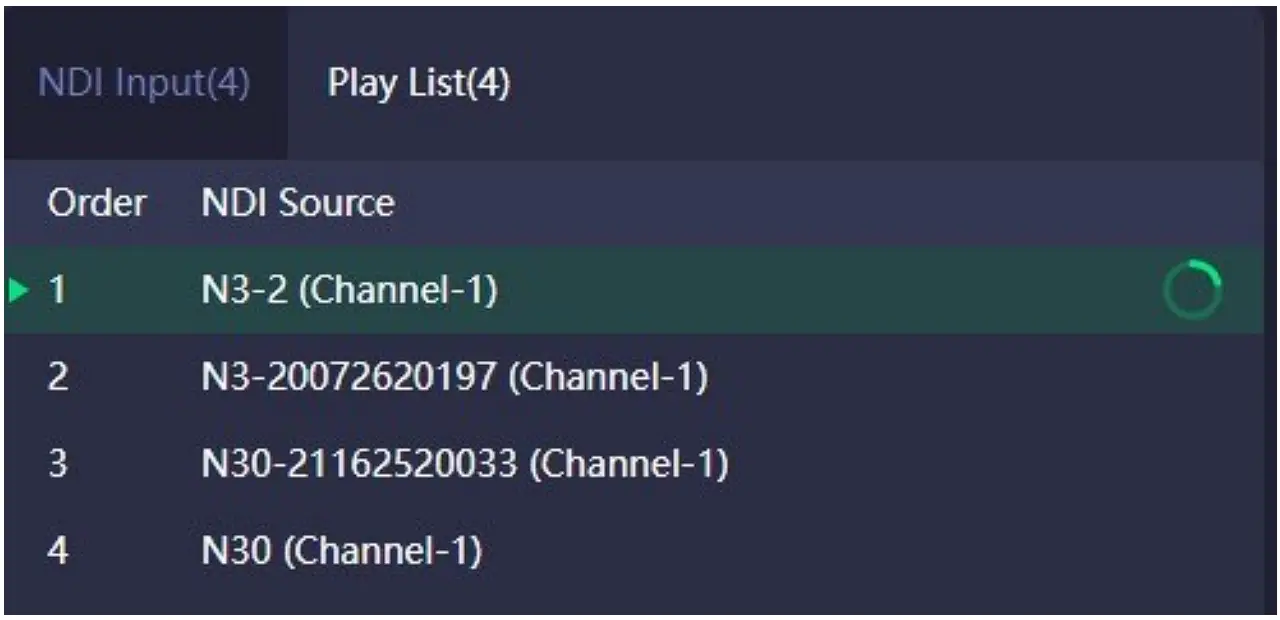
| Introduction
|
④ Intersection Crosspoint and IO Panel
Configure the NDI input and output by the intersection. The green square indicates that the NDI input sources will output from the NDI output channels.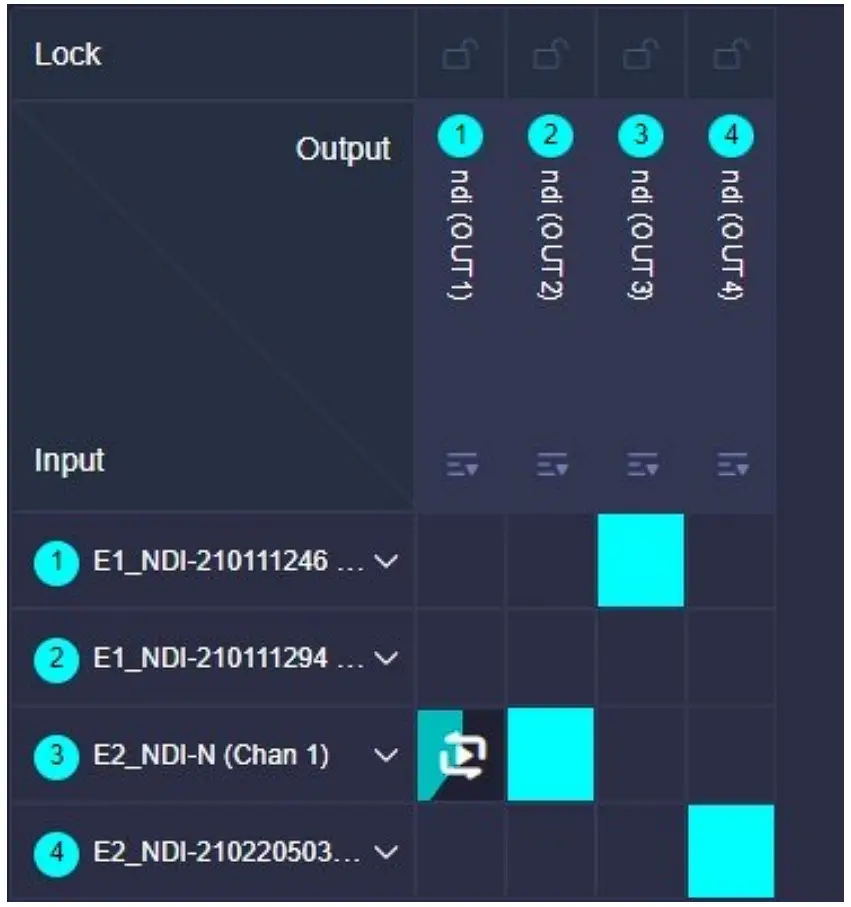
| Introduction One NDI input source can be copied to multiple NDI channels outputs.
|
 :Select and stop the play list
 :Under the unlocked state, the NDI video source of multiple outputs can be switched. When in the locked state, the NDI output channel cannot be manually switched. When the output channel is used by multiple control panels, the NDI output can be switched on any panel. To prevent misoperation, you can use the locked state.
Output Play
 | Download Kiloview Multiview for free Visit the website https://www.kiloview.com/en/ndi/multiview, click “Get it now” to download Multiview, and install the software step by step. Kiloview Multiview is a free NDI video discovery, management and multi-screen monitoring software. |
Step 1:Enter the management page of Kiloview Multiview Player
Step 2:Find the NDI channel output by the NDI Core in the “Discovery”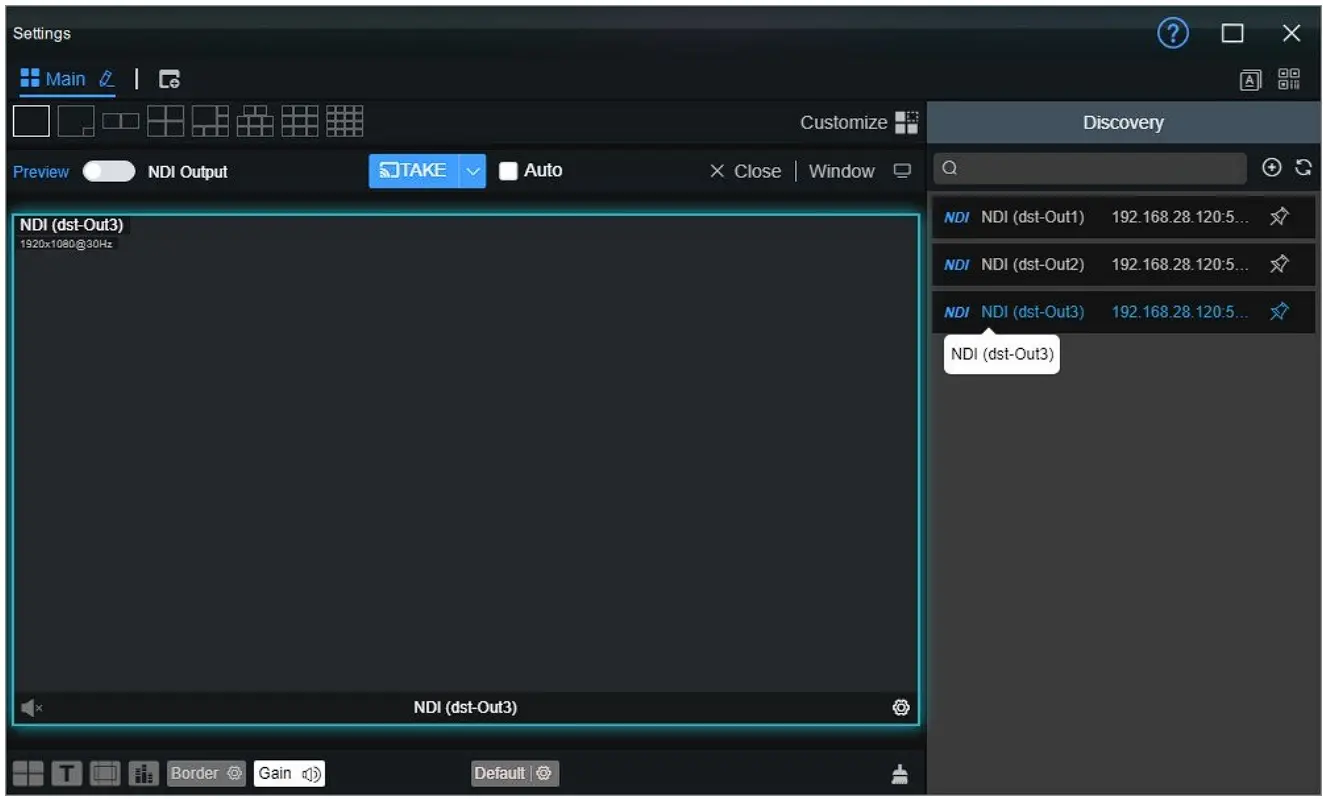
| Introduction The rules for the name of the output NDI streaming from NDI Core:NDI(dst-channel name),the channel name was created in chapter 4.2 |
Play List (Only available with NDI Core Pro and Customized Hardware version)
According to actual needs, the input videos are played under Loop mode. You can configure the playback time and sequence of each video source.
Click “Play List”-“Add Play List” to create a play list. Click to add the NDI source that needs to be played into the play list.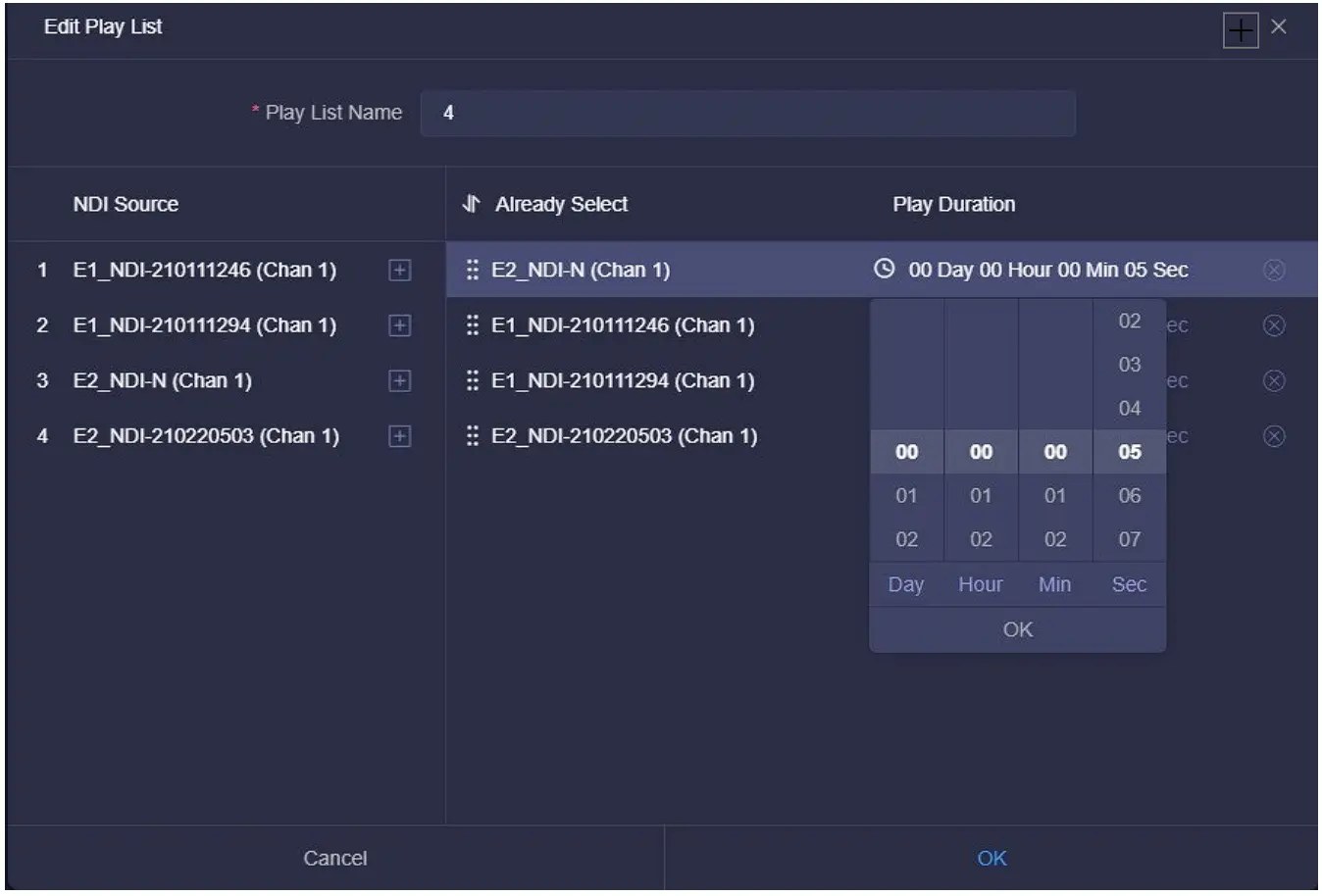
| Introduction The NDI video source can be added to the play list many times, click before the NDI source under the “Already Select” to sort the NDI sources.
|
Network Status

| Introduction Please see Chapter 3.1 for details. |
User Management
In user management, you can add new users and modify and delete existing users. There is an admin account by default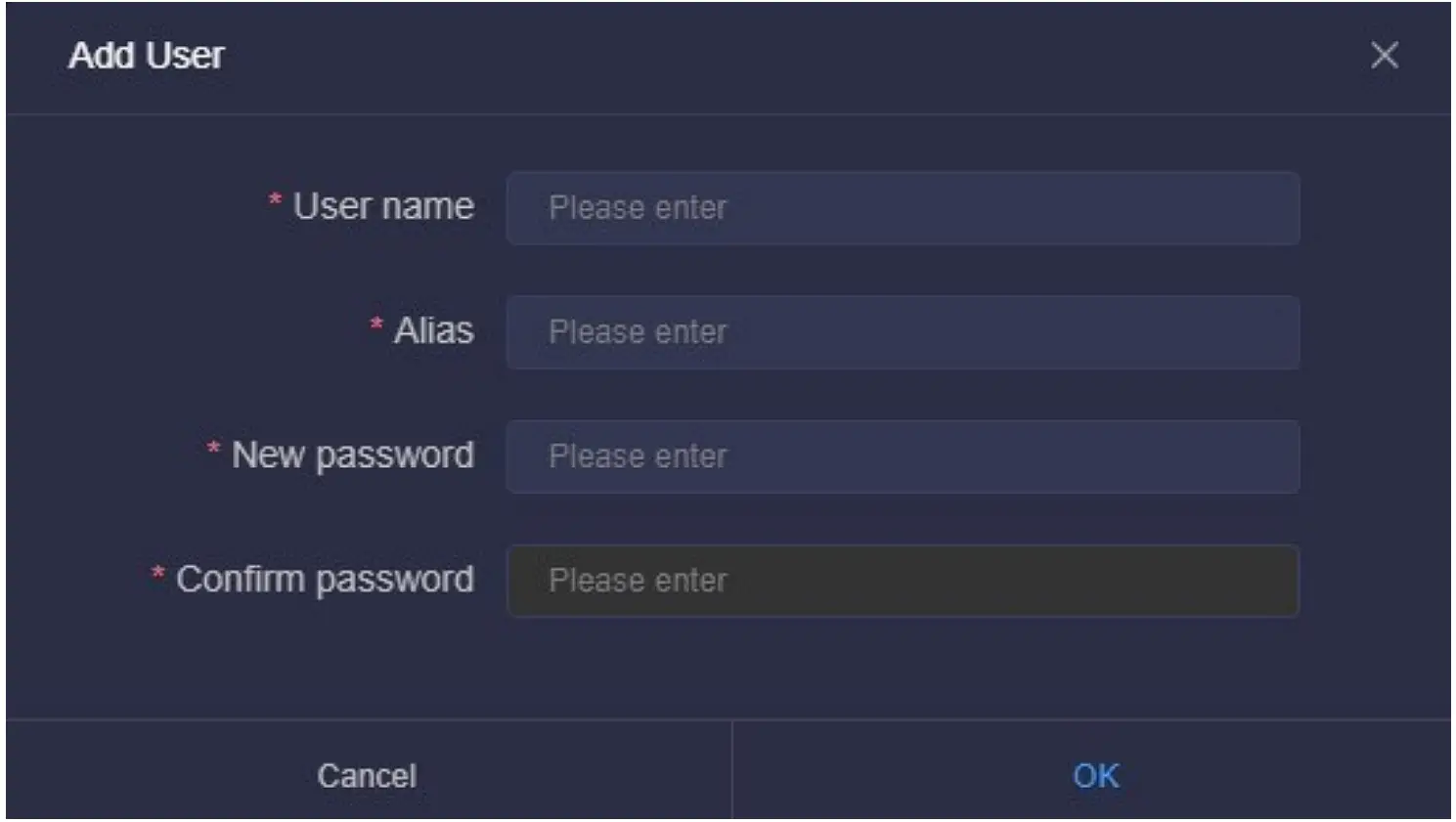
| Introduction
|
Log
| Introduction Please see Chapter 3.4 for details. |
For more questions, please contact us via:https://www.kiloview.com/en/support
KILOVIEW Electronics CO., LTD
 |  |
Tel:86-18573192787
Email:[email protected]
Web www.kiloview.com/en
Address: B4-106/109, Jiahua Intelligence Valley Industrial Park, 877 Huijin Road, Yuhua District, Changsha City, Hunan Province, China.

 IP Video Encoders, Decoders and NDI Converters - Kiloview