 43K625BUS
QUICK START GUIDE
OPERATING INSTRUCTION
Please read these instructions before operating your set and retain them for future reference.
NOTE
This device is intended for household use exclusively. Professional and/ or commercial use of a device intended for household purposes shortens its working life and has a negative effect on the device’s performance characteristics.
COMPONENTS
- Tesla Smart Ultra HD LED TV
- Remote control (x1) + AAA battery (x2)
- Magic remote controller (x1) + AA battery (x2)
- Stand (x2) + Stand screw (x4)
- Quick-start guide
- Warranty Card
NOT INCLUDED Head screwdriver, antenna cable, broadband internet connection.
BASIC REMOTE CONTROL
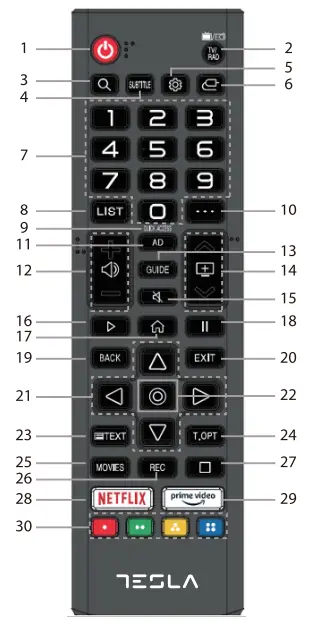 |
|
 Power, press to enter or exit standby mode.
 TV/RAD: Switch to TV or Radio.
 Enters the Quick Settings menu.
 It adjusts the volume level.
 Select to turn on/off the sound from the TV.
MAGIC REMOTE CONTROL
Magic Remote could be purchased separately
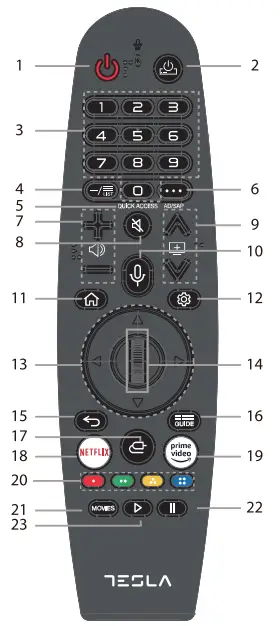 |
|
 Power, press to enter or exit standby mode.
 Check out the recommended contents. Push and hold the button while speaking to use the voice recognition function.
 Play.
Play.Pairing the Magic Remote
You can select the functions you want easily and conveniently by moving and clicking the cursor on the TV screen, just as you would use a mouse on a computer screen.
- Turn on the TV. After about 20 seconds, point the remote toward the TV and then press the Wheel (OK).
- The remote control will automatically be registered, and the pairing completion message is displayed on the TV screen.
If the Magic Remote failed to register, turn the TV off and back on, and then try to register again.
RE-REGISTERING THE MAGIC REMOTE
If the Magic Remote’s pointer does not appear on the TV, you must re-register it.
- Hold the remote control towards the TV and long press the GUIDE button until the instruction appears.
- The previously registered remote control is deregistered and then registered again.
ASSEMBLY AND INSTALLATION
BEFORE YOU GET STARTED
Spread cushioning flat to lay the TV on. This will help to prevent damage.
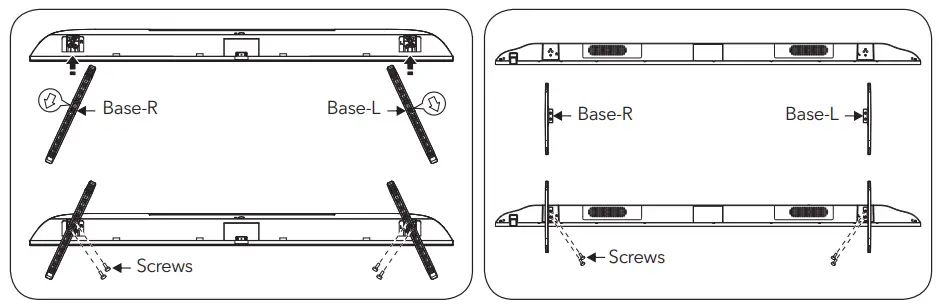
- Stand assembly
A a. Attach stands to the base of the TV, ensuring ‘A’ and ‘B’ markings on the TV and stands match.
b. Insert three stand screws for each stand and use a Phillips head screwdriver (not supplied) to tighten.
Remote control assembly
a. Open the battery compartment cover on the backside.
b. Insert two 1.5V AAA size batteries, making sure to match the polarity markings (+ / -) of the batteries with the diagram inside the compartment.
c. Replace the battery compartment cover.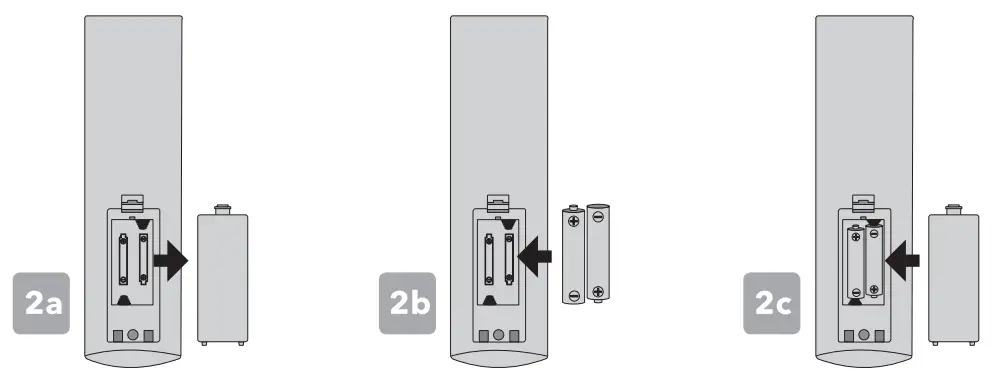
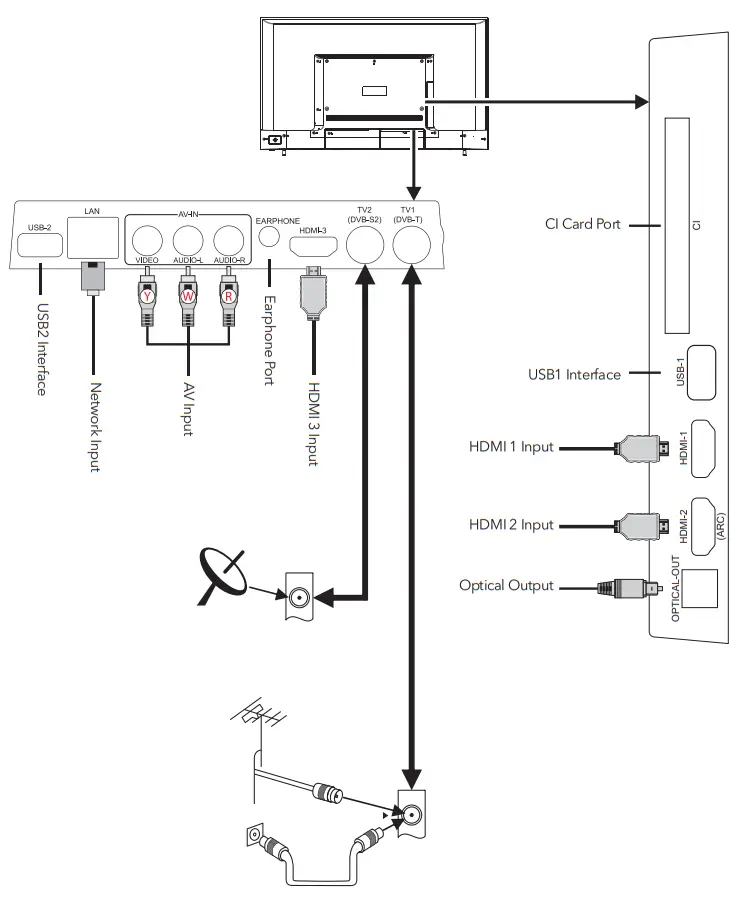
Connecting peripheral equipment
Remark:
- When you need to connect the device which supports the ARC function, please select the HDMI-2 interface.
- HDMI connector can realize DVI connector function with external HDMI/DVI commutator.
- The peripheral equipment and cables described in this manual should be purchased separately.
- Yellow (VIDEO signal cable)
- White (AUDIO-L signal cable)
- Red (AUDIO-R signal cable)
Turning TV ON
Plug the power cord into a suitable power outlet, then press the POWER ( ) button on the remote control, making sure to aim it at the sensor at the front of the TV. Alternatively, you can press the power button on the lower side of the back panel on the TV.
TURNING TV OFF
Press the POWER ( ) button on the remote control to enter standby mode. To power down the TV completely, unplug the power cord from the power outlet.
Do not leave your set in standby mode for long periods of time. If you will not use the TV for a long time, it is recommended to unplug the set from both the power outlet and aerial.
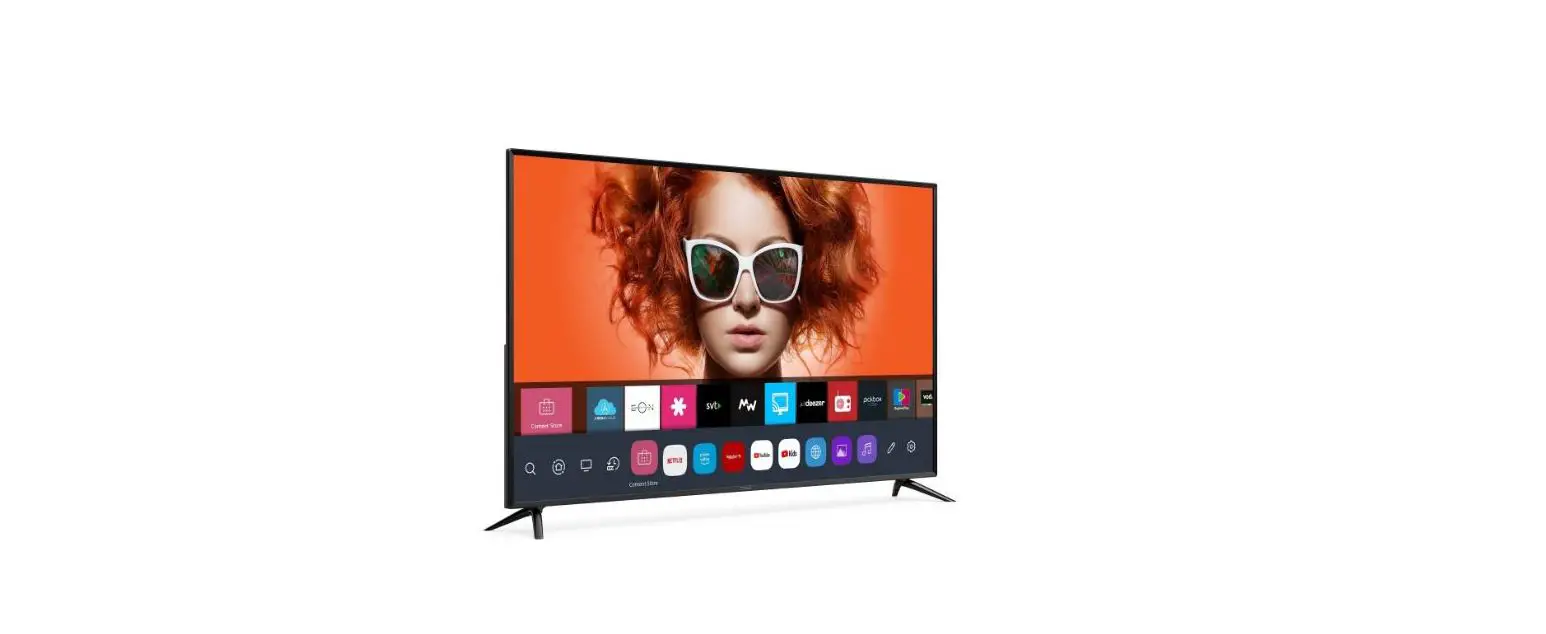
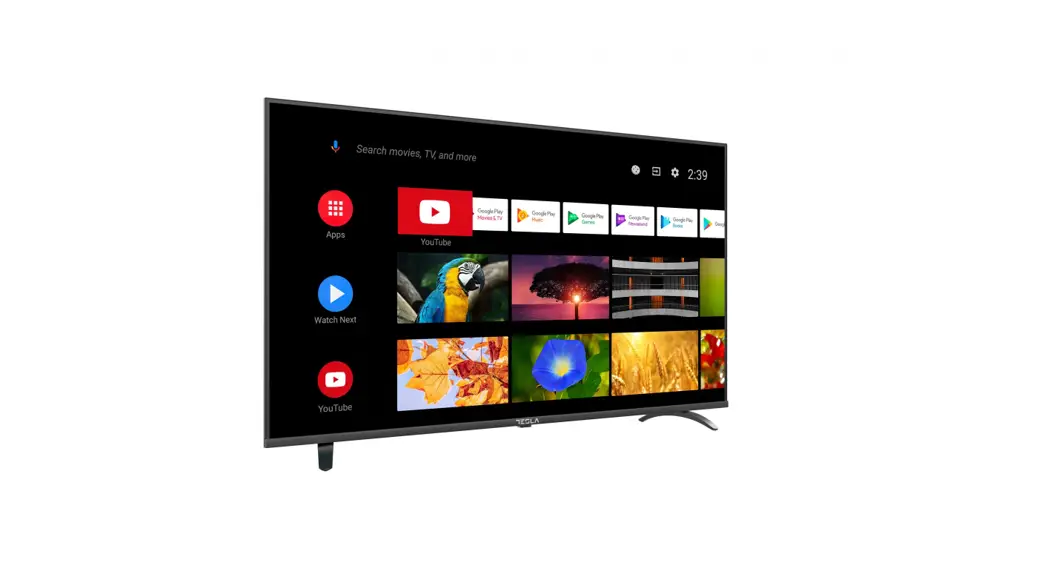
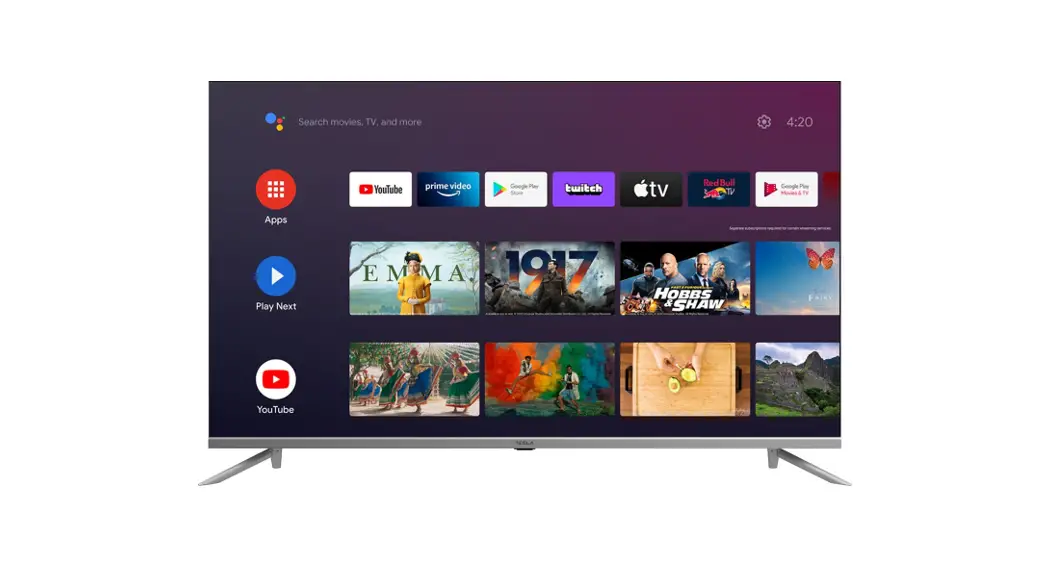
HOME PAGE
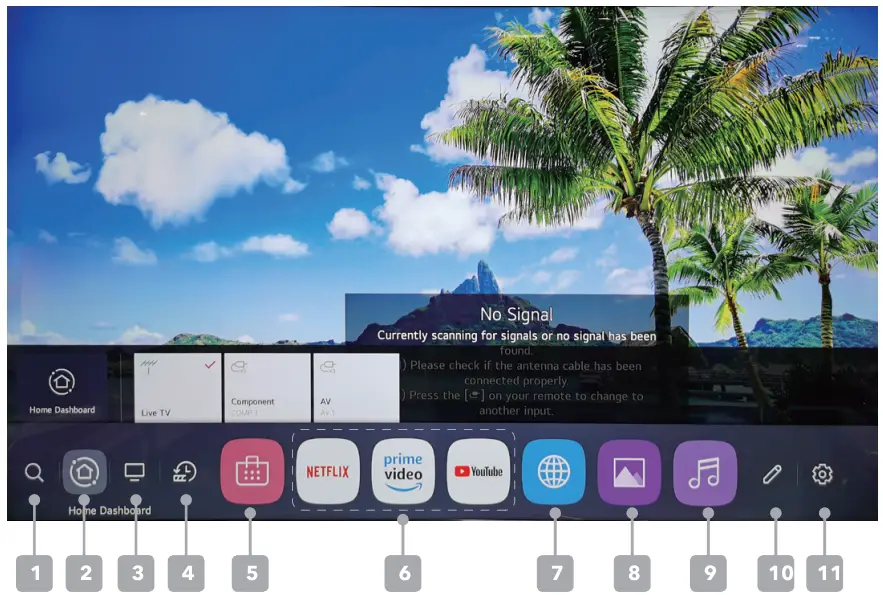
- Launch Search
To See The Details, Click The Enjoying Content Store -> Content Search In User Guide. - Move To The Home Dashboard
You Can Select Or Control A Device (Mobile, External Device, Home IoT Devices, Etc.)
Connected To The Tv. For More Information, See Connecting External Devices -> Using Home Dashboard In User Guide. - Move to the TV input you used recently
- Move to the recently used app
Long-press the button on the remote control or focus on the recent. You can run or close a recently used app in the list provided in the preview area at the top. - Content Store
- Apps
You can run, move, and delete the apps installed on your TV. Focus on each App area. It provides the Preview at the top. You can check or run useful features of each app and recommended content on the Preview without entering into the app. - Web Browser
- Picture
- Music
- Edit Apps
You can view a list of all apps installed on your TV, change their positions, or delete them. - Settings
Access the TV settings menu.
SETTINGS
Quick Settings
To Use Setting Function Quickly
Set of light-weight controls quickly and simply such as Picture Mode, Sound Out, Sleep Timer, and so on.
Press the button on the remote control.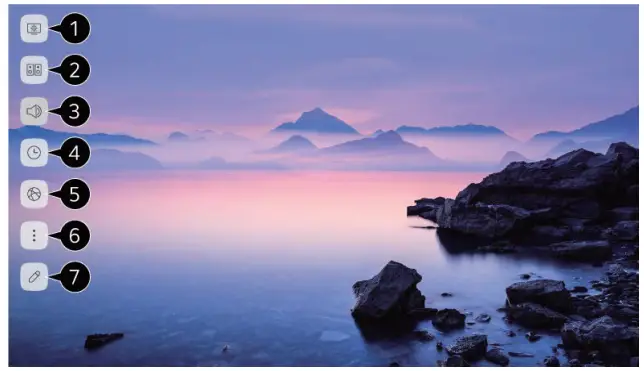
- You can set Picture Mode.
- You can set Sound Mode.
- You can choose Sound Out.
- You can set Sleep Timer.
- Move to the Connection screen.
- You can set more options.
- You can add/delete the quick setting items or change their order. Aer entering each item, press and hold the Wheel (OK) button on the remote control to go to the corresponding menu.
USING APPS
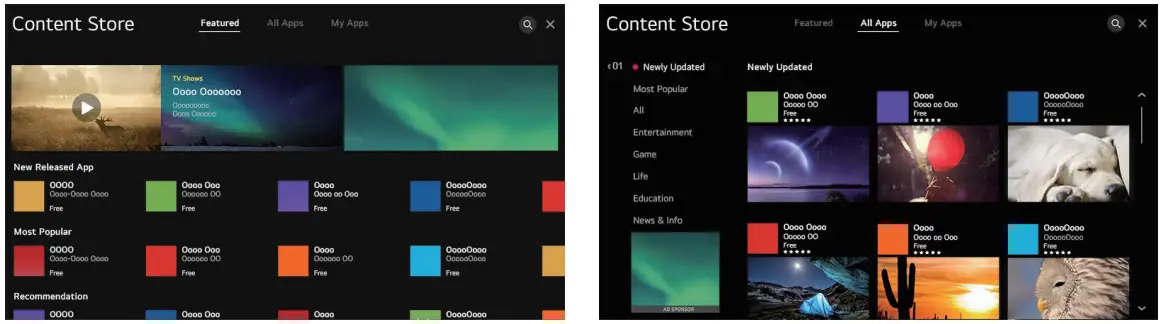
Using Content Store
You can download and use apps from various categories such as education, entertainment, lifestyle, news, and games.
- Press the button on the remote control.
- Launch Content Store.
- Select the All Apps category shown at the top of the screen. The list of available apps in the selected category will be shown.
- Select an app to set up from the list.
- Read the details of the app and then press Install.
- When the installation is complete, you can run the app immediately.
BASIC TROUBLESHOOTING
| Problem | Solution |
| Poor picture and sound quality | Try a different channel Adjust the antenna Check all connections |
| No picture or sound in N status | Try another channel Press the N/AV button Make sure TV is plugged in Check the antenna connection |
| No sound or sound is too low at maximum volume | Check the volume settings on any external speakers connected to your television Adjust the TV volume accordingly Check another channel or input Check that MUTE hasn’t been turned on |
| No color, wrong color or tints | Make sure the program itself is broadcast in color Select the picture menu, then adjust the color and tint submenus |
| Picture rolls vertically | Check all connections |
| Blurred or snowy picture, distorted sound | Check direction, location, and connections to your antenna Issues may be caused by the use of an indoor antenna (poor signal) |
| Remote control malfunctions | Replace remote control batteries Check battery terminals Remote is out of range, move closer to N Remove any obstructions between the remote and IR sensor of N Make sure the power cord to your TV is plugged in and turned on |
| The image is not centered on the screen | Adjust the horizontal and vertical position |
| “No Signal” on HDMI source | Test the device with a different HDMI cable Plug the device into another HDMI port Try a different device connected to the same cable and port Perform a factory reset on your N |
 Tesla.info | Technology for all