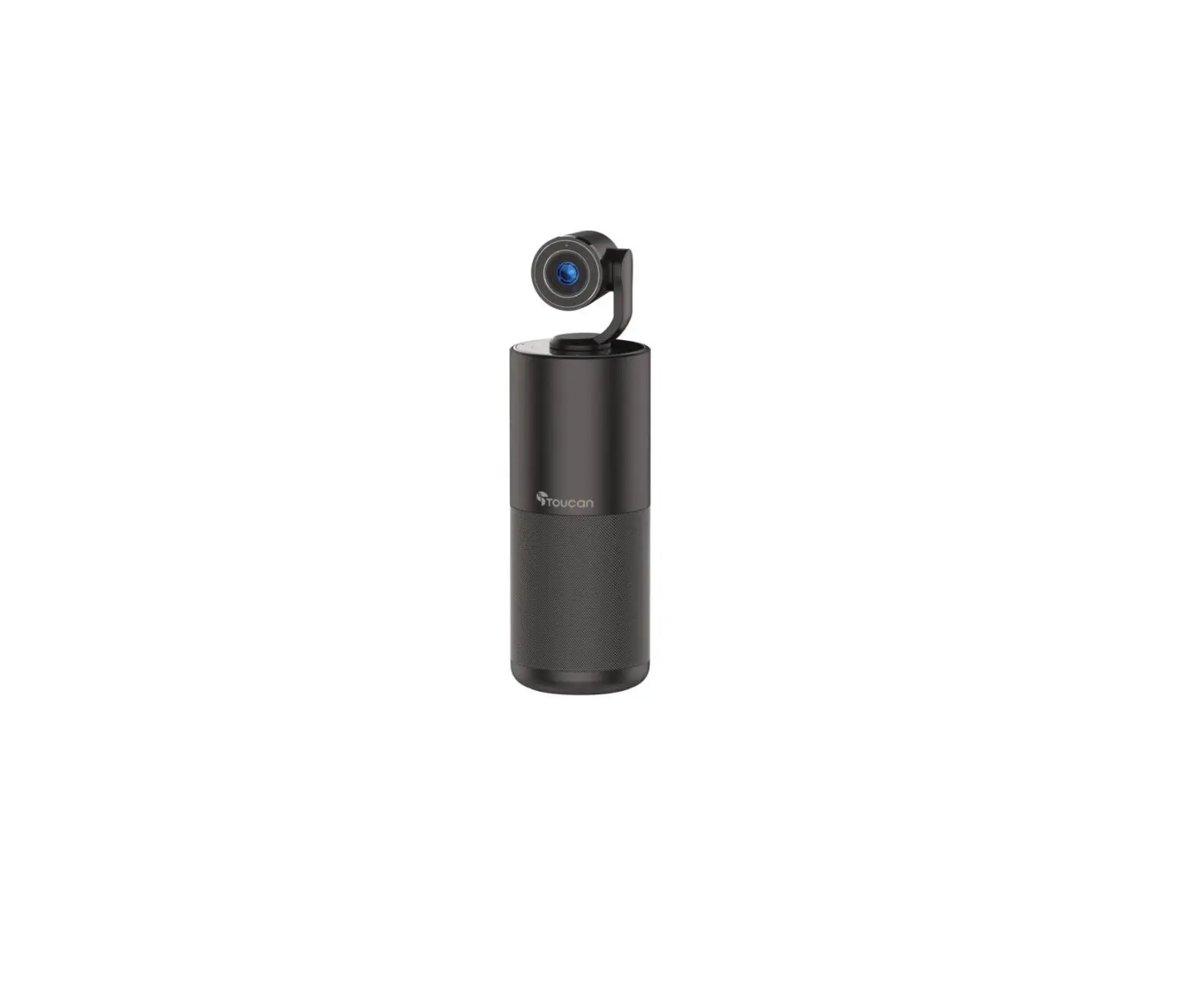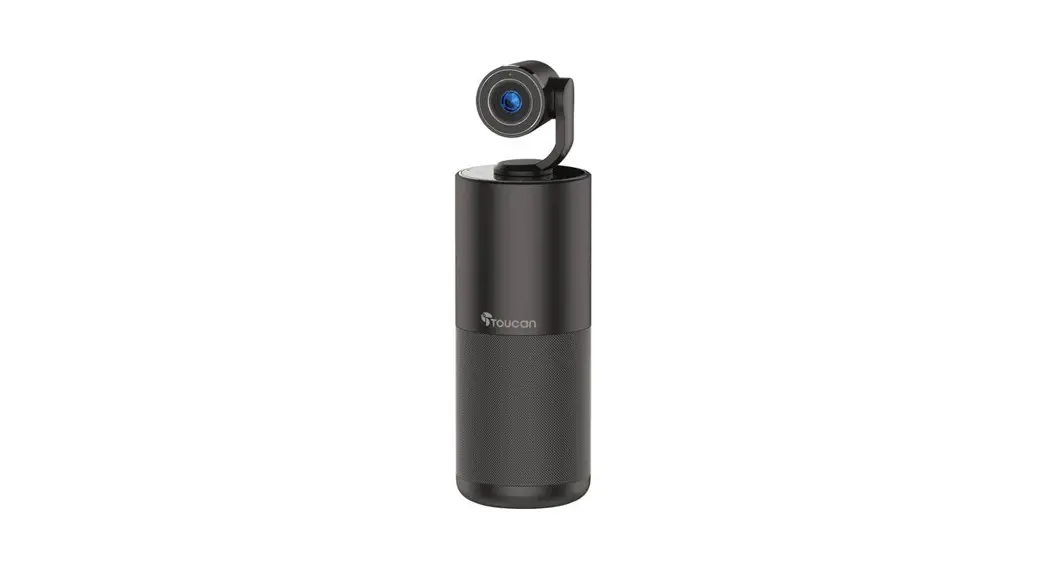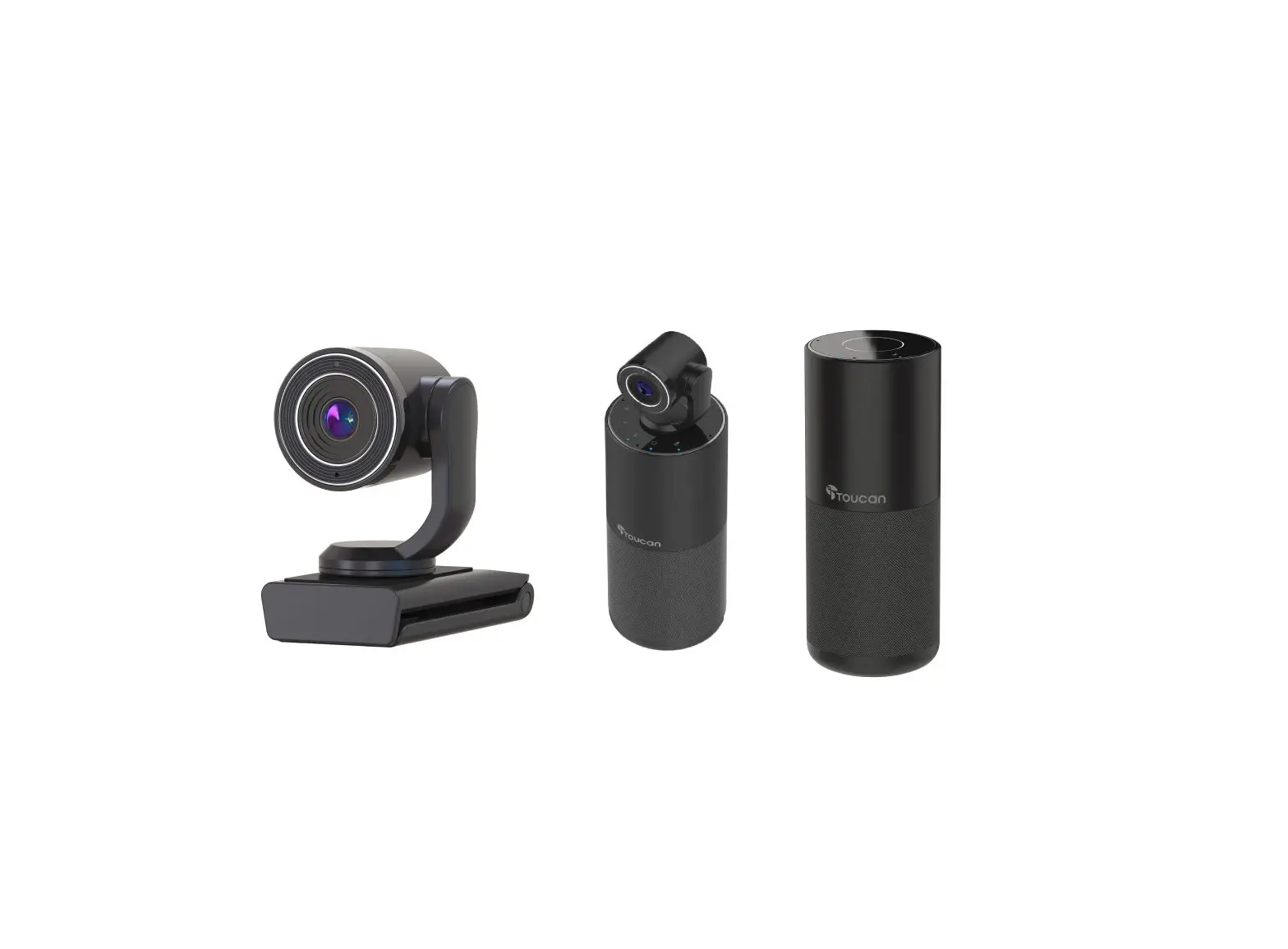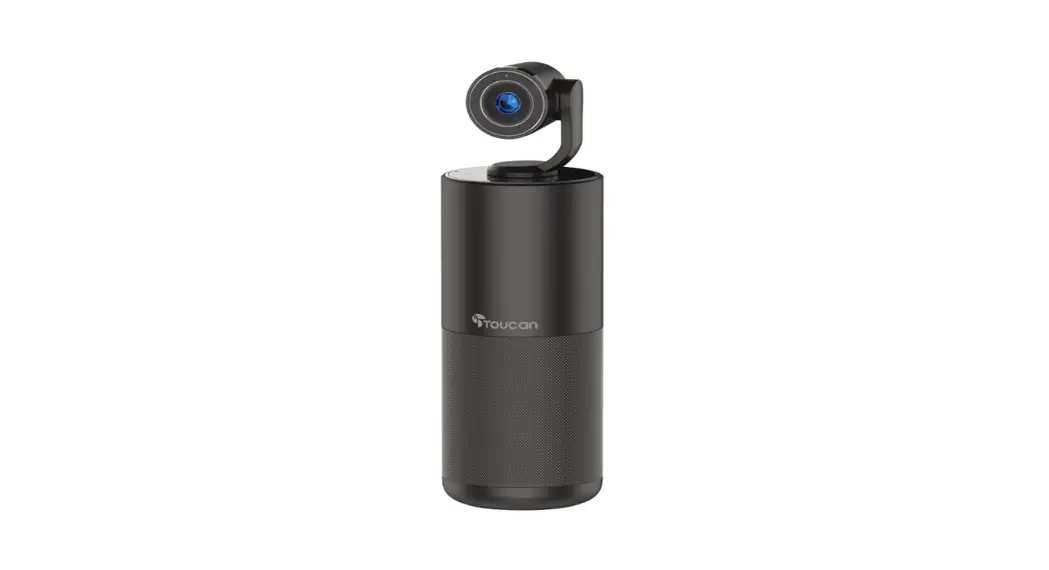
 SC360 Video Conference System
User Manual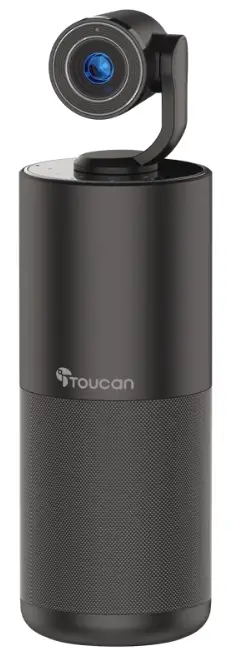
Thank You for Purchasing
VIDEO CONFERENCE SYSTEM 360
User Manual
What’s in the Box
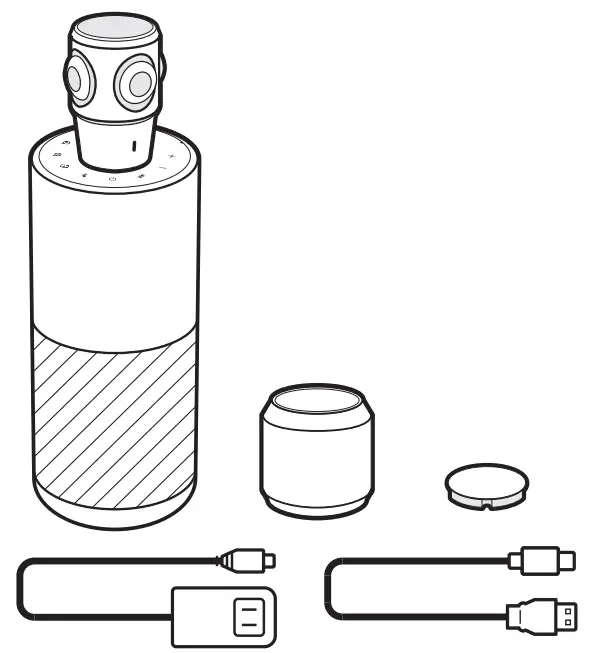
- Video Conference System SC360
- Camera Port Cover
- Camera Cover
- Power Adapter
- USB Cable
Getting to know your Video Conference System 360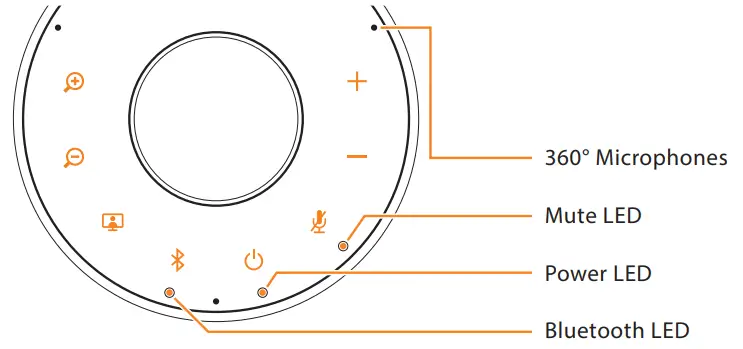
 | Zoom-in Tap to zoom in |
 | Zoom-out Tap to zoom out |
 | View mode Tap to change between camera view modes |
 | Bluetooth Connect with new Bluetooth device Press and hold to enter Bluetooth pairing mode to connect with a new Bluetooth device |
| Disconnect or reconnect with Bluetooth device Tap to disconnect or reconnect with a paired Bluetooth device | |
 Off Off Purple Purple Blue Blue Flashing Blue Flashing Blue | Bluetooth off Not connected to any Bluetooth device Connected to at least one Bluetooth device Speaker is in Bluetooth pairing mode |
 | Power On/Off Press and hold for 3 seconds to turn SC360 on/off |
 | Mute Mute microphone Tap to mute or unmute microphone Voice guidance Press and hold for 10s to turn voice guidance on/off |
 | Volume up Tap to increase volume |
 | Volume down Tap to reduce volume |
Getting Started
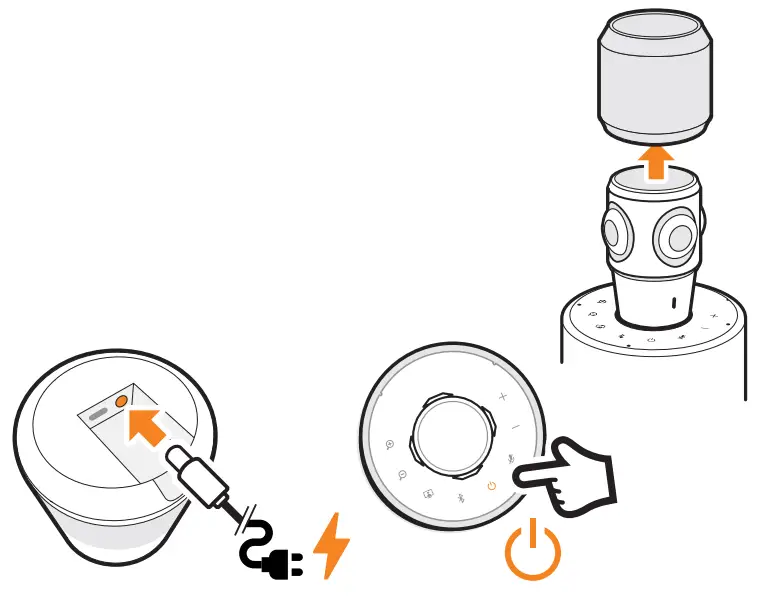
1 Turn on the SC360
- Remove the camera cover from SC360 conference speaker.
- Plug the included power adapter into a power outlet and connect the other end to SC360.
- Press and hold [ ] on the top of the speaker for 2 seconds to turn SC360 on and 3 seconds to turn it off.

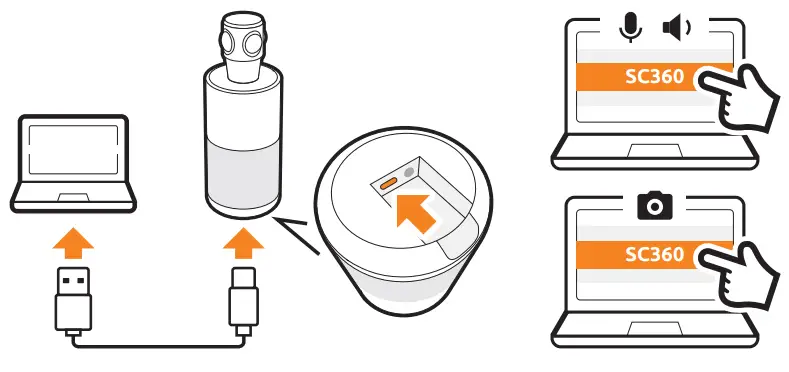
2 Connect SC360 to your computer
- Plug the included USB cable into your computer and connect the end with the type-C connector to the SC360.
- Select SC360 as the default microphone and speaker source. Select the SC360 as the default camera source.

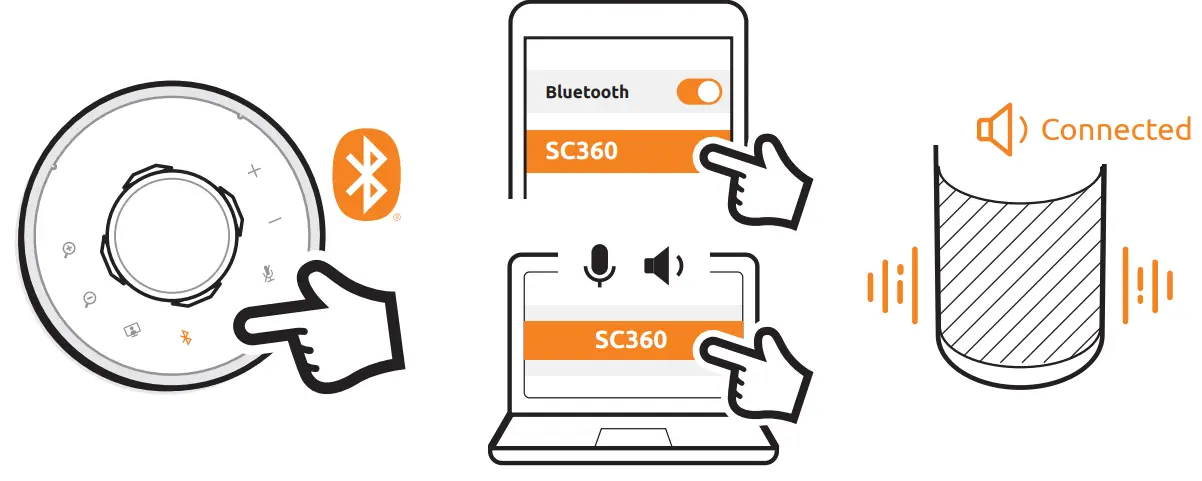
3 Connect SC360 with a Bluetooth Device (Audio Only)
- Press and hold [
 ] for 3 seconds until the Bluetooth LED on SC360 begins flashing. You will hear connection guidance voice prompts.
 - Enable Bluetooth on your Bluetooth device.
- Select SC360 from the list of available Bluetooth devices to connect.
- You will hear the SC360 say “Connected”.
- Tap [ ] to disconnect with connected Bluetooth device.

4 Mute/Unmute
- Tap [
 ] while calling to mute or unmute the microphone.
5 Change Between View Modes
- When the SC360 is connected to your computer and is streaming video, tap [
 ] to change to another view mode.
The SC360 has four different view modes, select the one that best suits your meeting environment.
Split – The top and bottom panels will each show a 180 degree view.
Focus – This mode will automatically focus on whoever is speaking.
Grid – The room is split into 4, the focus will be on the person speaking.
Panorama – The top will display a 360 degree view, while the bottom will display up to 2 people speaking.
• While in Focus, Grid, and Panorama modes, tap [ ] or [ ] to zoom in or out.
For detailed product information, set up procedures and FAQ’s please visit our website: www.toucansolution.com or scan the QR code.
FCC Statement Warning:
Changes or modifications to this unit not expressly approved by the party responsible for compliance could void the user’s authority to operate the equipment.
NOTE: This equipment has been tested and found to comply with the limits for a Class B digital device, pursuant to Part 15 of the FCC Rules. These limits are designed to provide reasonable protection against harmful interference in a residential installation. This equipment generates, uses and can radiate radio frequency energy and, if not installed and used in accordance with the instructions, may cause harmful interference to radio communications.
However, there is no guarantee that interference will not occur in a particular installation. If this equipment does cause harmful interference to radio or television reception, which can be determined by turning the equipment off and on, the user is encouraged to try to correct the interference by one or more of the following measures:
- Reorient or relocate the receiving antenna.
- Increase the separation between the equipment and receiver.
- Connect the equipment into an outlet on a circuit different from that to which the receiver is connected.
- Consult the dealer or an experienced radio/TV technician for help.
This device complies with Part 15 of the FCC Rules. Operation is subject to the following two conditions: (1) This device may not cause harmful interference. (2) This device must accept any interference received, including Interference that may cause undesired operation.
ISED Regulatory Compliance
This device contains license-exempt transmitter(s)/receiver(s) that comply with Innovation, Science and Economic Development Canada’s license-exempt RSS(s). Operation is subject to the following two conditions:
- This device may not cause interference.
- This device must accept any interference, including interference that may cause undesired operation of the device.
RF Exposure Compliance
This equipment complies with FCC/IC radiation exposure limits set forth for an uncontrolled environment. This equipment should be installed and operated with minimum distance 20cm between the radiator and your body.
VuPoint Solutions, Inc. (USA):
710 Nogales Street, City of Industry, CA 91748
VuPoint (Europe) Company Limited:
1 Devon Way, Longbridge Technology Park
Longbridge, Birmingham B31 2TS
For additional info, visit our website at www.toucansolution.com
©2022 VUPOINT SOLUTIONS, INC. All Rights Reserved.
The Toucan logo and Toucan are trademarks or registered trademarks of VuPoint Solutions Inc. in the United States and other countries. The Bluetooth® word mark and logos are registered trademarks owned by Bluetooth SIG, Inc. Product names, logos, brands and other trademarks referred to herein are the property of their respective trademark holders. All trademarks remain the property of their respective holders, and are used only to describe the products or services being provided. These trademark holders are not affiliated with VuPoint Solutions, Inc. They do not sponsor or endorse VuPoint Solutions, Inc’s products or services.
 Wireless Doorbell Camera | Wireless Outdoor Security Camera | Toucan – Toucan Solutions