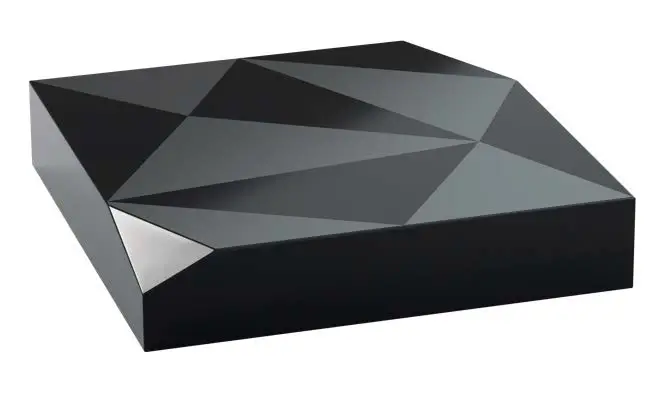
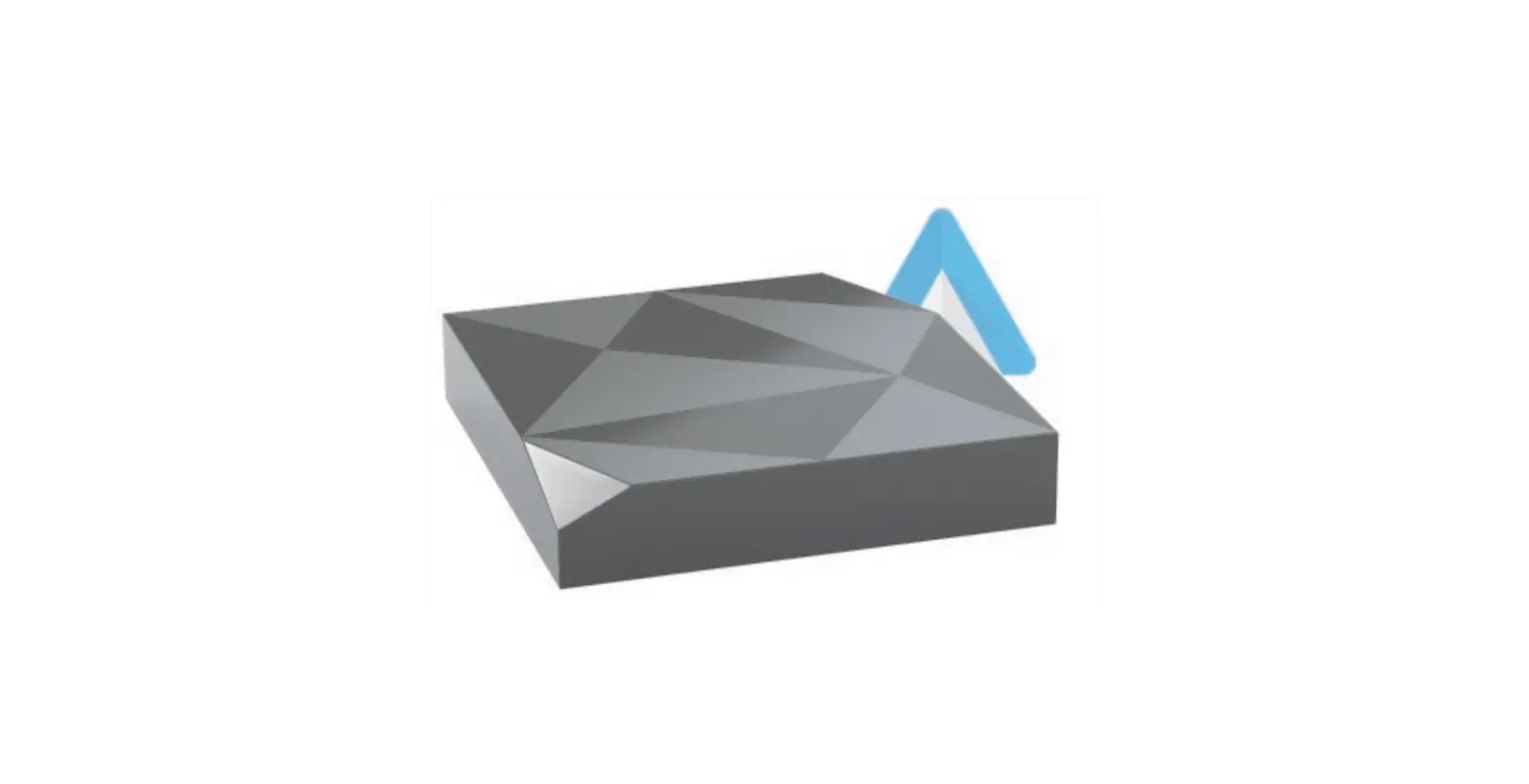
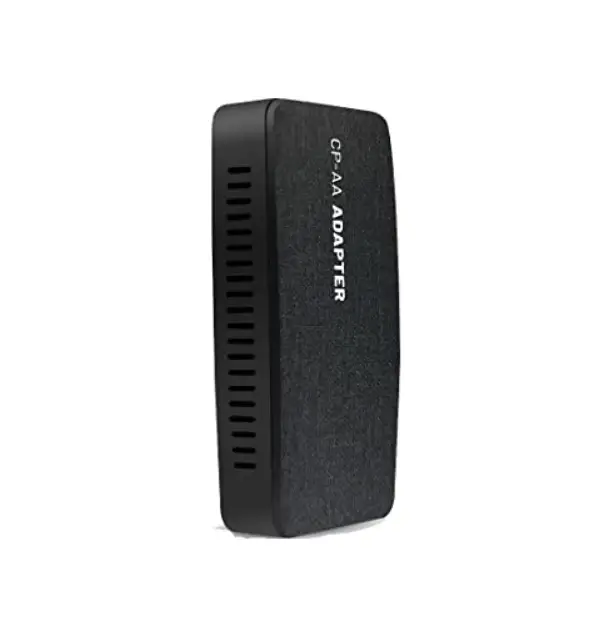
U2AIR Pro Car Adapter
Product Information
The U2AIR Pro Car Adapter is designed to allow iPhone users to
use Apple CarPlay wirelessly on factory car multimedia systems that
have built-in wired Apple CarPlay. It converts OEM Apple CarPlay to
wireless Apple CarPlay and is compatible with cars that have OEM
Apple CarPlay compatibility. The adapter can be controlled using
the OEM touch screen, steering wheel, and joystick. It requires a
USB input power of 5V~1A and supports connectivity via Wi-Fi and
Bluetooth. The adapter is compatible with iPhones running iOS 10 or
newer.
Product Usage Instructions
How to check if a car has CarPlay:
- Plug an iPhone (running iOS 10 or newer) into the car USB ports
with a genuine factory lightning cable. If a notification pop-up
appears on the iPhone indicating that the car has built-in Apple
CarPlay, it means the car is compatible. - If there is a CarPlay icon in the car stereo menu, it indicates
that the car has built-in Apple CarPlay. - If unsure, contact the car dealer for assistance.
What’s in the box:
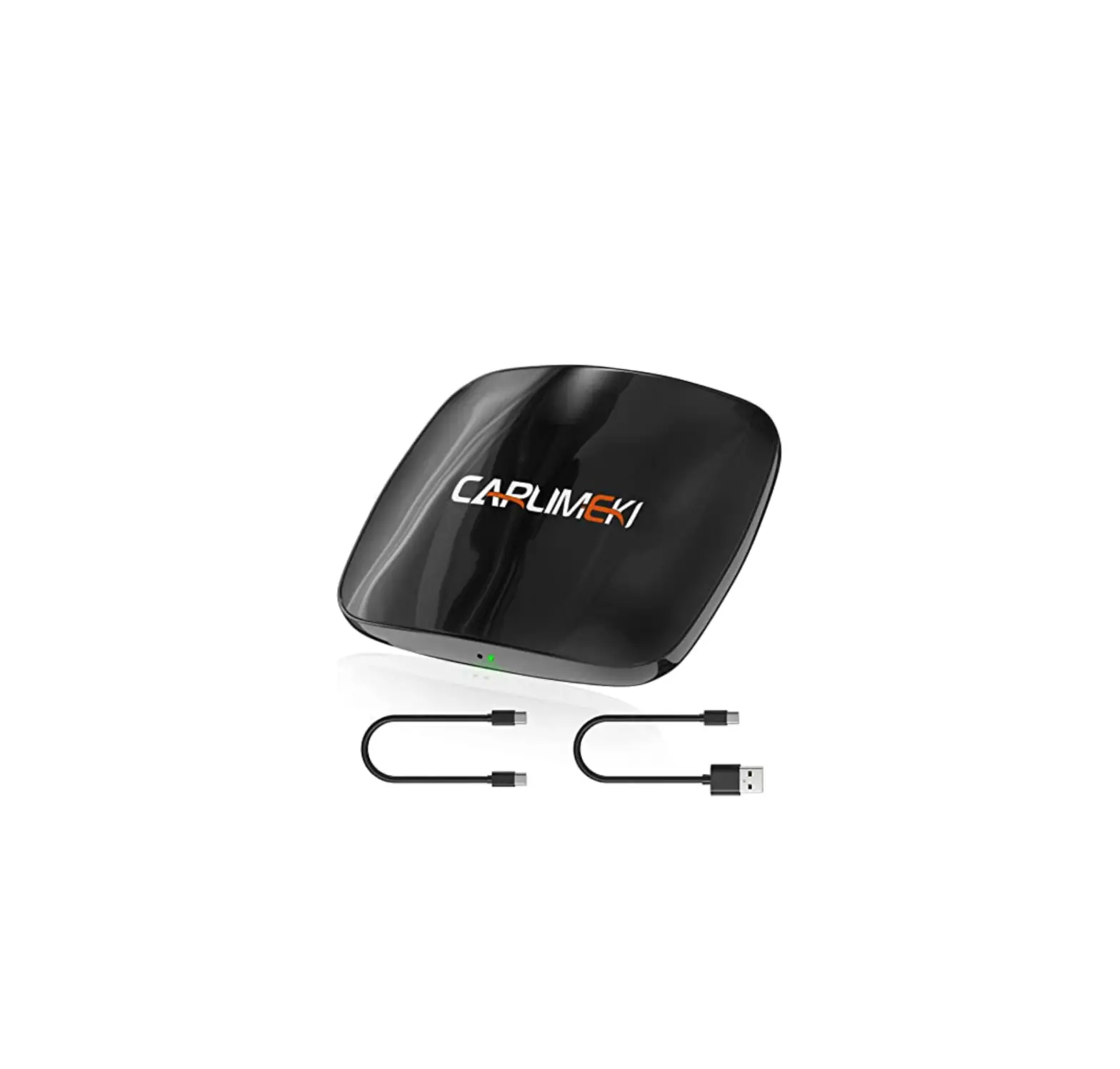
- Wireless adapter x 1
- USB cable (Type-C to A) x 1
- USB cable (Type-C to C) x 1
- User manual x 1
- Double-sided sticky pad x 1
Connection diagram:
Connect the Type-C Adapter to the factory USB A port or factory
USB C port in your car. Ensure that the adapter is plugged into the
USB port specifically meant for wired Apple CarPlay.
How to set up wireless CarPlay:
- Go back to the factory menu on the car multimedia system.
- Find the Bluetooth name and firmware version of the
adapter. - Before pairing with a new iPhone, disconnect the currently
connected phone from Bluetooth/Wi-Fi in the iPhone’s control center
or press the adapter’s buttons once.
Firmware update & report an issue:
Note: Firmware updating is not recommended when all functions
are working well.
- To report an issue, contact support at
[email protected]. - To check for firmware updates, use the “Check for update”
option.
Operating temperature: -15°C to 50°C
FCC Caution: Any changes or modifications not expressly approved
by the party responsible for compliance could void the user’s
authority to operate the equipment. This device complies with part
15 of the FCC Rules. Operation is subject to the following two
conditions: (1) This device may not cause harmful interference, and
(2) this device must accept any interference received, including
interference that may cause undesired operation.
IMPORTANT NOTE: This equipment has been tested and found to
comply with the limits for a Class B digital device, pursuant to
part 15 of the FCC Rules. These limits are designed to provide
reasonable protection against harmful interference in a residential
installation. This equipment generates, uses, and can radiate radio
frequency energy and, if not installed and used in accordance with
the instructions, may cause harmful interference to radio
communications. However, there is no
USER MANUAL
Car Adapter
U2AIR Pro
CONTENT
How to check a car has CarPlay or not ……..5 What’s in the box …………………………………6 Interface and connector ………………………..6 Connection diagram ……………………………..7 How to set up wireless CarPlay……………….8 Firmware update & report an issue …………9
READ ME FIRST
This adapter is designed for iPhone to use Apple CarPlay wirelessly on factory car multimedia system which has built-in wired Apple CarPlay. However, NOT every car with built-in CarPlay could fit this adapter. If there is any issue while using the adapter, please do not hesitate to email us at [email protected].
Function
Convert OEM Apple CarPlay to wireless Apple CarPlay
Car: with OEM Apple CarPlay Compatibility
iPhone: running iOS 10 or newer
Control
OEM touch screen, steering wheel, and joystick control
Input Power USB 5V~1A
Connectivity Wi-Fi & Bluetooth
How to check a car has CarPlay or not
1. Plug an iPhone (running iOS 10 or newer) into the car USB ports with genuine factory lightning cable. If there is a notification pop up on iPhone like below, that your car has built-in Apple CarPlay.
2. If there is a CarPlay icon in the car stereo menu, that your car has built-in Apple CarPlay.
or
3. Contact your car dealer for help.
5
What’s in the box
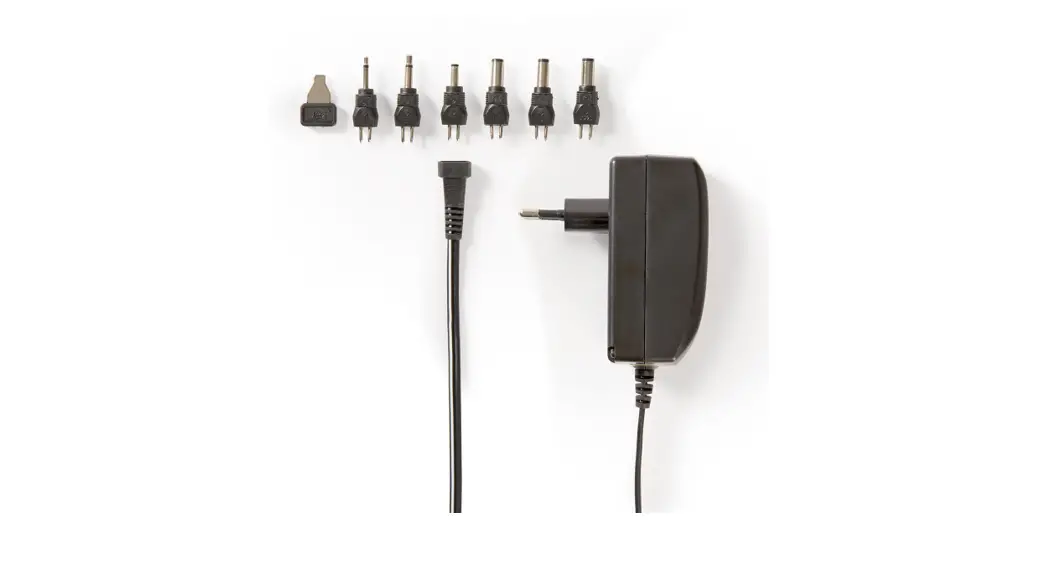
Wireless adapter *1 USB cable (Type-C to A) *1 USB cable (Type-C to C) *1 User manual *1 Double-sided sticky pad *1
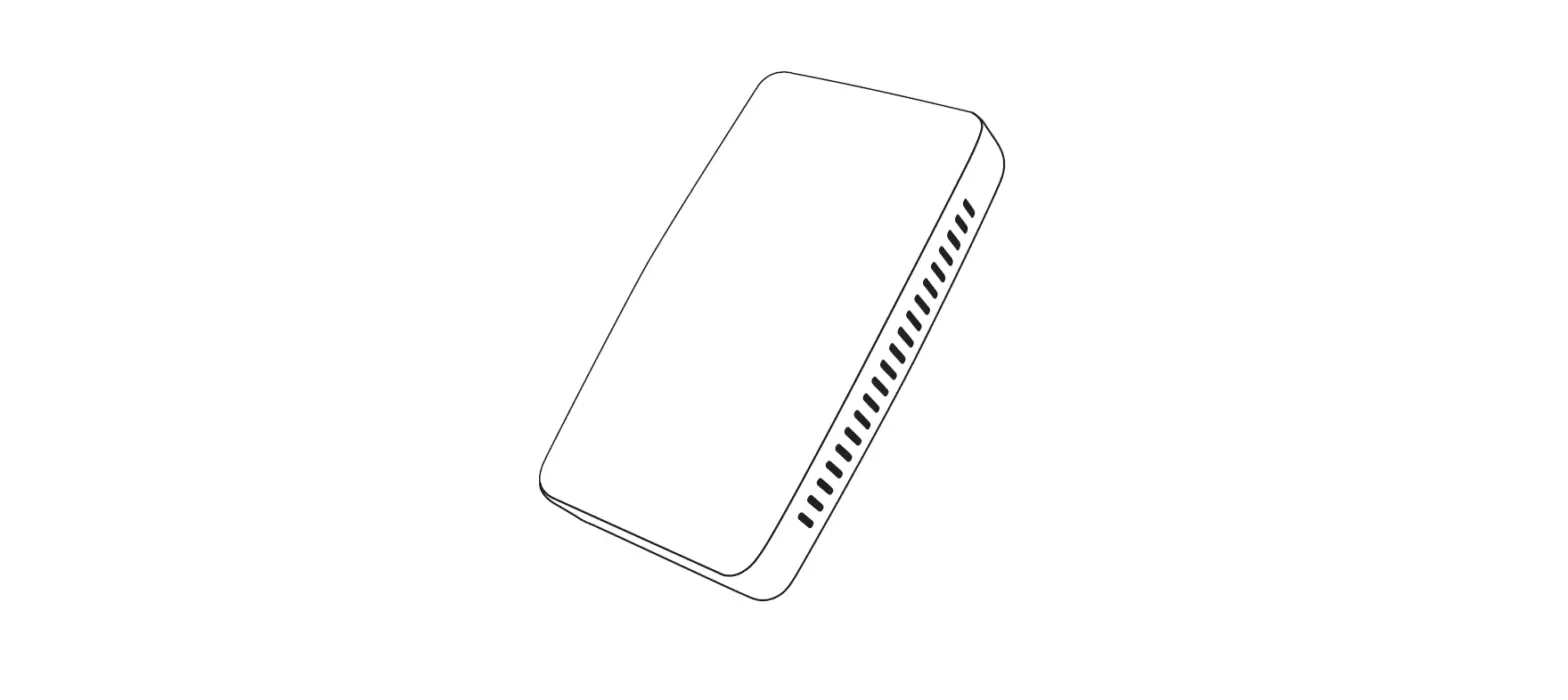
Interface and connector
Type-C power
Smart button
Click once while working: disconnect the current iPhone. Press and hold for more than 10s: factory reset, all connection history will be erased.
6
Connection diagram
Factory USB A port USB-A
Type-C Adapter
or Factory USB C port Type-C
Type-C
Adapter
NOTE! The adapter should be plugged into the USB port that is for wired Apple CarPlay connecting if there are multi USB ports in your car.
7
How to set up wireless CarPlay
· Turn on your iPhone’s Wi-Fi and Bluetooth, then pair to the Bluetooth named “OTTO-xxxx”
· Tap “Pair-Allow-Use CarPlay” on the iPhone popup notifications
· It will then connect to CarPlay wirelessly after a few seconds.
Back to factory menu
Bluetooth name
Firmware version
NOTE! Before pairing to a new iPhone, please disconnect the currently connected phone from Bluetooth/Wi-Fi in iPhone’s control center or click the adapter’s buttons once.
8
Firmware update & report an issue
Firmware updating is NOT recommended when every function works well.
Report the issue
Check for update
9
How to update or report
· If your iPhone is connecting to the wireless CarPlay, enter 192.168.1.101 on iPhone’s browser, next tap “Update” if there is an update available
· If your iPhone could not connect to the wireless CarPlay, please join the adapter’s Wi-Fi network [OTTO-xxxx] by manual and the password is 88888888
· Next enter 192.168.1.101 on iPhone’s browser, tap “Update”.
· At the same web interface, you could also fill in the car make, model years, and issue details, next tap “Submit” to report the issue. After the success notification appears, take a screenshot and email us at [email protected]. We will fix it as soon as possible.
NOTE! The blue and red LED indicators will flash alternative while updating. Wait for more 30s after the white indicator is solid, then disconnect and reconnect the adapter from USB port to finish the whole update.
Operat ing t emperat ure:-15 – 50
FCC Caution: Any changes or modifications not expressly approved by the party responsible for compliance could void the user’s authority to operate the equipment. This device complies with part 15 of the FCC Rules. Operation is subject to the following two conditions: (1) This device may not cause harmful interference, and (2) this device must accept any interference received, including interference that may cause undesired operation.
IMPORTANT NOTE: Note: This equipment has been tested and found to comply with the limits for a Class B digital device, pursuant to part 15 of the FCC Rules. These limits are designed to provide reasonable protection against harmful interference in a residential installation. This equipment generates, uses and can radiate radio frequency energy and, if not installed and used in accordance with the instructions, may cause harmful interference to radio communications. However, there is no
guarantee that interference will not occur in a particular installation. If this equipment does cause harmful interference to radio or television reception, which can be determined by turning the equipment off and on, the user is encouraged to try to correct the interference by one or more of the following measures: · Reorient or relocate the receiving antenna. · Increase the separation between the equipment and receiver. · Connect the equipment into an outlet on a circuit different from that to which the receiver is connected. · Consult the dealer or an experienced radio/TV technician for help.
ISED Warning This device complies with Innovation, Science, and Economic Development Canada licence-exempt RSS standard(s). Operation is subject to the following two conditions: (1) this device may not cause interference, and (2) this device must accept any interference, including
interference that may cause undesired operation of the device. Le présent appareil est conforme aux CNR d’ Innovation, Sciences et Développement économique Canada applicables aux appareils radio exempts de licence. L’exploitation est autorisée aux deux conditions suivantes : (1) l’appareil nedoit pas produire de brouillage, et (2) l’utilisateur de l’appareil doit accepter tout brouillage radioélectrique subi, même si le brouillage est susceptible d’en compromettre le fonctionnement.
Radiation Exposure Statement: The equipment complies with FCC/ISED radiation exposure limits set forth for an uncontrolled environment. The equipment should be installed and operated with minimum distance 20cm between the radiator& your body.
Déclaration d’exposition aux radiations: L’équipement est conforme aux limites d’exposition aux rayonnements FCC/ISED fixées pour un
environnement non contrôlé. L’équipement doit être installé et utilisé avec une distance minimale de 20cm entre le radiateur et votre corps.