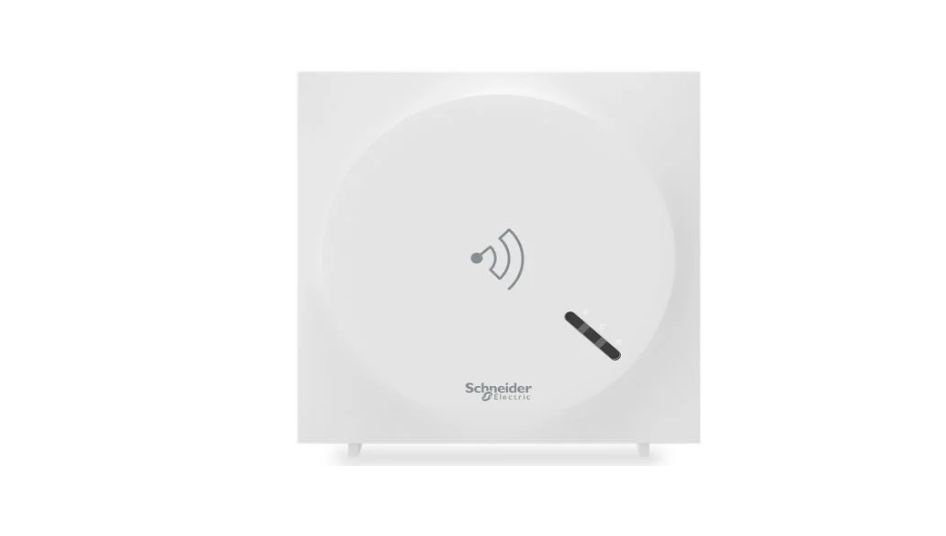
Wiser Adapter
Product Information: Wiser Adapter
The Wiser Adapter is a device that can be used for non-critical
automation activities. It is not designed to support life, safety,
or medical equipment. The device is manufactured by Schneider
Electric.
The device user guide contains important safety information,
which should be read carefully before attempting to install,
operate, service, or maintain the device. The guide also contains
information about the device’s features and functionality.
Features
- Non-critical automation activities
Functionality
- Connects to compatible devices
Specifications
- Model number: 550B6000
- Manufacturer: Schneider Electric
Product Usage Instructions: Wiser Adapter
Before using the Wiser Adapter, please read the safety
information carefully in the user guide.
The Wiser Adapter is intended for use in non-critical automation
activities only. It is not suitable for use in life-support
equipment, safety-critical systems or medical equipment.
The device is designed to connect to compatible devices. To use
the Wiser Adapter, follow these steps:
- Insert the adapter into a power outlet
- Connect the adapter to the compatible device using the
appropriate cable - Follow the instructions provided with the compatible device to
complete setup and usage
Please note that the device may be subject to change without
notice, and it should only be operated by qualified personnel.
If you have any questions or concerns about using the Wiser
Adapter, please consult the user guide or contact Schneider
Electric for further assistance.
Wiser Adapter
Device User Guide
Information about features and functionality of the devices. 11/2022
www.lk.dk
Legal Information
The Schneider Electric brand and any trademarks of Schneider Electric SE and its subsidiaries referred to in this guide are the property of Schneider Electric SE or its subsidiaries. All other brands may be trademarks of their respective owners.
This guide and its content are protected under applicable copyright laws and furnished for informational use only. No part of this guide may be reproduced or transmitted in any form or by any means (electronic, mechanical, photocopying, recording, or otherwise), for any purpose, without the prior written permission of Schneider Electric.
Schneider Electric does not grant any right or license for commercial use of the guide or its content, except for a non-exclusive and personal license to consult it on an “as is” basis. Schneider Electric products and equipment should be installed, operated, serviced, and maintained only by qualified personnel.
As standards, specifications, and designs change from time to time, information contained in this guide may be subject to change without notice.
To the extent permitted by applicable law, no responsibility or liability is assumed by Schneider Electric and its subsidiaries for any errors or omissions in the informational content of this material or consequences arising out of or resulting from the use of the information contained herein.
Table of Contents
Safety information……………………………………………………………………………4 Wiser Adapter………………………………………………………………………………….5
For your safety ………………………………………………………………………………5 About the device……………………………………………………………………………..5 Installing the device …………………………………………………………………………6 Downloading the app ……………………………………………………………………….6 Pairing the device ……………………………………………………………………………7 Configuring the device ……………………………………………………………………..9
Changing the device icon …………………………………………………………….9 Renaming the device ………………………………………………………………….9 Changing the device location ………………………………………………………10 Removing the device ……………………………………………………………………..10 Resetting the device ……………………………………………………………………… 11 Using the device…………………………………………………………………………… 11 Switching On/Off the device manually……………………………………………12 Switching On/Off the device using app…………………………………………..12 Setting the one-time timer…………………………………………………………..13 Creating a schedule ………………………………………………………………….14 Checking the energy consumption ……………………………………………….14 Managing Plug settings ……………………………………………………………..15 Creating a moment …………………………………………………………………..16 Creating an automation ……………………………………………………………..19 Maintenance ………………………………………………………………………………..23 LED Indications …………………………………………………………………………….23 Technical Data ……………………………………………………………………………..24 Compliance …………………………………………………………………………………. 25 Compliance information for Green Premium products ……………………….25 Trademarks …………………………………………………………………………….25
DUG_Adapter_LK-00
3
Safety information
Safety information
Important information
Read these instructions carefully and look at the equipment to become familiar with the device before trying to install, operate, service, or maintain it. The following special messages may appear throughout this manual or on the equipment to warn of potential hazards or to call attention to information that clarifies or simplifies a procedure.
The addition of either symbol to a “Danger” or “Warning” safety label indicates that an electrical hazard exists which will result in personal injury if the instructions are not followed.
This is the safety alert symbol. It is used to alert you to potential personal injury hazards. Obey all safety messages that accompany this symbol to avoid possible injury or death.
DANGER
DANGER indicates a hazardous situation which, if not avoided, will result in death or serious injury. Failure to follow these instructions will result in death or serious injury.
WARNING
WARNING indicates a hazardous situation which, if not avoided, could result in death or serious injury.
CAUTION
CAUTION indicates a hazardous situation which, if not avoided, could result in minor or moderate injury.
NOTICE
NOTICE is used to address practices not related to physical injury.
4
DUG_Adapter_LK-00
Wiser Adapter
Wiser Adapter
550B6000
For your safety
WARNING
HAZARD OF UNINTENDED USE The device is intended to be used for non-critical automation activities. It is not intended to support life, safety, or medical equipment. Failure to follow these instructions can result in death, serious injury, or equipment damage.
CAUTION
RISK OF DAMAGE TO DEVICE · The plug must be used indoors only. · Do not connect any devices that depend on a permanent power supply. · Do not mix different load types in the controlled socket. · Do not use multi-sockets in the controlled socket. · Do not use for EV charging. · To disconnect the plug from the power supply, pull it out of the socket outlet or turn Off the fuse in the incoming circuit. · Do not connect plugs one after another. Failure to follow these instructions can result in injury or equipment damage.
About the device
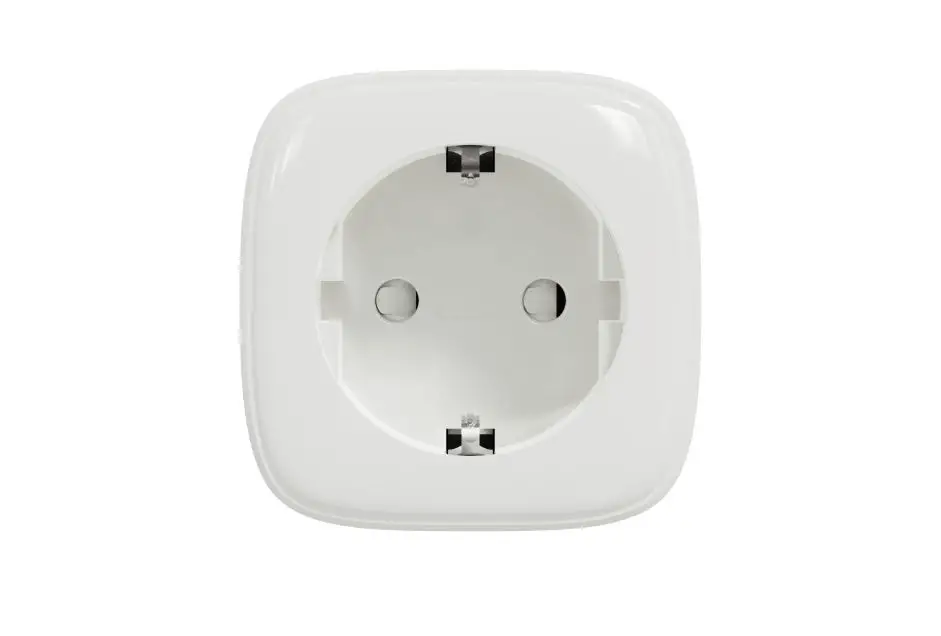
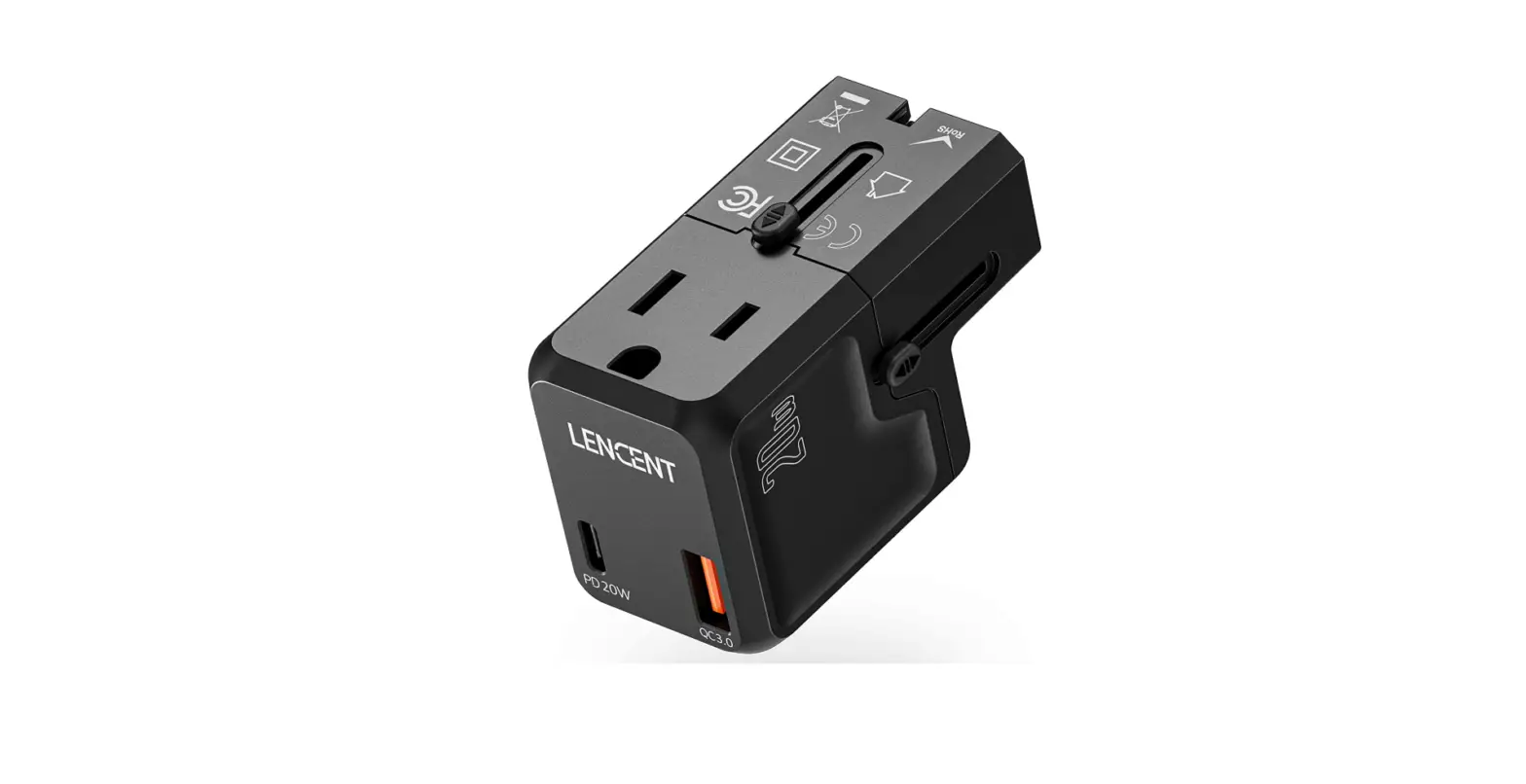
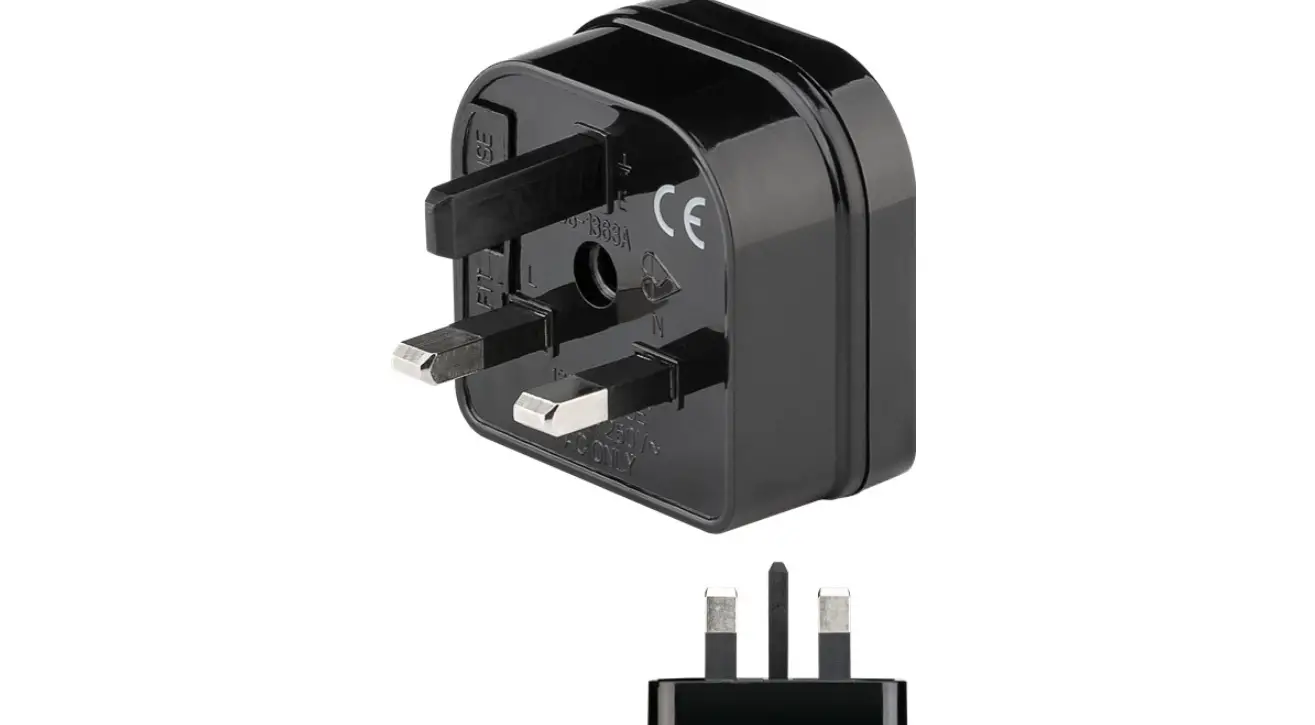
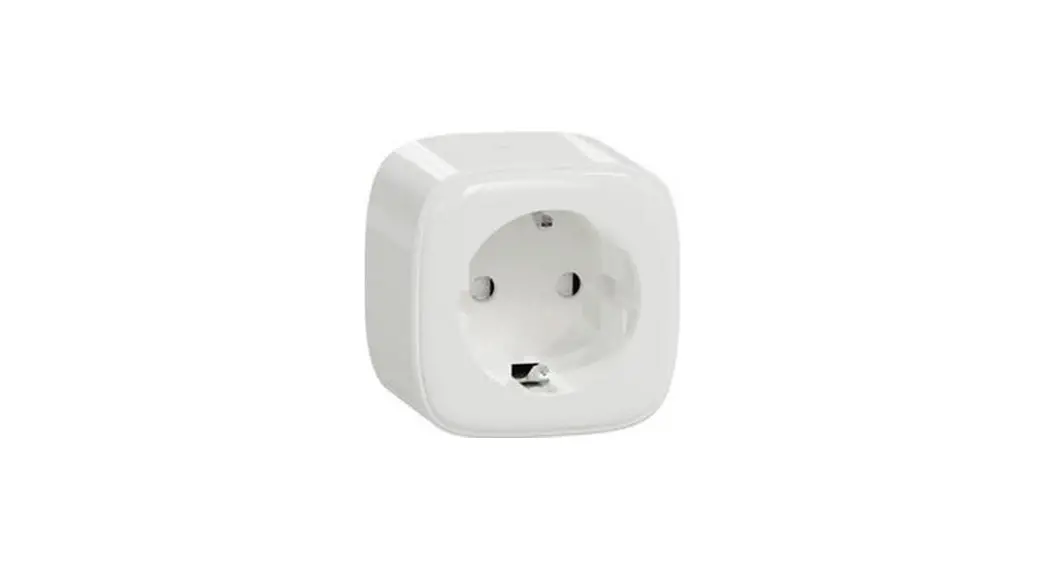
The Wiser Adapter (hereinafter referred to as Plug) is a Wi-Fi® operated device that is used as a plug adapter to control various electrical devices such as floor lamps, radios, ventilators or coffee machines manually or using Wiser app. The Plug can also monitor energy consumption of plugged-in devices. The wall socket needs to be switched On for it to function.
DUG_Adapter_LK-00
5
Wiser Adapter
IMPORTANT: · Do not connect any devices that depend on a permanent power supply. · Do not insert the Plug into socket outlets that are behind large objects or furniture such as refrigerators or cabinets that reduces the radio reception.
Control options
Home control: Control the Plug in your home through the Wiser app. Direct operation: The Plug can always be controlled directly on-site. To do this, you can switch On/Off the device manually, page 12.
Functions
· Switching On and Off plugged-in devices manually and remotely via app. · Setting a timer or a time schedule (via app) · Visibility of load status (via app) · Monitoring and visualization of energy consumption (via app)
Operating elements
A: Operation button with status LED
A
Installing the device
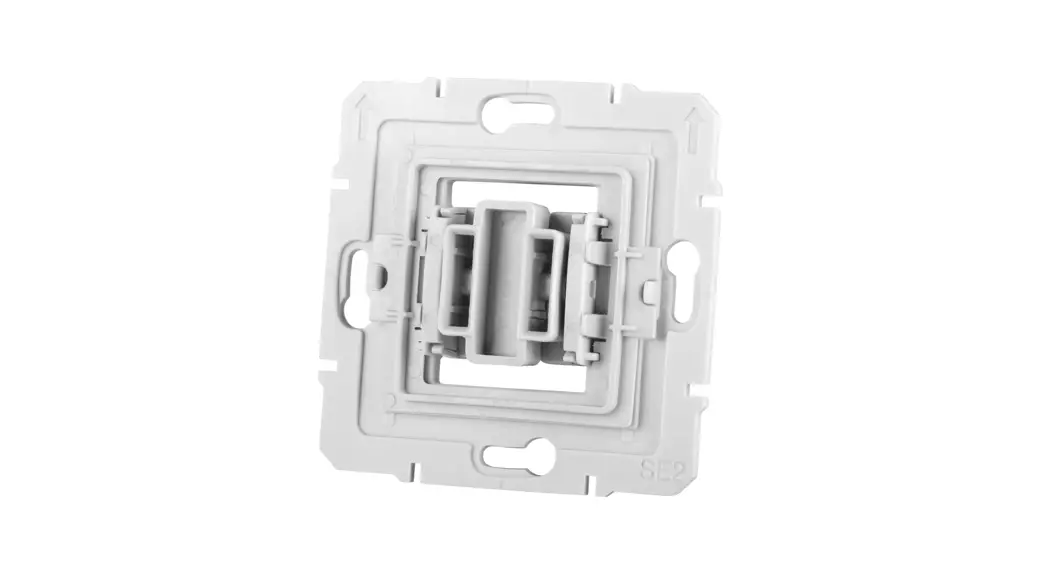
Refer to the installation instruction supplied with this product. See Wiser Adapter.
Downloading the app
Install the app on a mobile phone to commission and work with the Wiser system and devices.
6
DUG_Adapter_LK-00
Wiser Adapter
1. Perform one of the following: For Apple mobile phones: Visit https://itunes.apple.com/us/app/wiserby-se/id1026806919?ls=1&mt=8.
Scan QR code to download app for Apple devices
For Android mobile phones: Visit https://play.google.com/store/apps/ details?id=com.schneiderelectric.WiserBySE. Scan QR code to download app for Android devices
Pairing the device
Using the Wiser app, pair your device with the local Wi-Fi network to control the device remotely Before you pair the device, download the Wiser app, page 6 to your mobile device. To pair the device:
1. On the Home page, tap + and tap . 2. Select the Wi-Fi network, enter the Password (A) and tap Next.
NOTE: Help to ensure to first connect your mobile phone to the home WiFi and select 2.4 GHz network.
Cancel
Select 2.4GHz Wi-Fi Network and enter Password.
If your Wi-Fi is 5GHz, please set it to be 2.4GHz.
Password
A
Next
3. Insert the Plug to a power supply to turnon the device.
DUG_Adapter_LK-00
7
Wiser Adapter 4. Short press the operation button 3 times within 2 seconds on the device
regardless of whether it is on or off. Help to ensure that the LED blinks red.
3× < 2 s
5. In the Wiser app, select Confirm the LED is blinking RED and tap Start Configuration (B) .
Cancel How to pair device Short-press the operation button 3 times. 1
B
The app displays the progress of connecting the device. 6. Wait for a few seconds until the device is connected and the app shows that
the device is added successfully. The red LED on the Plug shows that it is successfully connected to the Wi-Fi network and ready to use.
NOTE: · If the operation button is on before you start pairing, then the LED will glow red when the pairing is complete. · If the operation button is off before you start pairing, then the LED will turn Off when the pairing is complete.
7. Once the device is connected, tap Done.
8
DUG_Adapter_LK-00
Wiser Adapter
Configuring the device
Changing the device icon
You can change the device icon using the Wiser app. 1. On the Home page, select the device for which you wish to change the icon.
2. At the top-right corner of the screen, tap . 3. Tap edit next to the device name. 4. Tap Icon to view the menu. 5. In the slide-up menu, select any one of the following (A) to change the device
icon: Take photo – allows you to click a photo from the mobile camera. Select from Icon Library – allows you to select an icon from the app
library. Select from Album – allows you to select a photo from the mobile gallery.
Renaming the device
You can rename the device using the Wiser app. 1. On the Home page, select the device for which you wish to rename. 2. At the top-right corner of the screen, tap . 3. Tap edit next to the device name.
DUG_Adapter_LK-00
9
4. Tap Name, enter the new name (A) and then tap Save.
Wiser Adapter
Icon Name
Rename
Cancel
Save
A
Changing the device location
You can change the device location using the Wiser app. 1. On the Home page, select the device for which you wish to change the location.
2. At the top-right corner of the screen, tap .
3. Tap edit next to the device name. 4. Tap Location. 5. Select the desired location from the list (A) and then tap Save.
Device location
Save
Master Bedroom Kitchen
Study Room Kids Room
A
Removing the device
Using the Wiser app, you can remove a device from the device list. To remove the device:
1. On the Home page, tap All devices > Adapter.
2. Tap to display more details.
10
DUG_Adapter_LK-00
Wiser Adapter
3. Tap Remove Device (A) and select one of the following: Disconnect – The device is disconnected from Wi-Fi Disconnect & Erase Data – The device is disconnected from Wi-Fi and erases the app data
TIP: On the Home page tap and hold Adapter to remove the device. NOTE: By removing the device, you will reset the device. If you still have a problem with the reset, then refer to reset the device manually, page 11.
Resetting the device
You can reset the device to factory default manually. To reset the device:
1. Short press the operation button 3 times within 2 seconds and then long press the operation button once (>10 s).
2. After 10 s, LED starts blinking red then release the operation button. The LED stops blinking upon successful reset of the device.
3. The Plug restarts and starts to blink red indicating the pairing mode.
3× < 2 s + 1 × 10 s
Using the device
On the Home page, tap All devices > Adapter to access the control panel. On the device control panel page, you can see the following:
· Power (W) – The load value of the device connected to the Plug (A) · Day (kWh) – The total energy consumption of the device connected to the
Plug per day (B) NOTE: The total energy consumption per day value will automatically reset to zero at 00:00 hrs everyday.
DUG_Adapter_LK-00
11
· The current state of the Plug (C) · One-Time Timer, page 13 (D) · Schedule, page 14 (E) · Consumption, page 14 (F) · Settings, page 15 (G)
A
Adapter
Power(W)
4.00
Day(kWh)
0.00 B
C
On
E F G
Schedule Consumption
D
Wiser Adapter
Switching On/Off the device manually
You can switch on/off the Plug manually. The Plug will provide power to the electrical appliance connected to it. Short press the operation button on the device once to switch On/Off the Plug.
The red LED indicates the On status of the Plug.
1 0.5 s
Switching On/Off the device using app
Using the Wiser app, you can switch on/off the Plug. To switch the Plug on/off:
12
DUG_Adapter_LK-00
Wiser Adapter
1. On the Home page, tap the power button (A) to switch on/off the device.
2. Alternatively, you can navigate to the control panel, page 11 of the device and tap to switch on/off the Plug. NOTE: The control panel shows the current state of the Plug.
Setting the one-time timer
The One-Time Timer toggles the existing status of the Plug after the selected timer duration is over. Using the Wiser app, you can set the temporary timer to turn on/off the Plug. To set the timer:
1. On the Home page, tap All devices > Adapter.
2. Tap to display set period. 3. In the slide-up menu, select the Set Period (A) and tap Confirm.
NOTE: · The Customized Period option allows you to set the timer duration for up to 5 hours. · The countdown of the timer is updated every 30 seconds. · If the Permanent Timer, page 15 is turned on, then the One-Time Timer is disabled.
4. To turn off the timer before the timer duration is over, tap .
DUG_Adapter_LK-00
13
Wiser Adapter
Creating a schedule
The Plug can be controlled and triggered by a schedule. Once the schedule is set, your system will follow the active schedule. You can create or modify the schedules at any time. To create a schedule:
1. On the Home page, tap All devices > Adapter.
2. Tap Schedule > Add schedule to add a schedule.
3. Set the time (A).
4. Tap Repeat (B) to select the days you want to set the schedule.
5. Tap Note (C), enter the note and tap Confirm.
6. Tap the toggle switch (D) to turn on the Notification for the schedule. The app will send a notification that the scheduled task is executed at the time of schedule.
7. Tap Switch (E) and select one of the options: On – Turns on the Plug at the scheduled time Off – Turns off the Plug at the scheduled time
Add Schedule
Save
A
B Repeat C Note
10 02 11 03
E Switch
where device is located.
Once
D
On
8. Tap Save.
Checking the energy consumption
Using the Wiser app, you can monitor the energy consumption of the load connected to the device by accessing the consumption feature.
TIP: You can see the daily real-time energy consumption value of the load connected to the device on the control panel, page 11 of the device. To see the device energy consumption history: 1. On the Home page, tap All devices > Adapter. 2. On the device control panel page, tap Consumption.
14
DUG_Adapter_LK-00
Wiser Adapter
3. In the Consumption page, you can see the total energy consumption and it’s changes in Day (A), Week (B), Month (C), and Year (D) view in the graph.
You can tap each bar on the graph to see the total energy consumed on a particular time/day/month.
A
Consumption
Year 14 Sep 2022
3 KWh
B
Consumption
Year 14 Sep 2022 – 18 Sep 2022
2 KWh
1
1
0 00:00 04:00 08:00
12:00
16:00
20:00
23:00
Hours
Note: Hourly information is only available for the past 7 days.
C
1
Consumption
Year Sep 2022
3 KWh
0
01
08
15
22
31
0
Tue Wed Thu
Fri
Sat
Sun
Consumption
Year
D
2022
0.04KWh
0.03 0.025
0.02
0.015
0.01
0.005
0
JF
A
J J ASON
Managing Plug settings
Using the Wiser app, you can manage various settings of the Plug. To access the plug settings:
1. On the Home page, tap All devices > Adapter. 2. On the device control panel page, tap Settings.
Permanent timer
When the Plug is switched on, the permanent timer turns it off after the selected timer duration is over until the setting is disabled. When the permanent timer is on, the One-Time Timer, page 13 on the device control panel page is disabled.
To turn on the permanent timer: 1. Tap the toggle switch (A) to turn on the Permanent Timer. This opens the Permanent Timer Duration option. 2. Tap Permanent Timer Duration (B), select the timer duration and tap Confirm. NOTE: The Customized Period option allows you to set the timer duration for up to 5 hours.
EXAMPLE: If you select the timer duration as one minute, then the Plug automatically turns off after one minute.
DUG_Adapter_LK-00
15
Wiser Adapter
Power outage status
When power is restored after a power outage, the power outage status setting determines the status of the Plug regardless of the previous status. Tap Power Outage Status (C) and select one of the following: Off – If the Plug is turned on before the power outage, then the Plug will be in off status when the power is restored On – If the Plug is turned off before the power outage, then the Plug will be in on status when the power is restored Remember last status – The previous status of the device continues
NOTE: The status 5 seconds before the power outage is remembered. EXAMPLE: If the Plug is in on status 2 seconds before the power outage and in off status 5 seconds before power outage, then the Plug will be in off status when the power is restored.
Child lock
The child lock helps to prevent children from operating the Plug. When the child lock is on, the Plug can be operated only using the app, the operation button on the Plug is disabled.
TIP: By turning on the child lock, the Plug does not turn off, it remains in its current state. Activate/Deactivate using app
Tap the toggle switch (D) to turn on/off the Child Lock.
Deactivate manually
Short press the operation button four times (< 5 s). NOTE: If the child lock function is deactivated manually, then the toggle switch (D) in the app displays off status.
Settings
Permanent Timer
B C
A
On
D
Creating a moment
A Moment allows you to group multiple actions that are usually done together. Using the Wiser app, you can create moments based on your needs (such as movie night). To create a moment:
1. On the Home page, tap .
2. Go to Moment > + to create a moment.
16
DUG_Adapter_LK-00
Wiser Adapter
3. Tap Edit name, enter the name of the moment (A) and tap Save. TIP: You can choose the cover image that represents your moment by tapping .
Cancel Moment settings Save
Edit name
Action
A
Edit name Add Task
(0/80)
Show on HCoamnecePlage
Save
4. In the Action section, tap Add task (B) to display the slide-up menu. 5. In the Add task menu, you can do either or all of the following actions (C):
Run the device – Select the devices that you want in a moment. Select Automation – Select the automation that you want to enable or
disable. For more info refer to Automation. Delay – Set the delay time.
NOTE: You can add one or more actions using .
Cancel Moment settings Save
My settings
Action
Add Task
(0/80)
B
Show on Home PageAdd task
Select Automation Delay
C
DUG_Adapter_LK-00
17
Wiser Adapter
6. Tap Run the device > Adapter > Switch to select either or all the functions to add in the moment: On – Switch on the Plug (D) Off – Switch off the Plug (E) Reverse Switch – Toggle the last state of the Plug (F)
Select function
Next
D On E F
Save
7. Once all the actions are set, tap Save.
Cancel Moment settings Save
My Moment
Action
Adapter
Show on Home Page
(1/80) Switch:On
Editing a moment
To edit a moment:
1. On the Moment tab, locate the moment you want to edit and tap . 2. On the Edit page, you can tap each item (such as dimmer, shutter, delay,
temperature, etc.) to change the settings. TIP:
· You can add one or more actions using . · To delete an existing action, slide the each item towards left and tap
Delete.
Deleting a moment
To delete a moment: 1. On the Moment tab, locate the moment that you want to delete and then tap .
18
DUG_Adapter_LK-00
Wiser Adapter
2. Tap Delete and tap Ok. NOTE: After deleting a moment, the device action can no longer be triggered.
Creating an automation
An automation allows you to group multiple actions that are usually done together, triggered automatically or at scheduled times. Using the Wiser app, you can create automations based on your needs. To create an automation:
1. On the Home page, tap the . 2. Go to Automation > + to create an automation. 3. Tap Edit name, enter the name of the automation (A) and tap Save.
TIP: You can choose the cover image that represents your automation by tapping .
Cancel Automation settings Save
My Automation
Any condition is met
(0/10)
A
Add Condition
Action Cancel
(ASdadvede 0/80)
Add Task
All-Day
4. Tap Any condition is met to select any one of the condition type (B): All conditions are met- The automation is triggered when all the conditions are met. Any condition is met- The automation is triggered when at least one condition is met.
Cancel Automation settings Save
My Automation
Any condition is met
(0/10)
Add Condition
Action
(Added 0/80) Add Task
Select Condition type All conditions are met Any condition is met
Cancel
B
5. Tap Add Condition to display the slide-up menu.
DUG_Adapter_LK-00
19
Wiser Adapter
6. In the Add Condition menu, you can do either or all of the following options (C): When weather changes – Select the various weather settings. Schedule – Set the time and day. When device status changes – Select the device and it’s function.
NOTE: You can add one or more conditions using . .
Cancel Automation settings Save
My Automation
Any condition is met
(0/10)
Add Condition
Add Condition
Schedule
C
7. Tap When device status changes > Adapter and select either or all the functions:
Switch – Turn on/off the Plug (D). Power – The real time load value of the connected device (E). Daily Consumption – The total energy consumed per day (F). Monthly Consumption – The total energy consumed per month (G).
Select function
D Switch E Power F G
8. Tap Add task to open the slide-up menu.
20
DUG_Adapter_LK-00
Wiser Adapter
9. In the Add task menu, you can do either or all of the following options (H): Run the device – Select the devices that you want to be triggered. Moment or Automation – Select the moment or automation that you want to enable or disable. Send notification – Turn on notification for the automation. Delay – Set the delay time.
NOTE: You can add one or more actions using .
10. Tap on Effective period to set the time range for the automation. You can select any one of the following (I): All-day – 24 hours Daytime – From sunrise to sunset Night – From sunset to sunrise Custom – User defined time period
Next
24 hours
From sunrise to sunset
I
From sunset to sunrise Custom
Repeat City
11. Once all the actions and conditions are set, tap Save. Once the automation is saved, it is visible on the Automation tab. You can tap the toggle switch on the automation to enable it.
Example of an automation
This demonstration shows you how to create an automation to get notification on your app when the daily energy consumption of the device connected to the Plug is 50 kWh.
1. Go to Automation > + to create an automation.
DUG_Adapter_LK-00
21
Wiser Adapter
2. Tap Edit name, enter the name of the automation and tap Save. TIP: You can choose the cover image that represents your automation by tapping .
3. Tap Add Condition > When device status changes > Adapter.
4. Tap Daily Consumption, select the daily consumption value (A) then tap Next. TIP: You can set the energy consumption value as 50 kWh.
Consumption
Next
when daily consumption exceeds
9 9 9 4 9 9 0 0 0 5 0 0 1 1 1 6 1 1
A
5. Tap Add task > Send notification and select Notifications (C) and tap Next.
Multiple items Selectable
Next
B
6. In the Automation Settings page, tap Save.
Cancel Automation settings Save
My Automation
Any condition is met
Adapter
Action
(1/10)
(1/80) On
All-Day
Once the automation is saved, it is visible on the Automation tab. You can tap the toggle switch on the automation to enable it.
22
DUG_Adapter_LK-00
Wiser Adapter
Editing an automation
To edit an automation: 1. On the Automation tab, locate the automation you want to edit and tap . 2. On the Edit page, you can tap each item (such as dimmer, shutter, delay, temperature, etc.) to change the settings. TIP: · You can add one or more actions using . · To delete an existing condition or action, slide each item towards left and tap Delete.
Deleting an automation
To delete an automation: 1. On the Automation tab, locate the automation that you want to delete and then tap . 2. Tap Delete and tap Ok. NOTE: After deleting an automation, the device action can no longer be triggered.
Maintenance
It is recommended to clean the device with soft, clean and dry cloth.
NOTICE
DAMAGE TO THE DEVICE Do not use cleaning agents to clean the device, as it may damage the device.
Failure to follow these instructions can result in equipment damage.
LED Indications
Pairing
User Action
Press the operation button 3 times within 2 seconds, refer to Pairing, page 7.
LED Indication LED blinks red, once per second.
Status
Pairing mode is active for 180 seconds. When pairing is completed, LED glows red if the operation button is turned On before you start pairing, else the LED turns Off.
Resetting
User Action
Press the operation button 3 times within 2 seconds and hold it down once for > 10 s.
LED Indication After 10 s, the LED starts blinking red.
Status
The device is in reset mode. It is reset to the factory settings after 10 seconds. The device then restarts and the LED blinks red indicating pairing mode.
DUG_Adapter_LK-00
23
Technical Data
Nominal voltage Nominal power
230 V AC, 50/60 Hz Load type
Load name LED Incandescent lamp
Halogen lamp
Wiser Adapter
Load value 100 W 2300 W 2300 W
Motor
Iron core transformer
Nominal current Over-voltage protection Over-current protection Power consumption
Ambient temperature Storage temperature Relative humidity Neutral conductor IP rating Communication interface Operating frequency Max. radio-frequency power transmitted Range
Product dimensions (H X W X D)
10 A Yes Yes 1 W (relay is ON) 0.5 W (relay is OFF) +5 °C to +35 °C 20 °C to +50 °C Max. 95% non-condensing Not required IP20 Wi-Fi®: 2.4 GHz, IEEE802.11 b/g/n 2.412 GHz to 2.472 GHz < 40 mW
40 m (indoor line-of-sight) 100 m (outdoor line-of-sight) 61 X 61 X 65 mm
Electronic step-down converter
600 VA 500 VA 500 VA
24
DUG_Adapter_LK-00
Wiser Adapter
Compliance
Compliance information for Green Premium products
Find and download comprehensive information about Green Premium products, including RoHS compliance and REACH declarations as well as Product Environmental Profile (PEP) and End-of-Life instructions (EOLI).
General information about Green Premium products
Click the link below to read about Schneider Electric’s Green Premium product strategy. https://www.schneider-electric.com/en/work/support/green-premium/
Find compliance information for a Green Premium product
Click the link below to search for a product’s compliance information (RoHS, REACH, PEP and EOLI).
NOTE: You will need the product reference number or product range to perform the search. https://www.reach.schneider-electric.com/CheckProduct.aspx?cskey= ot7n66yt63o1xblflyfj
Trademarks
This guide makes reference to system and brand names that are trademarks of their relevant owners.
· Apple® and App Store® are brand names or registered trademarks of Apple Inc.
· Google PlayTM Store and AndroidTM are brand names or registered trademarks of Google Inc.
· Wi-Fi® is a registered trademark of Wi-Fi Alliance®.
· WiserTM is a trademark and the property of Schneider Electric, its subsidiaries and affiliated companies.
· LK FUGA® is a registered trademark of Schneider Electric Danmark A/S.
Other brands and registered trademarks are the property of their respective owners.
DUG_Adapter_LK-00
25
Printed in: Schneider Electric
Lautrupvang 1 2750 Ballerup
Denmark
Schneider Electric Denmark A/S Lautrupvang 1, 2750 Ballerup Denmark +45 88 30 20 00 www.lk.dk As standards, specifications, and design change from time to time, please ask for confirmation of the information given in this publication. © 2022 2022 Schneider Electric. All rights reserved. DUG_Adapter_LK-00
 lk.dk
lk.dk Green Premium | Schneider Electric Global