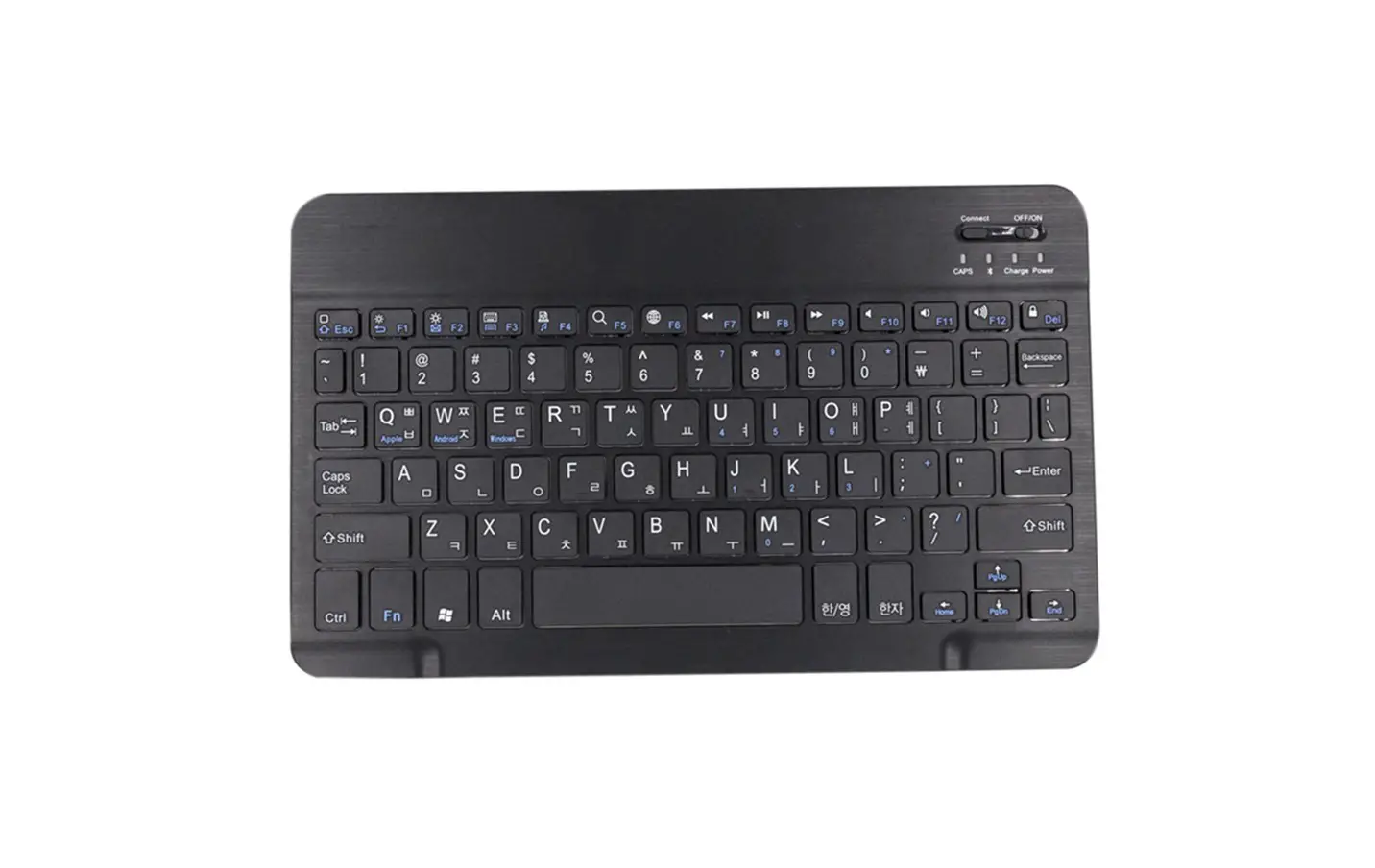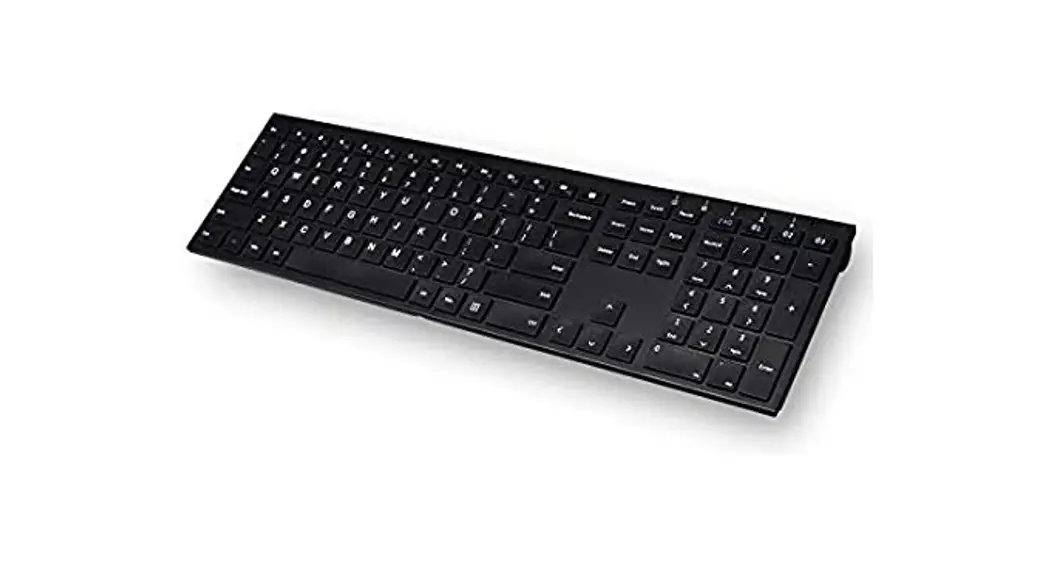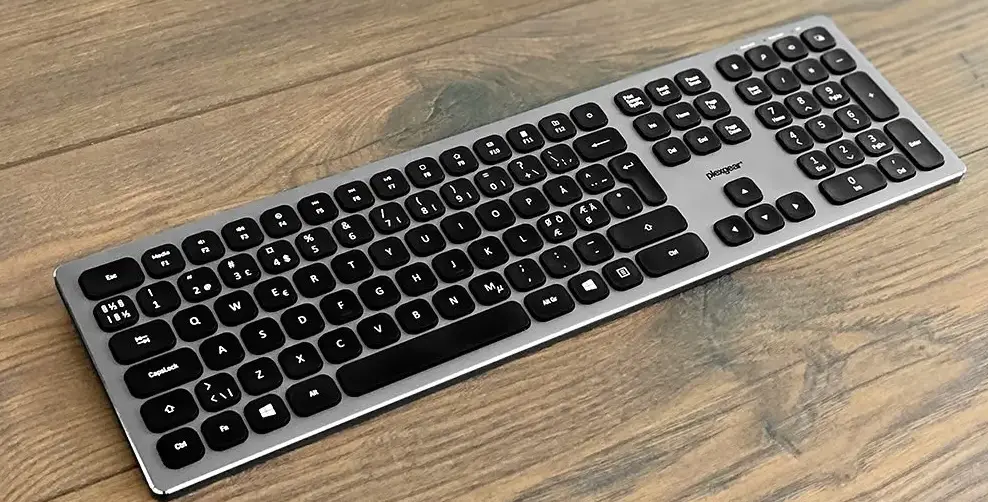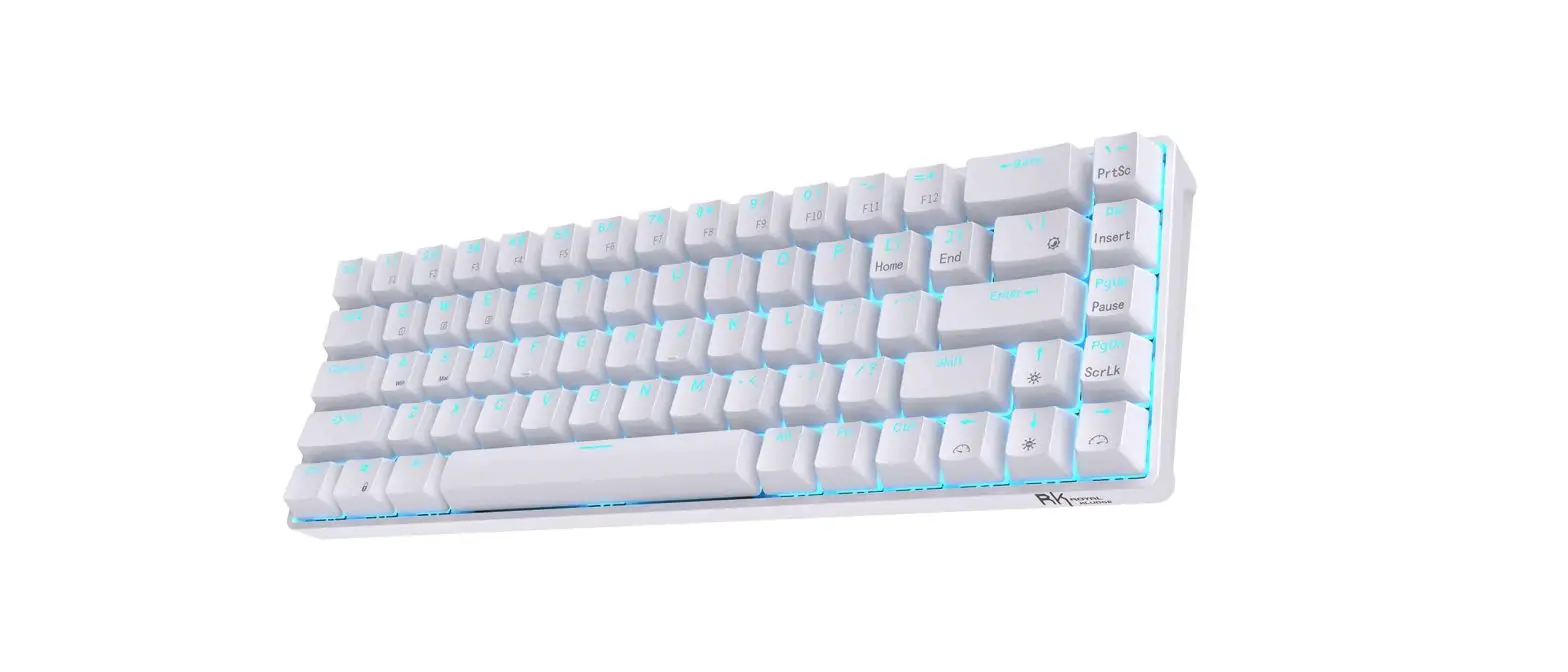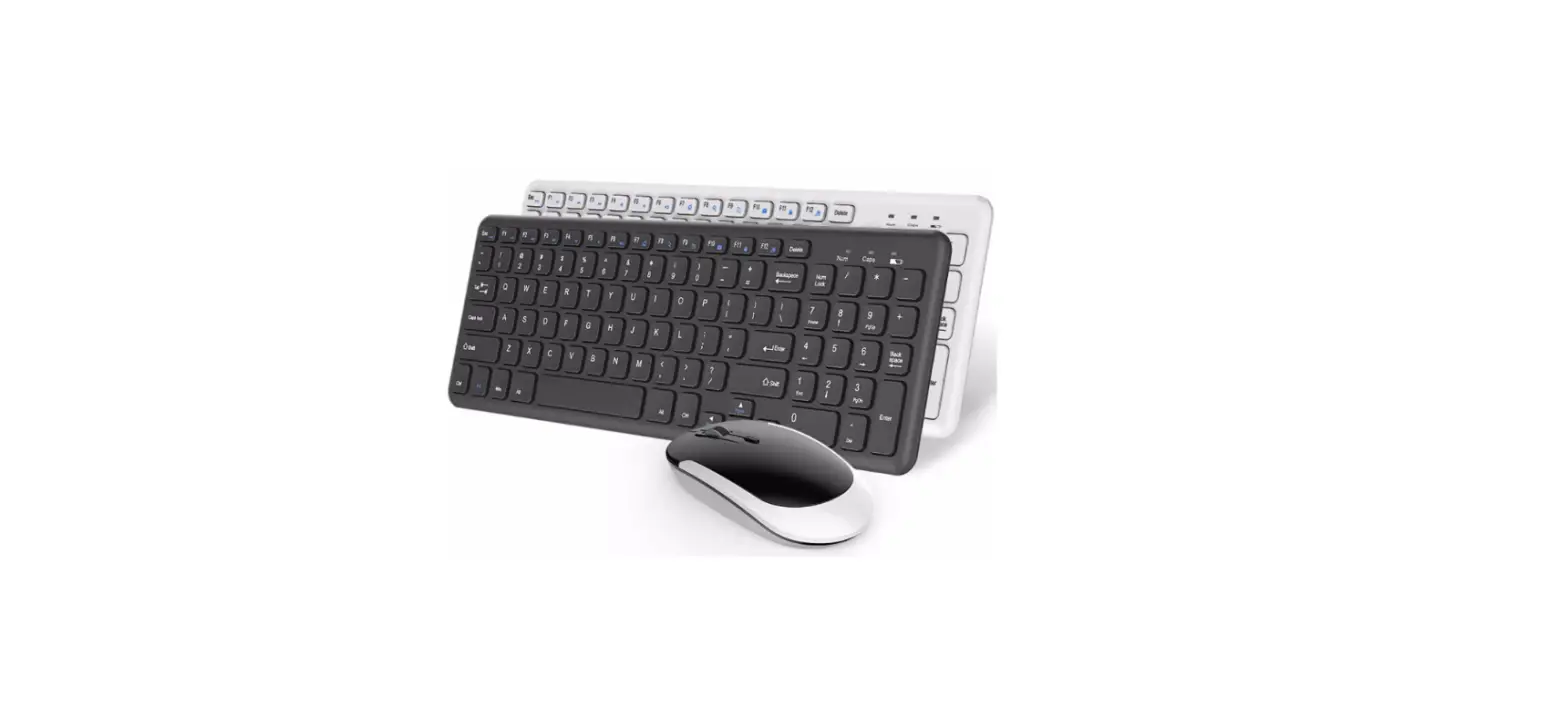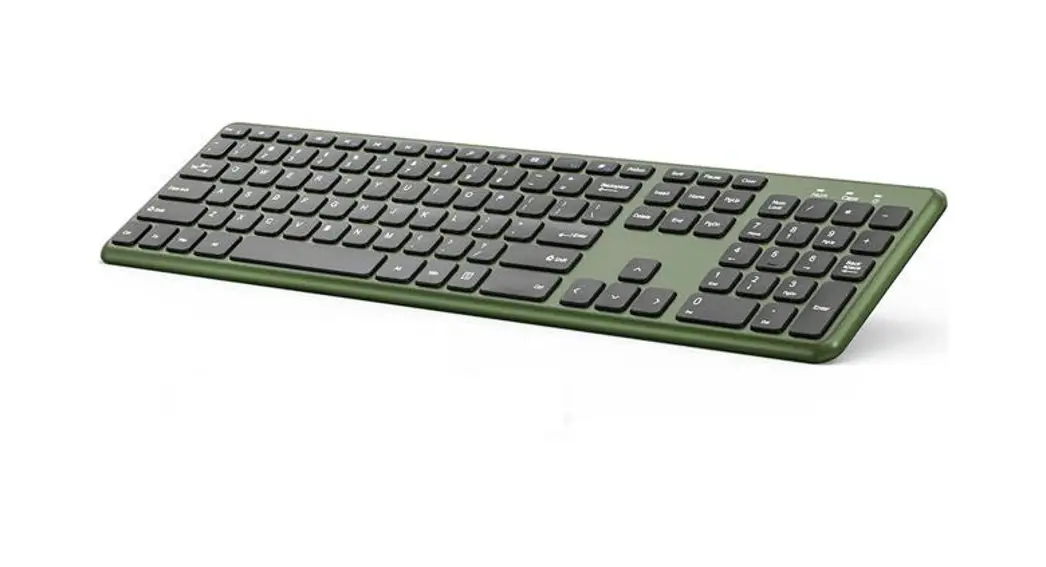

Wireless Keyboard
User Manual
HB030
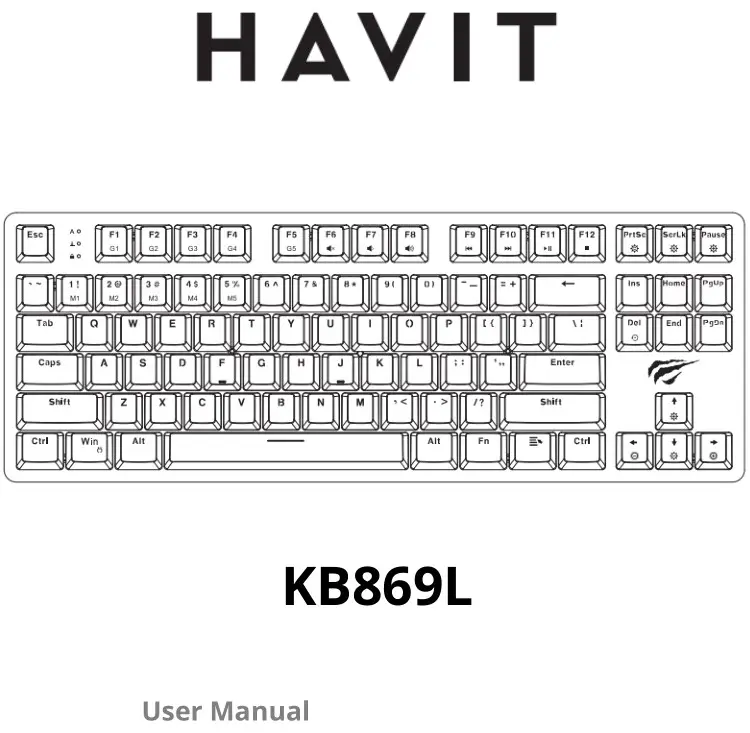
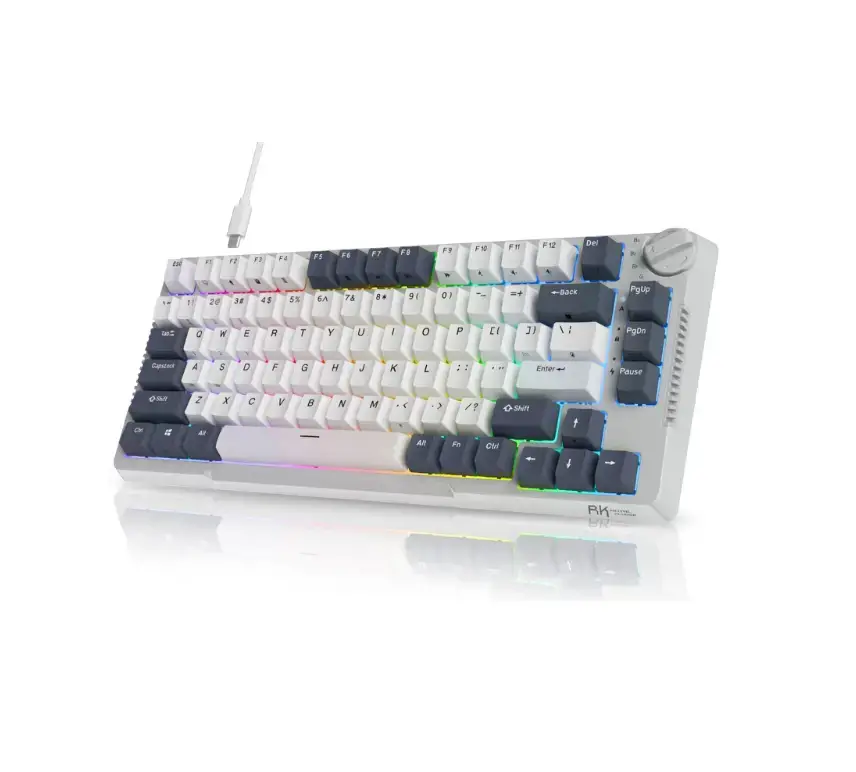
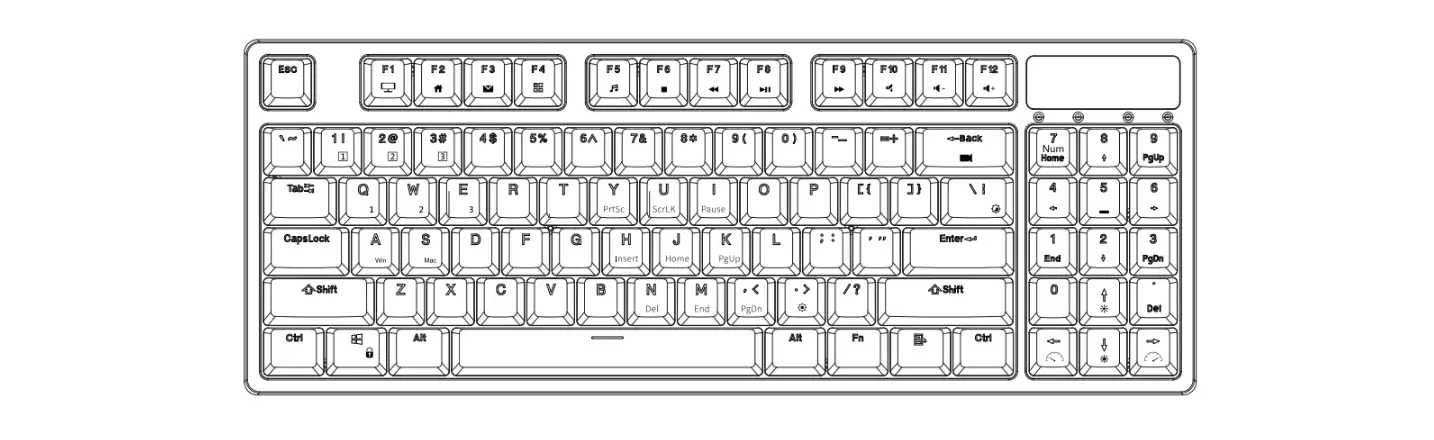
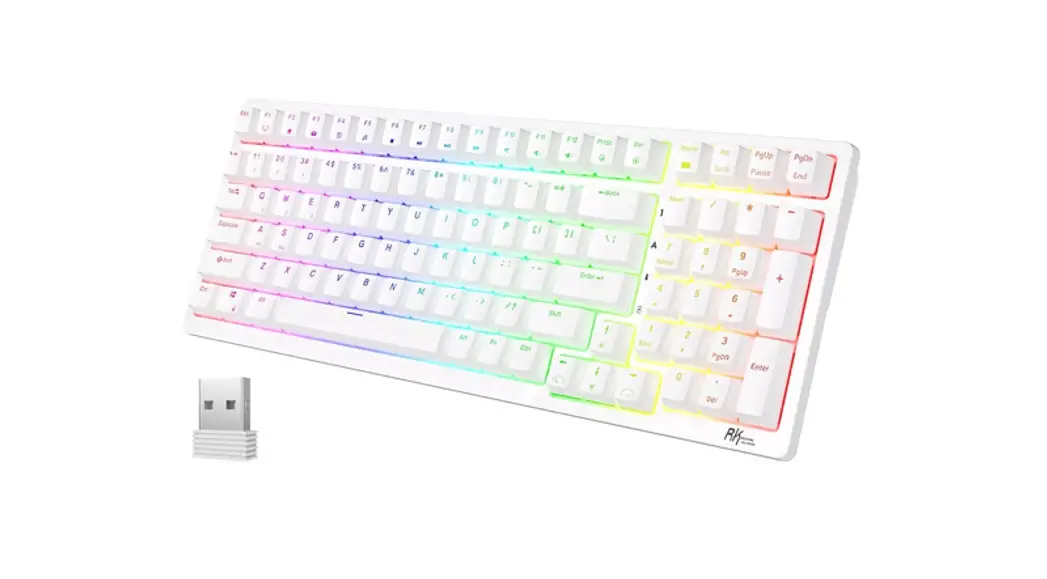
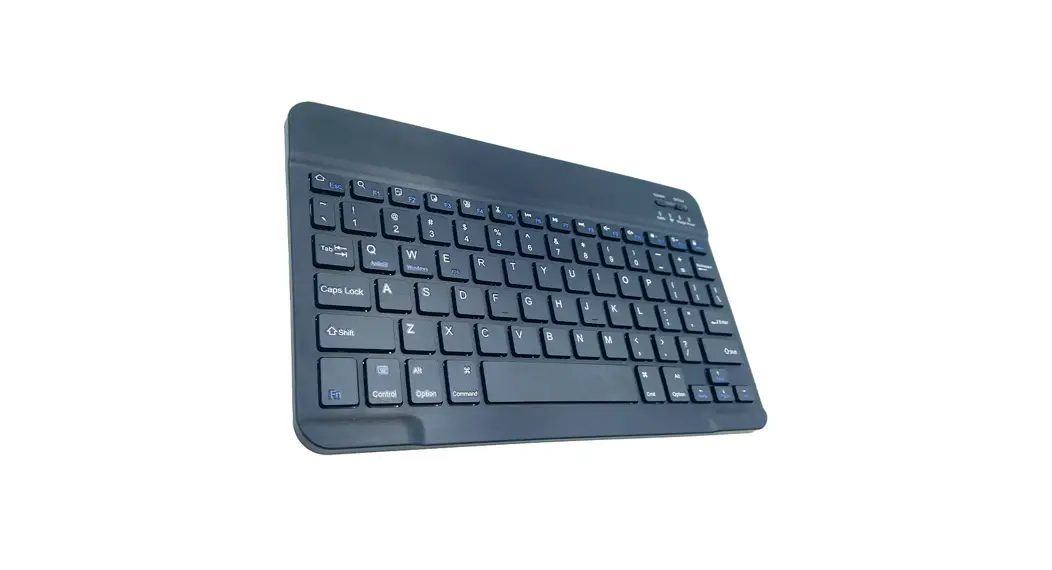
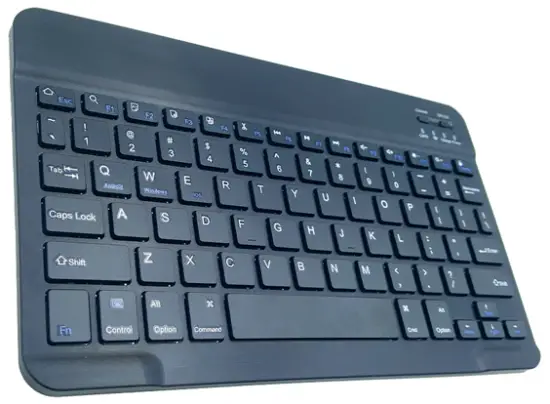
Production illustration
Own Bluetooth standardized specifications, support the use of iPad tablet perfectly; built-in recyclable lithium power, intelligent power management solutions, and long use time. The combination of the keyboard and the protective case can protect your tablet perfectly.

Specifications
| Working Current | < 3.0 mA | Working Voltage | 3.0-4.2 V |
| Low Voltage Alert | 3.0-3.3V | Working Time | 70Hours |
| Battery Standby Time | 150 Days | Sleeping Current | <0.3mAh |
| Battery Lifetime | 3 Years | Battery Capacity | <180 mA |
| Charging Port | ‘UP* C | Wake Up Time | 5 2 Seconds |
| Charging Time | 2-3Hours | Connect Distance | 5 30 Feet |
| Working Temperature | I5F- 130F | Charging Current | < 200 mA |
Indicator Light
| Caps Indicator Light: | Light on means uppercase input, and light off means lowercase input. |
| Whim Indicator Light: | To pair with the device, press -The cameo button”— light Blue wit blink slowly until paired. Light will extinguish after complete |
| Charging Indicator Light: | Blinking—Low Battery(Red)- Device is Charging(Red)- Charging Complete (Light o11) |
Multi-function Key
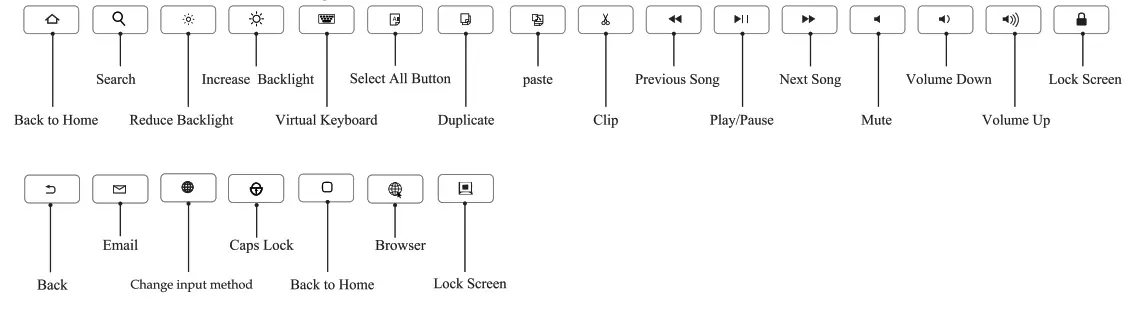
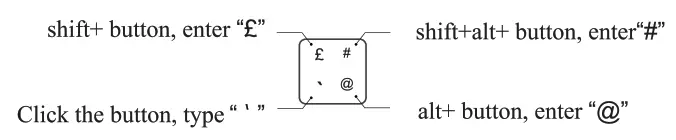
Printing on the keyboard should cooperate with “Fn”.
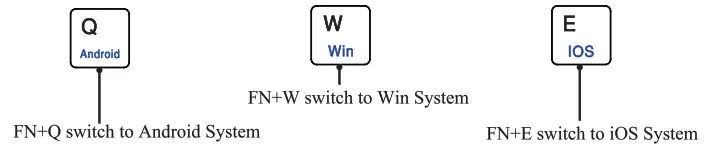
How to Use the system of the Tablet.
Before using the keyboard, please convert the keyboard to the corresponding tablet system by pressing FN+Android (for Huawei, Samsung Tablet) or FN+Win (for Microsoft Tablet) or IOS (for iPad).
Operation Instruction
- 0pen the case, and insert the tablet into the case.
- Dial the ON/OFF button in the right direction for opening the keyboard, and press “Fn+C” into wireless matching condition. ( The Bluetooth light blinks slowly)
- Open Wireless on the device, search keyboard name (Wireless Keyboard) for matching device to Keyboard ( Or pair without a password).
- Input the numbers which show on the device, and then press the “Enter” key for finishing the match.
- The keyboard will automatically sleep if you do not use it within 30 minutes. Then press any key and wait 2-3 seconds, the device will automatically return the last time you read.
Maintenance and Warnings
- Do not squeeze, distort or pat on the keyboard.
- Do not scan the keyboard with a microwave. Keep it away from the magnetic field.
- Keep the keyboard away from liquid. Used it in a dry environment.
- Use a soft cloth to clean your keyboard. Turn off the power when it’s not used for a long time.
Common connecting problems and solutions:
- Make sure you have turned on the power and the battery is enough.
- Make sure the keyboard is within the effective working distance.
- Make sure the relative Wireless function is open.
- Make sure the keyboard has paired with the device.
- Remove the device pairing record and turn off the Bluetooth function and rematch.
Please Note: This product is in accordance with the material object. If there is an improvement, e will not notice it again
IOS (iPad)
Setting → General → Keyboard → Hardware Keyboard —). English —) British/U.S
Android Tablet (Huawei Lenovo Samsung)
Setting —> system —) Language and Input —) Physical keyboard (Bluetooth 3.0 Keyboard) —) Gboard — Multilingual typing —) English (UK)/ English (US)