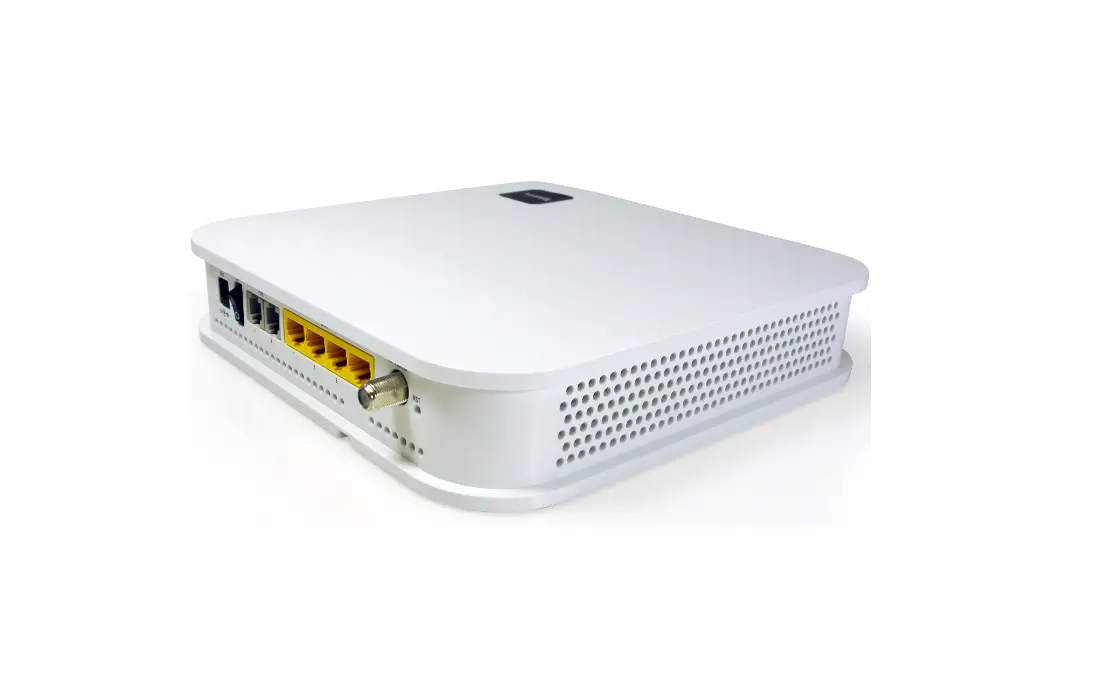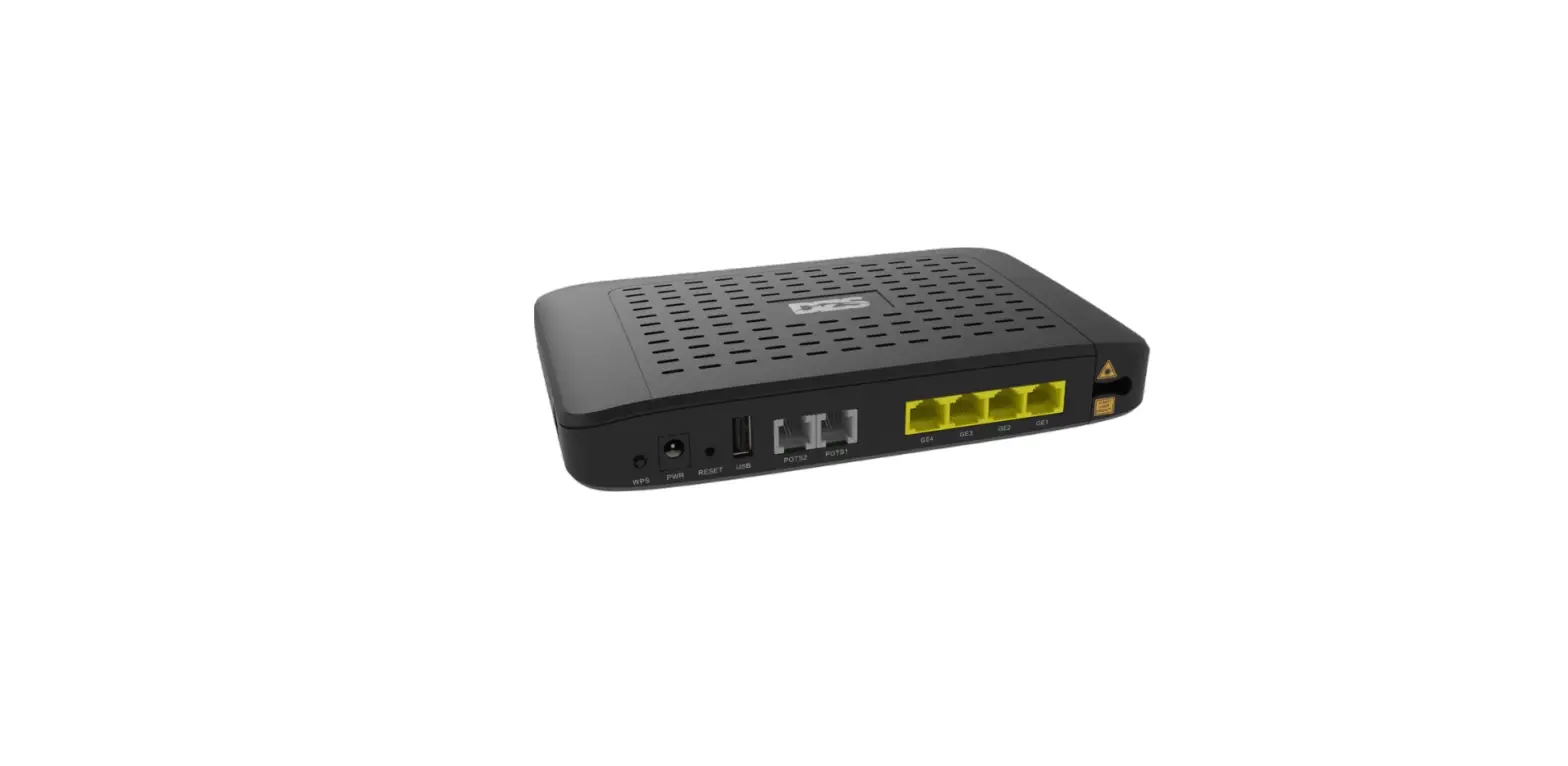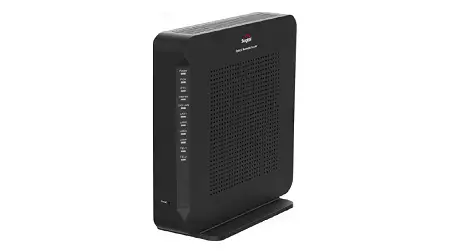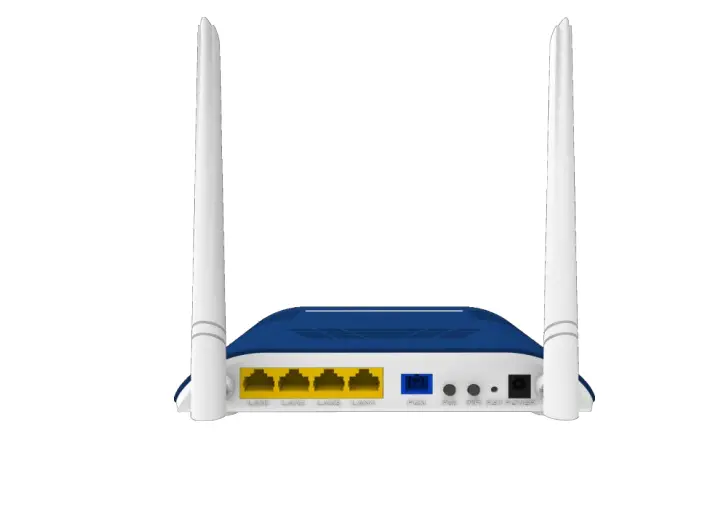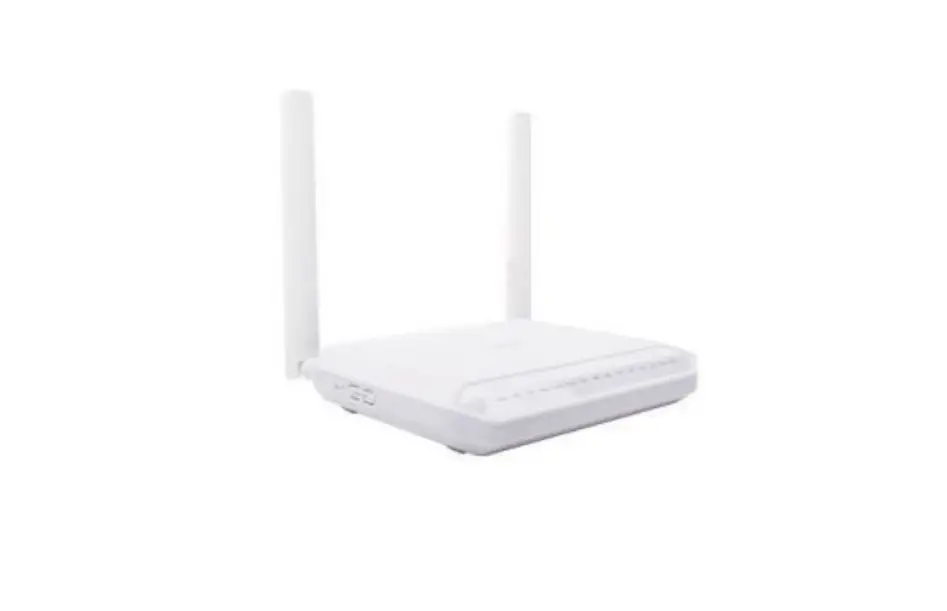
DZS 5266XG Optical Network Terminal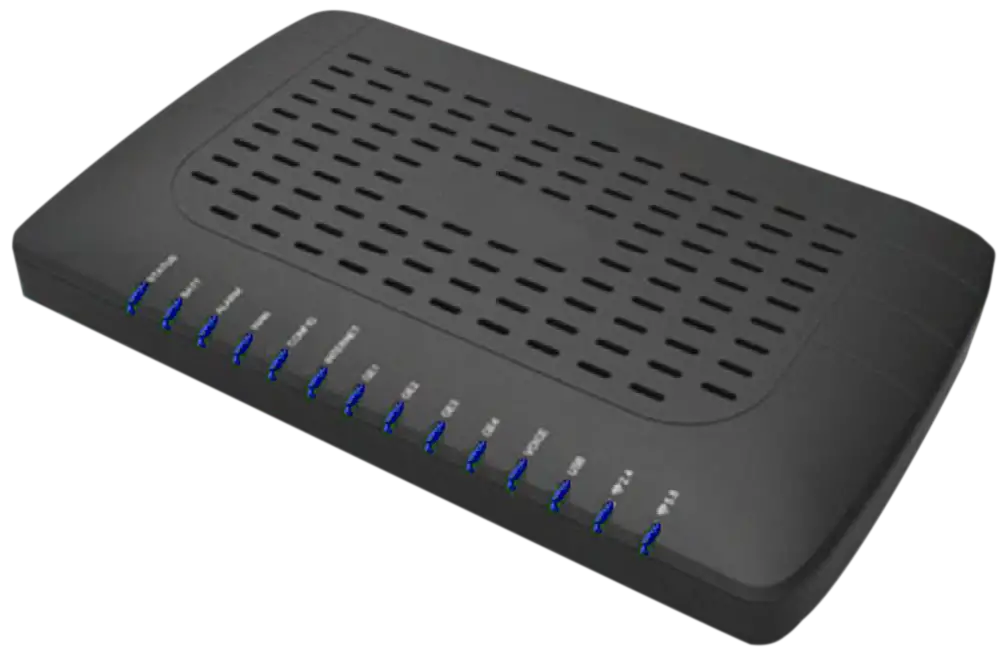
Caution
Please follow the instructions below to avoid physical injury:
You should not install the unit during a storm. Likewise you should not connect or disconnect any line to avoid the risk of electric shock.
 Caution & Warning
- This unit is indoor use and all the communication wirings are limited to inside of the building.
- DO NOT plug in, turn on or attempt to operate an obviously damaged unit.
- Never look directly at the fiber TX port and fiber cable ends when they are powered on.
- DO NOT use near water.
- DO NOT place near high temperature source.
- DO NOT disassemble the unit.
- DO NOT operate the unit in a location where the maximum ambient temperature exceeds 40°C.
- Open optical connections must use a protective cap under all circumstances to protect against physical damage and dirt.
- Before making connections, use isopropyl alcohol and non-fibrous cellulose to clean the faces of the connectors.
- Avoid impact stresses when handling connectors. Physical damage to the faces of optical connections impairs transmission quality (higher attenuation).
- Avoid a bend radius in excess of 30 mm for fiber optic links.
- Check the available voltage supply.
- Only use the unit in dry rooms.
- Set up the unit away from direct sunlight or other electrical equipment.
- Only connect approved accessories.
- It may only be repaired by authorized service personnel.
- This equipment is not suitable for use in locations where children are likely to be present.
 Limited Warranty
- Not covered under this warranty is defect and damage resulting from product disassembly by yourself. And also, such behavior may amount to intellectual property infringement.
Introduction
Package Contents
- 5266XG
- Desktop Stand
- QIG (Quick Installation Guide)
Specification
| Item | Specification |
| Uplink Interface | 1 XGS-PON port (SC/APC) |
| Service Interface | 4 10/100/1000Base-T ports (RJ45) 1 1G/2.5GBase-T port (RJ45) |
| VoIP Interface | 2 FXS ports (RJ11) |
| Power Adapter | Output: 12VDC/1.5A |
| Operating Temp. | 0 to 40°C (32 to 104°F) |
| Operating Humidity | 5 to 95% (non-condensing) |
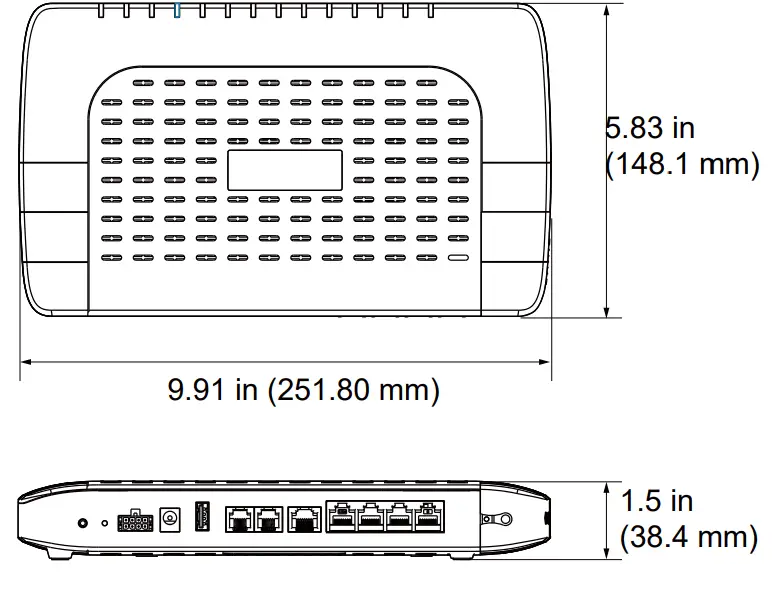
Dimensions
Interface
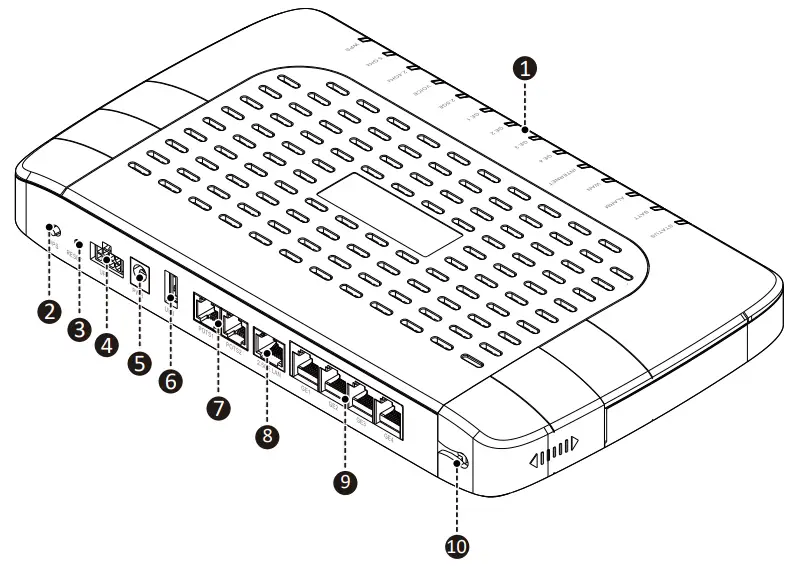
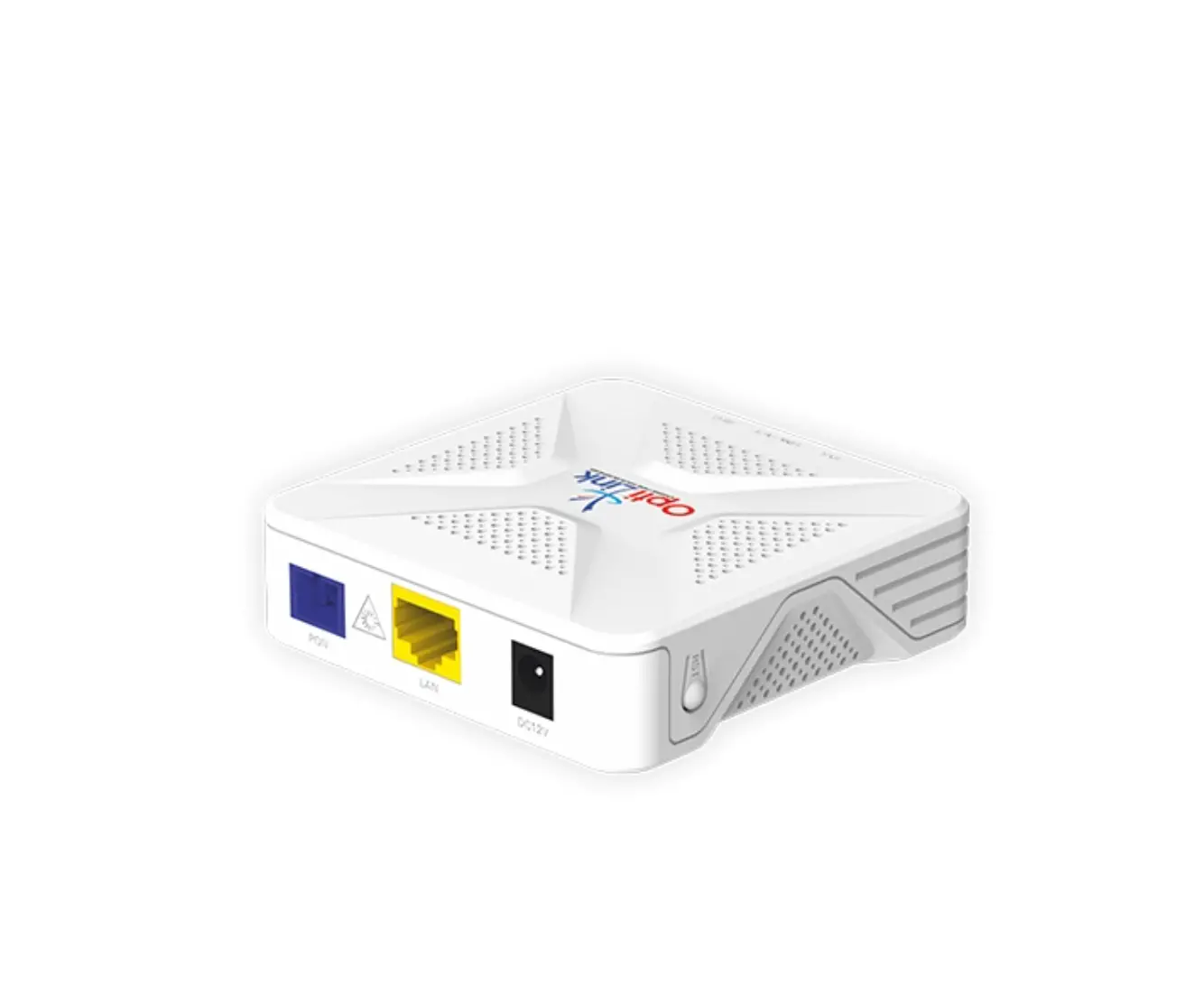
| Item | Description |
| ① LEDs | Operating status LEDs. |
| ② WPS button | Press to initiate WPS connection process. |
| ③ Reset button | Reboot the unit or reset to factory defaults. Press and hold for 10 seconds to reset factory defaults. |
| ④ UPS | Power connector and UPS backup power. |
| ⑤ Power port | Connect an external power supply. |
| ⑥ USB | Connect an external 3.0 USB drive. |
| ⑦ POTS 1-2 | Connect to VoIP phone. |
| ⑧ 2.5GE | Connect to PC or LAN. (1G/2.5GBase-R interface) |
| ⑨ GE 1-4 | Connect to PC or LAN. (10/100/1000Base-T interfaces) |
| ⑩ Fiber Connector | Connect optical network. |
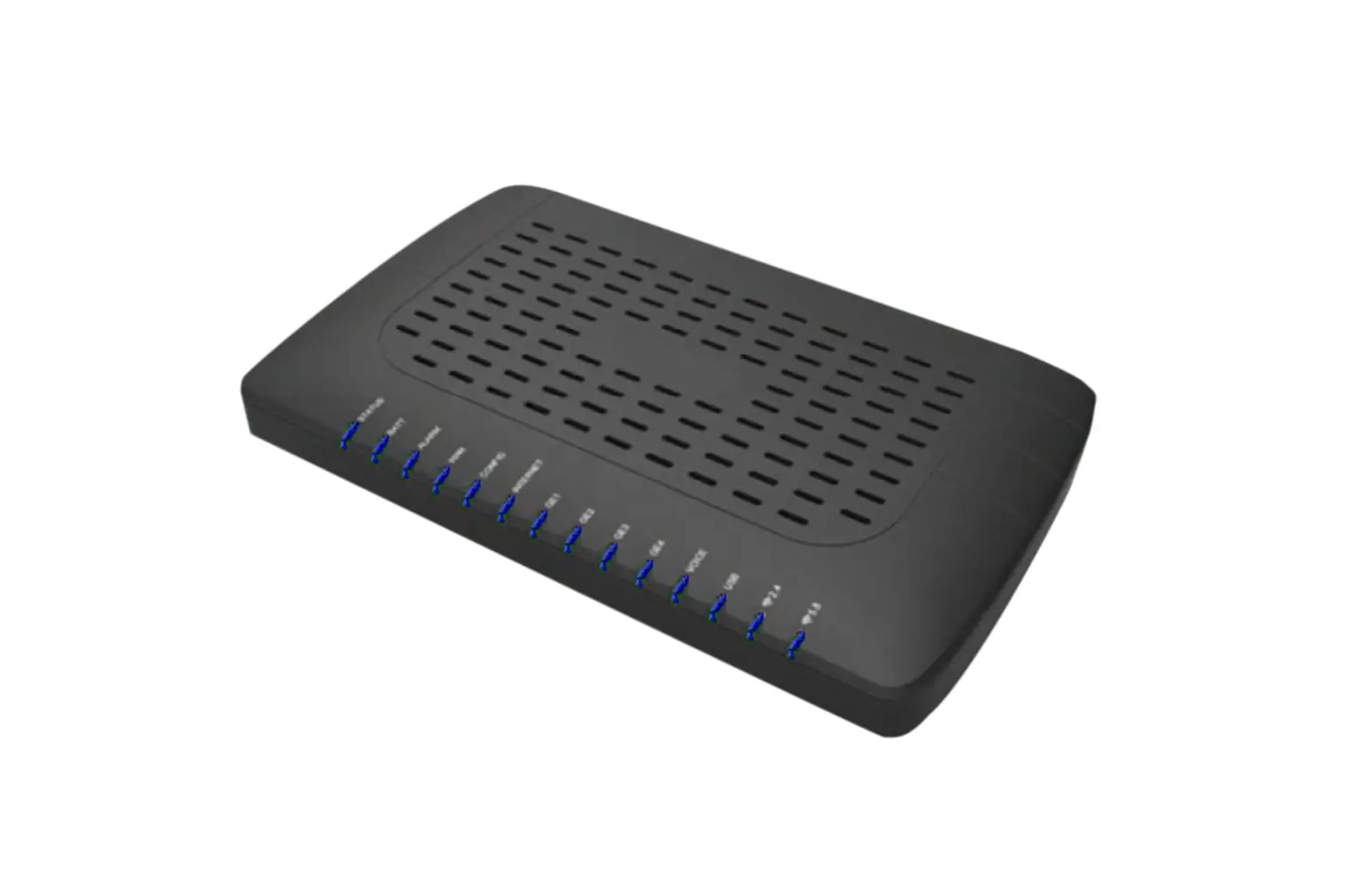
LED
 | Label | Light | Light | Definition |
| STATUS | Blue | ON | Normal Operation | |
| Rapid Blink (10/sec) | Unit has been reset to factory defaults /is unconfigured. | |||
| Slow Blink | Boot-up / Initialization / provisioning in progress | |||
| OFF | Power off | |||
| BATT | Yellow | OFF | Normal operation on AC source | |
| ON | Operating on Battery Power | |||
| Slow Blink (2/sec) | Battery Alarm (Low Battery, Missing or Replace) | |||
| ALARM | Red | OFF | No major alarms | |
| ON | Major Alarm (including operating in battery power) | |||
| Slow Blink (2/sec) | SW or Config update in progress | |||
| WAN | Blue | ON | Ranged successfully | |
| Flash | Ranging in progress | |||
| OFF | Not ready for ranging or not provisioned | |||
| INTERNET | Blue | ON | Internet service is available. | |
| OFF | Internet service is unavailable. (no response from DNS server) | |||
| GE1-4/2.5GE | Blue | ON | Ethernet interface linked | |
| Flash | Data transmitting | |||
| OFF | Ethernet interface not linked | |||
| VOICE | Blue | ON | Registered successfully | |
| Slow Blink (1/sec) | Off hook | |||
| OFF | Registration failed or telephone service is not provisioned. | |||
| 2.4GHz | Blue | ON | 2.4GHz Wi-Fi service is enabled on ONT. | |
| Slow Blink (1/sec) | 2.4GHz Wi-Fi data passing between ONT and connected devices. | |||
| OFF | 2.4GHz Wi-Fi service is disabled on ONT. | |||
| 5GHz | Blue | ON | 5GHz Wi-Fi service is enabled on ONT. | |
| Slow Blink (1/sec) | 5GHz Wi-Fi data passing between ONT and connected devices. | |||
| OFF | 5GHz Wi-Fi service is disabled on ONT. | |||
| WPS | Blue | ON | WPS successful connection established (for 5 sec) | |
| Slow Blink (1/sec) | WPS in progress | |||
| OFF | Disabled or process successfully finished |
FCC STATEMENT:
This device complies with part 15 of the FCC Rules. Operation is subject to the following two conditions: (1) This device may not cause harmful interference, and (2) this device must accept any interference received, including interference that may cause undesired operation.
Any Changes or modifications not expressly approved by the party responsible for compliance could void the user’s authority to operate the equipment.
Note: This equipment has been tested and found to comply with the limits for a Class B digital device, pursuant to part 15 of the FCC Rules. These limits are designed to provide reasonable protection against harmful interference in a residential installation. This equipment generates uses and can radiate radio frequency energy and, if not installed and used in accordance with the instructions, may cause harmful interference to radio communications. However, there is no guarantee that interference will not occur in a particular installation. If this equipment does cause harmful interference to radio or television reception, which can be determined by turning the equipment off and on, the user is encouraged to try to correct the interference by one or more of the following measures:
- Reorient or relocate the receiving antenna.
- Increase the separation between the equipment and receiver.
- Connect the equipment into an outlet on a circuit different from that to which the receiver is connected.
- Consult the dealer or an experienced radio/TV technician for help.
This equipment complies with FCC radiation exposure limits set forth for an uncontrolled environment.
This equipment should be installed and operated with minimum distance 20cm between the radiator & your body
INDUSTEY CANADA STATEMENT:
This device complies with Indus try Canada license-exempt RSS standard (s) . Operation is subject to the following two conditions: (1) This device may not cause harmful interference, and (2) this device must .accept any interference received, including interference that may cause undesired operation of the device. In additional, this device complies with ICES-003 of the Industry Canada (IC) Rules. Any Changes or modifications not expressly approved by the party responsible for compliance could void the user’s authority to operate the equipment.
Note: This equipment has been tested and found to comply with the limits for a Class B digital device, pursuant to Industry Canada license-exempt RSS standard (s) . These limits are designed to provide reasonable protection against harmful interference in a residential installation. This equipment generates uses and can radiate radio frequency energy and, if not installed and used in accordance with the i instructions, may cause harmful interference to radio communications. However, there is no guarantee that interference will not occur in a particular installation. If this equipment does cause harmful interference to radio or television reception, which can be determined by turning the equipment off and on, the user is encouraged to try to correct the interference by one or more of the following measures:
- Reorient or relocate the receiving antenna.
- Increase the separation between the equipment and receiver.
- Connect the equipment into an outlet on a circuit different from that to which the receiver is connected.
- Consult the dealer or an experienced radio/TV technician for help.
This equipment complies with RSS-102 radiation exposure limits set forth for an uncontrolled environment. This equipment should be installed and operated with minimum distance 20cm between the radiator & your body
Note: This device does not support 5600MHz-5650MHz
Web Access
You can access the unit through a web browser by using the following steps:
① Connect an Ethernet cable from your computer to GE1 on the 5266XG.
② Launch a browser or telnet session and point it to 192.168.1.1
③ Enter the username and password.
The default username/password is admin/dzsi
For security the password should be changed.
Information furnished by DZS is believed to be accurate and reliable. However, no responsibility is assumed by DZS for its use, nor for any infringements of patents or other rights of third parties which may result from its use. No license is granted by implication or otherwise under any patent or patent rights of DZS. DZS reserves the rights to change specifications at any time without notice.
Copyright 2023 ⓒ DZS, Inc. All Rights Reserved.