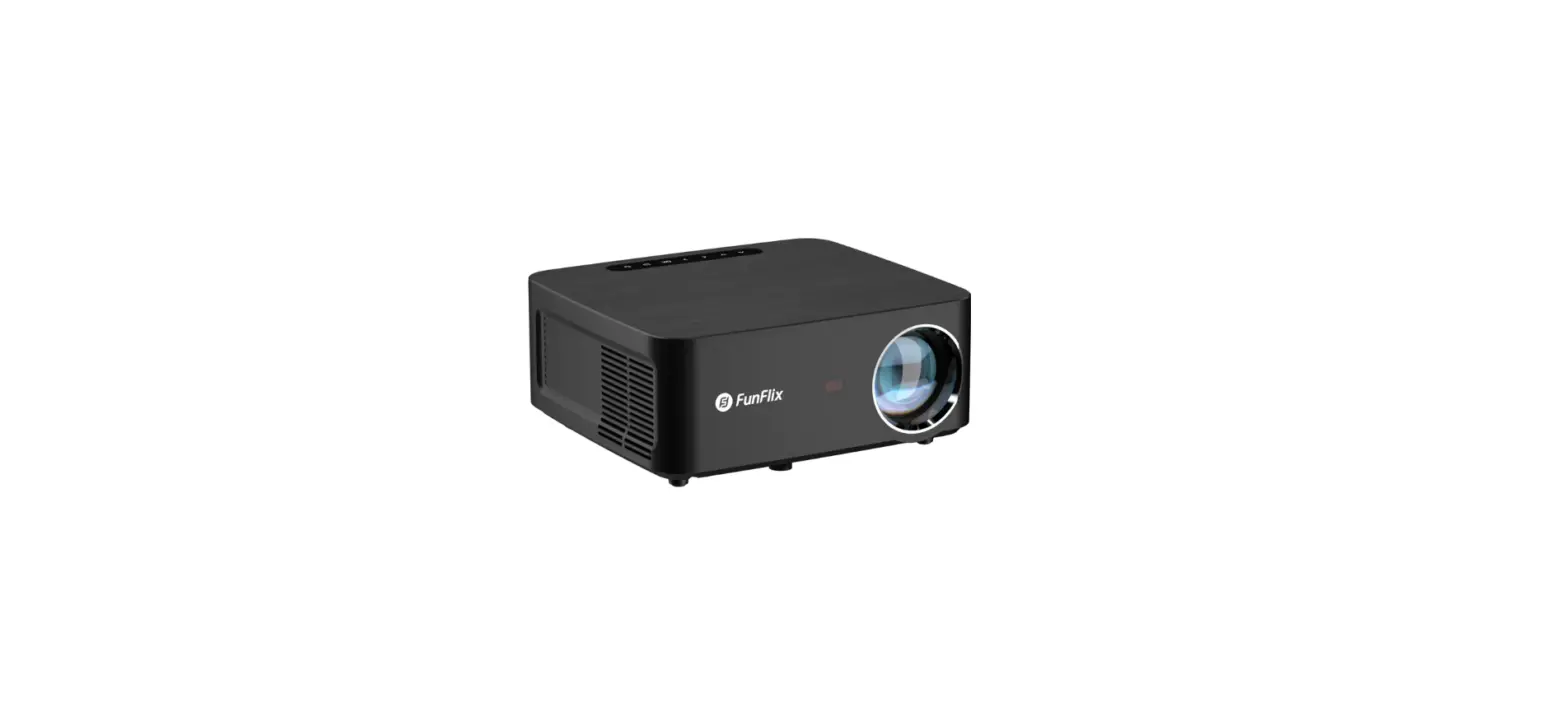
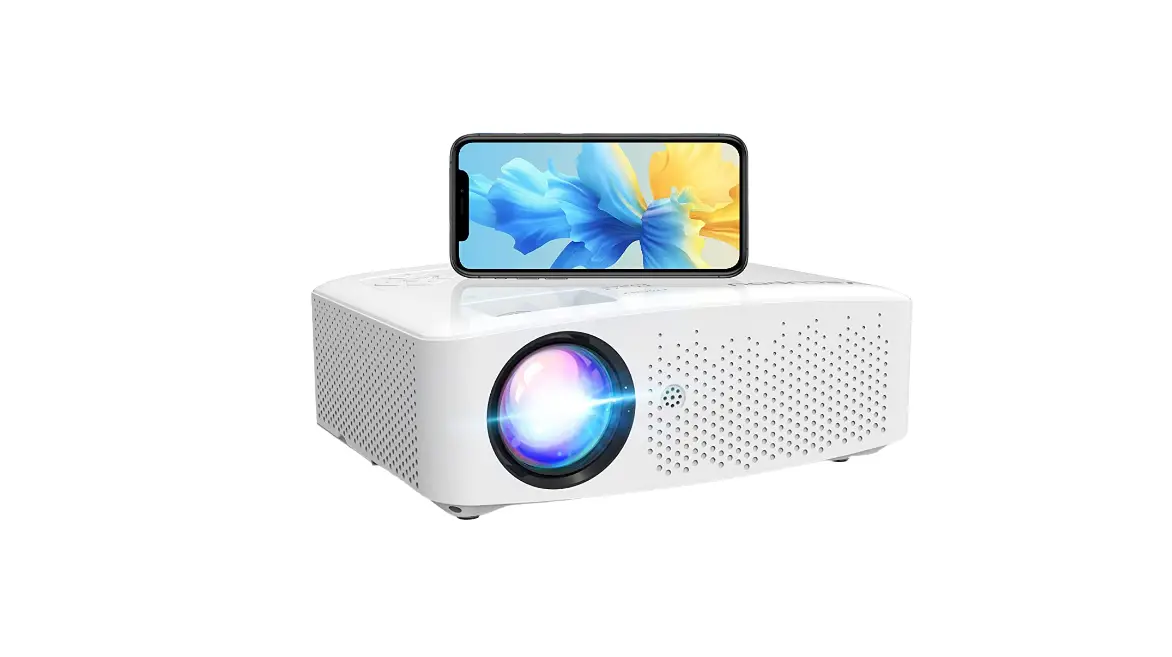
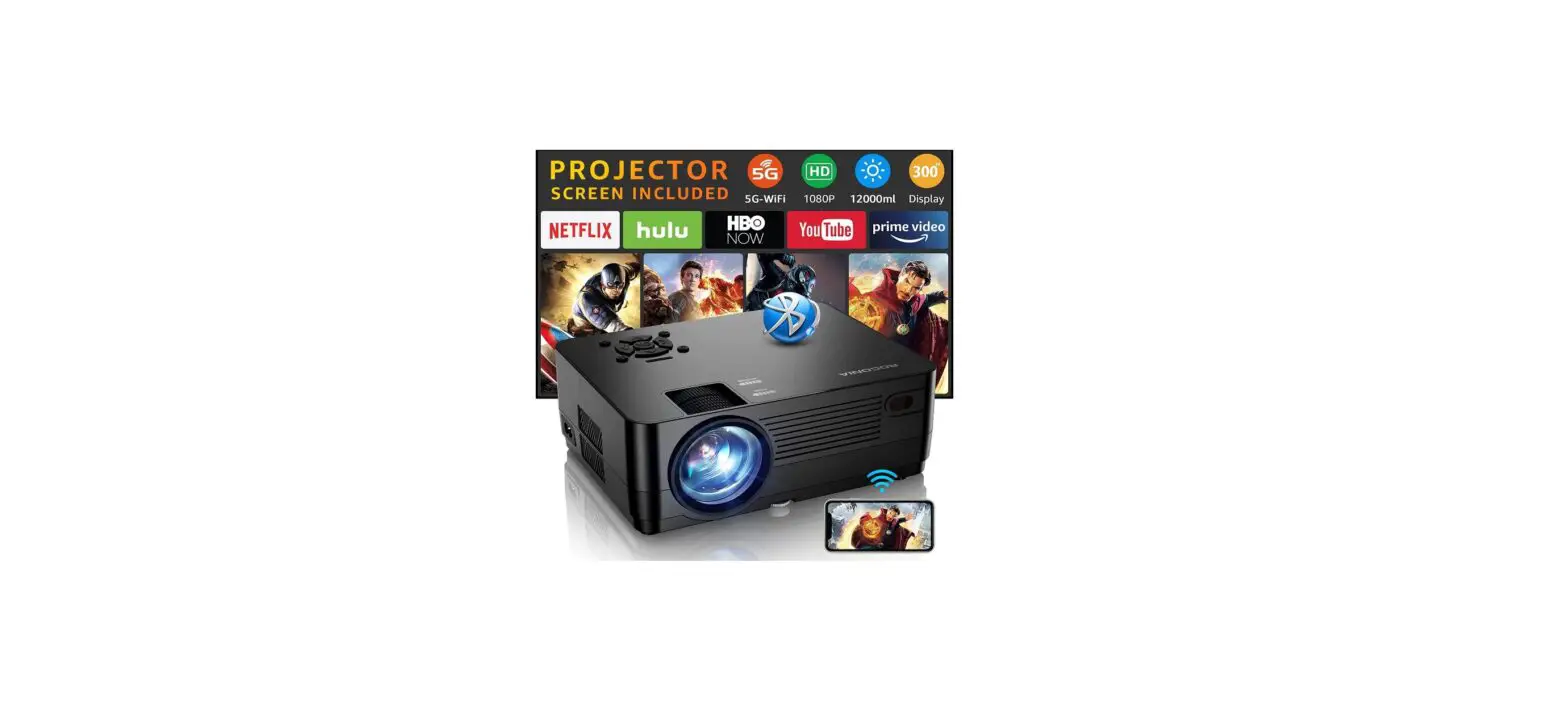
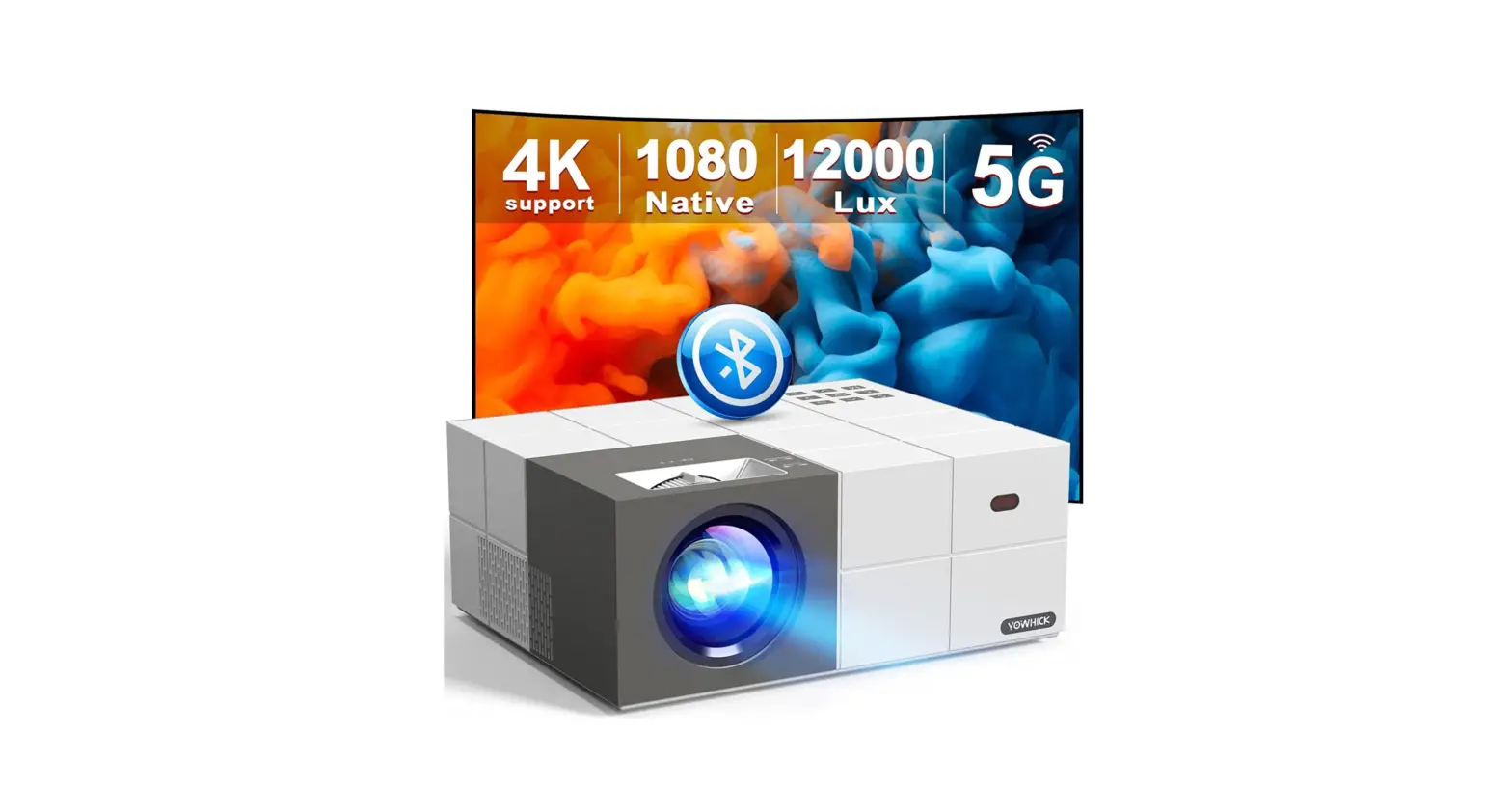
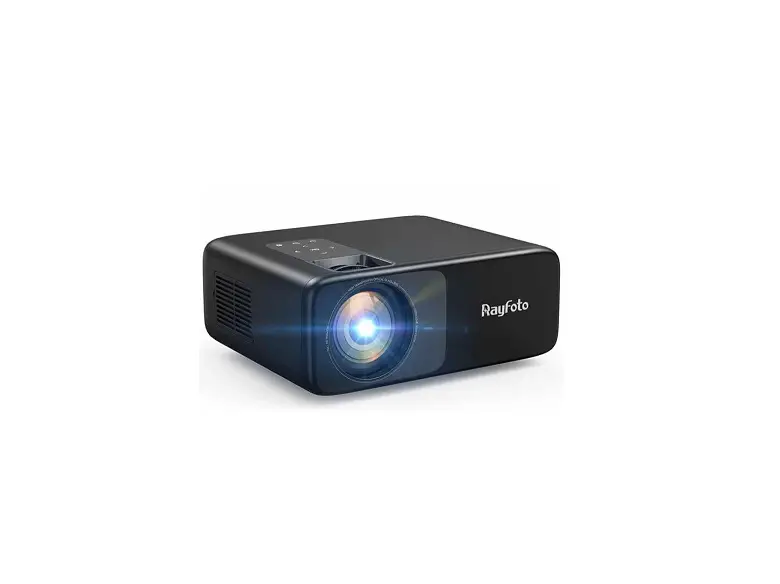
Raydem RD-850 Projector WiFi and Bluetooth with TV Stick, Phone
Important Safeguards
- Please read the manual carefully before operating the projector. To ensure a stable power Supply, please use a standard power cord.
- Please use the power supply and cable indicated on the rating label. The projector should be kept away from cloths, sofas and anything that may block the ventilation ScOop. Please keep the unit away from flammable and explosive materials.
- Please do not disassemble the unit by yourself as this will invalidate the warranty service. lo protect your eyes, do not stare directly at the lens when the projector 1S is on. The projector must be kept away from water and any other liquids.
- To prevent electric shock, please keep the projector out of the rain and away from moisture. It is recommended to turn oft the prOjector atter6 hours of operation (or when not in use). Please use the original foam and other cushioning materials when transporting the projector.
- If the projector does not work, please contact the authorized service agent.
Accessories List
- AV Signal Cable x1
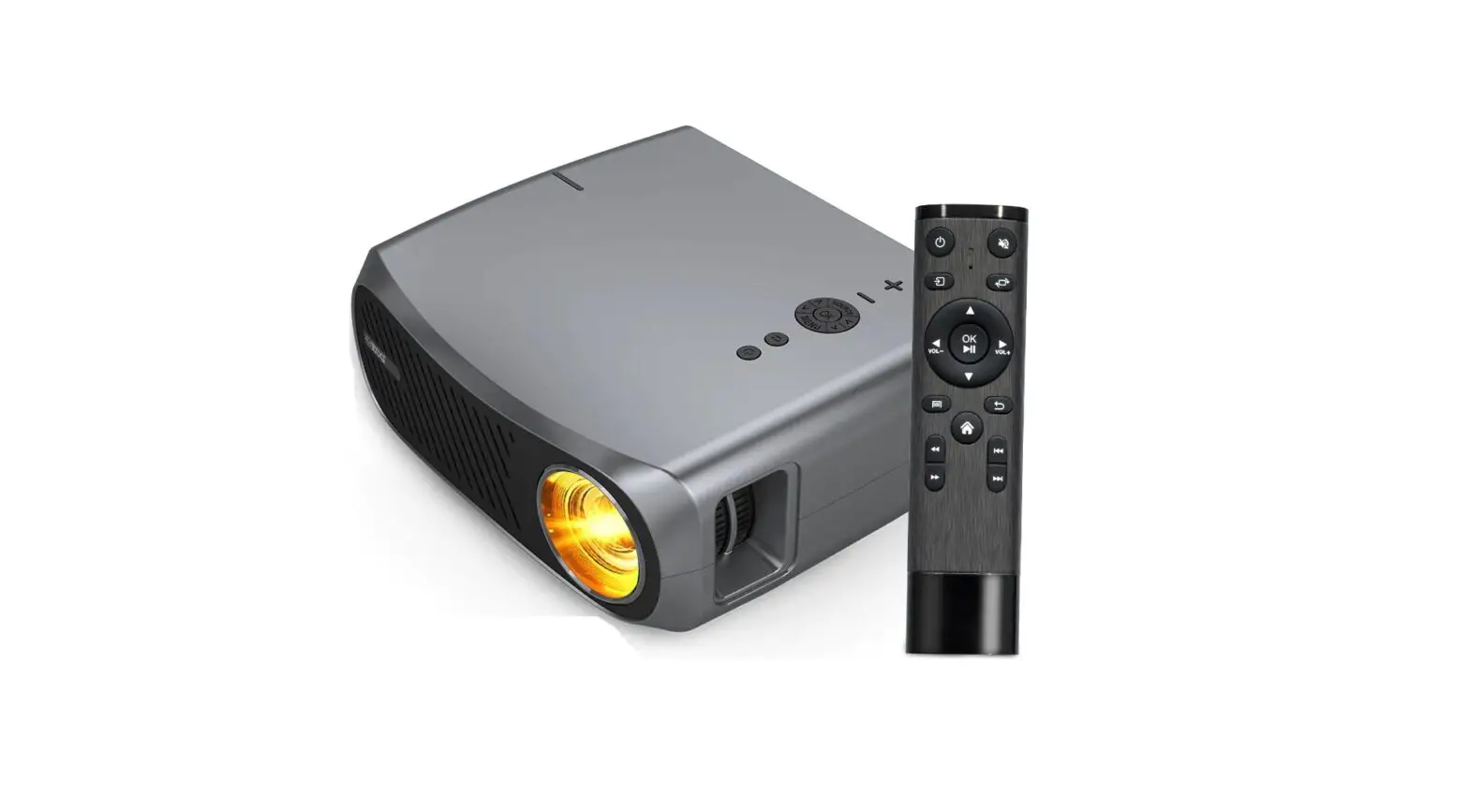
- Remote Control x1
- Power Cable x1
- User Manual x1
- Lens cap x1
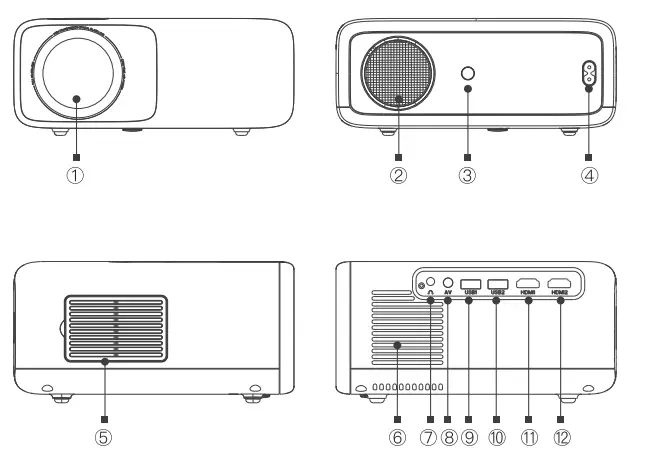
Projector Overview
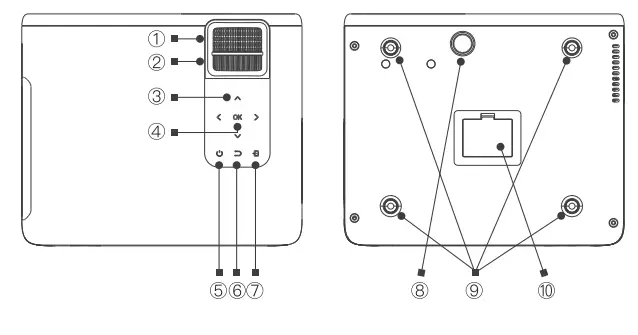
- Lens
- Speaker
- IR for Remote Control
- Power Socket
- Dust-Praof Net
- Air Outlet
- Headphone Jack
- AV Port
- USB1 Port (Wired Mirroring Interface)
- USB2 Port
- HDMI 1 Port
- HOMI2 Port
- Focusing
- Keystone Correction
- Arrow Keys
- OK Key
- Power Key
- Return Key
- Source key
- Height Adjustment Knob
- Hanger Fixing Screw Holes (4 Points: Remove the machine foot pads before hoisting)
- Bottom Label (Tear off the bottom sticker, you can remove the bottom dust cover to clean up the dust)

REMOTE CONTROL
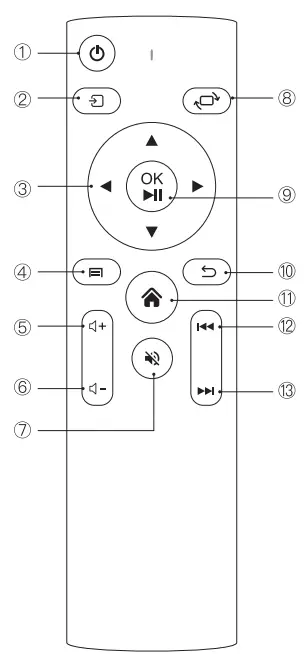
- Power Key
- Source Key
- Arrow Keys
- Menu key
- Volume+
- Volume-
- Mute
- Screen Flip
- Confirm Key/ (Pause/Pay Key)
- Return Key
- Home Key
- Previous
- Next

Standard Setting
Refer to the data in the table below to place the projector away trom the projection screen according to the preset graphic size. When installing. place the projector on a solid, stable countertop. The airframe should be well-ventilated. Do not cover or block the vents. There should be no obstructions within 30cm of the vents.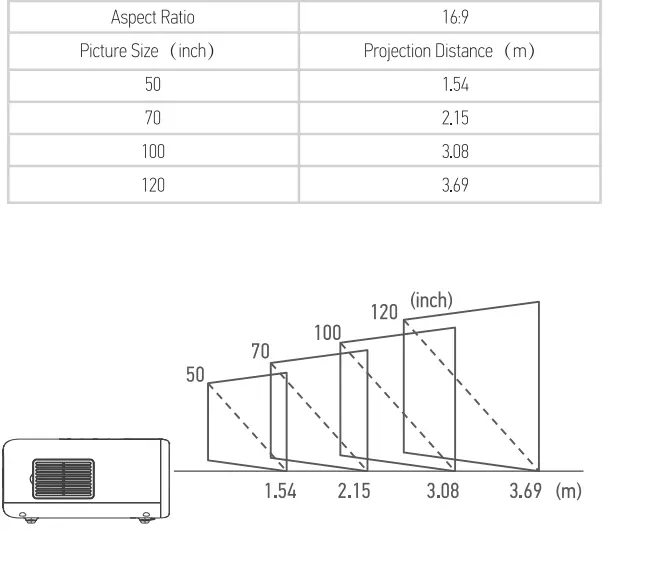
Switching Machine Operation
Power On:
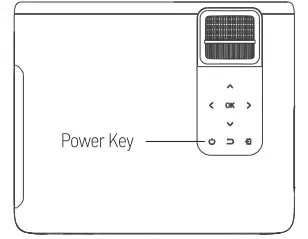
- Step1: Press the power button on the body or the power button on the remote control, the indicator light will turm blue and steady.
- Step2: After 2 seconds, the projector starts to start, the image appears on the screen, and the unit enters the normal working state.
- Step3: If the projector is newly installed, the image may be blurred or trapezoidal distortion when it is turned on for the first time. Please refer to the Focus/Keystone Correction section for calibration.
- Step: After the image is adjusted clearly, it can be viewed normaly.
Power Off:
- Step1: In the working state, press the power button of the body or the power button on the remote control to switch the projector to the standby state.
- Step2: After the projector enters into the standby state, the machine is in the process of autamatic heat dissipation, and the indicator light will change from blue to red.

Focus/Keystone Correction
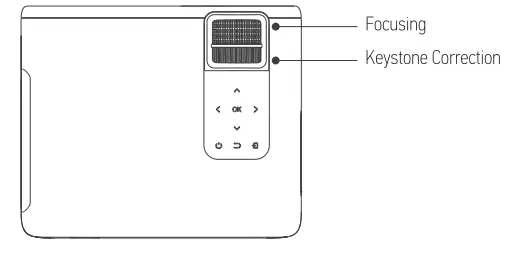
Image Focusing
Place the projector lens perpendicularly to the projection screen or curtain wall, and adjust the focus dial until the image is clear, that means the image focusing is finished. During the focusing process, you can play the programs or pick up the product menu images to match the focusing adjustment
Keystone Correction
Please turn the trapezoidal adjustment dial until the image is displayed normally.
Note: The projector has only mechanical trapezoidal correction in the vertical direction and there is no horizontal correction. Make sure the projector is level with the projected Image.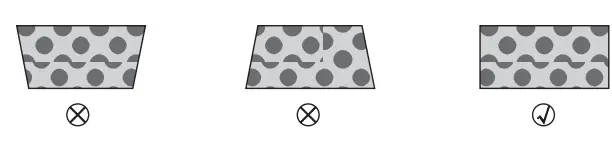
Source Settings
In the main intertace, select the signal source connection you need.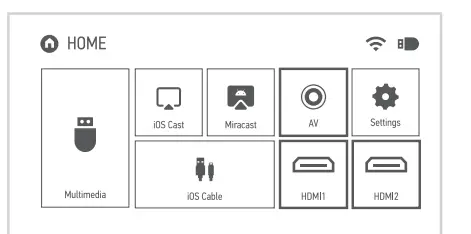
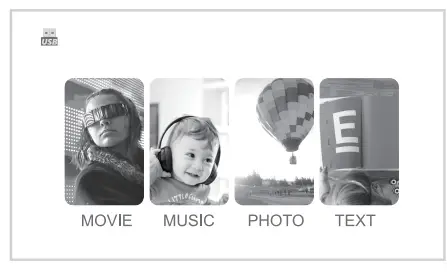
Multimedia
- Step1: Insert the U disk into the USB port of the projector.
- Step2: Select Multimedia, and then press the OK key to enter.
- Step3: Select the file to be played.

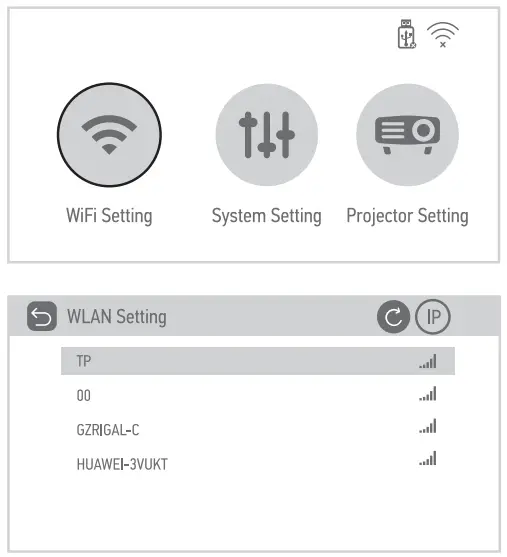
WiFi Setting
- Step1: Select Setting in the main intertace and press OK key to enter setting intertace.
- Step2: Select WiFi Setting.
- Step3: Turm on the WiFi, find the WiFi you need to connect to, enter the password through the virtual keyboard, and confirm the connection.

Mirror function operation
iOS Cast
- Step1:Select i0S Cast on the main interface.
- Step2: The i0S device and the projector must be connected to the same network, or the I0S device must be connected to the Wireless access pointAP) from the projector.

- Step3: Select Screen Mirroring on the control center of the i0S device.
- Step: Select the corresponding projector device name,
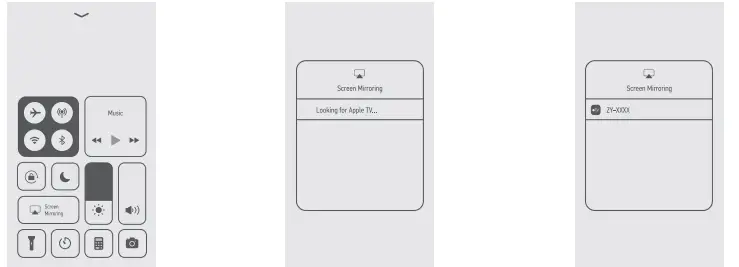
Note: The last 4 digits of the device name are randomly generated.
Mirror your iPhone, iPad or iPod touch
Make sure that your i0S device is connected to the same network as your projector, or connect i0S device with AP by Projector
- On your i0S device, open Control Center and tap screen Mirroring.
- Looking for devices that can be mirroed on
- Select the NETLINK-XXXX- (icast) from the list
Mirror function operation
- Step 1: Select Miracast on the main interface
- Step 2: Turn on the Wireless Display function of the Android device.
Note: Different Android devices have different names and opening methods for the Wireless Display function. For details, please refer to the manual of the Android device you are using
- Step 3: Select the corresponding projector device name
Note: Ihe last 4 digits of the device name are randomly generated.
Miracast
To connect Android Mobile/Pad Device with Projetor Based on WiFi-Display Techenology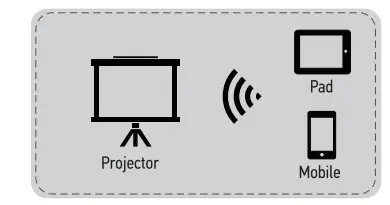
- On your Android Mobile/Pad, open the settings menu.
- Access your display settings or screen mirroring.
- Select your Miracast receiver: NETLINK-XXXX Waiting for connection..
iOS Cable
- Step 1: Select i0S Cable in the main interface
- Step2: Use the data cable to connect the i0S device and the projector (through the USB port of the projector).
- Step3: Click Trust in the pop-up window of the i0S device
- Step4: Enter the 10S device password.
Note: If still cannot connect with projector ater clicking Trust, can try to use the original data cable to reconnect.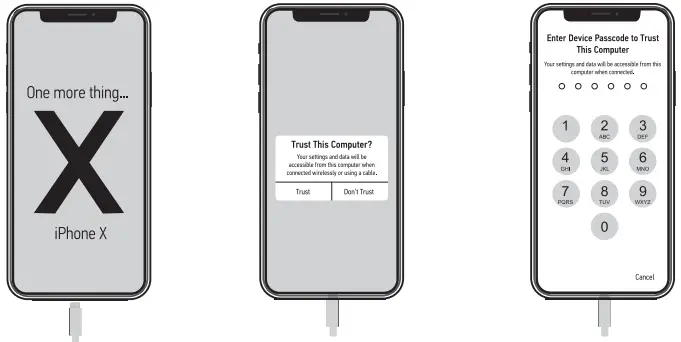
i0S Cable
- Connect the lightning connector to the phone. Connect the other end to the projector
- Click “Trust” the window that pops up on the phone.
- Enter device password.
System Setting
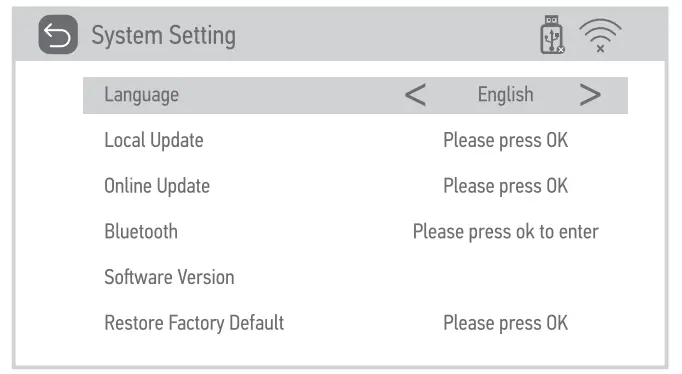
- Select the system setting, you can check the language and software version;
- Version upgrade: local update and online update:
- Local update: Insert the U Disk and follow the prompts to find the file upgrade version.
- Online update: Connect to WiFi, upgrade the version according to the prompts (recommended to update from time to time)
- Restore factory default: Choose carefully.
- Bluetooth: Select the Bluetooth connection that needs to be paired

Projector Setting
Select the projection setting and select the corresponding settings according to the installation method of the projector.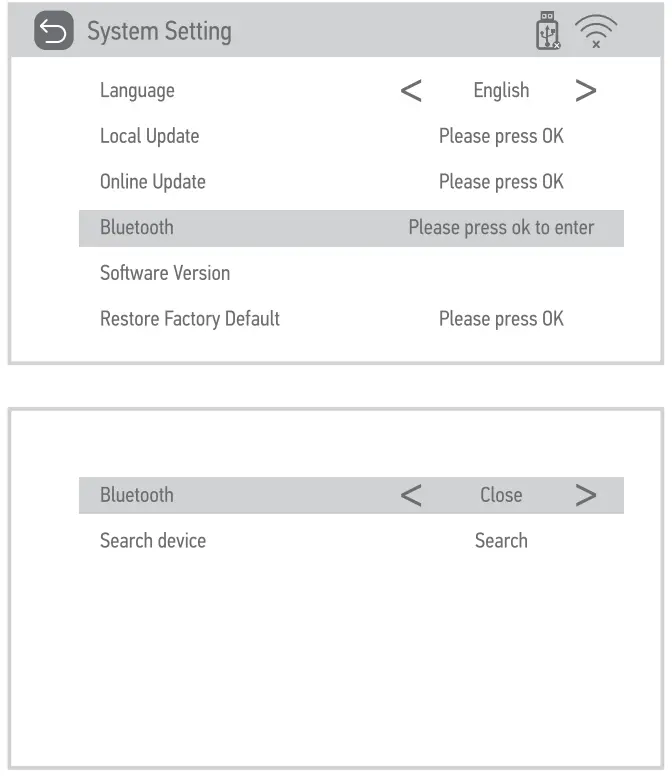
Bluetooth Settings
Select the system setting, select Bluetooth, turn on Bluetooth, search for Bluetooth, and select the Bluetooth connection that needs to be paired(Please make sure Bluetooth is in pairable mode).
Menu Settings
In the main intertace, press the menu key of the remote control to enter the menu seting options. After entering the interface, adjust the parameters as needed, and then press the ‘OK key to verify.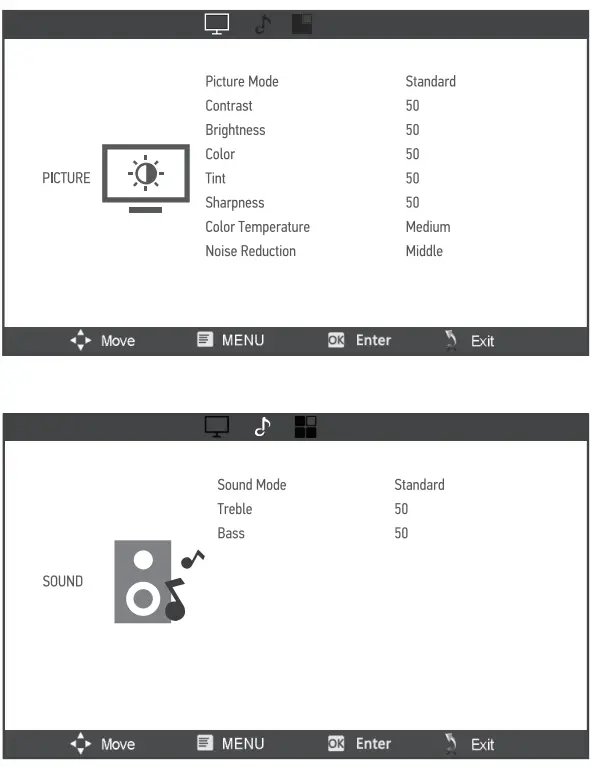
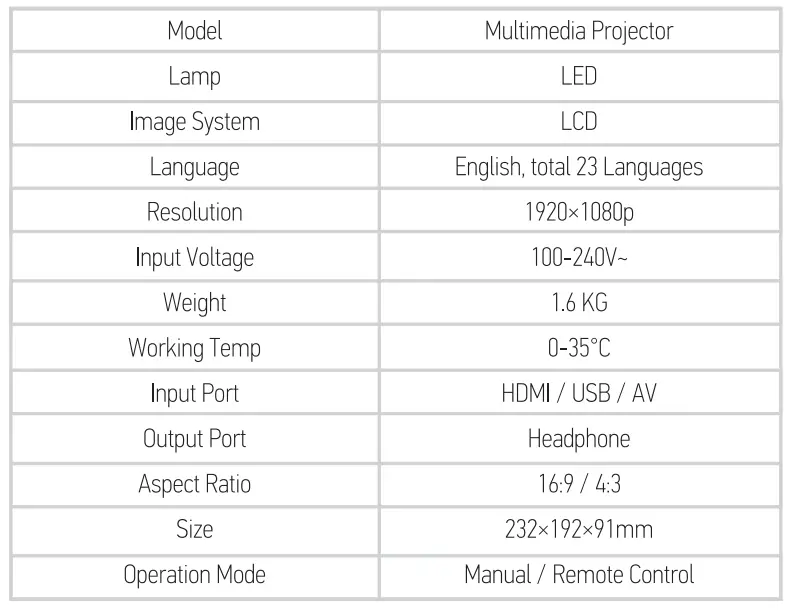
Specifications
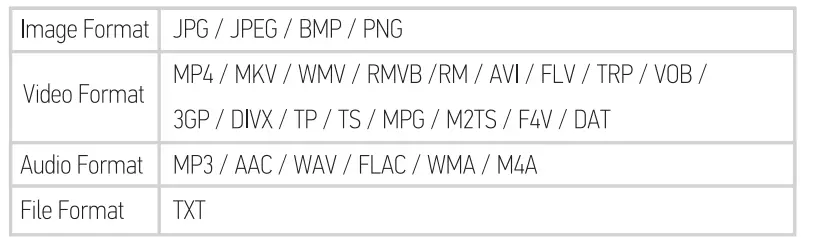
Multimedia Supported Formats
Warranty Information
TWO-YEAR NON-TRANSFERRABLE LIMITED WARRANTY
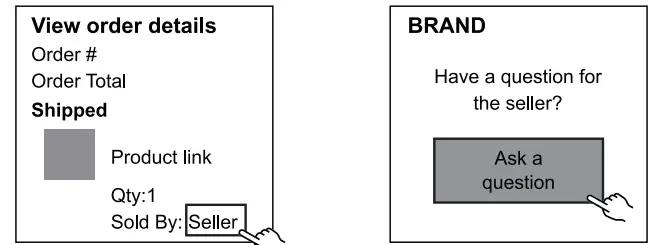
To provide customers with quality shopping and user experience, we guarantee to replace or issue a retund or provide acceptable solutions for any detective products (as Customers preter) trom the date of purchase up to 2 years. Proof of purchase must be provided (Amazon order number or receipt) when making a claim to our customer support center. Warranty registration may be requested within a month from the date of purchase, by sending your Amazon order number to the mailbox: [email protected]. The warranty is not transterable. We only provide warranty services to buyers who purchased from our Amazon store and possess the purchase proof, and not to any other purchaser or subsequent owner. Price matching policy is not applicable. No price difference refund. Sellers are the responsible party. Amazon allows different sellers to sell the same product, so please contirm the seller by checking the 2. Click View order details” order details before contacting us.
WHAT IS COVERED
- Received defective or used (proof needed) products.
- Received with missing parts.
- Detective item under proper use.
Manufacturer Support
WHAT IS NOT COVERED
- Purchased from non-Amazon channel or other physical stores.
- Gift without proof of purchase.
- lampering/ abnormal use/ accidental damage or commercial use.
- Replacements and parts.
- Installation fee/ labor fee.
MAKING A CLAIM
lf you have any problems when using our products, you can choose any of the methods to reach out to us.
- Toll free: 1-888-281-8150 (Mon-Fri, 10am-6pm EST)
- Email: [email protected] (24/7)
- 30 days free Return & Replacement
- 2-Year Product Warranty
Have a Question For The Seller?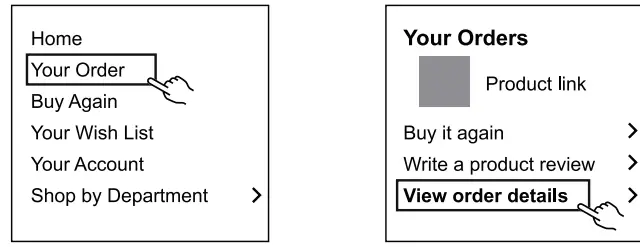
- Find your order
- Click View order details”

Gifted parts, replacements, consumable products are not covered by the 2-year warranty. Manutacturer’s warranties may not apply in all cases, depending on factors such as use of the product, where the product was purchased, or who you purchased the product from. Please review the warranty caretully, and contact the manutacturer it you have any questions.
FAQS
Can you wirelessly connect to a computer to display images (not for movie, video streaming)?
there are 2 methods to wirelessly connect to a computer, please check the following steps. Method A: Wireless Connection with WiFi
Can I connect to external wired speakers?
Yes, you can plug in the audio cable via output audio port and connect to the speaker.
For outdoor use, what is best size screen to get?
it with a 200” screen and the picture looks great. It claims you can use a screen up to 300”.
What wall/ceiling mount is recommended for this projector?
because this projector has only one mounting nut on the back, you can use a universal ceiling mount with tray or universal projector wall ceiling mount only need one mounting nut.
Can I use this for rear window projection for holiday decorations?
Yes,it support rear projection, here are the details about how to rear projection, press the “≡” button, press the “►” button to go to the “OPTION” page, then select “Rotate” and press the “OK” button to choose “Rear/Ceiling”.
How do i fix the hdcp issue? connecting roku directly to projector and i have unplugged everything and restarted and still not working.?
you can connect the firestick via HDMI port to watch videos from streaming software.
Is this projector true 1080p? How is the picture quality?
this projector has Full HD native 1080*1920 resolution. Incase of the picture quality, the Native 1080P 4K projector with a high 1920 x 1080 resolution can display clearer and more delicate image, supports 4K video playback. High 10000:1 contrast ratio enhances the color level of the picture. 10000 lumen improve the resistance to ambient light and offers brighter image. You can enjoy sharp, vivid and bright image in a dark environment
Does it make a lot of noise when operating? How is the sound quality?
this movie projector has dual built-in HiFi speakers, makes you feel like you are in a movie theater. Here is a video shared by our customer, you can feel the high quality and clear sound.
If you have any questions about the projector, please feel free to contact us at [email protected]
Does it matter what color the background is when playing a video? I wanted to use it in a dance studio, but not sure if it will work on mirrors.?
all the projector cannot project on mirror. It is recommended to project on a white wall or projector screen. Here is a video shared by our customers, he bought an additional projection screen and the projection is very good
What is the refresh rate of this projector?
all the projector cannot project on mirror. It is recommended to project on a white wall or projector screen. Here is a video shared by our customers, he bought an additional projection screen and the projection is very good
This projector Support 4K?
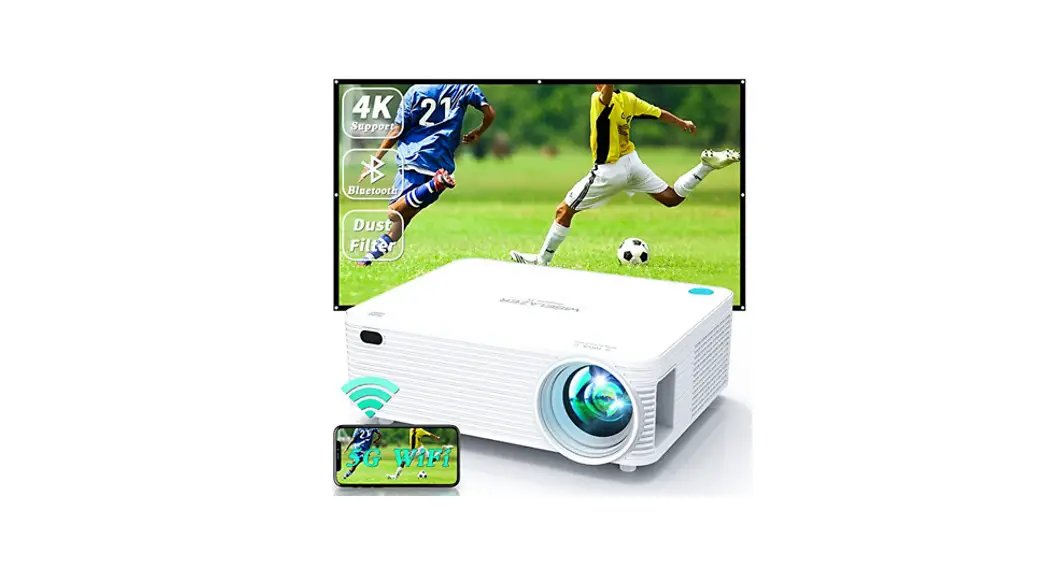
this Full HD home theater 4K projector has native 1080*1920 resolution, it supports 4K. As you can see the video of soccer match, this 4K projector creates sharp, bright and vivid image.
If you have any questions about the projector, please feel free to contact us at [email protected]
What are the zoom ratios?
The zoom ratio is from 50% to 100%. You can use the remote to zoon images, press the “≡” button, press the “►” button to go to the “PICTURE” page, then select “Reduce Display Size” and press the “OK” button, then press “►” to choose zoom ratio
I’m trying to watch a movie through the Roku but everything says hdcp unathorized content disabled. How do I fix this?
Roku Stick, and Google Chromecast via HDMI port to watch videos from streaming software. Wired connection via HDMI port also works, you can use an Apple Lightning Digital AV Adapter for iPhone, an HDMI cable for a PC or laptop, then you can see streaming videos from your device on projector.
What type of keystone correction does it have (ie. 4D 4P, 15 degree manual, etc)?
the keystone correction of this WiFi projector is 15 degree manual.
Why can’t I get past the language screen??
please press “OK” when your language is selected, then press “home” button to go to the main menu.