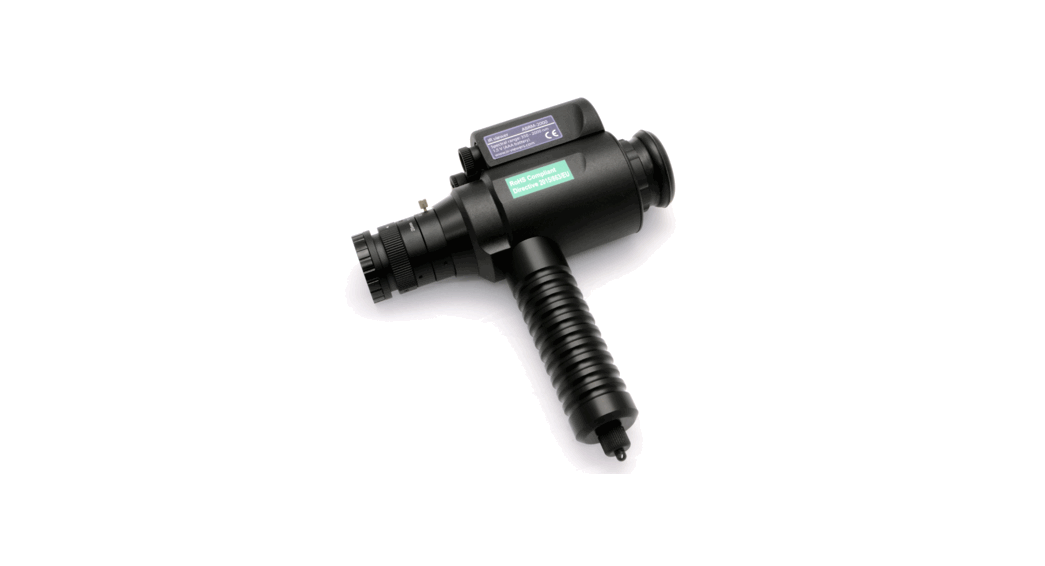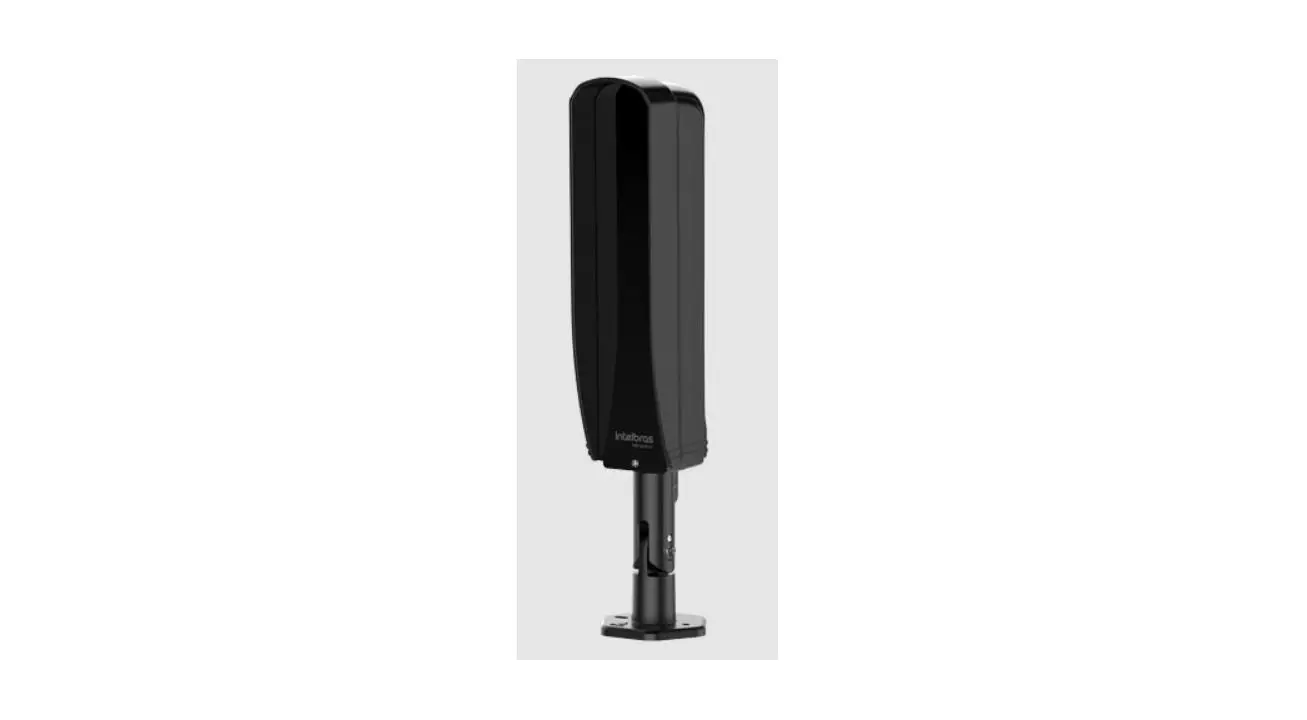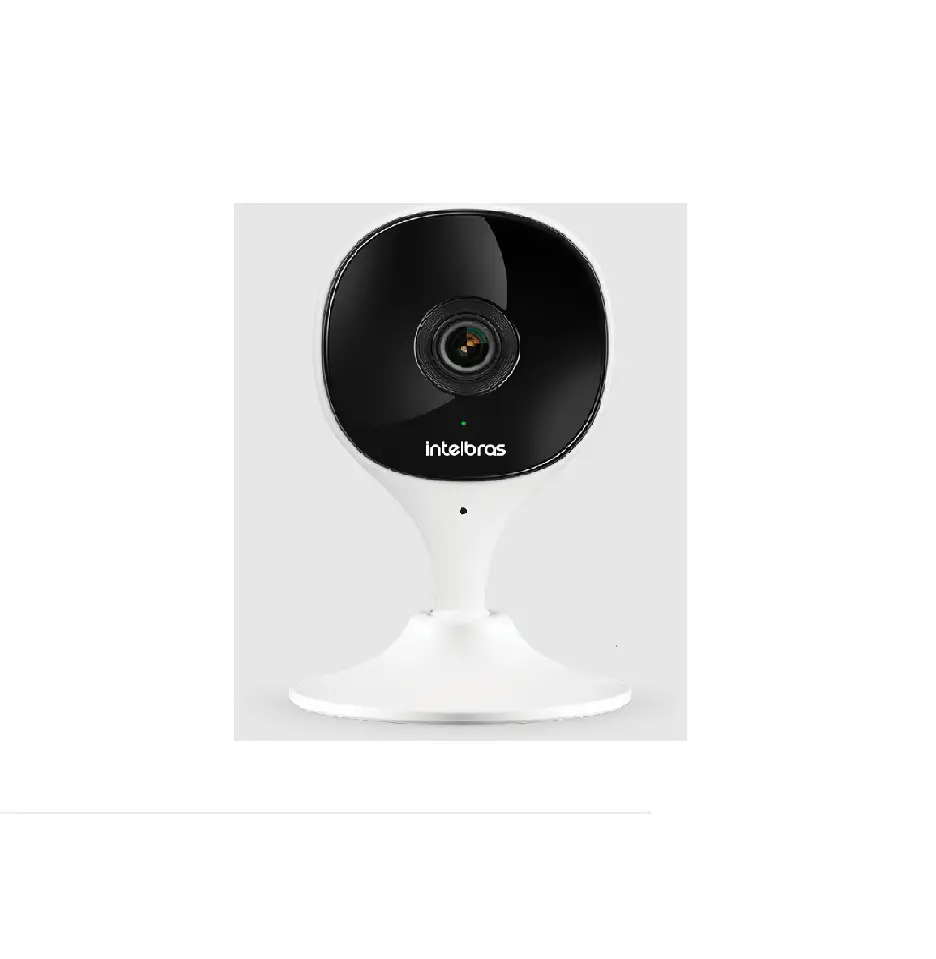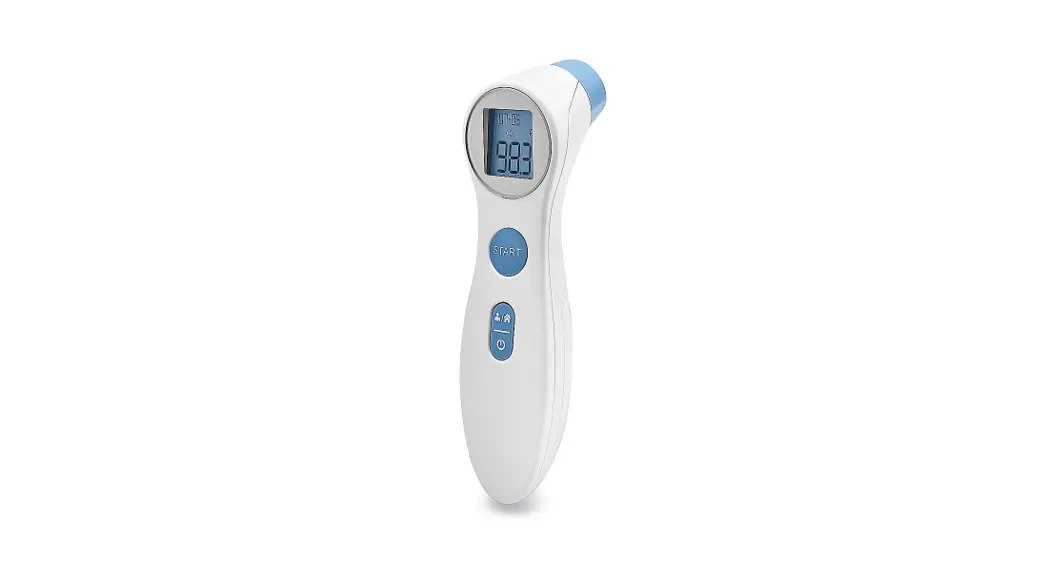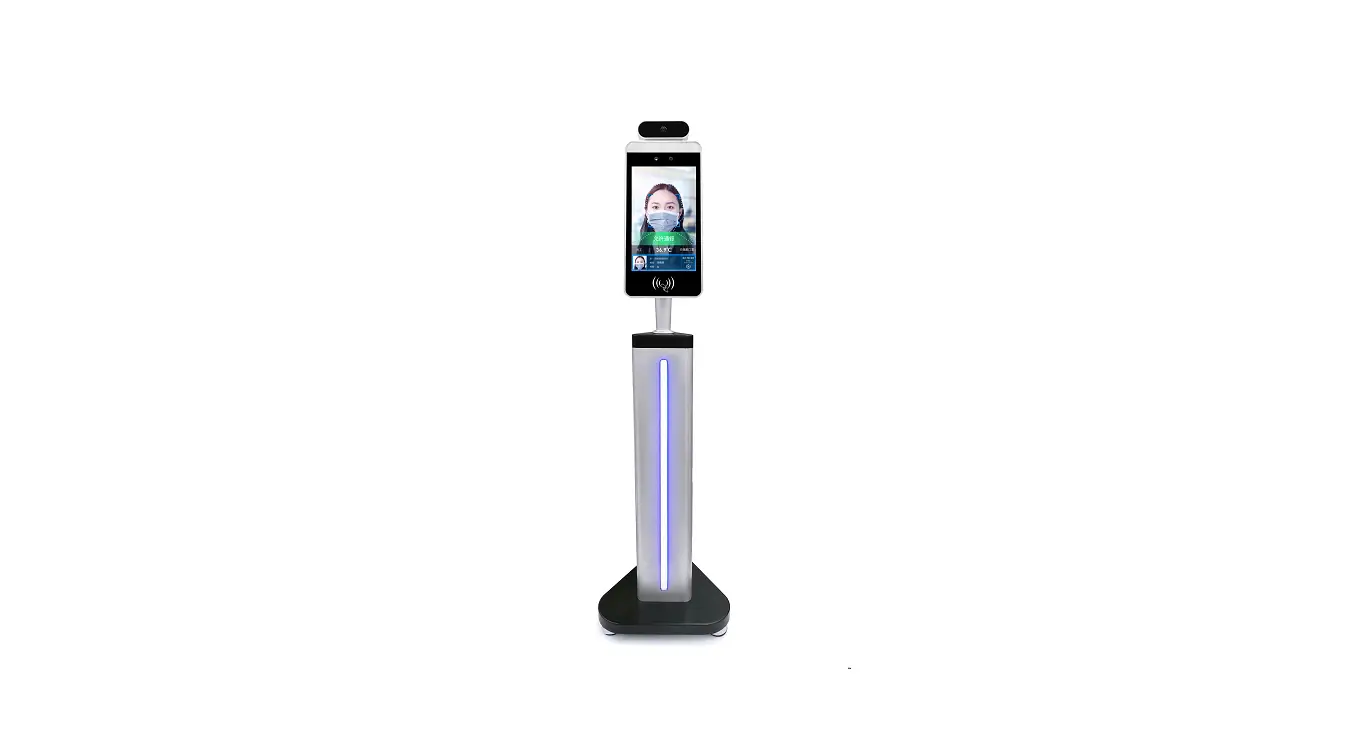

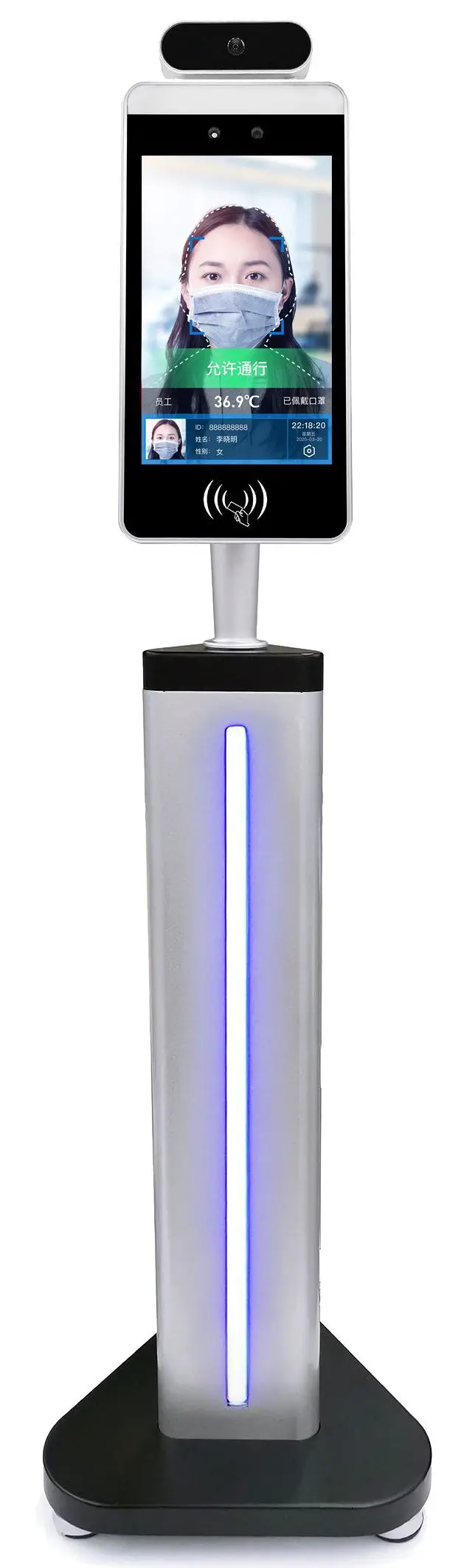
Ulsee A100 AI Infrared Monitor
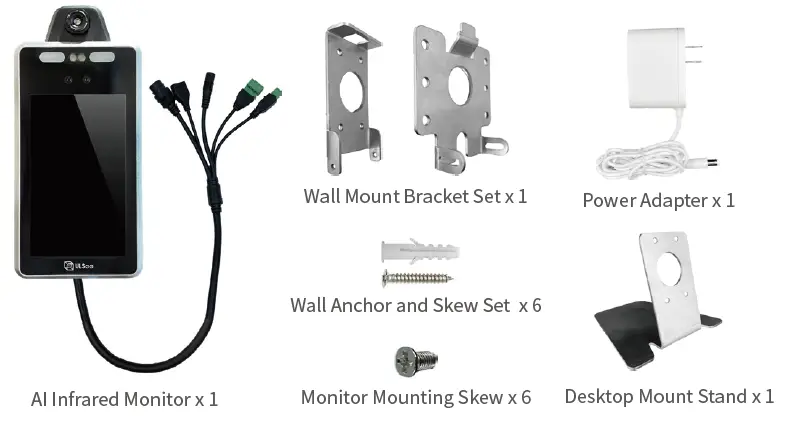
IN THE BOX
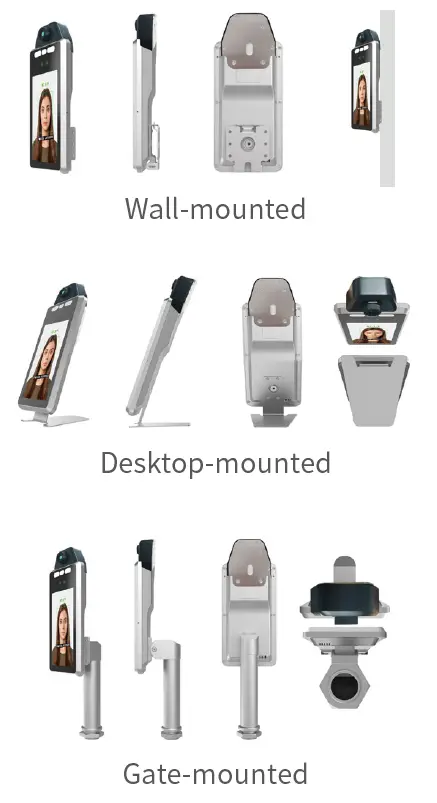
Choose a ULTI-A100 Mounting Option
- Wall Mount (incl. in standard packaging)
- Desktop Mount (incl. in standard packaging)
- Gate Mount (incl. in custom packaging only)

Hardware Installation
Wall-mount the AI Infrared Monitor
Push all cables through the center hole of the provided ULTI-A100 Monitor Bracket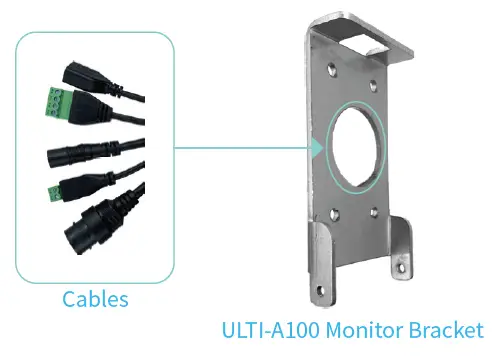
Fasten the ULTI-A100 to the ULTI-A100 Monitor Bracket with the 4 monitor mounting screws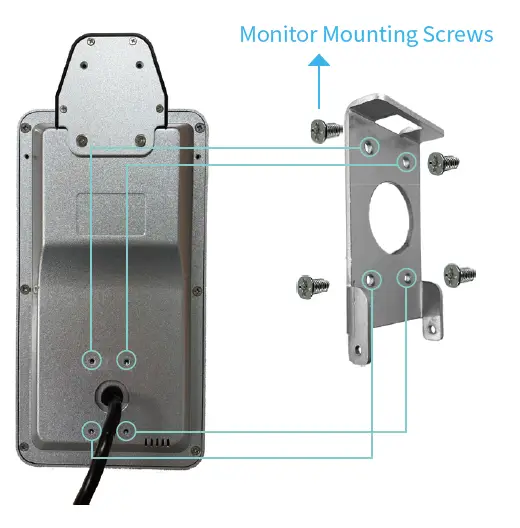
Fix the provided wall bracket on the wall with the wall anchor and screw sets provided 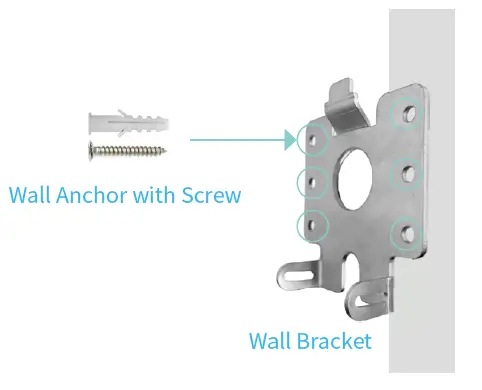
Attach the combined ULTI-A100 & ULTI-A100 Monitor Bracket unit to the wall bracket fi xed to the wall 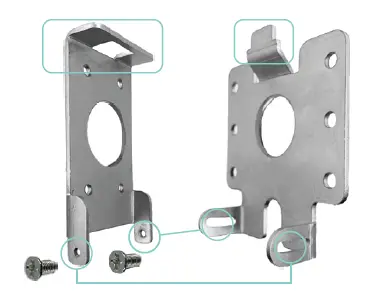
Desktop-mount the AI Infrared Monitor
Push all cables through the center-hole of the provided ULTI-A100 Desktop Mount Stand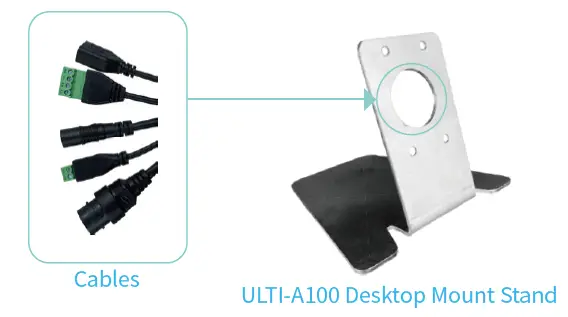
Fasten the ULTI-A100 to the ULTI-A100 Desktop Mount Stand with the 4 monitor mounting screws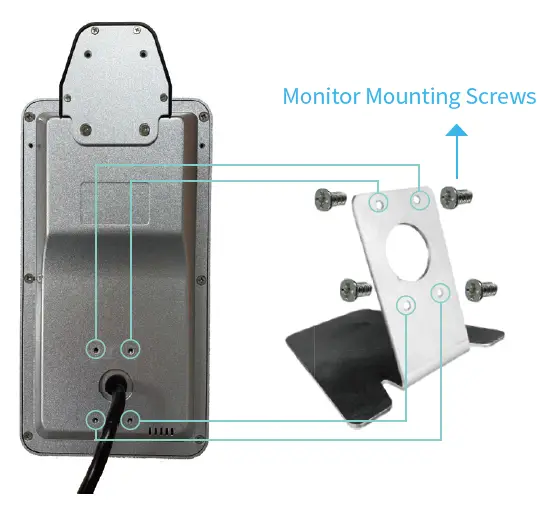
Gate-mount the AI Infrared Monitor
Push all cables through the center-hole of the provided tilt bracket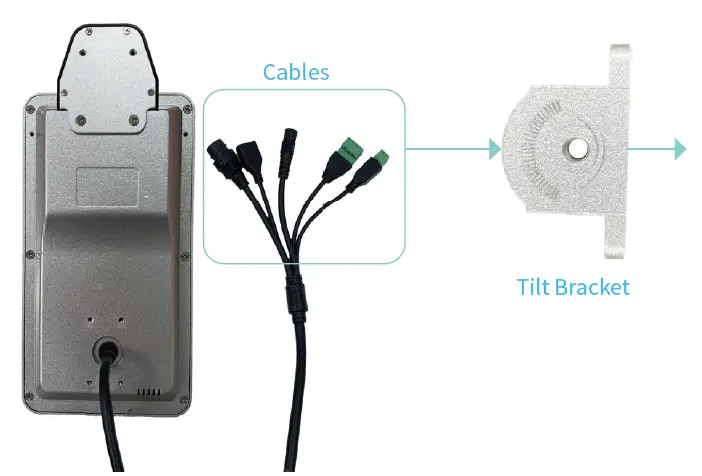
Attach the tilt bracket (with cables passing through it) to the ULTI-A100 using the monitor mounting screws 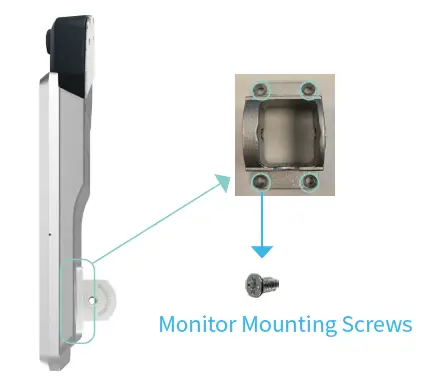
Gate-mount the AI Infrared Monitor
Attach the combined ULTI-A100 and tilt bracket unit (with cables passing through it) to the provided pipe of the gate-mount using the tilt bracket mounting screws provided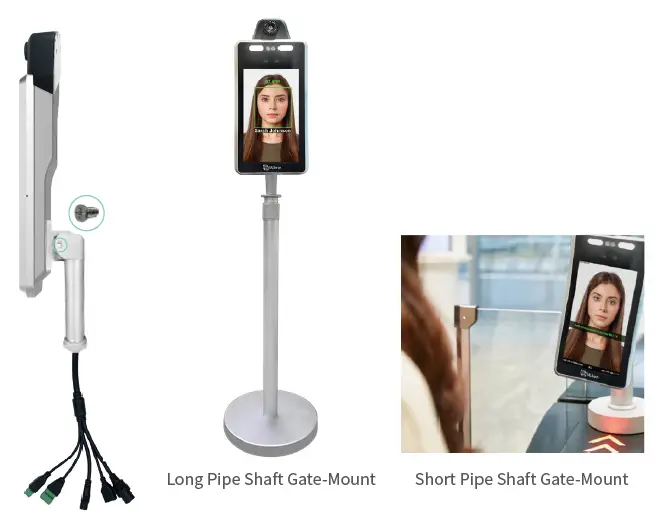
Plug-in the Power Supply and Network Cables
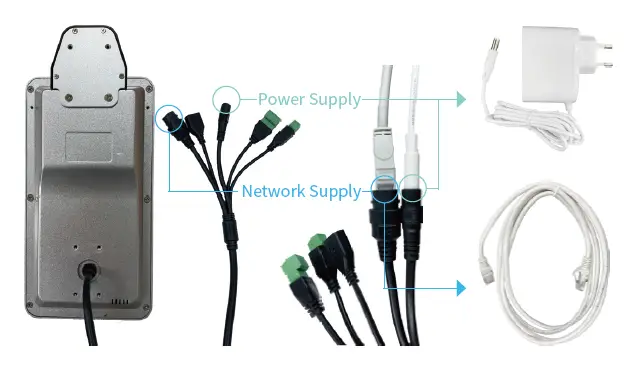
Plug-in the RJ-45 Ethernet and power supply cables into the ULTI-A100 unit and power-ON the ULTI-A100 unit
Note
The other end of the power supply cable must be connected to the power supply. The other end of the RJ-45 should be connected to a LAN-connected router, bridge or switch.
Software Confi guration (Web)
Wait for AI Infrared Monitor ULTI-A100 Units IP Address 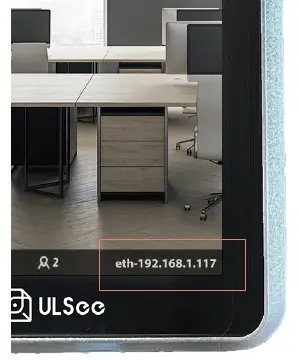
Plug-in the RJ-45 Ethernet and power supply cables into the ULTI-A100 unit and power-ON the ULTI-A100 unit
Accessing the ULTI-A100 Units Device Settings (Any Web Browser)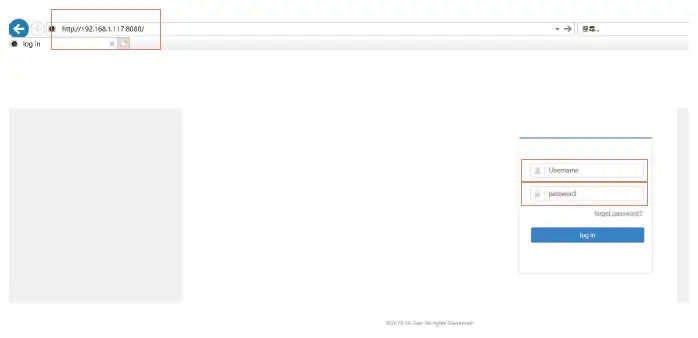
Type in the ULTI-A100s IP address and port number 8080 into the Internet Explorer Web browser of a Windows PC. Type in username admin, password admin123 and click on log in.
Viewing the Live Video Stream of an AI Infrared Monitor ULTI-A100 Unit (Windows Internet Explorer Web Browser only)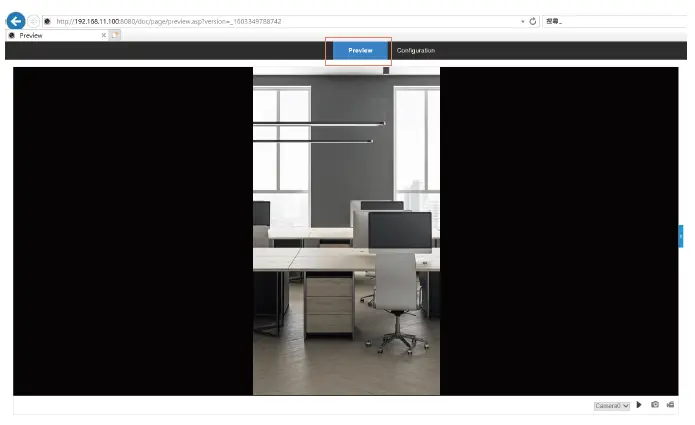
Click on Preview to view the live video stream from an AI Infrared Monitor ULTI-A100 units camera, choose the camera from the drop-down menu from the bottom-right set of controls and click the button.
Accessing All ULTI-A100 Units Confi guration Settings (Any Web Browser)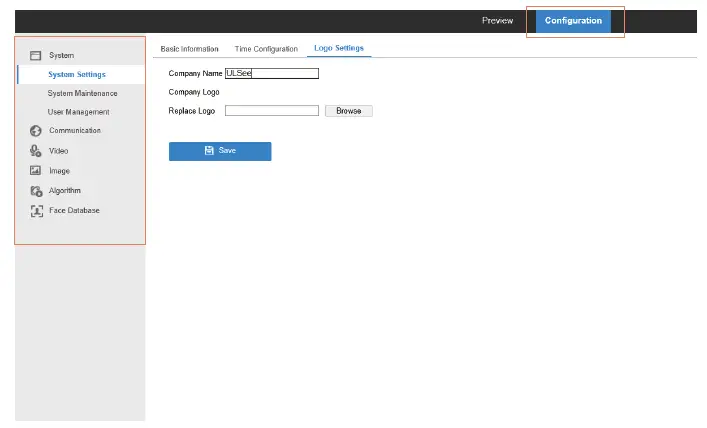
Click on Confi guration to access the confi guration settings menu. The confi guration settings menu can be found on the left-side pane.
Confi during the ULTI-A100 Units Panel Display Settings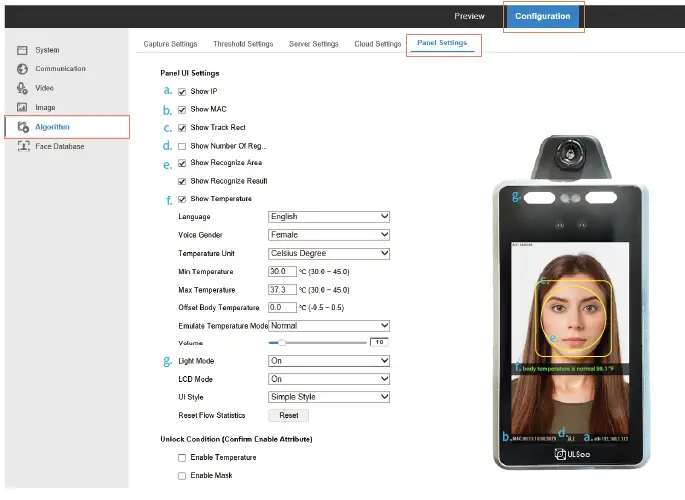
Click on Confi guration > Algorithm > Panel Settings to confi gure the panel UI settings as well as panel sound-picture settings for stranger warning alerts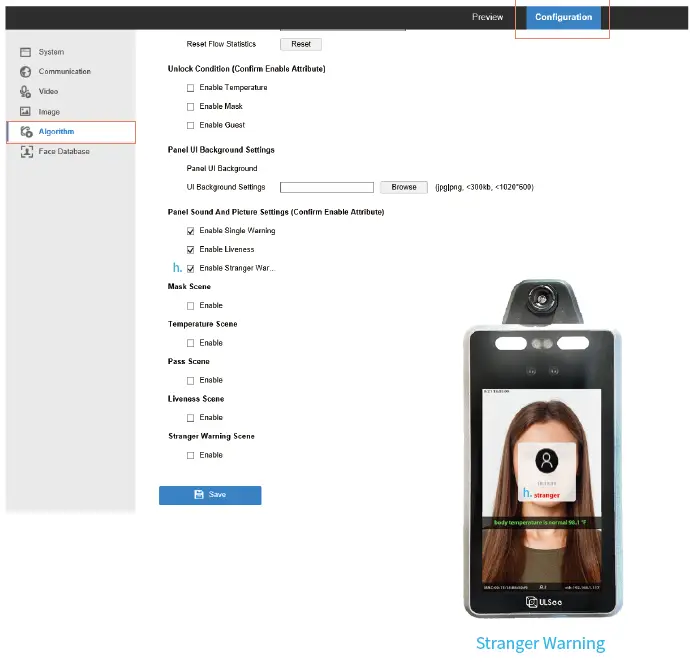
Confi guring the ULTI-A100 Units Body Temperature and Protective Face Mask Temperature Detection Settings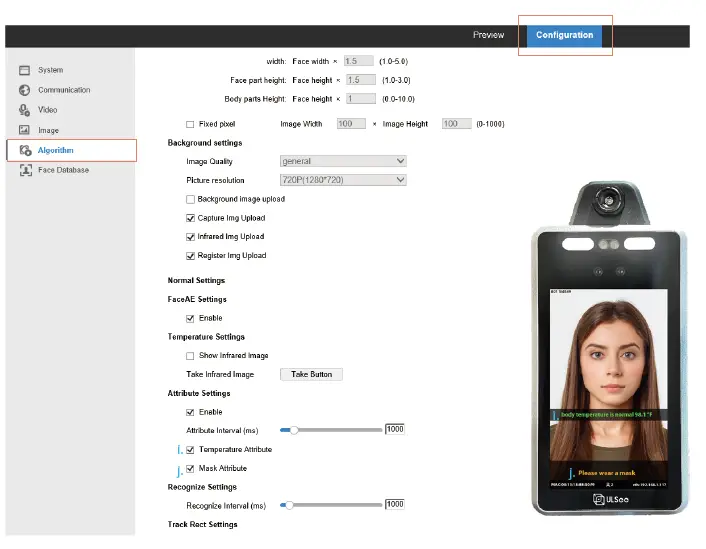
Click on Confi guration > Algorithm > Capture Settings to confi gure the Body Temperature and Protective Face Mask detection settings
Adding the Users Data into the Face Database (Any Web Browser)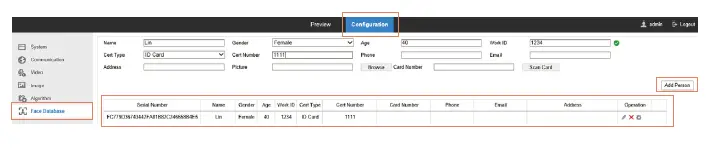
- Click on Confi guration > Face Database to add users data into the face database
- Enter a users personal ID data, work ID data, contact data, personal ID certification data, and work ID certification data
- Click on Add Person
Upon successful addition of user data, the users record appears as shown below.
Software Confi guration (iOS)
Open the All-in-One ULTI-A100 Product Page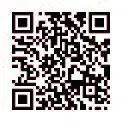
Enter URL https://tinyurl.com/y6nu4x9w into a Web browsers Address fi eld or scan the QR code above, to quickly access the AI Monitor Product Page.
 AI Infrared Monitor AIO