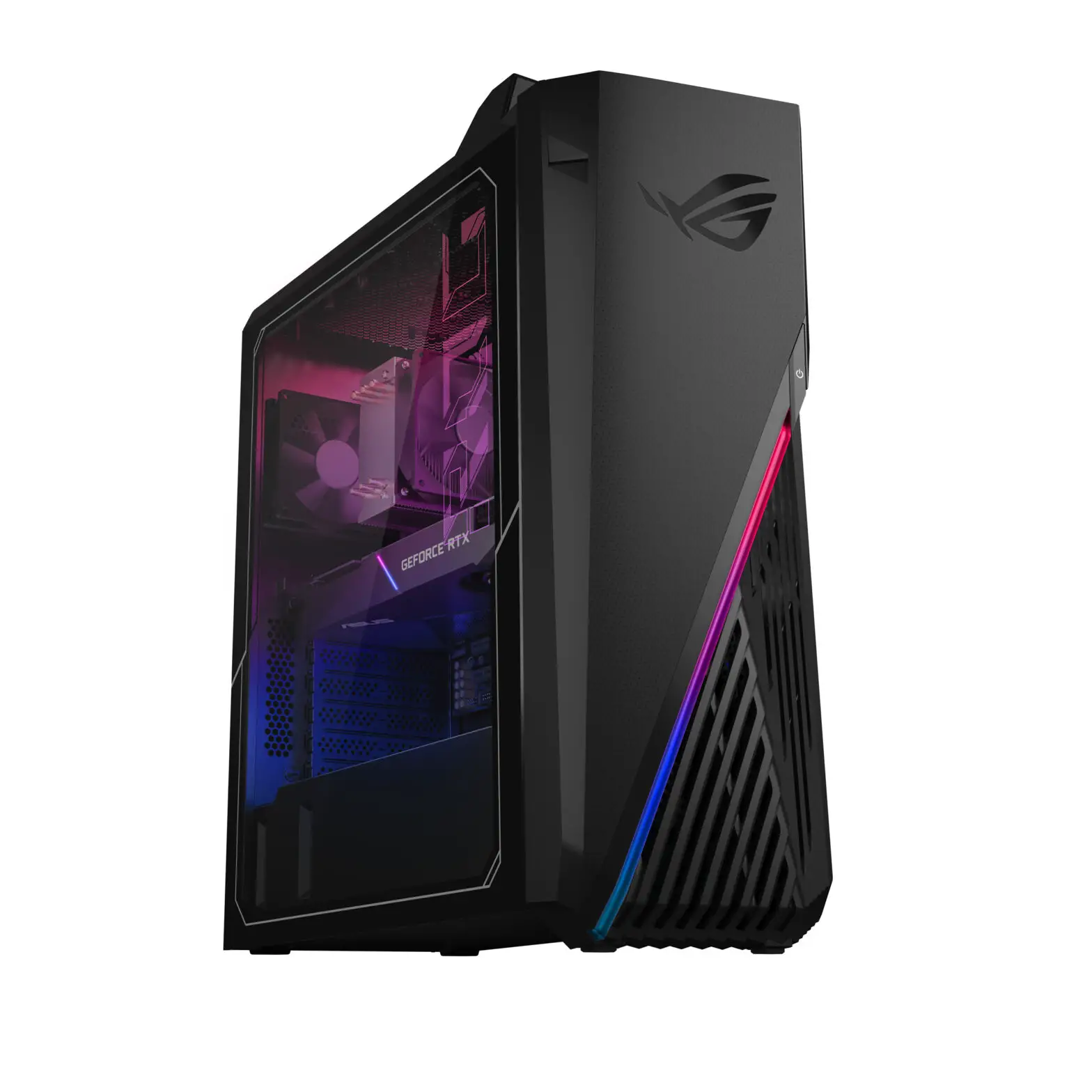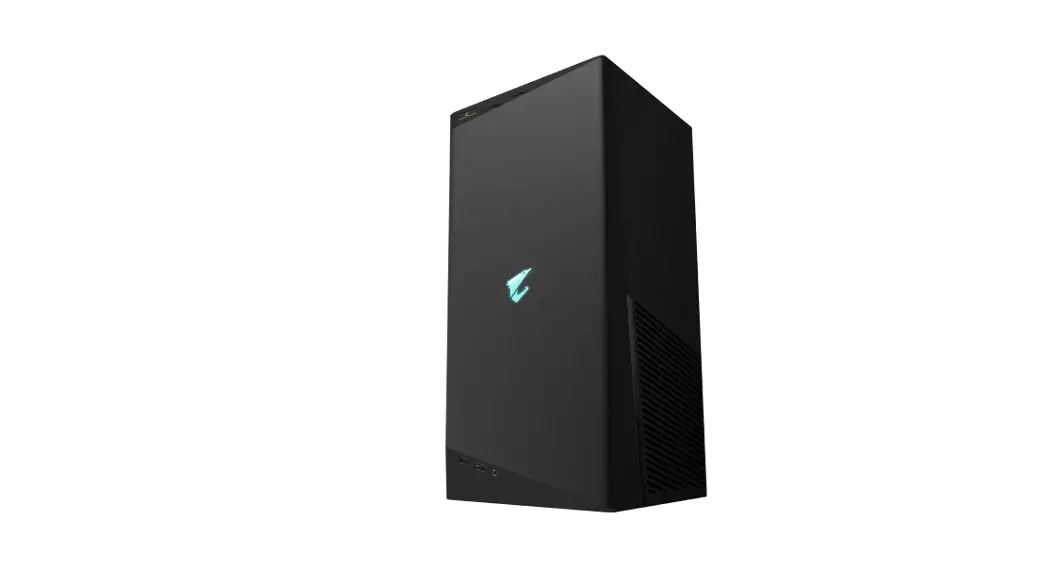
 CYBERPOWERPC GXiVR8060A11 Gamer Xtreme VR Gaming PC
 CYBERPOWERPC GXiVR8060A11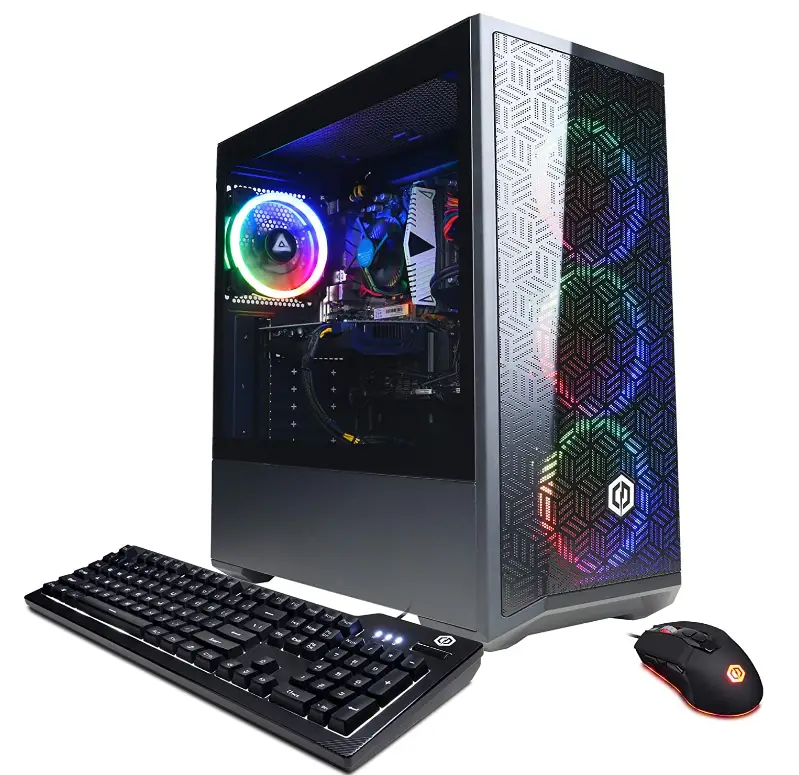
SPECIFICATION
- SPECIFIC USES FOR PRODUCT: Gaming
- BRAND: CyberpowerPC
- PERSONAL COMPUTER DESIGN TYPE: Computer Tower
- OPERATING SYSTEM: Windows 11 Home
- MEMORY STORAGE CAPACITY: 500 GB
- SCREEN SIZE:1
- RAM MEMORY INSTALLED SIZE: 8 GB
- SERIES: Gamer Xtreme VR
- INCLUDED COMPONENTS: Desktop, Keyboard, Mouse, Power Cord
- CPU MODEL: Core i5
- PROCESSOR: 6 GHz core_i5
- RAM: 8 GB DDR4
- HARD DRIVE: 500 SSD
- GRAPHICS COPROCESSOR: NVIDIA GeForce RTX 2060
- CHIPSET BRAND: NVIDIA
- CARD DESCRIPTION: Dedicated
- GRAPHICS CARD RAM SIZE: 6 GB
- WIRELESS TYPE: 802.11ab
INTRODUCTION
With the gaming desktops from the CYBERPOWERPC Gamer Xtreme VR series, crush the competition. In order to efficiently handle system-intensive tasks like high definition video playback and gaming, the Gamer Xtreme VR series is equipped with the most recent generation of high performance Intel Core processors and ultra-quick DDR RAM. The Gamer Xtreme VR series offers a fluid gaming and multimedia experience when combined with strong discrete video cards.
QUICK START GUIDE
CYBERPOWERPC takes great pride in delivering you a high quality product So please follow the steps below to ensure your system is properly prepared for operation before turning on your computer.
STEP 1: PACKAGING FOAM REMOVAL (IF INSTALLED WITH YOUR PURCHASE)
Some systems may include a protective foam inside the case that must be removed before turning on the computer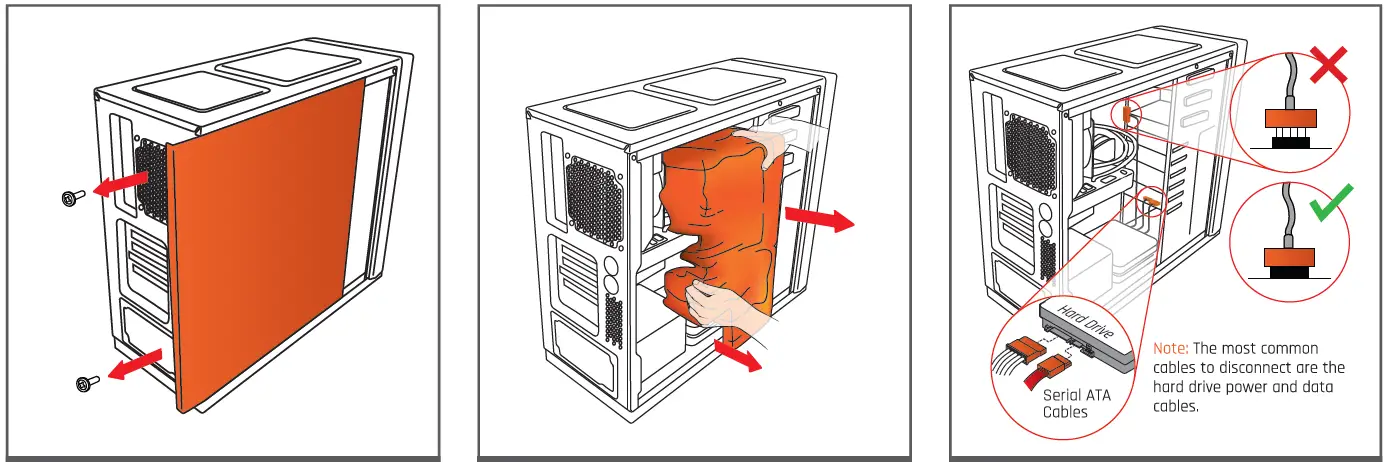
- Remove screws from left side panel and remove the panel.
- Always carefully remove the protective foam before turning on.
- Inspect all cables to ensure none were disconnected during shipping.
STEP 2: CONNECTING YOUR DISPLAY
Some systems will have an add-on graphics card, please see below to identify which monitor connector you should be using.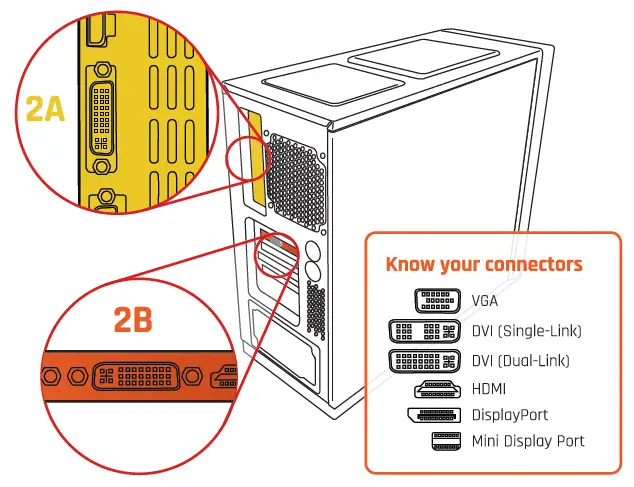
Always Connect your display to the ports at 28, however, if you don’t have connectors there then use the connectors at 2A.
STEP 3: CONNECTING YOUR PERIPHERALS
Connect your peripherals such as your mouse, keyboard, speakers, headset and network to the appropriate ports.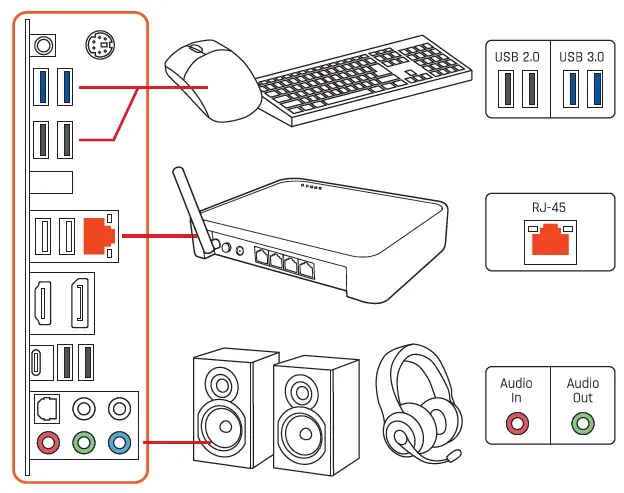
Note most peripherals today are color coordinated s0 when in doubt match the color of the connectors together with the matching ports on the system.
STEP 4: POWERING ON YOUR SYSTEM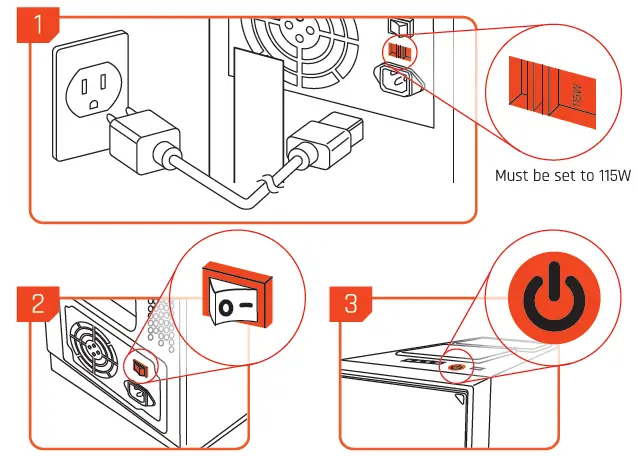
Use the included power cord and connect the cable to your system’s power supply and the other end to a wall outlet.
Remember you may need switch on the system’s power supply first before you can power on your Computer with the front power button. (fig.2)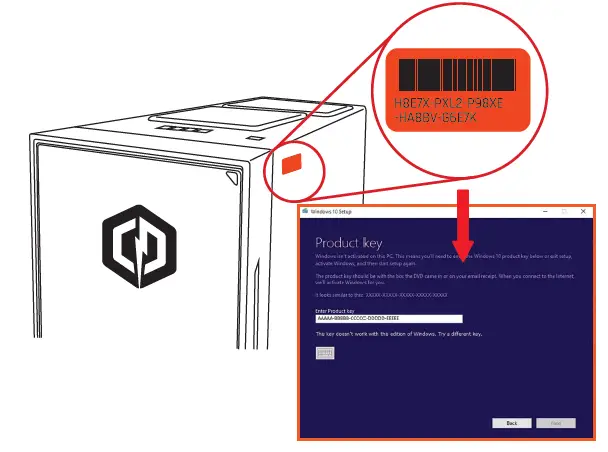
Copy the code exactly as it is on the sticker. It is also recommended that you take a picture of the sticker too keep as a reference, (Don’t have one? See FAQ for details.)
FAQs
Which motherboard is this computer using?
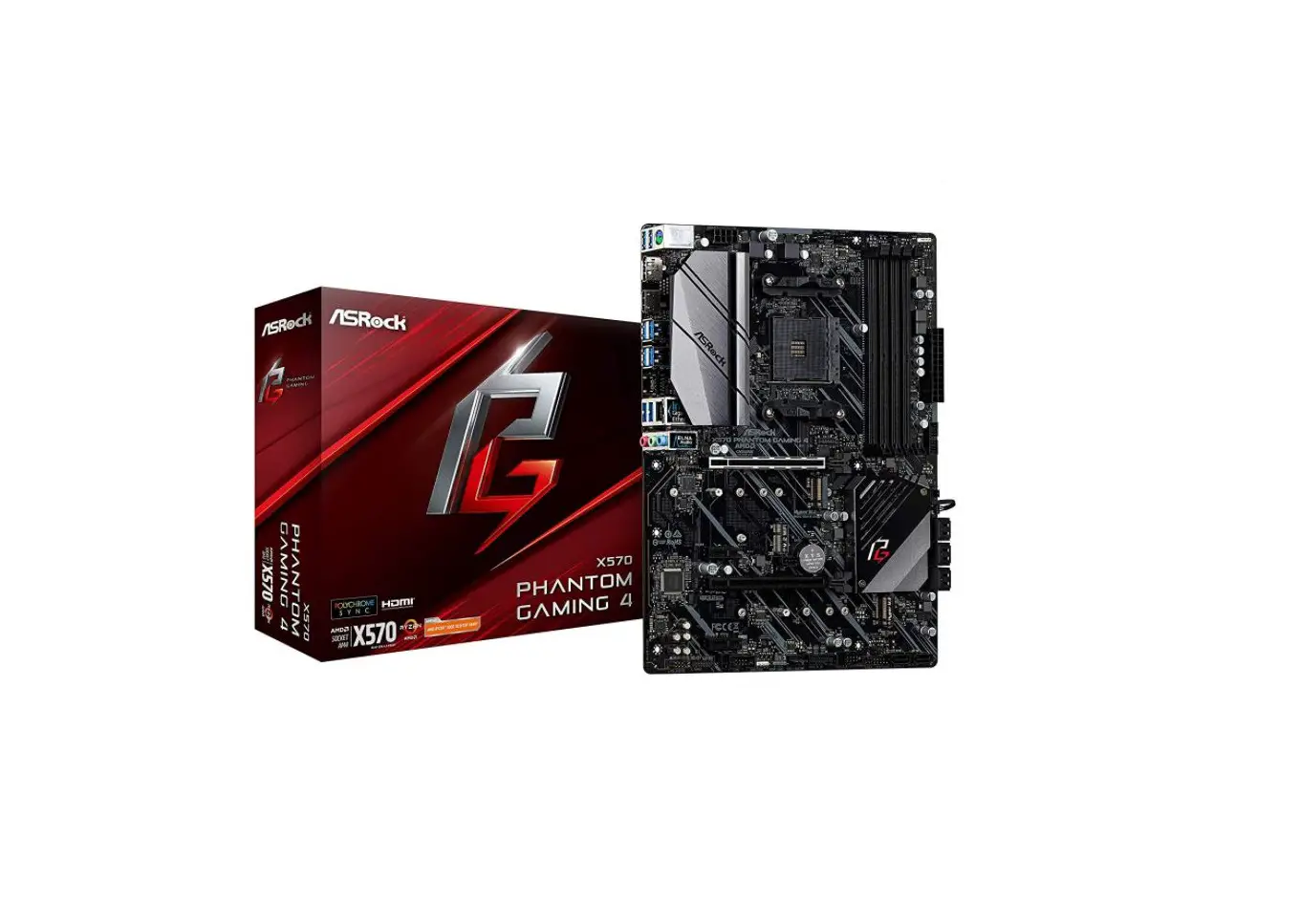
The motherboard on my is an AS rock 560 Wi-Fi. My own was purchased from Cyberpower.
Does the computer have built-in Bluetooth?
Bluetooth is present.
Can additional internal hard drives be added?
Yes, I put a 2TB HDD to the system. 2.5 in, I think
Will this work with T-Force Delta 16GB 3600MHz RAM?
Yes, that will work.
What is the maximum processor that the motherboard can support? Could I, for instance, update the CPU to an i9 core?
The motherboard is compatible with Intel Core series CPUs from the 11th and 10th generations. For instance, the motherboard is compatible with an i9 11900k processor.
What kind of Fortnite performance mode does this ox use?
First, I’d advise adding extra RAM—at least 16GB. Fortnite works smoothly and smoothly at Ultra-settings for me. (I have 32 RAM, but 16 would work just as well.)
Does this tower contain 3.5 HDD bays or only SSD bays?
It features three or four HDD drive slots.
Can I update my RAM to 16 GB?
Yes. The system includes 4 memory slots, so if you use 32GB memory sticks, you can actually upgrade it all the way to 128GB.
What is the ram alr’s MHz speed?
The one I have was an 8GB 3200MHz CL16.
Can you play the original game and all expansions for World of Warcraft?
Yes
Why do I only have access to ethernet as a WIFI option when the pc boots up? I attempted a few fixes and screwed in the antennas.
I think you need to select Networks & Internet from the start menu, then switch on Wi-Fi. Following that, you ought should be able to select the Wi-Fi network and input the password.
Can a WIFI card be installed for improved connection? Which one, if any?
My wife, my children, and I each have a few of these gaming desktops. They come with built-in dual-band a/b/g/n wireless and gigabit ethernet (2.4/5 GHz). There is no need to include a second card.
Is thermal paste used on this desktop?
It is already built, so you won’t need to add thermal paste unless you swap out the stock Intel CPU cooler for a new one; in that case, the new cooler ought to have some as well.
Is it possible for you to upgrade your graphics card in the future?
If the graphic card fits the casing, then yes, you can.
Can this run Warzone smoothly?
I believe Warzone would operate smoothly on this computer because my son uses a laptop with fewer features than this one without any problems.