
API User Manual v.1.0
Spectrum Compact 0.3 3 GHz v2 Handheld Analyzer
Spectrum Compact 0.3-3 GHz v2 (J0SSAP33)
Spectrum Compact 2-8 GHz v2 (J0SSAP55)
Spectrum Compact 6-20 GHz v2 (J0SSAP52)
Spectrum Compact 16–26.5 GHz v2 (J0SSAP53)
Spectrum Compact 24–40 GHz v2 (J0SSAP74)
Spectrum Compact 24–43 GHz v2 (J0SSAP54)
FCC Compliance statement
This equipment has been tested and found to comply with the limits for a Class B digital device, pursuant to part 15 of the FCC Rules. These limits are designed to provide reasonable protection against harmful interference in a residential installation. This equipment generates, uses, and can radiate radio frequency energy and, if not installed and used in accordance with the instructions, may cause harmful interference to radio communications. However, there is no guarantee that interference will not occur in a particular installation. If this equipment does cause harmful interference to radio or television reception, which can be determined by turning the equipment off and on, the user is encouraged to try to correct the interference by one or more of the following measures:
- Reorient or relocate the receiving antenna.
- Increase the separation between the equipment and receiver.
- Connect the equipment into an outlet on a circuit different from that to which the receiver is connected.
- Consult the dealer or an experienced radio/TV technician for help.
 Changes or modifications not expressly approved by the party responsible for compliance could void the user’s authority to operate the equipment. Spectrum Compact does not contain serviceable parts. Warranty will not be applicable in the event Spectrum Compact has been opened.
The information presented in this guide is the property of SAF Tehnika, JSC. No part of this document may be reproduced or transmitted without proper permission from SAF Tehnika, JSC. The specifications or information contained in this document are subject to change without notice due to continuing introduction of design improvements. If there is any conflict between this document and compliance statements, the latter will supersede this document. SAF Tehnika, JSC has no liability for typing errors in this document or damages of any kind that result from the use of this document.
To get up to date information about accessories and their availability, please contact the sales representative.
Copyright Notice
Copyright © 2022 SAF Tehnika, JSC. All rights reserved.
Introduction
Welcome to the Spectrum Compact family!
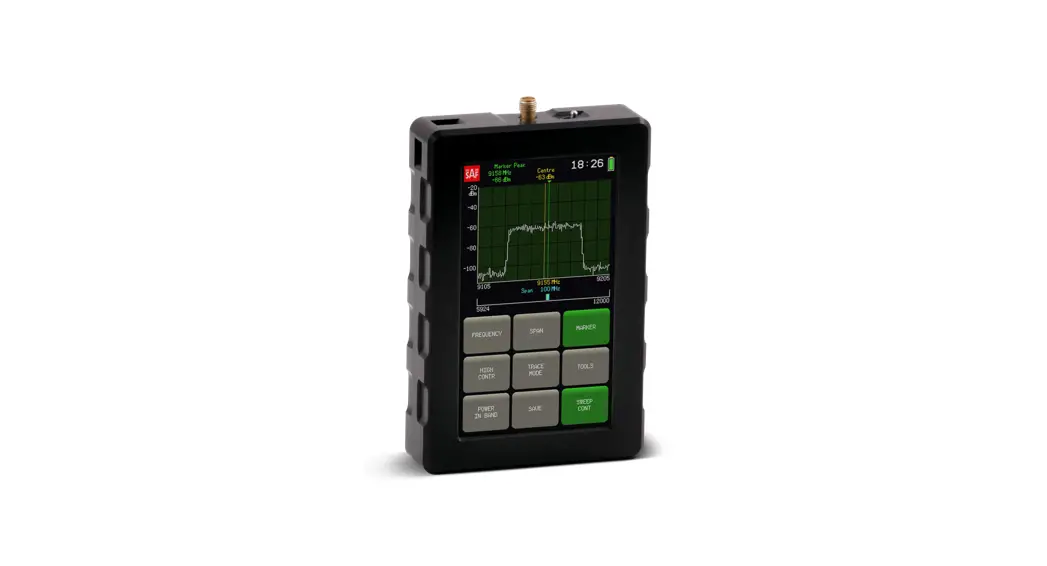
Spectrum Compact is a handheld, field-ready spectrum analyzer. This guide is prepared to show you how to install and use Spectrum Compact via Application Programming Interface (API). The guide will contain two tutorials that show you how to communicate with Spectrum Compact via a USB interface. Spectrum Compact driver installation
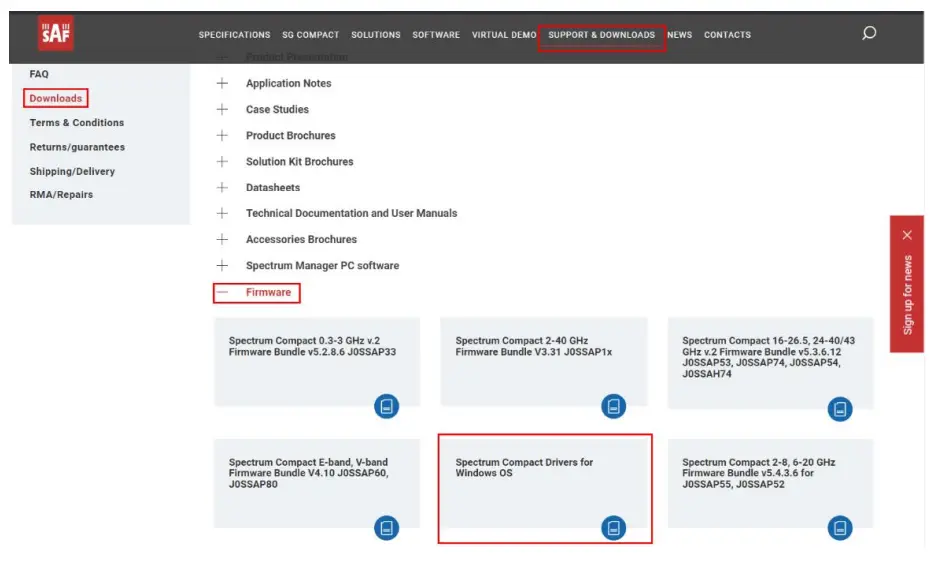
is available to download from https://spectrumcompact.com/ inSUPPORT&DOWNLOADS→Downloads→Firmware section.
Installing Spectrum Compact drivers
These drivers enable you to communicate with Spectrum Compact via a USB interface.
Spectrum Compact Windows driver is available to download from https://spectrumcompact.com/ in SUPPORT&DOWNLOADS→Downloads→Firmware section. After selecting the relevant Spectrum compact model, you will be prompted to enter registration credentials. Once the registration process is complete you will be able to download the relevant Spectrum Compact download package.
Follow these simple installation steps:
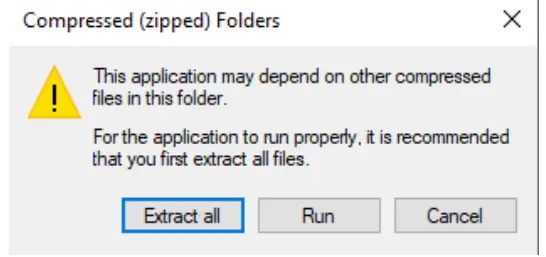
- Installation Wizard will check if the downloaded installation file is unzipped. If not, then the following message will guide you through the installation process.
A dialog box will appear.
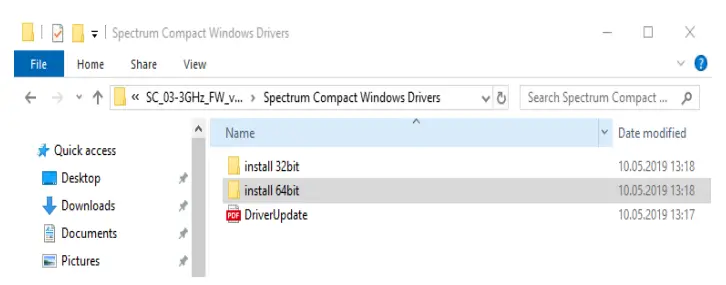
Please note that installing all Spectrum Compact driver installation files is a prerequisite to communicate with Spectrum Compact. - Click Extract all, and unzip Windows driver installation file.
- Choose a supported Operating system.

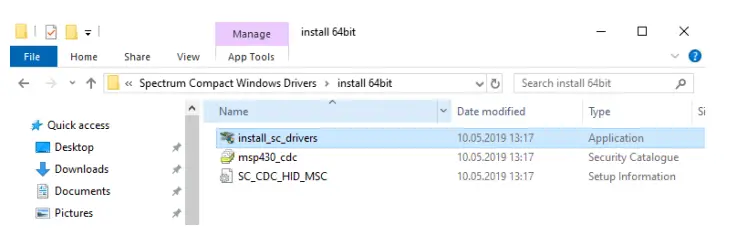
Begin the installation process by double-clicking on install_sc_drivers application file
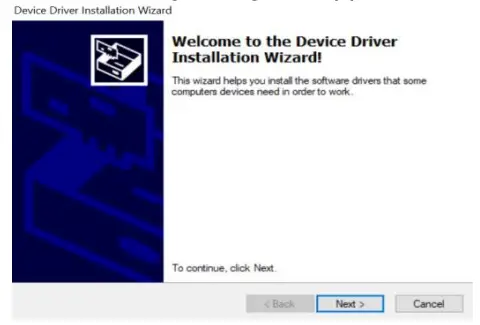
- Click Next, when the following dialog box appears.

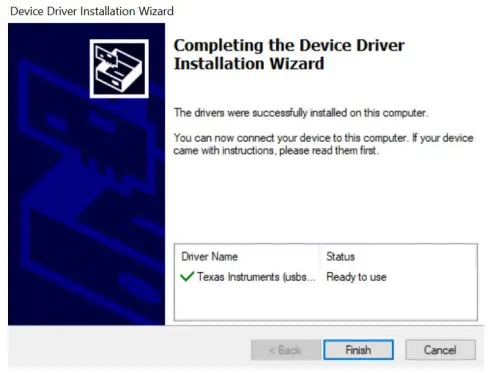
- Click Finish, to finish the driver installation.

Establish PC connection with Spectrum Compact
Locate and open “Control panel” in Windows OS and choose “Windows Device Manager”.
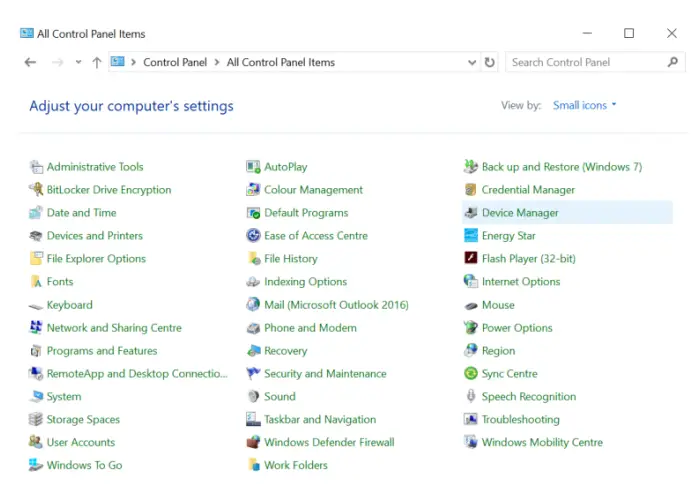
Before connecting Spectrum Compact to PC locate COM ports that have been used by other devices.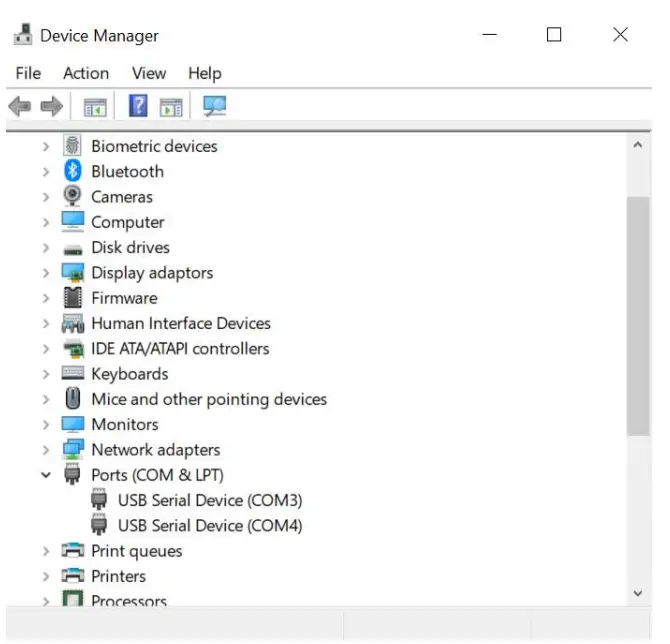
Turn on Spectrum Compact unit and turn on the VCP mode under the TOOLS&SETTINGS -> SERVICE MENU -> USB MODE.
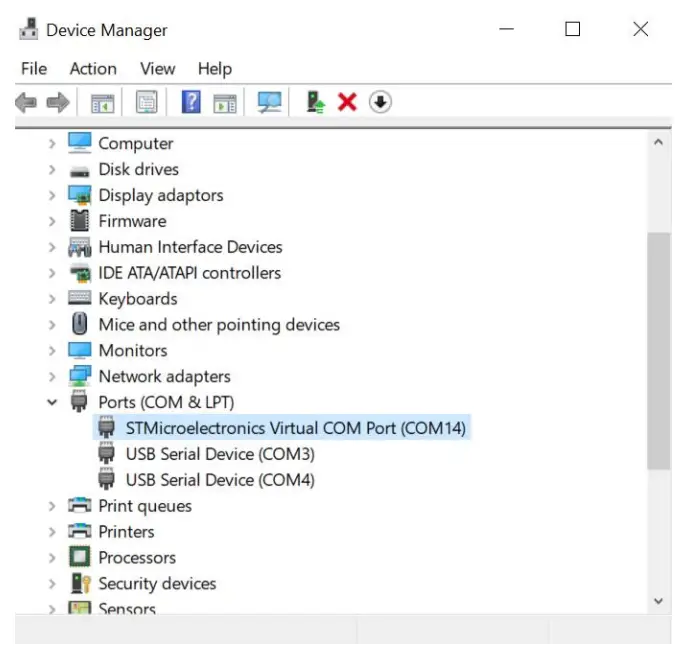
Connect Spectrum Compact to PC and identify COM port that will be used to communicate between PC and Spectrum Compact.
Right-click on the new COM port in the “Ports” list. Then choose properties and change default communication settings.

This COM port will allow you to send and receive API commands to Spectrum Compact.
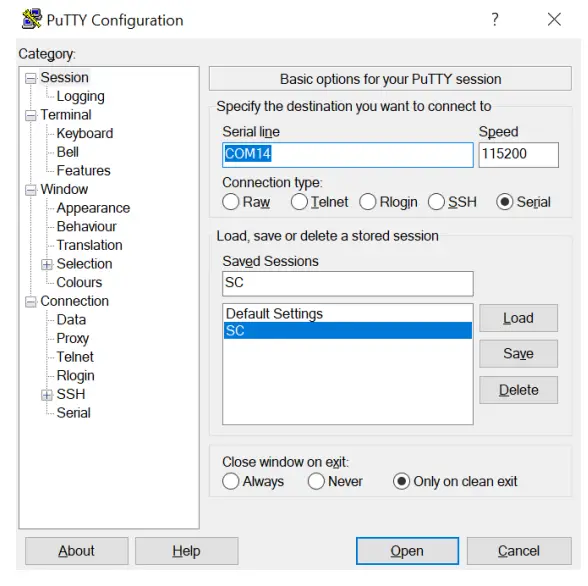
Open any terminal emulator program such as Termite or Putty. Change connection type to “Serial”. Change the default COM port to the COM port that has been identified as the COM port for Spectrum Compact and also change “Speed” to 115200.
Click Open and launch a new Spectrum Compact terminal window.
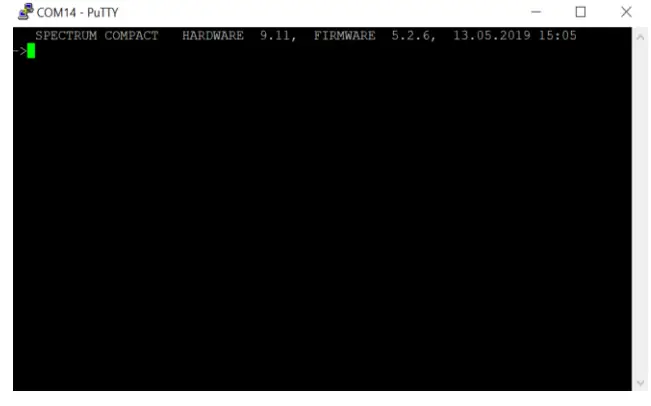 With Spectrum Compact API commands, you will be able to configure Spectrum Compact device and control measurement parameters.
Spectrum compact API command line commands Table 1
| Num | Frequency range | 0.3-3 GHz | 2-8 GHz | 6-20 GHz | 16-26.5GHz | 24-40 GHz | 24-43 GHz |
| FW version | V 5.2.8.6 | V 5.4.3.6 | V 5.4.3.6 | V 5.3.6.12 | V 5.3.6.12 | V 5.3.6.12 | |
| Product number (P/N) | JOSSAP33 | JOSSAP55 | JOSSAP52 | JOSSAP53 | JOSSAP74 | JOSSAP54 | |
| 1 | ? | Yes | Yes | Yes | Yes | Yes | Yes |
| 3 | ver | Yes | Yes | Yes | Yes | Yes | Yes |
| 3 | freq | Yes | Yes | Yes | Yes | Yes | Yes |
| 4 | stop | Yes | Yes | Yes | Yes | Yes | Yes |
| 5 | trace | Yes | Yes | Yes | Yes | Yes | Yes |
| 6 | trace < 1– 8 > | Yes | Yes | Yes | Yes | Yes | Yes |
| 7 | Ina | Yes | Yes | Yes | N/A | N/A | N/A |
| 8 | Ina< 0 – 1 > | Yes | Yes | Yes | N/A | N/A | N/A |
| 9 | bwidth | Yes | Yes | Yes | Yes | Yes | Yes |
| 10 | bwidth <1013011001300><1131101301100> | Yes | N/A | N/A | N/A | N/A | N/A |
| bwidth <301100130011000><1131101301100> | Mr | Yes | Yes | N/A | N/A | N/A | |
| bwidth <100130011000><1131101301100> | N/A | N/A | N/A | Yes | Yes | Yes | |
| 11 | att | Yes | Yes | Yes | Yes | N/A | N/A |
| 12 | att < 0 — 31 > | Yes | Yes | Yes | Yes | N/A | N/A |
| Num | Frequency range | 0.3-3 GHz | 2-8 GHz | 6-20 GHz | 16-26.5GHz | 24-40 GHz | 24-43 GHz |
| FW version | V 5.2.8.6 | V 5.4.3.6 | V 5.4.3.6 | V 5.3.6.12 | V 5.3.6.12 | V 5.3.6.12 | |
| Product number (P/N) | J0SSAP33 | J0SSAP55 | J0SSAP52 | J0SSAP53 | J0SSAP74 | J0SSAP54 | |
| 13 | sweepu | Yes | Yes | Yes | Yes | Yes | Yes |
| 14 | sweepu <start> <end> <step>kHz | ||||||
| Minimum start frequency | 300000 kHz | 2000000 kHz | 6000000 kHz | 16000000 kHz | 24000000 kHz | 24000000 kHz | |
| Maximum end fíequency | 3000000 kHz | 8000000 kHz | 20000000 kHz | 26500000 kHz | 43000000 kHz | 43000000 kHz | |
| Min. span (end freq. – start freq.) | |||||||
| if RBW = 10 kHz | 500 kHz | N/A | N/A | N/A | N/A | N/A | |
| if RBW = 30 kHz | 1500 kHz | 1500 kHz | N/A | N/A | N/A | N/A | |
| if RBW = 100 kHz | 5000 kHz | 5000 kHz | 5000 kHz | 5000 kHz | 5000 kHz | 5000 kHz | |
| if RBW = 300 kHz | 15000 kHz | 15000 kHz | 15000 kHz | 15000 kHz | 15000 kHz | 15000 kHz | |
| if RBW = 1000 kHz | N/A | N/A | 50000 kHz | 50000 kHz | 50000 kHz | 50000 kHz | |
| Minimal frequency step | |||||||
| if RBW = 10 kHz | 2 kHz | N/A | N/A | N/A | N/A | N/A | |
| if RBW = 30 kHz | 7 kHz | 7 kHz | N/A | N/A | N/A | N/A | |
| if RBW = 100 kHz | 25 kHz | 25 kHz | 30 kHz | 30 kHz | 30 kHz | 30 kHz | |
| if RBW = 300 kHz | 75 kHz | 75 kHz | 75 kHz | 75 kHz | 75 kHz | 75 kHz | |
| if RBW = 1000 kHz | N/A | N/A | 250 kHz | 250 kHz | 250 kHz | 250 kHz | |
| Maximal frequency step | |||||||
| for all RBW settings | 10000 kHz | 10000 kHz | 10000 kHz | 10000 kHz | 10000 kHz | 10000 kHz | |
| 15 | gain | Yes | Yes | Yes | N/A | N/A | N/A |
| 16 | gain < -12, -6, 0, 6, 12 > | Yes | Yes | Yes | N/A | N/A | N/A |
| Num | Frequency range | 0.3-3 GHz | 2-8 GHz | 6-20 GHz | 16-26.5GHz | 24-40 GHz | 24-43 GHz |
| FW version | V 5.2.8 | V 5.4.3.6 | V 5.4.3.6 | V 5.3.6.12 | V 5.3.6.12 | V 5.3.6.12 | |
| Product numberr(P/N) | J0SSAP33 | J0SSAP55 | J0SSAP52 | J0SSAP53 | J0SSAP74 | J0SSAP54 | |
| 17 | sweepc <start><end> | ||||||
| Minimuml start frequency | 300000 kHz | 2000000 kHz | 6000000 kHz | 16000000 kHz | 24000000 kHz | 24000000 kHz | |
| Maximum end frequency | 3000000 kHz | 8000000 kHz | 20000000 kHz | 26500000 kHz | 43000000 kHz | 43000000 kHz | |
| Min. span (end freq. – start freq.) | |||||||
| if RBW = 10 kHz | 500 kHz | N/A | N/A | N/A | N/A | N/A | |
| if RBW = 30 kHz | 1500 kHz | 1500 kHz | N/A | N/A | N/A | N/A | |
| if RBW = 100 kHz | 5000 kHz | 5000 kHz | 5000 kHz | 5000 kHz | 5000 kHz | 5000 kHz | |
| if RBW = 300 kHz | 15000 kHz | 15000 kHz | 15000 kHz | 15000 kHz | 15000 kHz | 15000 kHz | |
| if RBW = 1000 kHz | N/A | N/A | 50000 kHz | 50000 kHz | 50000 kHz | 50000 kHz | |
| 18 | dtmode | Yes | Yes | Yes | Yes | Yes | Yes |
| 19 | dtmode < 0 | 1 | 2 > | Yes | Yes | Yes | Yes | Yes | Yes |
| 21 | time | Yes | Yes | Yes | Yes | Yes | Yes |
| 22 | time <hours> <minutes> (<sec>) | Yes | Yes | Yes | Yes | Yes | Yes |
| 23 | date | Yes | Yes | Yes | Yes | Yes | Yes |
| 24 | date <year> <month> <date> | Yes | Yes | Yes | Yes | Yes | Yes |
| 25 | pib <start> <end> | Yes | Yes | Yes | Yes | Yes | Yes |
| Minimum start frequency | 300000 kHz | 2000000 kHz | 6000000 kHz | 16000000 kHz | 24000000 kHz | 24000000 kHz | |
| Maximum end frequency | 3000000 kHz | 8000000 kHz | 20000000 kHz | 26500000 kHz | 43000000 kHz | 43000000 kHz | |
| 26 | zspan <center> | Yes | Yes | Yes | Yes | Yes | Yes |
| Minimum center frequency | 300000 kHz | 2000000 kHz | 6000000 kHz | 16000000 kHz | 24000000 kHz | 24000000 kHz | |
| Maximum center frequency | 3000000 kHz | 8000000 kHz | 20000000 kHz | 26500000 kHz | 43000000 kHz | 43000000 kHz | |
| Num | Frequency range | 0.3-3 GHz | 2-8 GHz | 6-20 GHz | 16-26.5GHz | 24-40 GHz | 24-43 GHz |
| FW version | V 5.2.8 | V 5.4.3.6 | V 5.4.3.6 | V 5.3.6.12 | V 5.3.6.12 | V 5.3.6.12 | |
| Product numbeí (P/N) | J0SSAP33 | J0SSAP55 | J0SSAP52 | J0SSAP53 | J0SSAP74 | J0SSAP54 | |
| 28 | orient | Yes | Yes | Yes | Yes | Yes | Yes |
| 28 | dir | Yes | Yes | Yes | Yes | Yes | Yes |
| 29 | dií <folder name> | Yes | Yes | Yes | Yes | Yes | Yes |
| 30 | file CURVES <filename.scc> | Yes | Yes | Yes | Yes | Yes | Yes |
| 31 | sn | Yes | Yes | Yes | Yes | Yes | Yes |
| 32 | msd | Yes | Yes | Yes | Yes | Yes | Yes |
| 33 | lcd | Yes | Yes | Yes | Yes | Yes | Yes |
| 33 | lcd <0 | 1> | Yes | Yes | Yes | Yes | Yes | Yes |
API CLI commands and description Table 2
| API commands | Description |
| ? | Displays available commands. |
| ver | Displays information about hardware version, firmware version, and firmware release date. |
| freq | Displays selected frequency information in the following format in kHz Start Freq – selected sweep start frequency End Freq – selected sweep end frequency Span – selected span Min – minimum allowed frequency Max – maximum allowed frequency |
| sweepu | Displays information in the following format about the selected frequency in kHz: Start Freq – selected sweep start frequency |
| sweepu <start frequency in kHz> <end frequency in kHz> <frequency step in kHz> kHz | Sweeps entered spectrum range with specific step once and returns the detected values in dBm. Enter values in kHz: Start Freq – selected sweepu start frequency End Freq – selected sweepu end frequency Freq step – selected frequency step Each sweep starts after a ‘#’ character – Tracepoints are returned as hexadecimal unsigned byte stringsconsisting of 2 characters (except when overload is detected –then ‘^’ character is returned also) – The frequency step depends on the currently selected RBW (values in Table 1) – The minimum allowed span (i.e. difference between the start and end frequencies) depends on the currently selected RBW. Choose RBW values from Table 1 – If there is external attenuation used it must be added (as“offset”) to obtain the actual power value. – To stop the data stream, send any character (but the sweep will continue on the device, see “stop” |
| API commands | Descíiption |
| sweepc <start frequency in kHz> <end frequency in kHz> | Sweeps the specified spectrum range with the minimum allowed frequency step continuously and returns the power values in dBm*. Sweeping by default is done using the minimal frequency step for the currently selected RBW. This frequency step is not possible to change. Enter values in kHz format: Start Freq- selected sweepc start frequency |
| stop | Stops continuous sweeping and returns control buttons to Spectrum Compact screen. |
| lcd | Returns the status of the LCD screen in the following format: 0 – Off |
| lcd <0 | 1> | Sets LCD screen on and off with the following arguments: 0 – Off 1 – On |
| lna | Returns current Low Noise Amplifier (LNA) state in the following format: 0 – Off 1 – On |
| lna < 0 | 1 > | Activates or deactivates LNA with the following arguments: 0 – Off 1 – On |
| bwidth | Displays currently selected resolution bandwidth (RBW) and video bandwidth (VBW) in the following layout: RBW – resolution bandwidth in kHz VBW – video bandwidth in kHz |
| bwidth <10 | 30 | 100 | 300> <1 | 3 | 10 | 30 | 100> | Sets resolution bandwidth (RBW) and video bandwidth (VBW) values in kHz. First value is RBW and second – VBW, where: RBW – resolution bandwidth in kHz VBW – video bandwidth in kHzFor optimal sweep speed and power value accuracy, it is recommended to use an RWB/VBW ratio of 10:1. |
| att | Returns currently selected internal attenuation value in dB. |
| att < 0 – 31 > | Set internal attenuation value in dB. |
| gain | Returns currently selected gain adjustment value in dB. |
| gain < -12, -6, 0, 6, 12 > | Sets gain value in dB. |
| API commands | Description |
| dtmode | Return currently selected detector mode: 0 –MAX 1 – MIN 2 – AVG |
| dtmode < 0 | 1 | 2 > | Sets detector mode in the following format: 0 – MAX 1 – MIN 2 – AVG |
| time | Returns current Spectrum Compact system time. |
| time <hours> <minutes> <sec> | Sets time on Spectrum Compact in the following format: Hours <00> Minutes <00> Seconds <00> |
| date | Returns current time set on Spectrum Compact. |
| date <year> <month> <date> | Sets date on Spectrum Compact in the following format: Year <2021> Month <01> Date <01> |
| orient | Returns the current orientation of the Spectrum Compact screen inthe following format P2 – Vertical & RF connector UP P0 – Vertical & RF connector DOWN L1 – Horizontal & RF connector to RIGHT L3 – Horizontal & RF connector to LEFT |
| dir | Returns all directories and files in the main directory. |
| dir <folder name> | Returns all files in the specified directory. |
| file CURVES <filename.scc> | Returns power values saved in a spectrum curve file. |
| sn | Returns SC unit product number and serial number in the following format: P/N – product number S/N – serial number |
| msd | Changes Spectrum Compact service mode from USB mode to Mass Storage Device mode and disables the COM port on PC. NOTE! Changing the USB mode from API will close the connection via the COM port and you will need to change the USB mode on the Spectrum Compact device to reconnect to the unit via the API. |
| API commands | Description |
| trace | Returns the currently selected trace mode displayed on the screen of Spectrum Compact: 1 – normal 2 – maxhold 3 – minmaxhold 4 – cumulative 5 – average2 6 – average 4 7 – average 8 8 – average16 |
| trace < 1 – 8 > | Sets the trace mode displayed on the screen of Spectrum Compact. Note: values returned with “sweepu” and “sweepc” commands are always with “normal” trace mode (any processing must be done afterward). |
| pib <start frequency in kHz> <end frequency in kHz> | Returns calculated Power-in-Band value once in dBm* for selecte dfrequency range (RESULT = -VALUE + (ATT – REF)) Enter values in kHz format: Start Freq – selected pib start frequency End Freq – selected pib end frequency * returns calculated Power-in-Band values continuously |
| zspan <center frequency in kHz> | Returns measured signal level continuously in dBm for selected center frequency point – zero span, with set RBW value. Each measurement point is returned as ASCII hexadecimal unsigned byte strings consisting of 2 + 1 characters. Structure of returned value: XXY, where XX – value in dBm ; Y – counter from 0 to 9. Start Freq – selected zero span center frequency To stop an ongoing command immediately, send any character while data is being received. |
Spectrum Compact v2 API user manual v.1.0
 Handheld Spectrum Analyzer (Microwave) – Get A Quote!