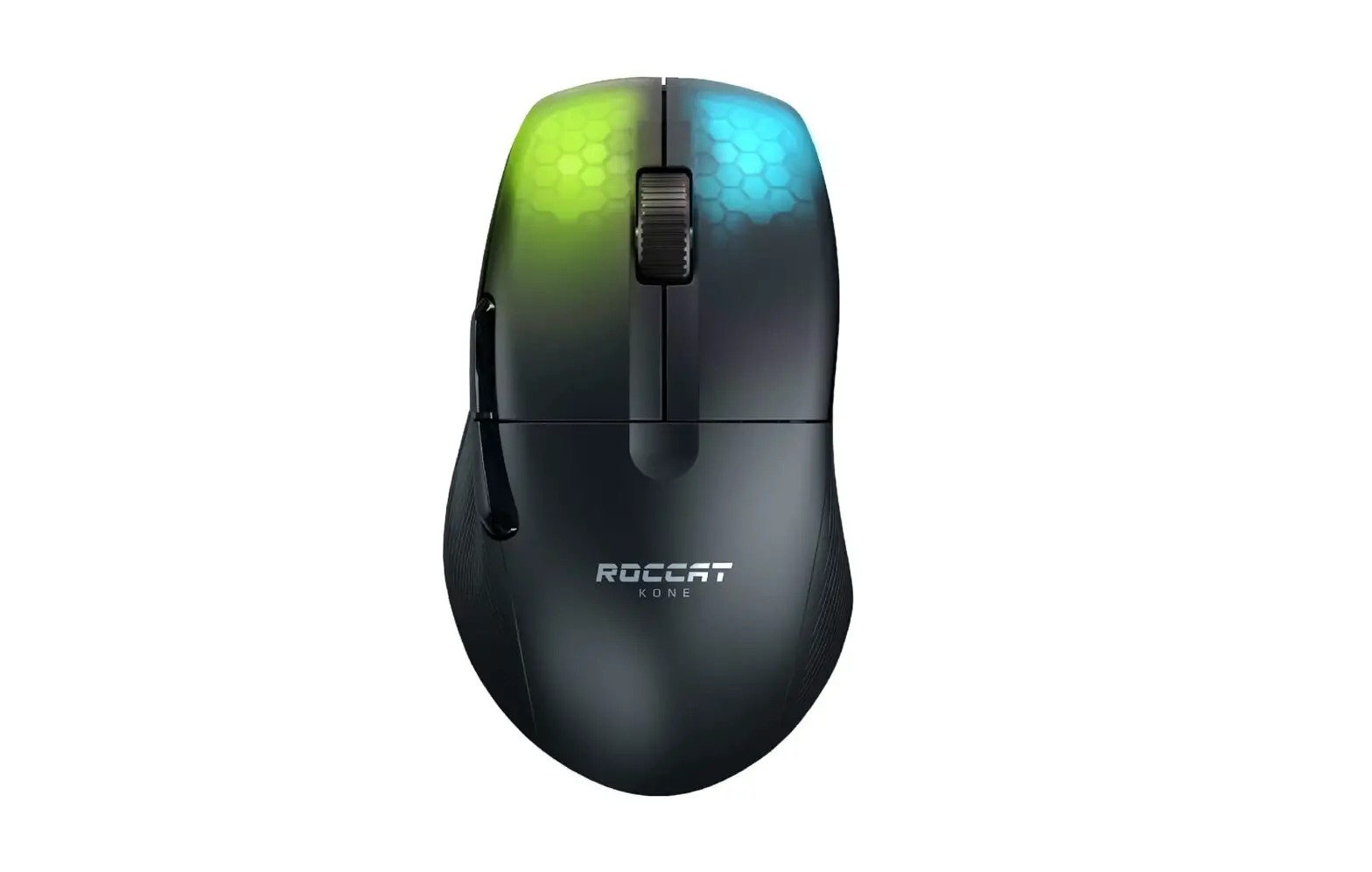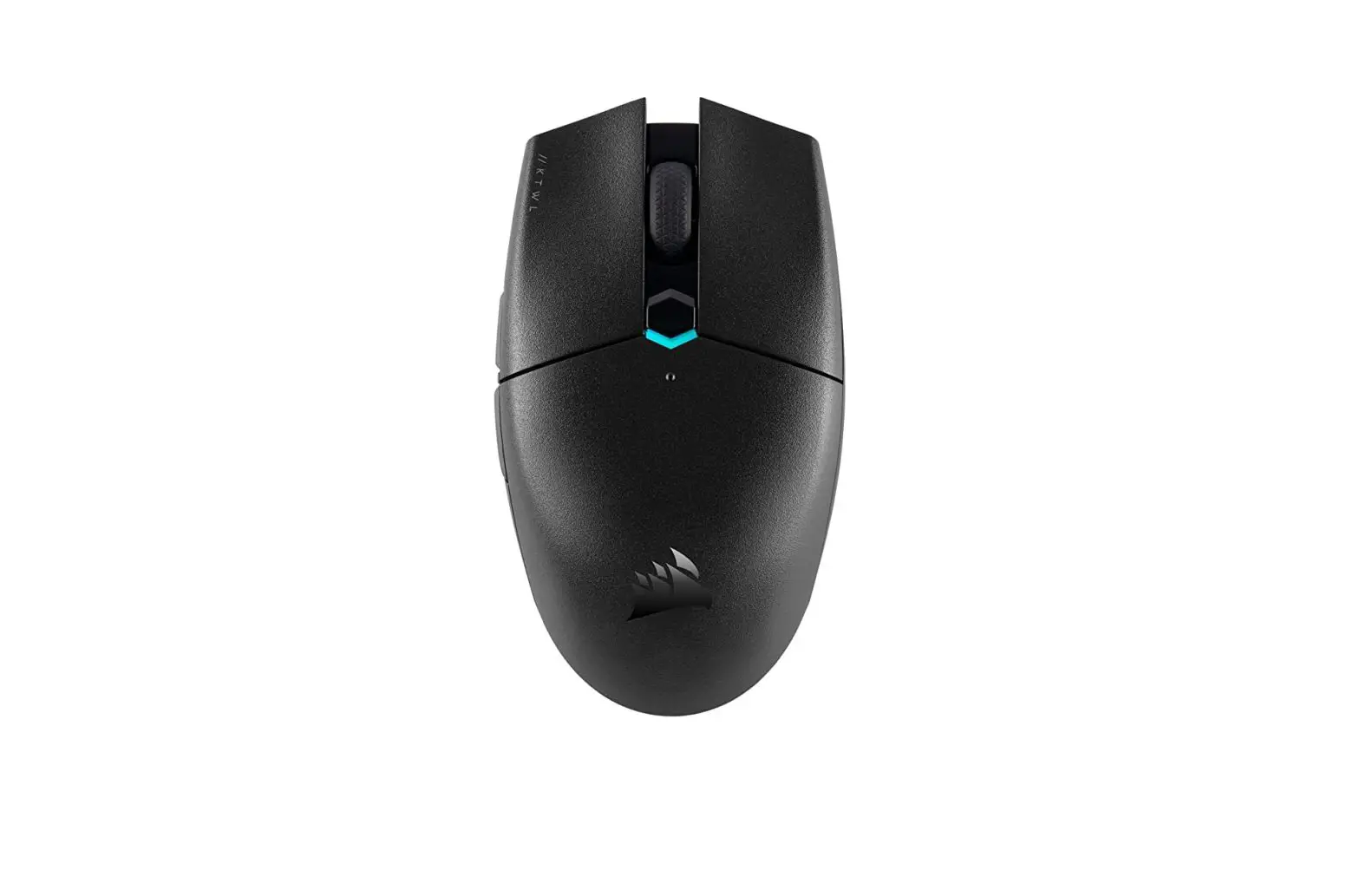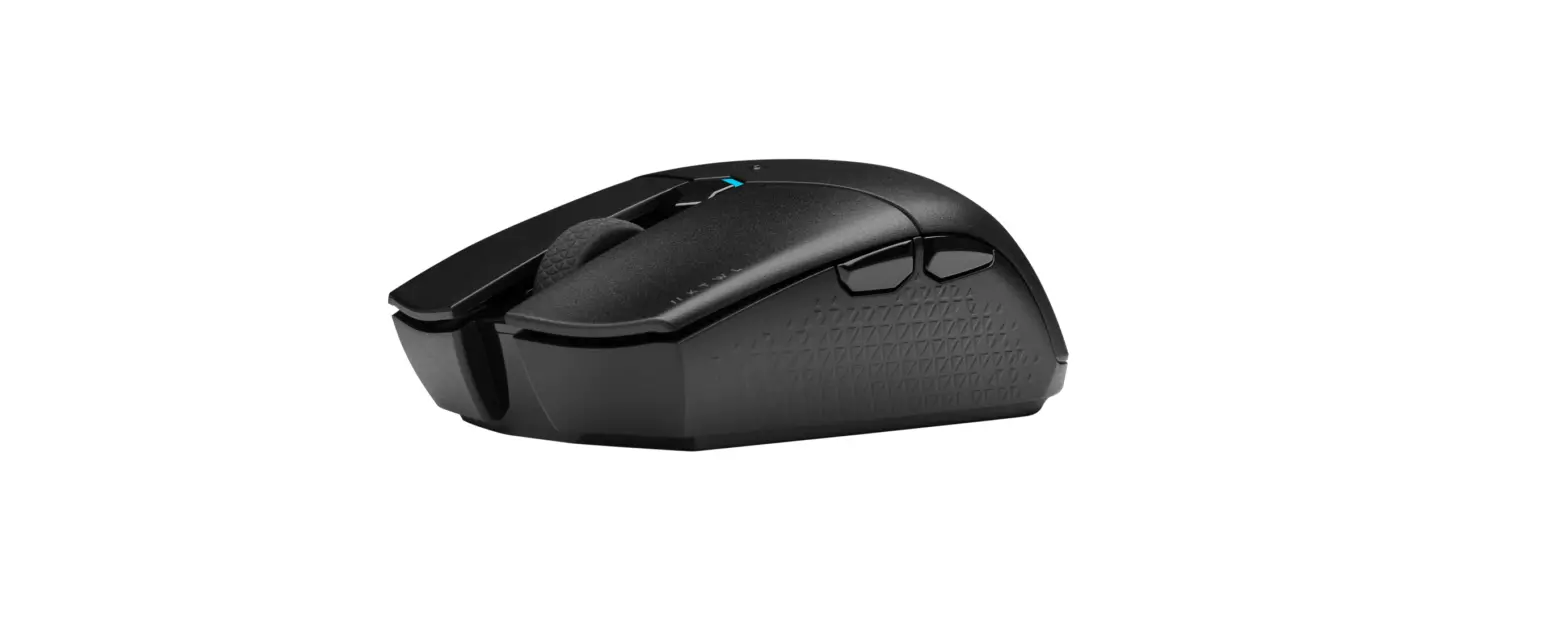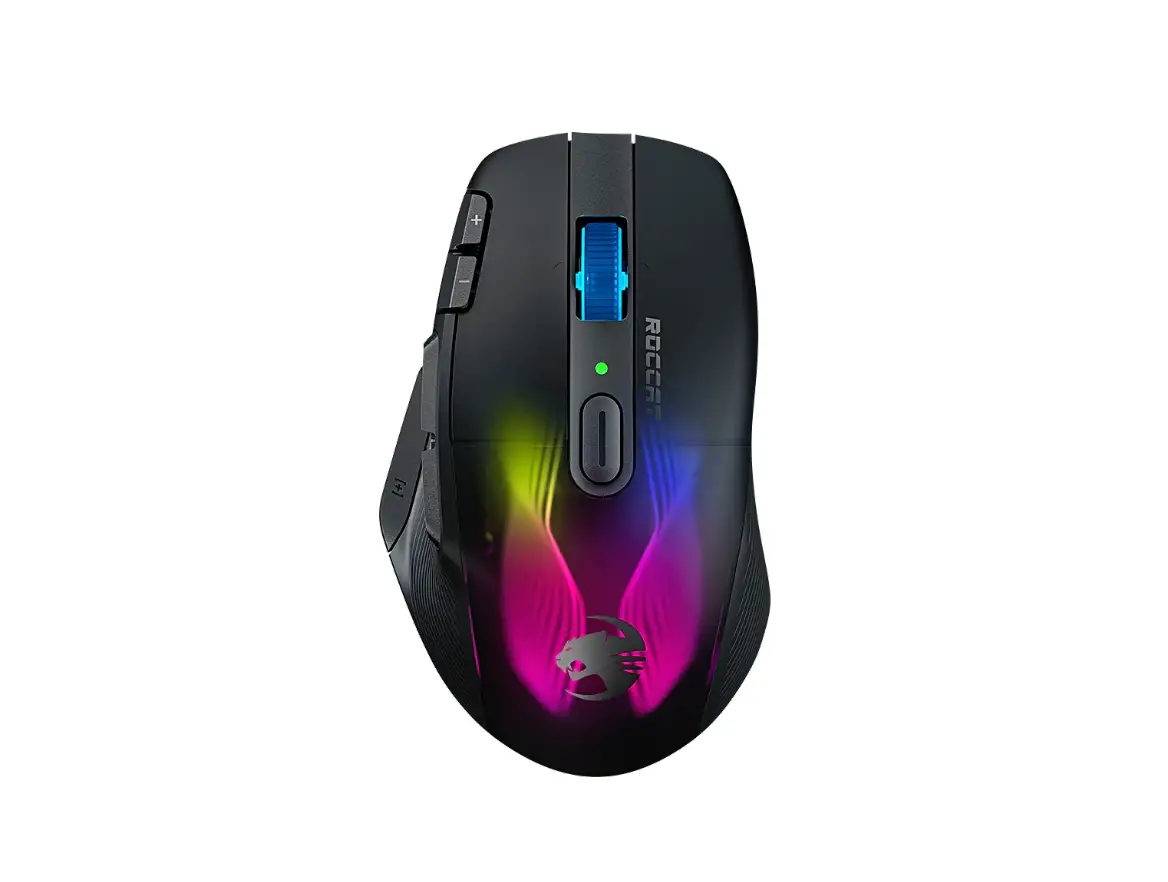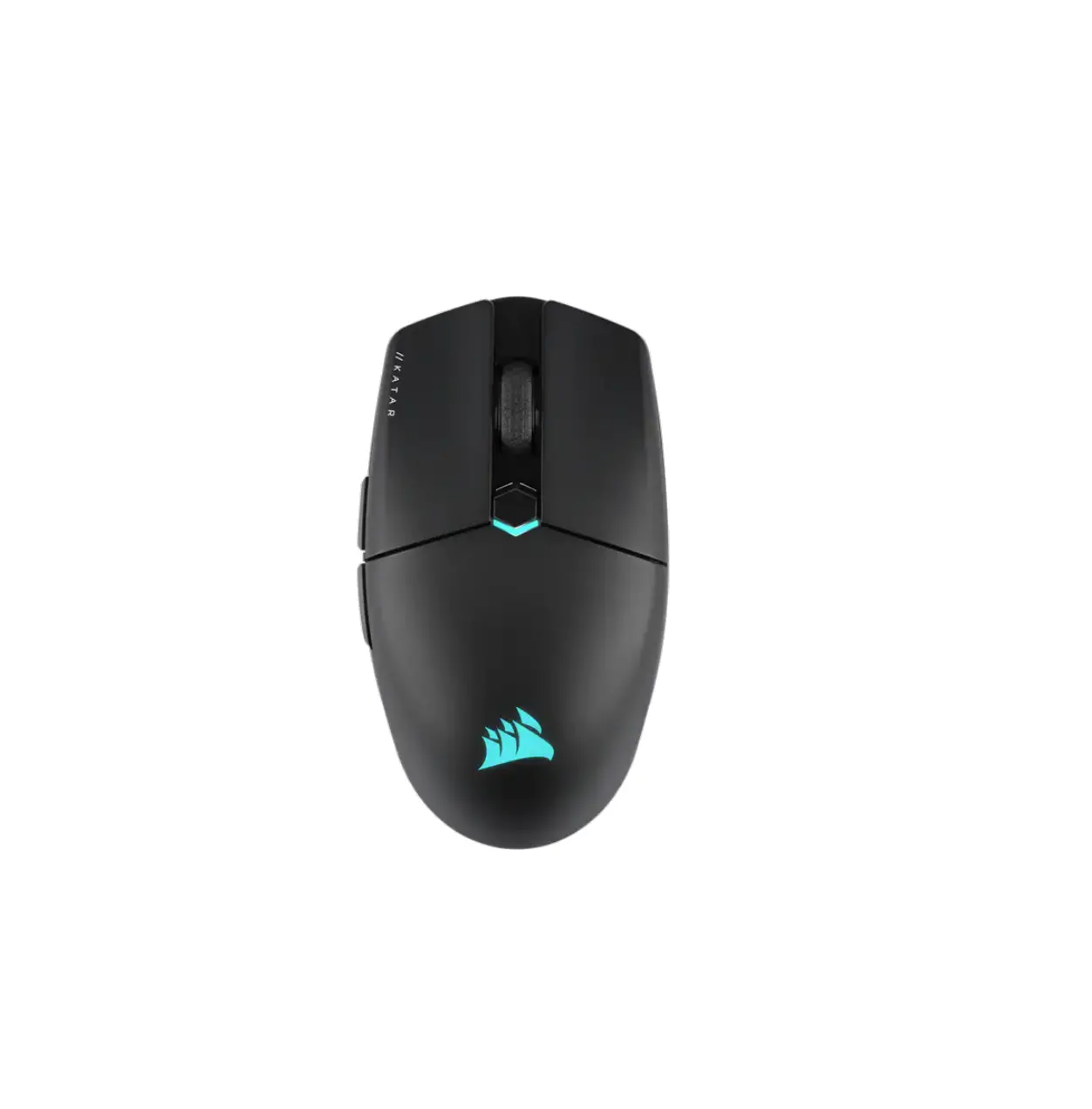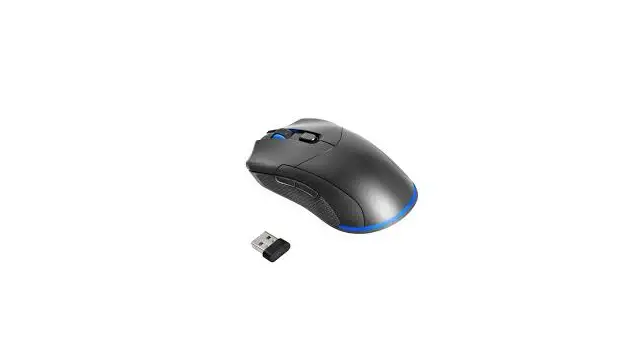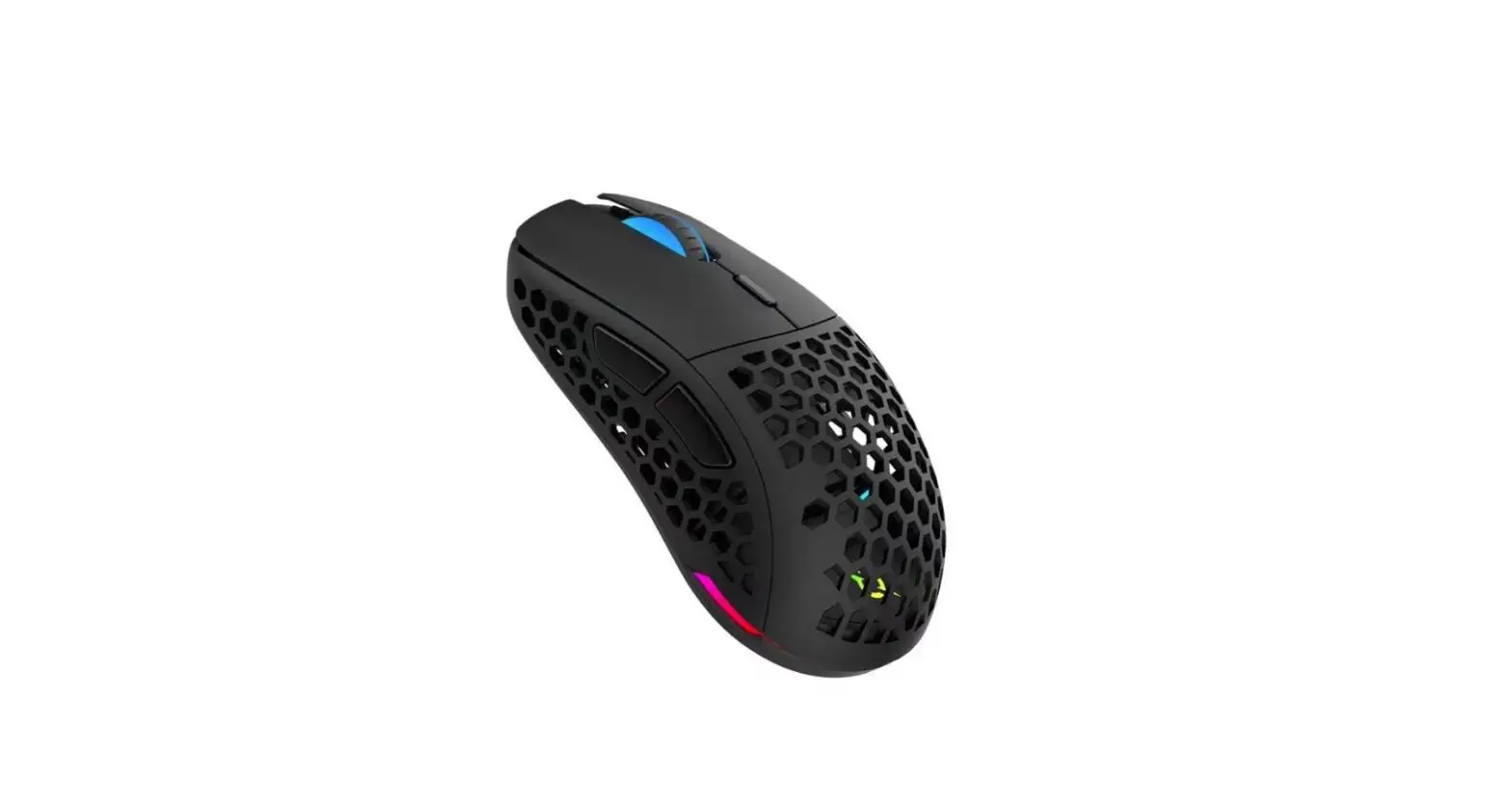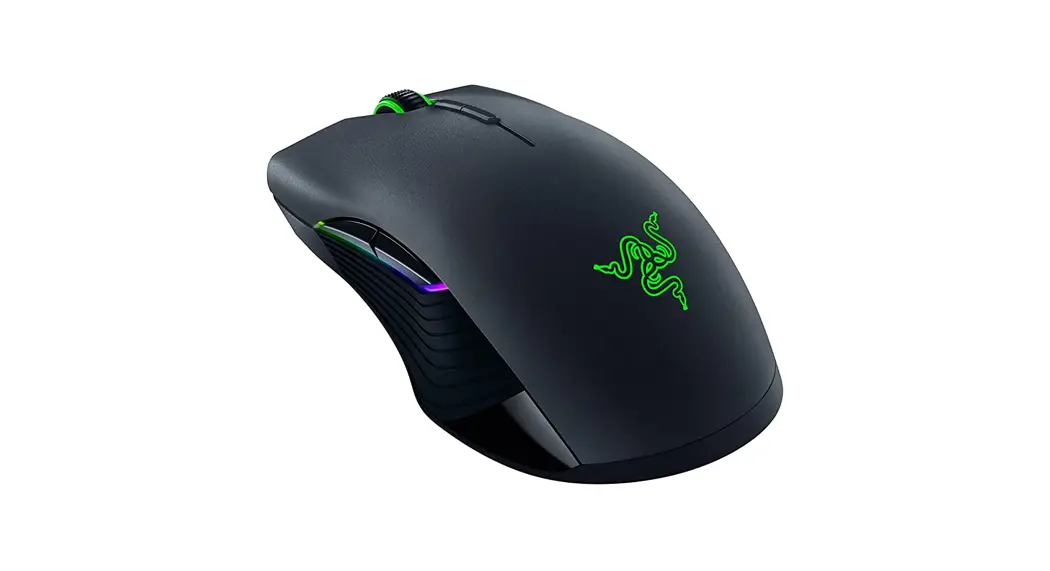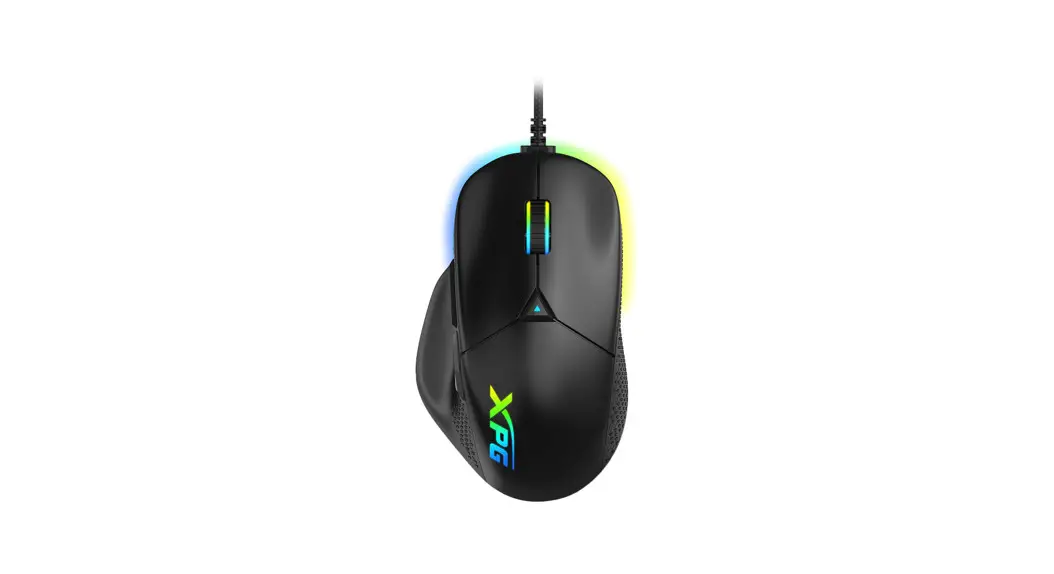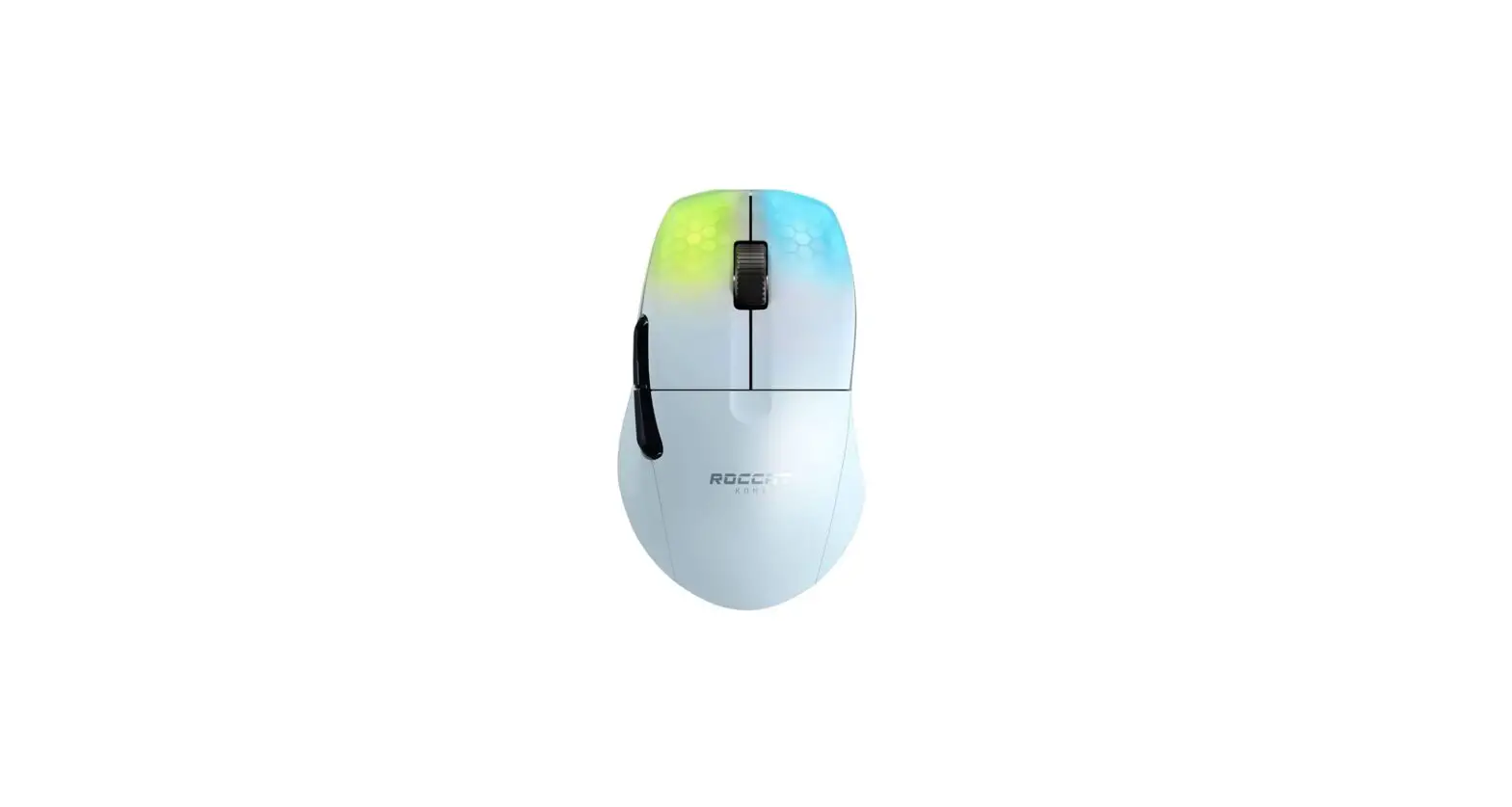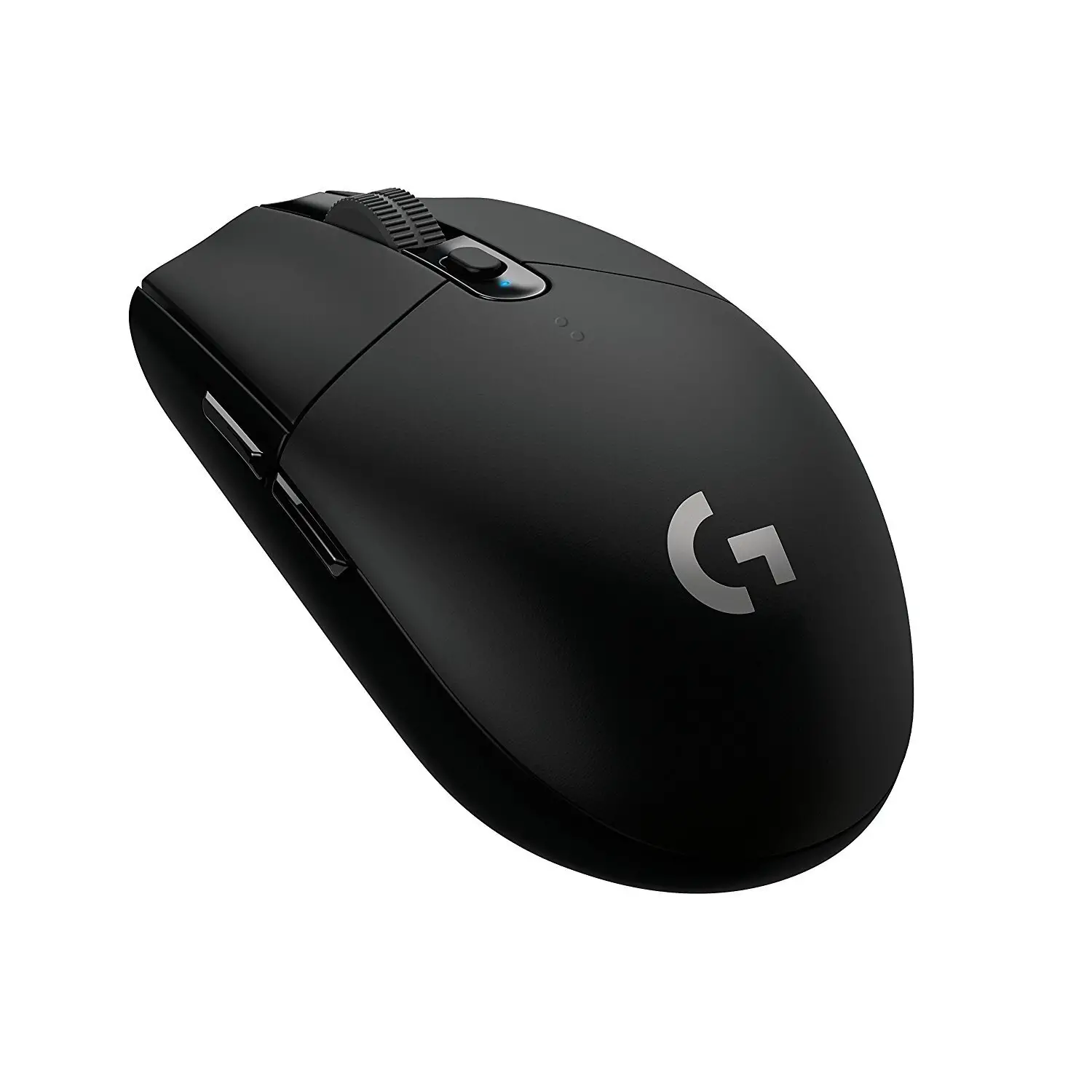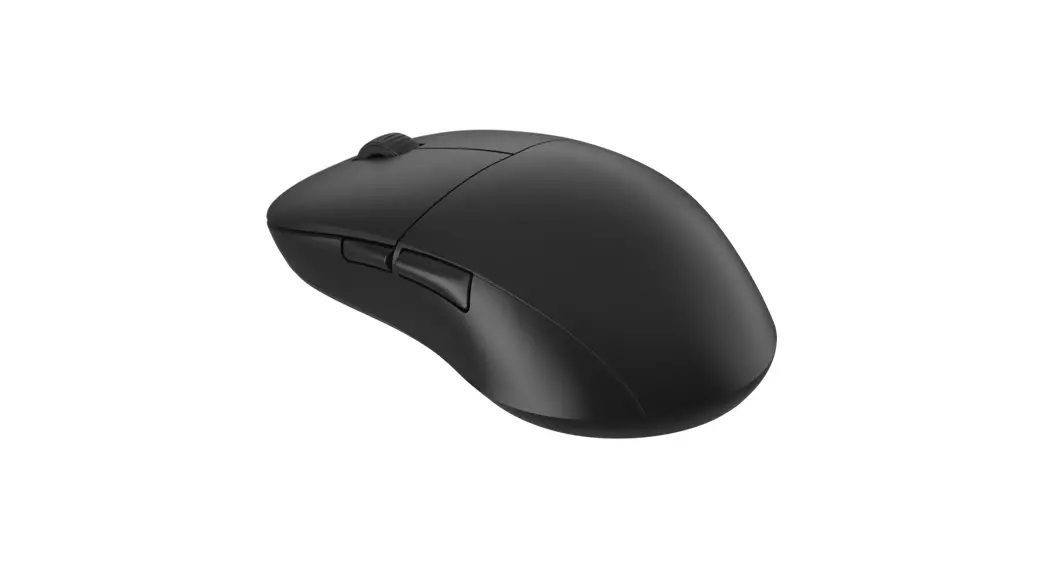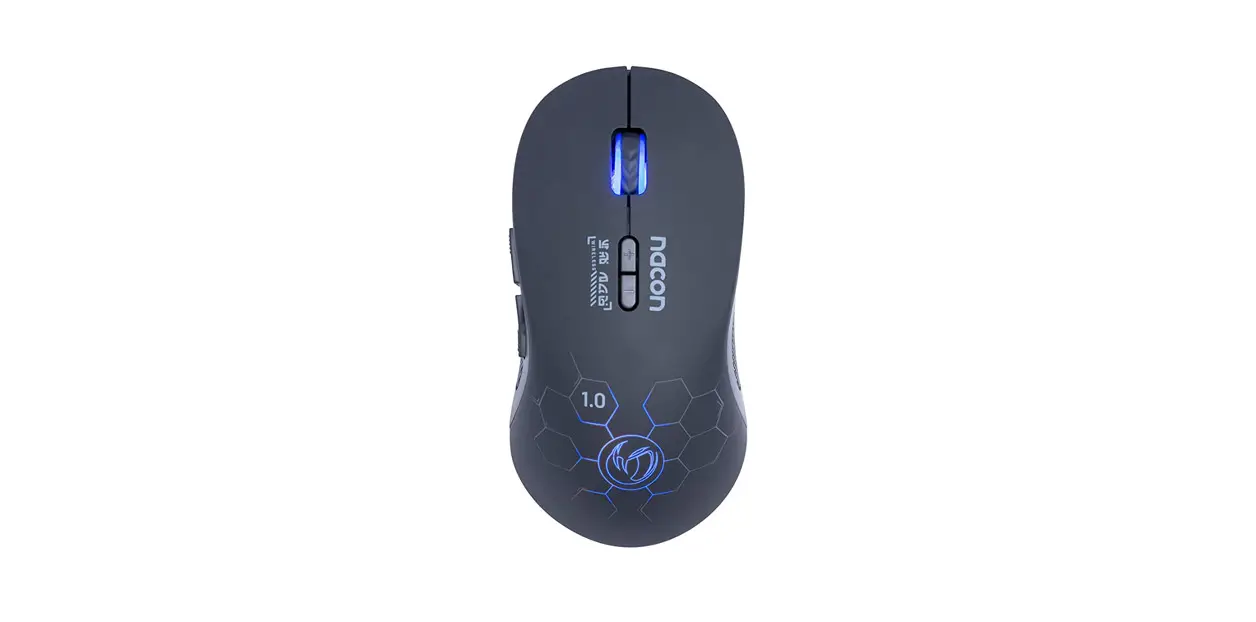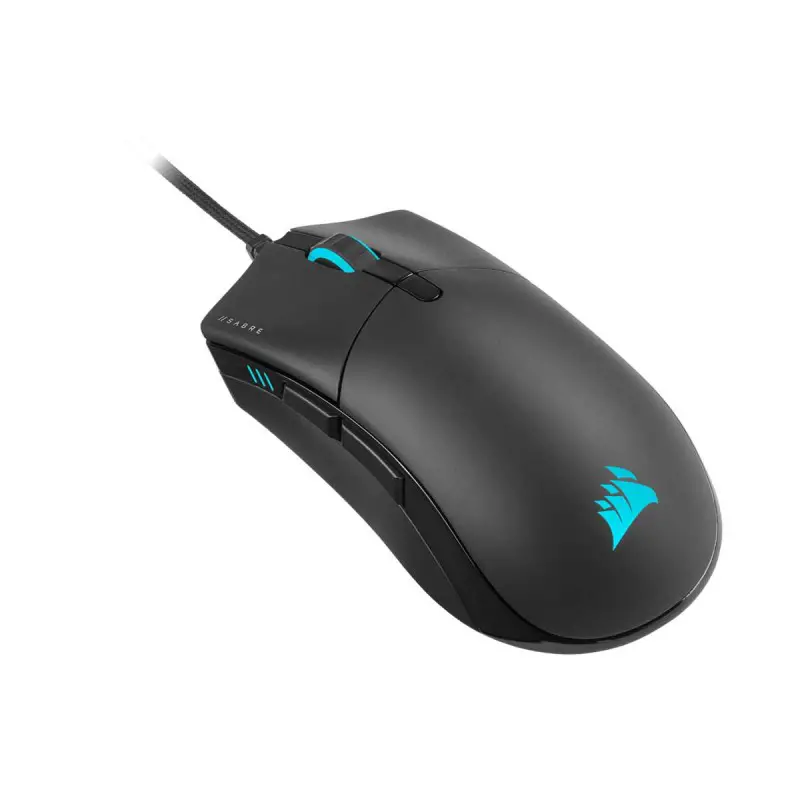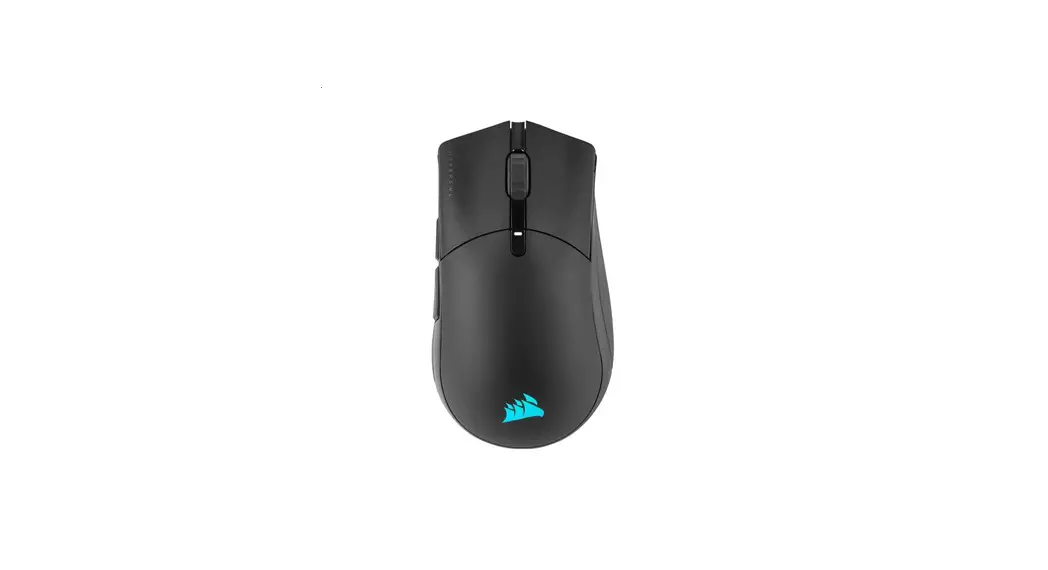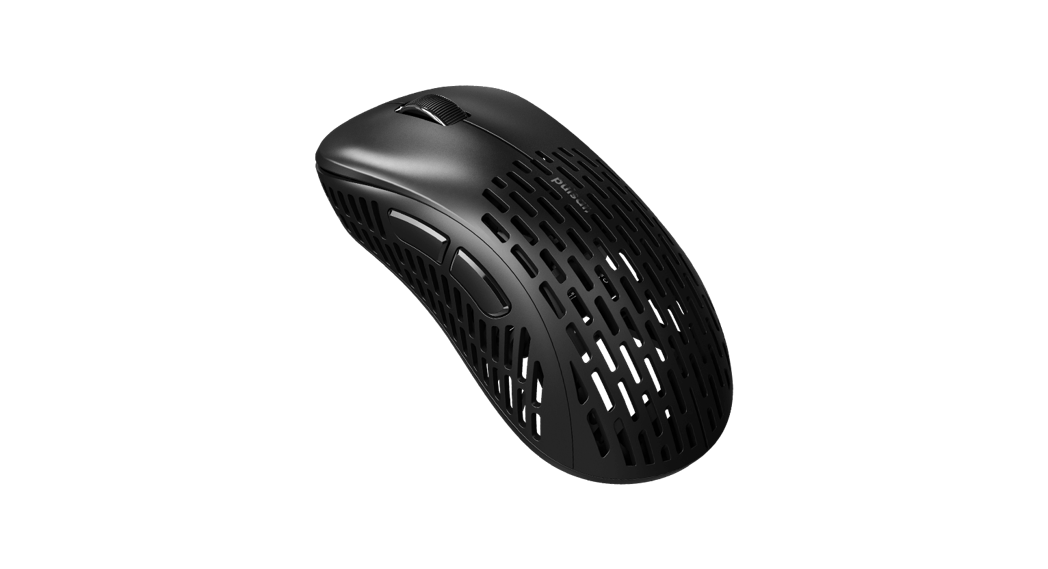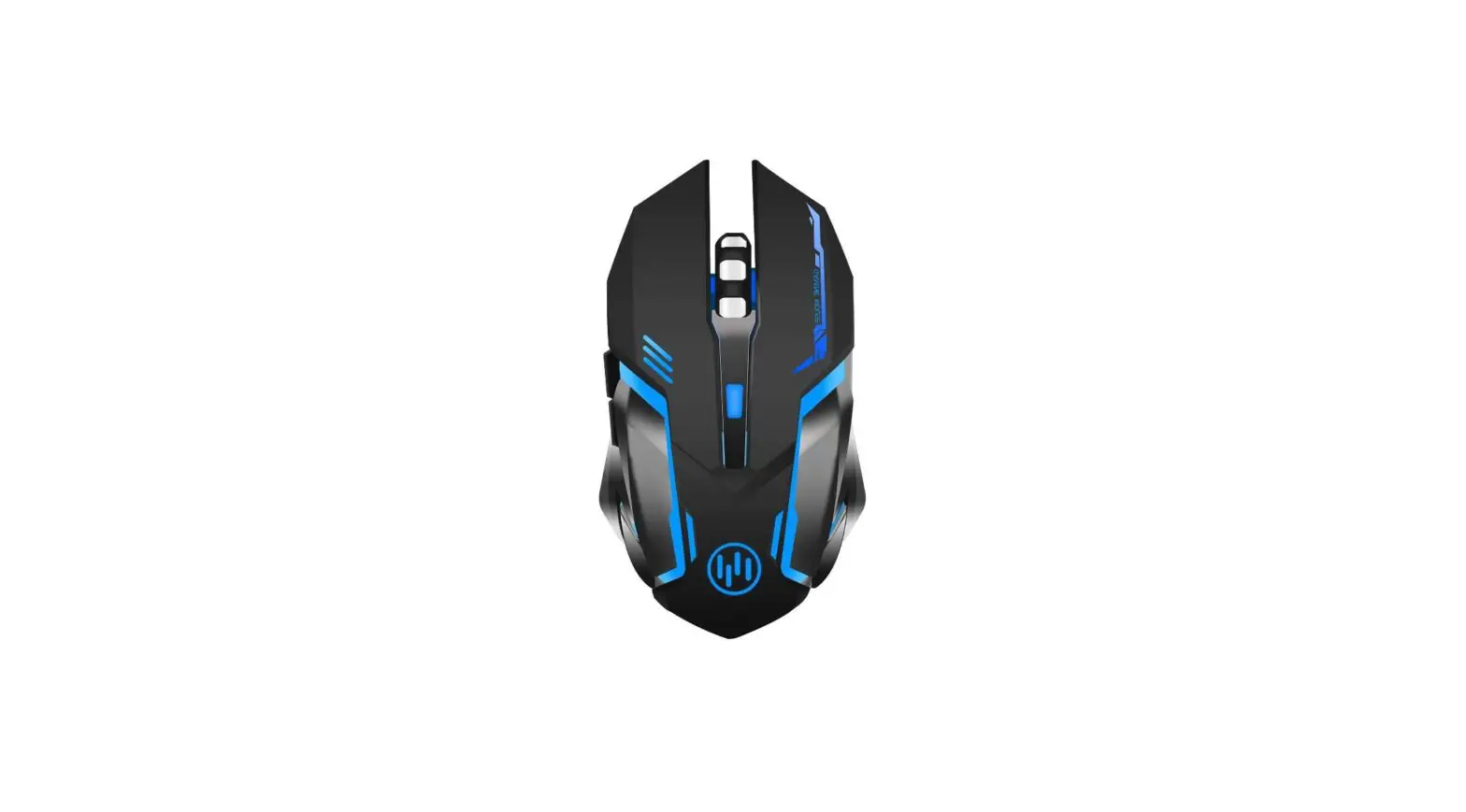

Scettar C10 Wireless Gaming Mouse
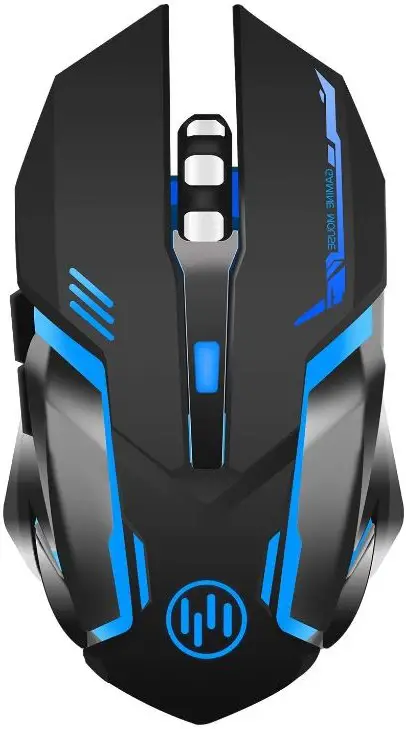
Specifications
- Brand Scettar
- Color C19 Black
- Connectivity Technology USB
- Special Feature Wireless
- Movement Detection Technology Optical
- Product Dimensions 91 x 1.57 x 1.18 inches
- Item Weight3 ounces
- Item model number C10
- Batteries 1 9V battery is required. (included)
Description
Please get in touch with us if you receive a defective mouse, and we’ll provide 100% satisfaction service! With this PC gaming mouse, you get a steady connection, accurate tracking, and quick data transmission. Working distance of up to 4m, elimination of delays, dropouts, and interference, and free transition to 800/1600/2400 DPI to fulfill your needs with great precision. Great wireless gaming mouse for both amateur and expert players. The silent left and right buttons spare you the loud clicking sounds. Without troubling anyone around you, you can enjoy your free time or business hours.
In order to conserve energy, wireless gaming mice with multi-stage power-saving modes and auto-sleeping functions go into sleep mode after 8 minutes of inactivity. To awaken it, please push any button. The ergonomic iron plate style of this rechargeable gaming mouse must draw you in; it will encourage gameplay and make you more competitive when you play against your foe. It fits comfortably in your hand because of the silky feeling. This computer gaming mouse alternates between 7 calming LED colors.
It is a highly interesting gaming mouse with illuminated colored LEDs that randomly change color to make you immersed in your play (cannot be tuned to one specific color or turned off). With a charging cord, this silent gaming mouse battery is supported for extended usage. Battery changes are not necessary. (Battery life could change depending on the user and the environment.) It supports Windows XP, Windows Vista, Windows 7, Windows 8, and Windows 10, as well as Mac OS. It is widely compatible with laptops and computers with USB ports. Every Scettar product comes with a 45-day money-back guarantee and a 12-month worry-free warranty.
Product Analysis
Usage
How To Use
- Put the USB receiver in a computer or game system USB port that is open. Typically, the mouse’s bottom contains a chamber where the receiver is housed.
- By pressing the power button on the mouse’s bottom, you can turn it on.
- The mouse and USB receiver ought should immediately pair. Press the connect button on the mouse’s bottom to start the connection if it doesn’t happen automatically.
- You can use the mouse as you would any other mouse after it is attached. Simply take out the USB receiver from the USB port to unplug the mouse.
How To Use Energy Saving Mode
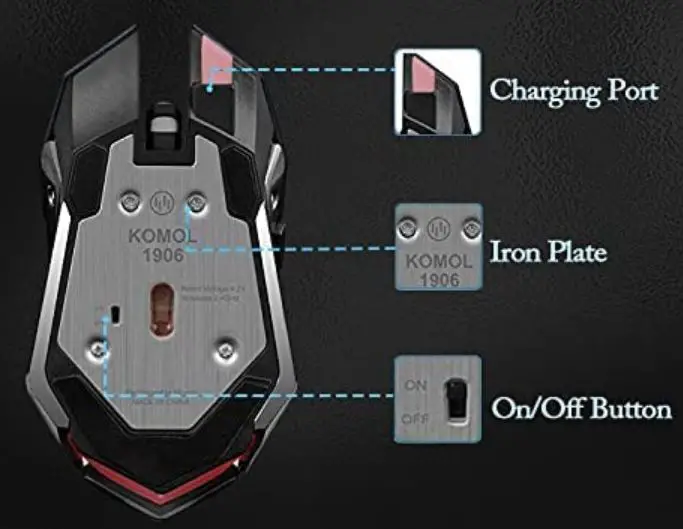
- By pressing the power button on the mouse’s bottom, you can turn it on.
- The mouse will automatically go into sleep mode to preserve battery life if it is not used for a while.
- Click any button or move the mouse to bring the mouse out of the sleep state.
- Press and hold the power button for three seconds or until the LED light turns off to turn the mouse off.
How To Adjust DPI
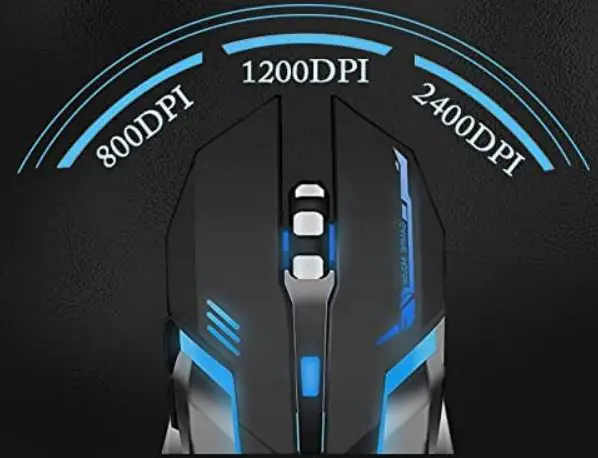
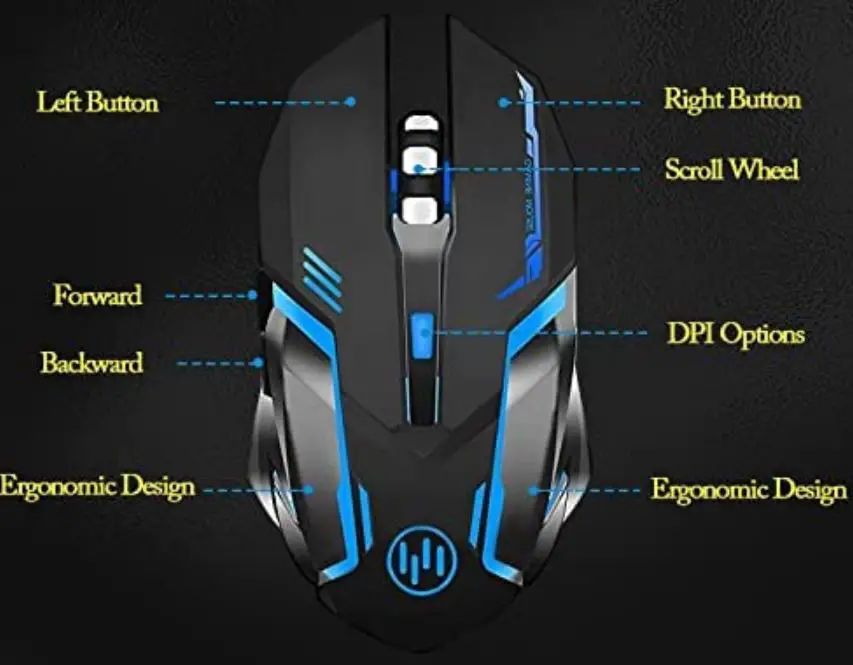
- On the mouse’s top, look for the DPI button. Normally, it is found behind the scroll wheel.
- To switch between the different DPI settings, press the DPI button. There are four DPI options on the mouse: 800, 1200, and 2400.
- The mouse’s LED light will change color to reflect the DPI level. Red for 800 DPI, blue for 1200 DPI, and green for 2400 DPI are the colors.
- Once you’ve discovered the level of sensitivity that seems most comfortable for you, keep pushing the DPI button.
- Using the Scettar C10 mouse software, you may easily change the DPI settings. You may alter the DPI settings in the program, as well as other options like the RGB lighting and button actions.
FAQ’s
Yes, Mac OS X 10.10 or later versions are compatible with the Scettar C10 Wireless Gaming Mouse.
No, there is no rechargeable battery in the Scettar C10 mouse. To work, it needs two AA batteries.
As long as they include a USB connector for the receiver, gaming consoles like the Xbox and PlayStation are compatible with the Scettar C10 mouse.
By pressing the DPI button beneath the scroll wheel on the Scettar C10 mouse, you can change the sensitivity of the device.
Yes, the Scettar C10 mouse’s RGB lighting can be customized using the software that comes with the mouse.
No, the Scettar C10 mouse is only intended for users who are right-handed.
Yes, you may program the Scettar C10 mouse’s buttons to carry out particular tasks or macros using the mouse’s software.
A single set of AA batteries can power the Scettar C10 mouse for up to 30 hours of nonstop use.
Press and hold the power button on the Scettar C10 mouse’s bottom for three seconds until the LED light turns off to turn it off.
Yes, both Windows 10 and older Windows versions work with the Scettar C10 mouse.
Wireless technology is so good these days that even competitive pro gamers often use them over their wired counterparts. The difference in latency between a top-tier wired and wireless mouse is so small as to be imperceptible, even for pro gamers.
Wireless mice need batteries, which means you will have to either recharge or replace the batteries regularly. The longevity of the batteries will depend on the usage and type of mouse, but you can expect to replace the batteries every 3 to 9 months.
A wireless gaming mouse will be, by default, slower than wired gaming mice. The reason for this is that wireless gaming mice have to transmit information to your desktop or laptop via a wireless connection and receiver. Conversely, wired gaming mice have a direct connection to your machine; most typically via USB.
If you have a wireless Bluetooth gaming mouse, you will have to keep your laptop’s Bluetooth on to keep the mouse connected. Constant usage of Bluetooth connectivity increases the burden on your laptop’s battery and consumes it more.