 Installation and User Guide
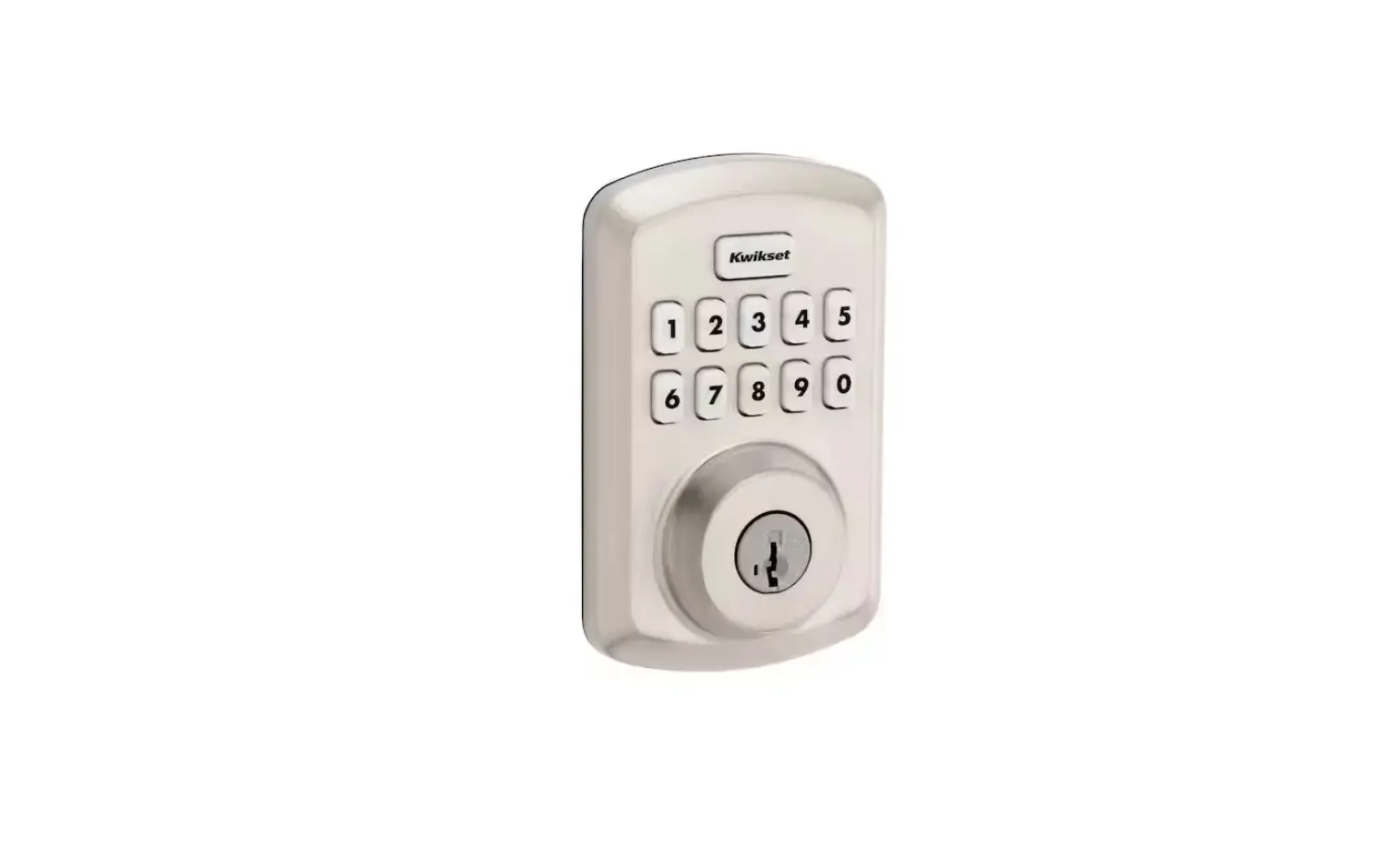
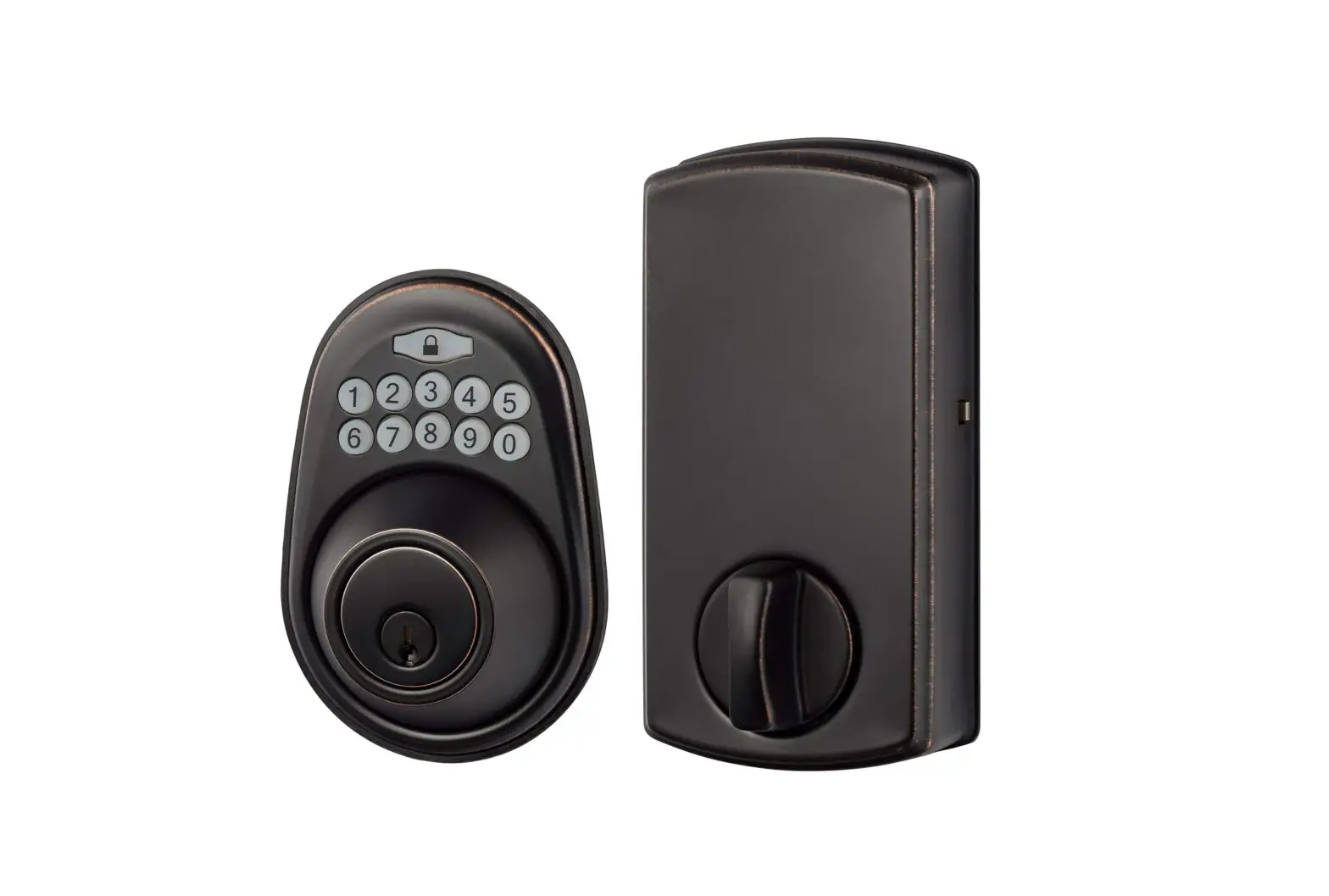
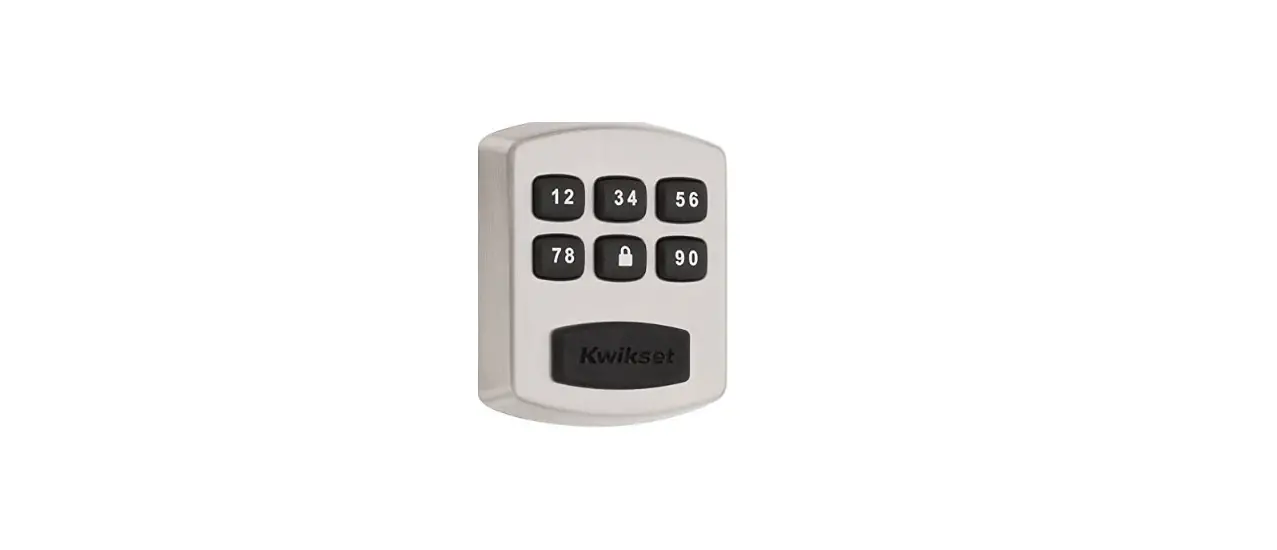
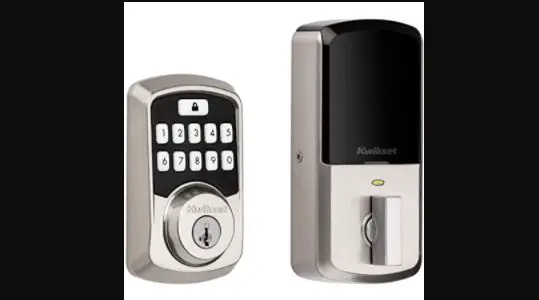
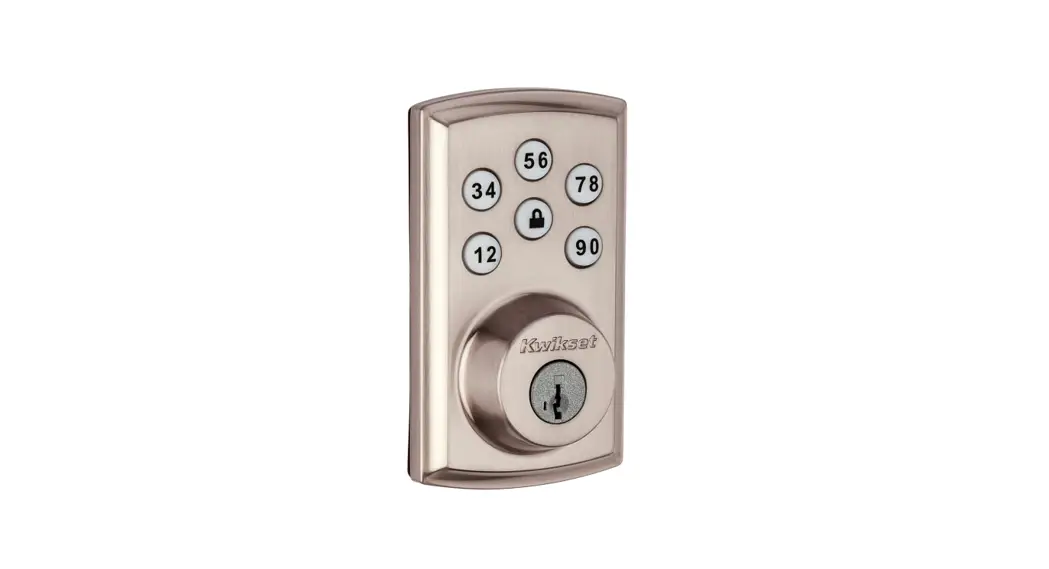
KW Powerbolt 240 Keypad Electronic Lock
Parts in the box
Prepare the door and check dimensions
If drilling a new door, use the supplied template and the complete door drilling instructions available at www.kwikset.com/doorprep.
A the door is either 2-1/8 in (54 mm) or 1-1/2 in (38 mm).
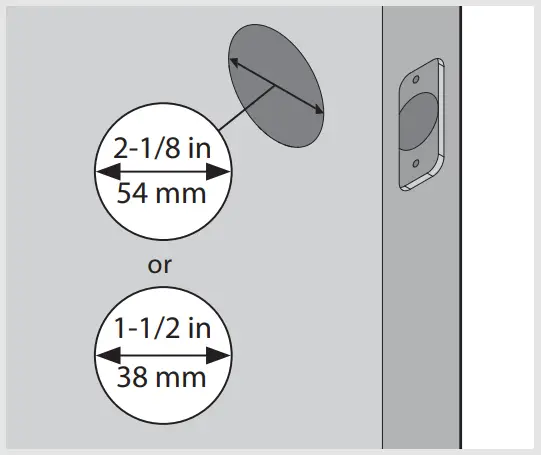
Note: Additional door preparation may be required for doors with 1-1/2 in (38 mm) holes. Consult the deadbolt drilling instructions at www.kwikset.com/doorprep.
B either 2-3/8 or 2-3/4 in ( 60 or 70 mm).
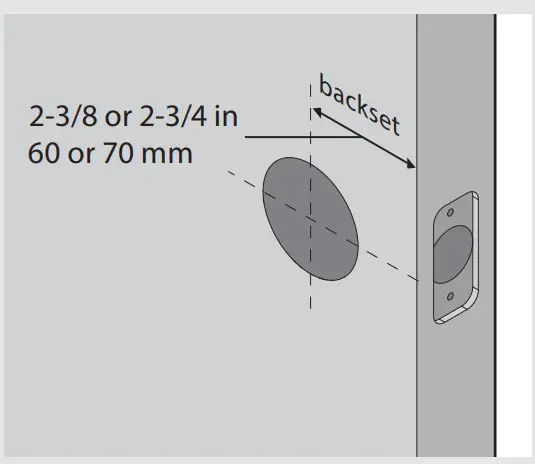
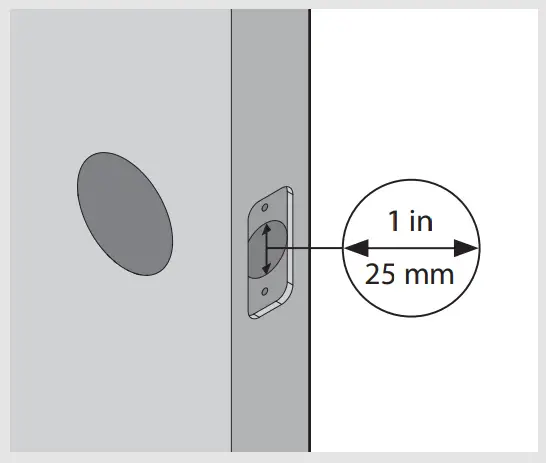
C the door edge is 1 in (25 mm).
D Measure to confirm that the door is between 1-3/8 and 1-3/4 in (35 mm and 44 mm) thick.
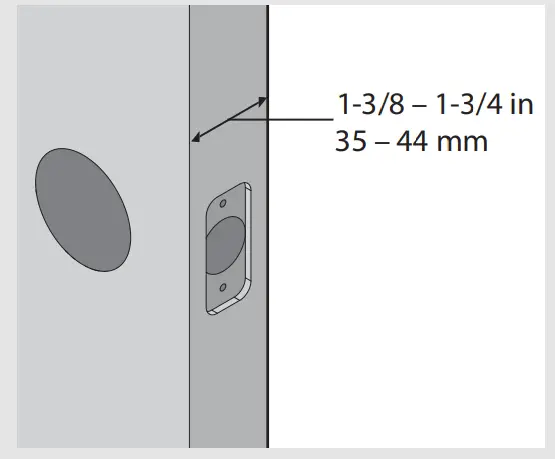
Note: Please contact customer service if door thickness exceeds 1-3/4 in for a thick door kit.
Install the latch and strike
For Latch / Strike Bag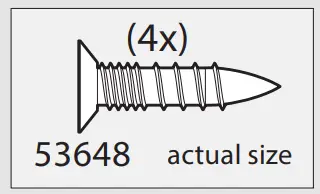
Hold the latch in front of the door hole, with the latch face flus against door edge.
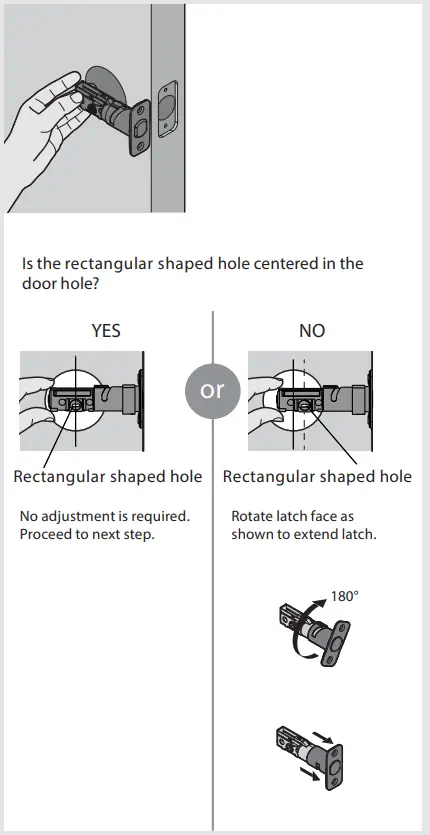
B Is the door edge chiselled?
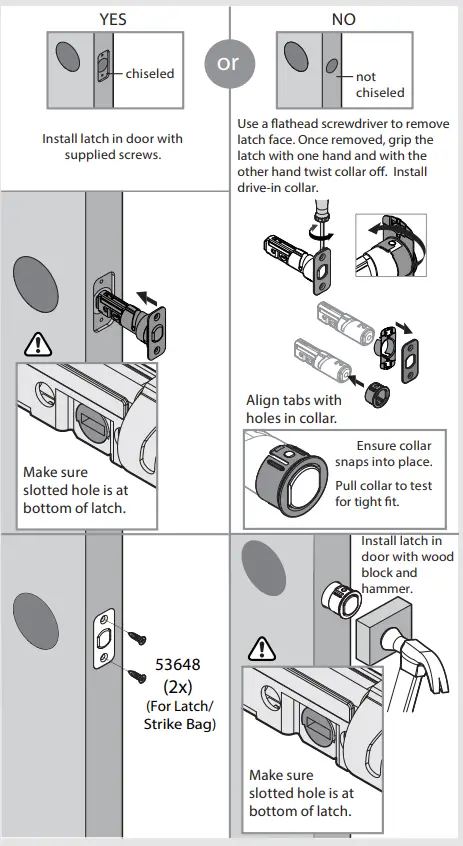
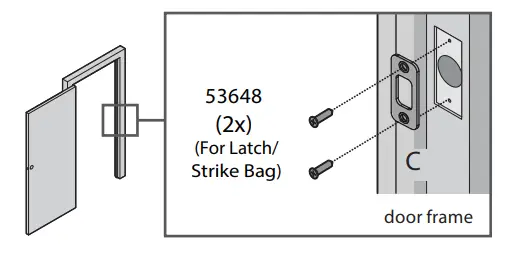
C Install strike on the door frame.
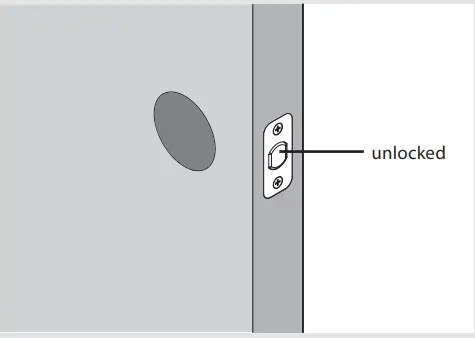
D  IMPORTANT: Make sure the latch bolt is fully retracted (in the unlocked position).
Install the exterior keypad
For Lock Bag
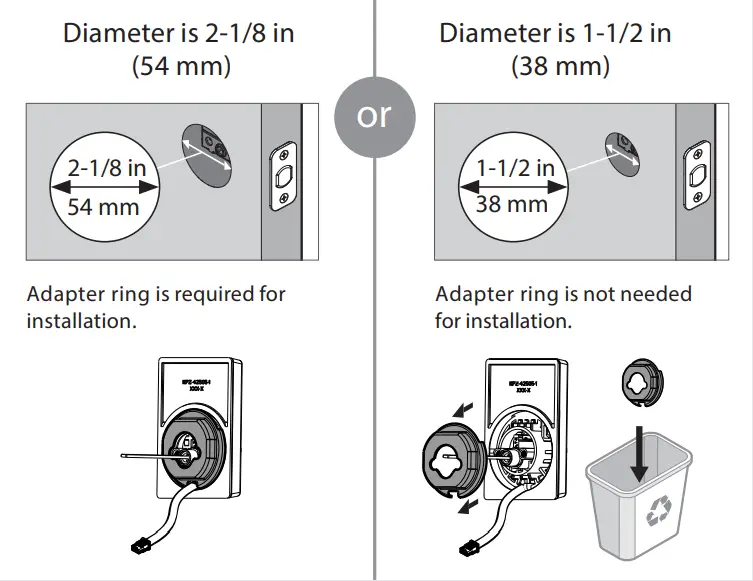
A What is the diameter of the hole in the door?
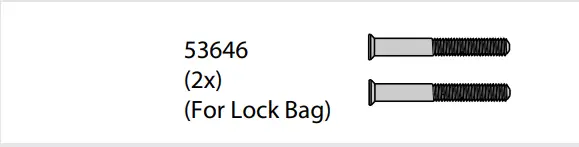
B Locate screws for step 3C and keep them within reach.
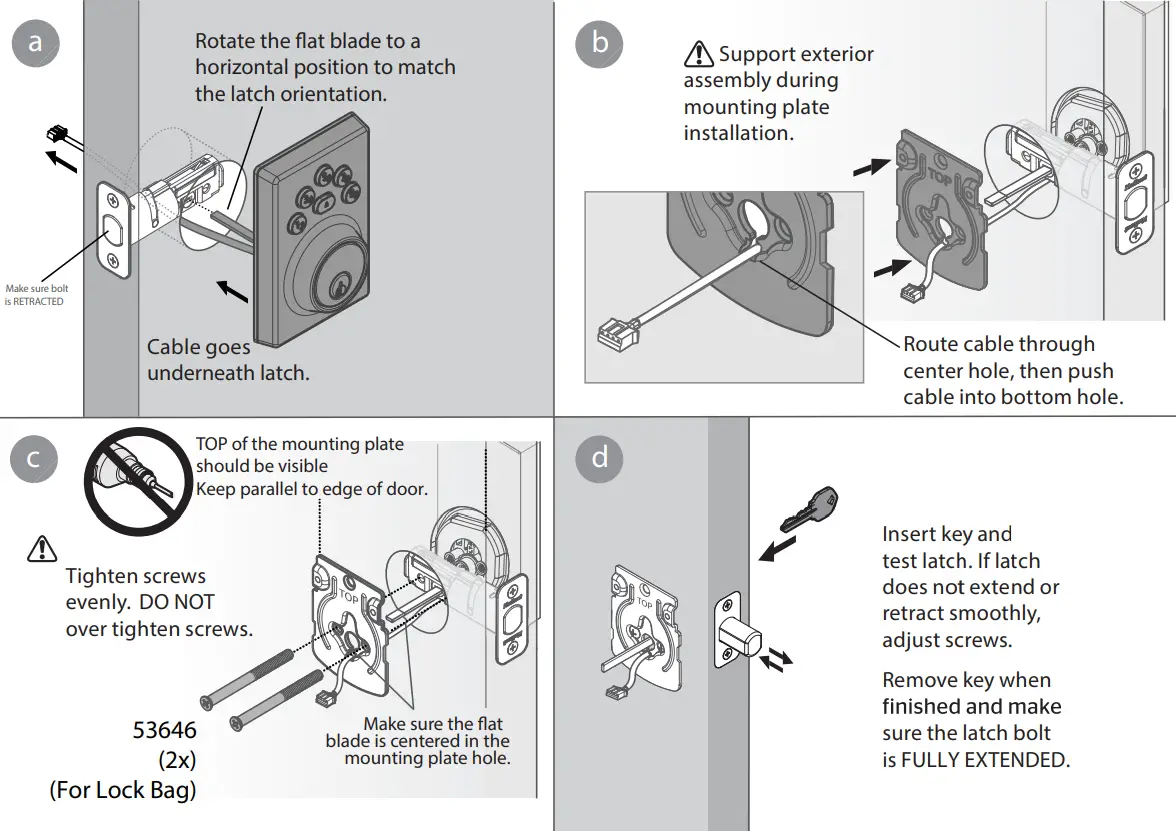
C Install exterior keypad and mounting plate.
Install the interior assembly
For Lock Bag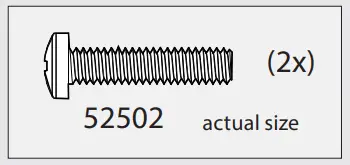 A Remove interior cover from interior assembly.
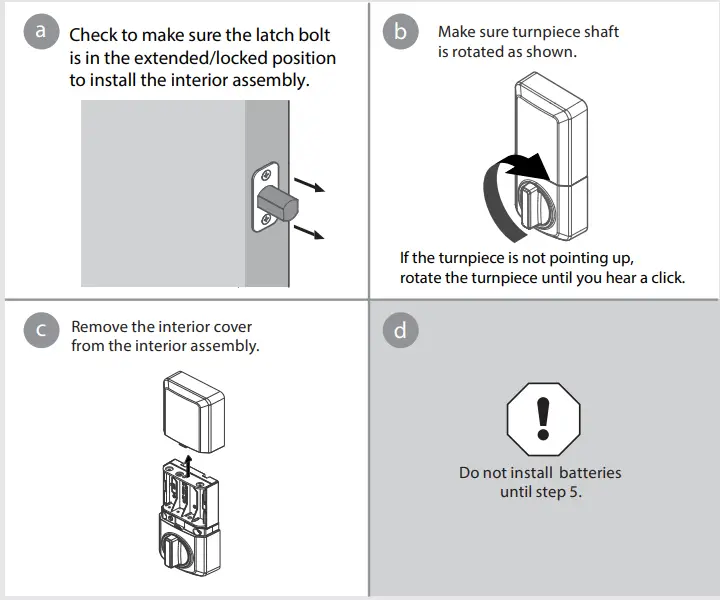 B Secure the interior assembly onto the mounting plate.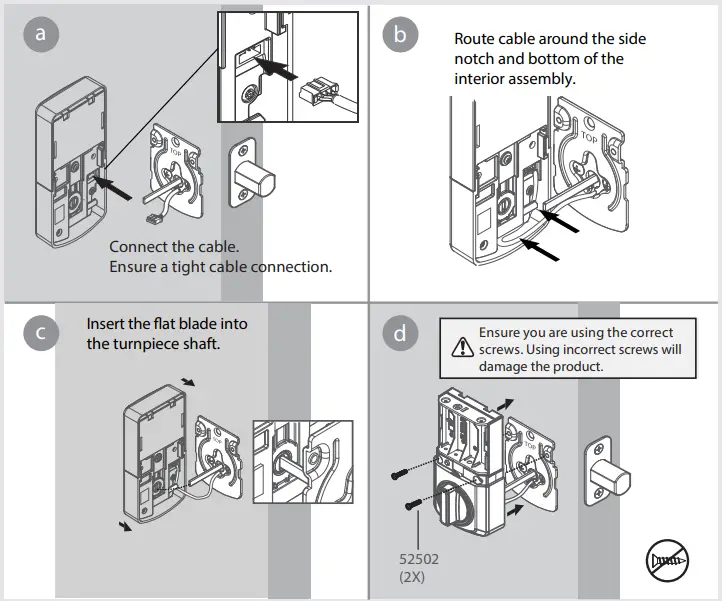
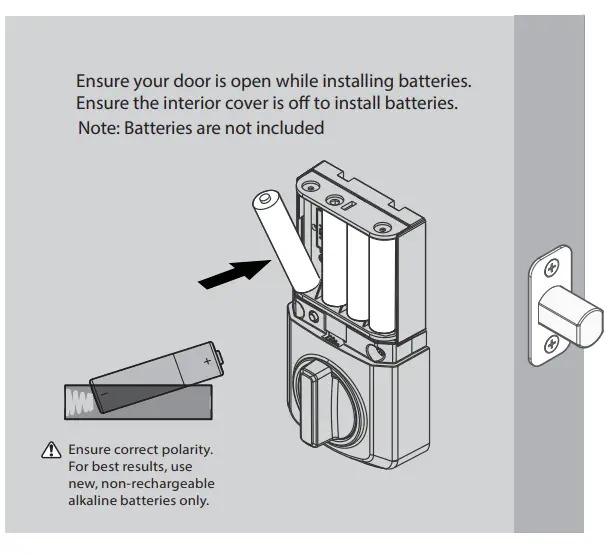
Install the batteries in the interior assembly
A Install 4 AA batteries in interior assembly
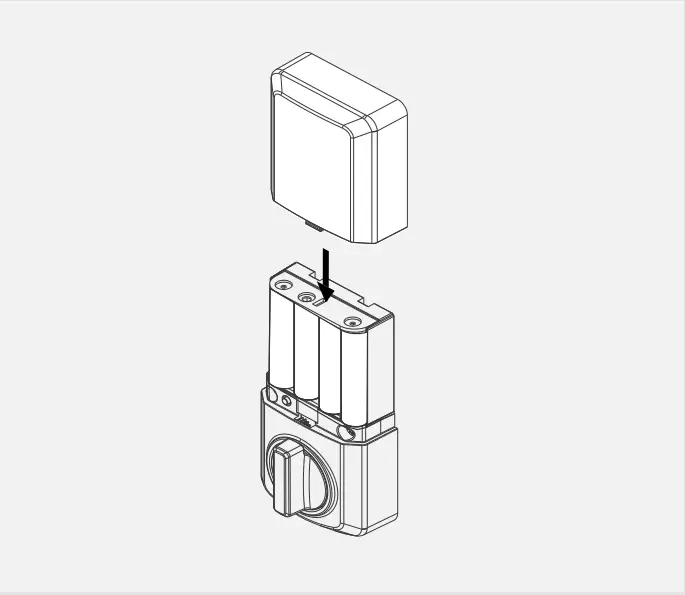
 B Install interior cover for the interior assembly.
Add user codes (12 max)
During User Code programming, a time out will occur if the keypad is not pressed for 5 seconds and you will need to restart the procedure. For security reasons, the first 4 digits of each User Code must be unique. For example, you are unable to program a user code 1-2-3-4-5 as well as user code 1-2-3-4-6.
A Make sure the interior cover is of. Press the Program button once.
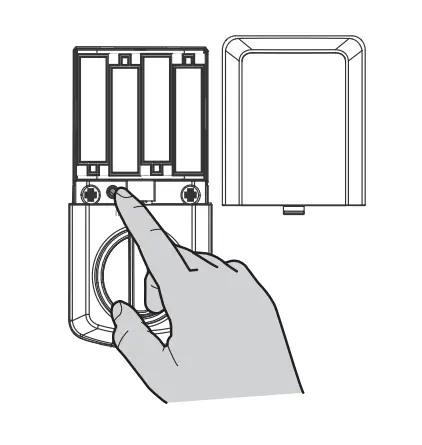
B Press number  .
.
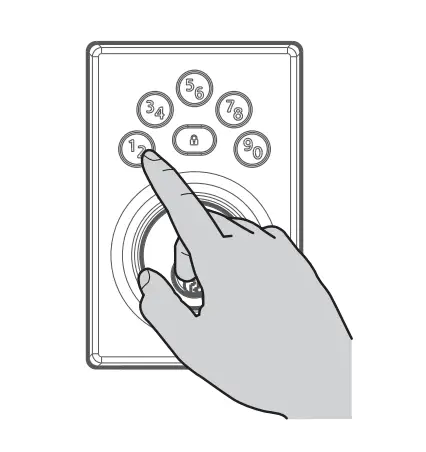
C Press  button once.
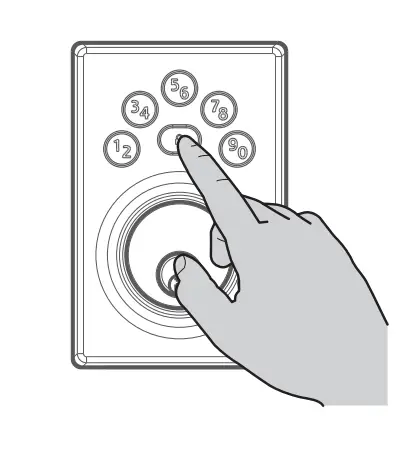
D Enter user code. A total of 12 user codes may be programmed. User codes should be 4 to 8 digits in length.
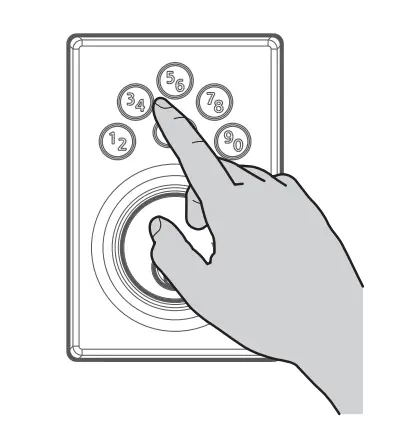 E Press button again.
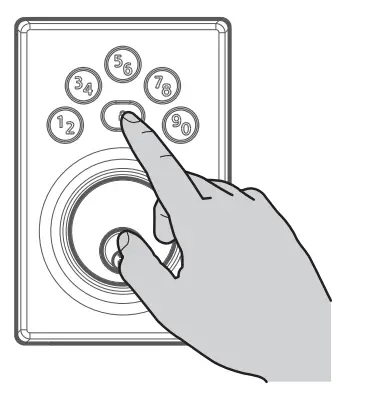
Note: After the first User Code is created, the latch bolt will automatically retract and extend to learn the locking and unlocking direction of the door. The lock button will indicate success or failure. GREEN: Success RED: Unsuccessful
Test the lock (review normal operation)
Before you can lock and unlock the door a User Code must be created. Refer to Step 6 for instructions how to create a User Code.
Confirm that the code(s) added in previous step can unlock the door.
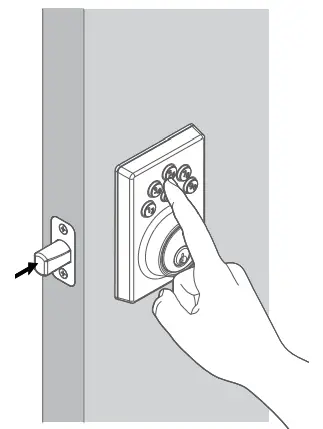
A To lock your door, press the lock button. The lock will beep twice and the lock button will flash amber as the deadbolt extends.
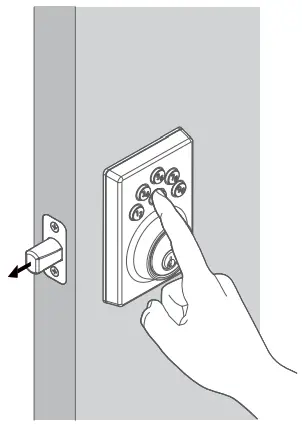 B To unlock your door, enter the user code. The lock will beep twice and the lock button will flash green and the deadbolt retracts.
Adding a One-time User Code
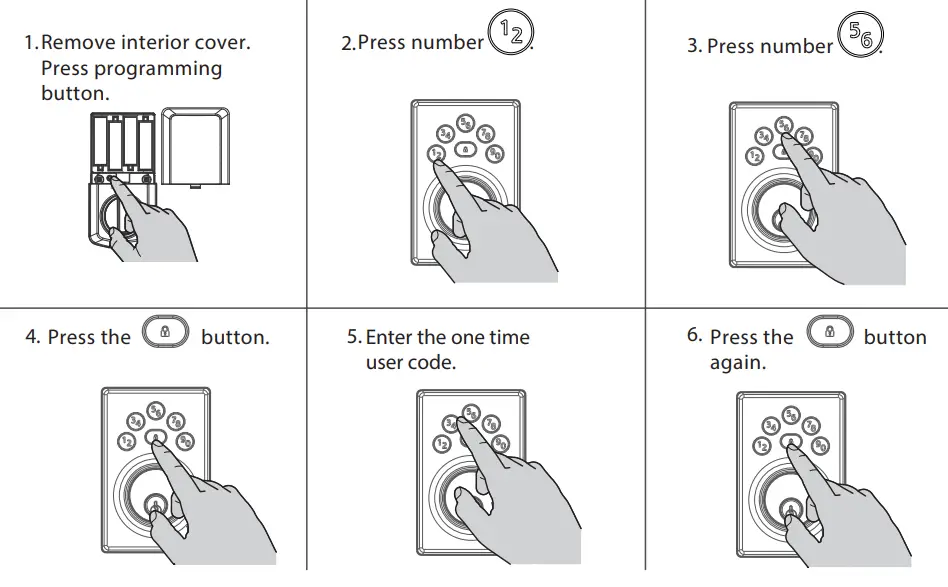
Up to 2 One-time User Codes can be saved. One-time User Codes should be 4 to 8 digits in length.
The One-Time User Code will be deleted automatically after it is used. The same One-Time User Code can be created again after it’s used.
Delete a Single User Code
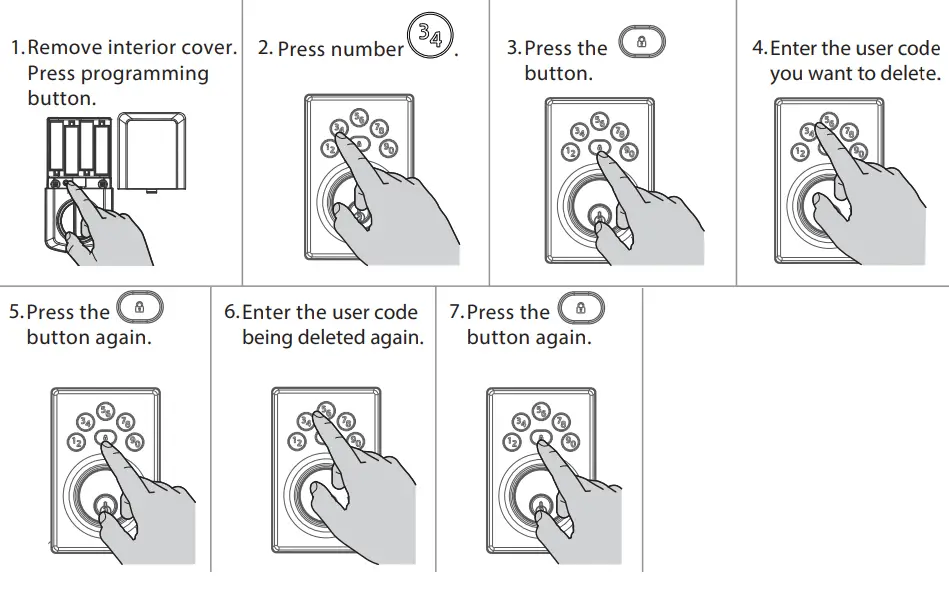
If unsuccessful:
Make sure you entered the same user code in steps 4 and 6. Test code while the door is open. Test the User Code to make sure it no longer unlocks the door.If a button is not pressed within 5 seconds, the system will time out, and you will need to restart the procedure.
Delete ALL User Codes
Note: Keypad locking function will be disabled when User Codes are deleted. The lock can only be operated manually by a key during this time.
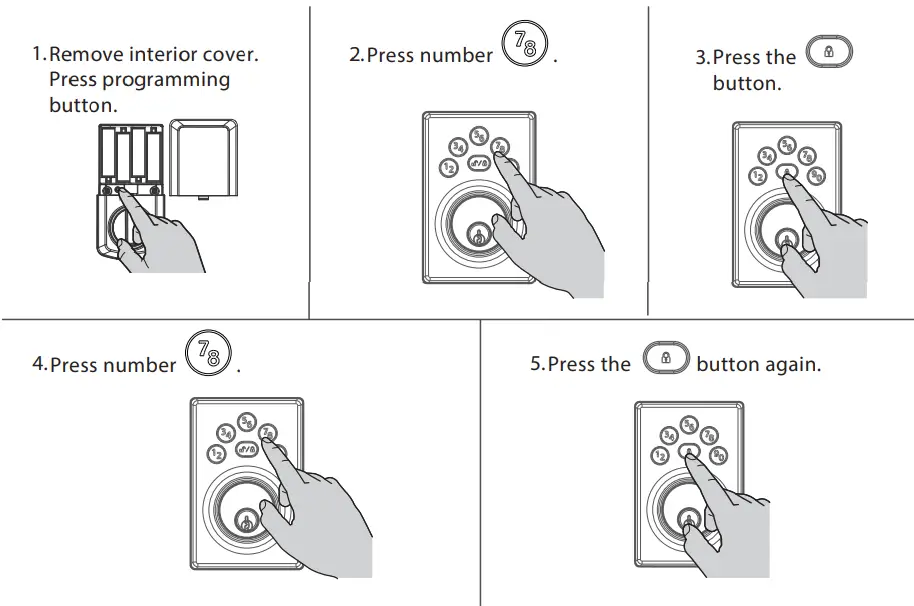
Enable/ Disable Audio
Note: LED status indicator will still function once audio is disabled. Repeat the programming steps to enable the audio.
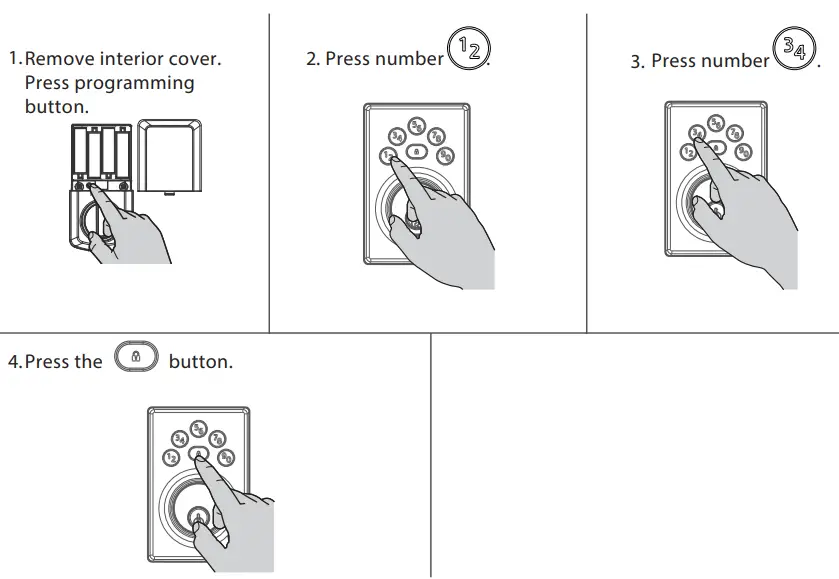
Enable/ Disable User Codes
Note: When all User Codes are disabled, all electronic functions will be disabled as well.
The door must be locked or unlocked manually with the key. Repeat the programming steps to enable the User Codes.
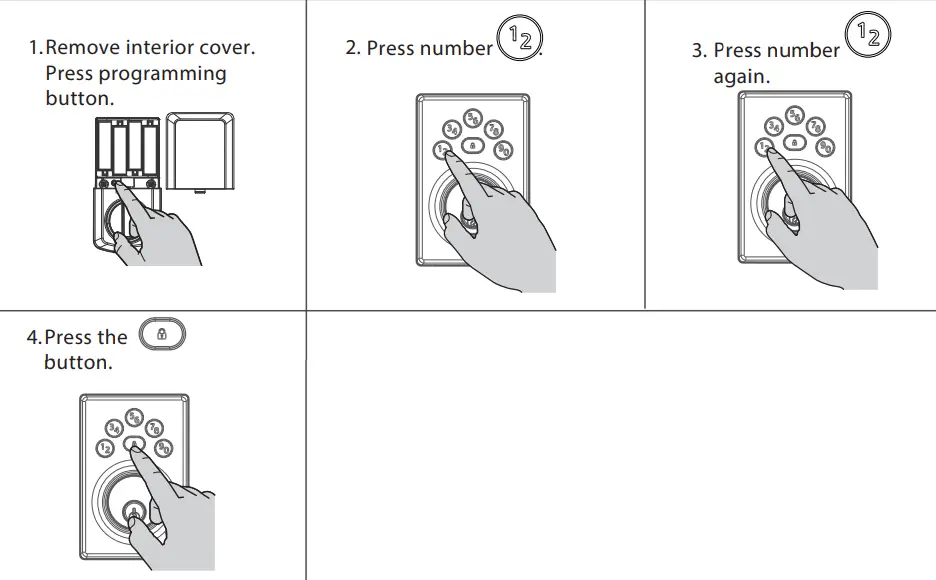
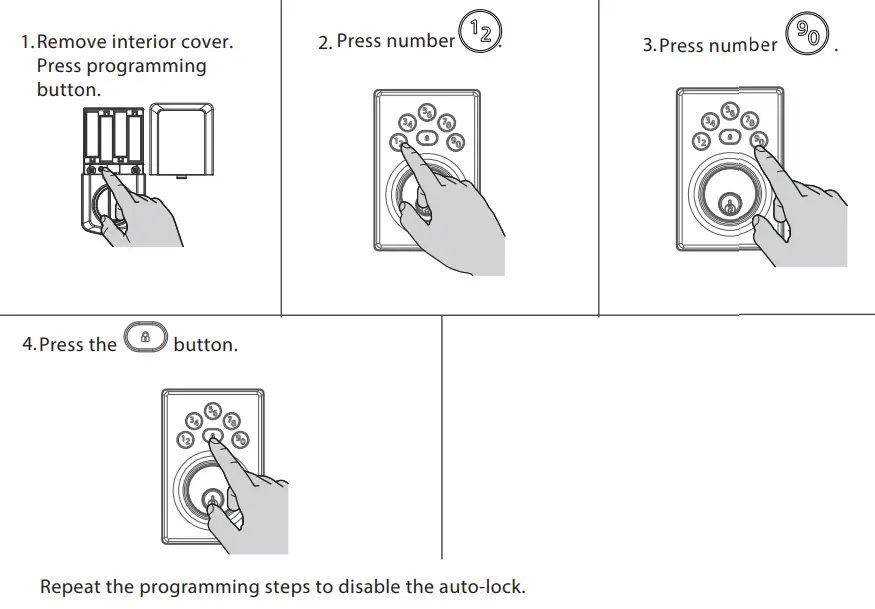
Enable/ Disable Auto-Lock
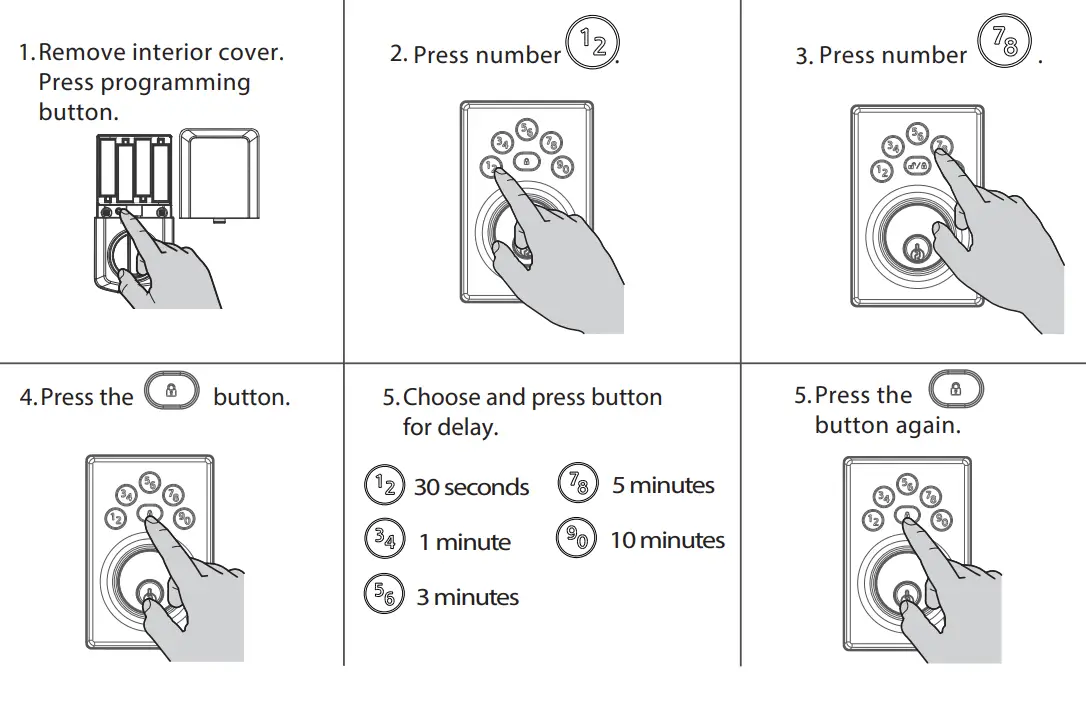
Change Auto-Lock Time Delay
Door Rehanding
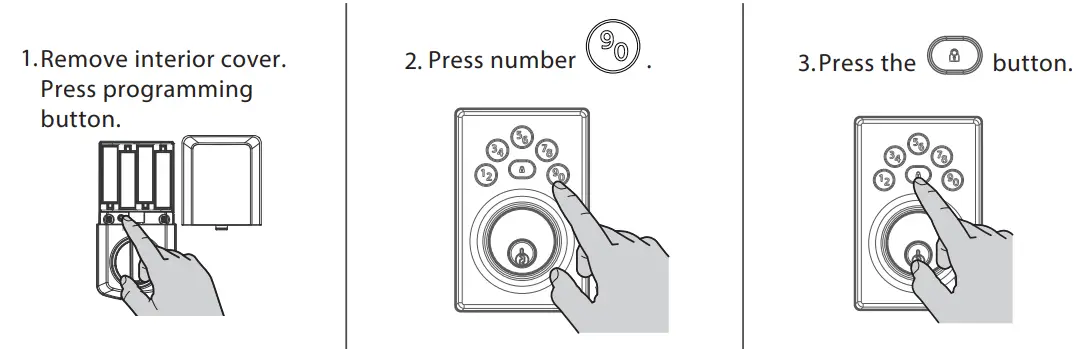
The latch bolt will extend and retract to learn the orientation of the door.
Note: Perform this process for the lock to learn the locking and unlocking direction of the door.
This feature is used for the lock to learn the orientation of your door (left- or right-handed). If stuck/jammed bolt error continues to occur after performing this step, please make sure there is no obstruction from strike or door jamb to prevent the bolt from extending.
Factory Reset
Note: Lock must be in a unlocked position to factory reset.
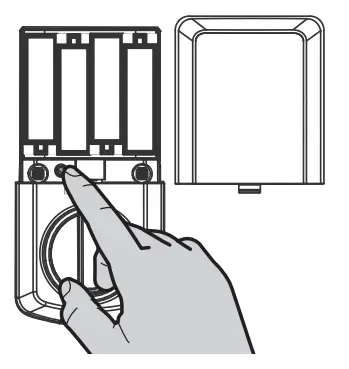
- Remove interior cover. PRESS and HOLD programming button for 15 seconds.

- The lock will have a long beep.

- Press programming button once more.
 A factory reset will delete all User Codes and change all programming to factory settings. At this time, the lock can only be locked or unlocked manually with the key.
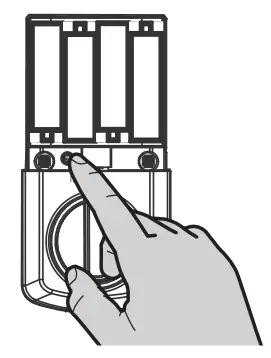
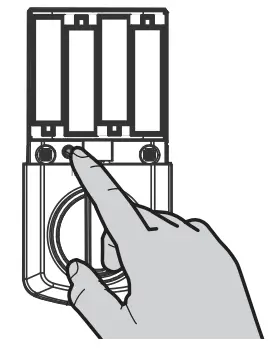 A factory reset will delete all User Codes and change all programming to factory settings. At this time, the lock can only be locked or unlocked manually with the key.
Door Rehanding
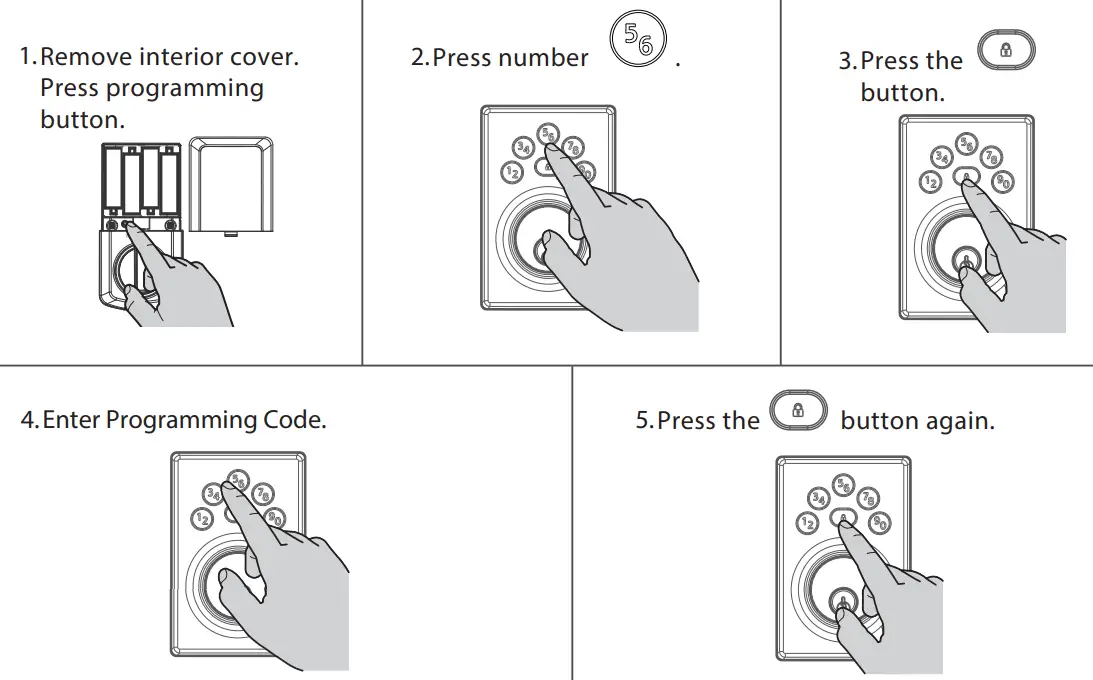
Enable/ Disable Programming Code:
Optional: A Programming Code enables you to make programming changes without needing to access the Programming Button. This is ideal for landlords to program the lock without access to the interior programming button.
Note: Once Programming Code is enabled, the Programming Button is disabled and can only be used to factory reset the lock.
One Programming Code between 4 to 8 digits can be saved and cannot be the same as any User Code and cannot be used as a User Code to unlock the lock.
To program the lock with Programming Code:

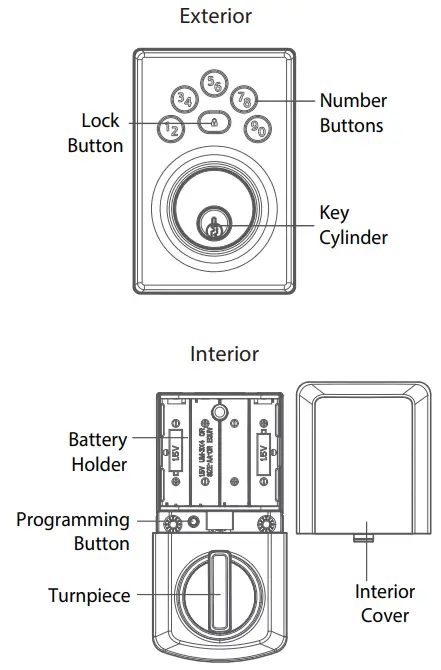
Powerbolt at a Glance
System Alerts
| Action IL | Lights IlL_Sounds | Sounds | Troubleshoot |
| Successful Unlock | Flashes GREEN x2 | 2 beeps | |
| Successful Lock | Flashes AMBER x2 | 2 beeps | |
| Low battery | Flashes RED x10 | 10 beeps | Install fresh new batteries |
| Incorrect User Code | Flashes RED x 3 | 3 beeps | Check code, and retry |
| Exceed 3 incorrect User Code attempts | Flashes RED x15 | 15 beeps | Wait 1 minute, check code, and retry |
| StuckBammed bolt | Alternate RED/ WHITE Flash x5 | 5 beeps | Clear jam and try again |
| Factory Reset Successful | Flashes GREEN xl | 1 beep | |
| Factory Reset Unsuccessful | Flashes RED x3 | 3 beeps | Retry factory reset steps. Make sure to press the Programming Button one more time within 10 seconds after the long beep. |
| Programming Successful | Flashes GREEN xl | 1 beep | |
| Programming Unsuccessful | Flashes RED x3 | 3 beeps | Review Programming steps |
Important Safeguards
- Read all instructions in their entirety.
- Familiarize yourself with all warning and caution statements.
- Remind all family members of safety precautions.
- Always have access to your lock’s standard key.
- If using the Auto-Lock features, make sure you have your standard key with you to prevent locking yourself out.
- Familiarize yourself with the system alerts.
- Replace low batteries immediately.
- Dispose of used batteries according to local laws and regulations.
WARNING:
This Manufacturer advises that no lock can provide complete security by itself. This lock may be defeated by forcible or technical means, or evaded by entry elsewhere on the property. No lock can substitute for caution, awareness of your environment, and common sense. Builder’s hardware is available in multiple performance grades to suit the application. In order to enhance security and reduce risk, you should consult a qualified locksmith or other security professional. CAUTION:
Prevent unauthorized entry. Since anyone with access to the back panel can change the User Codes, you must restrict access to the back panel and routinely check the User Codes to ensure they have not been altered without your knowledge. The use of a rogramming code can help protect your system’s settings.
Kwikset Technical Support | 1-800-327-5625 | www.kwikset.com
 Door Locks, Door Hardware, Smart Locks & Smartkey Technology | Kwikset