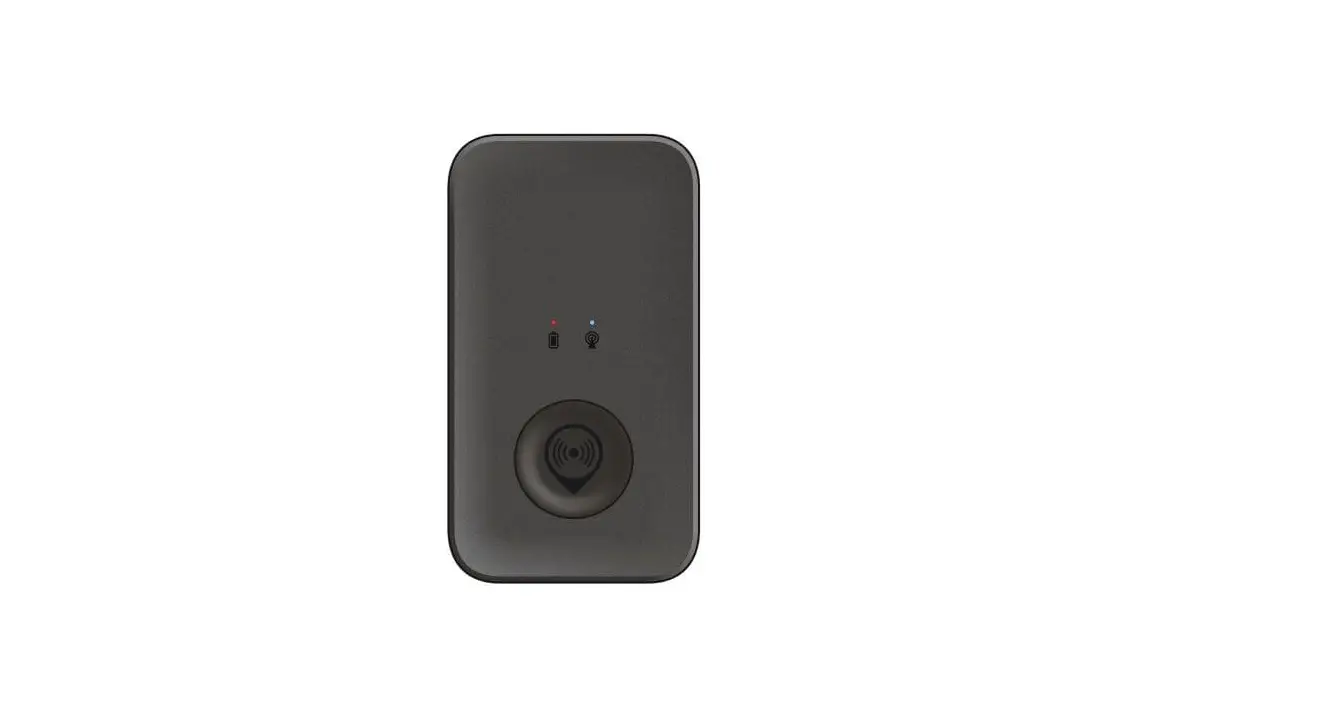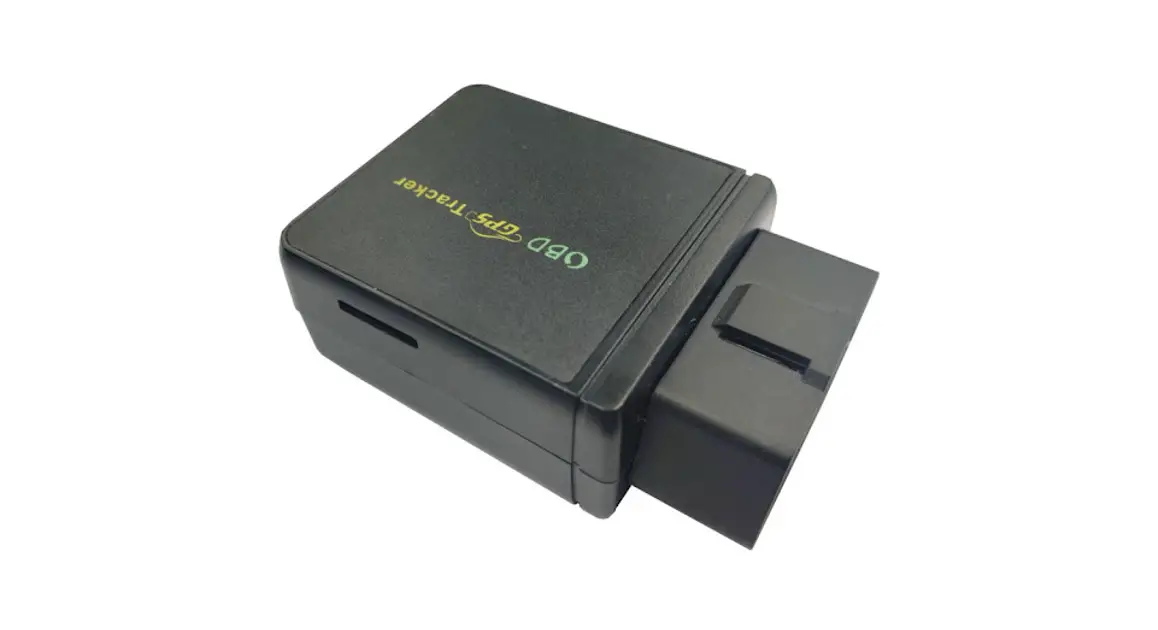

CalChip CONNECT SEN-000033-000 Digital Matter Dart2 4G Tracker
- Digital Matter Support
- Solution home
- Cellular
- Dart & Dart2
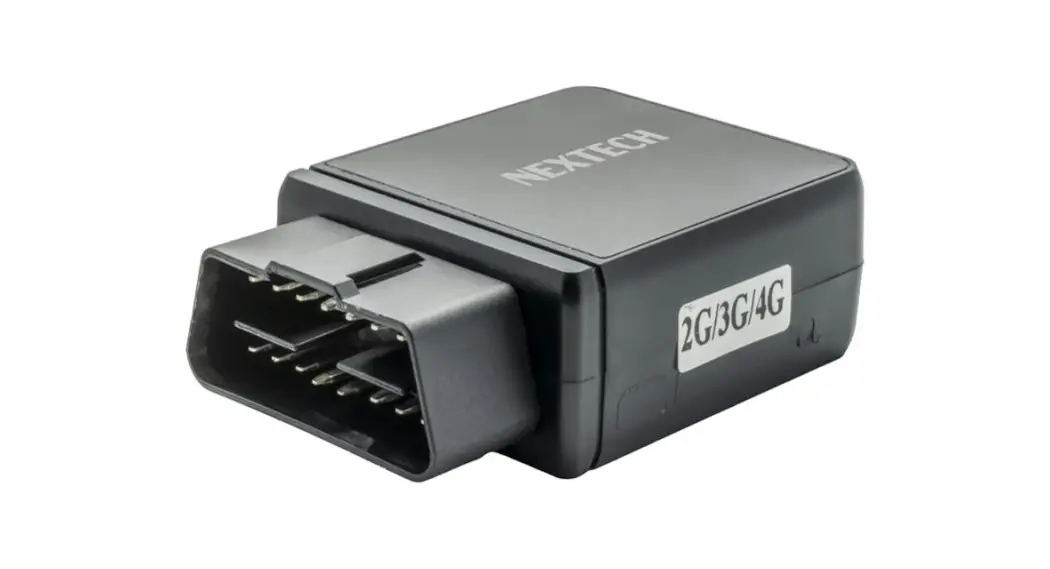
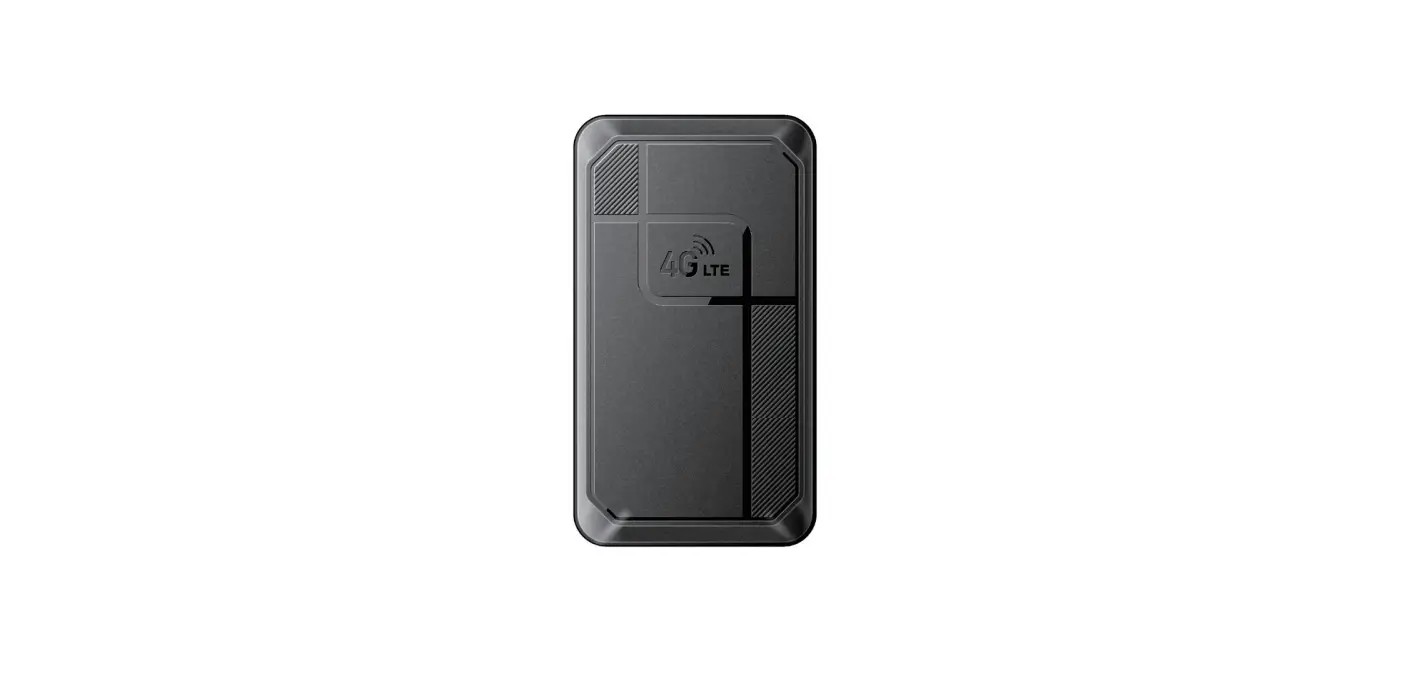
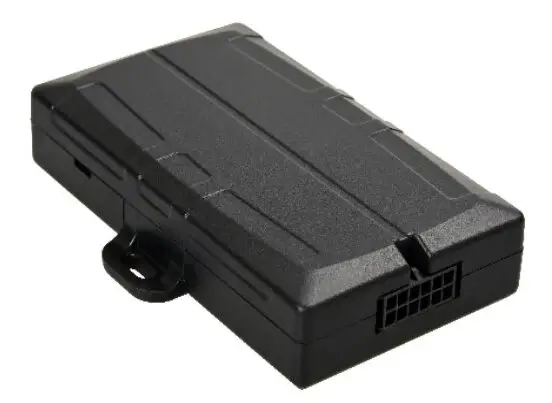
The Dart 2 is the new version of the Dart and is also a compact, economical and feature rich 2G or 4G tracking device.
It is designed to provide extremely cost effective tracking with all the quality and support of a Digital Matter product. It includes the latest GPS and cellular technology to give excellent performance at an entry level price.
See the Dart2 product page (https://www.digitalmatter.com/devices/dart2/) on www.digitalmatter.com
(https://www.digitalmatter.com) for more specifications.
Datasheet & High Resolution Images
Dart 2 Downloads
View the tech-specs (https://www.digitalmatter.com/devices/dart2/tech-specs/) and high resolution device images (https://www.dropbox.com/sh/neqb9zz4x678r0n/AABEpapZ0897E4_3NLwNBJq9a?dl=0) for the Dart2
This article will help you get up and running to test the Dart 2.
In the Box
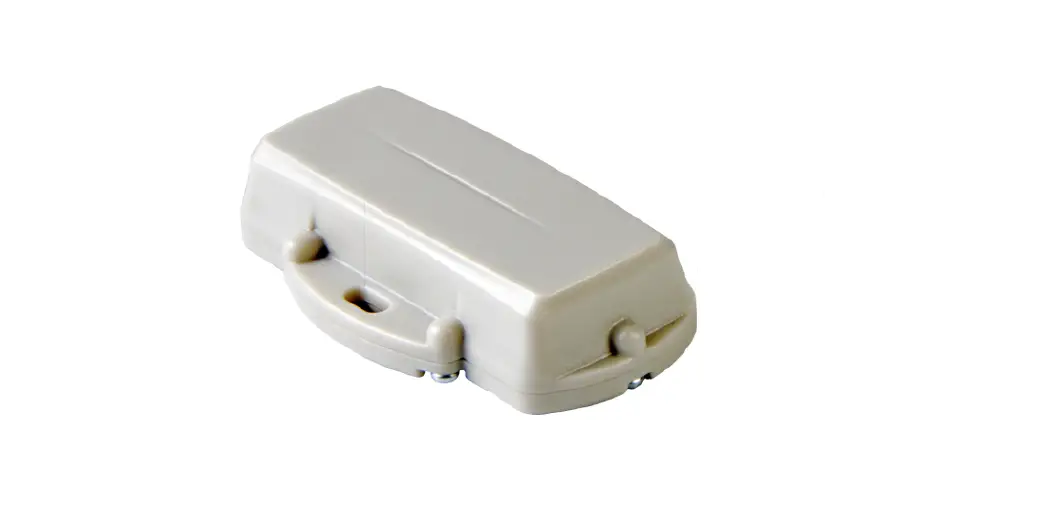
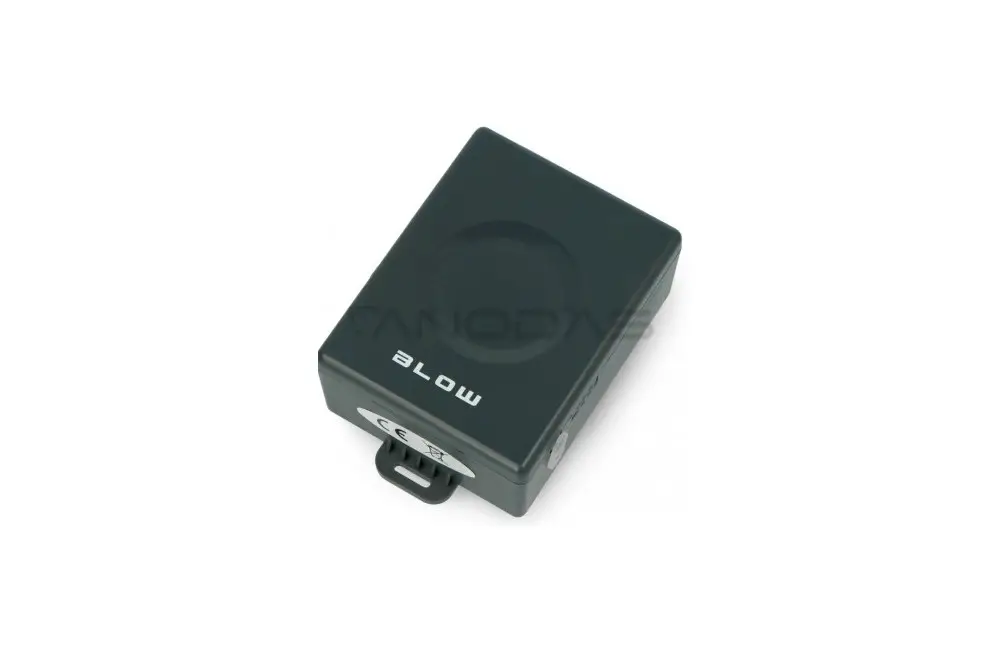
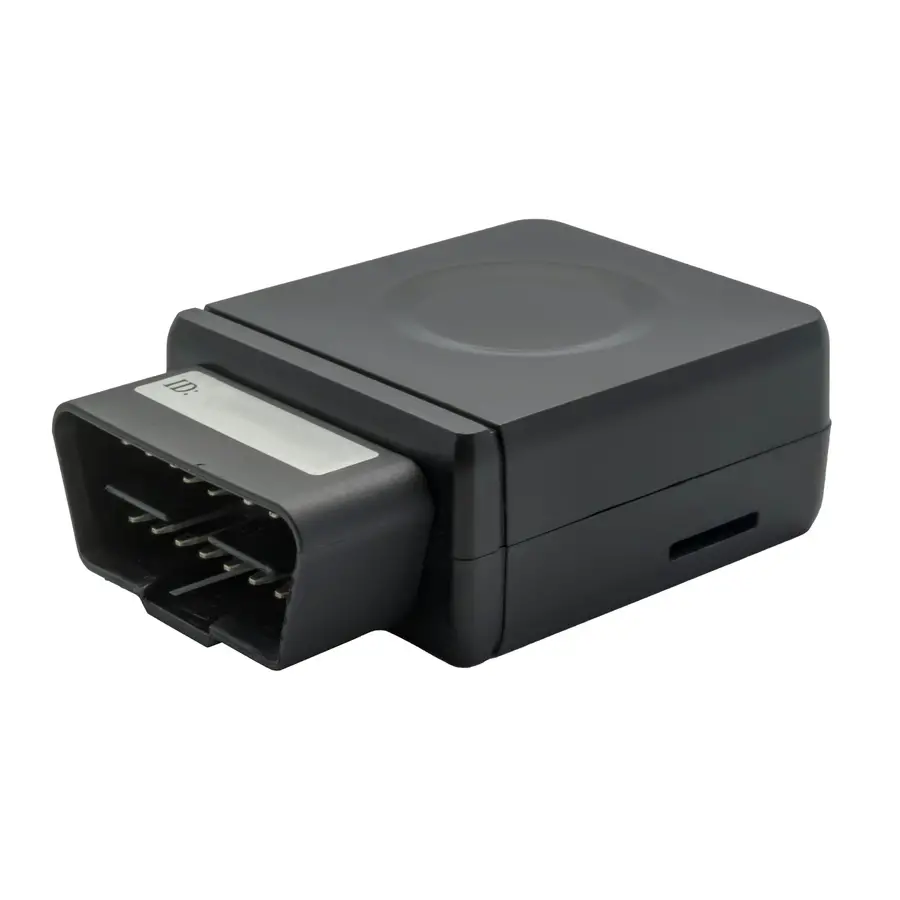
You’ll get a compact box containing the Dart 2 and a 12 wire harness. There are also OBDII and Cigarette Lighter harness options available for quick and easy (or temporary) installs.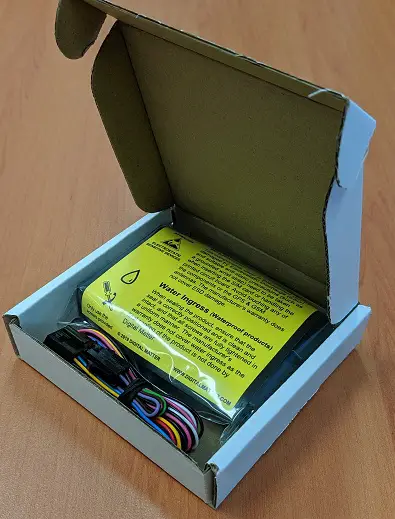
Setting it Up
Inserting the Sim Card
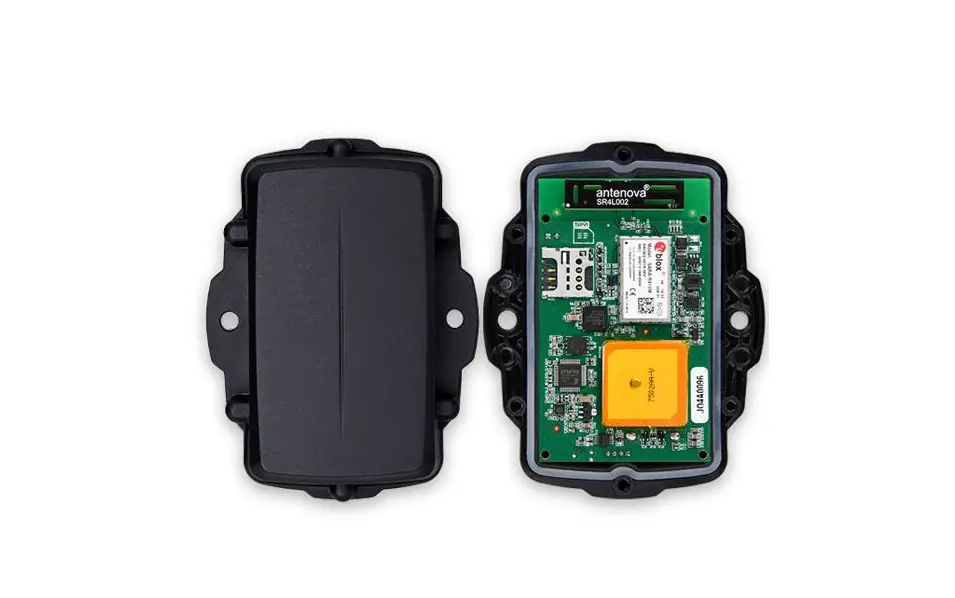
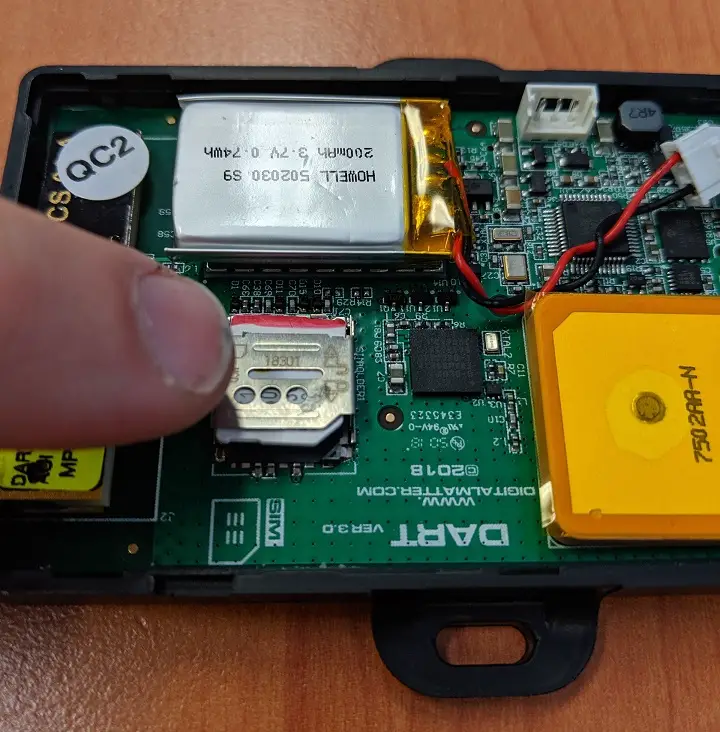
The Dart 2 uses a Micro SIM card–form factor 3FF. The SIM holder is on the top of the PCB. When handling the Dart 2 be careful not to touch the GPS antenna, to minimise the risk of damaging the sensitive GPS amplifiers with static discharge.
- Unlock the SIM holder by sliding it towards the battery sideof the device. Open the holder up on its hinge.
- Insert the SIM with the contacts down and the keyed corner pointing away from the battery side of the device
- Put the holder back down on the PCB and slide it towards the closest side of the device to lock it in place.
Getting Online
Once the battery is connected, the internal LED will come on and flash red and the device will do the following:
If the SIM card works and there is sufficient charge in the battery, the device will connect to the OEM Server. Go to www.oemserver.com/installer (http://www.oemserver.com/installer) and search for the serial number. Confirm that it has connected recently.
The LED will flash slowly at first. When it opens a connection to the server, it will flash fast. Once data is sent, it will go solid briefly, and revert to flashing fast. When the device goes to sleep, the LED will switch off.
If the battery is too low, use the harness to provide external power.
If the LED flashes but the Dart does not connect, check the SIM is in the holder correctly and check that the SIM is working.
Opening and Closing the Housing
- The housing closes with clips and does not need screws.
- To close the housing, line up the top and bottom parts. Push the housing together firmly.
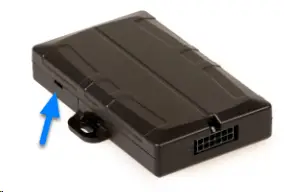
- To open the housing, insert a flat screw driver into the opening highlighted below. Carefully lever the two halves apart.
Installation
Location
The housing has mounting holes for screws, bolts or cable ties. There are a few considerations for the final mounting position of DM devices. The devices have been engineered to have the best possible GPS reception. It will work from inside engine bays, body panels, under dashboards and other places where other GPS devices simply fail to operate reliably. Although the units will work in these locations it is always advisable to install them where it is best able to get signals from the GPS satellites, with the optimum position being a location with a clear 180-degree view of the sky. For more detail, see Where/how do I mount the device?
(https://support.digitalmatter.com/en/support/solutions/articles/16000116084)
Note
The Dart, Dart2, G62 LTE & LoRaWAN and G100/G120 models all have 200mA fuses installed on the PCB for external power inputs. Digital inputs (including ignition) and switched ground outputs do not have integrated fuses, and are not specifically required by design, but may be installed to protect against external wiring faults.
The Fuses are self-resetting and do so when the fuse cools down. If the fault that is causing the fuse to trip is still present, it will require the device to be removed from power sources.
This means that the installer does not have to set up their own fuses for the device.
Wiring Diagrams
See:
- Dart Wiring Diagrams (https://support.digitalmatter.com/en/support/solutions/articles/16000053494)
- Wired Device Installation Guide (https://support.digitalmatter.com/en/support/solutions/articles/16000100715)
Troubleshooting Steps
See here for tips for if your device isn’t connecting
(https://support.digitalmatter.com/support/solutions/articles/16000087627-troubleshooting-devices-not-connecting)
Default Parameter Settings
The Dart 2 will operate with default settings out of the box. These can be changed using the OEM Admin interface. The defaults include:
- Hourly Heartbeats: the device will log a heartbeat record, connect to the server, and refresh its GPS data every 60 minutes.
- Logging: The device will log a record in trip every 60 seconds or 500m travelled. It will also log a record when the direction is changed by 10° and 150m is travelled with the new heading.
- Wired AND Emulated Ignition: by default, the Dart will track a trip if either the ignition wire is pulled high or movement is detected. The setting can be changed to do one or the other, or continue to use both.
Default I/O Mappings
| Digital Mappings 0 | Description Ignition |
| 5 | GPS Interference |
| 6 | GPS Jamming |
| Analogue Mappings | Description |
| 1 | Battery Voltage |
| 2 | External Voltage |
| 3 | Device Temperature |
| 4 | GSM reception |
Driver ID Options
The Dart2 has both iButton and TTL interfaces, which can be used to read a wide variety of Driver ID readers. See
- Driver ID Reader Options (https://support.digitalmatter.com/en/support/solutions/articles/16000109826)
- Driver ID & Immobilisation methods with Powered Devices (https://support.digitalmatter.com/en/support/solutions/articles/16000095701)
References
 Digital Matter | GPS & IoT Tracking Device Manufacturers
 OEM - Installer
-
Dart Wiring Diagrams : Digital Matter Support
-
Driver ID & Immobilisation methods with Powered Devices : Digital Matter Support
-
Wired Device Installation Guide : Digital Matter Support
-
Driver ID Reader Options : Digital Matter Support
-
Setting the Network Profile - LTE-M/NB-IoT devices : Digital Matter Support
-
Where/how do I mount the device? : Digital Matter Support
-
Troubleshooting - Devices Not Connecting : Digital Matter Support
-
4G APN - Autonet : Digital Matter Support
-
Digital Matter | GPS & IoT Tracking Device Manufacturers
-
Dart3 – Robust GPS Vehicle Tracker | Digital Matter
-
Dart3 Tech Specs - Rugged and Robust GPS Vehicle Tracker | Digital Matter
-
Dropbox - Device Images - Simplify your life
 Digital Matter | GPS & IoT Tracking Device Manufacturers
 OEM - Installer
 Dart Wiring Diagrams : Digital Matter Support
 Dropbox - Device Images - Simplify your life