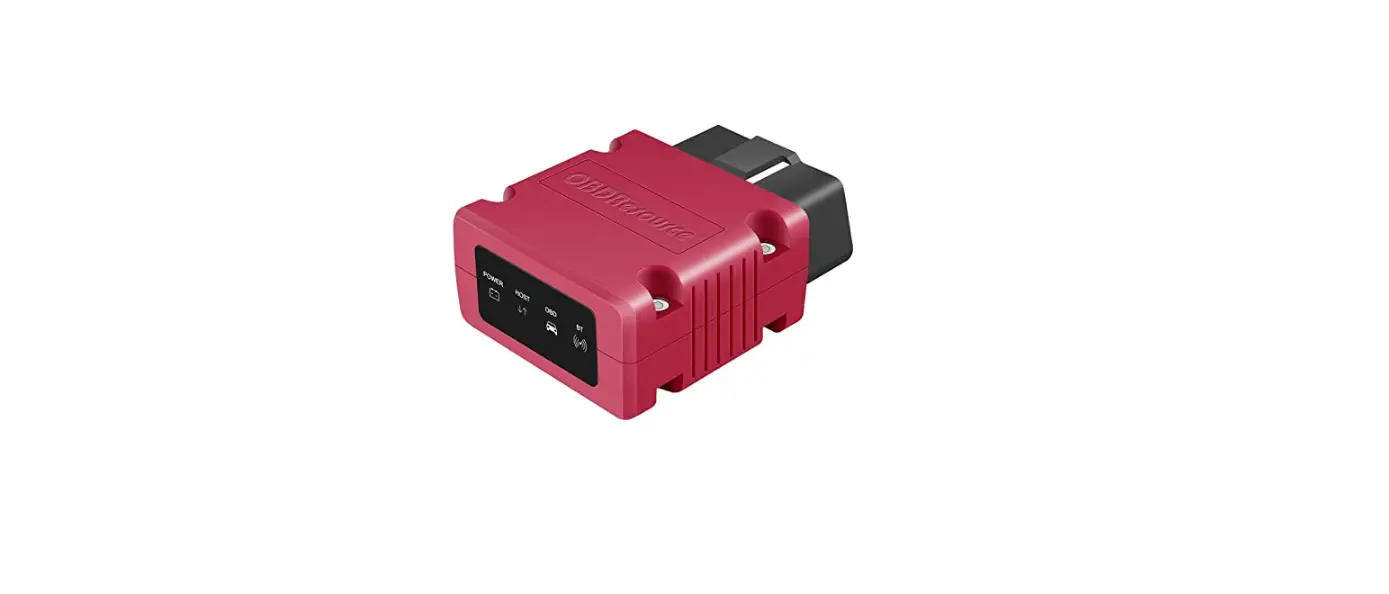
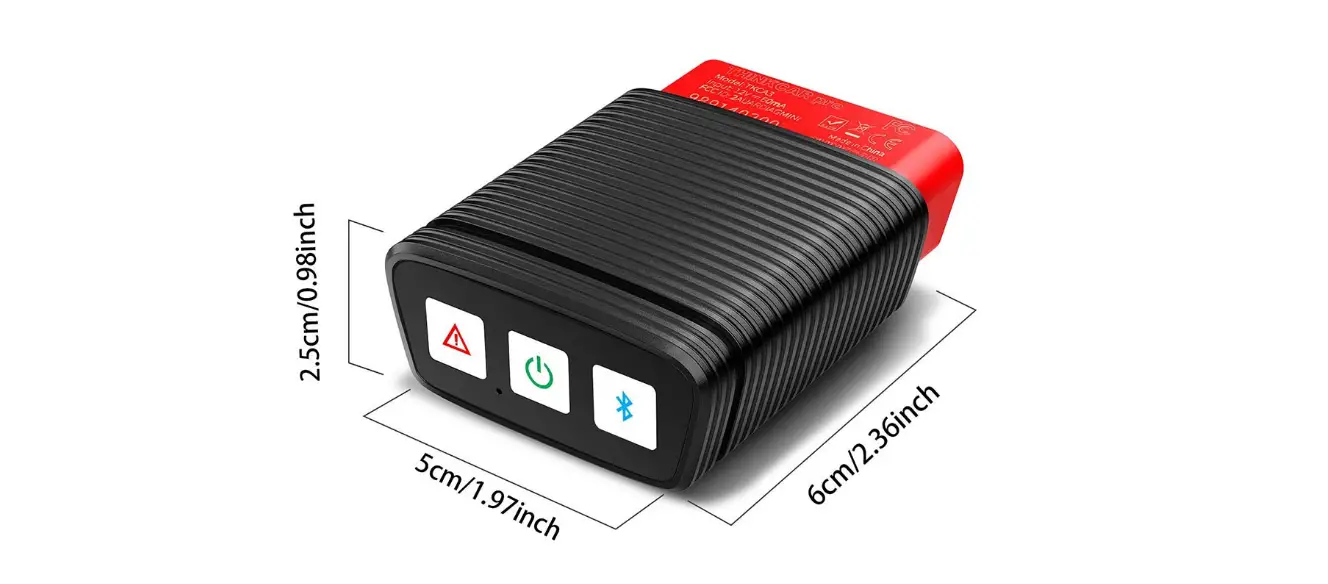
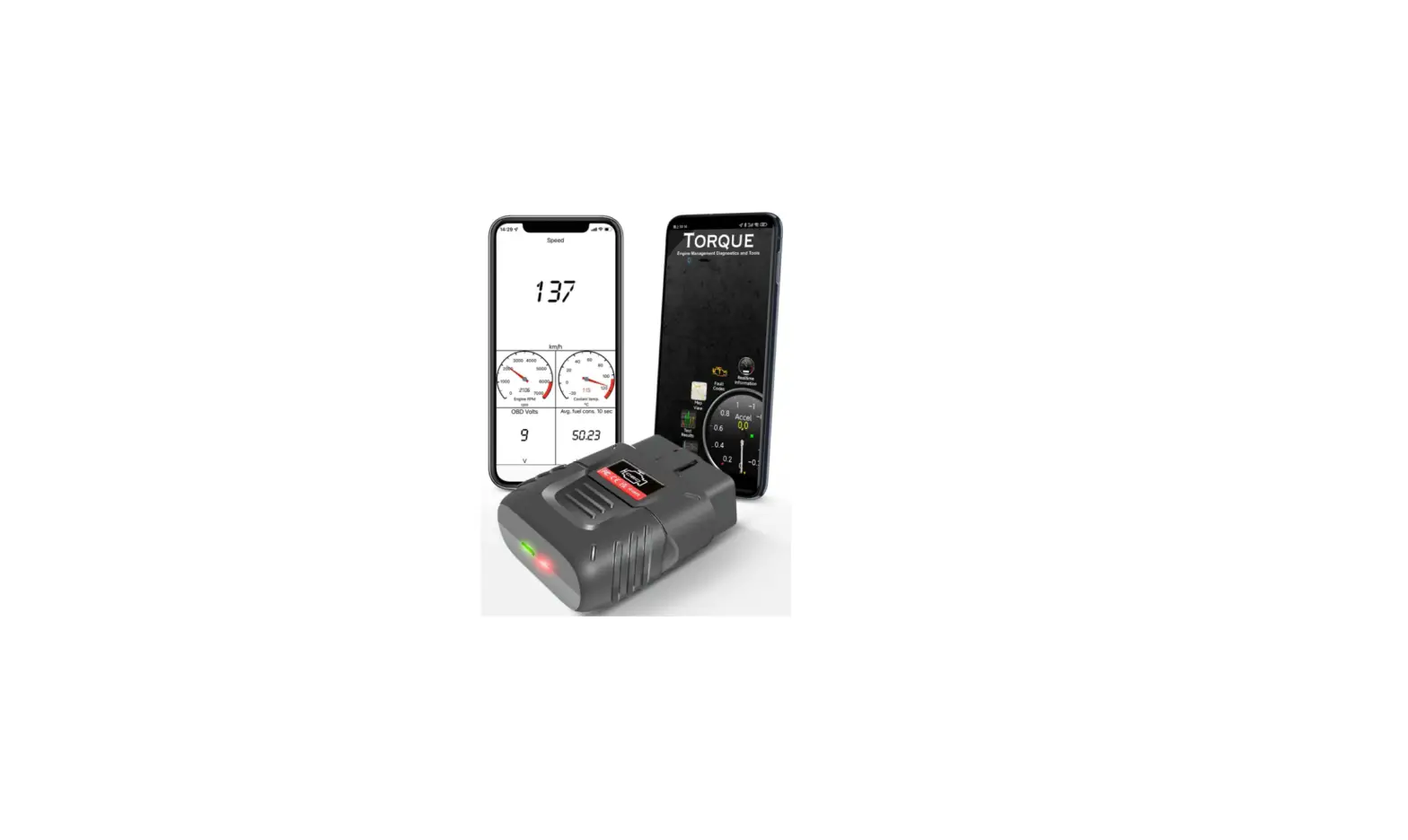
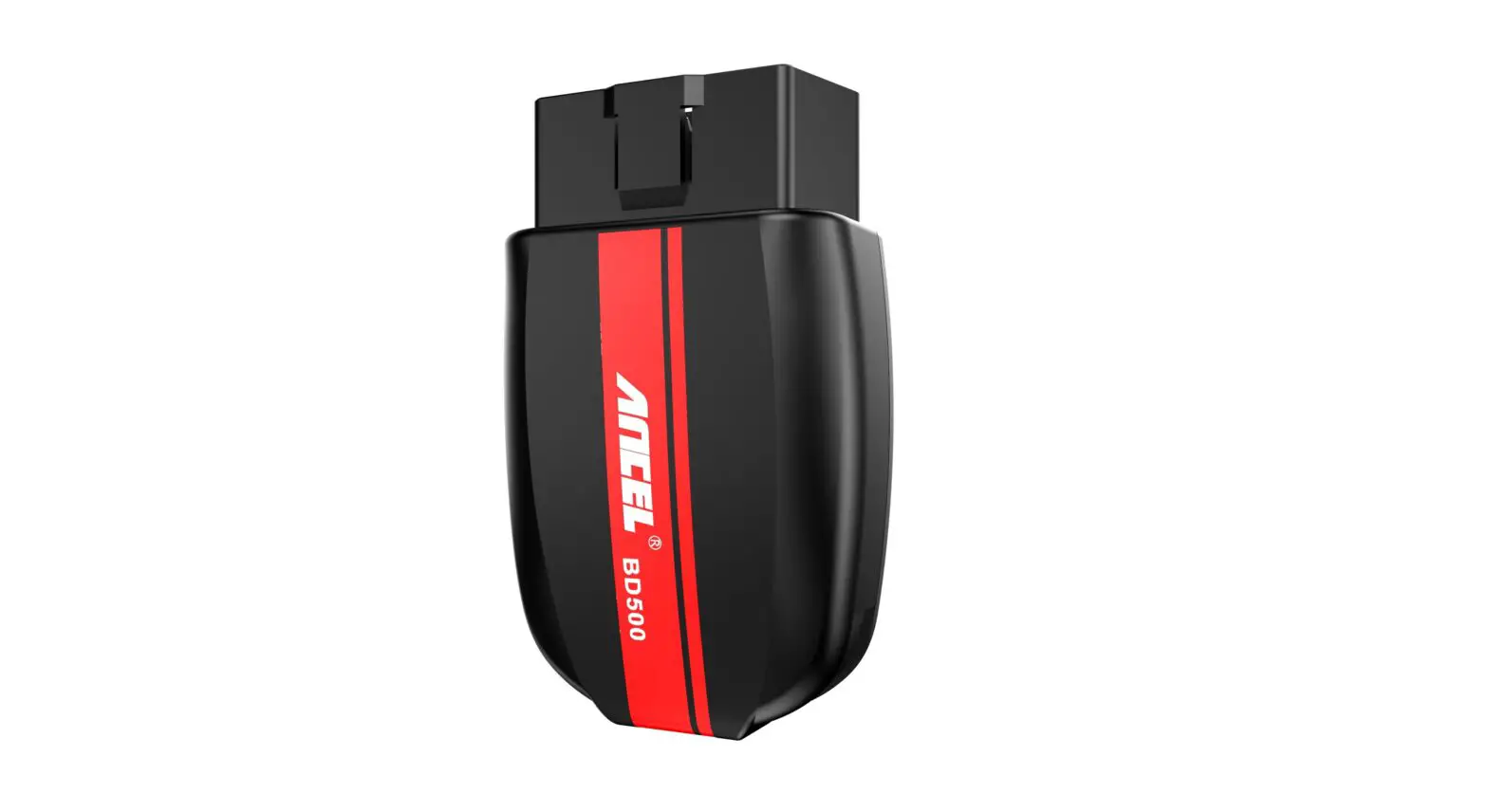
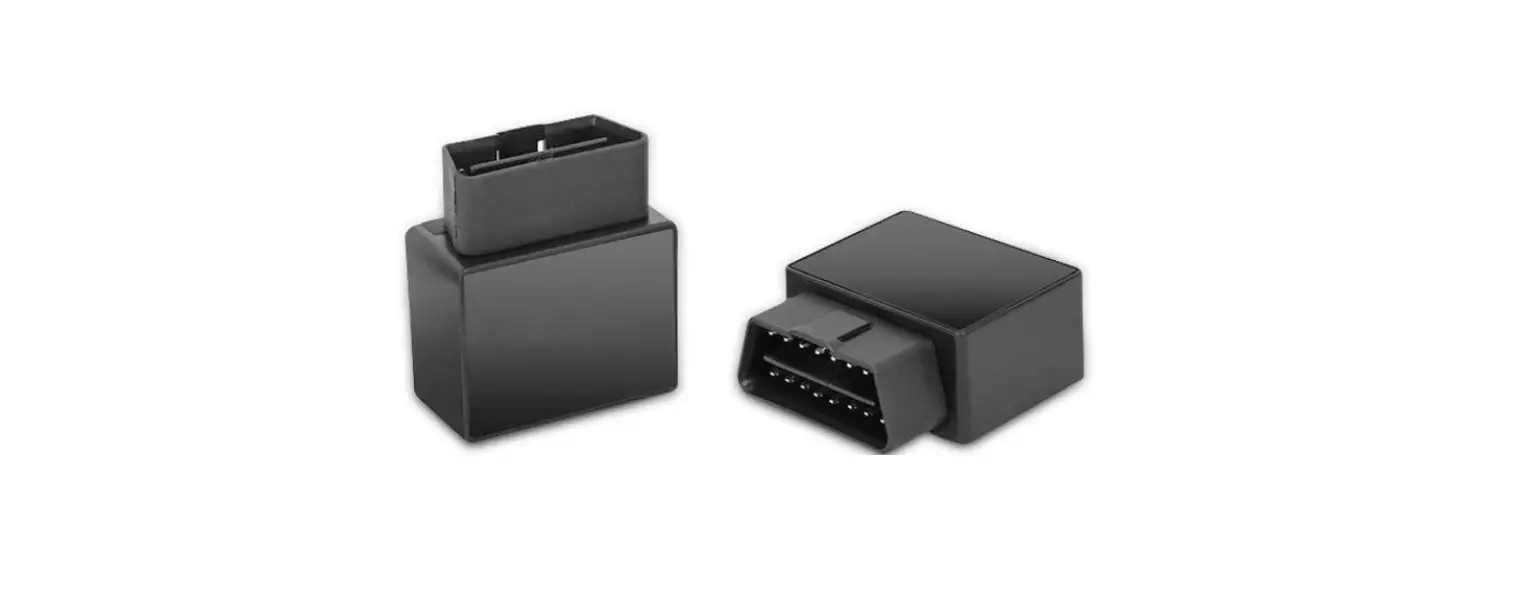
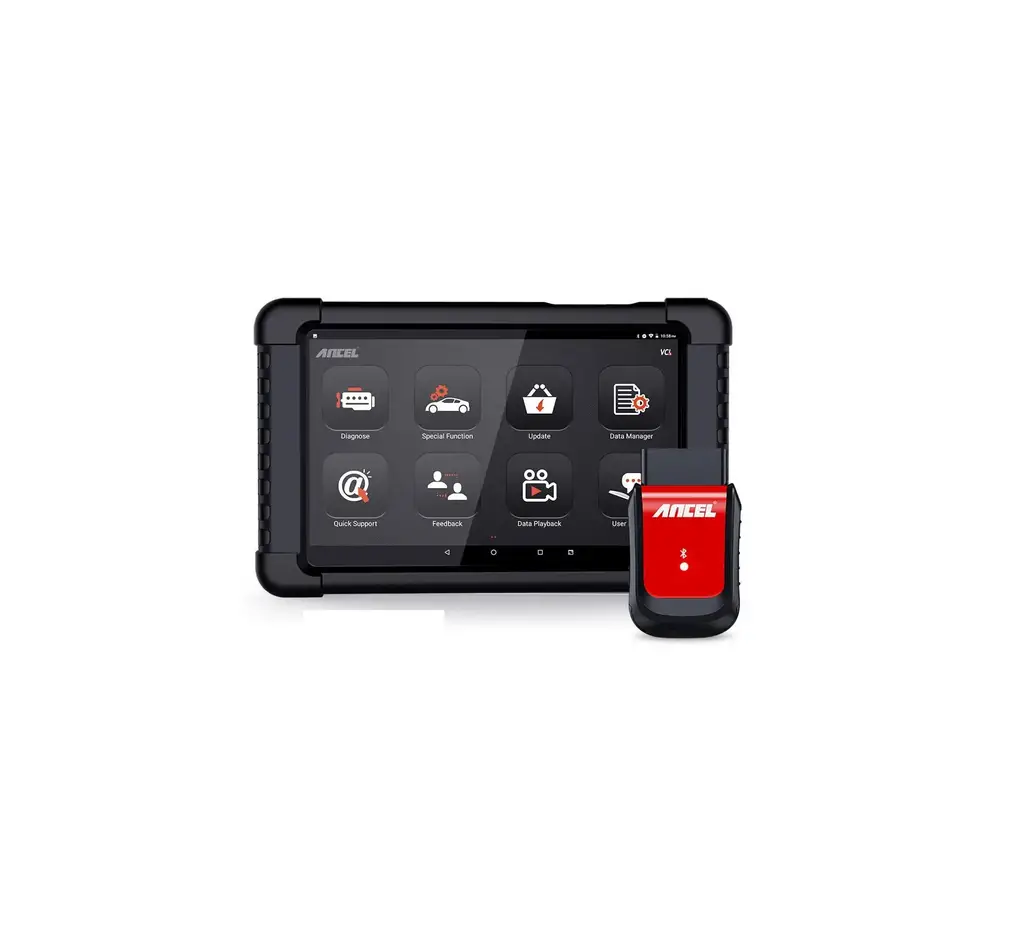
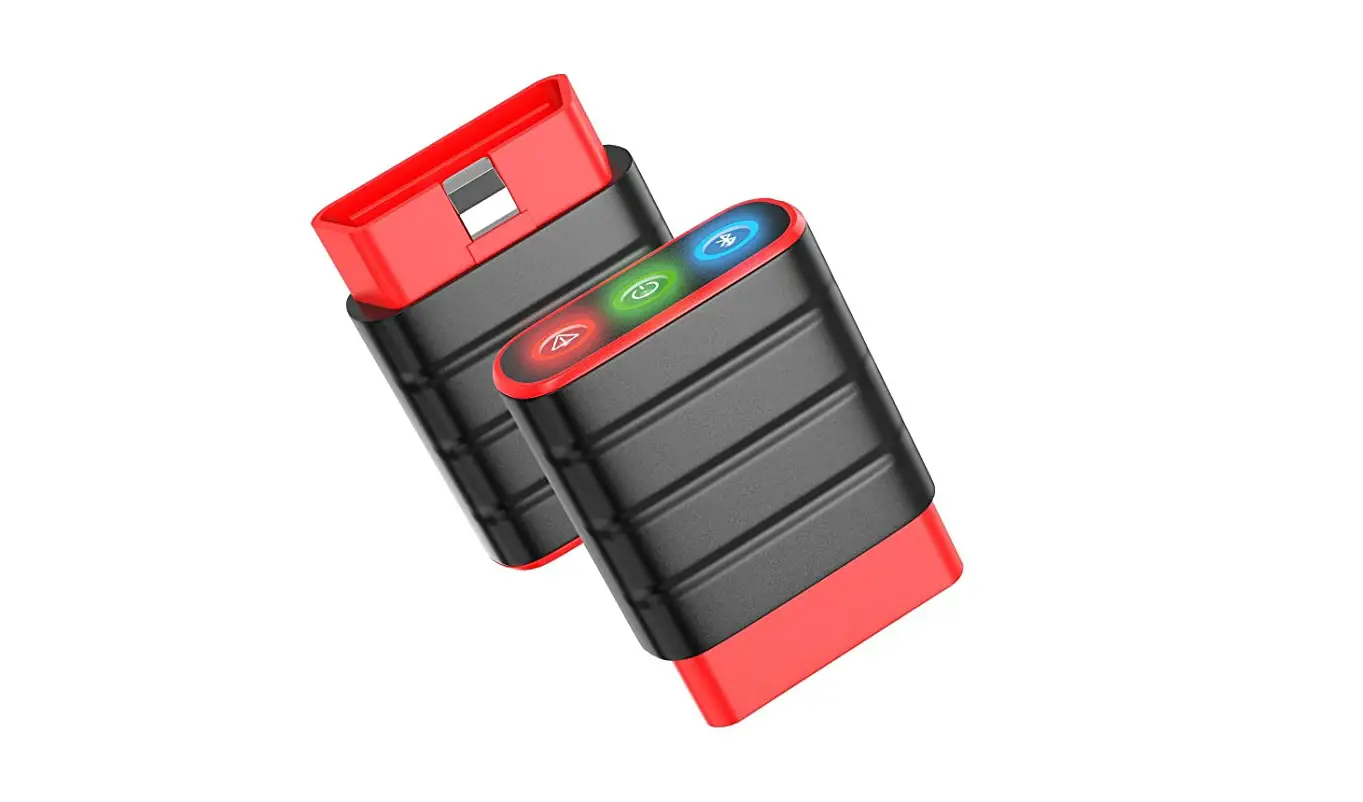
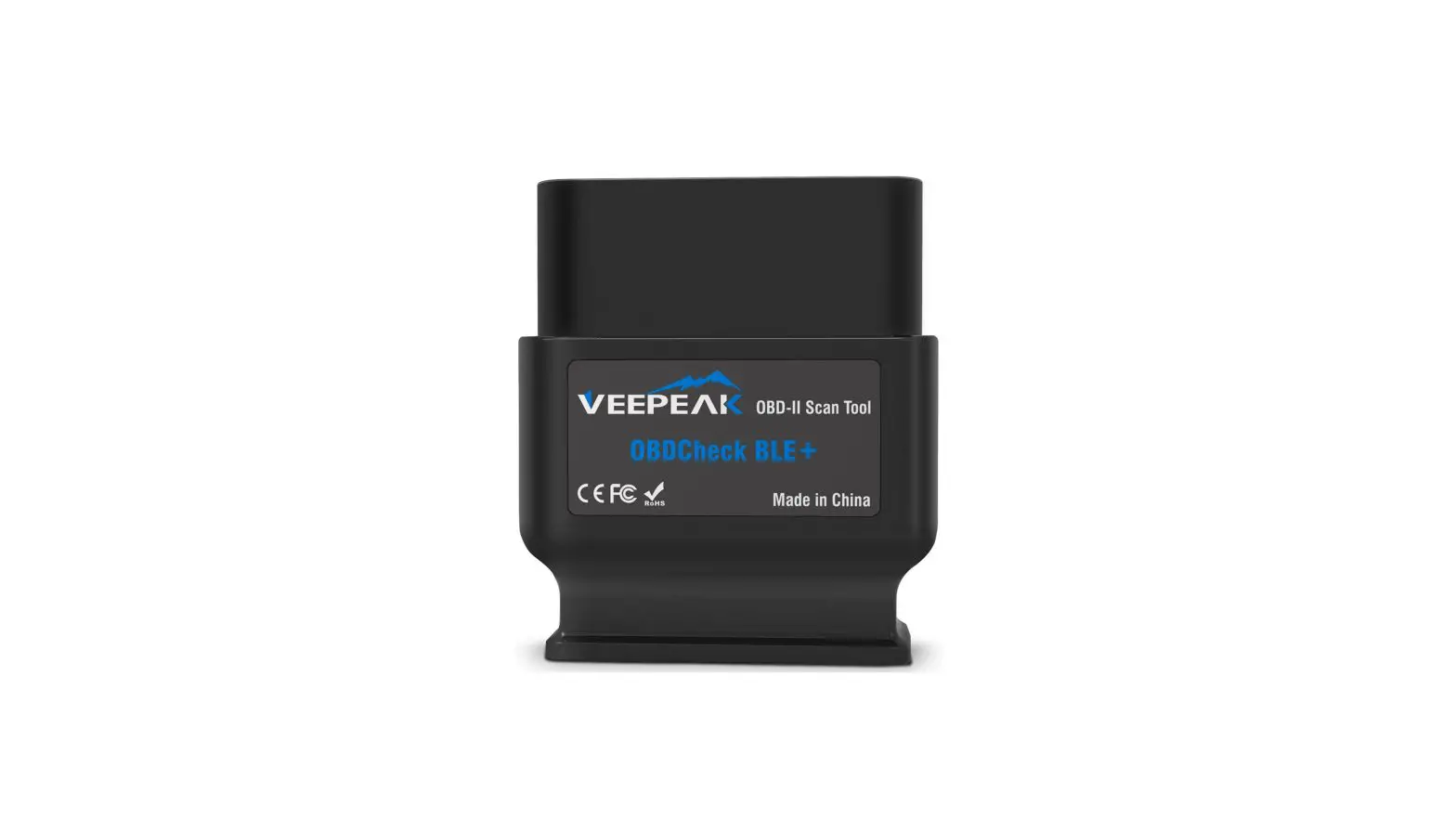
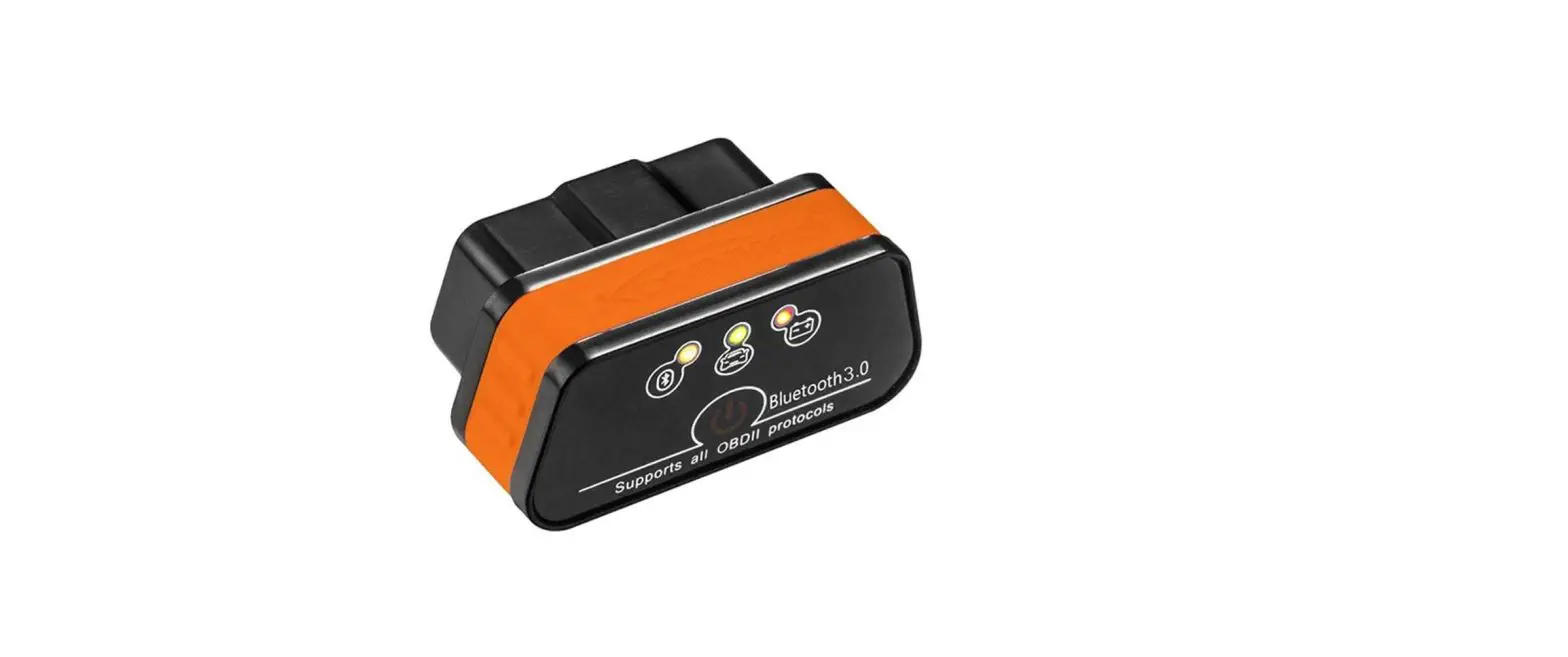
OBDCheck BLE+ Bluetooth 4.0 OBD II Scanner
Product Information:
The OBDCheck BLE+ is a car diagnostic tool that allows you to
connect your Android phone or tablet to your vehicle’s onboard
diagnostics system (OBD II). It uses Bluetooth technology to
establish a wireless connection between the device and your mobile
device. The device is compatible with most Android phones and
tablets, but may have compatibility issues with some Android head
units. It supports various OBD2 apps for basic check engine
diagnostics and can provide sensor data readings from the OBDII
system installed by the vehicle manufacturer.
FAQs:
- Is it compatible with Android head units?
The OBDCheck BLE+ works with Android phones and tablets, but
compatibility with Android head units may vary due to their lack of
support for certain Bluetooth profiles. To improve compatibility,
you can try changing the default pairing PIN from 0000 to 1234 in
the head unit Bluetooth settings. If the issue persists, please
contact the head unit manufacturer for further assistance. - Can I leave the device plugged in all the
time?You can leave the OBDCheck BLE+ adapter plugged in for a few
days if your car battery is not too old or if the car is driven
frequently. However, it is strongly recommended to remove the
device if your car will be sitting idle for more than 1 week. - Does it work with EVs?
Most EVs (including PHEVs) do not use standard OBD II protocols.
To connect to an EV, you will need a capable app such as Car
Scanner ELM OBD2 (select the corresponding connection profile) or
other compatible apps like ABRP, LeafSpy, EV Watchdog, MyGreenVolt,
CanZE, etc. - Can it read or reset my ABS, airbag, and other
non-Check Engine lights?Most OBD2 apps only provide basic check engine light
diagnostics. To perform enhanced diagnostics on modules like ABS or
airbag, you will need a capable app such as OBD Fusion, OBD JScan,
AlfaOBD, Carista OBD, etc. Please contact Veepeak or the app
developer for specific app recommendations. - Which sensor data can I get?
The readable parameters depend on what is installed on the OBDII
system by the vehicle manufacturer. For more information on
available sensor data, please refer to the OBD II PIDs on Wiki.
Generally, newer vehicles provide more readings and faster refresh
speed. - Does it read transmission temperature?
The transmission temperature is a manufacturer-specific PID and
is not read by most generic OBD2 apps. To access this information,
please contact Veepeak customer support for app recommendations or
search for custom PID information on the web and add it to the
compatible app. - Does it support coding of BMW G series?
Currently, the OBDCheck BLE+ does not support all coding options
in BimmerCode for G series BMWs. For coding purposes, it is
recommended to use the ENET WiFi Adapter or other adapters as
suggested by BimmerCode.
Troubleshooting Guide:
- When I try to connect VEEPEAK with my iPhone, it tells
me it is not supported.This error may occur on iOS devices when trying to pair with
Bluetooth LE devices from the Bluetooth Settings. To resolve this,
restart your iOS device so VEEPEAK appears again on Bluetooth.
Then, start the app and connect directly within the app. - Device not power up (no blue light).
If the device does not power up and there is no blue light,
first check if the cigar fuse of your vehicle is in good condition.
You can also try using the device with another vehicle to verify if
it powers up. - Device powers up, but VEEPEAK is not showing up on my
phone’s Bluetooth device list.If the device powers up but does not appear on your phone’s
Bluetooth device list, ensure that the device is not connected to
other phones or tablets. Turn off Bluetooth, then turn it back on,
refresh the Bluetooth list, and wait for a few seconds for VEEPEAK
to appear.
Instructions for OBDCheck BLE+
Quick Setup Guide with Car Scanner ELM OBD2
FAQs
1. Is there an App included with the device? No, but there are many great third-party OBD2 apps available to download (some may require purchase) from Google Play Store and Apple App Store. For generic OBD2 functions, we recommend Torque Lite (or paid Pro, Android only), Car Scanner ELM OBD2, OBD Fusion (paid), Inforcar, etc. They cost from free to about $10. Some special Apps require subscription or are more expensive. 2. Does it work with iOS iPhone or iPad? Yes, the OBDCheck BLE+ works with Apple iOS devices via Bluetooth LE. You should not pair or connect in iOS Bluetooth Settings; instead, please directly connect in the App. Note: it does not use WiFi.
3. Is it compatible with Android head units? It works with Android phones and tablets, but may have compatibility issue with some Android head units due to their lack of support for some Bluetooth profiles and we do not have a compatibility list due to the complexity of the market. For some Android head units, you may try changing the default pairing PIN from 0000 to 1234 in the head unit Bluetooth setting. If this still does not help, please contact the head unit manufacturer for assistance.
4. Can I leave the device plugged in all the time? You can leave the adapter plugged in for a few days if your car battery is not too old, or the car is driven frequently. If you leave your car sitting for more than 1 week, we strongly recommend that you remove the device.
5. Does it work with EVs? Most EVs (including PHEVs) do not use standard OBD II protocols, so you may need a capable App to connect, for example Car Scanner ELM OBD2 (select the corresponding connection profile), ABRP, LeafSpy, EV Watchdog, MyGreenVolt, CanZE, etc.
6. Can it read or reset my ABS, airbag, and other non-Check Engine lights? Most OBD2 Apps only provide basic check engine light diagnostics. You will need a capable App that can do enhanced diagnostic on these modules on your specific vehicle, for example OBD Fusion, OBD JScan, AlfaOBD, Carista OBD, etc. Contact Veepeak or the app developer if you are not sure. Oil change or maintenance required lights cannot be read or reset since there is no error code for them.
7. Which sensor data can I get? Readable parameters depend on what’s installed on the OBDII system by the manufacturer. Please refer to OBD II PIDs on Wiki. Generally, newer vehicles will give more readings and faster refresh speed.
8. Does it read transmission temperature? The transmission (fluid) temperature is a manufacturer specific PID so it’s not read by most generic OBD2 Apps. Please contact Veepeak customer support for App recommendation (similar to FAQ 6) or search for the custom PID information on the web & add it in the App. This applies to other manufacturer specific PIDs.
9. Does it support coding of BMW G series? Currently the OBDCheck BLE+ does not support all the coding options in BimmerCode for G series. We are working on it, and for the moment you may choose the ENET WiFi Adapter on Amazon or other adapters as recommended by BimmerCode.
Troubleshooting Guide
1. Could not pair my phone with “VEEPEAK”. (Android) Please try the following: (1) Turn off Bluetooth and turn it back on. Try pairing a few more times. Sometimes it helps. (2) Restart your phone, turn off WiFi/cellular data and try again. (3) Clear Bluetooth cache/storage: Settings Apps (show system) Bluetooth Storage & Cache, clear them and RESTART the phone (the route may be slightly different for different brands).
2. When I try to connect “VEEPEAK” with my iPhone, it tells me it is not supported. On iOS devices, you will see this error when trying to pair with Bluetooth LE devices from the Bluetooth Settings. You do not need to connect with VEEPEAK here. Please restart your iOS device so “VEEPEAK” shows up again on Bluetooth. Then start the App and directly connect in the App.
3. Device not power up (no blue light). First check if the cigar fuse of your vehicle is in good condition. You can also try with another vehicle to verify.
4. Device powers up, but “VEEPEAK” is not showing up on my phone’s Bluetooth device list. Make sure the device is not connected to other phones or tablets. Please turn off Bluetooth and turn it back, refresh the Bluetooth list and wait for a few more seconds.
5. “VEEPEAK” quickly disconnects or does not show as connected after pairing. As long as it is paired via Bluetooth, you can just start the app to connect. It may show as saved, paired or previously connected on some Android phones, but it’s actually connected.
6. App not connecting to OBD II Device (ELM connection fails). Make sure the App is compatible, and you have made the correct App connection settings and granted the App permissions; Remove and re-install the app (especially when you have an OS update); Try with a different App.
7. Cannot connect to vehicle (ECU connection fails). Make sure your vehicle is OBD2 compliant (1996+MY in the US, 2001+ petrol/2004+ diesel in EU & UK, etc.; commercial vehicles not compatible); Check if your vehicle is supported by the App and App connection instructions (for example BimmerCode); Make sure ignition is ON or start the vehicle to try; Make sure it fits well in the OBD2 port. Try to push it a little harder into the OBD2 port; Then try it on another vehicle if possible.
If you could not find the answer or still have troubles getting it to work after troubleshooting, please reach out to Veepeak customer support at [email protected] for assistance or replacement.