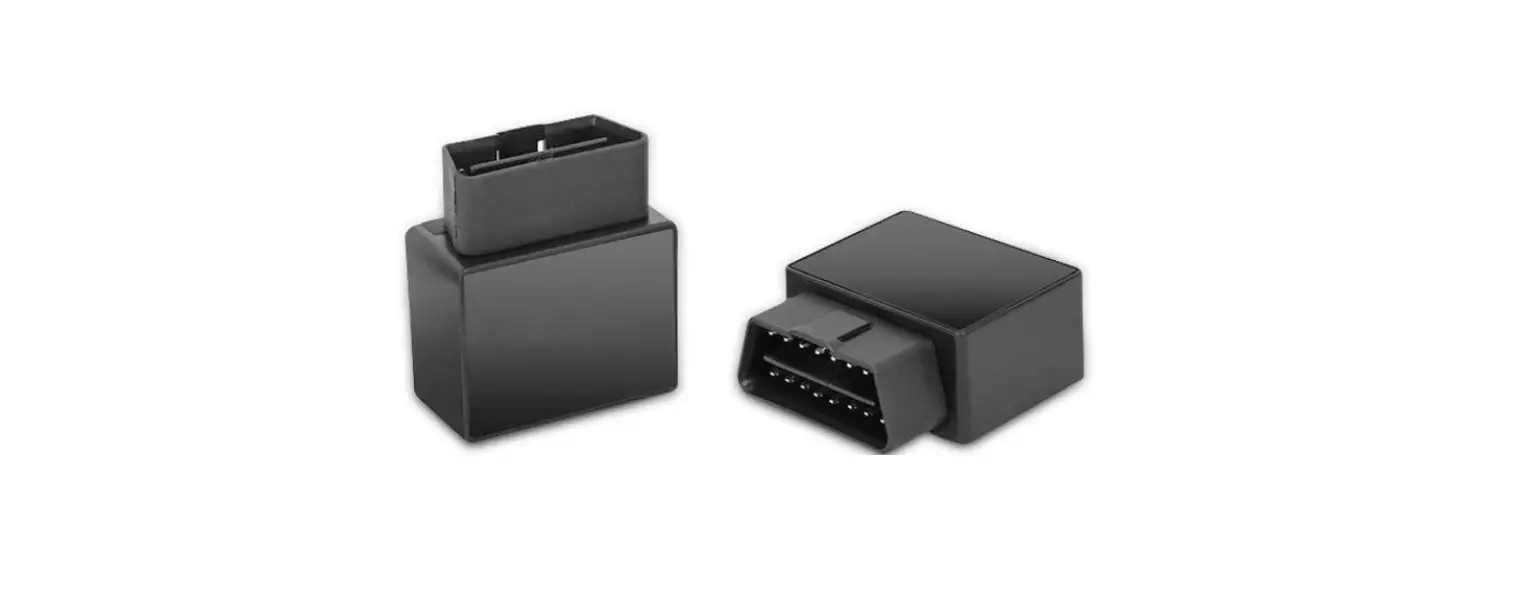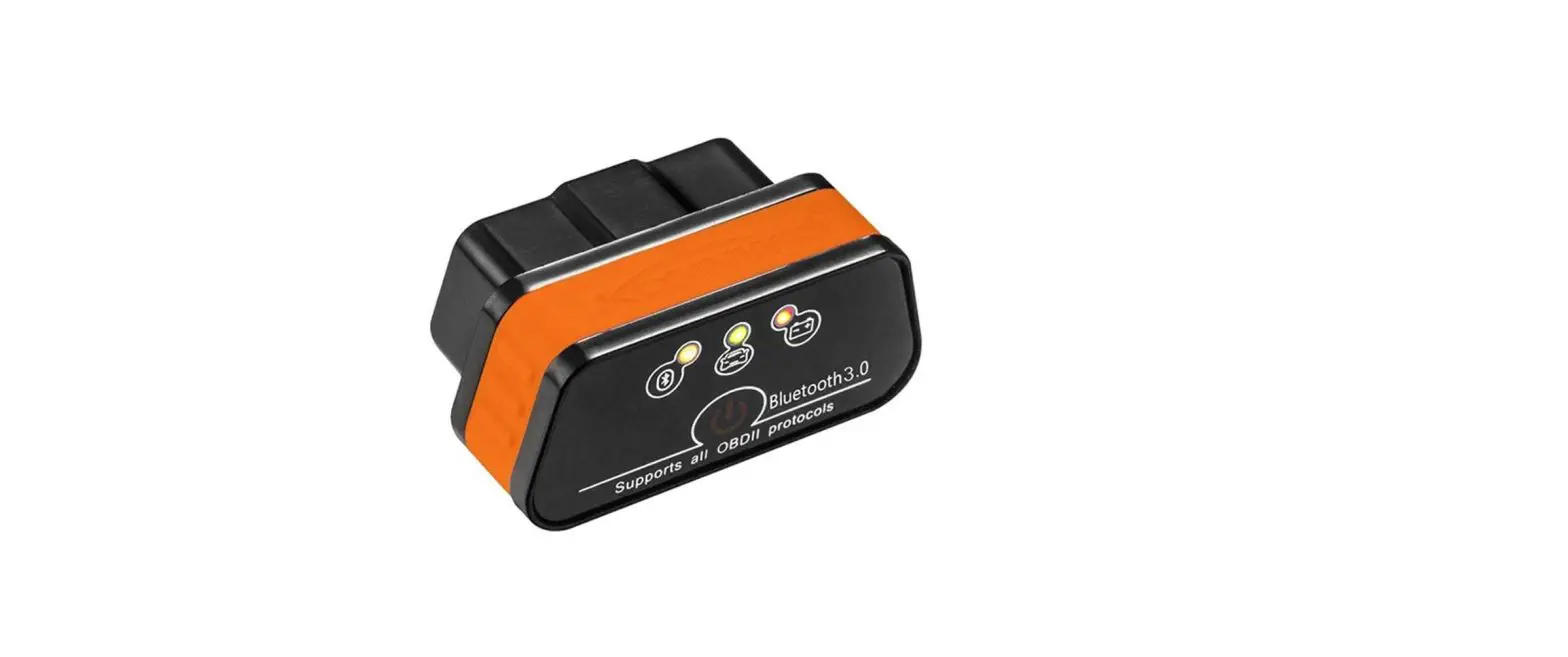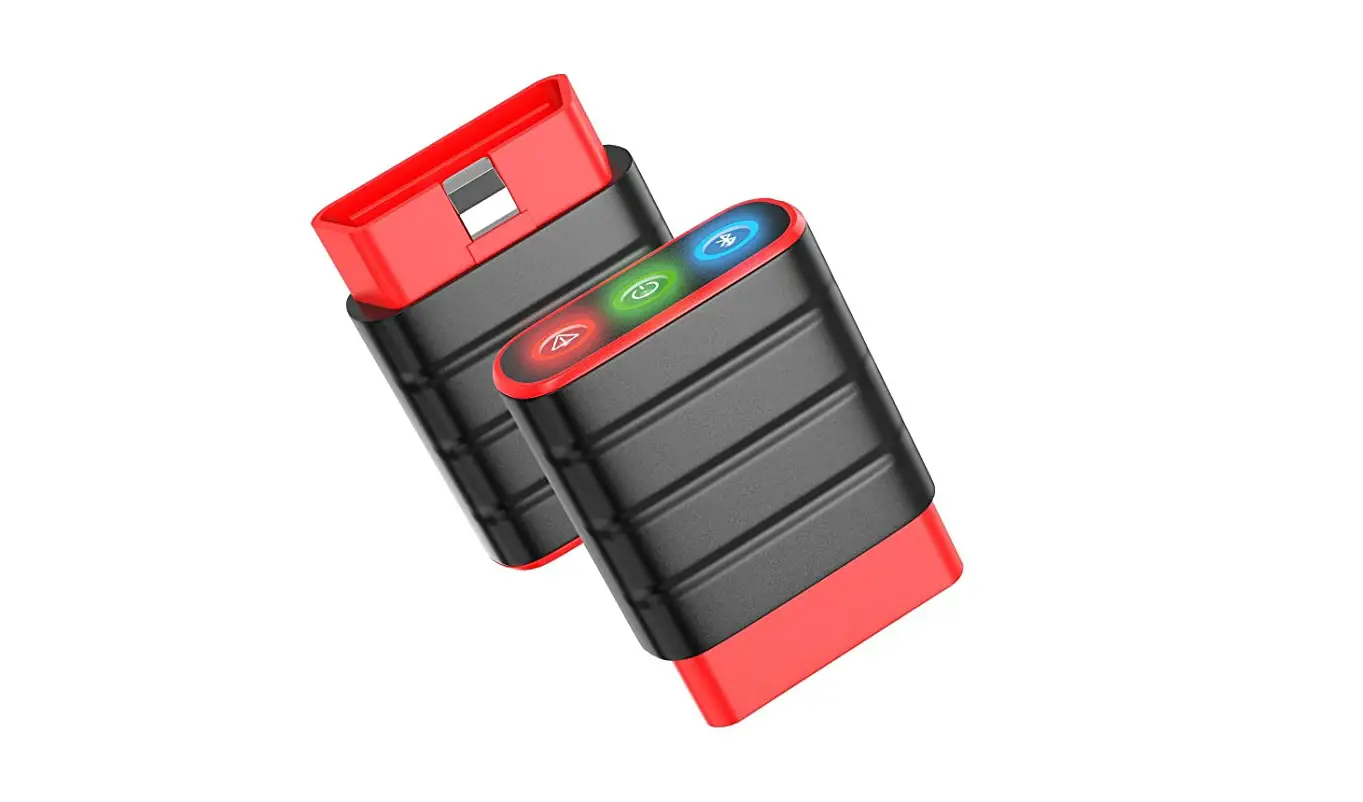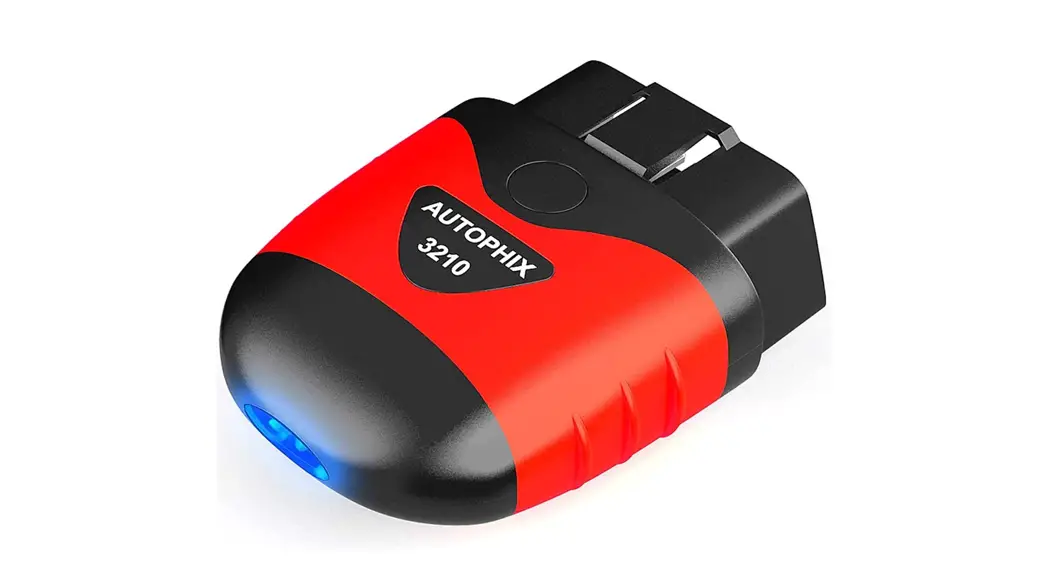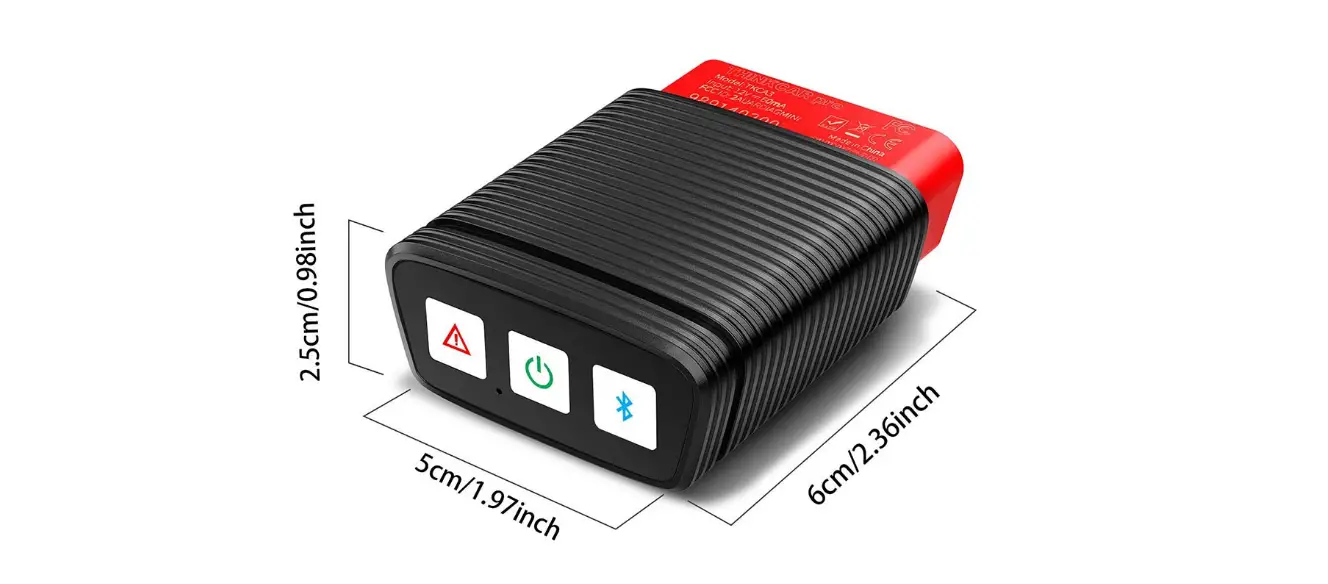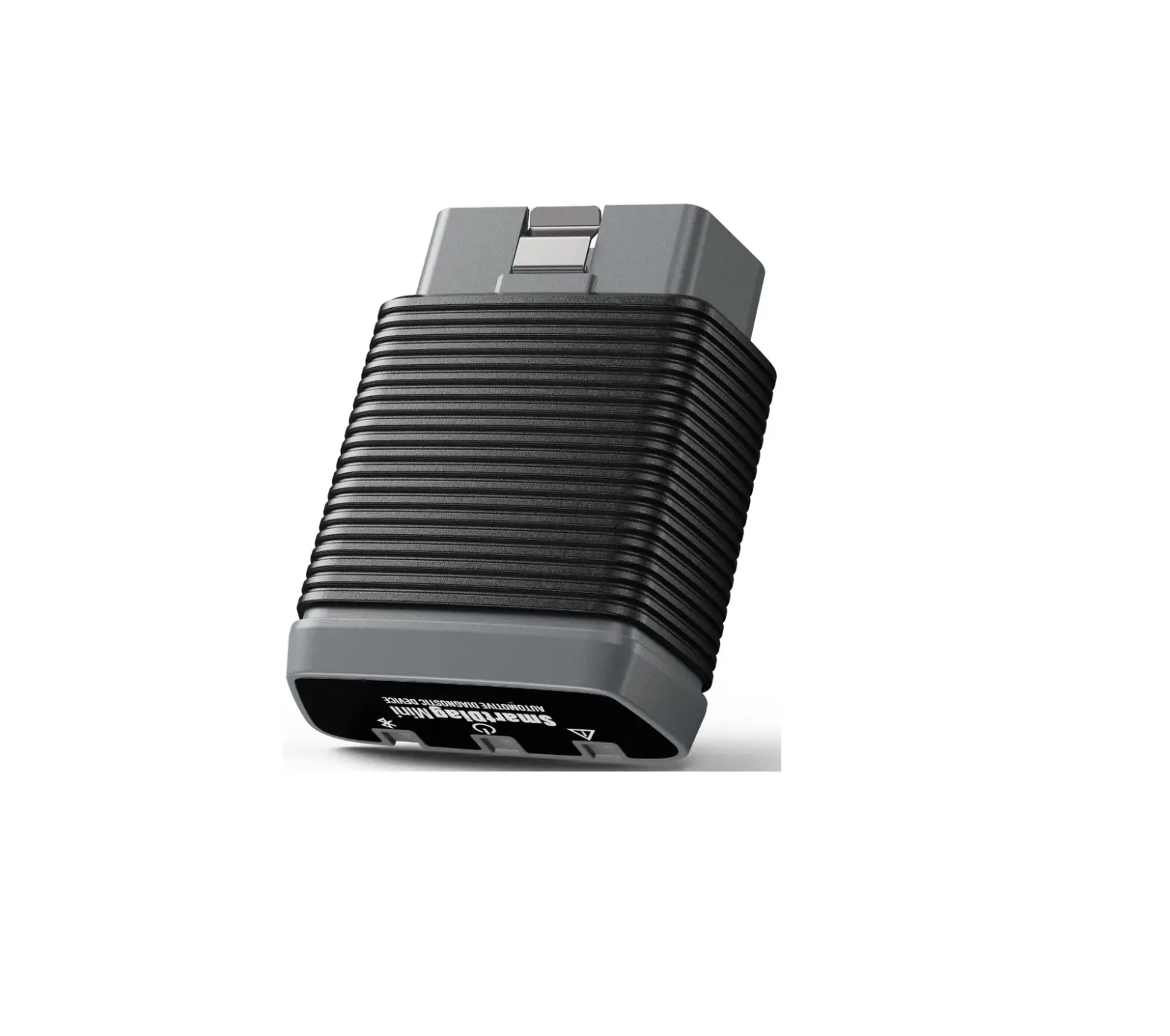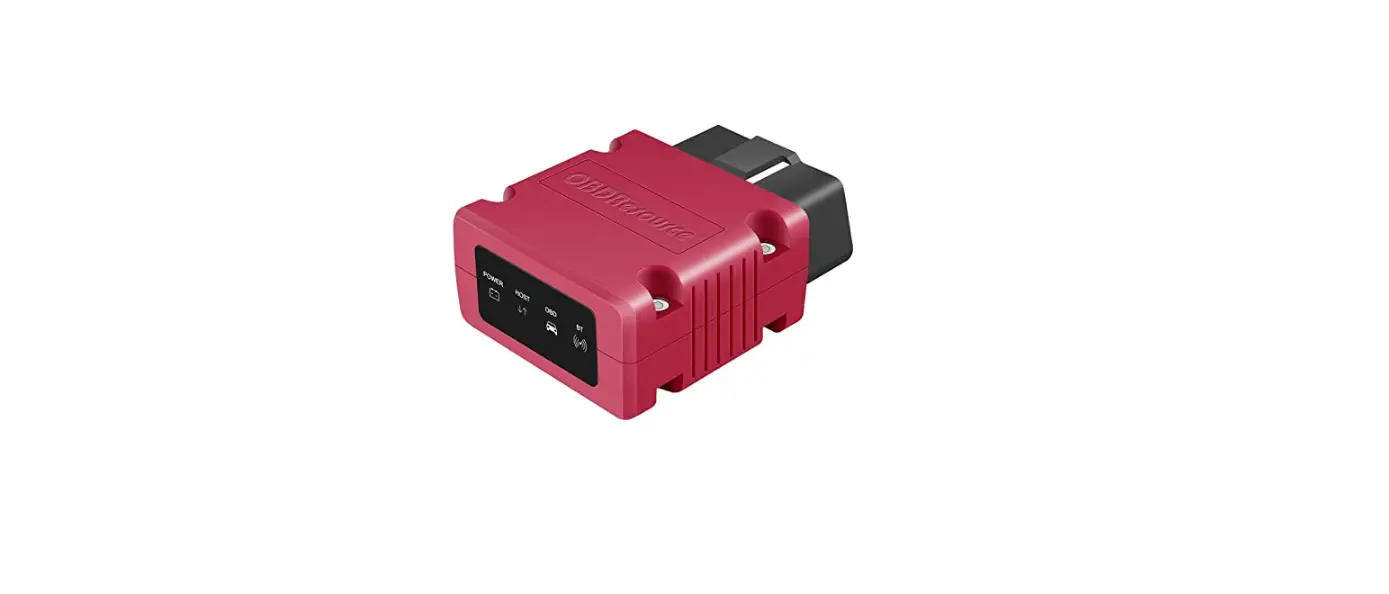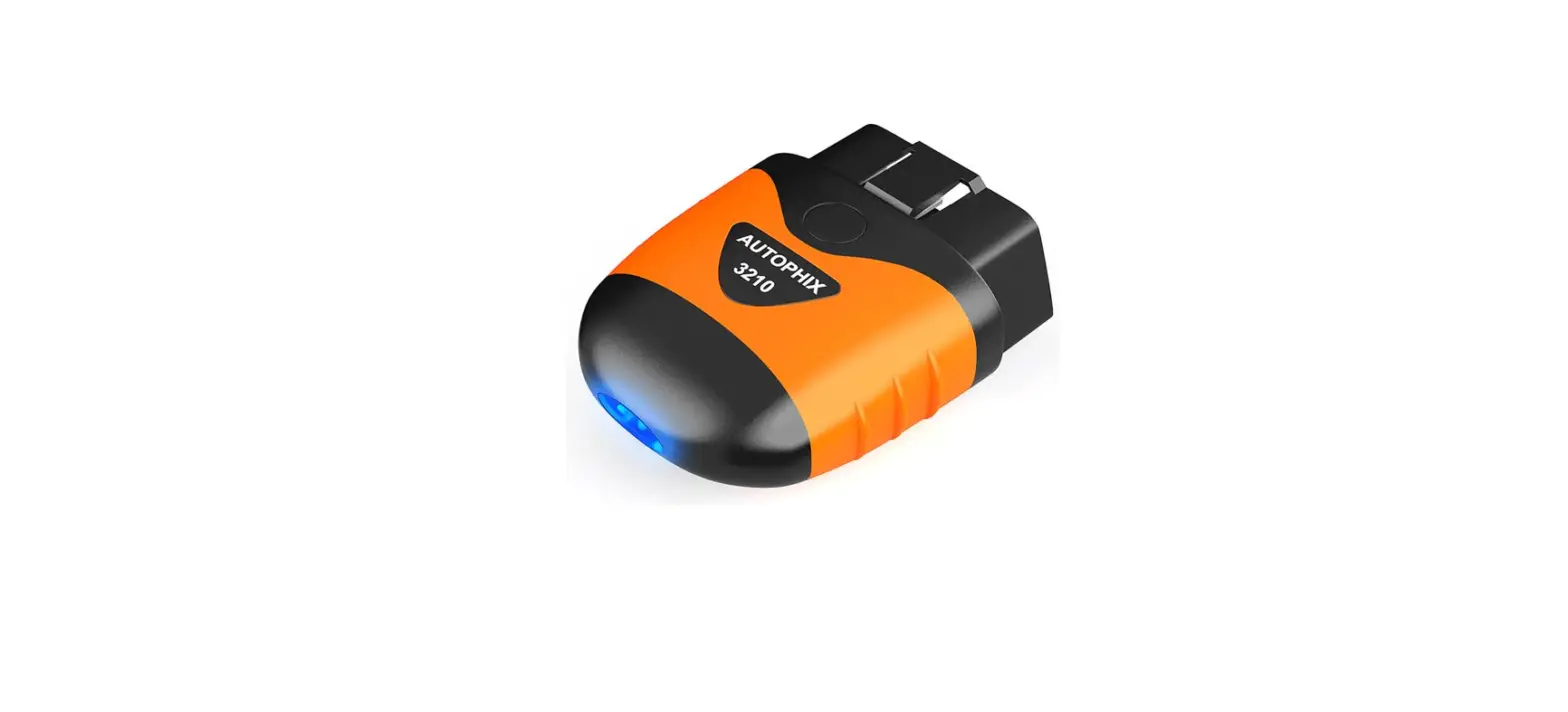

EASESUPER OBD2 Scanner Bluetooth 4.2 Car Diagnostic Scanner
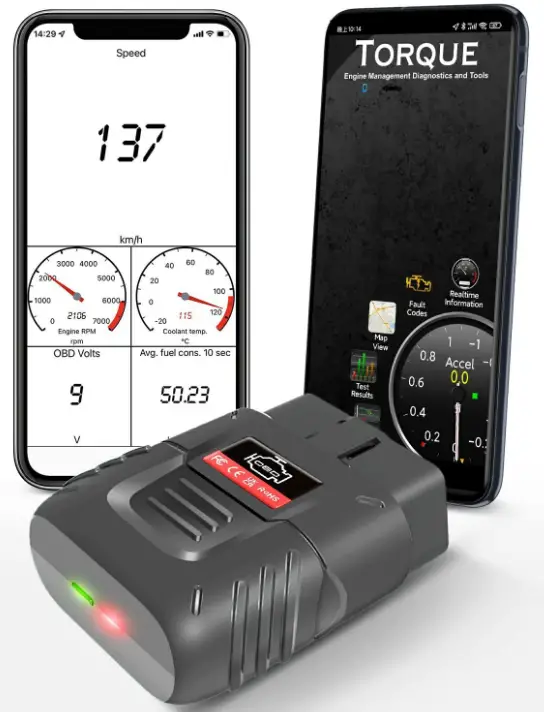
Product Instruction
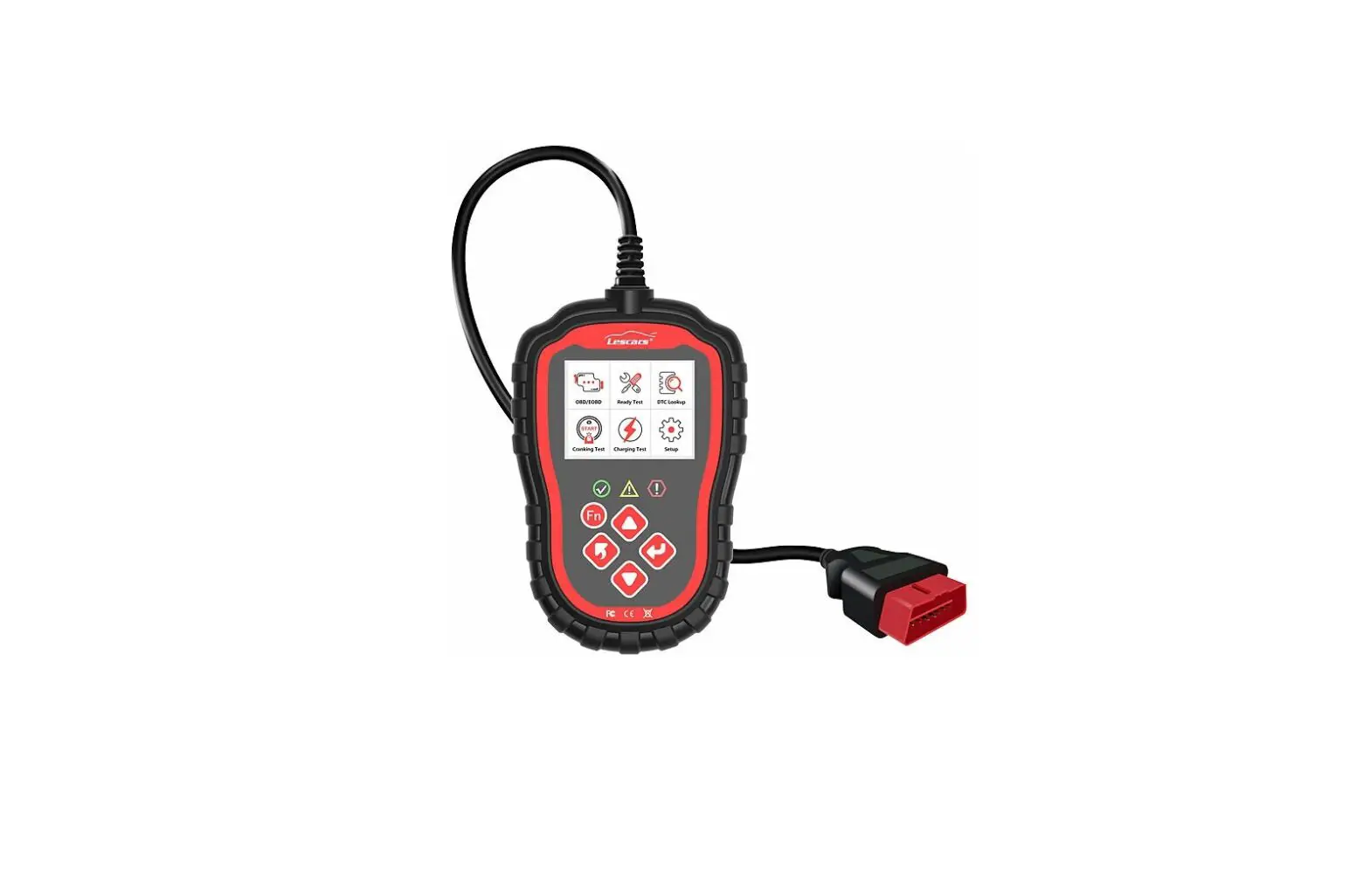
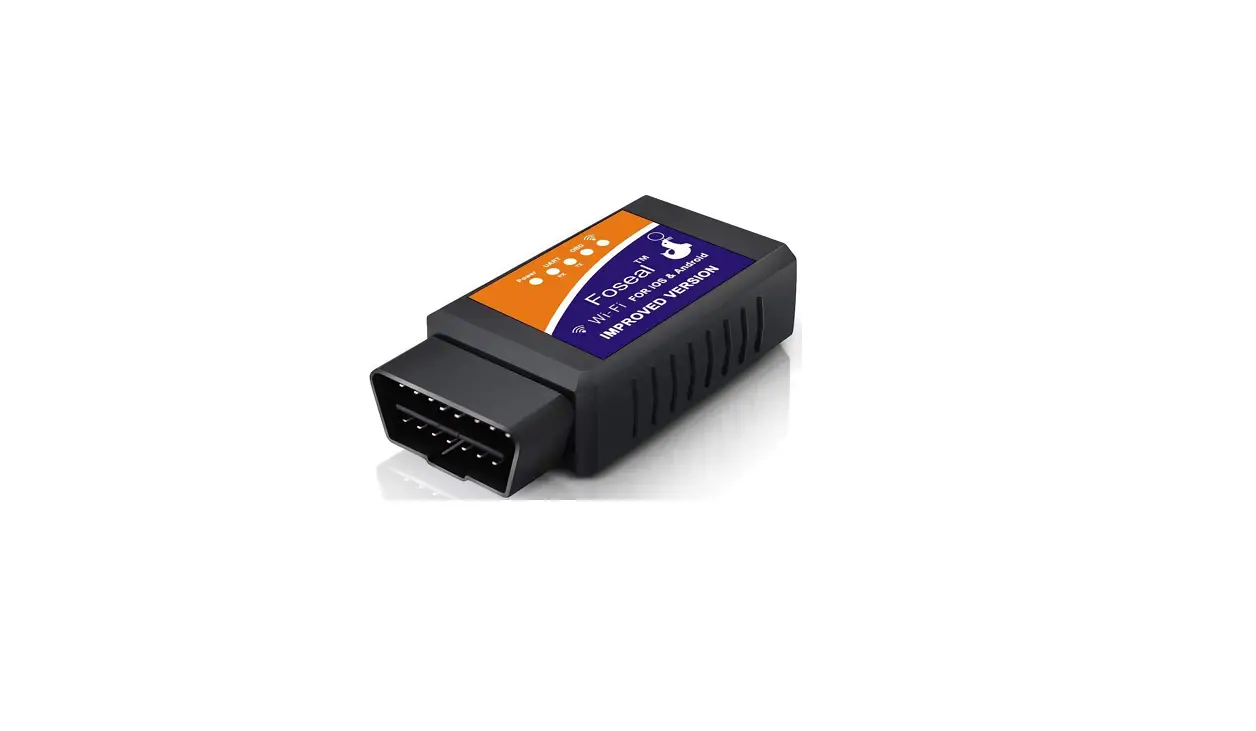
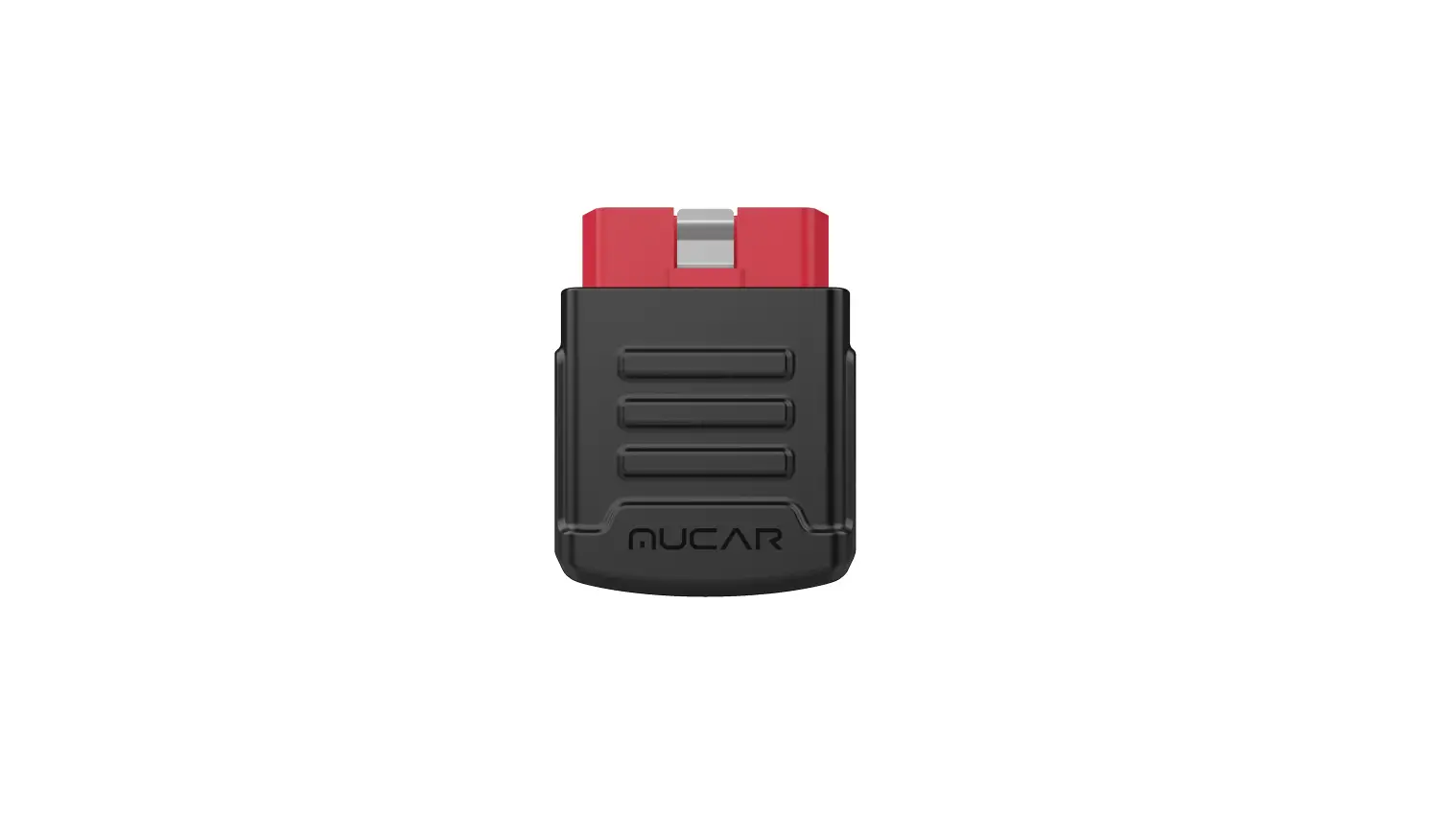
This product is mainly used to read the data of car engine and emissions, diagnostic car engine trouble, and erase trouble codes.
Main function
This product can diagnosis vehicle health, alarm vehicle security, real-time monitor vehicle health, display the diagnostic values of various vehicle indica-tors (voltage, engineer coolant temperature, fuel correction value, engine load value, etc.) in detail, conduct examination on
Find OBD interface
Find the OBD interface in the car. The OBD interface may located in different place for different vehicle models. (Generally located on the underside of the dashboard on the driver’s side of the car, above the accelerator pedal)
Download APP
Use mobile browser to scan the QR code below or manually enter “www.elm327.com”
| iOS | Android |
| Car Scanner | Torque |
| You can also search for the software name in Google Play or Apple Store to download | |
LED light function description
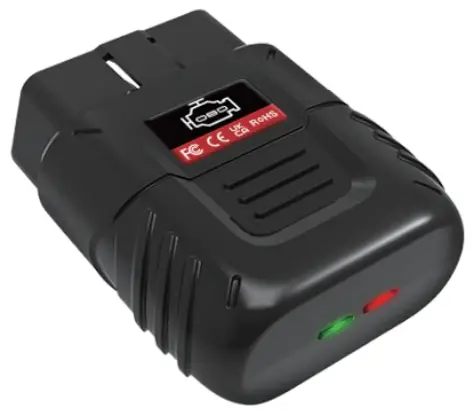
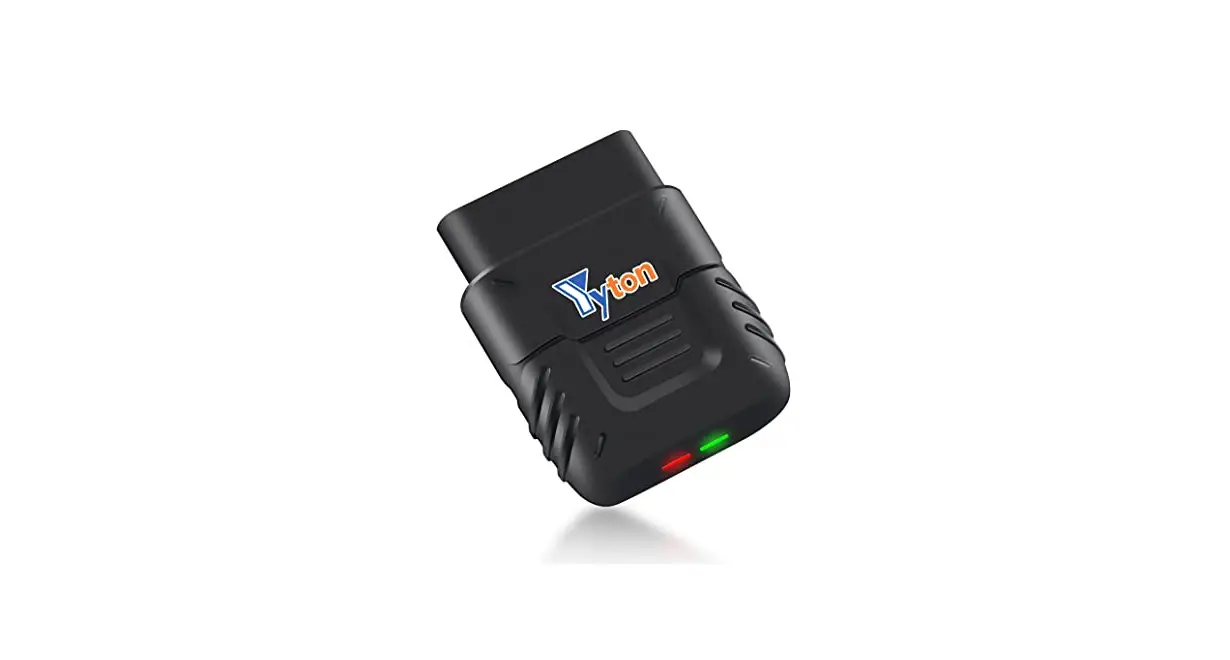
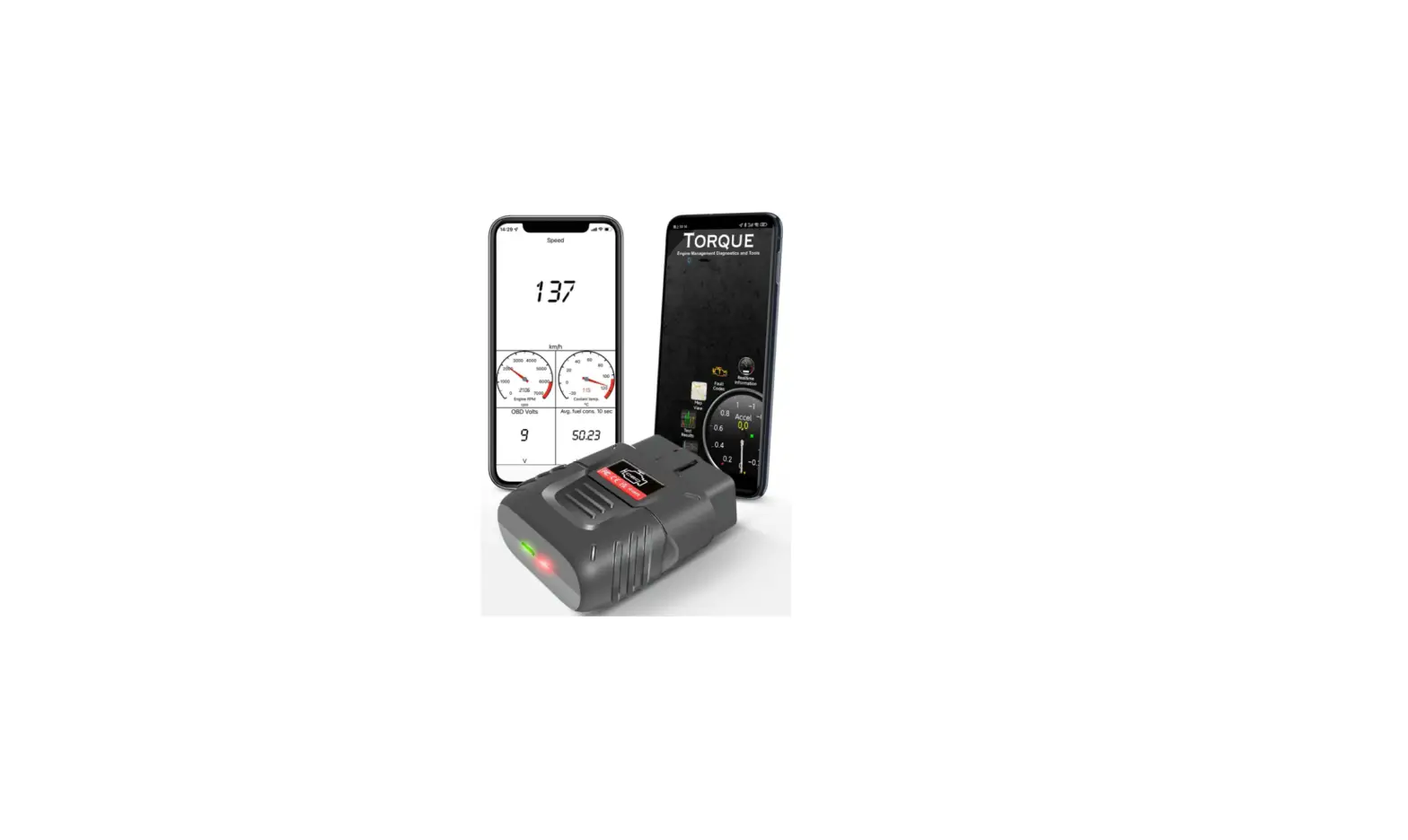
Red power LED light
Insert the device into the OBD port, the red indicator light is on, indicating that the power supply of the system is normal and the
Green signal LED light
After the device works normally, wait for the device to self-check.
- If the green signal light is on, it means that the device and the vehicle are successfully matched and can communicate
- If the green signal light does not light up, it means that the equipment does not match the vehicle, please contact your
Green LED light flashes
When the device is connected to the mobile phone normally and the APP reads the data, the green indicator flashes.
Download steps
Go to www.elm327.com website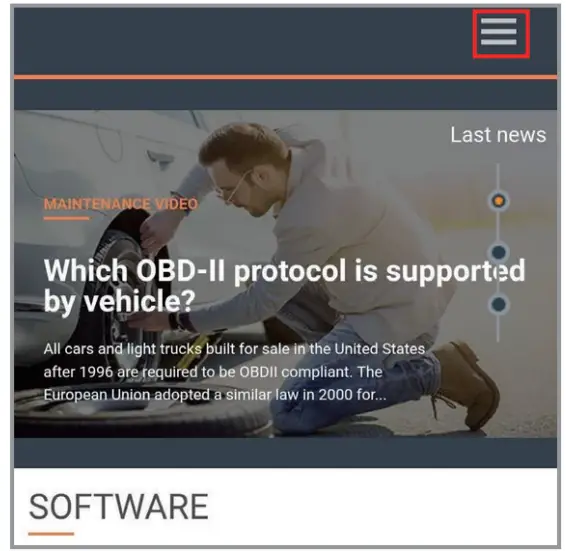
Select the menu to download the software according to the equipment system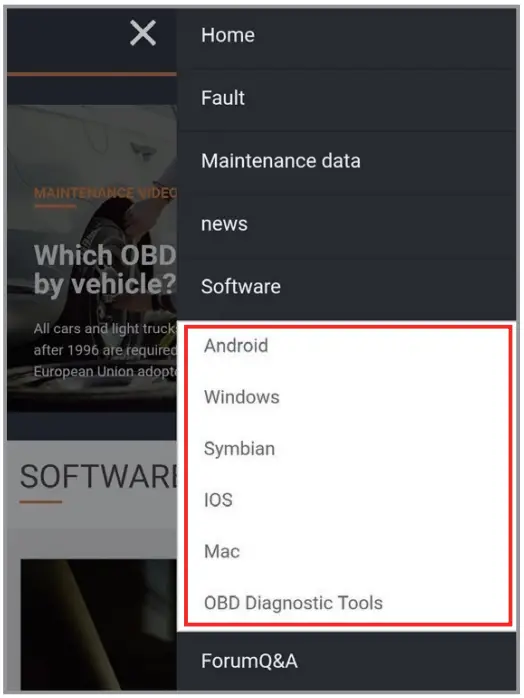
Connection steps
IOS APP “Car Scanner” user manual
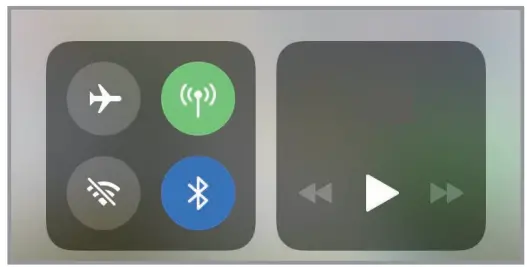
- Turn on Bluetooth or WiFi according to product properties

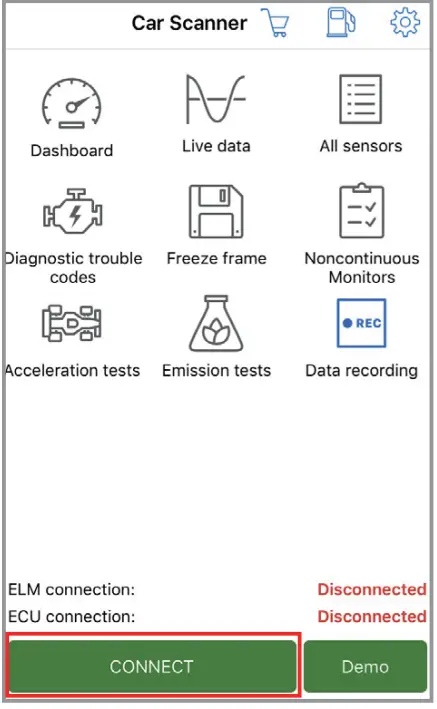
- 2. Choose “CONNECT”

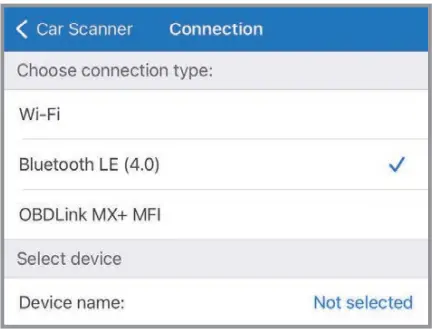
- Select Bluetooth or WiFi according to product attributes

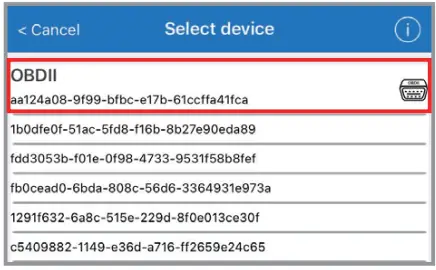
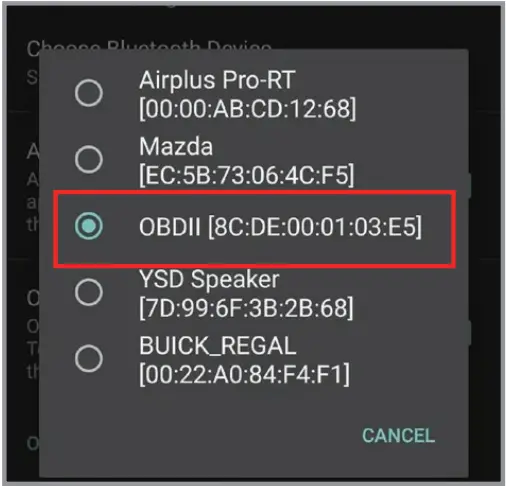
- Choose OBDII

- Wait for the connection to succeed

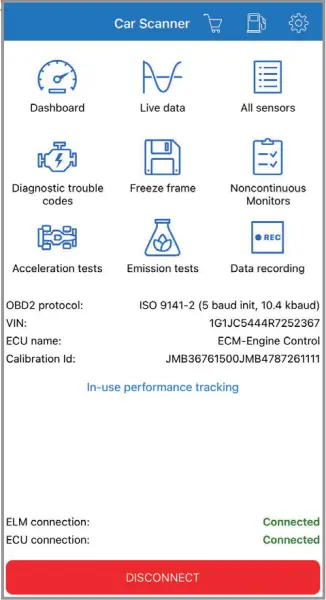
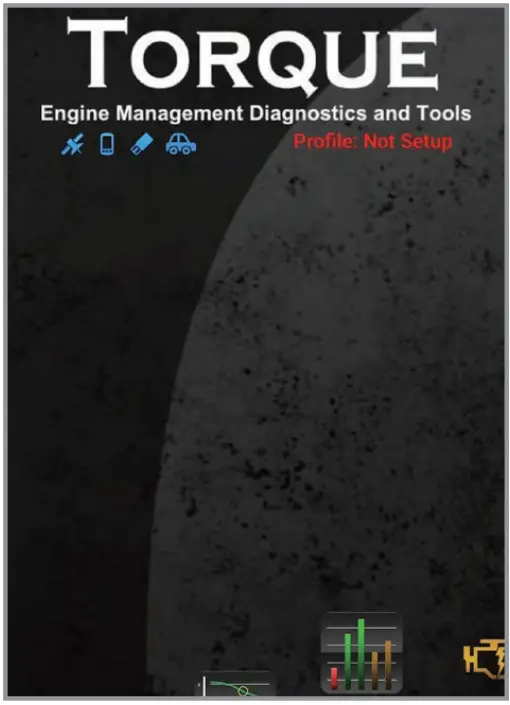
Android APP “Torque” user manual
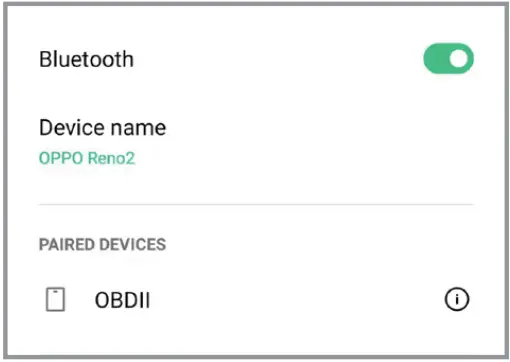
- Plug the product into OBD interface in car, turn on the phone Bluetooth and connect “OBD II”, the password is 1234 or 0000
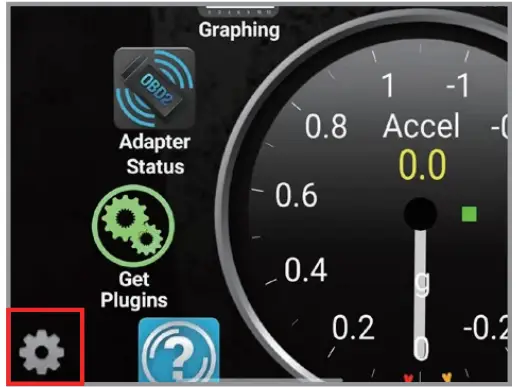
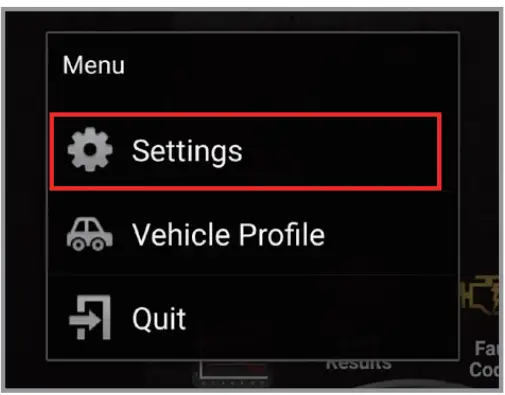
- Select Settings


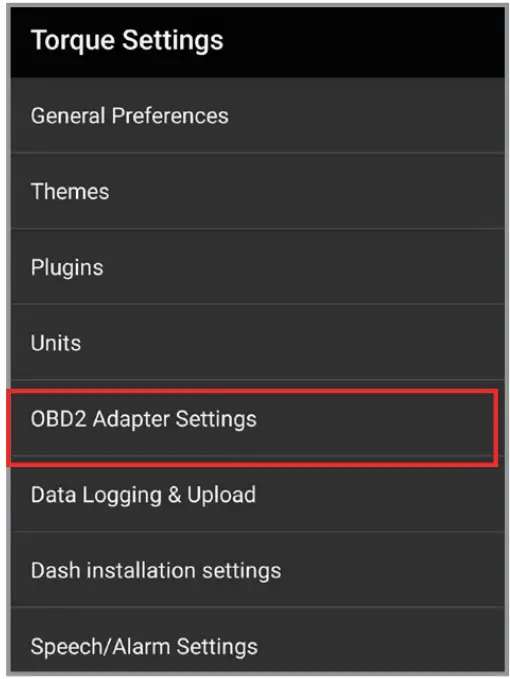
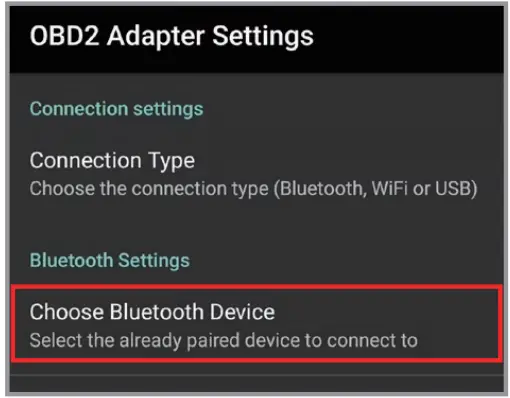
- Select OBD2 Adapter Settings

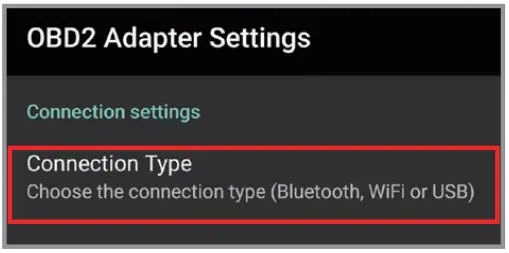
- Select Connection Type

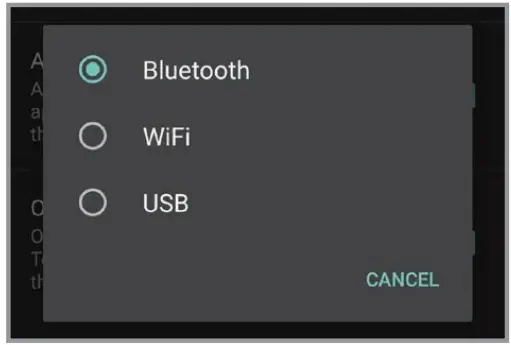
- Choose Bluetooth or WiFi according to product attributes

- Choose Bluetooth Device


- Return to the main page and wait for the connection to be successful. When the car icon stops flashing, it means the connection is successful.

 elm327