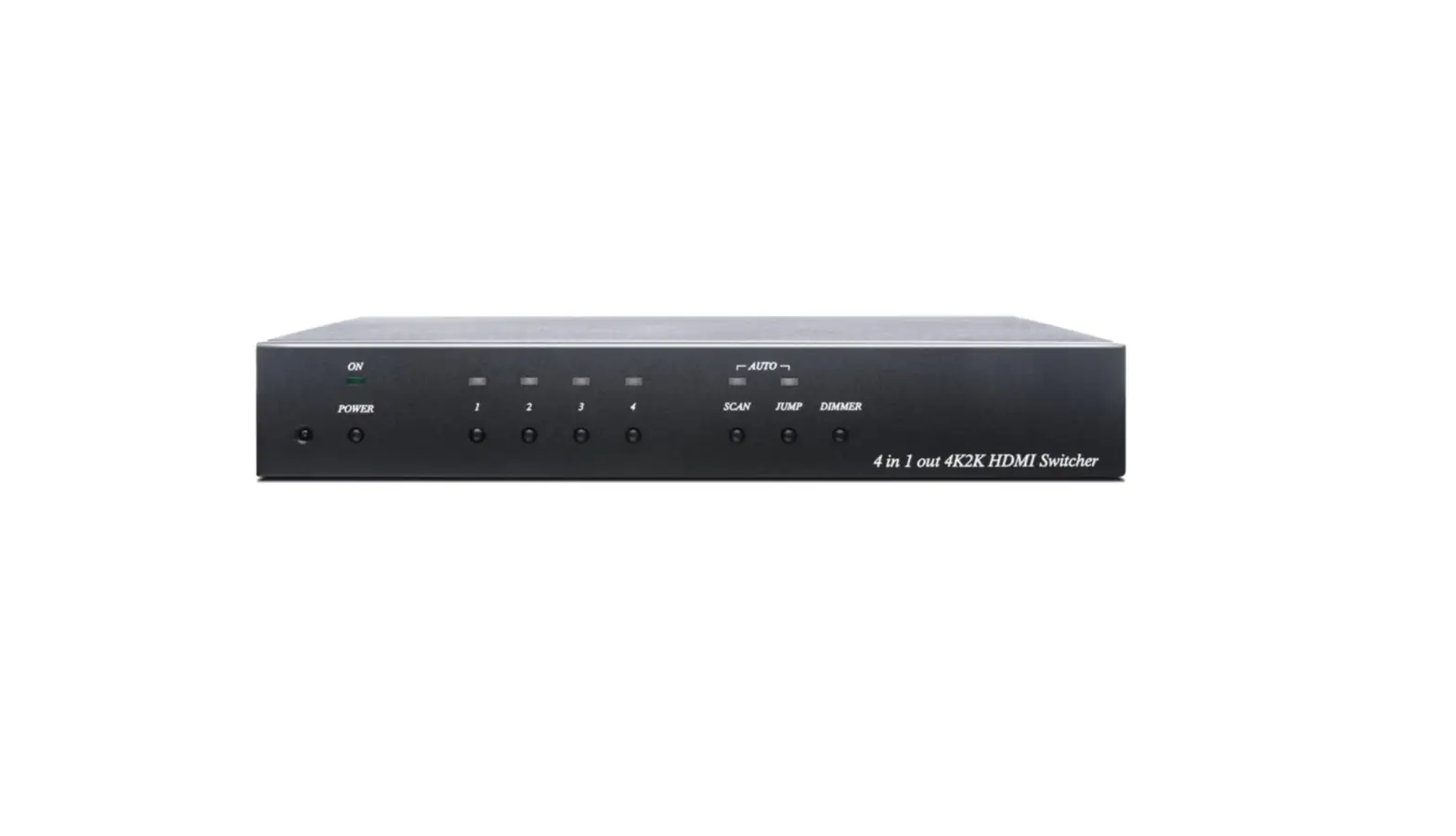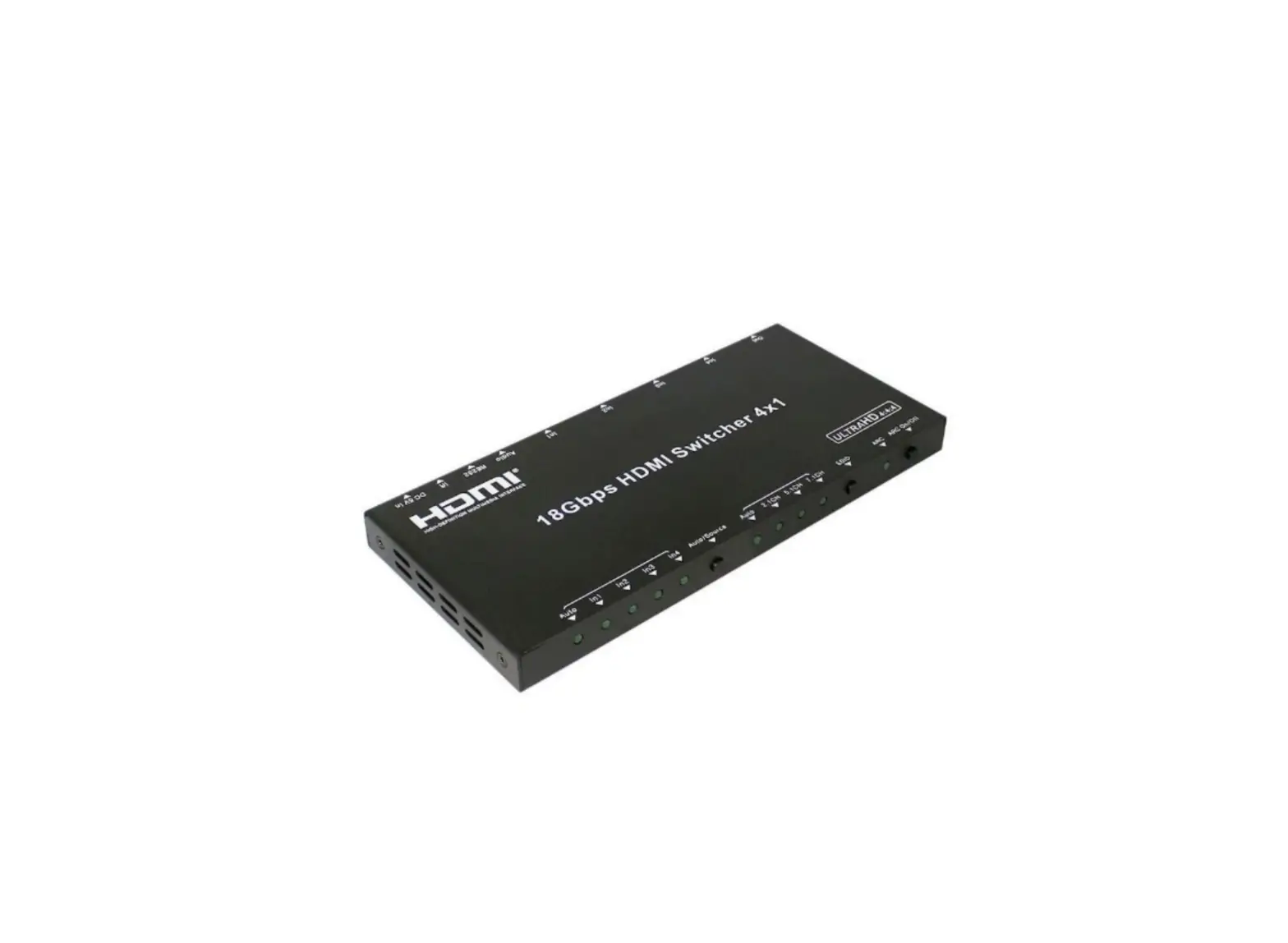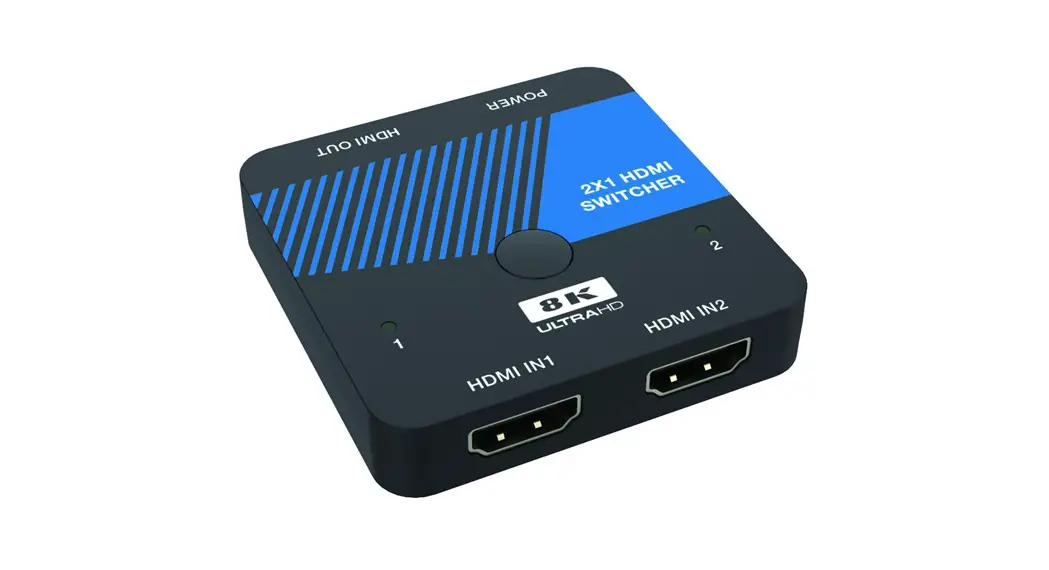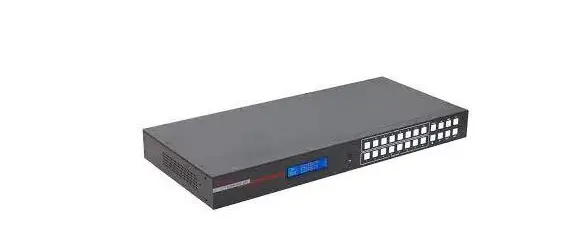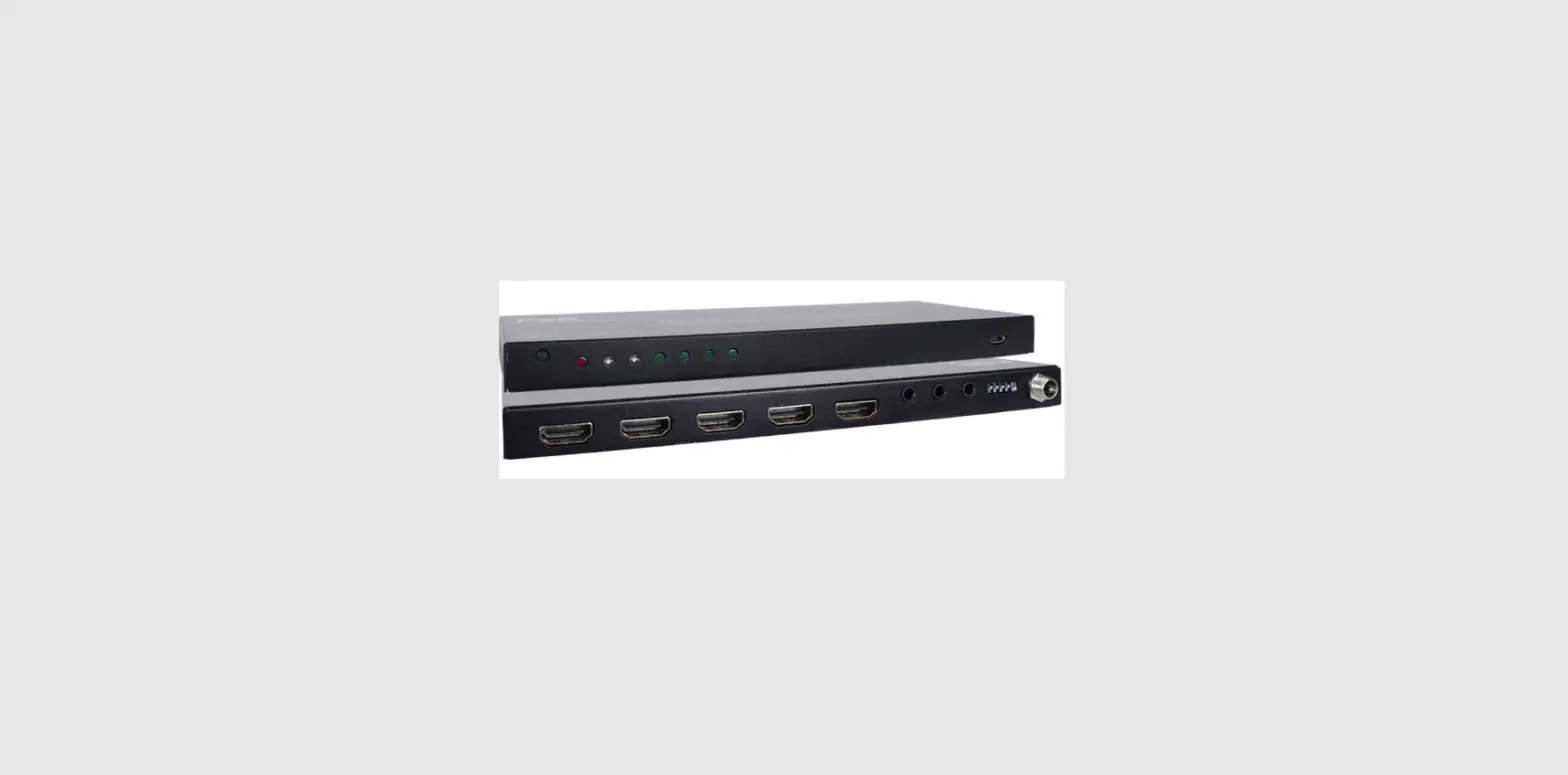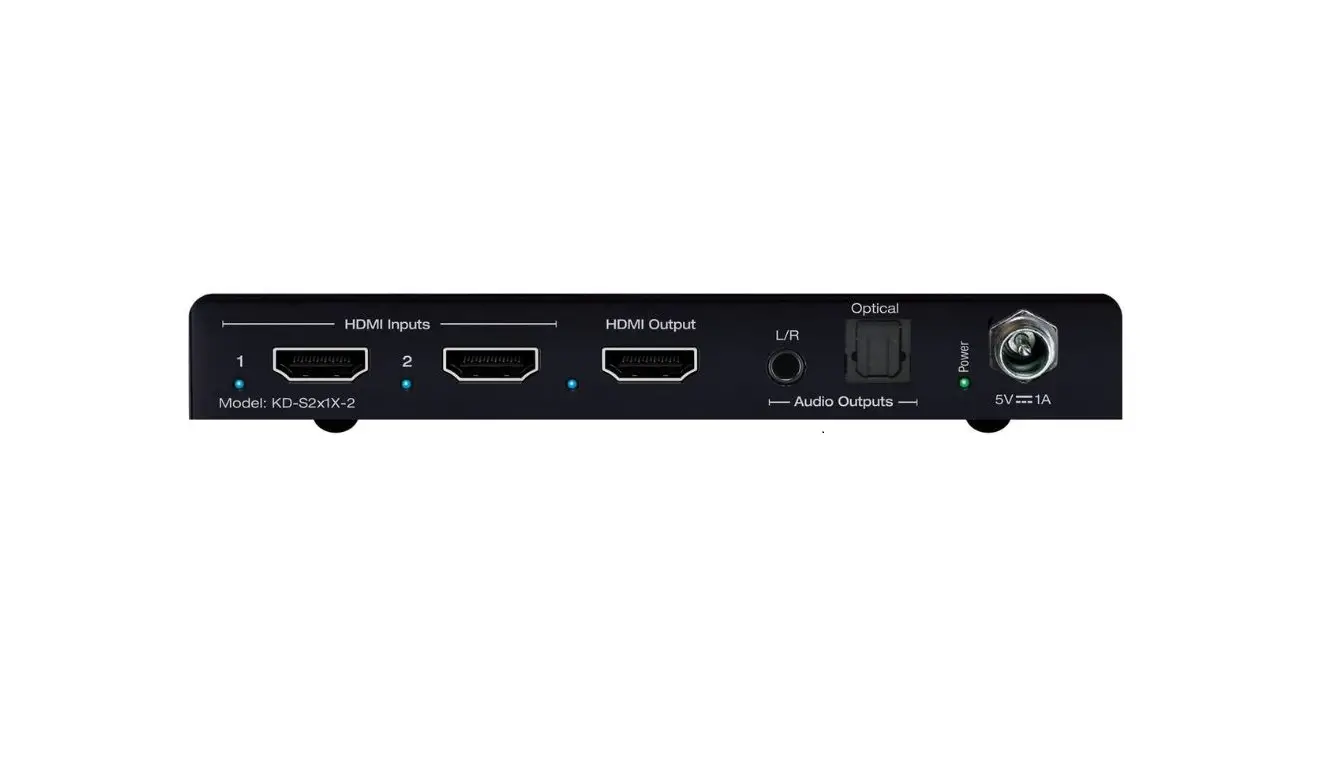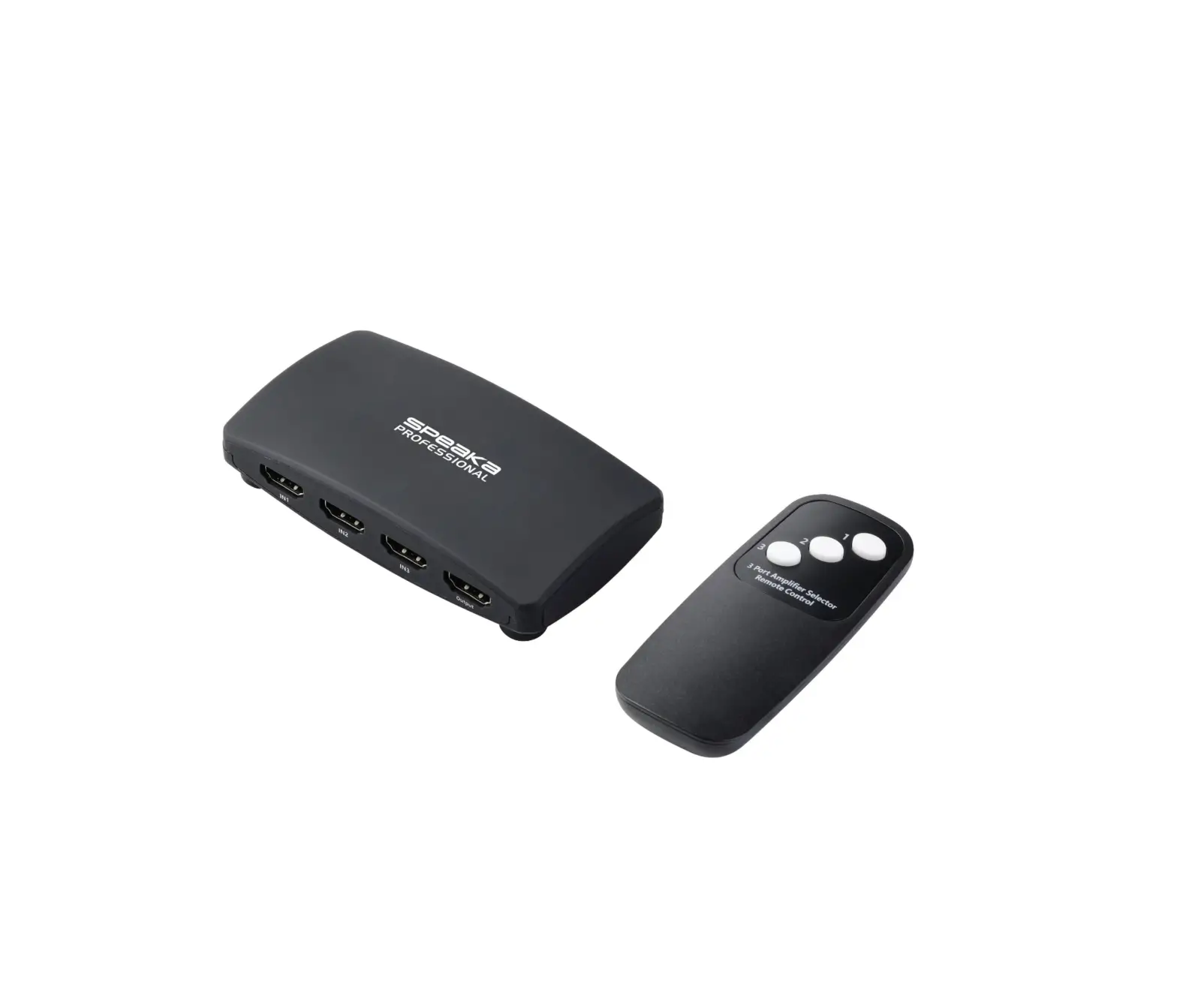

HDMI Switcher Series
User Manual
Model : HUS03-4K6G
4K60 3×1 HDMI/USB-C Presentation Switcher
Introduction
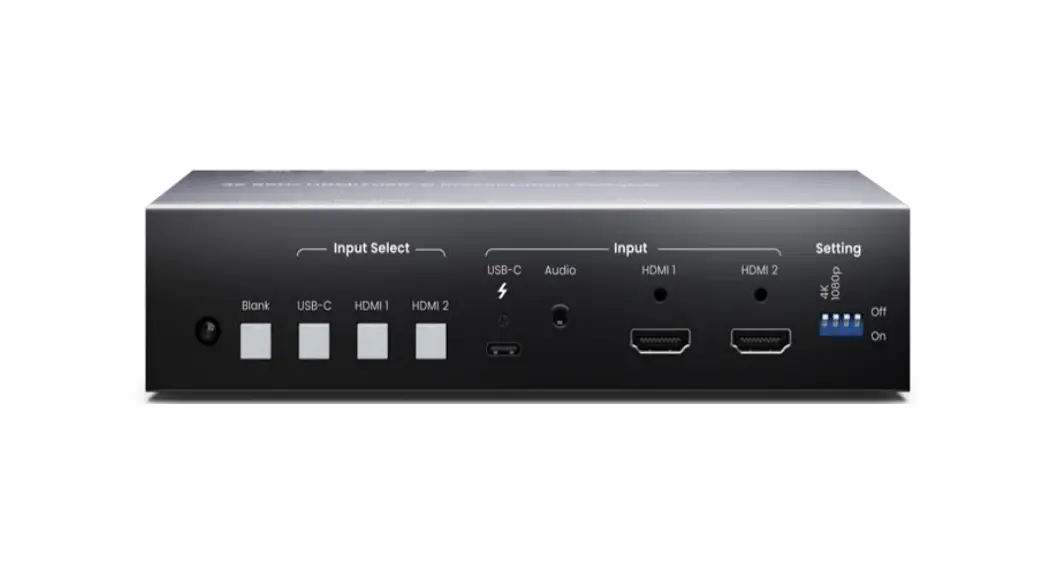
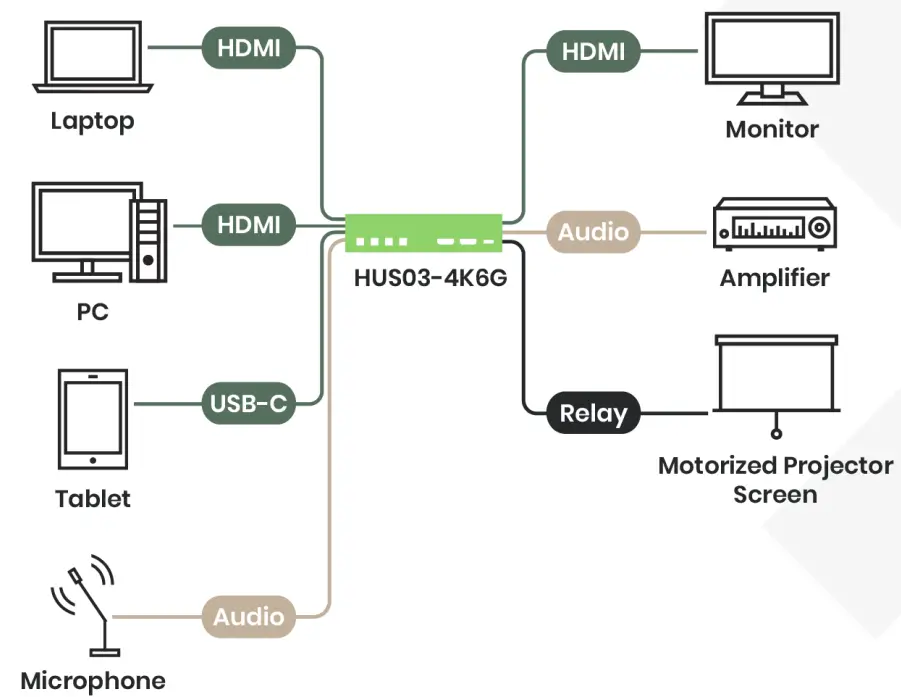
HUS03-4K6G is a 3-in-1-out 4K@60Hz 4:4:4 video switcher designed to provide a user-friendly and intuitive operation for presenters to have their thoughts well-delivered during a meeting. The switcher supports HDMI and USB Type-C interfaces which can connect with most electronic devices and fulfill the BYOD need.
Features
- Resolution up to 4K@60Hz 4:4:4 and 1080p@120Hz.
- Built-in 2 HDMI and 1 USB-C input port.
- USB Type-C supports PD (Power Delivery) for device charging.
- Built-in contact closure for an external control keypad, 2-CH audio output, and relay for projector screen control.
- Supports auto-sensing for HDMI and USB-C input.
- Controllable via IR remote, RS232 command, and external control keypad.
Diagram
Panel View
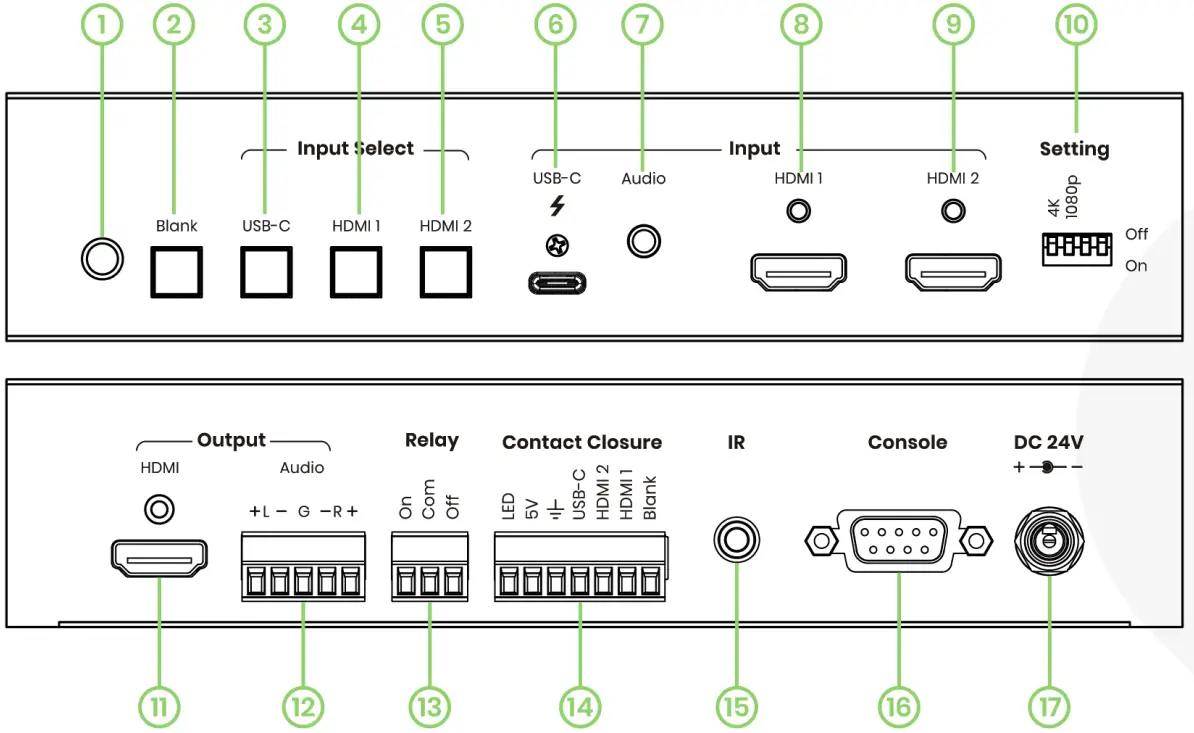
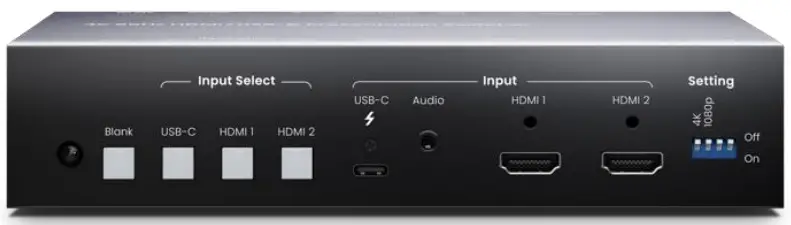
| No | Interface/ Port | Description |
| 1 | Internal IR Receiver | To receive IR signal from IR remote, carrier frequency at 38KHz. |
| 2 | Blank LED Button | To turn on/off the video display, auto-sensing, and default to factory settings (Please refer to Description 7). |
| 3 | USB-C LED Button | To select USB Type-C DP Alternate Mode as the video output |
| 4 | HDMI 1 LED Button | To select HDMI 1 as the video source |
| 5 | HDMI 2 LED Button | To select HDMI 2 as the video source |
| 6 | USB-C input Port | To use a USB-C cable to connect with a video/ audio source, can also charge the connected device (Please refer to Description 2). |
| 7 | Audio Input | To use a 3.5mm audio cable to connect with a DVD player or a microphone. |
| 8 | HDMI 1 Input Port | To use an HDMI cable to connect with an HDMI source (Please refer to Description 2). |
| 9 | HDMI 2 Input Port | To use an HDMI cable to connect with an HDMI source (Please refer to Description 2). |
| 10 | DIP Switch | To set up the EDID function (Please refer to Description 3) |
| 11 | HDMI Output Port | To Use an HDMI cable to connect with an HDMI display, such as a monitor or a projector. |
| 12 | Audio Output Interface | To use an audio cable to connect with speakers or an amplifier (Please refer to Description 4). |
| 13 | Relay Interface | To connect with a projector screen to adjust the screen position (Please refer to Description 5) |
| 14 | Contact Closure | To connect with an external control keypad. |
| 15 | External IR Interface | To use a 3.5mm IR cable to connect with an external IR receiver (carrier frequency at 38KHz). |
| 16 | RS232 Interface | To connect with a PC for firmware upgrade or RS232 control (Please refer to Description 7). |
| 17 | Power Interface | To connect with a lockable power supply (Suggest using at least DC 24V 3A power adapter). |
Description 1 – LED Indications
| LED Color | LED Status | USB-C / HDMI 1 / HDMI 2 | Blank |
| No Color | Off | No Video | On |
| Blue | Blinking | Detecting | – |
| Blue | on | Video Display | Off |
Description 2 – Recommended Cables & Connections
- The USB-C port only delivers video/ audio and power and doesn’t support data transfer.
- Some USB-C cables do not support video/audio transfer, please use those cables with e-mark and compliant with USB3.2.
- Once unplugging the USB-C device, we recommend you wait for 5 seconds to connect with the next USB-C device. Frequently switching may result in the device undetected, which needs to unplug the device and plug it again to work.
- We recommend using premium and certified cables
Using an HDMI cable within 5M is recommended.
Using a USB Type-C cable within 2M is recommended. - Bad quality cables, connectors, inappropriate connections may cause unstable signal transmission.
Description 3 – EDID
Mode & Configuration
| EDID Mode | Switch 1 | Switch 2 | Description | ||
| Pass-Through Mode | OFF ↑ | OFF ↑ | Refer to the connected monitor EDID (audio supports 192KHz) | ||
| 4K Mode | ON ↓ | OFF ↑ | Resolution at 4K (Audio supports 2CHp48KHz) | ||
| 1080p Mode | Any | ON ↓ | Resolution at 1080p(Audio supports 2CHp48KHz) | ||
※ After finishing the setting, make sure to turn the product off and turn it on again.
Description 4 – Audio
- Connect Audio out to balanced stereo audio speakers

- Connect Audio out to unbalanced stereo audio speakers
 ※ The surround sound will output only through 2 channels
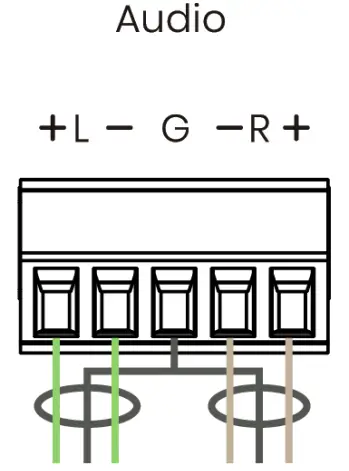
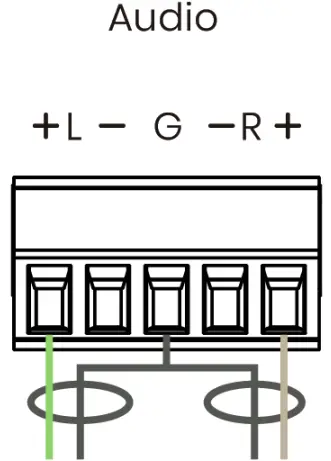 ※ The surround sound will output only through 2 channels
Description 5 – Relay
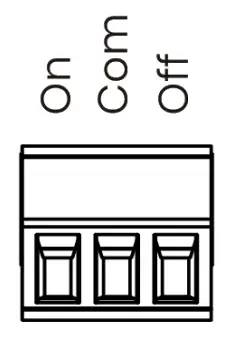
| Interface | Description |
| On | Normally Open |
| Com | Common Contact |
| Off | Normally Closed |
Contact Rating
| Load Type | |
| Max. Allowable Voltage | AC 120V |
| DC 24V | |
| Max. Allowable Current | AC 1A |
Description 6 – Contact Closure
Please pay attention to the electrical wiring, wrong wiring may damage the product.
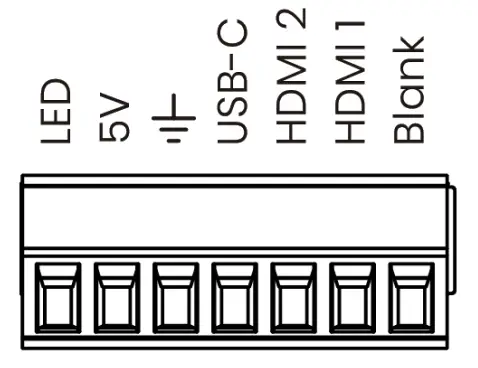
| Pin | Function |
| LED | To enable LED indications on the control keypad |
| 5V | To provide 5V for the control keypad |
| GND | To connect a ground wire for the control keypad |
| use-C | Connect a control keypad module to trigger the USB-C button |
| HDMI 1 | Connect a control keypad module to trigger HDMI 1 button |
| HDMI 2 | Connect a control keypad module to trigger HDMI 2 button |
| Blank | Connect a control keypad module to trigger the Blank button |
Description 7 – Console
- Please use a male-to-female RS232 cable to connect the console port (Female) with a PC (Male).
- Pinout
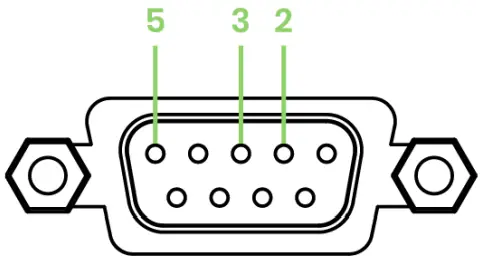
| Position | Pin Definition |
| Pin 2 | TX |
| Pin 3 | RX |
| Pin 5 | GND |
Description 8 – Switching Mode
Manual Mode
- The priority of manual switching is over that of auto-switching.
- When 2 inputs are connected, the manual switching function will turn off the auto-switching function for 20 secs.
- When turning off the auto-switching function, you can only switch the video through pushbuttons, IR remote, and RS232 commands.
Auto Mode
- HUS03-4K6G will auto-detect the USB-C, HDMI 1, and HDMI 2 input and display the available video
- Auto mode priority
| Priority | Input |
| 1 | Last Displayed/ Connected Video |
| 2 | USB Type-C |
| 3 | HDMI 1 |
| 4 | HDMI 2 |
3. When multiple inputs are connected and remove one of them, HUS03-4K6G will auto-detect the inputs for 6 secs and display the next available video source.
4. When you connect a video input and then plug in the next one, HUS03-4K6G will display the last connected source.
Caution
When switching between video inputs, HUS03-4K6G will need to wait for 5~8 secs to display the video source.
Turn On/ Off Auto Mode
- Press and hold the “Blank” button for 3 secs to turn on/ off the auto mode.
- Connect a PC with the console port and use the RS232 command to turn on/ off the auto mode (Please refer to the RS232 command chart)
- LED indications for Auto mode status
a. Auto Mode: On
a. LED Indications: USB-C, HDMI 1, HDMI 2 will blink 6 times (About 5 secs) after turning on
HUS03-4K6G. And the LED of connected inputs will stay on.
b. Auto Mode: Off
a. LED Indications: USB-C, HDMI 1, HDMI 2 will blink 2 times (About 5 secs) after turning on HUS03-4K6G. And the LED of connected inputs will stay on.
Description 9 – IR Remote
Configuration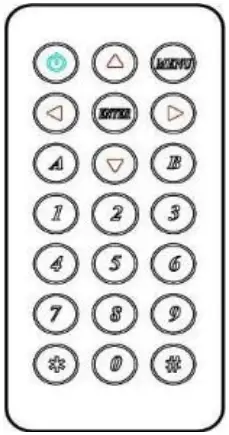 If you use the IR remote for the first time or just replace the battery, please set up the IR remote ID as 0 by pressing
  and
and , which will match the remote ID with that
of HUS03-4K6G.
Buttons & Functions
| Button | Function |
| Blank ON/ OFF |
 | To the previous video |
 | To the previous video |
 | To the next video |
 | To the next video |
 | Reserved |
 | Reserved |
1 | Select USB-Type C as the video source |
2 | Select HDMI 1 as the video source |
3 | Select HDMI 2 as the video source |
4 | Select USB Type-C/ HDMI 1/ HDMI 2 as the audio input source |
7 | Select 3.5mm as the audio input source |
5 | RELAY OFF |
8 | RELAY ON |
6 | Select HDMI audio as the audio output |
9 | Select 3.5mm as the audio output |
| Mute/ unmute the audio |
A | Reserved |
B | Reserved |
 | Reserved |
# | Reserved |
# | Press and hold both buttons for 5 seconds to reset all settings |
Description 10 – RS232 Configuration & Commands
- Serial Configuration: 8-N-1, Baud Rate at 115200
- All commands (Non-case sensitive) are shown below
| Command | Description | Remark |
| BLANK 1/0 | BLANK ON/OFF | 1: OFF 0: ON |
| BLANK? | Get BLANK status | |
| POWER 1/0 | POWER ON/ OFF | 1:0N 0: OFF |
| POWER? | Get POWER status | |
| PORT1/2/3 | Switch to HDMI 1/ HDMI 2/ USB Type-C | 1:USB Type-C |
| 2:HDMI 1 | ||
| 3:HDMI 2 | ||
| NEXT | To next port | |
| PREV | To previous port | |
| AUDIO 1/0 | Switch Input audio source | 0: Input Source 1:3.5mm |
| AUDIO? | Get input audio source status | |
| SPEAKER 1/0 | Switch output audio source | 0: HDMI 1: External Audio Output |
| SPEAKER? | Get output audio source status | |
| AUDIOMUTE1/0 | Unmute/ mute output audio 0: unmute | 1: mute |
| AUDIOMUTE? | Get output audio mute status | |
| RELAY 1/0 | RELAY ON/ OFF 0: OFF | 1:0N |
| RELAY? | Get RELAY status | |
| RESET | Reset the Device | |
| VERSION | Get firmware version | |
| AUTO1/0 | Auto Mode ON/ OFF 0: OFF | 1:0N |
| AUTO? | Get Auto Mode status | |
| DEFAULT | Default to Factory & Reset | |
| HELP | Show all commands | |
| ? |
Description 11 – Factory Default
Use Blank Button
- Step 1 – Push and hold the “Blank” button when power off.
- Step 2 – Immediately put on the power and push and hold the “Blank” button for 5 secs until 4 LEDs being on.
- Step 3 – Wait on the Reboot and finish the reset.
Use IR Remote
- Step 1 – Push and hold the* and # for 5 secs.
- Step 2 – Wait on the Restart and finish the reset.
Description 12 – Setting Memorizing
The product will memorize the last settings before power off. For example, you select USB-C as the video input and turn off the power afterward. Then, you power the product, and your video output will still keep on USB-C.
Specification
| Item No | HUS03-4K6G |
| Support | |
| Compliance | HDMI 2.0 • HDCP 1.4/2.3 • HDRIO • DP1.3 |
| Max. Video Resolution | 4096 x 2160@60Hz |
| Chroma Subsampling | 4:4:4, 4:2:2, 4:2:0 |
| Color Space | RGB, YCbCr |
| Color Depth | 8-bit,10-bit 12-bit,16-bit |
| Audio Format | LPCM 7.1 @192KHz / Dolby TrueHD / DTS-HD MA |
| Ports & Interfaces | |
| Video-Input | 1 x USB Type-C, 2 x HDMI Type-A |
| Contact Closure | 1 x 7-pin Terminal Block |
| Relay | 1 x 3-pin Terminal Block |
| Audio Input | 1 x 5-pin Terminal Block |
| Console | 1 x RS232 for firmware upgrade and RS232 command |
| Audio Output | 1 x (3.5mm) Phone Jack |
| IR Interface | 1 x Internal receiver,lx 3.5mm Phone Jack (38KHz / 045 deg / 6M) |
| Power | |
| Power Supply | DC24V 5A (120W) |
| Power Consumption | Max 21.6W (900mA), Low Power 4.8W (200mA) |
| USB-C Power Delivery | DC5V 3A(15W), DC9V 3A(27W), DC15V 3A(45W), DC20V 3A(60W) |
| Ambient Temperature | |
| Operation Temperature | -20 ~ 70℃ |
| Storage Temperature | -25 ~ 85℃ |
| Humidity | Up to 90% |
| Physical Characteristics | |
| Dimension | 190 × 131.5 × 40mm |
| Weight | 605g |
| Accessory | |||
| A | Corner Iron | 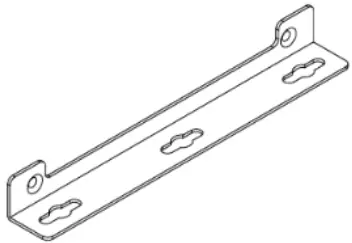 | x 2 |
| B | SMF Screw (Machine Screw) | 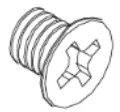 | x 4 |
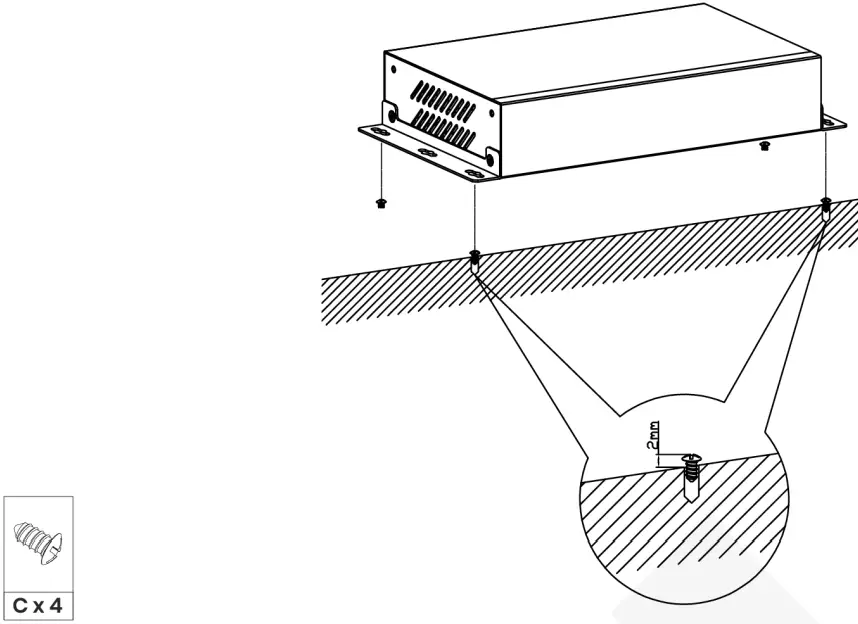
| C | SWT Screw (Self-drilled Screw) | 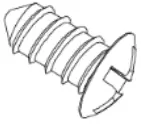 | x 4 |
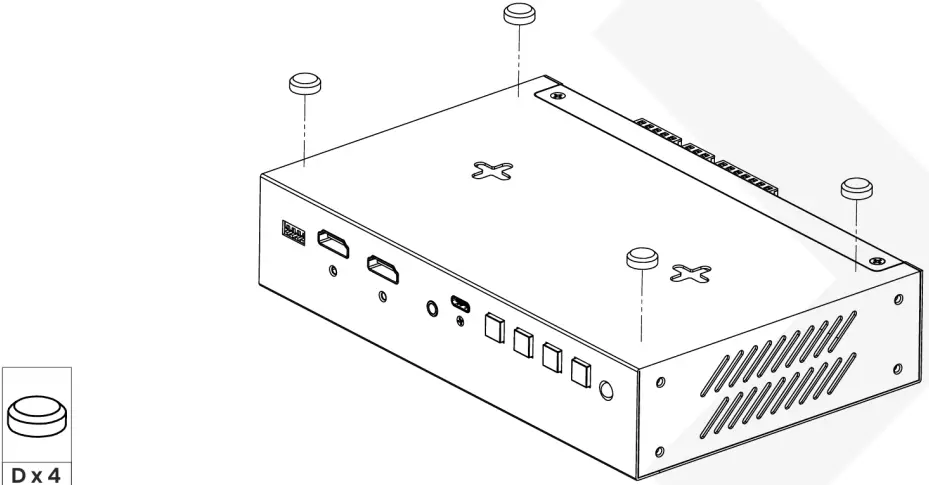
| D | Rubber Pads | 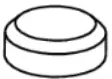 | x 4 |
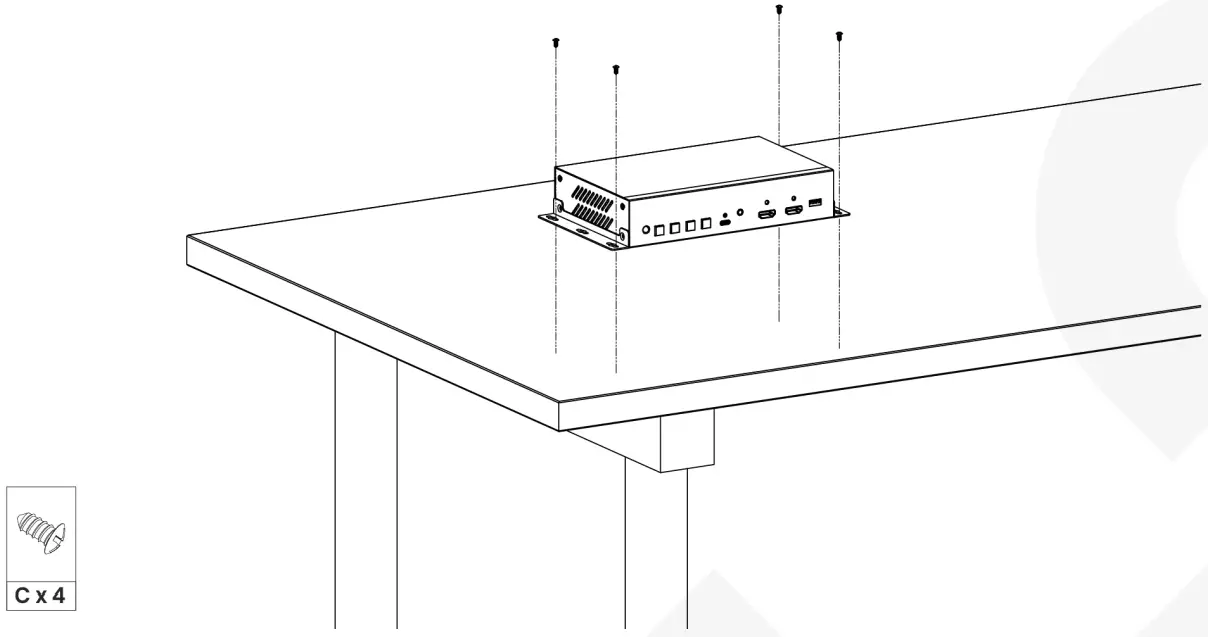
Fix on a Table
Step1 – Evenly install 2 SMF screws and 1 corner iron on each side of HUS03-4K6G
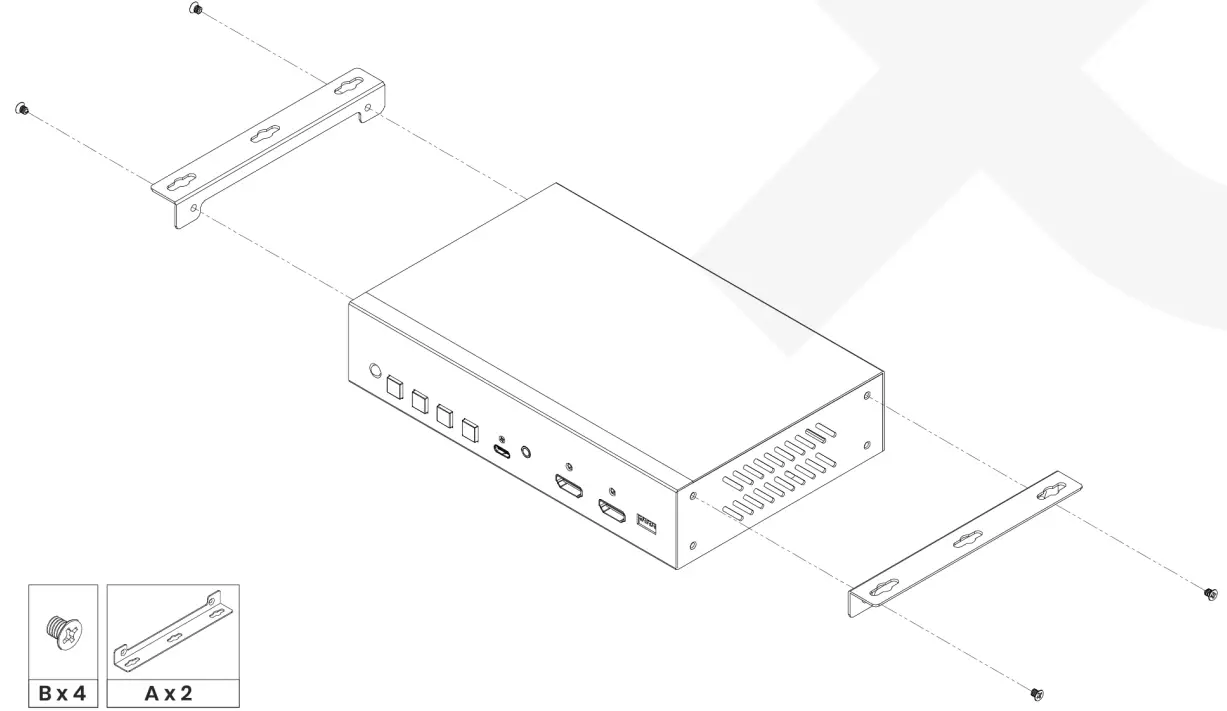
Step2 – Use 4 SWT screws to firmly fix HUS03-4K6G on a table.
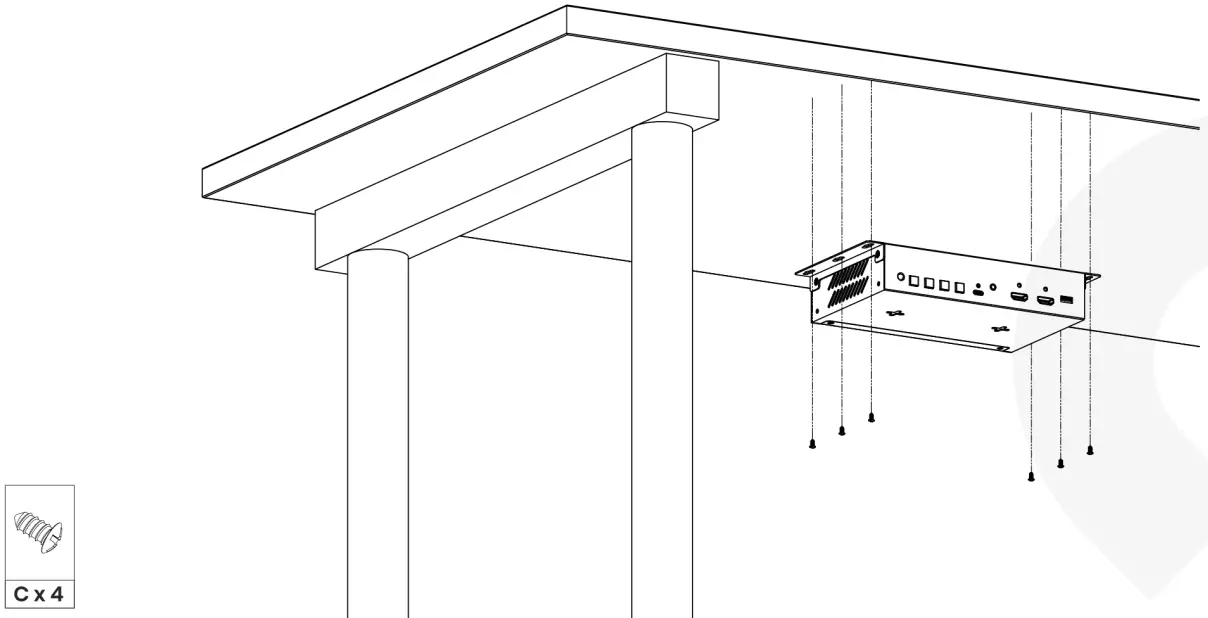
Fix beneath a table
Step1 – Evenly install 2 SMF screws and 1 corner iron on each side of HUS03-4K6G
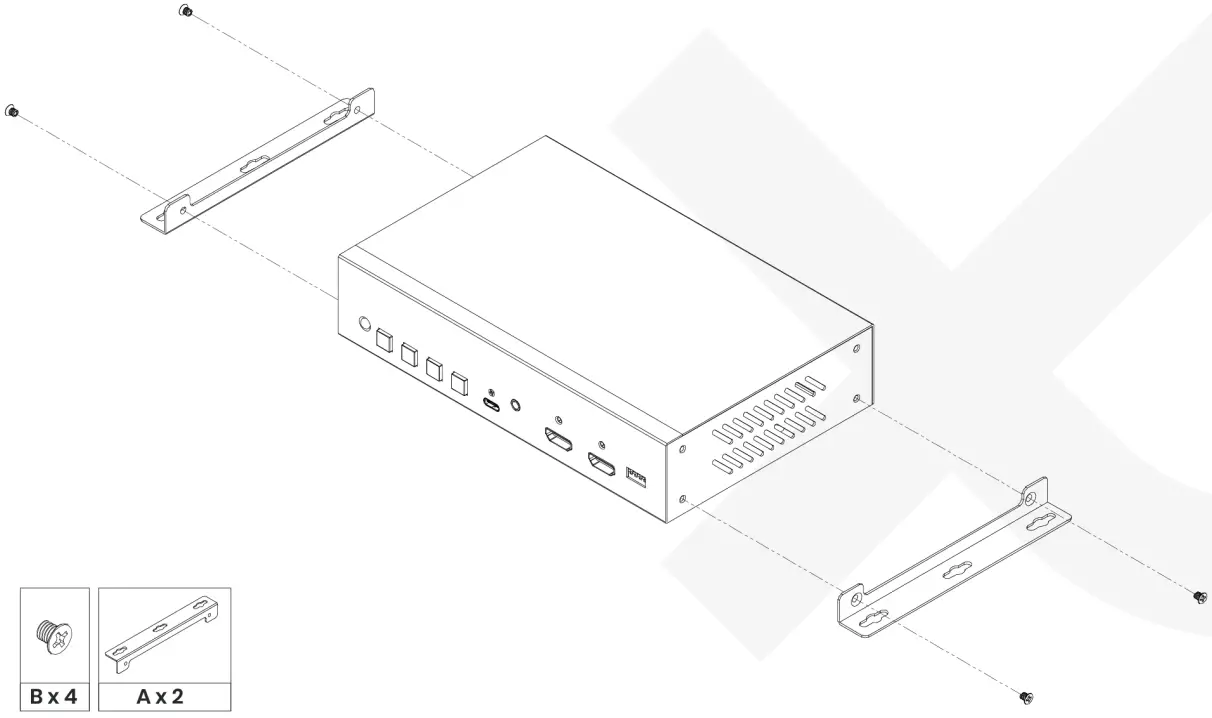
Step2 – Use 4 SWT screws to firmly fix HUS03-4K6G beneath the table.
Use rubber pads to prevent the product from slipping down the platform
Wall Mounting
Step 1: Install the SWT screws on a platform, and leave a 2mm high clearance.
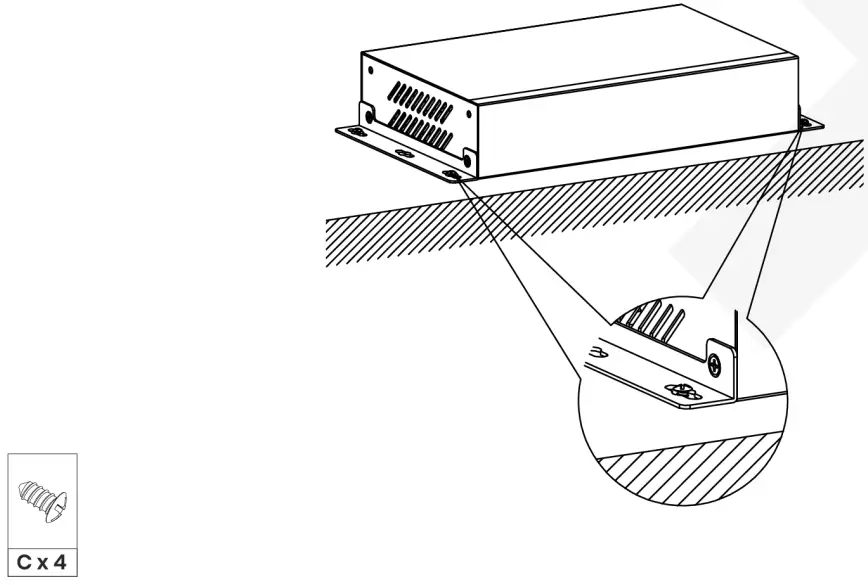
Step 2: Place HUS03-4K6G on the platform and fit its holes in the corresponding screw positions.
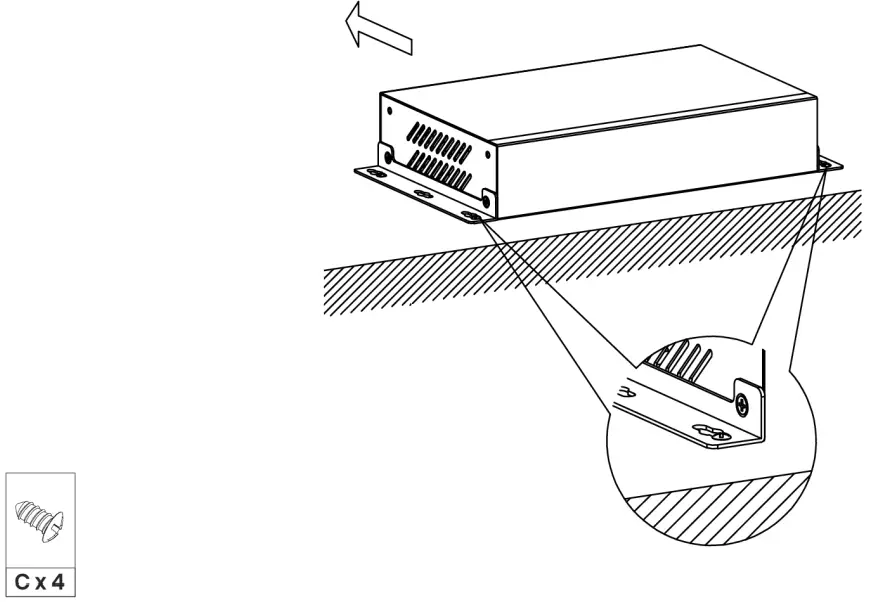
Step 3: Move HUS03-4K6G in a parallel direction until it gets fixed
Troubleshooting
If no videos are shown after connecting all cables and power, please follow the EDID configuration instruction or refer to the charts below to change your TV resolution to a supported one.
Resolution
DCI Standard
| UHD/HD/SD | Resolution | Refresh Rate (Hz) | ||
| 4096 x 2160p DCI | 24 | 25 | 30 | |
| 50 | 60 | |||
| 3840 x 2160p UHD | 24 | 25 | 30 | |
| 50 | 60 | |||
| 1080p | 23.97 | 24 | 25 | |
| 29.97 | 30 | 50 | ||
| 59.94 | 60 | 120 | ||
| 1080i | 50 | 60 | ||
| 720p | 50 | 60. | 60 | |
| 576p | 50 | |||
| 480p | 59.94 | 60 | ||
| 480i | 60 | |||
VESA Standard
| VESA | Resolution | Refresh Rate (Hz) | ||
| 2560 x 1600 | 60 | |||
| 2560 x 1440 | 60 | |||
| 2048 x 1280 | 60 | |||
| 2048 x 1152 | 60 | |||
| 1920 x 1440 | 60 | 75 | ||
| 1920 x 1200 | 50 | 60 | ||
| 1920 x 1080 | 60 | |||
| 1856 x 1392 | 60 | 75 | ||
| 1792 x 1344 | 60 | 75 | ||
| 1680 x 1050 | 60 | |||
| 1600 x 1200 | 50 | 60 | 65 | |
| 70 | 75 | |||
| 1600 x 1024 | 60 | |||
| 1600 x 900 | 60 | |||
| 1440 x 960 | 72 | |||
| 1440 x 900 | 60 | 75 | 85 | |
| 1440 x 788 | 60 | |||
| 1400 x 1050 | 60 | |||
| 1400 x 788 | 60 | |||
| 1366 x 768 | 60 | |||
| 1360 x 768 | 60 | |||
| 1280 x 1024 | 60 | 75 | 85 | |
| 1280 x 960 | 60 | 85 | ||
| 1280 x 800 | 60 | 75 | 120 | |
| 1280 x 768 | 60 | 75 | 120 | |
| 1152 x 870 | 75 | |||
| 1152 x 864 | 75 | |||
| 1024 x 768 | 60 | 70 | 75 | |
| 1024 x 576 | 60 | |||
| 852 x 480 | 60 | |||
| 848 x 480 | 60 | |||
| 832 x 624 | 75 | |||
| 800 x 600 | 56 | 60 | 72 | |
| 75 | 85 | 120 | ||
| 720 x 400 | 70 | 85 | ||
| 640 x 480 | 60 | 75 | 85 | |
User Manual
HUS03-4K6G
Smart Cabling & Transmission Corp.
V1.0
RoHS